---
updatedAt: 2026-10-09T08:57:06.000Z
agentTools:
projectIndex: https://help.zluri.com/llms.txt
---
# Connect
Connect Azure AD (Machine to Machine) to Zluri
## Prerequisites
* **Cloud Application Administrator** or higher privileges in Azure AD
* Any Microsoft Entra ID subscription
> 🚧
>
> If you wish to use the **Audit Log** scope in Zluri, you'll need an **Entra ID P1** or **Entra ID P2** subscription
## Integration steps
### Register a new application in Azure AD
1. [Log in](https://aka.ms/MSEntraPortal) to the Entra ID portal.
2. Navigate to **Identity** → **Applications** → **App registrations** and select **New registration**.
3. Give your app a name and choose **Accounts in this organizational directory only**.
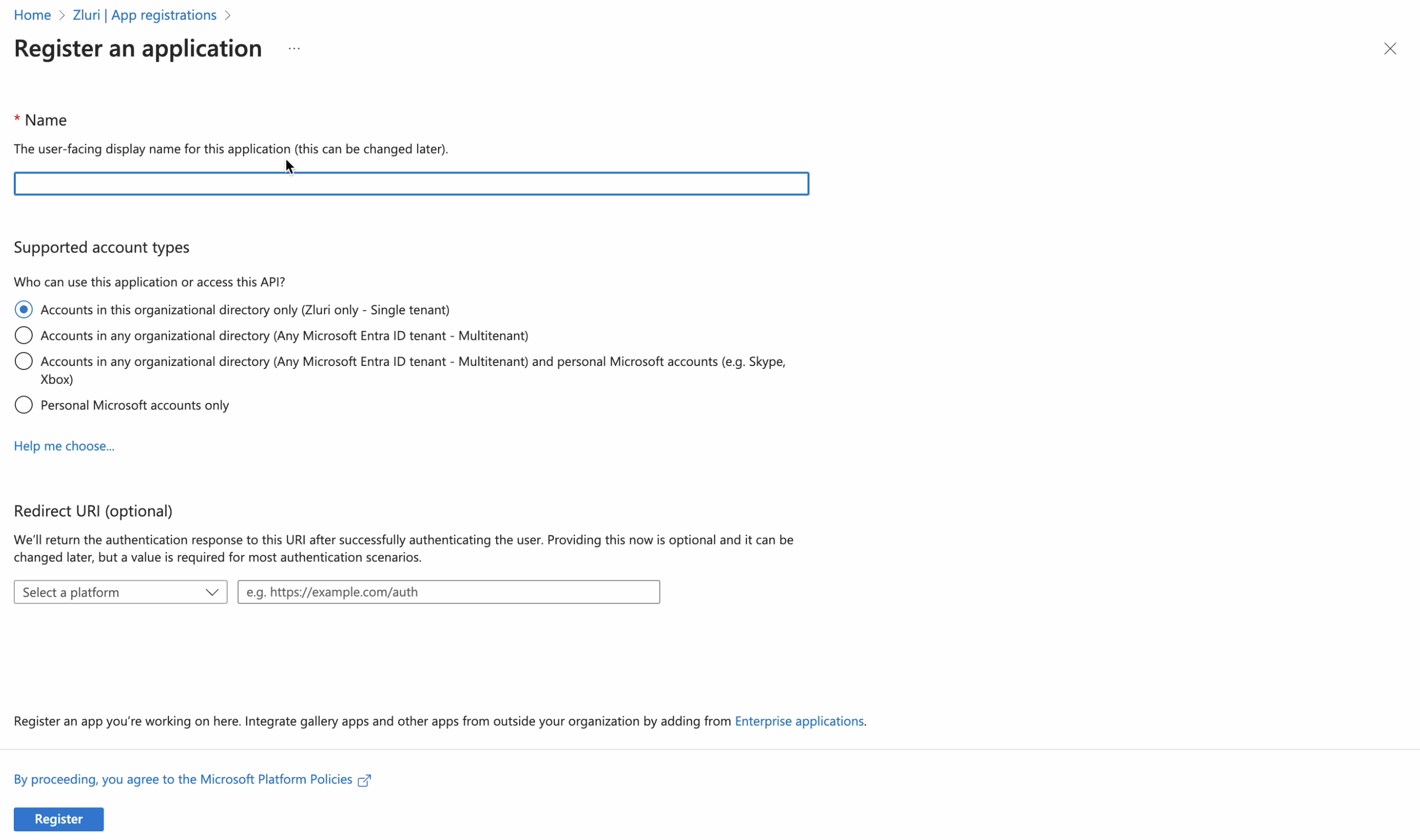
4. Click **Register**.
### Create client secret
1. Navigate to **Certificates & secrets** → **Client secrets** and click ➕ **New client secret**.
2. Give the secret a name and set an expiry date. Click **Add**.
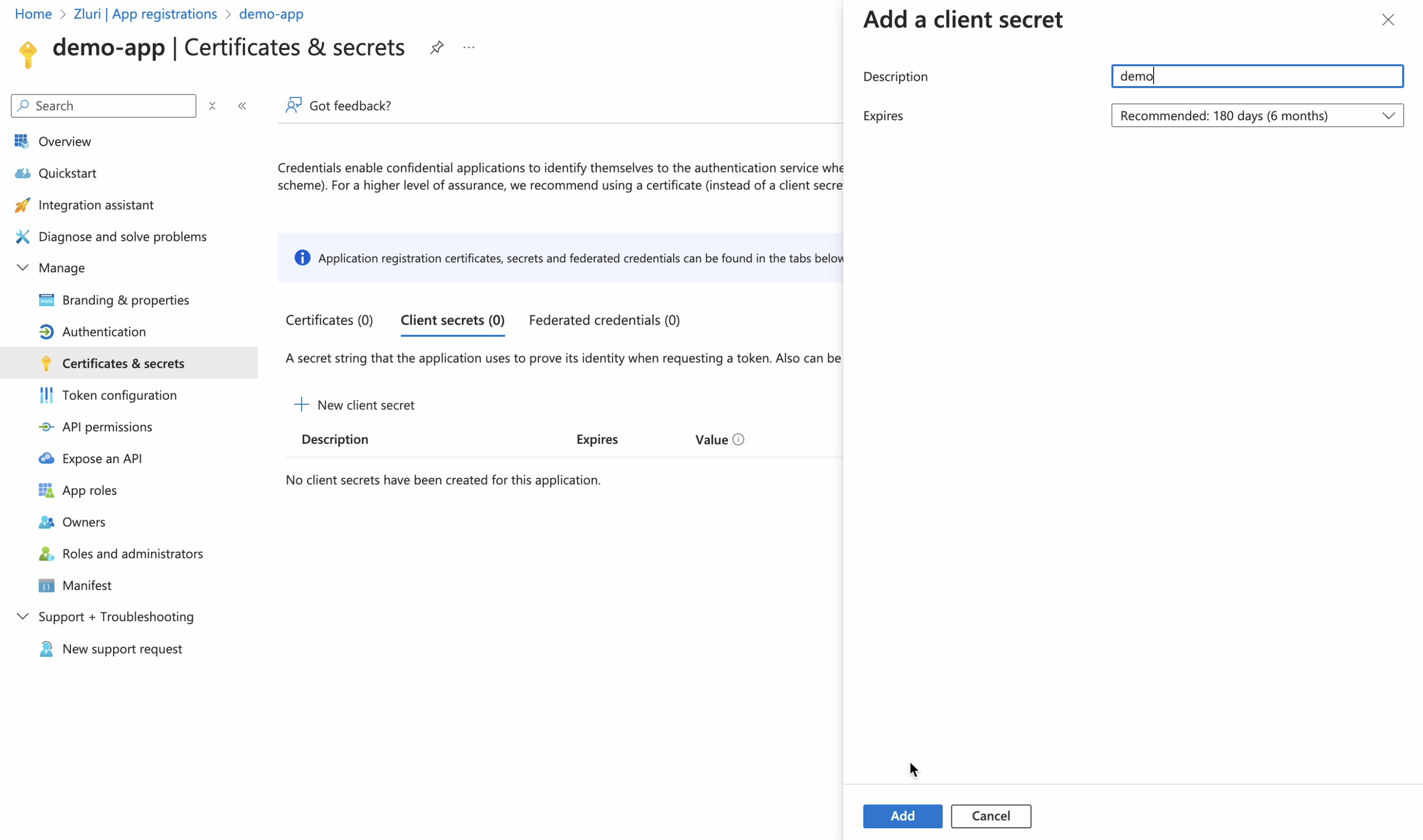
3. Copy and securely store the string under the **Value** column. We will later use this string as the **Client Secret** while connecting.
### Add API permissions
1. Navigate to **API permissions** and add the following **Application permissions** :
1. `AuditLog.Read.All`
2. `Directory.Read.All`.
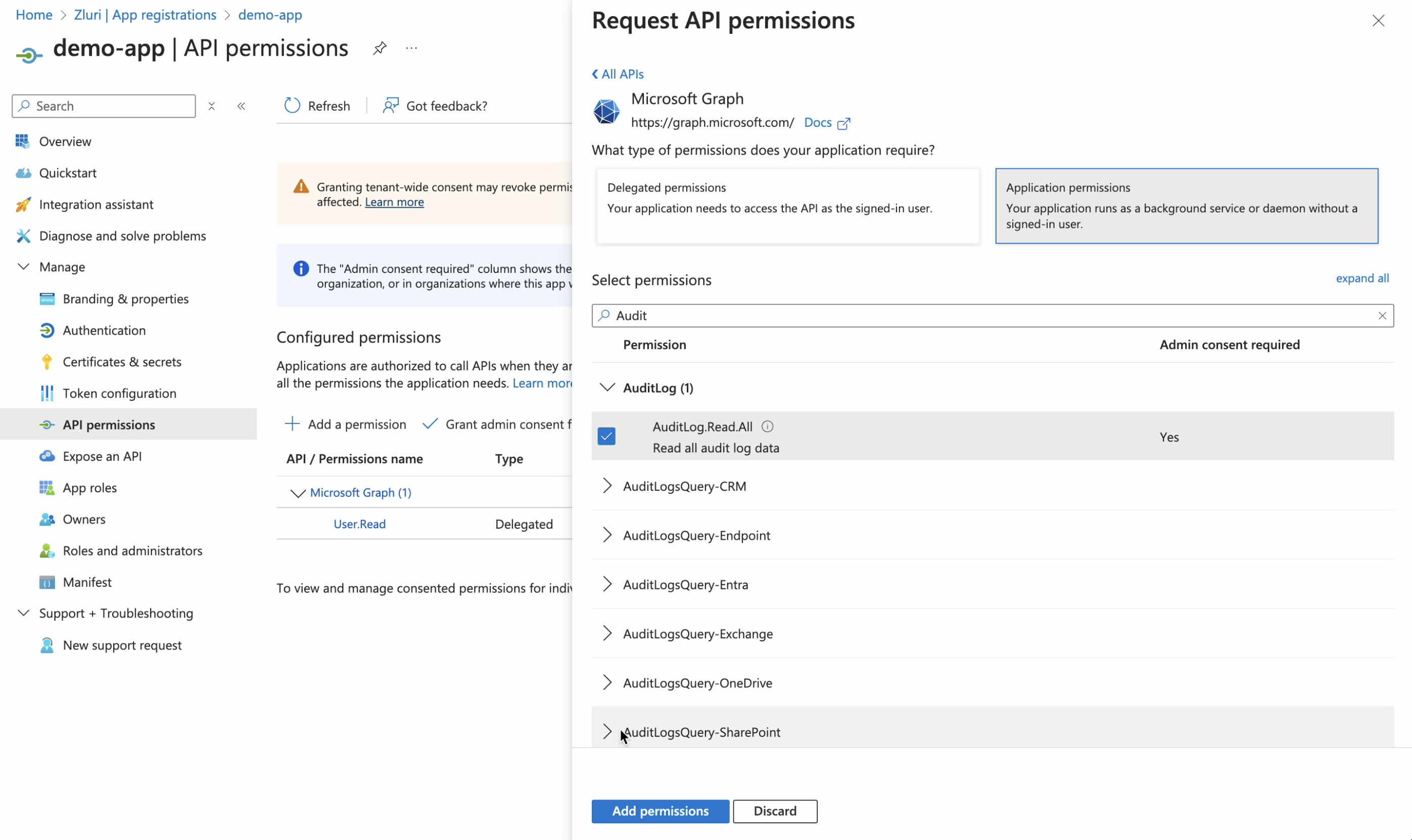
These permissions enable only the _required_ scopes for connecting with Zluri (_Read Directory_ and _Read Reports_)—they don’t enable audit logs and workflows-related features such as onboarding and offboarding.
To fine-tune features, see the [full list of Zluri scopes and corresponding Azure AD API permissions](https://help.zluri.com/docs/azure-m2m-scopes-mapping).
2. Click **Add permissions**.
3. Click **Grant admin consent**, then click **Yes** to confirm.
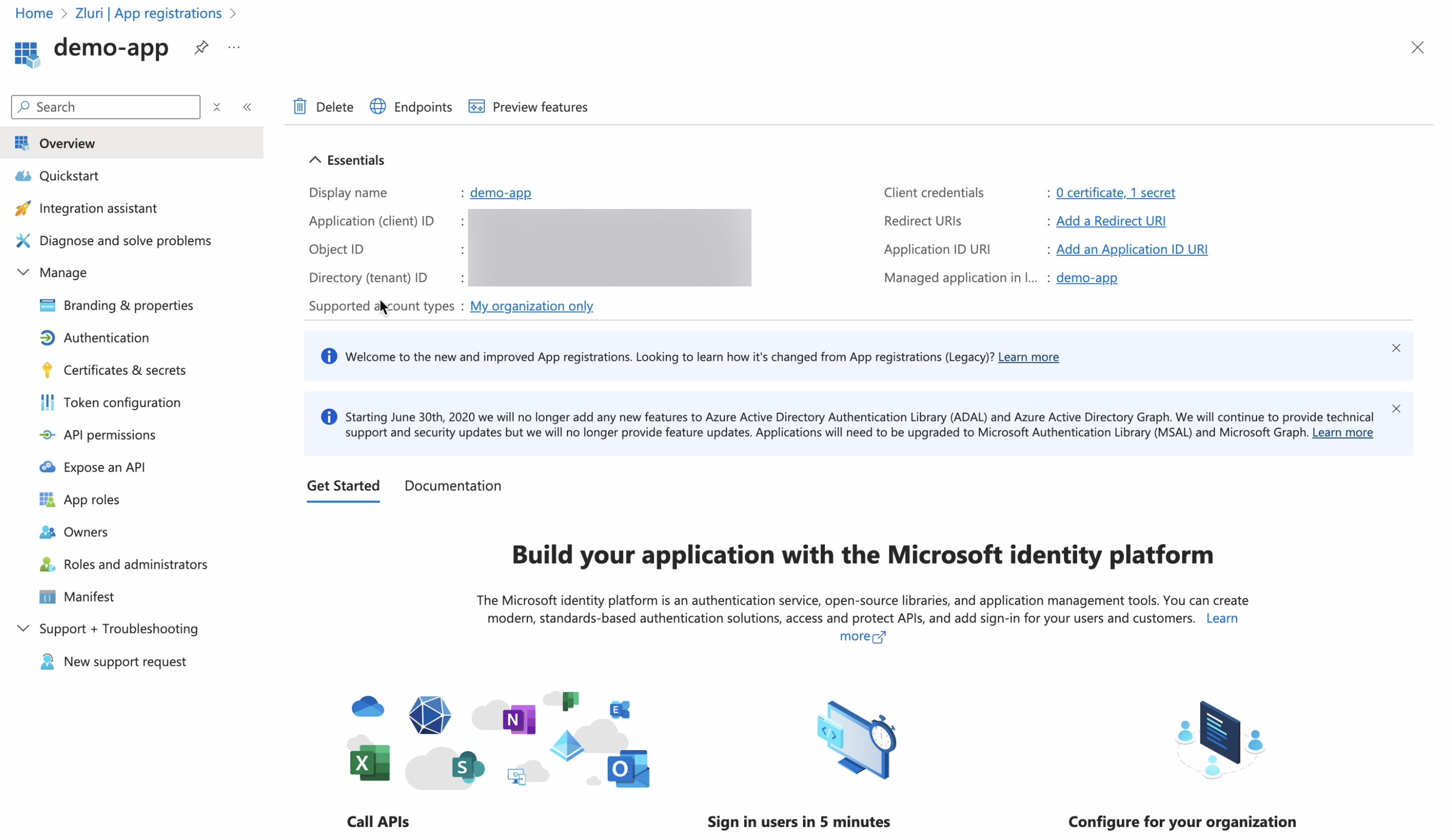
4. Navigate to the **Overview** page. It will display the **Application (client) ID**, and **Directory (tenant) ID**. Keep these two handy for the next steps.
### Unhide user details in Azure AD
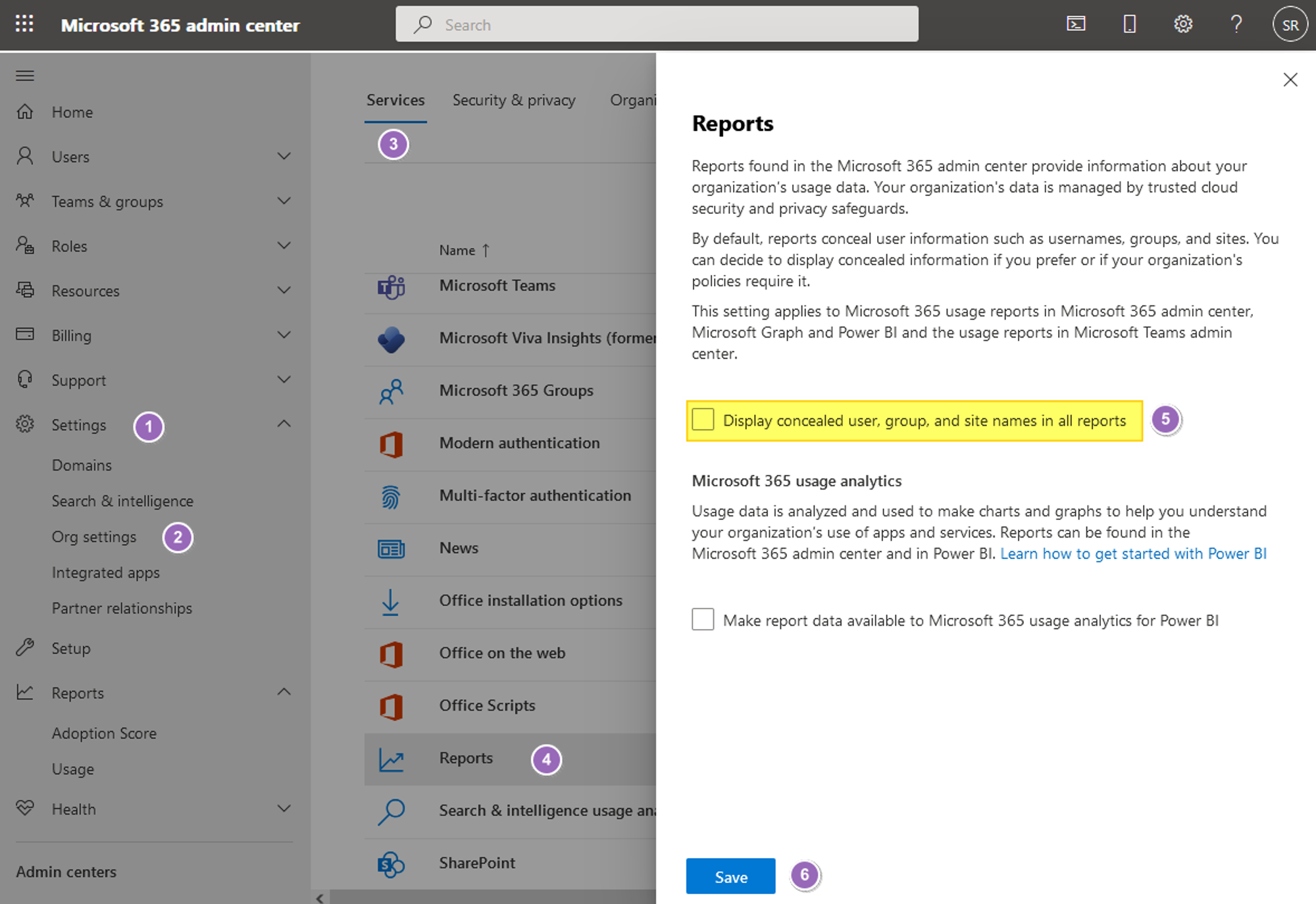
By default, user details are hidden for all Microsoft reports. You need to unhide them manually in the admin dashboard so that Zluri can access it:
1. Visit [Admin Center](https://entra.microsoft.com/), and navigate to **Settings** → **Org Settings** → **Services**. Select **Reports**.
2. *Uncheck* the **Display concealed user, group, and site names in all reports** checkbox, then save your changes.
### Connect the Azure AD (Machine to Machine) instance in Zluri
1. Open the [Integrations Catalog](https://app.zluri.com/integrations/catalog), search for “azure”, and click ➕ **Connect** under **Azure AD (Machine to Machine)**.
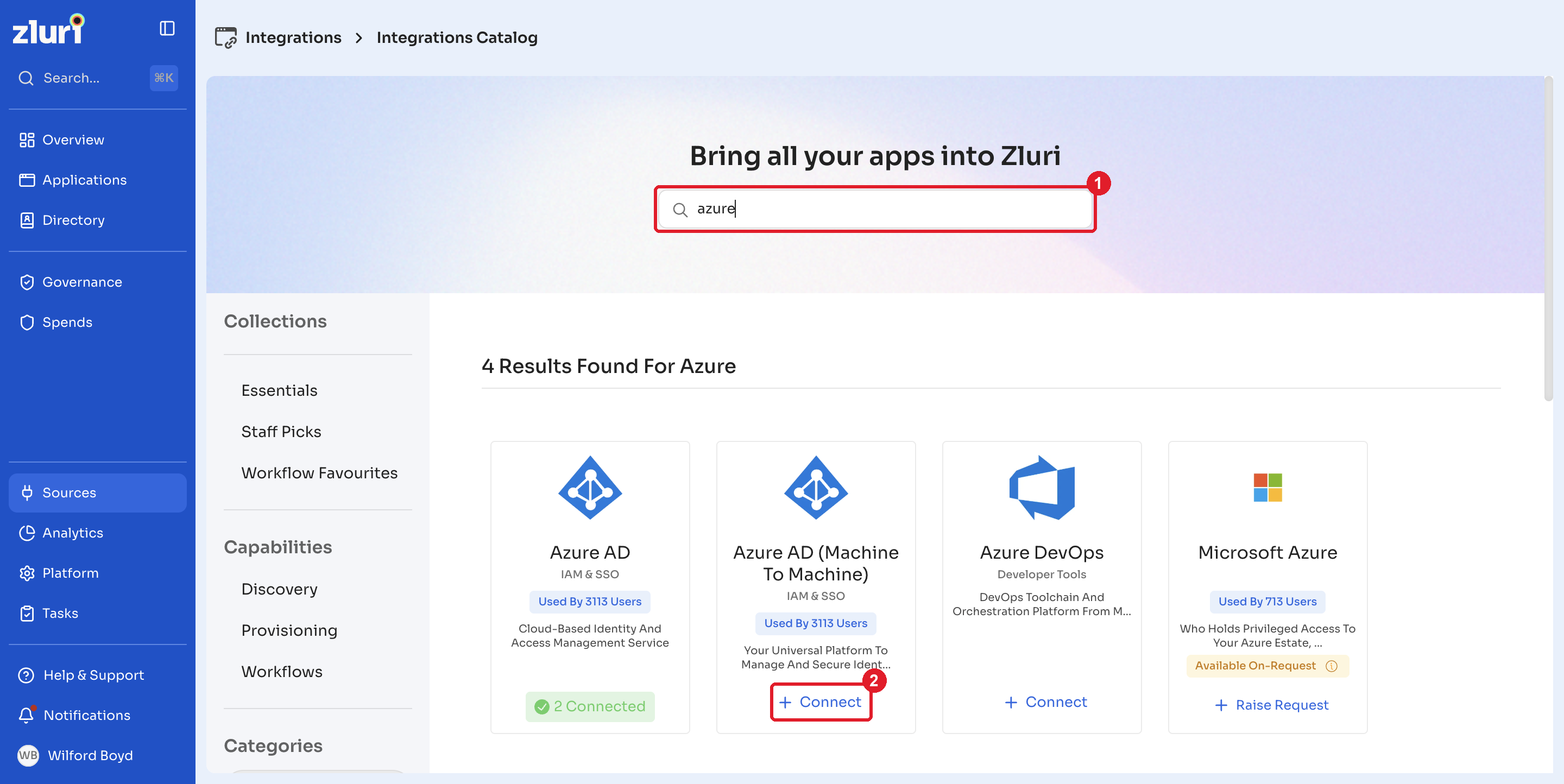
2. Select the scopes you wish to add and click **Continue**. You can click the down-arrow button towards the right of a scope to find out what it does.
Some optional scopes need additional permissions beyond those in the [Add API permissions](#add-api-permissions) section. See [this document](https://help.zluri.com/docs/azure-m2m-scopes-mapping) for the full mapping of Zluri scopes to Azure API permissions.
3. Fill out the entries as follows:
1. **Client ID**: Value of **Application (client) ID** shown on the **Overview** page
2. **Client Secret**: The string under the **Value** column obtained while [creating the client secret](#create-client-secret)
3. **Tenant ID**: Value of **Directory (tenant) ID** shown on the **Overview** page
4. Click **Connect**, give the connection a name and description, and you’re ready to go!
> ## Important Note for Recently Created Entra/Microsoft Tenants
>
> If you are connecting a new Microsoft Entra tenant (created within the past 48 hours), please note:
>
> * It may take up to **48 hours** after tenant creation for Entra to generate usage reports data.
> * During this initial period, requests to the **Reports APIs** may fail.
> * All other scopes and data—such as **Users**, **Groups**, **Group Members**, **Applications**, **Licenses/SKUs**, and **Audit Logs**—will function as expected.
> * Reports data will only become available after Microsoft finishes initializing the new tenant.
>
> ### Instructions
>
> 1. You can proceed with connecting your tenant to Zluri right away.
*Exclude the “read reports” scope; all other data will sync successfully.*
> 2. Wait at least **48 hours** after tenant creation before enabling the **“read reports”** permission.
> 3. Once this time has passed, add the **“read reports”** permission, and then re-connect the integration with Zluri.
> 4. If you're still facing issues, please contact **Zluri Support**.
Got questions? Feel free to [submit a ticket](https://support.zluri.com/support/tickets/new) or contact us directly at .