---
updatedAt: 2025-09-09T21:41:21.000Z
agentTools:
projectIndex: https://help.zluri.com/llms.txt
---
# Connect
Connect Site24x7 to Zluri
## Prerequisites
* **Owner** or **Administrator** privileges in Site24x7
## Integration steps
1. [Log in](https://accounts.zoho.com/signin?servicename=Site24x7\&serviceurl=https%3A%2F%2Fwww.site24x7.com%2Flogin%2Fsuccess.jsp\&portal_name=Site24x7\&signupurl=https%3A%2F%2Fwww.site24x7.com%2Fsignup.html%3Fpack%3D44%26l%3Den\&service_language=en) to your Site24x7 account.
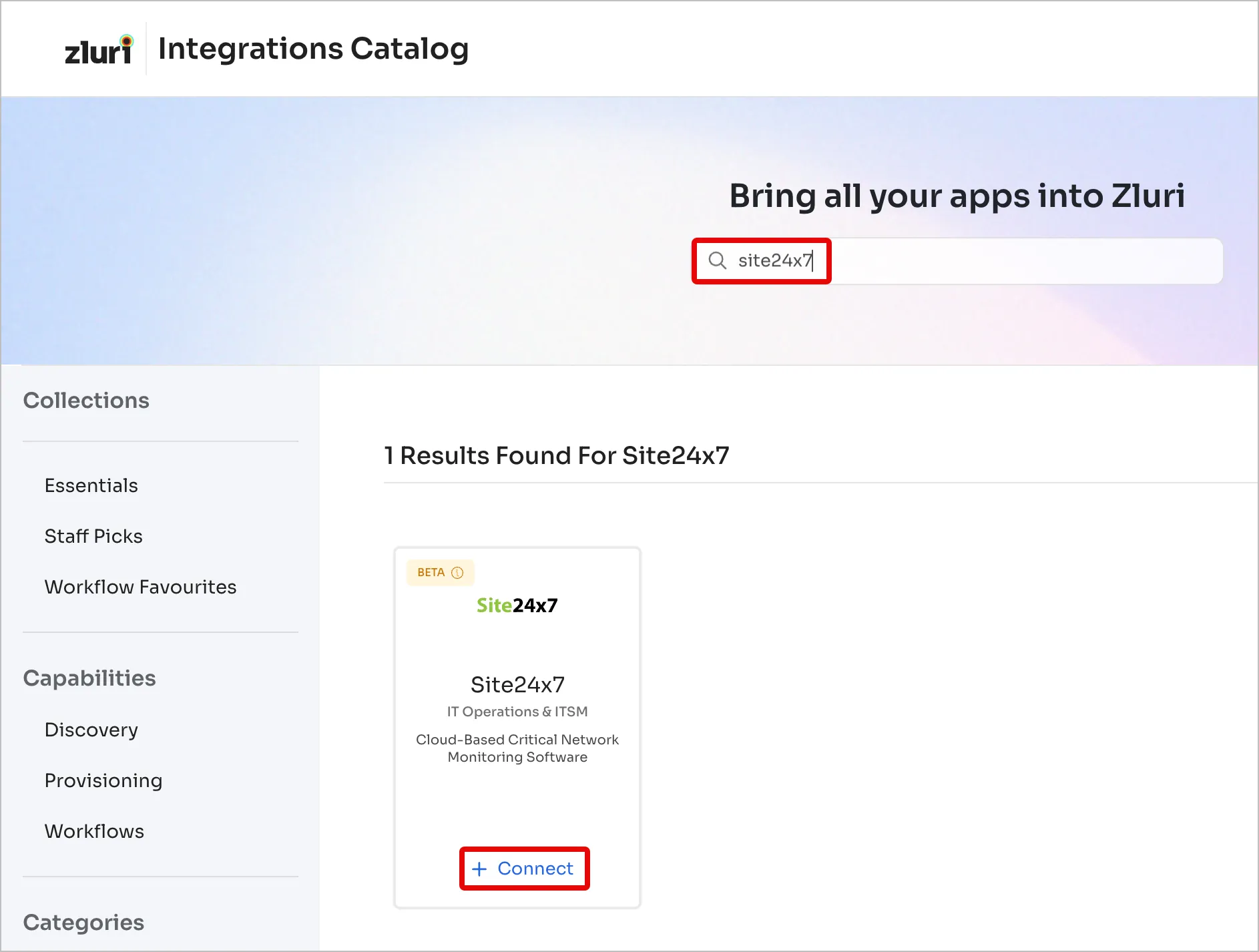
2. Open Zluri’s [Integrations Catalog](https://app.zluri.com/integrations/catalog), search for “site24x7”, and click **➕ Connect**.
3. Choose the scopes for the integration, and click **Connect it myself**. You can click the down-arrow button towards the right of a scope to learn what it does.
4. Approve the connection in the Site24x7 popup window.
5. Give the connection a name and description, and you’re ready to go!
Got questions? Feel free to [submit a ticket](https://support.zluri.com/support/tickets/new) or contact us directly at .