---
updatedAt: 2025-09-09T21:41:34.000Z
agentTools:
projectIndex: https://help.zluri.com/llms.txt
---
# Connect
Connect Splunk Cloud to Zluri
## Prerequisites
* **Admin** privileges in Splunk
* Splunk **Advance** or **Premier** subscription
## Integration steps
### Connect the Splunk instance in Zluri
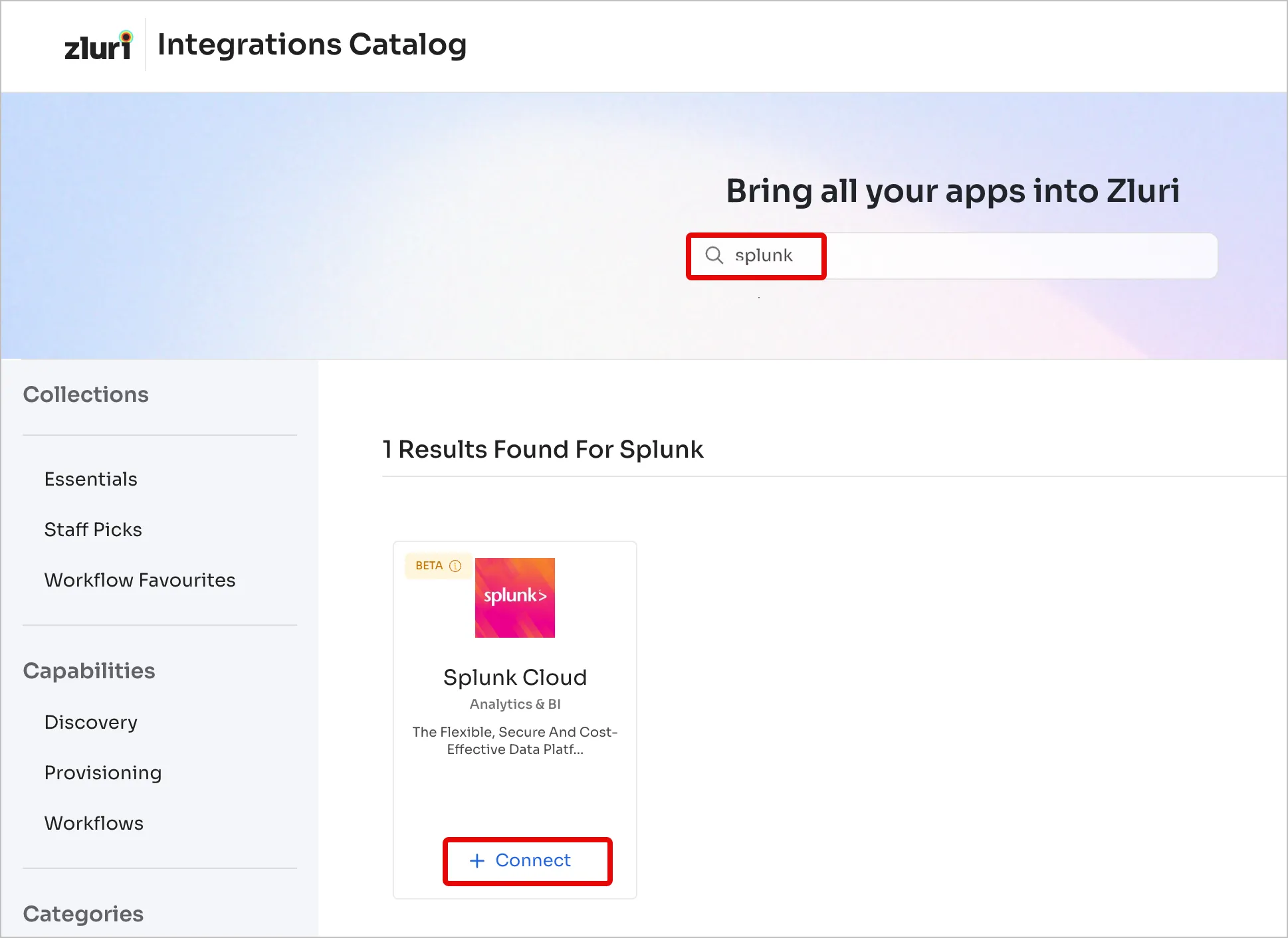
1. Open the [Integrations Catalog](https://app.zluri.com/integrations/catalog), search “splunk”, and click **➕ Connect**.
2. Click **Connect it myself**. You can click the down-arrow button towards the right of a scope to learn what it does.
3. Fill out the fields as follows:
#### Host
Your Splunk hostname, usually something like `splunk.yourcompany.com`. If unsure, verify it in **Settings** → **Server Settings** → **Network Settings**.
#### M-Port
`8089` by default. If unsure, verify it in **Settings** → **Server Settings** → **Network Settings**.
#### Stack
The unique identifier for your Splunk Cloud instance ID, found in the Splunk Cloud URL (`https://sui-p-0lkm9.splunkcloud.com` in this case).
#### Username and password
The username and password for your Splunk **Admin** account.
4. Click **Connect**, give the connection a name and description, and you’re ready to go!
Got questions? Feel free to [submit a ticket](https://support.zluri.com/support/tickets/new) or contact us directly at .