---
updatedAt: 2025-09-09T21:38:24.000Z
agentTools:
projectIndex: https://help.zluri.com/llms.txt
---
# Connect
Connect Confluence to Zluri
## Prerequisites
* **Administrator** privileges in Confluence
* Confluence **Free**, **Standard**, **Premium**, or **Enterprise** subscription
## Integration steps
### Generate API token in Confluence
1. Go to the [API Tokens](https://id.atlassian.com/manage-profile/security/api-tokens) section and click on **Create API token**.
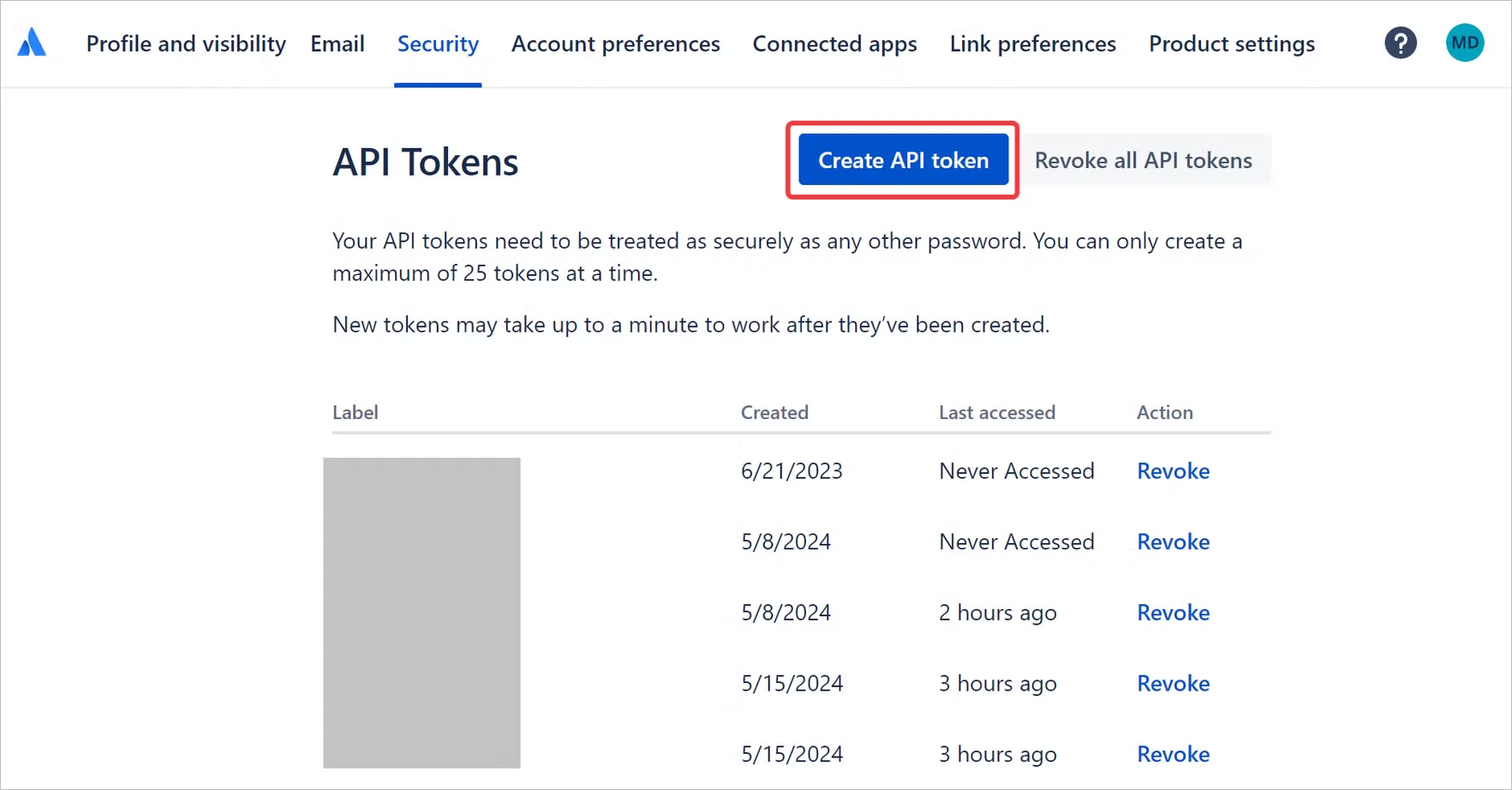
2. Choose a descriptive name for the new integration, then copy and store the newly generated API token.
### Connect the Confluence instance in Zluri
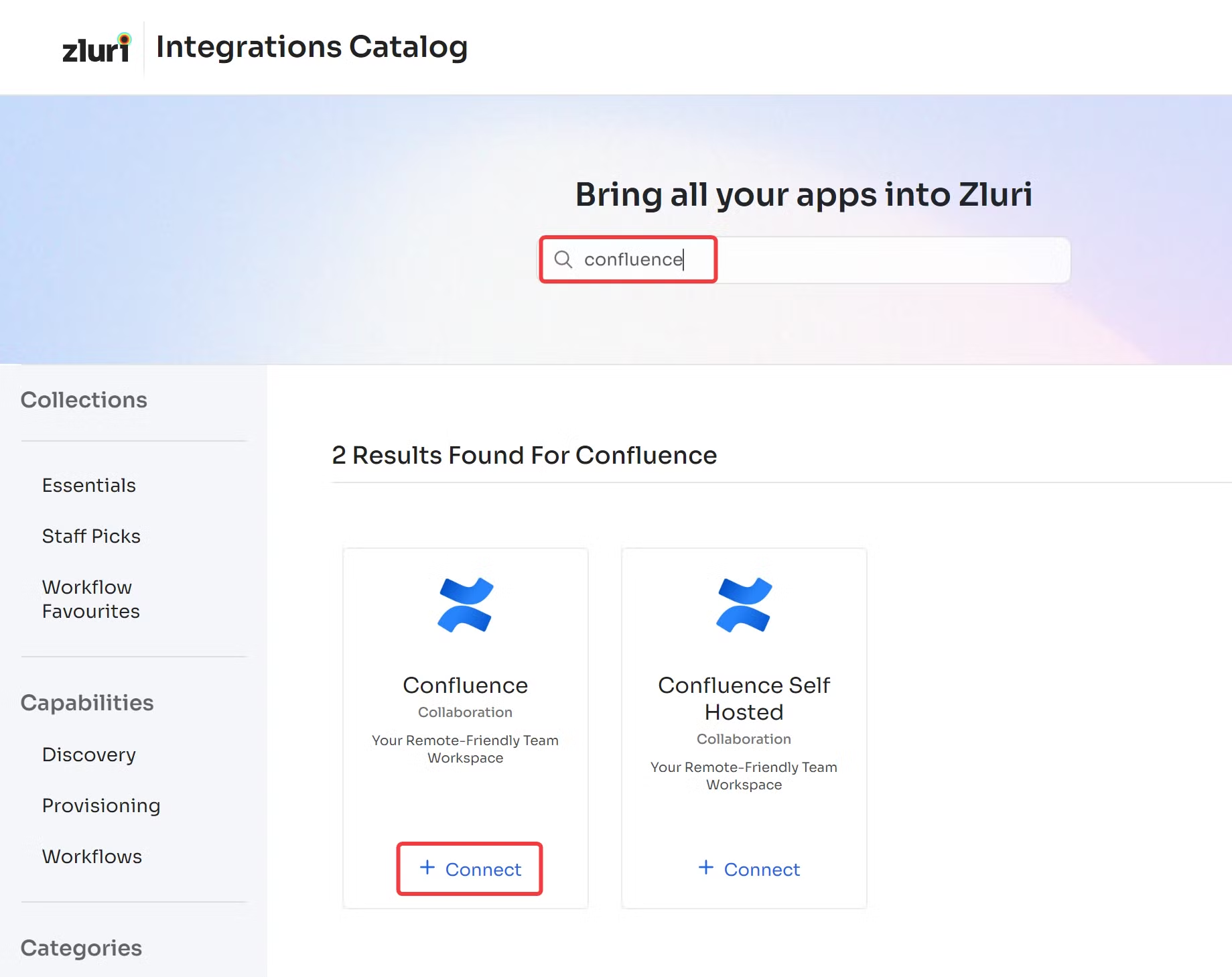
1. Open the [Integrations Catalog](https://app.zluri.com/integrations/catalog)**,** search for “confluence”, and click **➕ Connect**.
2. Choose the scopes for the integration, and click **Continue**. You can click the down-arrow button towards the right of a scope to find out what it does.
3. Fill in the Confluence account’s email address, the generated API token, and the organization’s Atlassian base URL, usually `https://.jira.com/` or `https://.atlassian.net/`. You can find this URL in Confluence’s [Product settings](https://id.atlassian.com/manage-profile/products).
4. Click **Connect**, and you’re ready to go!
Got questions? Feel free to [submit a ticket](https://support.zluri.com/support/tickets/new) or contact us directly at .