---
updatedAt: 2026-08-31T07:14:03.000Z
agentTools:
projectIndex: https://help.zluri.com/llms.txt
---
# Create an access certification
Access certifications let you configure and launch access review campaigns from the **Access Reviews** module. Each certification defines a set of entities to review, along with the population to review, reviewers, data visibility, and remediation actions.
Certifications support one-time and recurring schedules. Save a certification as a draft at any step and resume it later.
### **Known Accounts availability**
**Known Accounts** reviews are available to all organisations with Accounts and Instances enabled. The **Known Accounts** option appears automatically in the certification creation wizard and doesn't require additional setup.
**Known Accounts** reviews coexist with existing reviews. Creating an account-level certification doesn't affect your existing certifications. Choose whichever path fits your audit goal.
## When to use each review type
Choose the entity type and review access option based on what you want to review.
| Entity type | Review access across | Use when | Example |
| ------------ | -------------------- | ------------------------------------------------------------------------------------------------------------------------------------- | ----------------------------------------------------------------------------------------------------------------------------- |
| Applications | App Users | Reviewing which users have access to a specific application | Quarterly Okta review or annual Salesforce certification |
| Applications | Known Accounts | Reviewing all individual accounts in an application, including service accounts, orphaned accounts, and accounts with no active owner | Auditing all Salesforce accounts to find dormant or privileged accounts, or reviewing service accounts and API keys in GitHub |
| Groups | — | Reviewing membership in a specific group | Active Directory group cleanup or Okta group certification |
| Users | Applications | Reviewing the access held by specific users across applications | Contractor reviews, post-project cleanup, or access reviews after internal role changes |
| Users | Groups | Reviewing which groups specific users belong to | Reviewing group memberships after a team reorganisation or role change |
| Users | Known Accounts | Reviewing the individual accounts held by specific users across one or more applications | Manager-led review of a team's accounts on Okta or Salesforce to confirm that each account is still appropriate |
## Configure certification details
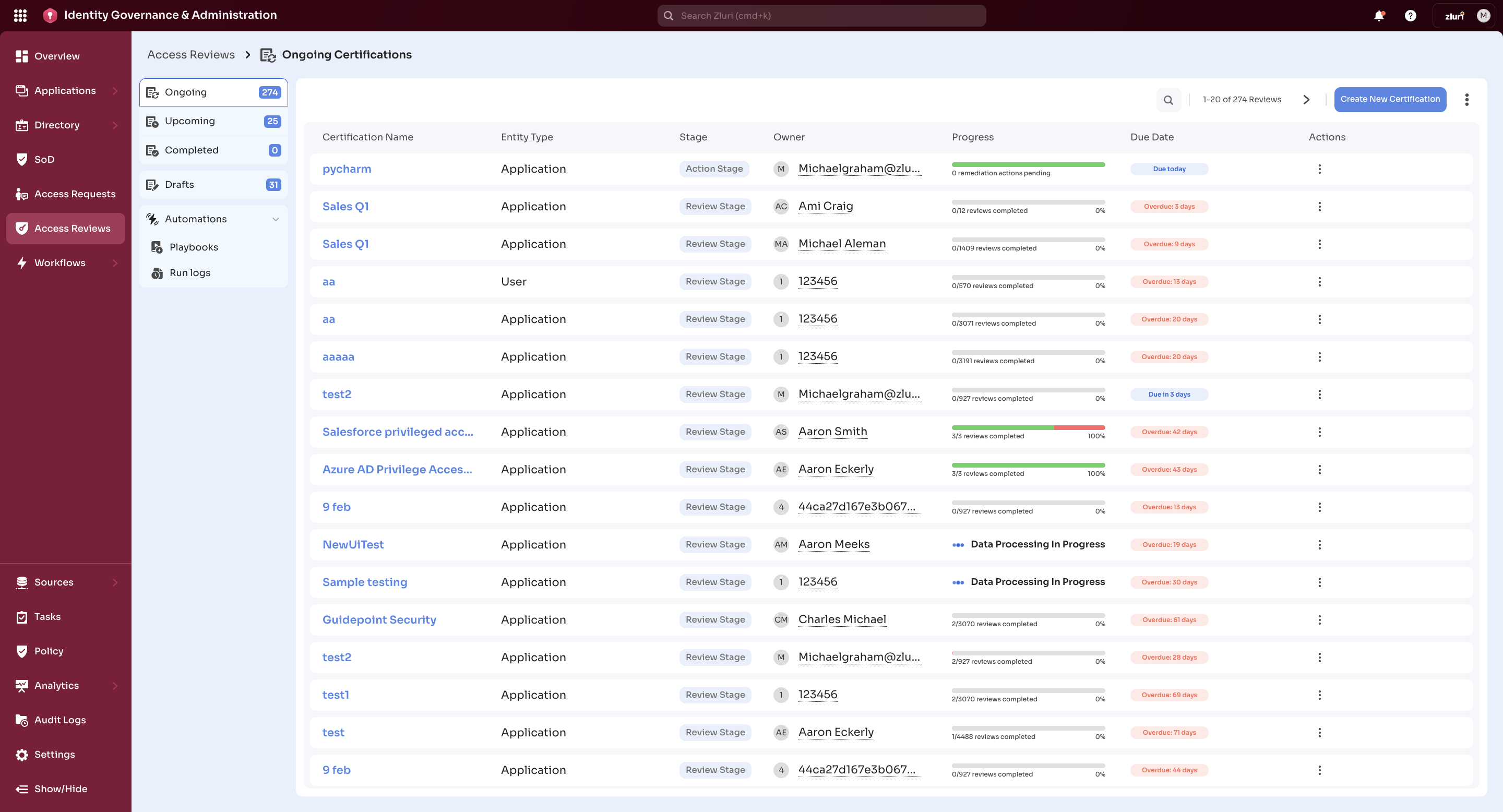
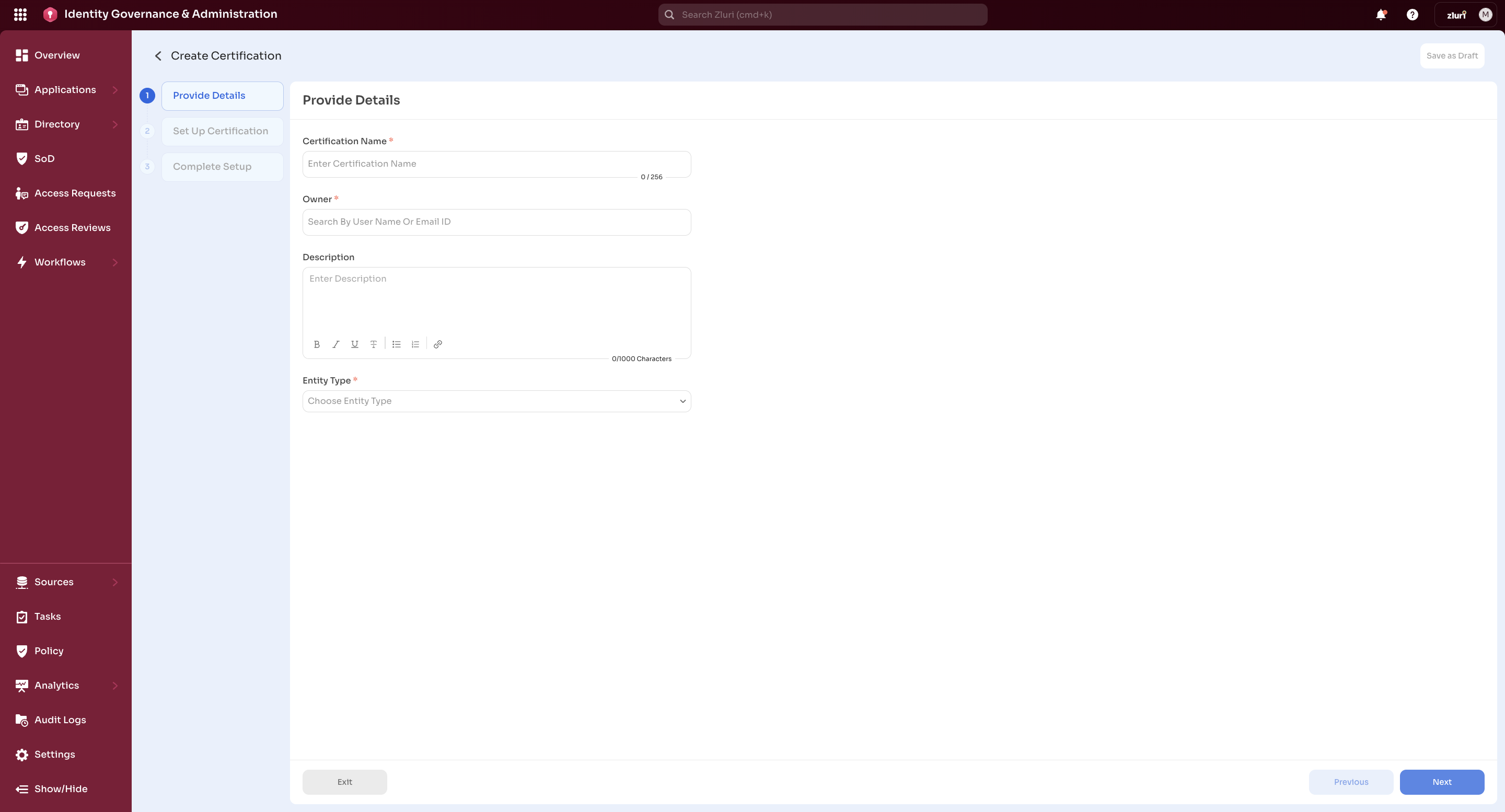
Navigate to **Access Reviews** in the left sidebar and select **Create New Certification** in the top-right corner. A configuration wizard opens with three steps: **Provide Details**, **Set Up Certification**, and **Complete Setup**.
### Steps
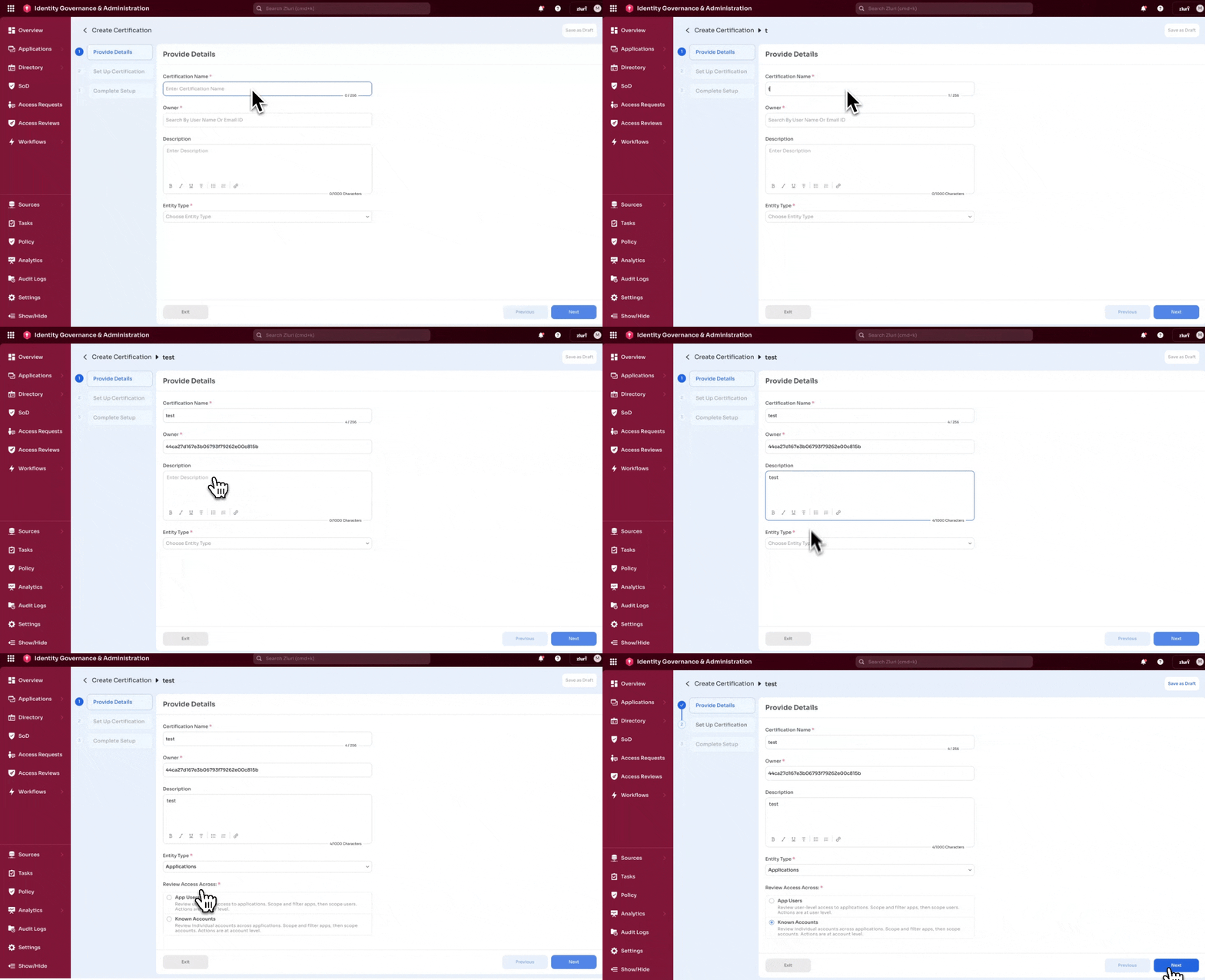
1. Enter a **Certification Name**.
2. Assign a **Certification Owner**. Owners must have Owner, Admin, or IT Admin privileges.
3. Optionally add a **Certification Description**. The description field supports rich text and links. For example, link to a knowledge base article with review process guidelines, or an access matrix that reviewers can reference while making decisions.
4. Select the **Entity Type**: **Applications**, **Groups**, or **Users**.
5. If you selected **Applications** or **Users**, select an option under **Review Access Across**.
If you selected **Applications**, the available options are:
* **App Users**: review user-level access to applications. Scope and filter apps, then scope users. Actions are at user level.
* **Known Accounts**: review individual accounts across applications. Scope and filter apps, then scope accounts. Actions are at account level.
If you selected **Groups**, the wizard skips directly to group scoping.
If you selected **Users**, the available options are:
* **Applications**: review which applications the selected users have access to. Actions are at user level.
* **Groups**: review which groups the selected users belong to.
* **Known Accounts**: review individual accounts across applications. Scope and filter apps, then scope accounts. Actions are at account level.
6. Select **Next** to continue.
## Set up the certification
The **Set Up Certification** step contains scoping, reviewer assignment, and override configuration. The sections that appear and their order depend on the entity type and review subject you selected.
The following table shows which scoping steps apply to each review type.
| Entity type | Review access across | Scoping order |
| ------------ | -------------------- | --------------------------------------- |
| Applications | App Users | Scope Applications, then Scope Users |
| Applications | Known Accounts | Scope Applications, then Scope Accounts |
| Groups | — | Scope Groups, then Scope Users |
| Users | Applications | Scope Users, then Scope Applications |
| Users | Groups | Scope Users, then Scope Groups |
| Users | Known Accounts | Scope Users, then Scope Accounts |
After the scoping steps, all review types follow the same **Set Defaults**, **Configure Overrides**, and **Validate** steps.
## Scope applications
This step applies to application-based reviews (**App Users** and **Known Accounts**) and is the first scoping step for those review types. For user-based **App Users** reviews, this step follows user scoping.
The **Scope Applications** panel lists the applications included in the certification. Define the scope by selecting applications individually or by criteria.
### Steps
1. Select applications using one of the following methods:
* **Add specific applications**: search and select applications by name. Use this option when you already know which applications are relevant to the review.
* **Add applications by criteria**: define scope using filters such as application type, category, restricted status, or archive status. Use this option when you want to review a class of applications rather than selecting each one manually.
2. Optionally exclude specific applications or applications matching criteria.
3. Select **Preview** to view the final set of applications included after applying filters.
## Scope groups
This step applies to group-based reviews and is the first scoping step for that review type.
The **Scope Groups** panel lists the groups included in the certification. Define the scope by selecting groups individually or by criteria.
### Steps
1. Select groups using one of the following methods:
* **Add specific groups**: search and select groups by name. Use this option when you already know which groups are relevant to the review.
* **Add groups by criteria**: define scope using filters such as group type or category. Use this option when you want to review a class of groups rather than selecting each one manually.
2. Optionally exclude specific groups or groups matching criteria.
3. Select **Preview** to view the final set of groups included after applying filters.
## Scope users
For application-based and group-based reviews, this section follows resource scoping and defines which users Zluri includes in the review of those resources. For user-based reviews, this is the first scoping section and defines the people whose access the certification covers.
The **Scope Users** panel defines which users Zluri includes in the review.
### Steps
1. Select users using one of the following methods:
* **Add specific users**: add users individually by name. Use this option for small, targeted reviews, such as reviewing access for a project team or users identified during a security investigation.
* **Add users by criteria**: define a user population with attribute-based criteria. Filters include default attributes such as department, employment status, and location, and account-level attributes such as app roles, licenses, and last login. Use this option for larger reviews that target a category of users, such as contractors, external employees, or a specific department.
2. Optionally exclude specific users or users matching criteria. For example, include all external users but exclude users in a specific country if another team manages that population.
3. Select **Preview** to verify the number of users included. The preview updates as you add or change inclusion and exclusion rules. For user-based certifications, switch between users in the preview to inspect each user's review scope before continuing.
## Scope accounts
This step applies to **Known Accounts** reviews: the application-based path (**Applications** → **Known Accounts**) and the user-based path (**Users** → **Known Accounts**). For the application-based path, this step follows application scoping. For the user-based path, this step follows user scoping.
The **Scope Accounts** panel defines which accounts Zluri includes in the certification. Define the scope by adding accounts by criteria or by selecting specific accounts.
### **Account-level actions**
Review actions in a **Known Accounts** certification target the individual account record, not the user. If a user holds multiple accounts on the same application, revoking one account's access removes only that account. Their other accounts, and their overall access to the application through those accounts, stay intact.
### Steps
1. Select accounts using one of the following methods:
* **Add accounts by criteria**: filter accounts using one or more filter groups. Combine filters across groups using AND logic within a criteria set, and add multiple criteria sets using OR logic between them. Use this option when you want to scope a class of accounts, for example all active service accounts in Salesforce, all accounts with privileged roles, or all accounts not linked to an active user.
* **Add specific accounts**: search by the name of the linked user (the user the account is linked to) to get all accounts belonging to that user. Use this option when you already know which specific accounts to review and don't need to filter by account attributes.
2. Select **Preview** to verify the accounts included. The preview shows four columns: Account, Email, Status, and Linked User.
The filter groups and their available filters appear below. The combination available to you depends on the type of review you're creating.
**Account Attributes**
| Filter | Type |
| ------------------- | --------------------------------------------------- |
| Account | Dynamic string (contains / does not contain) |
| Account Email | String |
| Account Status | Multi-select: Active, Inactive, Suspended |
| Account Type | Multi-select: Service, API, Group, Employee, Shared |
| Has Privileged Role | Boolean |
| Sources | Sources |
| App Instance | Dynamic |
| Assigned Licenses | Licenses held by the account |
| Assigned Roles | Roles assigned to the account |
**App Attributes**
| Filter | Type |
| ------------------- | -------------------------------------------- |
| Application | Dynamic (cascades to App Instance) |
| App Instance | Dynamic |
| Application Archive | Boolean (default: off) |
| App Owner | Dynamic |
| App Category | Dynamic |
| Application Type | Multi-select: Managed, Unmanaged, Restricted |
| Application Status | Multi-select |
**App Custom Fields**
Available when you've configured custom fields for applications.
**Linked User Attributes**
Filters based on the user the account is linked to.
| Filter | Type |
| ----------------- | ------------ |
| User | Dynamic |
| User Status | Multi-select |
| Reporting Manager | Dynamic |
| Job Title | Dynamic |
| Department | Dynamic |
| Cost Centre | String |
| Business Unit | String |
## Set defaults
Configure default reviewer assignment, data visibility, and remediation actions that apply across all entities in the certification. Setting defaults is optional; configure individual overrides in the next step.
### Steps
1. Configure **Default Reviewers**.
* **Assign reviewers for applications**: select role-based or specific reviewers. Zluri supports multi-level reviews. Options include **App Owner** and **Reporting Manager**.
* **Assign reviewers for groups**: select role-based or specific reviewers. Options include **Reporting Manager** and **Department Head**.
2. Configure **Data Visibility**. Select which columns reviewers see during the review.
**For App Users reviews**, available columns include:
| Column | Description |
| ----------------- | ---------------------------------------------------------- |
| App Role | The role assigned to the user in the application |
| License Type | The license assigned to the user |
| Last Login | The date the user last logged in |
| Department | The user's department |
| Employment Status | Whether the user is an employee, contractor, or other type |
**For Known Accounts reviews**, available columns include:
| Column | Description |
| ----------------- | ----------------------------------------------------------------- |
| Application | The application the account belongs to |
| App Instance | The specific instance of the application |
| Account Status | The current status of the account: Active, Inactive, or Suspended |
| Assigned Licenses | Licenses held by the account |
| Assigned Roles | Roles assigned to the account |
| Sources | The integration sources that discovered this account |
Reorder columns to prioritise critical information.
3. Configure **Default Remediations**. Assign playbooks for revoke or modify actions.
> **Note:** You can only select global playbooks in this step. Application-specific or group-specific playbooks aren't available as defaults. To use a different playbook for a specific entity, configure it as an override in the next step.
Examples:
* Deprovision user access
* Modify access permissions
* Trigger notifications or tickets
For **Known Accounts** certifications, navigate to the playbook and add **Account** as a variable to configure remediations that act at the account level rather than the user level.
## Configure overrides
Override the default configuration for specific applications, groups, users, or accounts. Each entity can switch between the default configuration and a custom configuration. Entities with overrides appear marked as **Custom**.
### Steps
1. Select the entity to override.
2. Override any combination of the following settings.
| Setting | Description |
| -------------------------------------- | ----------------------------------------------------- |
| User scope (App Users reviews) | Narrow the user population for this entity |
| Account scope (Known Accounts reviews) | Narrow the account scope for this application |
| Reviewers | Assign a different reviewer for this entity |
| Data Visibility | Customise which columns reviewers see for this entity |
| Remediation Actions | Override the default playbooks for this entity |
Use overrides when a small number of entities need different handling without splitting the review into separate certifications. For user-based certifications, overrides apply per user. For example, assign a different reviewer for a specific user, or narrow the application or group scope for that user's review.
## Validate the configuration
Check the certification for configuration issues before proceeding to the final step.
### Steps
1. Select **Check Invalid Configurations**.
2. Review the identified issues. Common issues include:
* **Deleted or unpublished remediation playbooks**: a playbook assigned as a default or override no longer exists or is unpublished. Reassign a valid global playbook to resolve.
* **Inactive or removed reviewers**: a reviewer assigned at the default or override level is no longer active. Reassign to an active user or role.
* **Incomplete override configurations**: you switched an entity to **Custom** but haven't filled in required fields such as reviewers or remediation actions.
3. Resolve all issues before continuing.
## Complete setup and launch
### Steps
1. Choose when the certification starts:
* **Start Now**: Zluri launches the certification immediately. It appears under **Ongoing** and Zluri notifies reviewers to begin.
* **Start Later**: schedule for a future date. The certification appears under **Upcoming** and remains locked until the start date.
2. Set timelines:
* Set the **Review End Date**: the deadline for reviewers to complete actions.
* Set the **Remediation End Date**: the deadline for remediation tasks.
Zluri sends automated reminders to reviewers with pending actions before the review end date, and to the certification owner before the remediation end date.
3. Configure self-review handling. Select how to handle self-review records:
* **Allow Self Review**: reviewers can approve or revoke their own records.
* **Auto-Reassign**: Zluri reassigns self-review records to another role or user.
If you selected **Auto-Reassign**, choose a reassignment option.
| Option | Description |
| ------------------- | ------------------------------------------- |
| Reporting Manager | Reassigns to the user's reporting manager |
| Department Head | Reassigns to the user's department head |
| Certification Owner | Reassigns to the certification owner |
| Fallback Reviewer | Reassigns to a designated fallback reviewer |
| Specific user | Reassigns to a named user |
4. Optionally turn on **Recurring Certifications** and select a frequency such as monthly or quarterly.
5. Select **Create Certification** to finalise and launch, or select **Save Draft** to continue later.
## Common scenarios
The scenarios below show how each review type is used in practice.
### Application-based reviews — App Users
**Quarterly SaaS access review**
Run a quarterly review of access to a business-critical application such as Salesforce or GitHub. Create an application-based **App Users** certification, scope the application, define the user population (for example, all active employees), assign the **App Owner** or a designated reviewer, and schedule it to recur quarterly. This validates access on a regular cadence without requiring a manual process each time.
**Post-integration cleanup**
When a new application joins your environment, existing users may already have access provisioned as part of the rollout. Create an application-based certification to review who has access, what roles they hold, and whether that access remains appropriate now that the integration is live.
**Compliance-driven application certification**
When an audit program requires evidence that you've reviewed access to regulated applications such as an HRIS or financial system, create an application-based certification scoped to those applications, assign reviewers, configure remediations, and export the results as evidence after the review is complete.
### Application-based reviews — Known Accounts
**Full account audit for a business-critical application**
When you need to audit every account in Salesforce, including service accounts, accounts with no active owner, and shared credentials, create an application-based **Known Accounts** certification, scope Salesforce, and use the Insights bar to surface orphaned, privileged, and inactive accounts for prioritised review. Reviewers see each account's type, roles, and linked identity, and can revoke or modify access at the account level.
**Service account and API key governance**
When you need to identify and review all service accounts and API keys across integrated applications, create an application-based **Known Accounts** certification and filter accounts by **Account Type: Service** or **API** in the Account Attributes filter group. Assign the **App Owner** as the primary reviewer for all accounts in scope and configure a revoke or modify playbook for remediating inappropriate access.
**Post-offboarding stale account cleanup**
Users who leave the organisation may retain application accounts even after their user record is deactivated. Create an application-based **Known Accounts** certification and select the **Orphaned Accounts** insight chip to scope only accounts with no active linked user. Reviewers evaluate each orphaned account and revoke access for any that should no longer exist.
### User-based reviews — Known Accounts
**Manager review of team accounts**
As a manager, confirm that each member of your team holds only the accounts appropriate to their current role on Okta. Create a user-based **Known Accounts** certification, scope your team members in the Scope Users step, select Okta in the Scope Accounts step, and assign yourself as reviewer. You see a list of team members at the top level and drill into each person to review their individual accounts by application and instance.
**Account review after internal transfers**
When your team reorganises and several employees move to new roles, create a user-based **Known Accounts** certification for the affected users to evaluate the accounts they still hold from their previous role. This surfaces accounts that remain active but may no longer be appropriate, and lets reviewers revoke or modify access at the account level.
### Group-based reviews
**Active Directory or Okta group cleanup**
Groups accumulate members over time as people join projects, change roles, or move teams. Create a group-based certification scoped to stale or high-risk groups, assign the group owner or department head as reviewer, and use the certification to remove members who no longer belong.
**Privileged group review**
A group can grant elevated permissions such as admin access or access to sensitive infrastructure. Create a group-based certification scoped to that group, assign a senior reviewer, and run the certification before a compliance deadline or after a team change to confirm that membership is intentional and current.
### User-based reviews — App Users
**Post-project access cleanup**
When a project ends, users may still hold the elevated access to applications they received during the project. Create a user-based **App Users** certification for those users, scope the applications used during the project, assign the appropriate reviewer, and launch the certification. This removes access that is no longer needed after the project closes.
**Annual contractor or external user review**
When your compliance program requires an annual review of contractor or external user access, create a user-based **App Users** certification, define the user population with criteria, exclude users managed by another team if needed, scope critical applications or groups, assign reviewers, and schedule the certification to recur each year.
**Security response**
When a user appears in a security alert or investigation, create a user-based **App Users** certification for that user or a set of users, scope sensitive applications, assign the security team as reviewer, and launch quickly. This gives a focused view of the user's access in one place.
**Team changes and internal transfers**
When your team reorganises or employees move to new roles, create a user-based **App Users** certification for the affected users to evaluate the access they still hold from their previous role, project, or business unit. This identifies and removes retained access that is no longer appropriate.