---
updatedAt: 2026-04-13T11:49:42.000Z
agentTools:
projectIndex: https://help.zluri.com/llms.txt
---
# Managing Tasks from the Task Dashboard
# **Task ID**
Each task includes a unique **task ID** (for example, `TASK-2341`) and an associated task link . Task links support task sharing and collaboration across teams, such as sharing tasks with reporting managers for visibility or escalation. Tasks can also be located using the task ID.
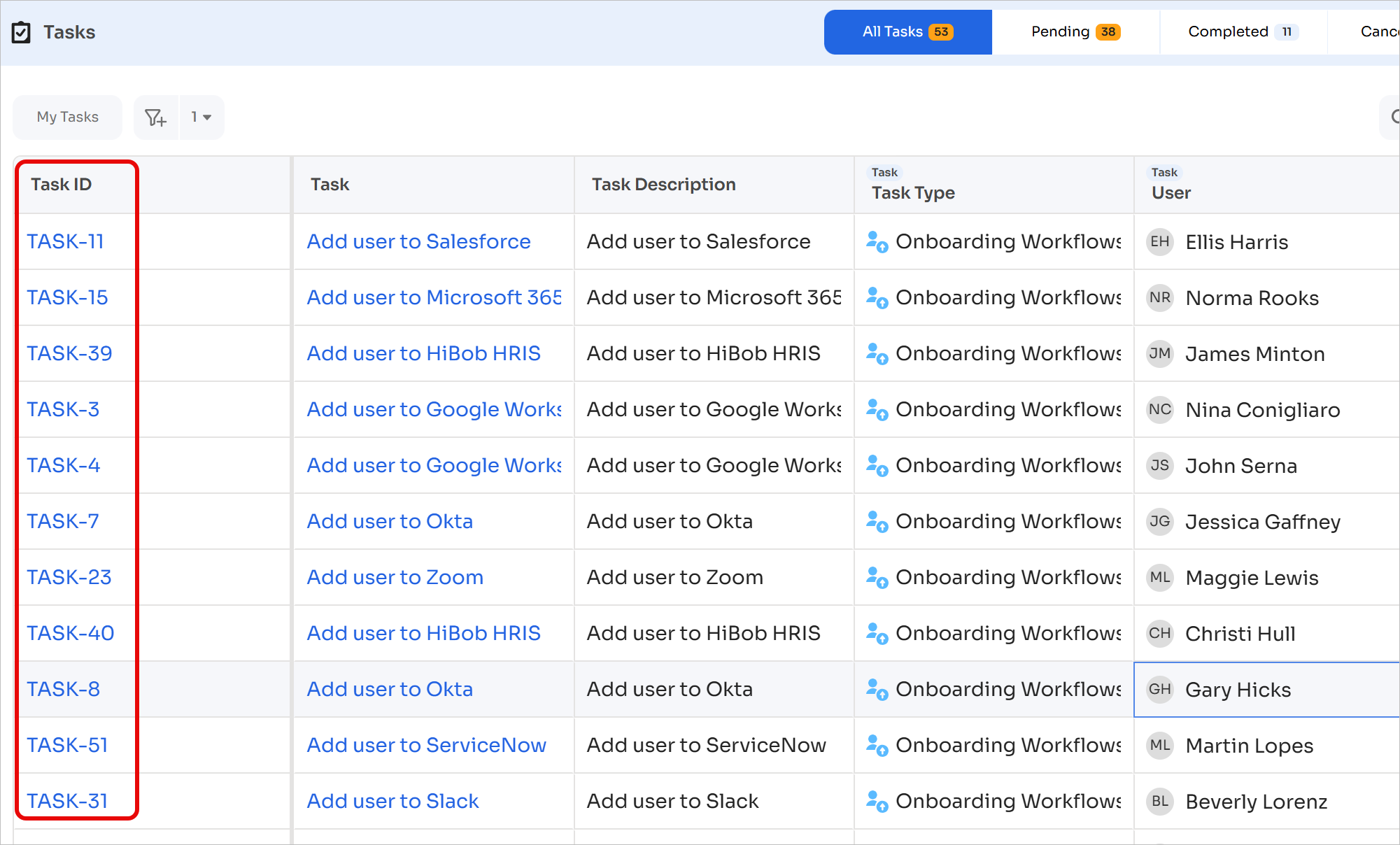
Task IDs provide the following benefits:
### **System-wide integration**
Task IDs appear consistently across the following locations:
* **Tasks** dashboard table view
* Individual task detail panels
* Workflow run logs and execution tracking
* Employee dashboards
* Email notifications sent to assignees
* Slack notifications
### **Data integrity**
Task IDs remain consistent throughout the task lifecycle:
* Task IDs remain unchanged after assignment, including reassignment scenarios
* Deleted task IDs are not reused, preserving historical uniqueness
* This supports reliable tracking and accurate audit trails
### **Access control considerations**
Anyone with a task link can view and comment on the task, regardless of access permissions. Action execution remains restricted. Exercise caution while sharing task links in Slack channels or multi-recipient emails.
### **Generating Task ID links**
Task links can be generated using the following steps:
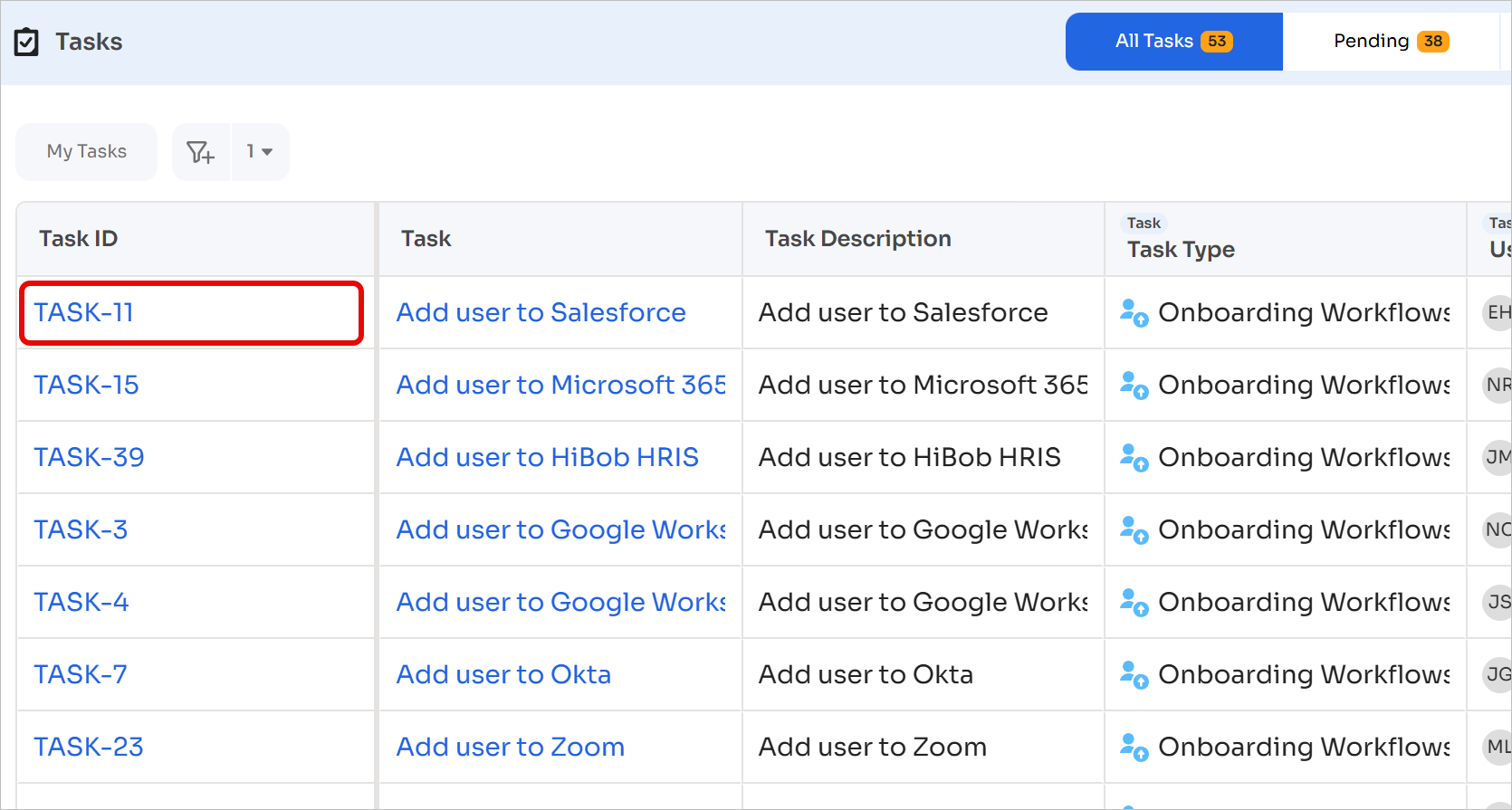
1. Select a task from the task list (task 11 shown below)
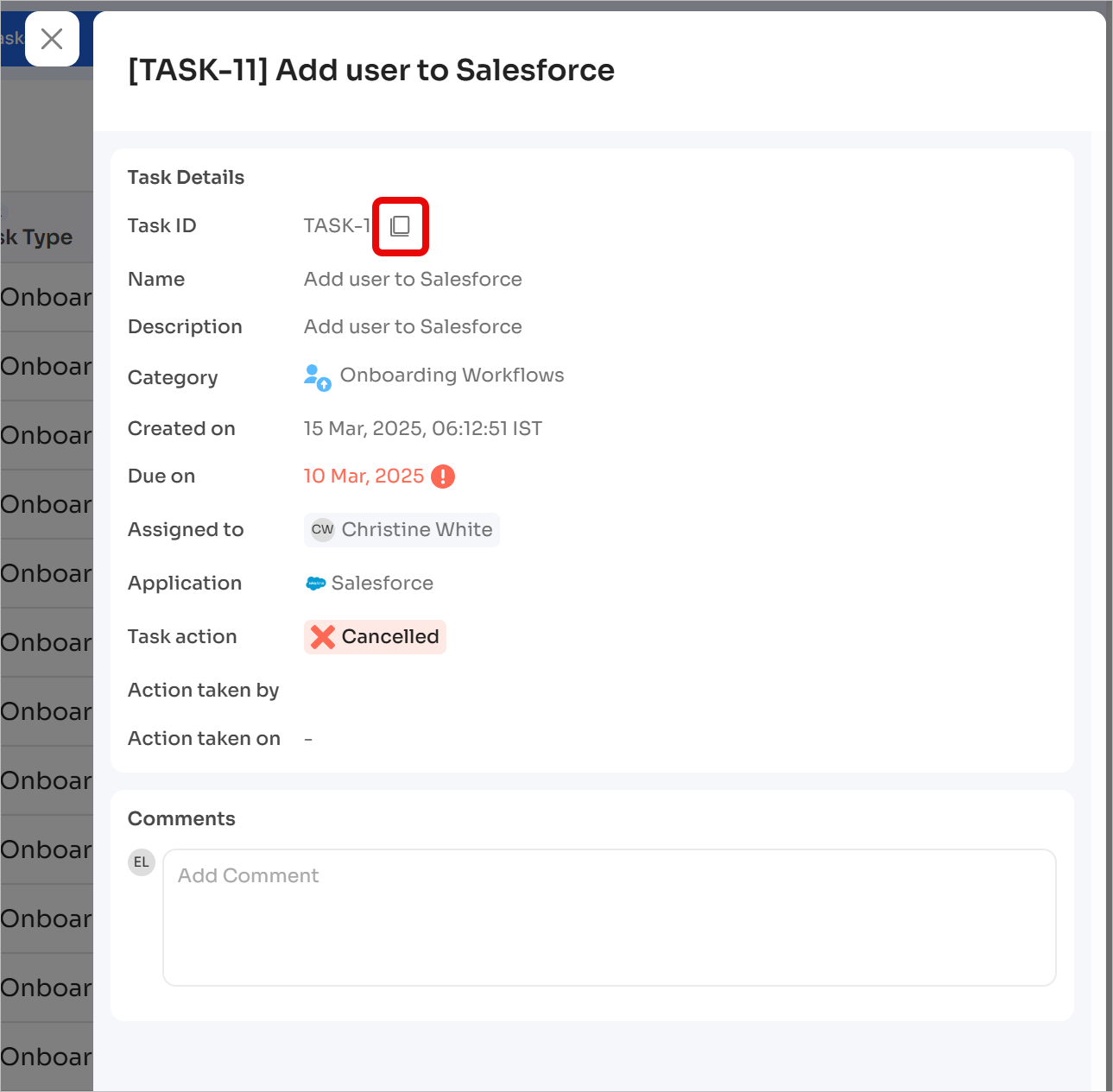
2. Select the **Copy Task Link** icon
***
# **Individual Actions**
**Complete, cancel, and comment on individual tasks**
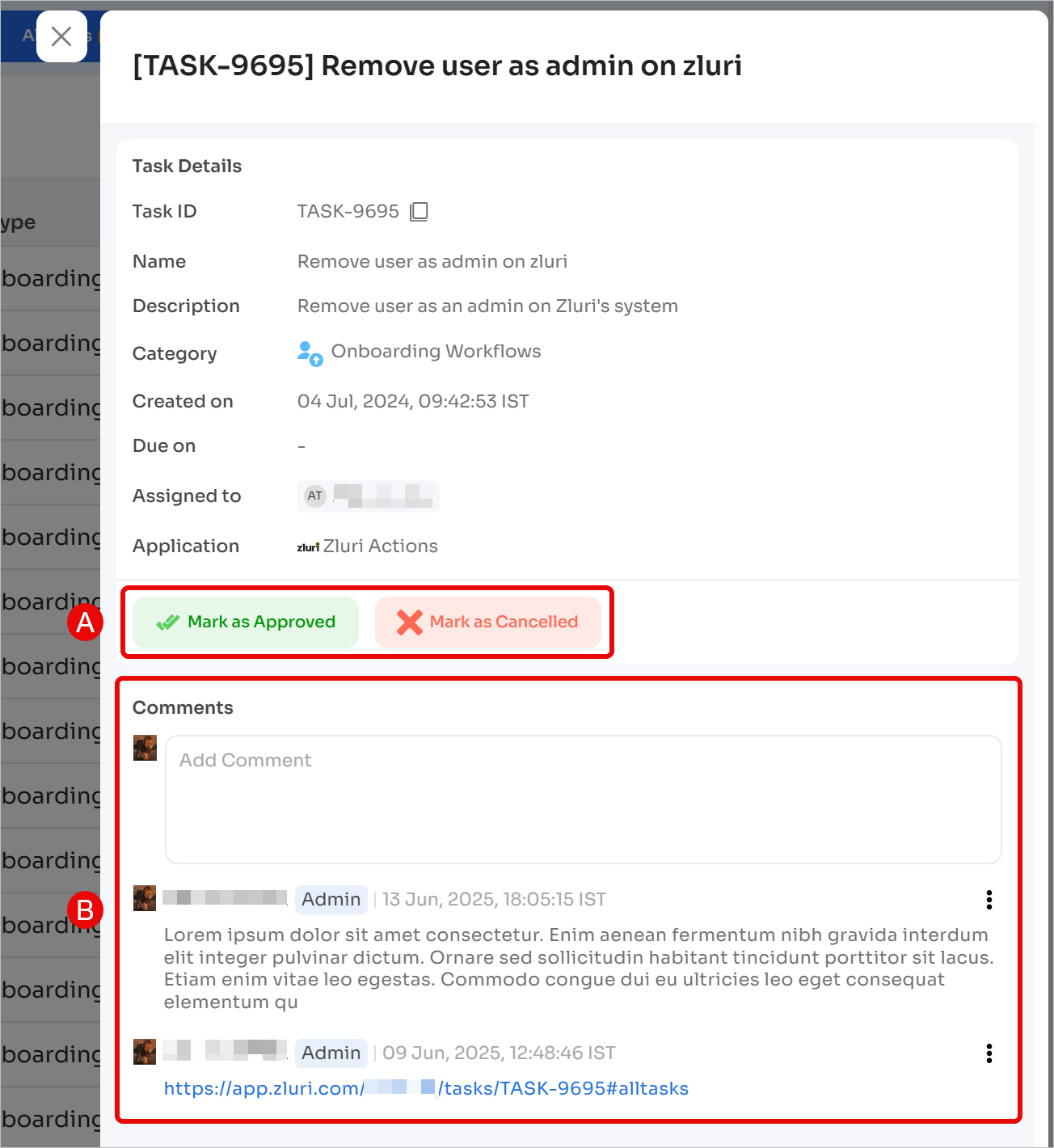
1. Open a task to view task details.
2. Perform one of the following actions:
* Mark the task as **Approved / Completed / Canceled**
* View or add comments
3. Task history displays the action taken and the user associated with the action.
> 📘 For approvers, the action label appears as Mark as Approved.
>
> For **task assignees**, the action label appears as **Mark as Completed**.
***
# **Bulk Actions**
**Approve or cancel tasks in bulk**
Bulk Edit is available only in the **Pending** tasks view. Other views contain completed or canceled tasks and do not support bulk actions.
1. Open the **Pending** tasks tab
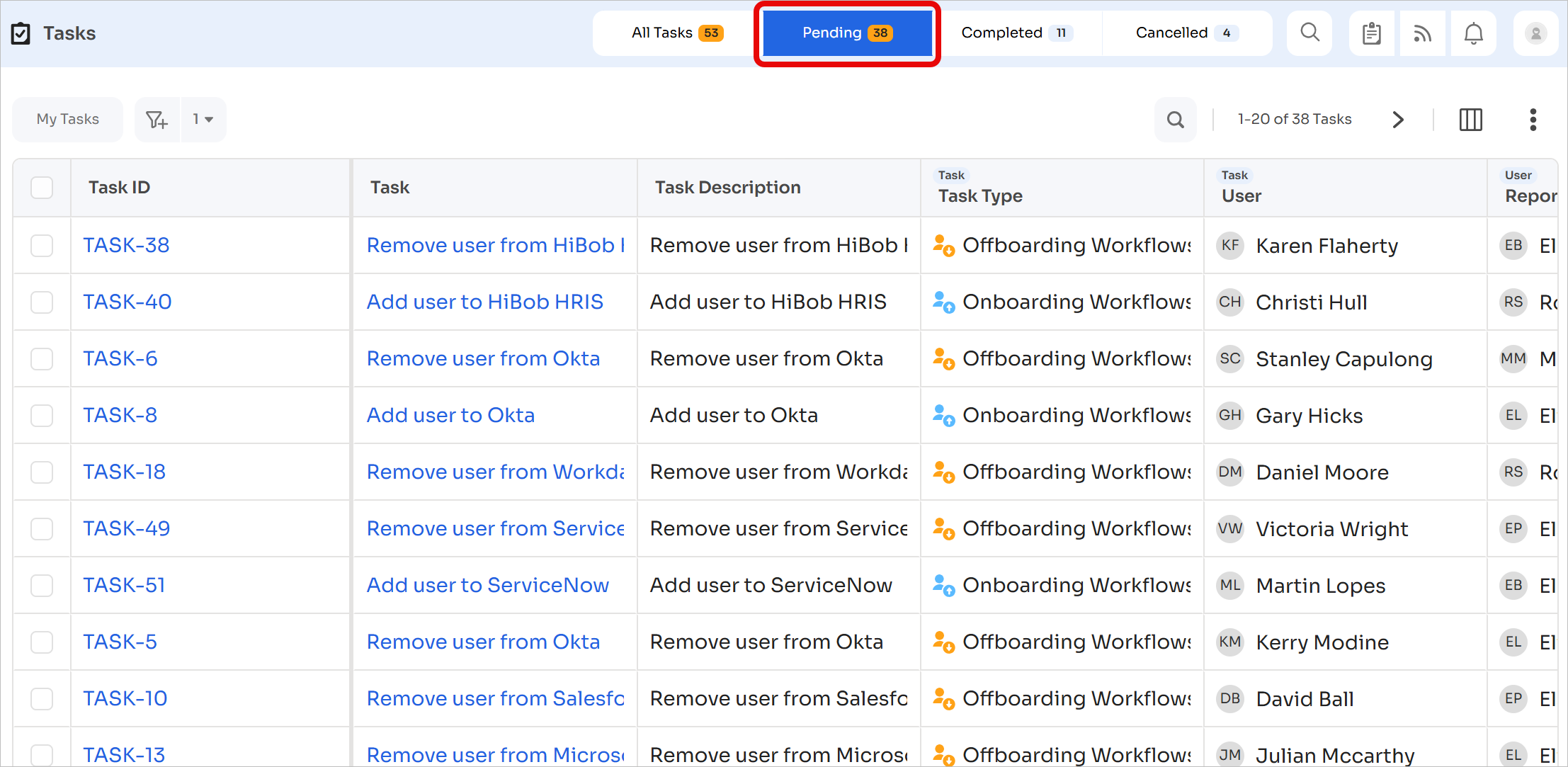
2. Select multiple tasks using the checkboxes
3. Select **Bulk Edit → Task Action**, then choose an action based on the view:
* **Mark as Complete** or **Mark as Canceled:** Employee View
* **Approve** or **Reject:** Admin View
***
### **Reassign a Task**
Manual tasks support reassignment from both the dashboard and the task details view.
## **From the Task Dashboard**
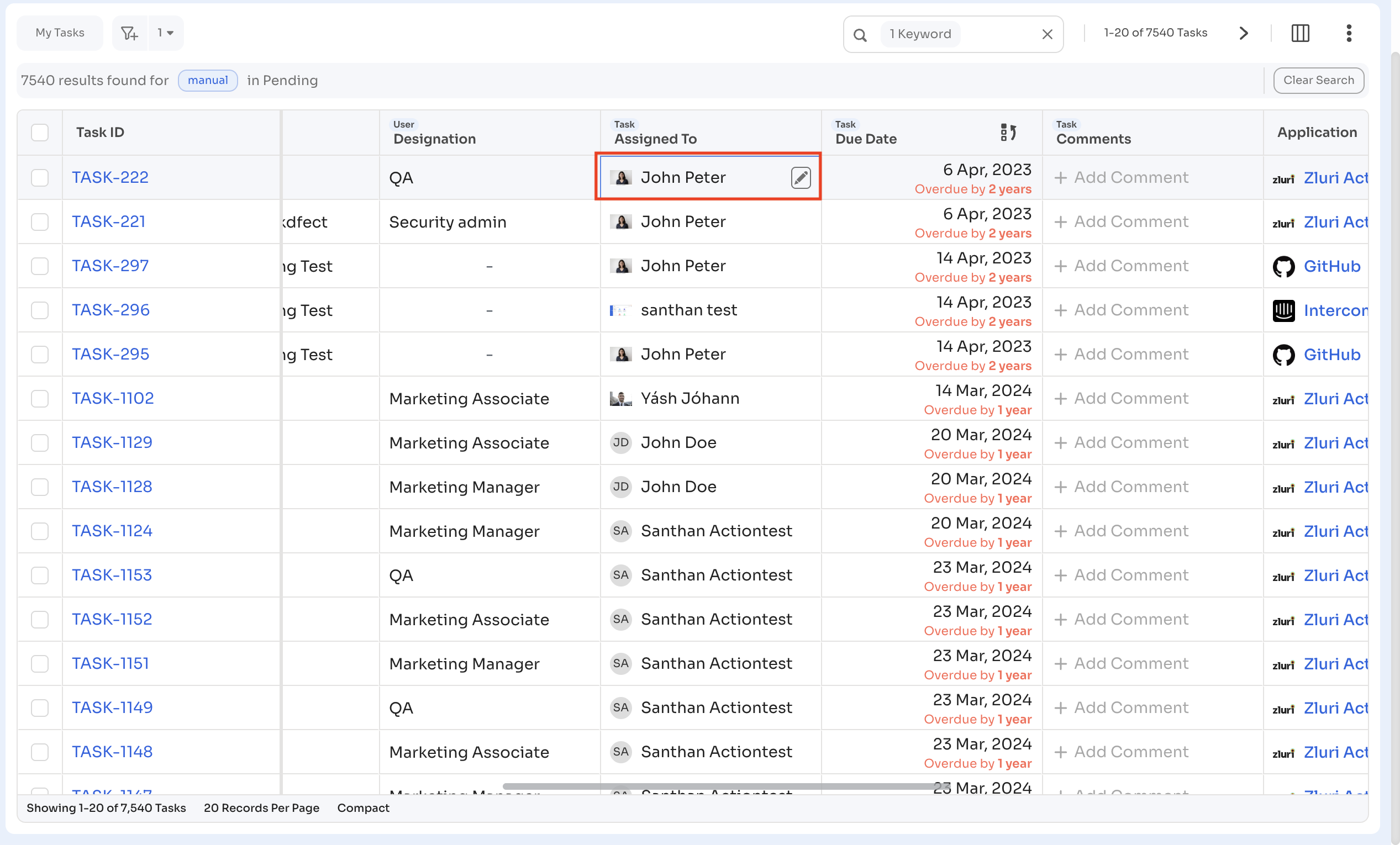
1. Open `Admin View → Tasks` and select the **edit** icon in the **Assigned To** column
2. Select a new user or role → **Save**
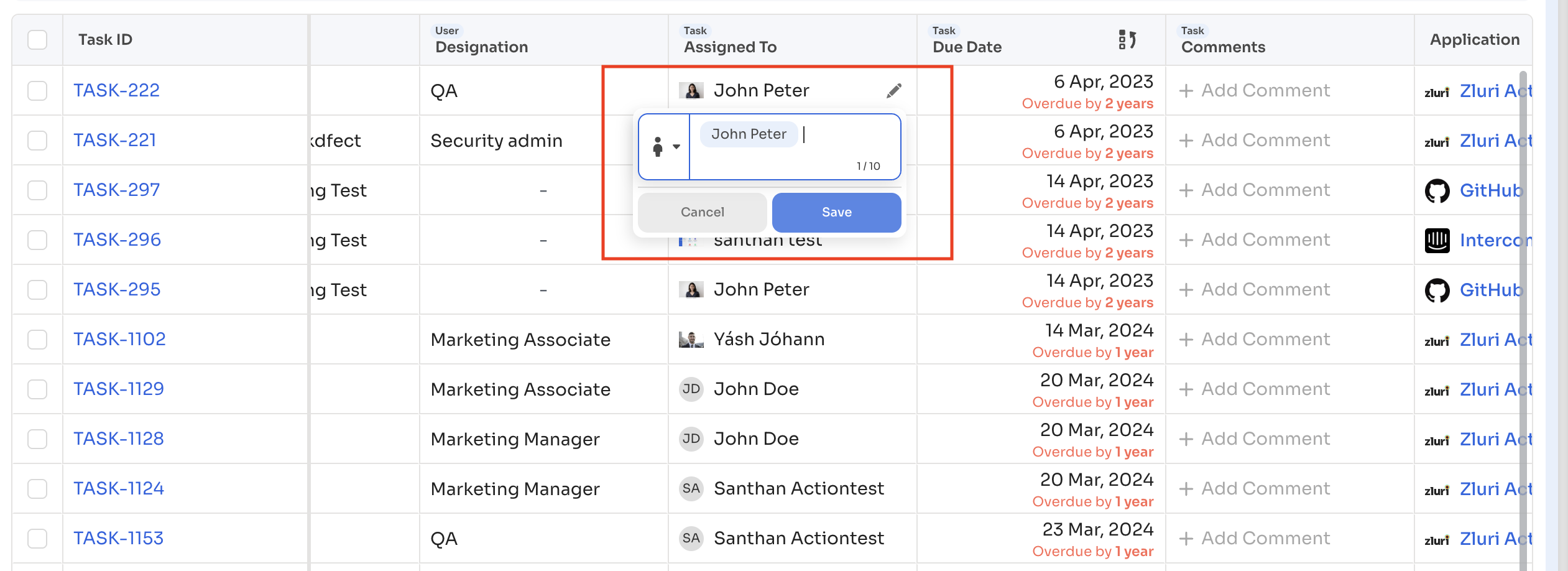
3. Update the *User Type* to *Individual*, *Zluri role*, or *Group*
## **From the Task Details Page**
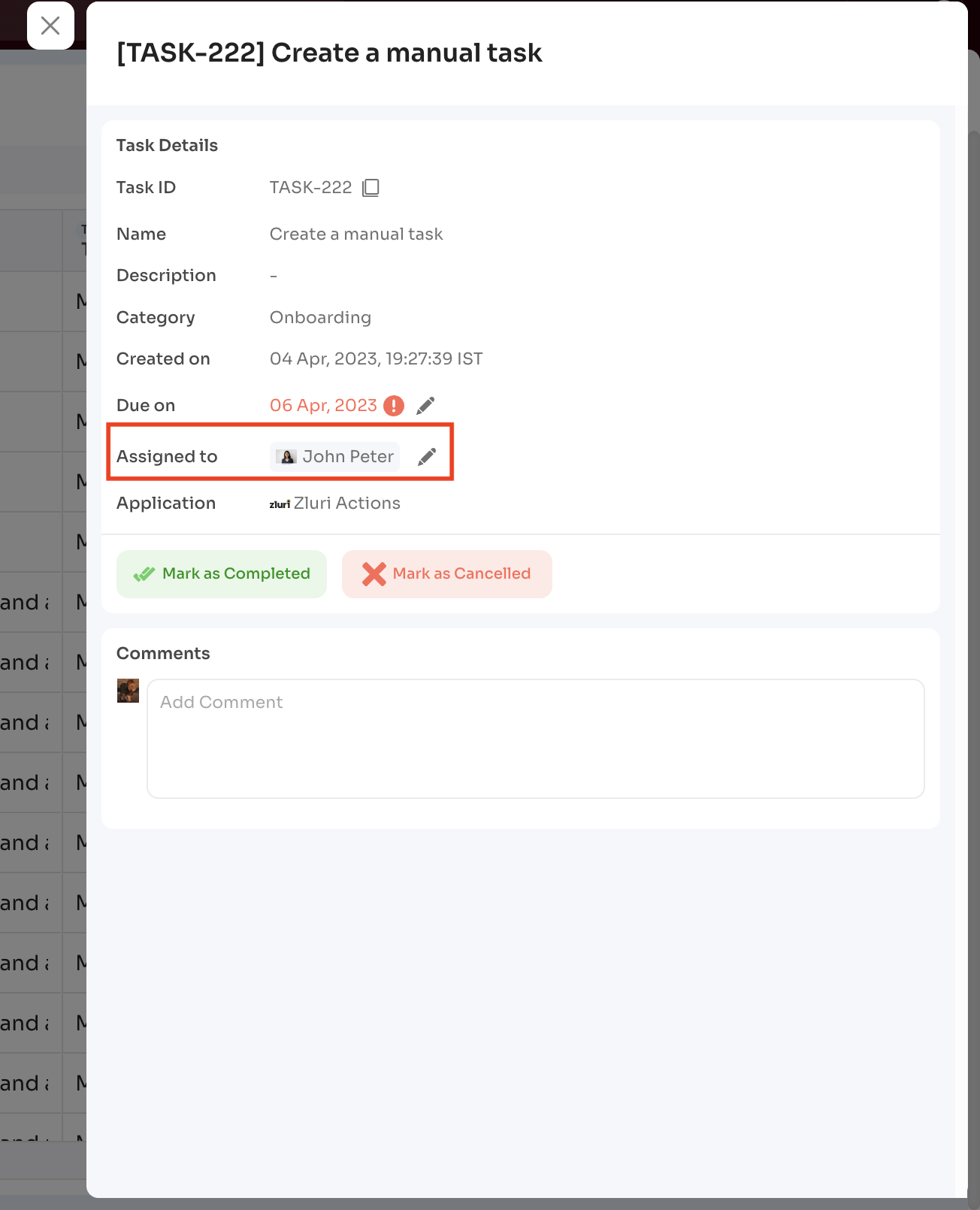
1. Open the task
2. Under **Assigned To**, select **edit**
3. Select a new assignee → **Save**
**Notes**
* Jira-created tasks support reassignment only to a single user or role
* Notifications are sent automatically to the new assignee
***
# **Update a Task’s Due Date**
Task due dates can be updated from both the **Task dashboard** and the **Task details page**.
**Note**: Due date updates and reassignment are available only for tasks with **Overdue** status.
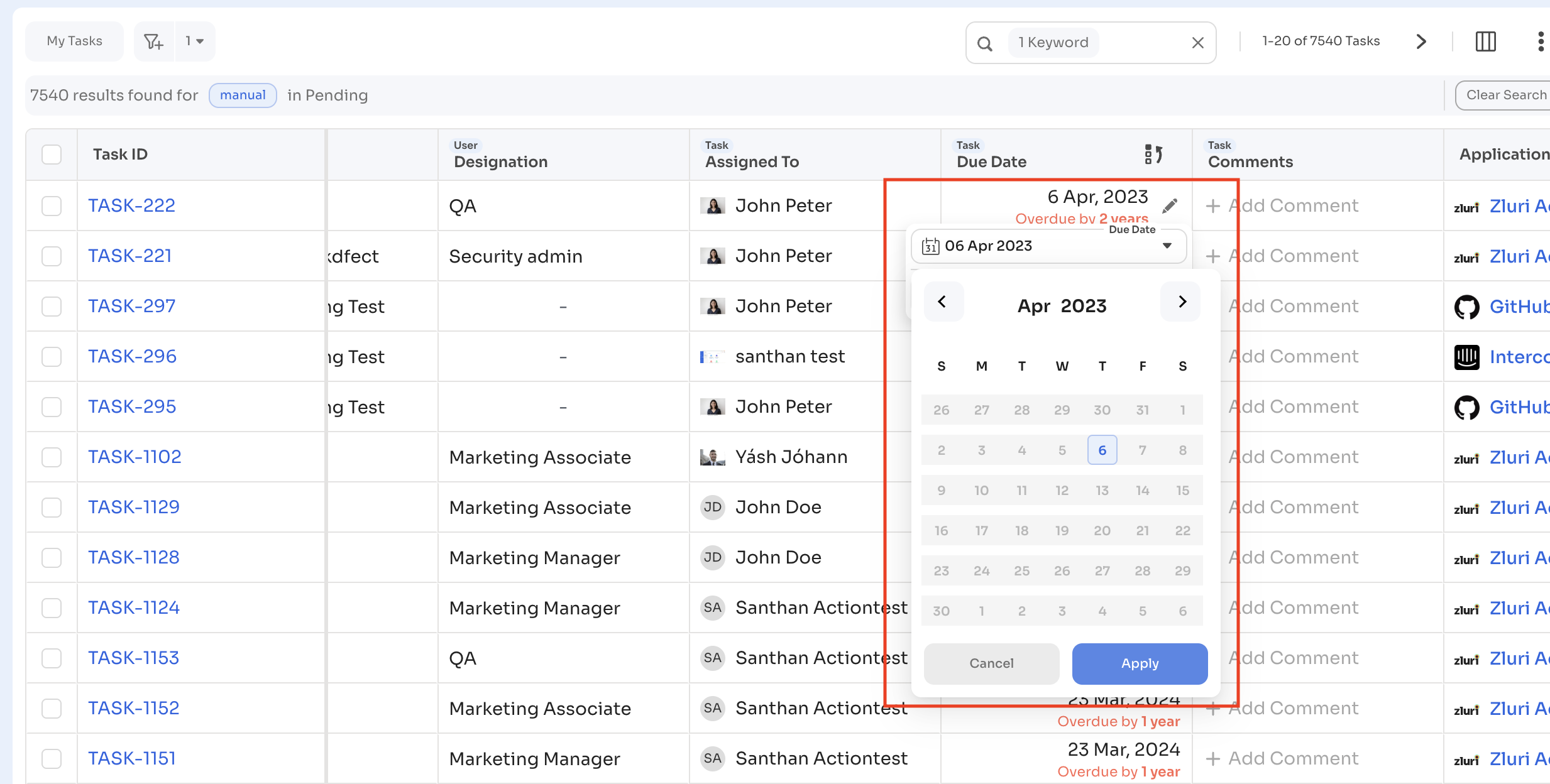
## **From the Task Dashboard**
1. Open `Admin View → Tasks`
2. Select the **edit** icon in the **Due Date** column
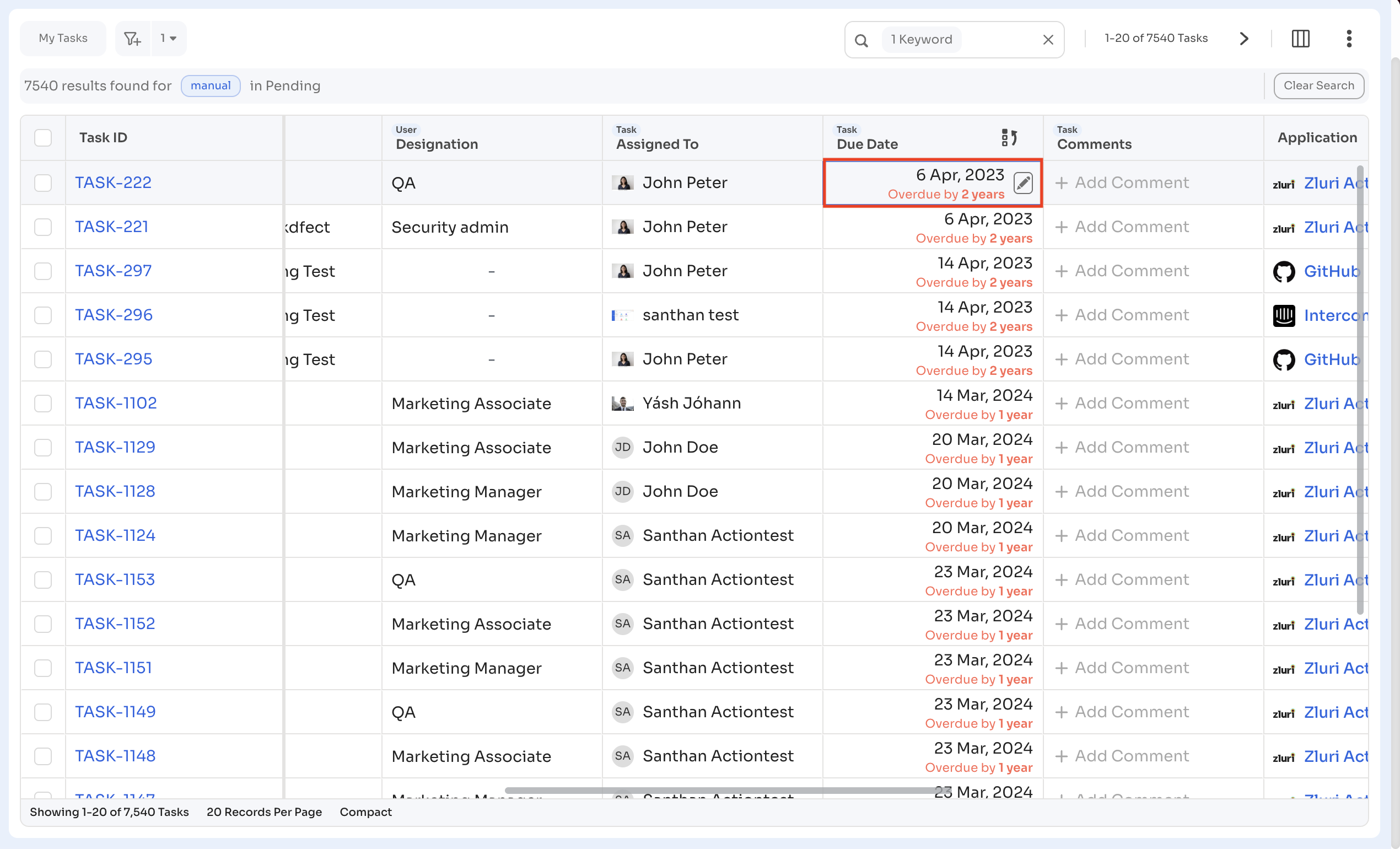
3. Select a new date → **Apply**
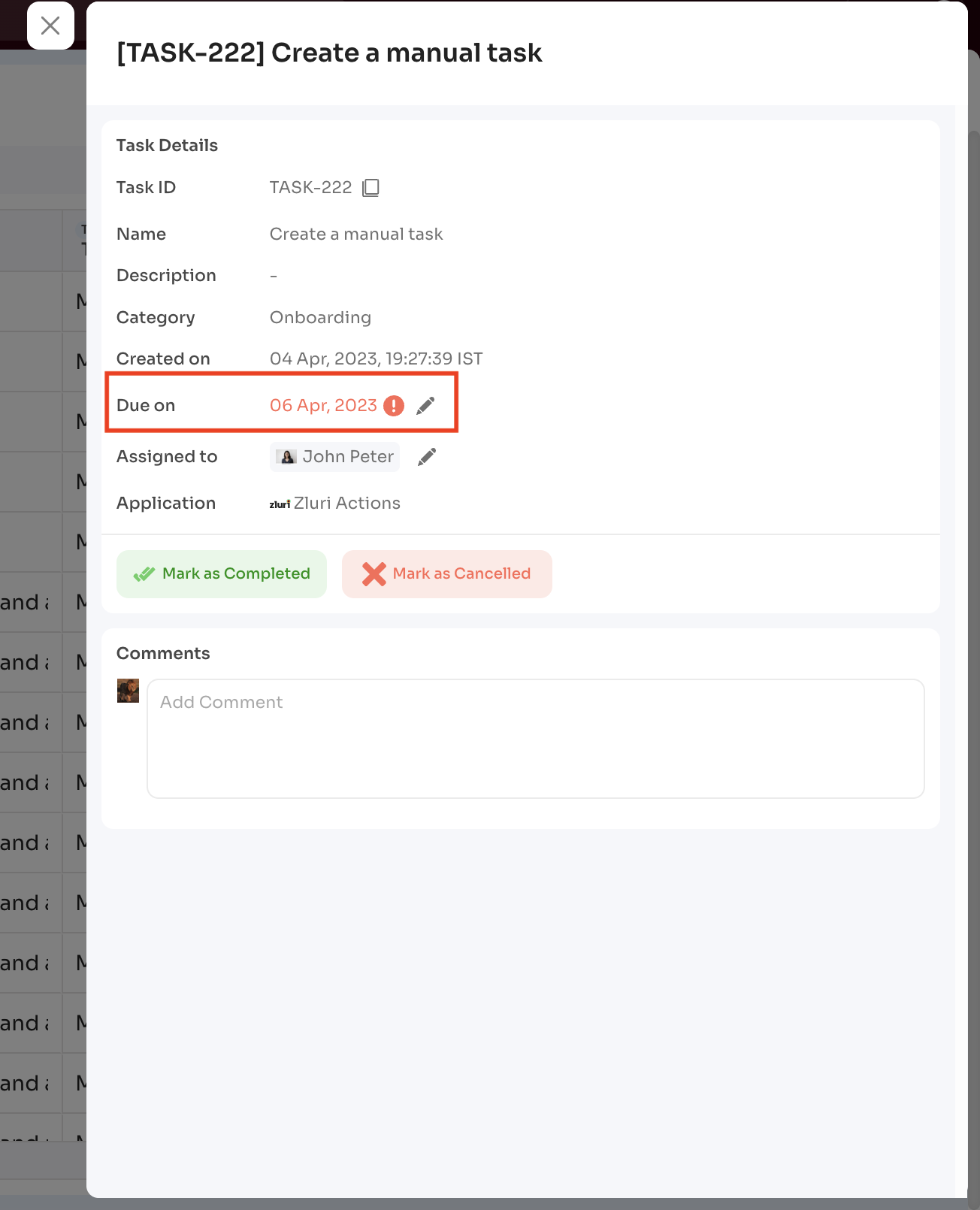
## **From the Task Details Page**
1. Open the task
2. Under **Due Date**, select **edit**
3. Select a new date → **Save**
**Notes**
* Due date updates and reassignment apply only to overdue tasks
* Notifications include both previous and updated due dates
***