---
updatedAt: 2026-09-02T10:14:45.000Z
agentTools:
projectIndex: https://help.zluri.com/llms.txt
---
# Manual Device-User Mapping
Manually map and unmap devices to users in Zluri
To ensure accurate user-device associations, Zluri lets you manually map desktop agents to individual users. Here's how to do it.
> 📘
>
> Any changes will take approximately 30 minutes to reflect on the agent.
## Prerequisites
* Agents installed on all devices manually or via MDM
> 🚧
>
> In case of a manual deployment, only agents connected through [Organization tokens](https://help.zluri.com/docs/macos-agent-deployment-manual#option-2-using-an-organization-token) will appear in this view.
## Map device to a user
1. [Log in](https://app.zluri.com/login) to Zluri and navigate to [**Sources** → **Agents** → **Desktop Agents**](https://app.zluri.com/agents#desktop_agents).

2. Scroll horizontally towards the **User** column, and select **+ Map to User**.

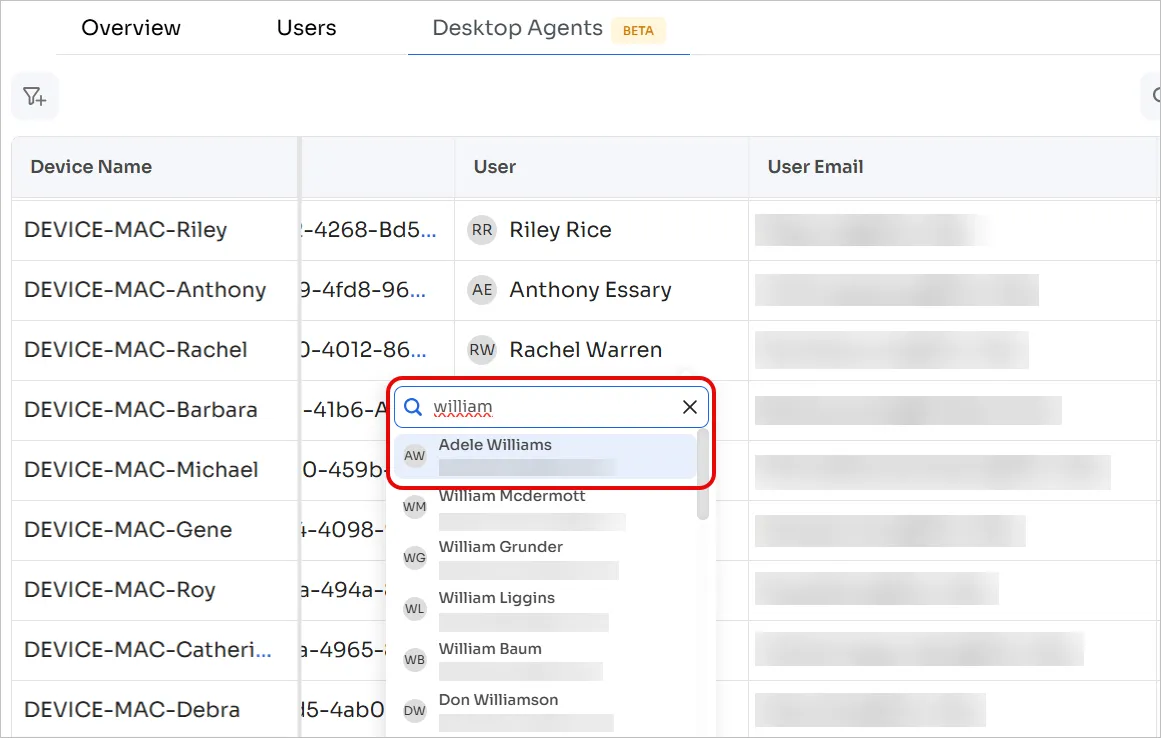
3. Search for and select the user that you wish to map.

> 📘
>
> Only active employees appear as user options, if you want any other account type, please [contact Zluri support](mailto:support@zluri.com).
## Unmap a user from a device
1. Locate the device-user pair that you wish to unmap.
2. Click **Other Actions** and select **Unmap User**.

3. Click **Unmap** in the pop-up.
## Remap device to a different user
1. Hover over the user whose device you wish to remap and click the ✏️ pencil icon.

2. Search for and select the user that you wish to map the device to.
## Remove an agent from the organization
You can remove specific agent(s) from your organization. This action will dissociate the agent even if it isn’t mapped to a user.
> 📘
>
> This action does not remove the agent from the system, it only logs the agent out and removes the association.
1. Locate the device-user pair whose agent you wish to remove from the organization.
2. Click **Other Actions** and select **Remove from Org**.

3. Click **Remove** in the pop-up.
Got questions? Feel free to [submit a ticket](https://support.zluri.com/support/tickets/new) or contact us directly at .