
Connect
Connect ADP Workers to Zluri
Prerequisites
- Administrator privileges in ADP
Integration steps
Obtain your ADP Client ID and Secret
-
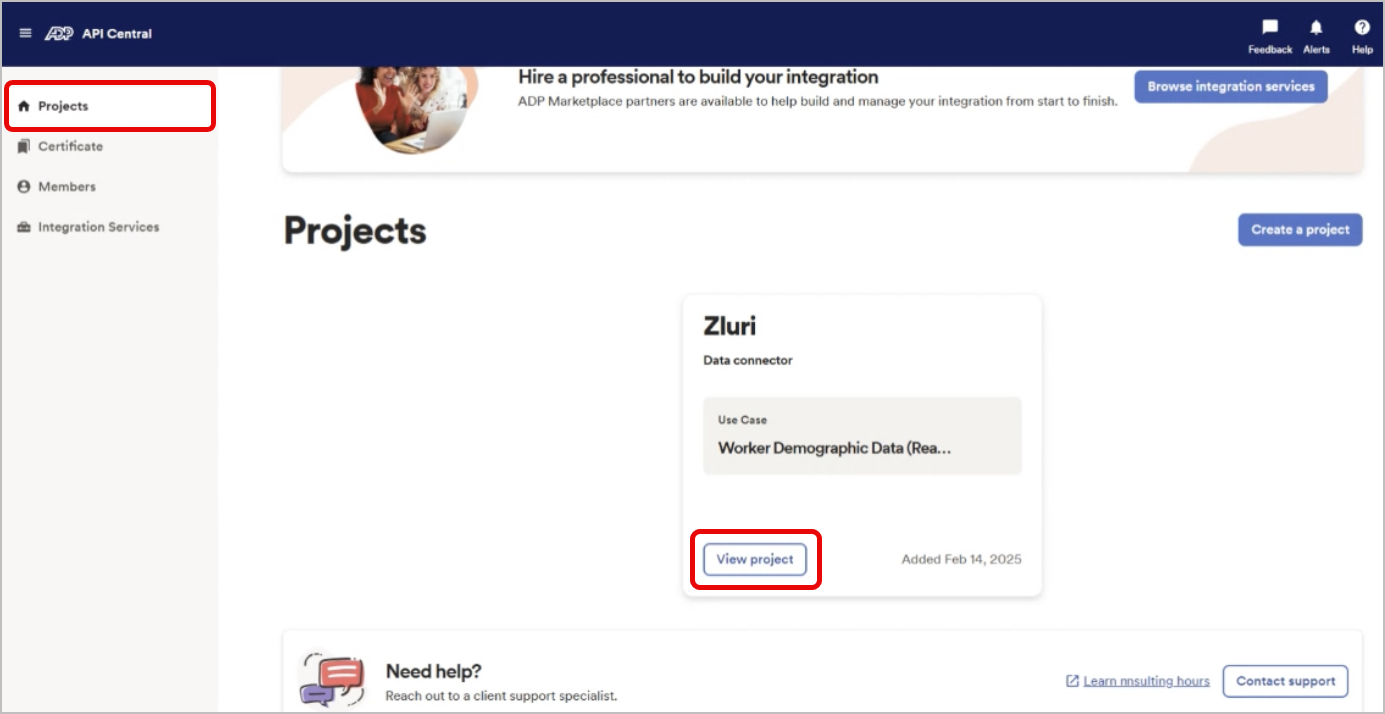
In your ADP Partner self-service portal, click Projects in the left sidebar.
-
Select View project on the project you wish to use for the integration.
-
This will open the API Credentials screen where you'll see a Client ID and Client Secret. Copy and securely store these values.
Generate a signed ADP Private Key and Certificate
-
Log in in to the Developer Self Service Portal with your Partner Developer Account
-
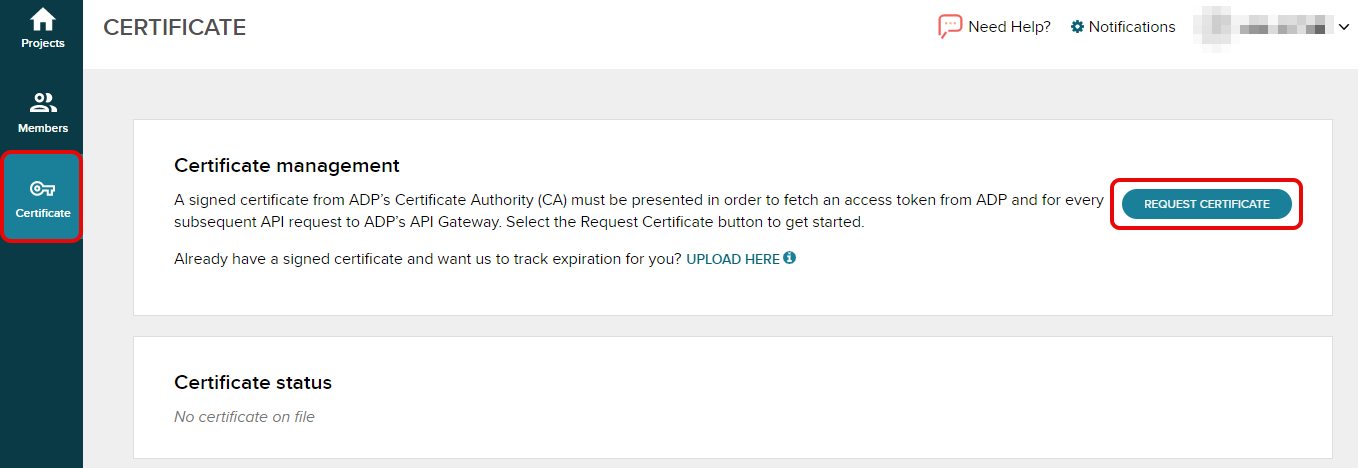
Navigate to Certificate in the left sidebar and click Request Certificate.
-
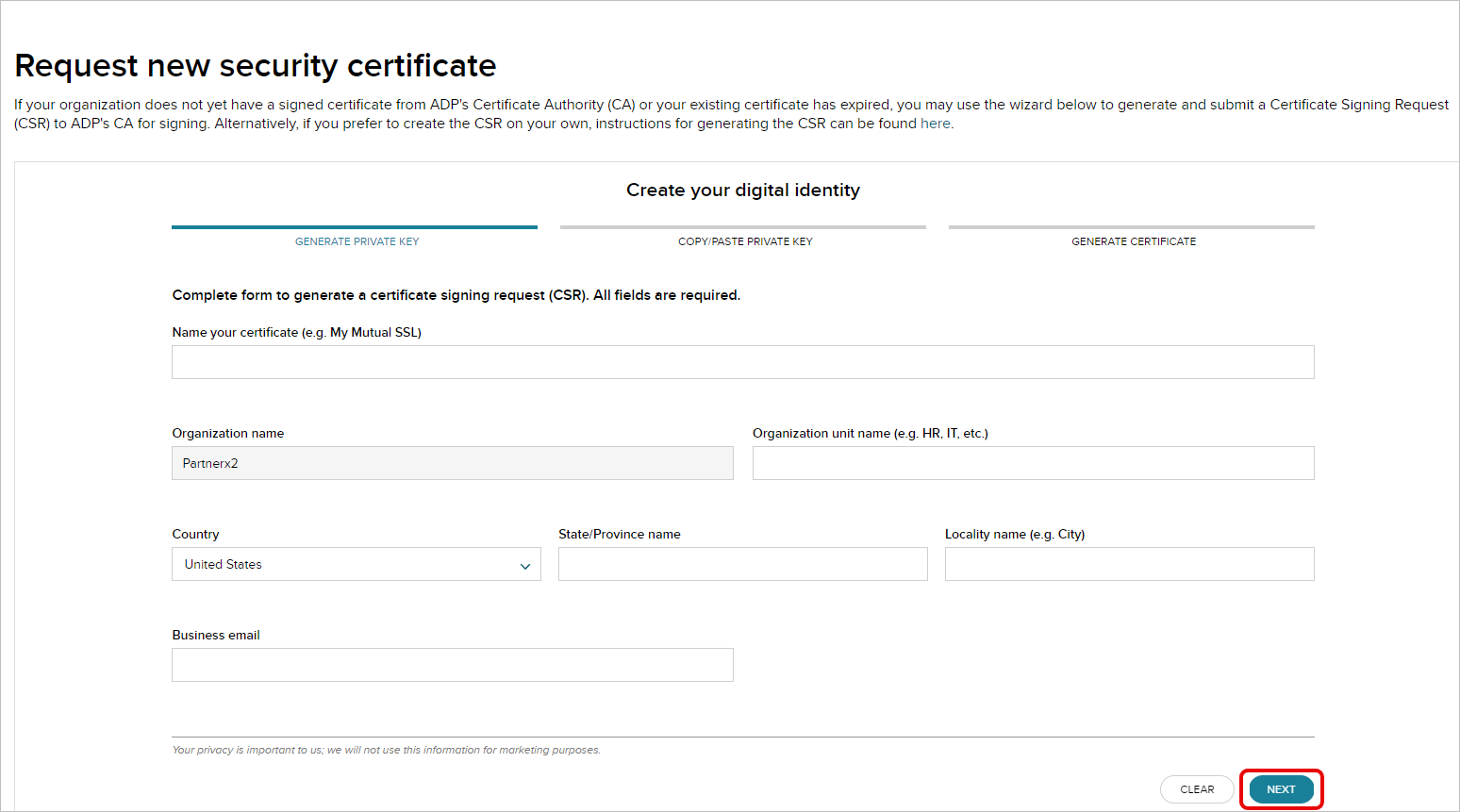
Fill out all the fields and click Next.
-
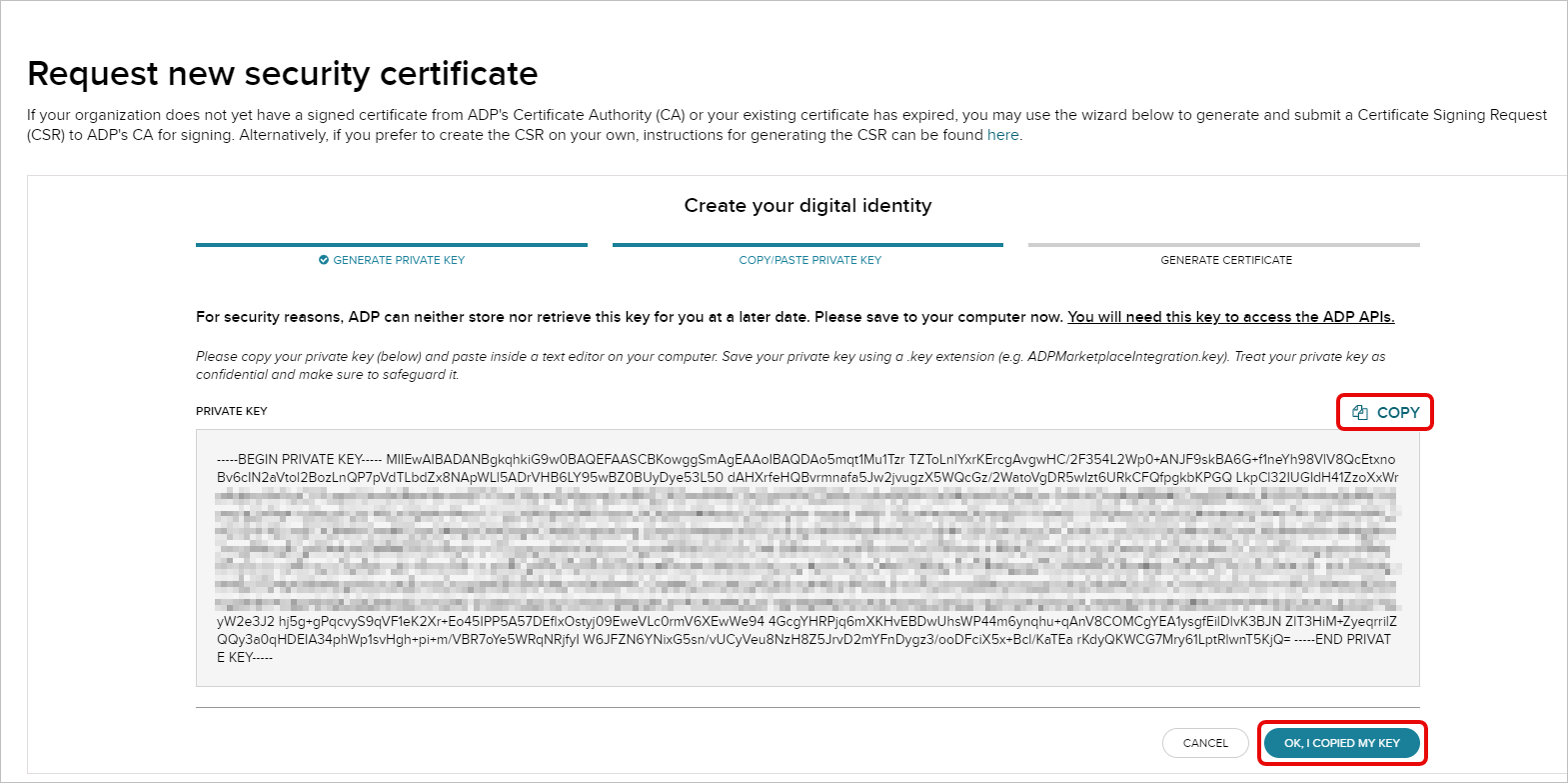
Copy and securely store this private key, then click OK, I COPIED MY KEY.
-
Click on Done on the next screen.
-
Once the certificate is ready, click the Download button to get the
.pemfile.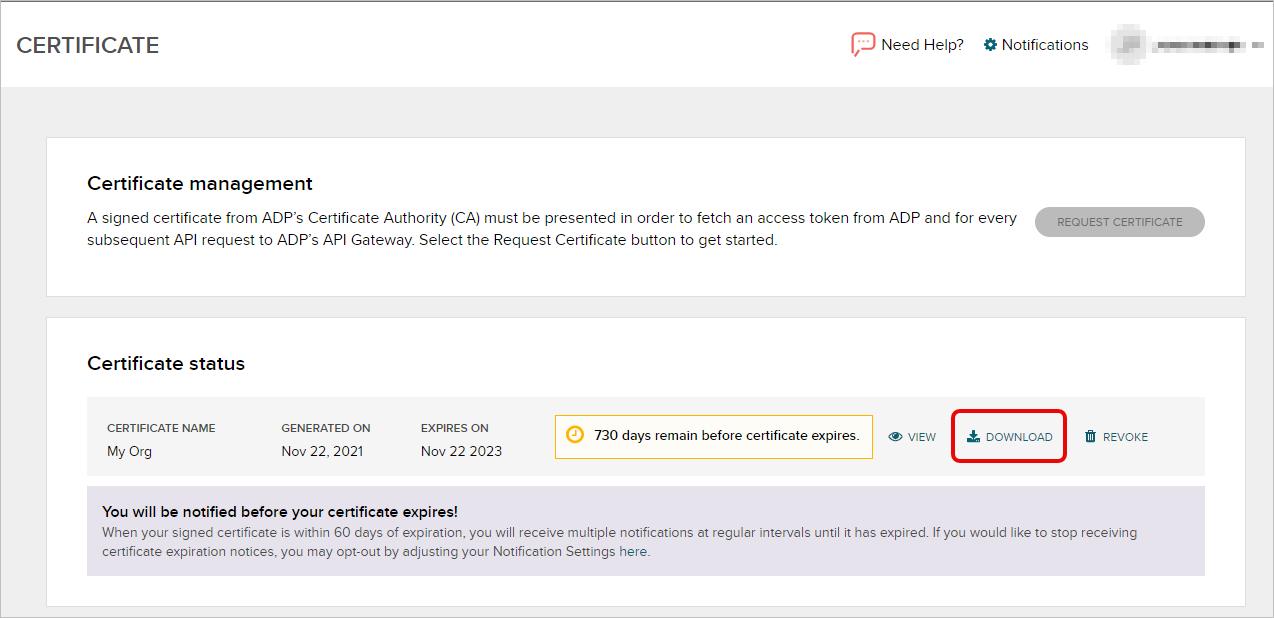
Connect the ADP instance in Zluri
-
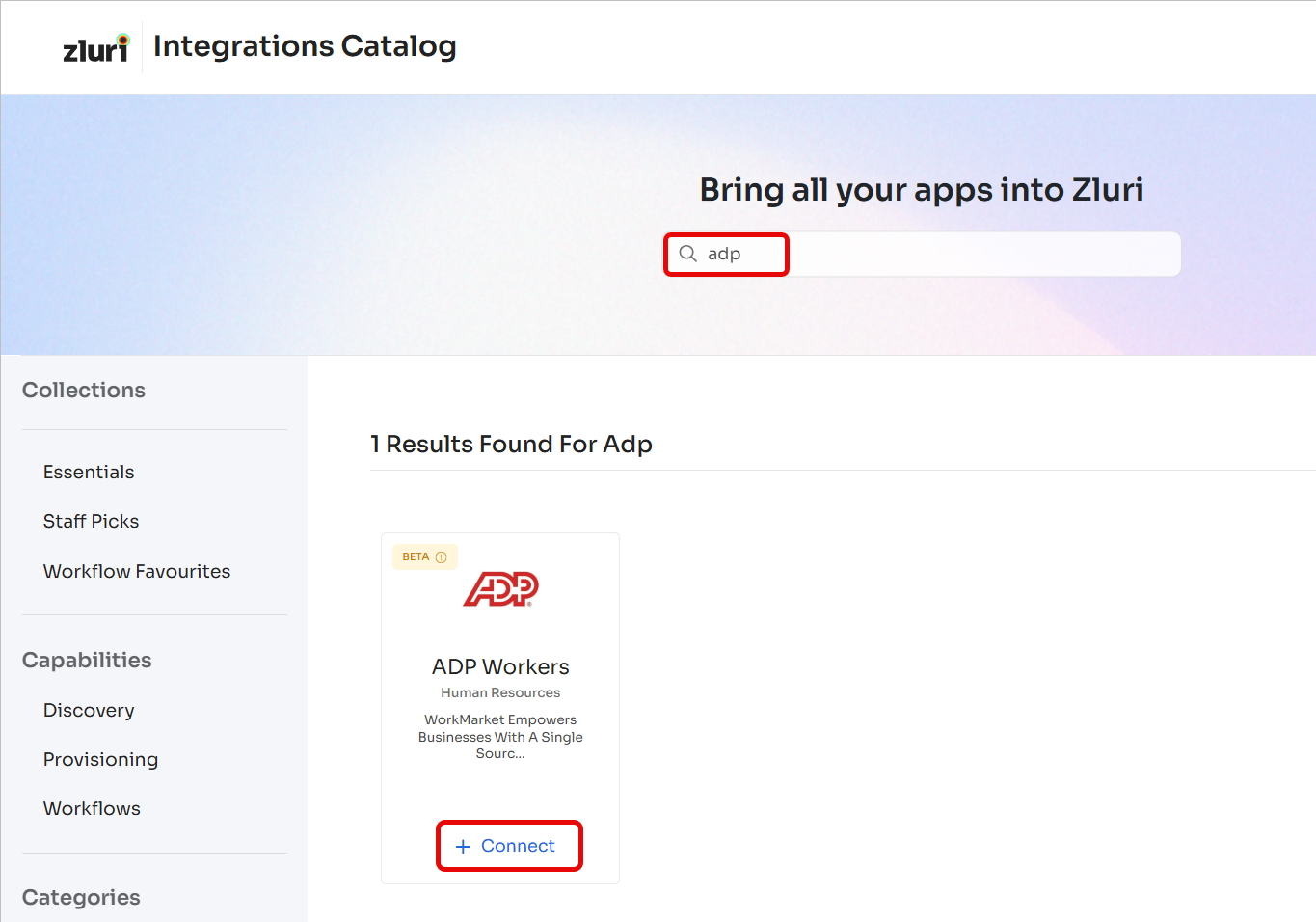
Open the Integrations Catalog, search for "adp", and click ➕ Connect.
-
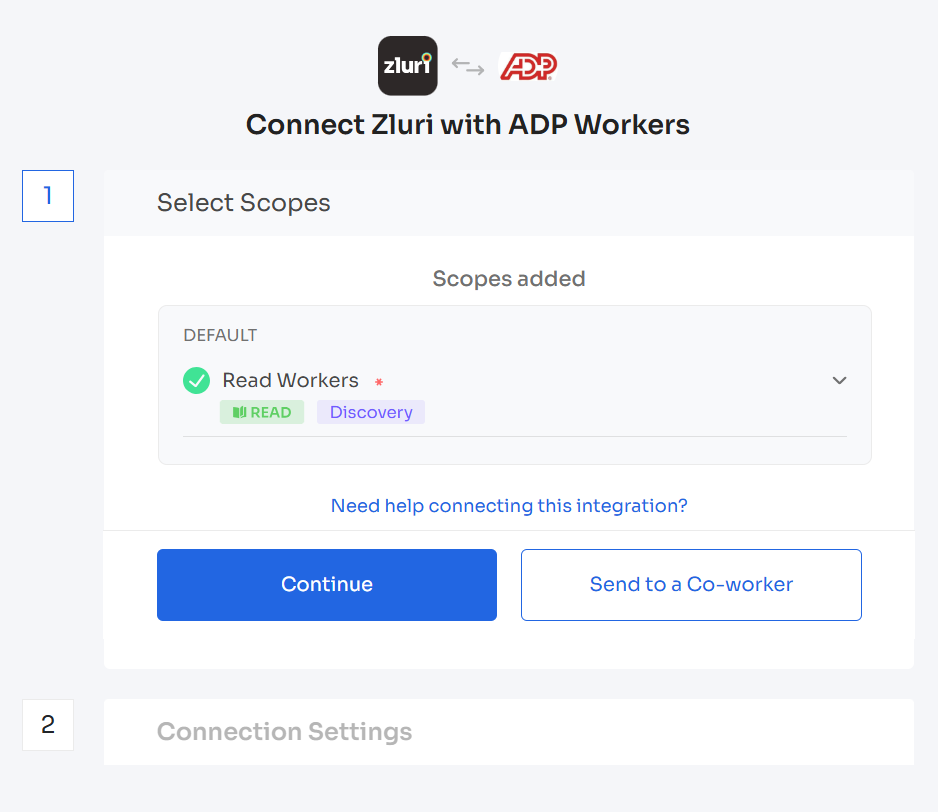
Click Continue here. You can click the down-arrow button towards the right of a scope to find out what it does.
-
Enter the Client ID, Client Secret, Private Key (including the
----BEGIN PRIVATE KEY----and----END PRIVATE KEY----portions), and the contents of the Certificate.pemfile, then click Connect.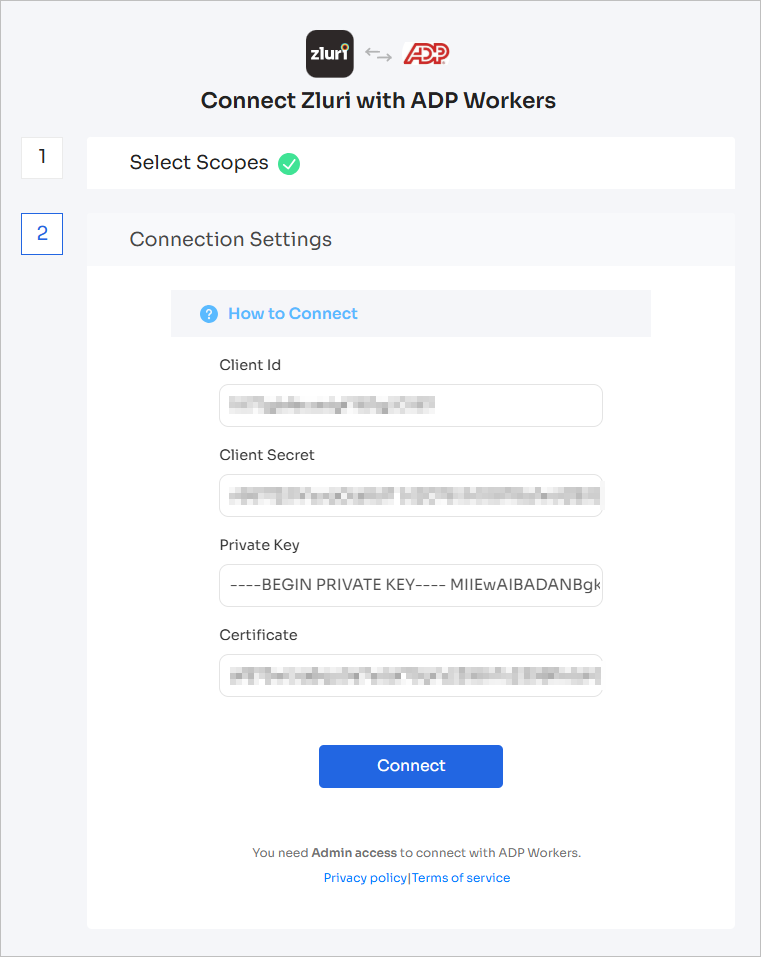
-
Give the connection a name and description, and you’re ready to go!
If you need Zluri to pull additional custom fields:
Contact Zluri Support and raise a ticket.
Get the metadata from the support team.
Pick the fields you want added from the shared metadata.
Wait for confirmation; the team will update you once the changes are live.
To request additional custom fields that are not included in the Mandatory ADP Fields Fetched by Zluri, please raise a ticket with Zluri Support.
Got questions? Feel free to submit a ticket or contact us directly at [email protected].
Updated 10 months ago