
Connect
Connect Bitbucket to Zluri
Prerequisites
Before you begin the integration:
- Ensure you have Bitbucket Administrator access.
- Ensure your account has access to a global workspace containing all Bitbucket users.
This ensures full visibility of users on the Zluri Dashboard.
Step 1: Select Scopes for Bitbucket
Choose scopes based on your intended use:
- Selecting the right scopes allows Zluri to make the most of its Discovery, Workflowsfeatures.
- You may also choose default scopes for a hassle-free experience.
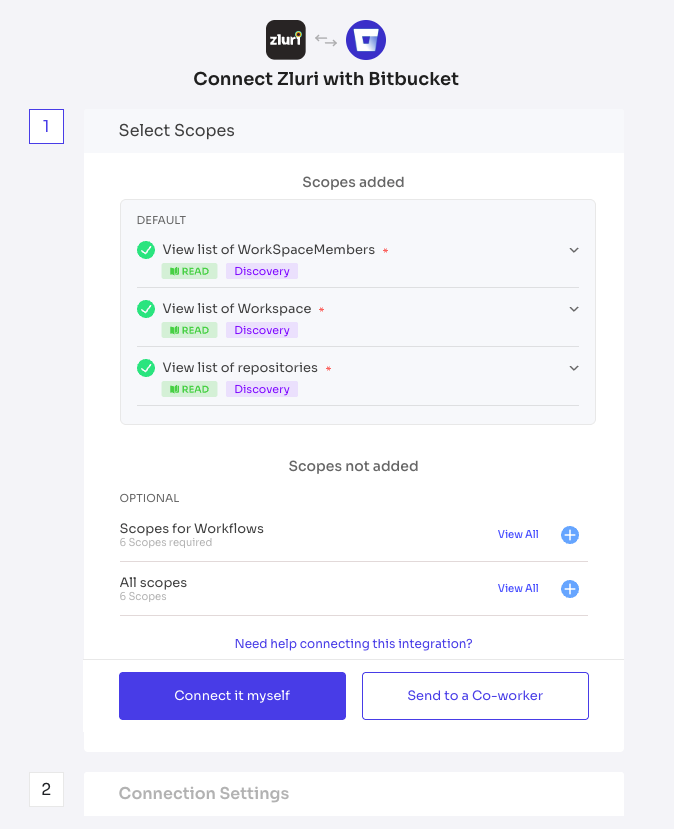
Step 2: (Optional) Generate API Token for Actions
If you plan to use Actions in the Bitbucket integration:
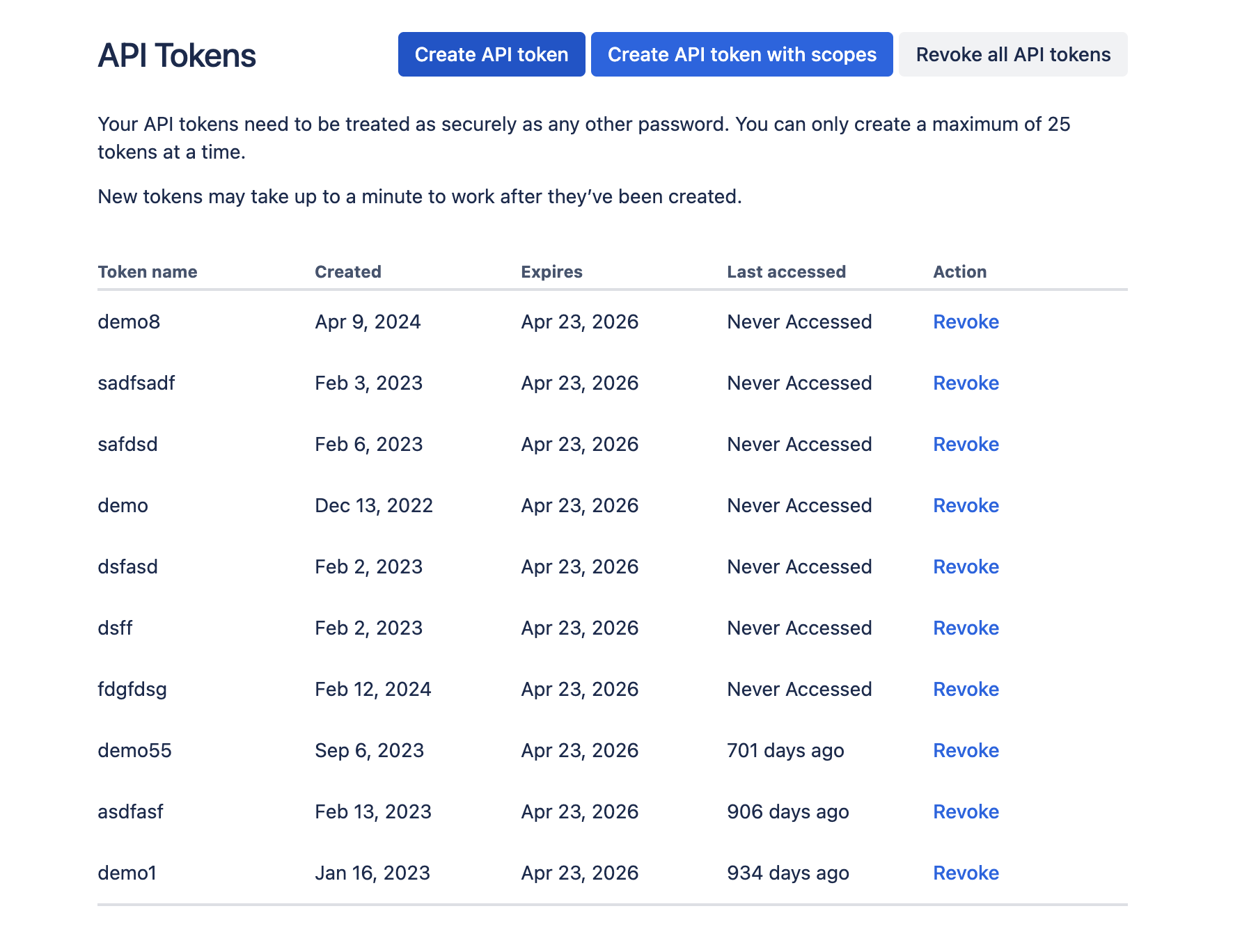
- Go to API Tokens.
- Click on Create API token and provide a description.
- Copy and securely store the API token.
- Ensure the email address used is associated with an Atlassian Admin account.
This step is optional and only required if you want to use Actions in Zluri.
Step 3: Connect with Bitbucket
You can authorize the integration in two ways:
Self-Authorization
- Click Authorize.
- Log in to your Bitbucket Admin account.
- Grant required permissions.
- Proceed to save the integration instance.
Co-worker Authorization
- Click on Send Invite to a co-worker.
- Provide the co-worker’s email to send an invite link.
- The co-worker will receive a Unique Connect Code.
- They can use it to complete the authorization on your behalf.
Step 4: Save Instance
Once authorization is complete:
- Save the Bitbucket instance in Zluri.
- You may also add multiple instances of the Bitbucket integration with different scopes depending on your requirements.
Success! Bitbucket is now integrated with Zluri.
Updated 11 months ago
Did this page help you?