
Connect
Connect Trello to Zluri
Prerequisites
- Administrator access to your Trello workspace
- Permissions to create Power-Ups and generate API and Token credentials
Integration steps
Step 1: Sign in to Trello
-
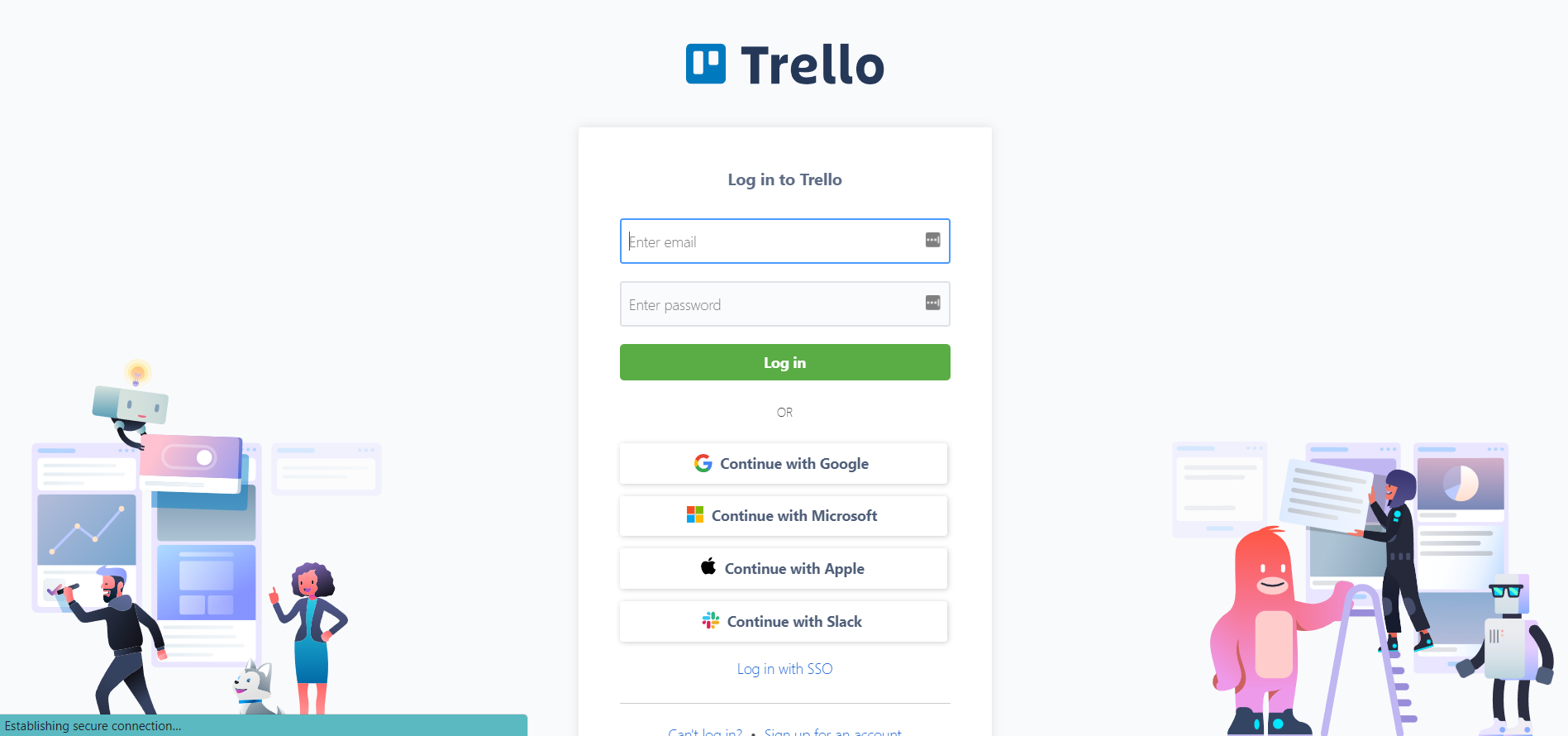
Sign in to your Trello account.
-
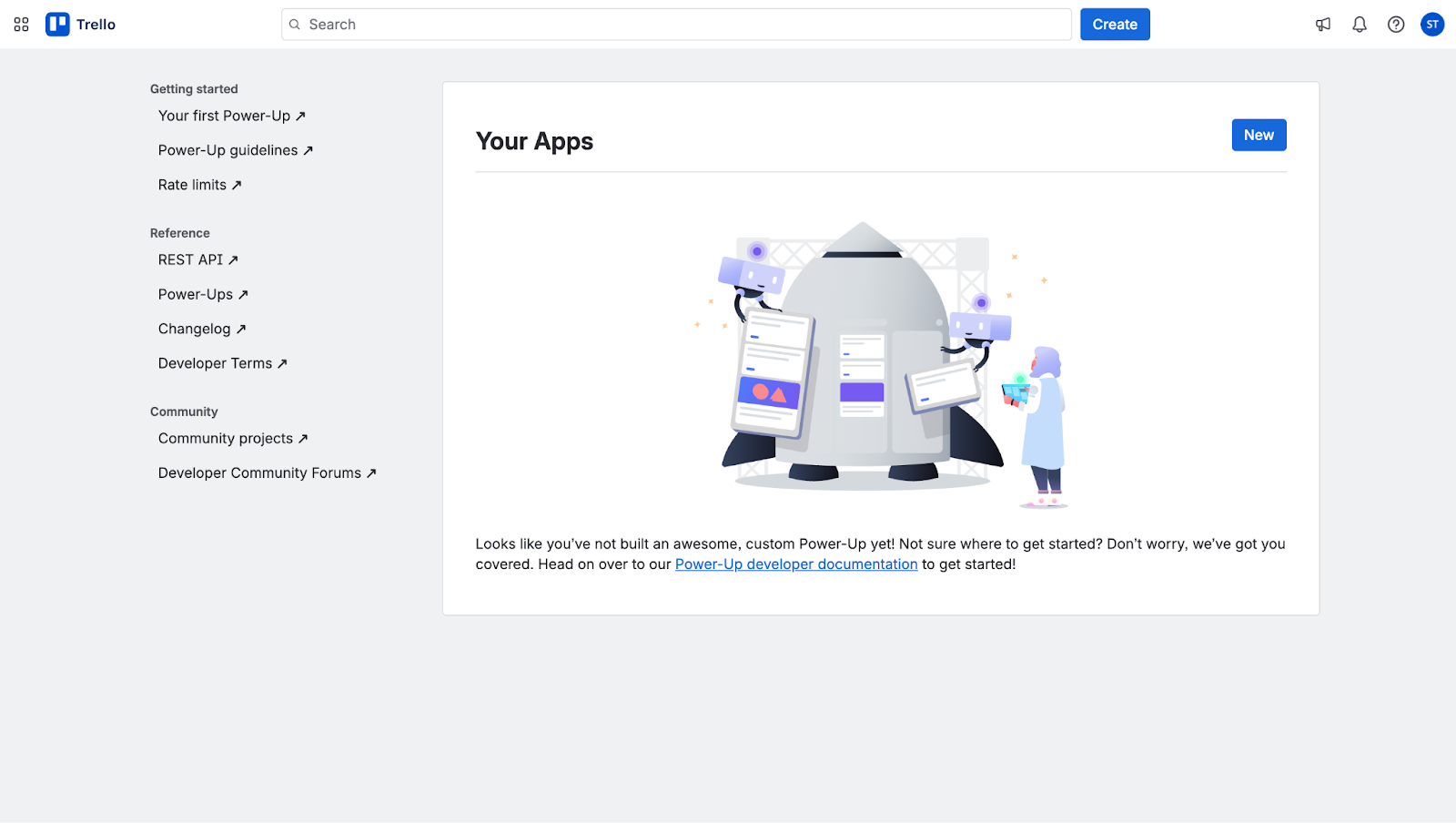
Go to the Trello Power-Up admin page.
-
Verify that a Power-Up exists for your workspace.
-
If no Power-Up exists, create your first Power-Up in Step 2.
Step 2: Create a new Trello Power-Up app
-
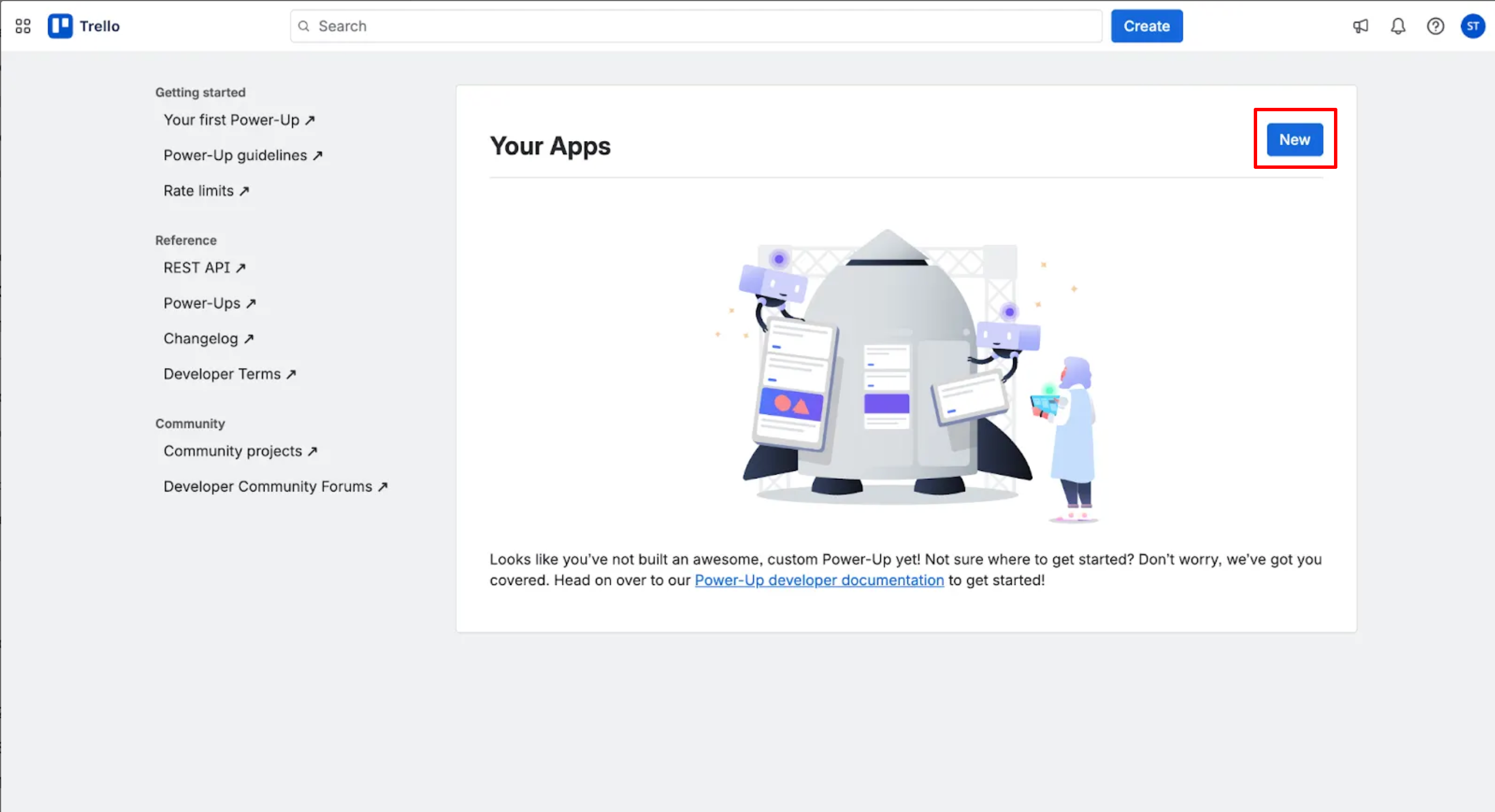
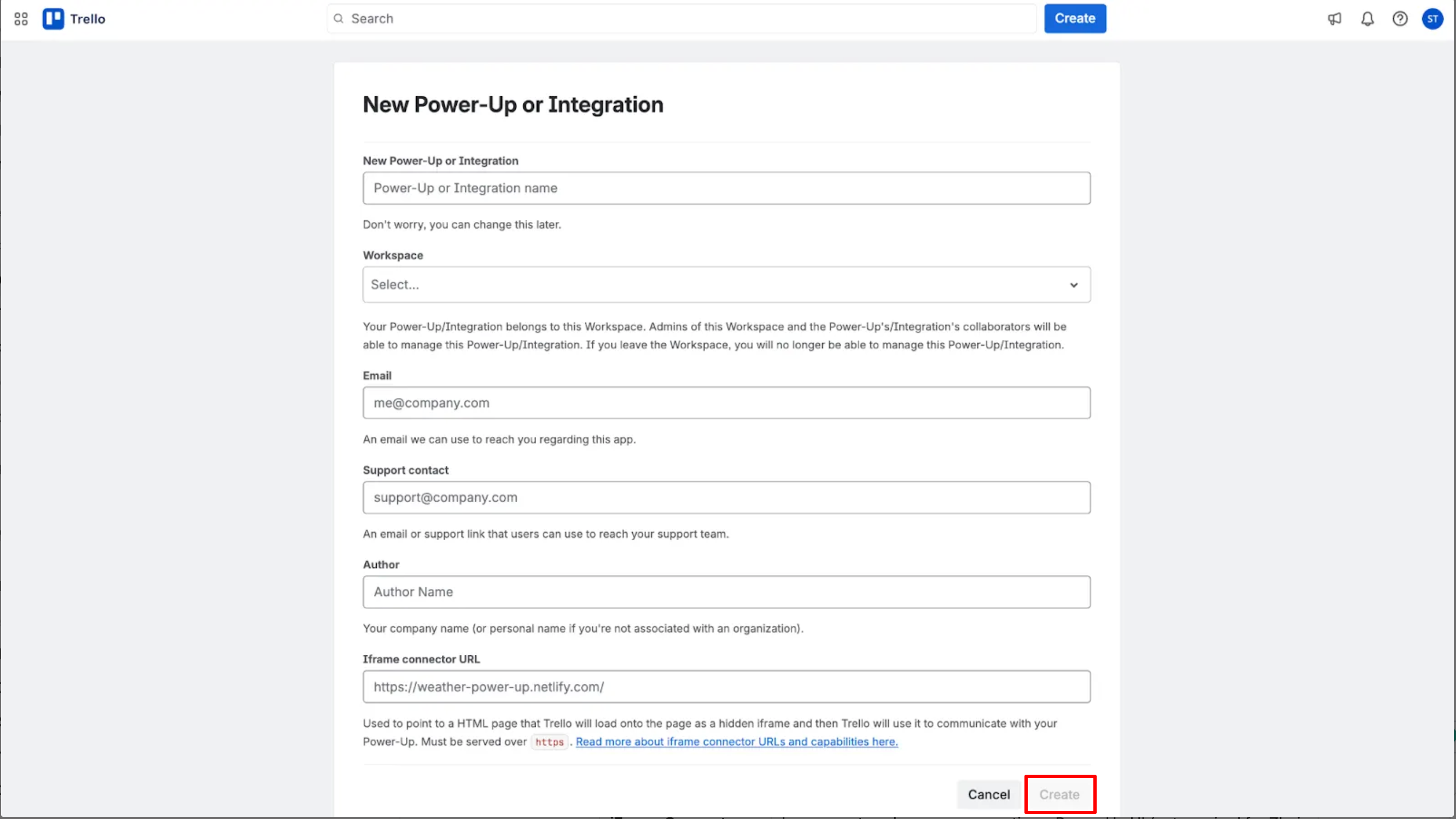
In the top-right corner of the Power-Up admin page, click the New button.
-
A new Power-Up or Integration form will open on the next page.
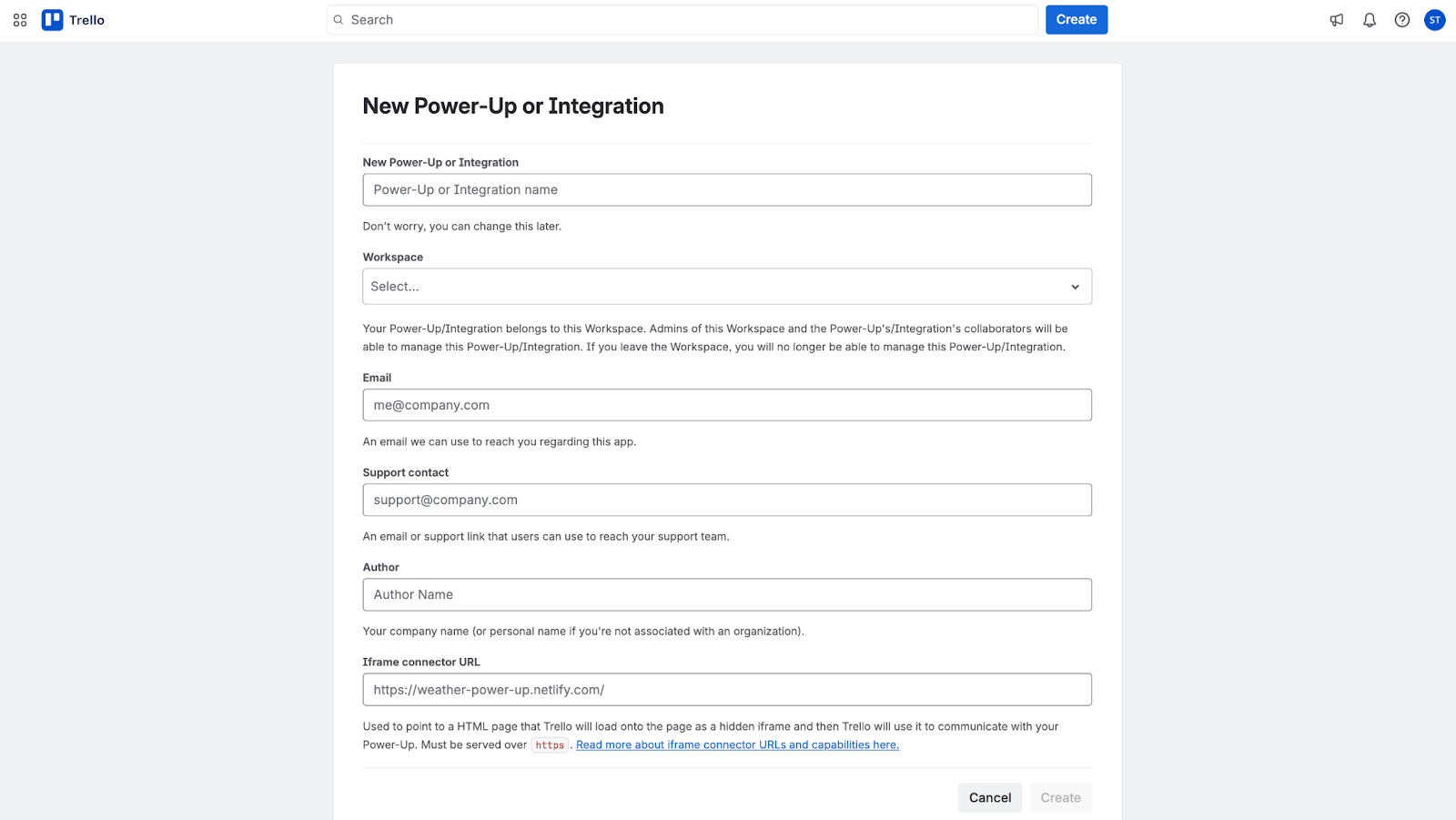
Enter the following details:
Field Description Name Name of your integration (e.g., Zluri Integration). Workspace Select the workspace that will own this app. Email Your contact email. Support Email Email for support queries regarding the app. Author Name of the developer or organization. iFrame Connector URL Leave blank.
-
Click the Create button at the bottom of the form to register your new app.
-
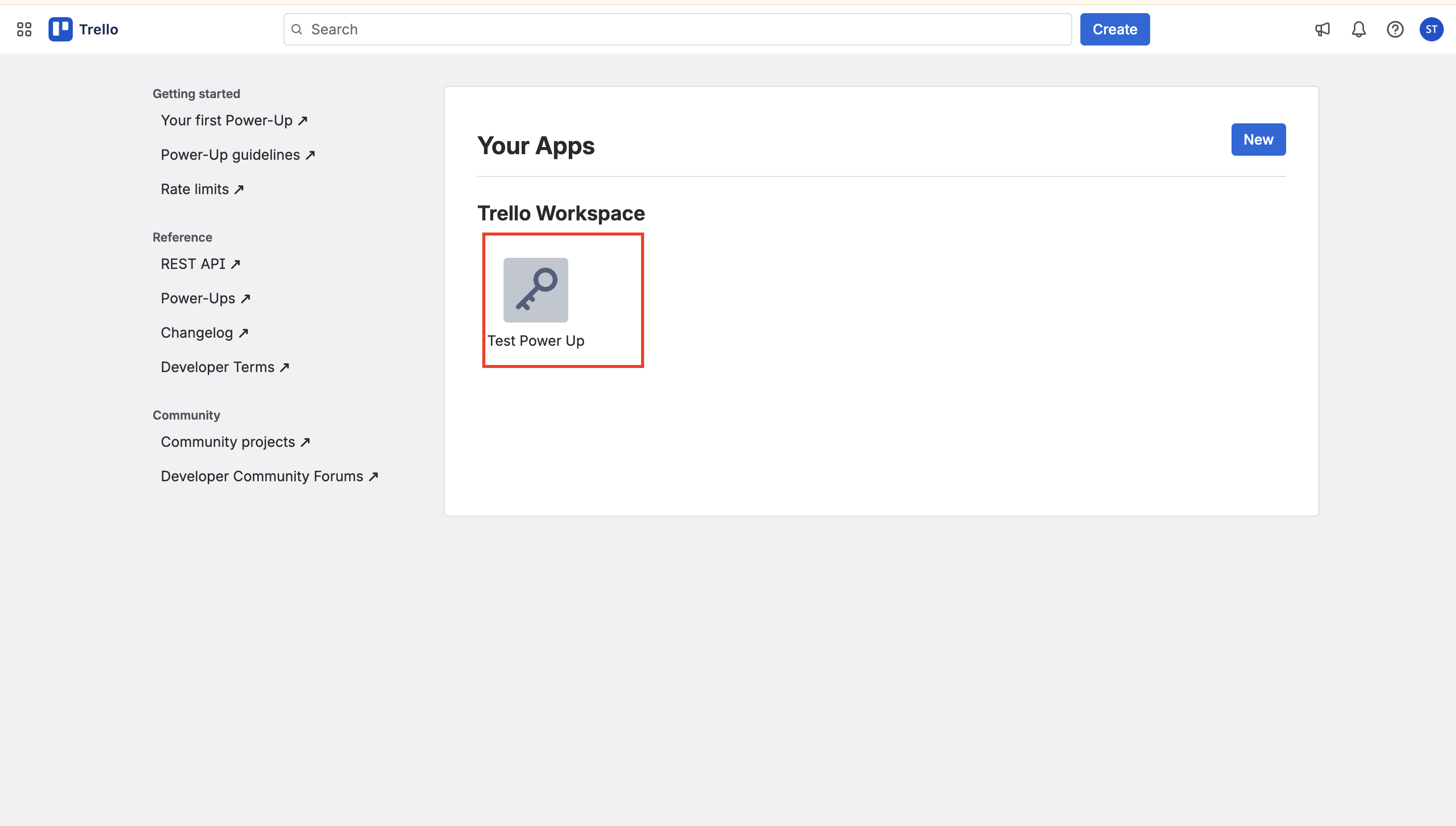
You have successfully created a Power-Up. All Power-Ups are listed on the admin landing page.
Step 3: Navigate to the API key tab
-
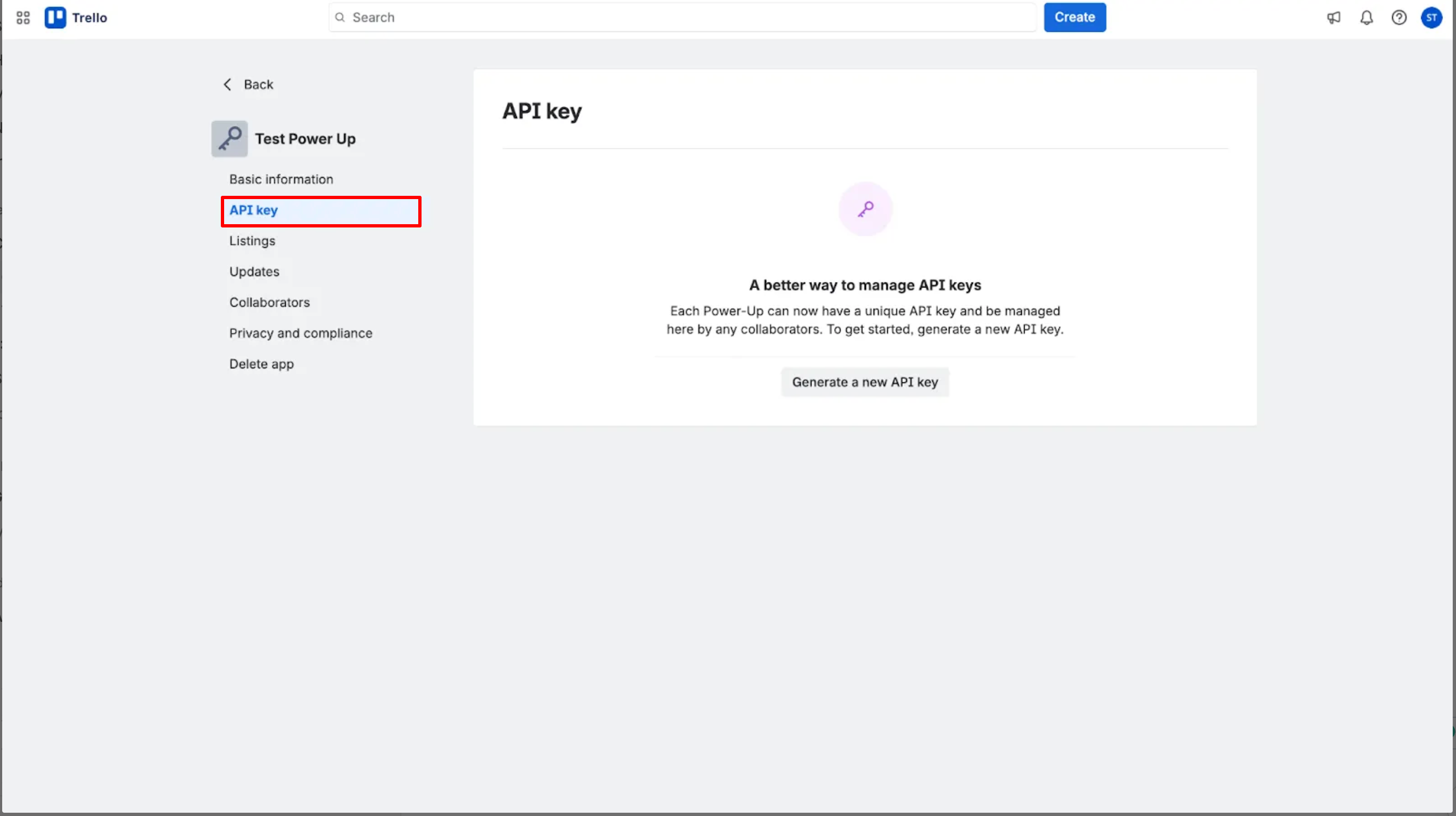
Navigate to the app's Basic Information page and click on the API key tab.
Step 4: Generate a new API key
-
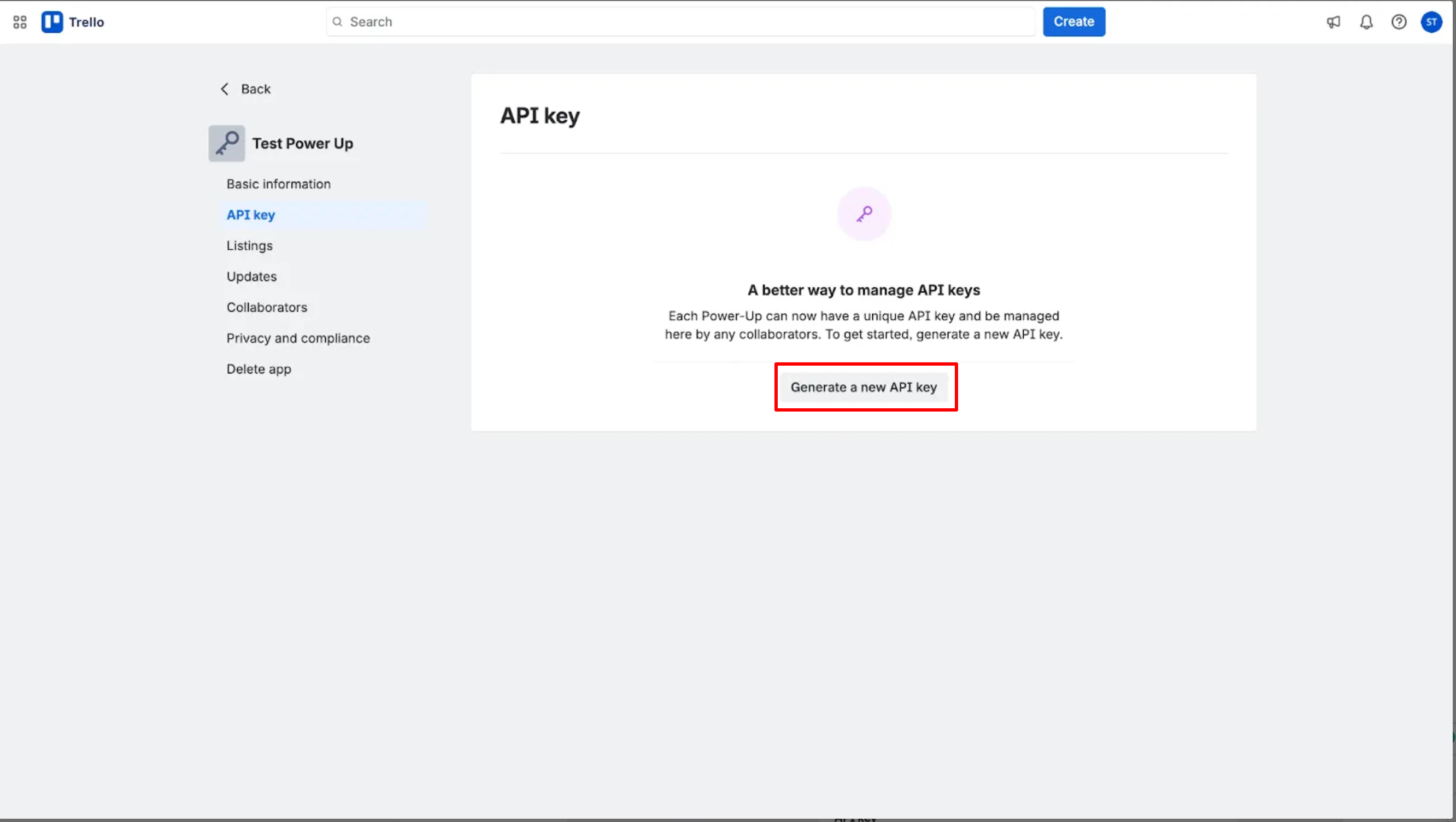
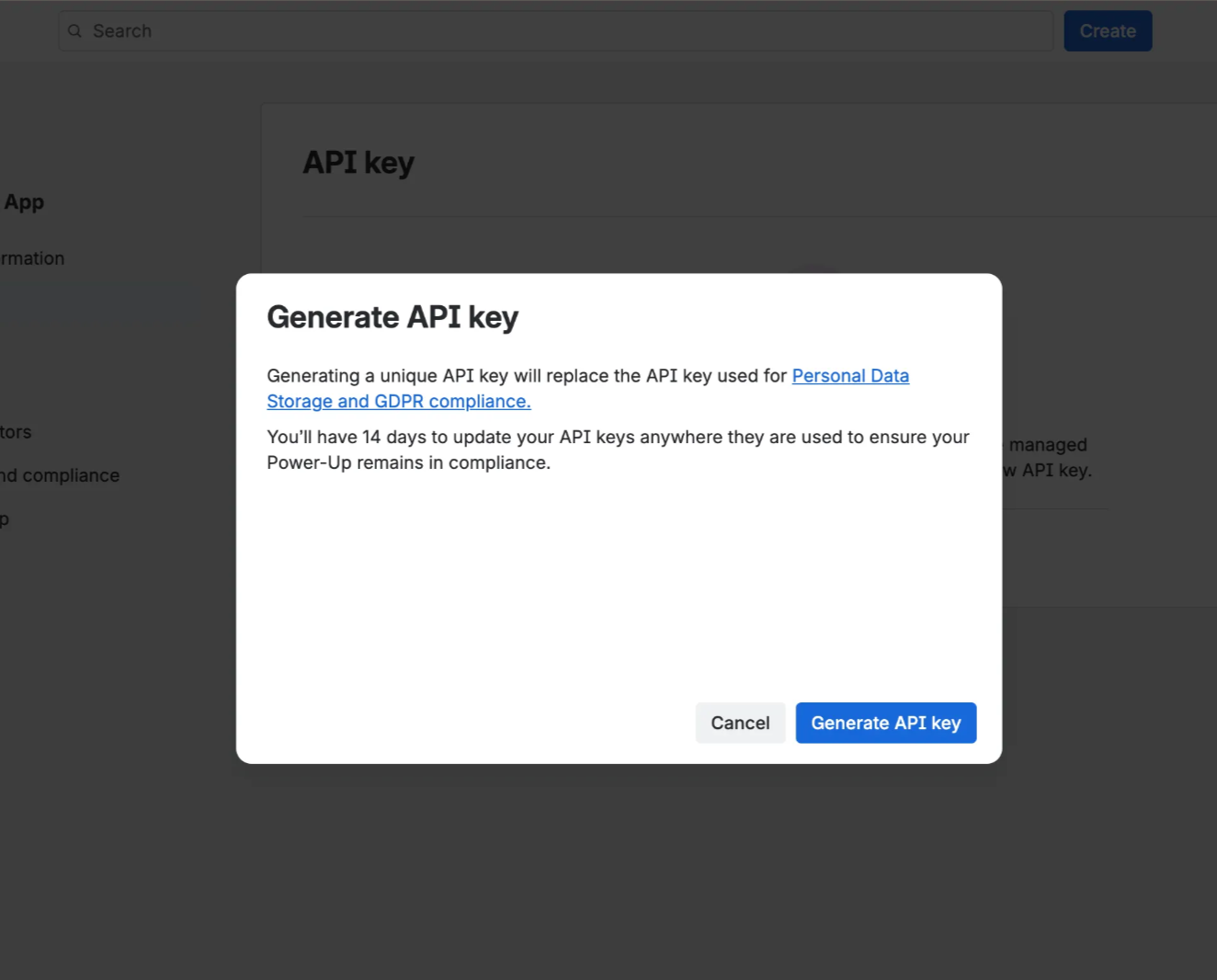
On the API key tab, click Generate a new API key.
-
Click Generate API key.
-
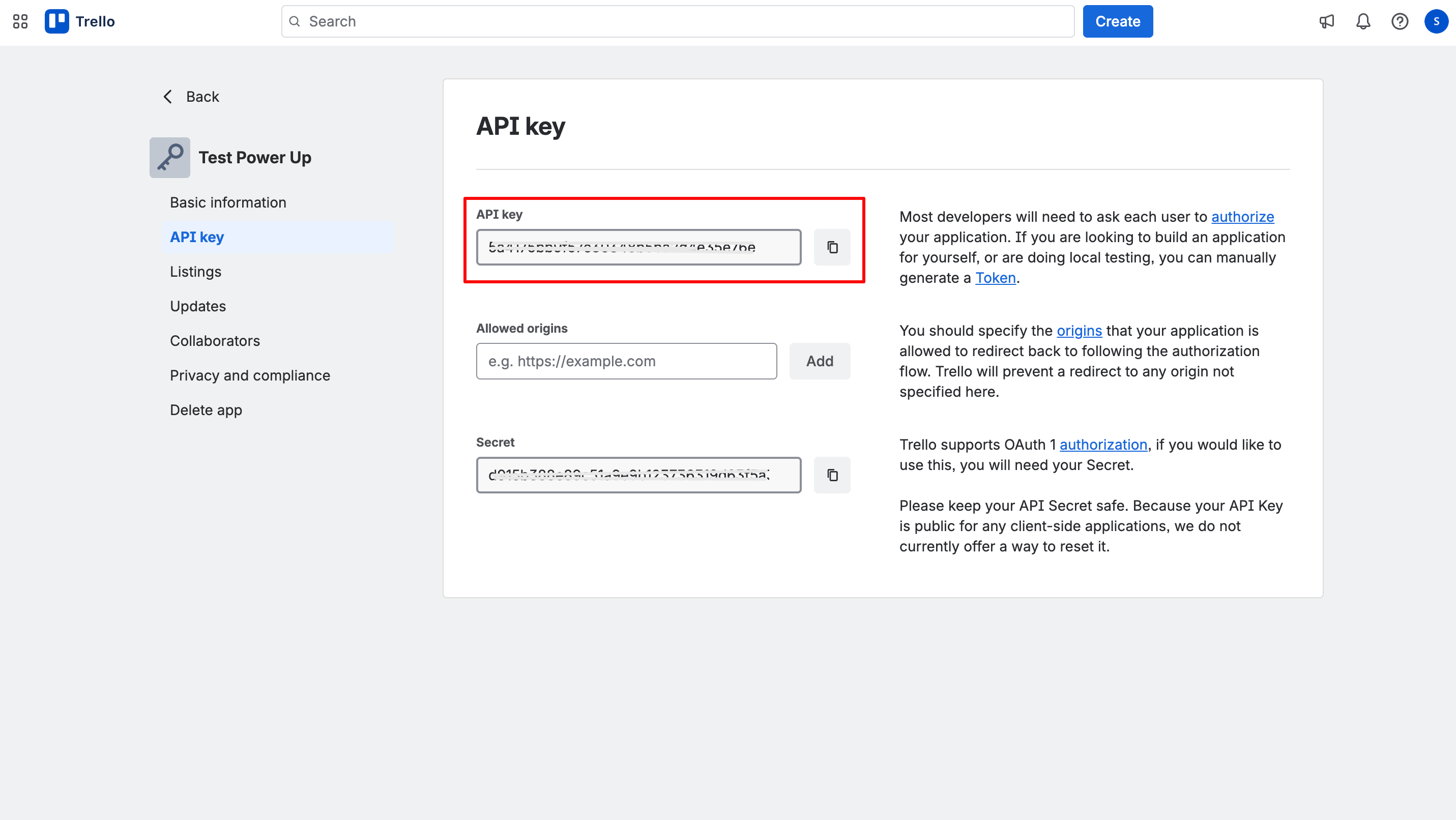
The unique API key is generated and shown on the screen. Copy and store it securely.
Step 5: Generate a Token
-
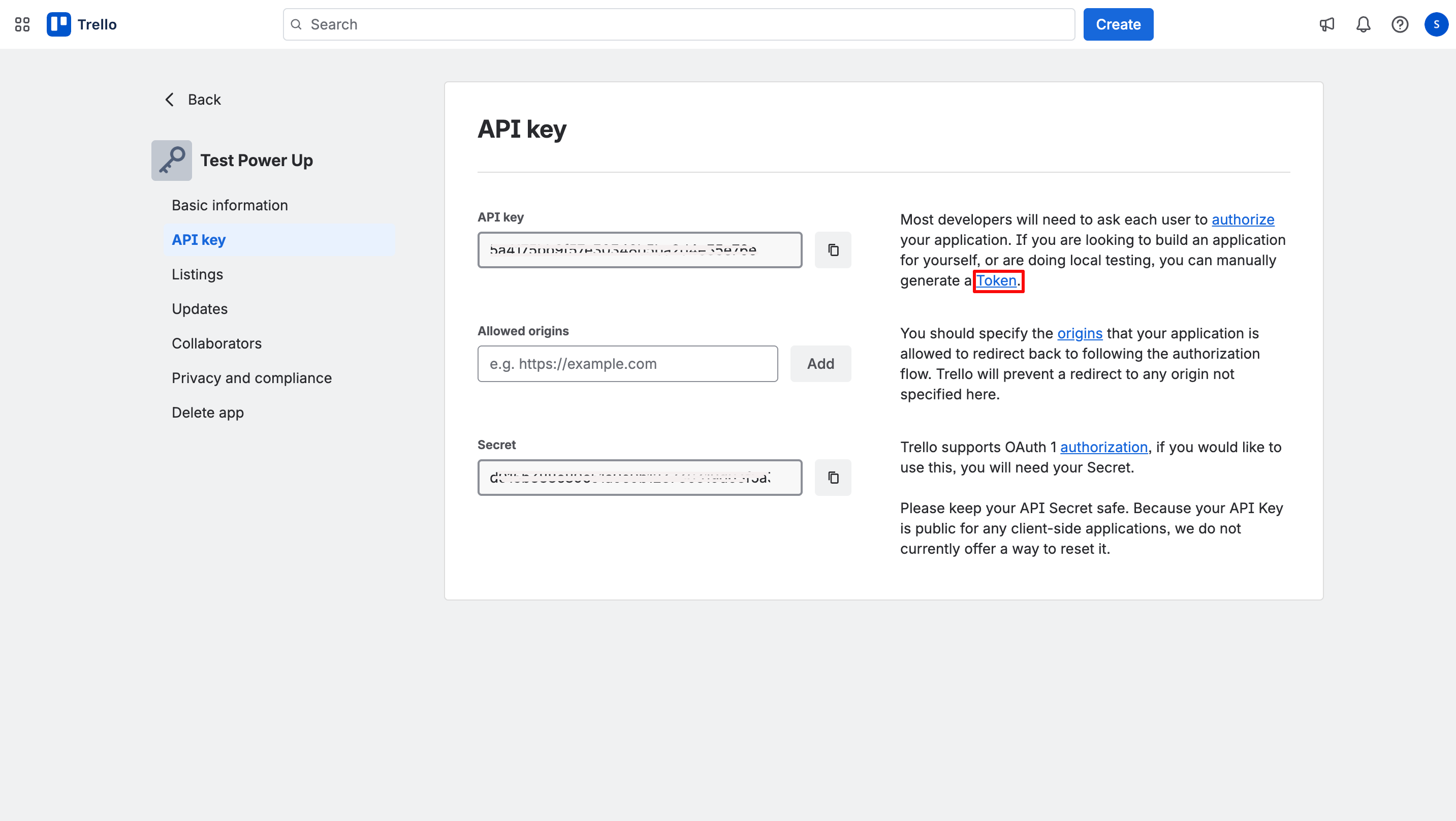
To generate a token, return to the page where you located your API key.
-
Click the 'Token' hyperlink displayed to the right of the API key field.
Step 6: Authorize the Token
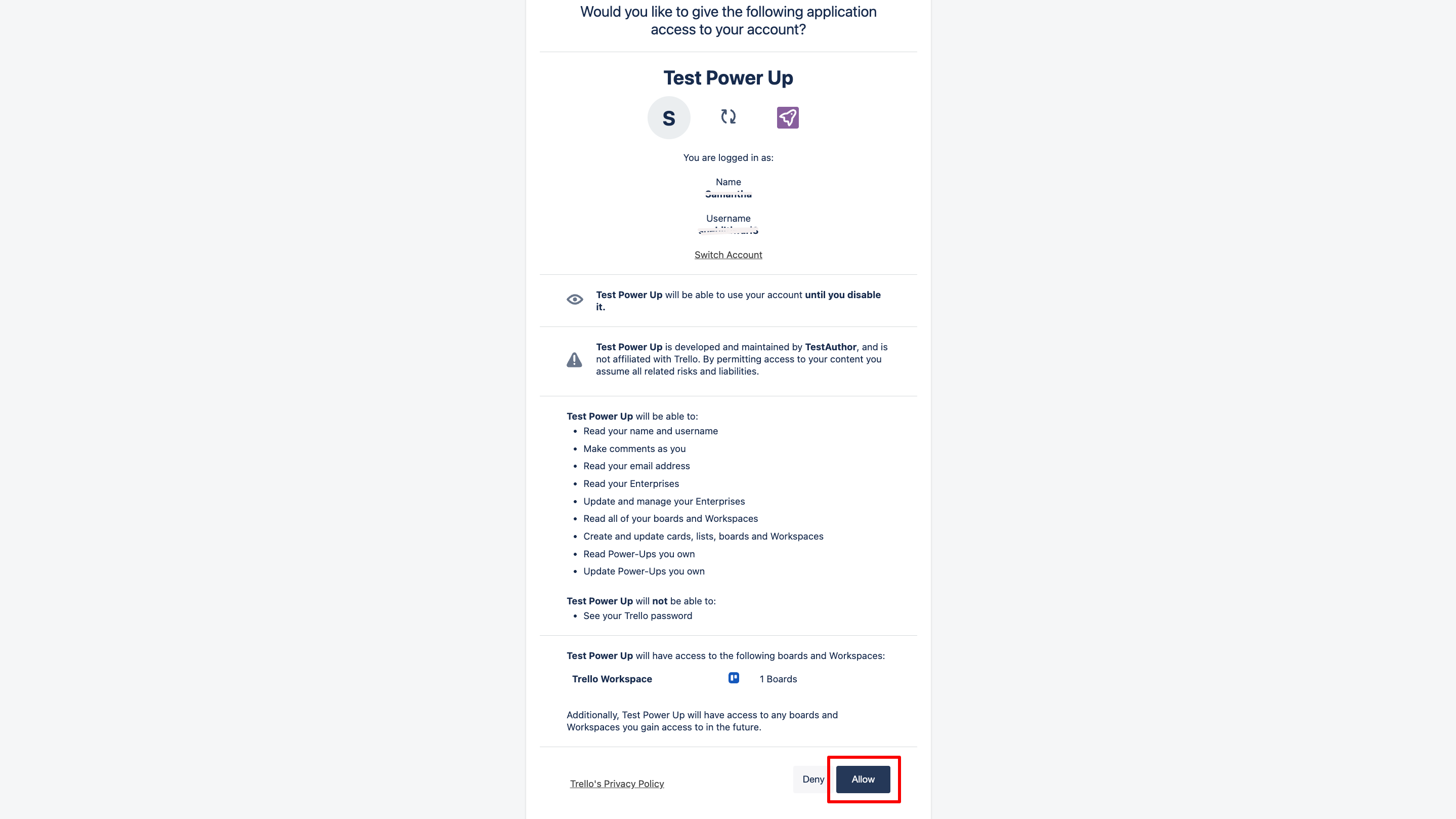
To authorize your Trello Power-Up application with Zluri, you need to authorize the generated Token.
-
When granting access, review the permissions, then scroll to the bottom of the page and click 'Allow'.
-
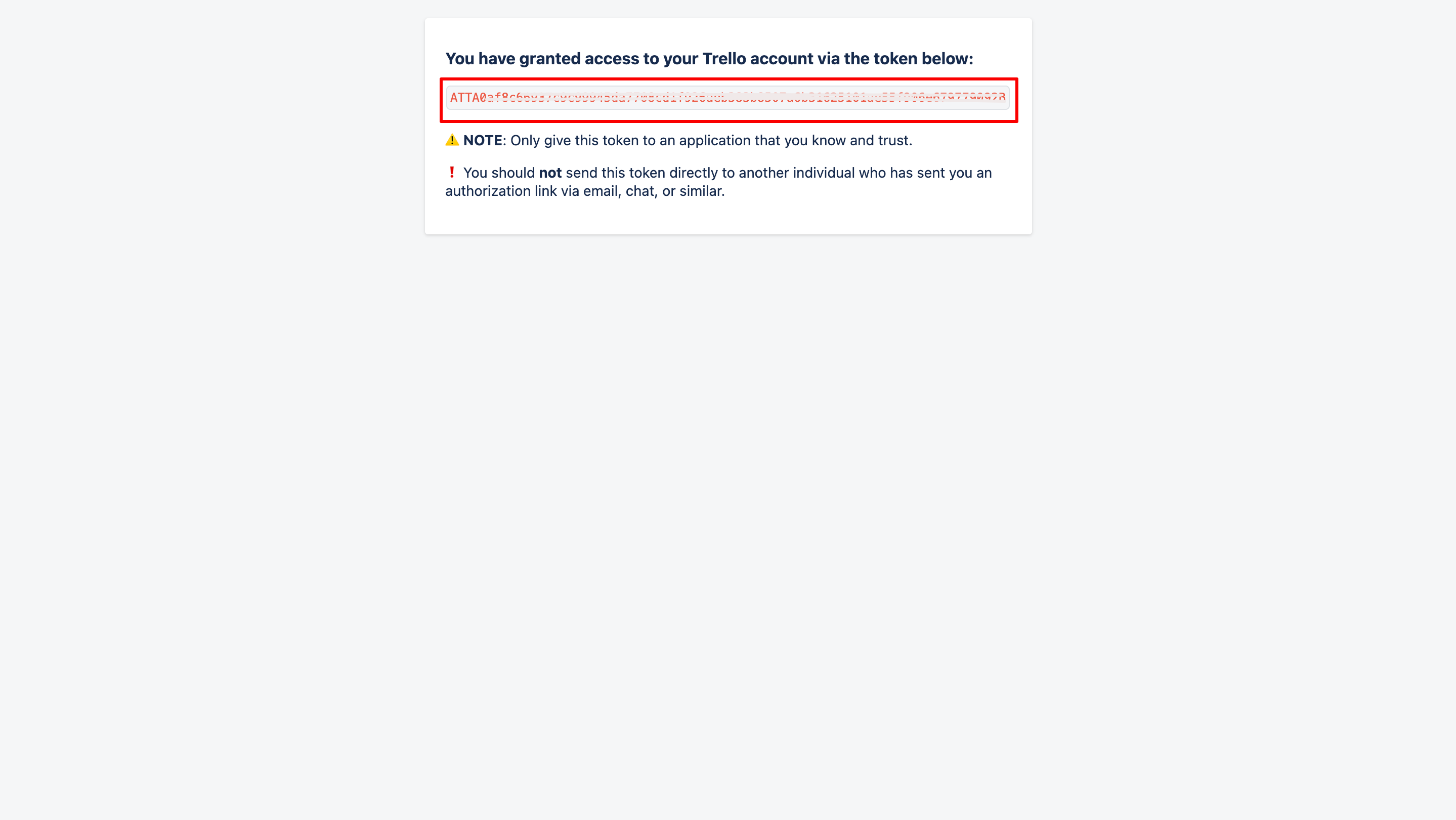
Once you click the Allow button, you’ll grant your application access to your account. Your Token value is generated as highlighted in the image below. Please copy and keep this detail safe.
Step 7: Connect Trello to Zluri
-
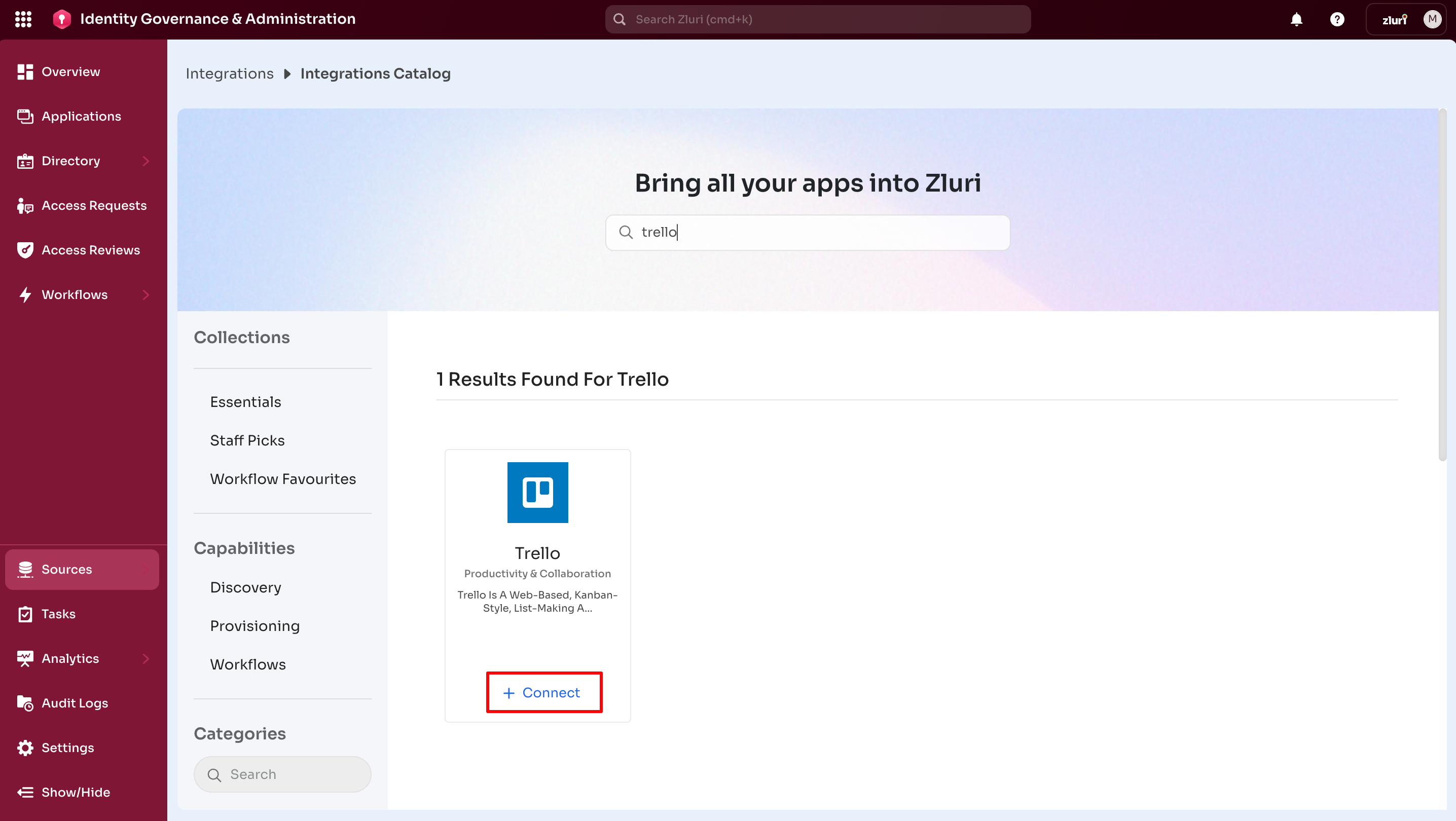
In Zluri, go to Sources > Integrations.
-
Open the Integrations Catalog.
-
Search for “Trello”, then click on ➕ Connect.
-
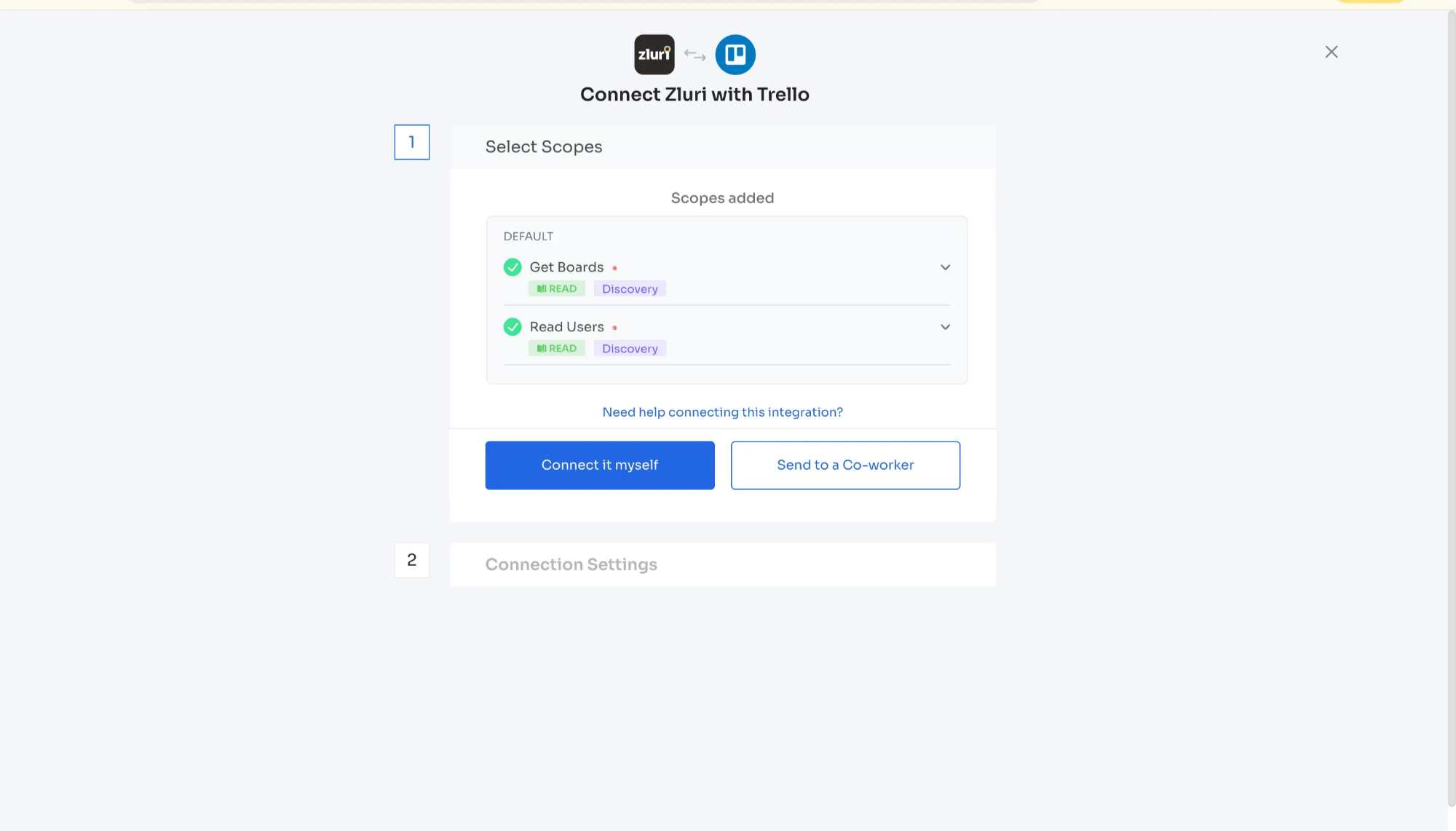
Click Connect it myself.
-
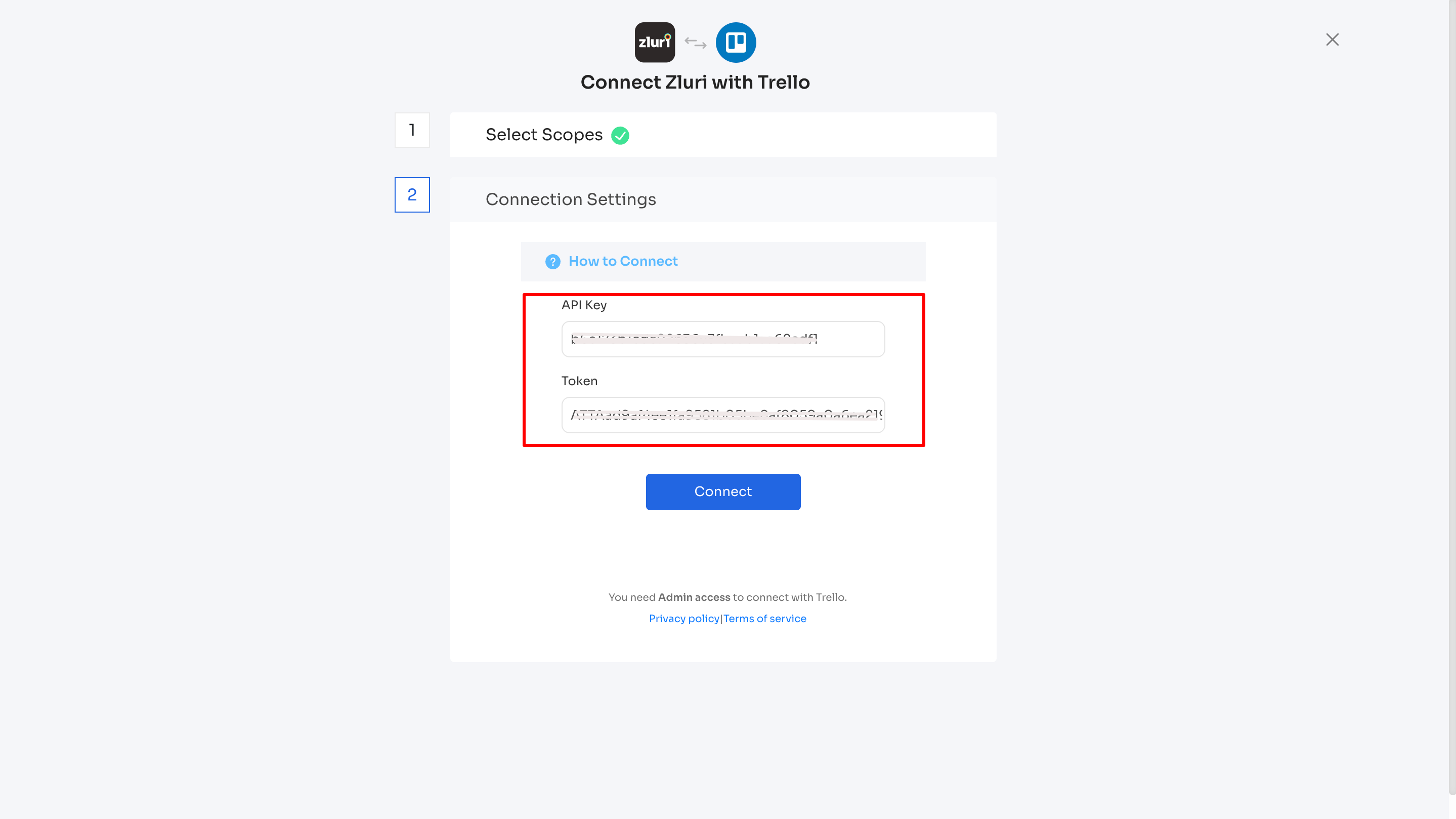
On the Connection settings tab, copy the Token and API key from the Trello admin workspace and paste them into the connection fields in Zluri.
-
Click the Connect button to complete the integration.
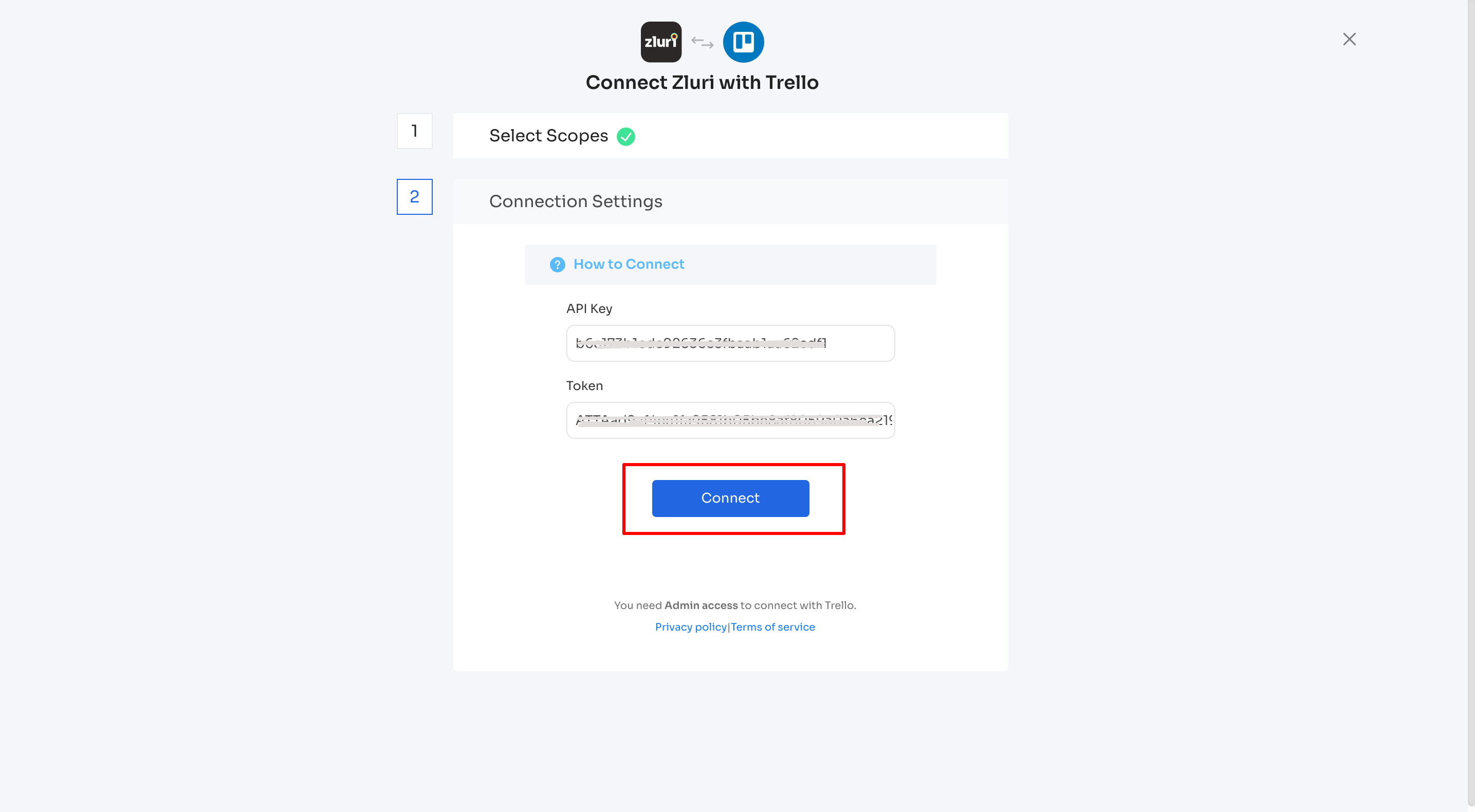
You have successfully connected Trello with Zluri.
For help with common issues, see the Trello troubleshooting guide.
Got questions? Feel free to submit a ticket or contact us directly at [email protected].
Updated 9 months ago