
Directory and User Management Setup
Directory Management controls user attribute retrieval from connected systems and user classification across the platform. Configure these settings from:
Settings → Directory Management
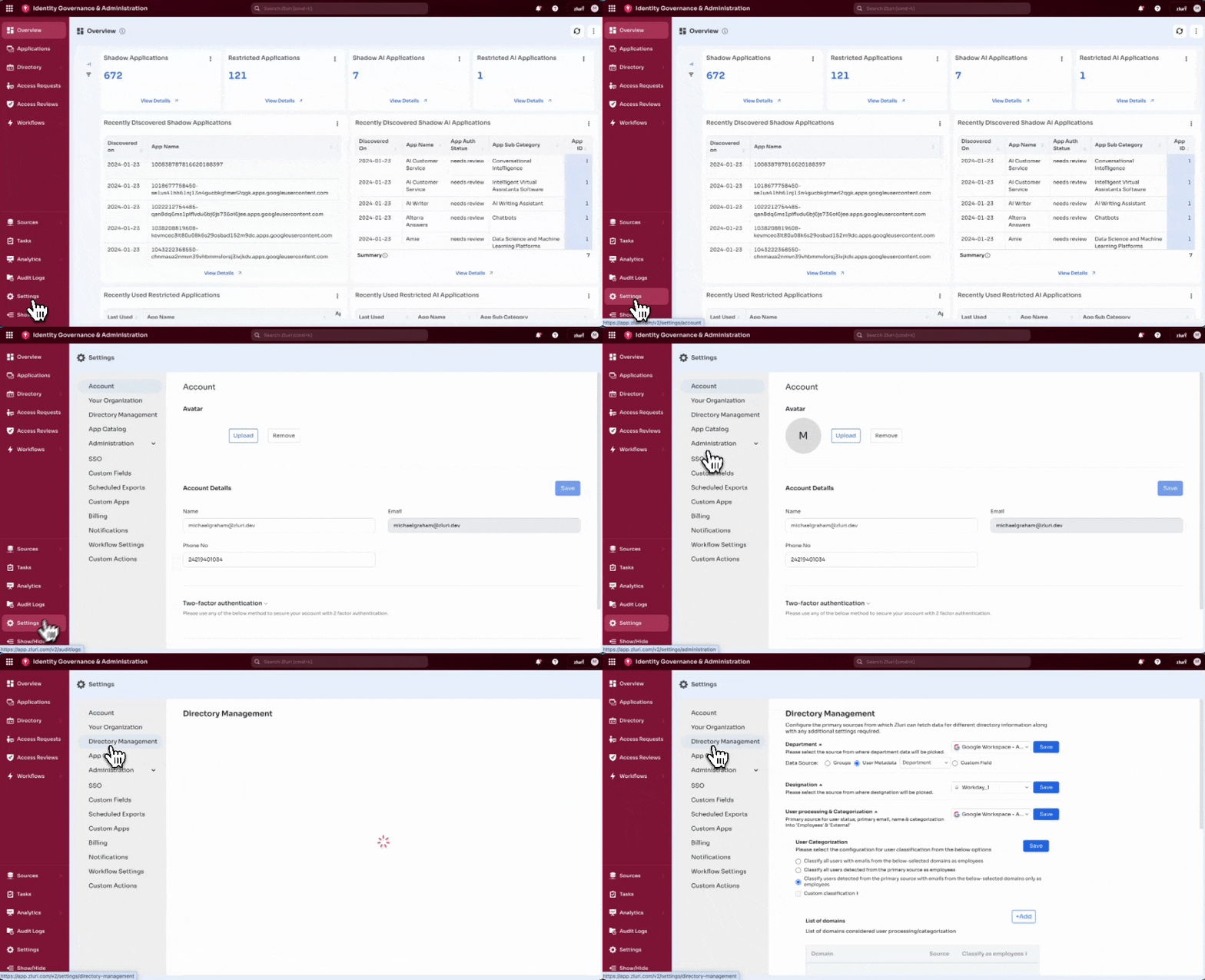
Primary Source Mapping
Primary Source Mapping defines the system Zluri treats as the authoritative source for each user attribute. A dropdown is displayed for every supported field, and the selected source determines which system provides the identity value.
Configurable fields
- Department
- Designation
- Reporting Manager
- Onboarding Date
- Personal Email
- Business Unit
- Cost Center
- Base identity fields under User Processing (name, status, primary email)
Steps to configure
- Open Settings → Directory Management.
- For each field, choose a source system from the dropdown.
- Select Save.
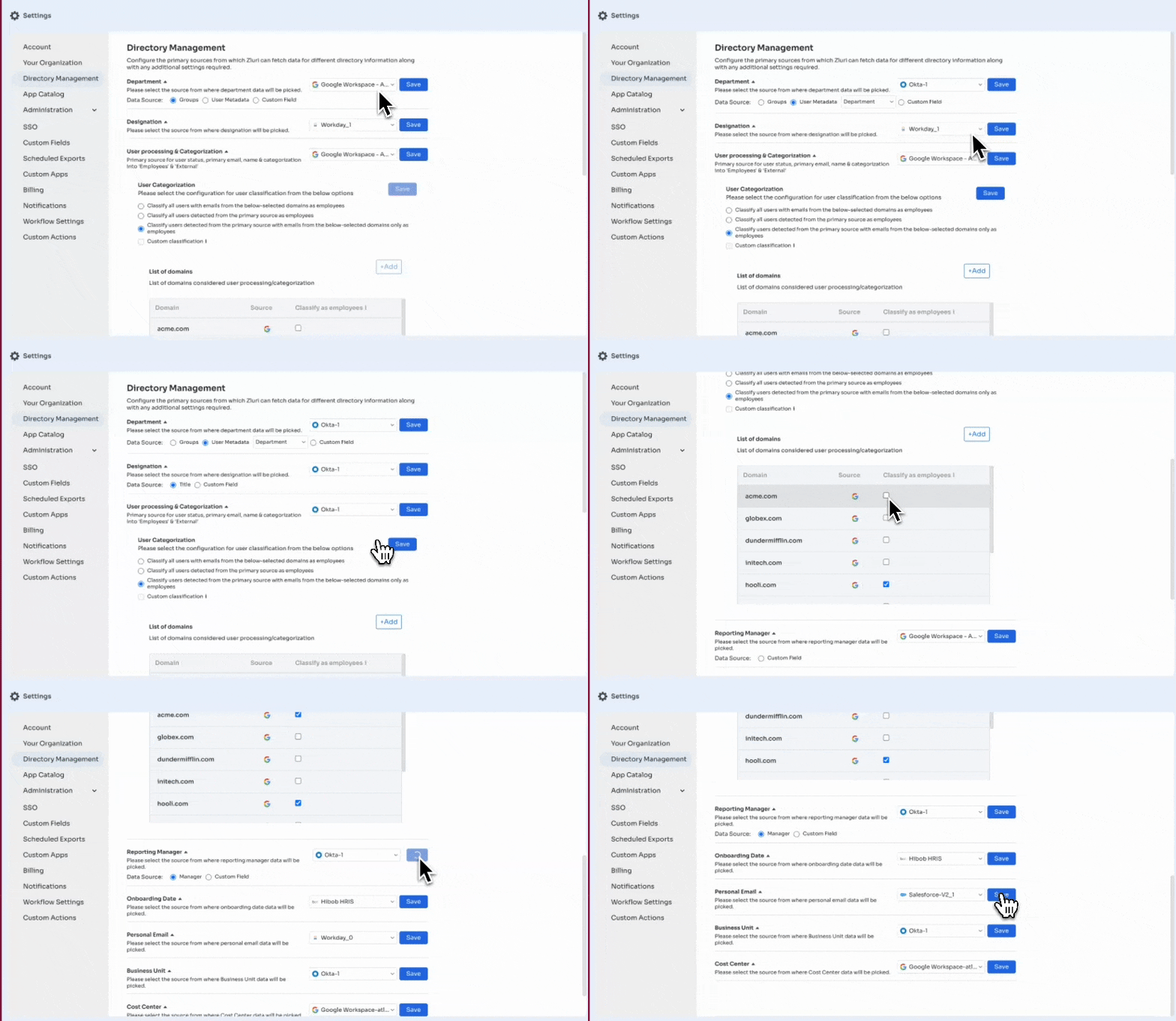
Data Source Selection
For certain attributes, Zluri allows an additional Data Source selection.
This setting defines the method Zluri uses to derive the attribute value from the selected source.
The available data source options are:
Groups
When Groups is selected, Zluri derives the attribute value based on group membership in the connected directory or identity provider.
- Zluri evaluates the user’s group associations during sync
- The attribute value reflects the group mapping defined by the organization
- Updates to group membership automatically update the attribute value
Use this option when organizational structure (such as departments or teams) is maintained through directory groups.
User Metadata
When User Metadata is selected, Zluri reads the attribute directly from a structured user profile field exposed by the source system.
- The metadata key (for example,
department) is selected from the dropdown - Zluri pulls the value exactly as stored in the source system
- Changes in the source system propagate automatically during sync
Use this option when the attribute already exists as a standard user field in the source system.
Custom Field
When Custom Field is selected, Zluri reads the attribute value from a custom field configured within Zluri.
- The administrator specifies the custom field key
- The value can be populated manually, via imports, or through supported integrations
- This option allows organizations to maintain attributes that do not exist natively in source systems
Use this option when the required attribute is organization-specific or not available as native metadata or group mapping.
User Processing and Categorization
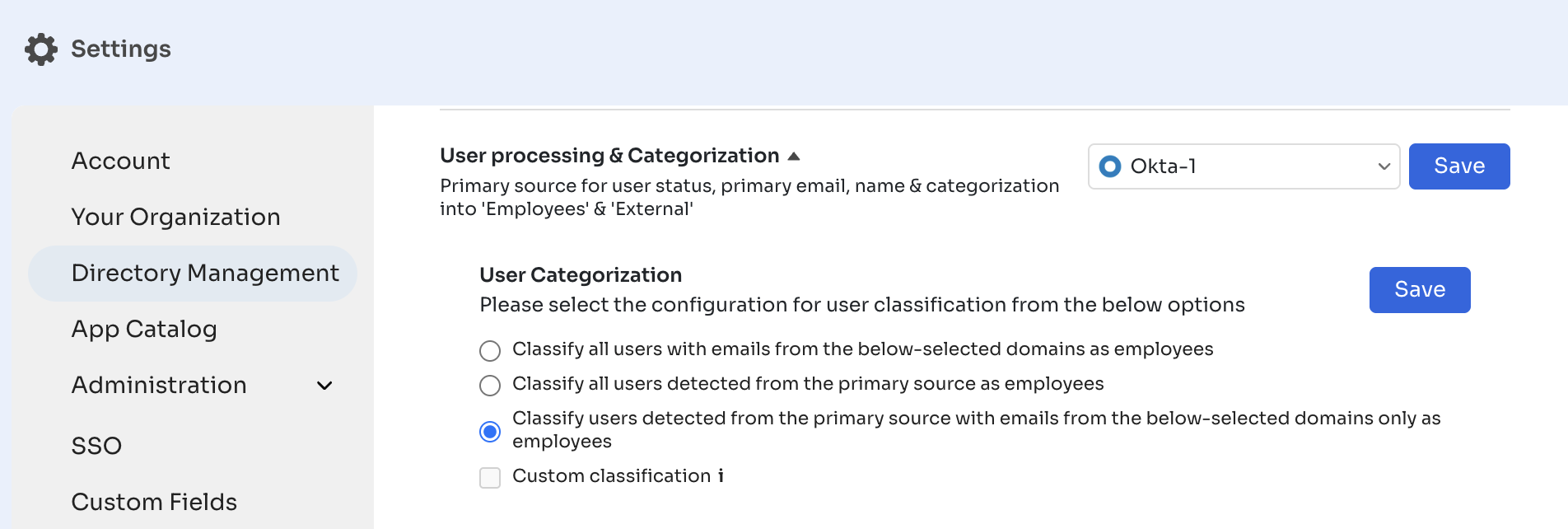
User Processing defines the primary system Zluri uses to derive key identity attributes, including user status, primary email, name, and the initial input for classification. This configuration is applied across all identity-related modules.
User Categorization controls Zluri’s classification of identities as Employees or External. Four classification modes are available:
- Classify users based on email dsomains
- Classify all users detected from the primary source
- Classify users detected from the primary source whose emails match the selected employee-eligible domains
- Apply a custom classification rule
After selecting the required classification mode, select Save to apply the configuration.
Domain Management
The List of domains table shows all domains Zluri uses during categorization. Each row displays:
- Domain name
- Source system
- Whether users from that domain are classified as employees
Add a new domain
- Select + Add
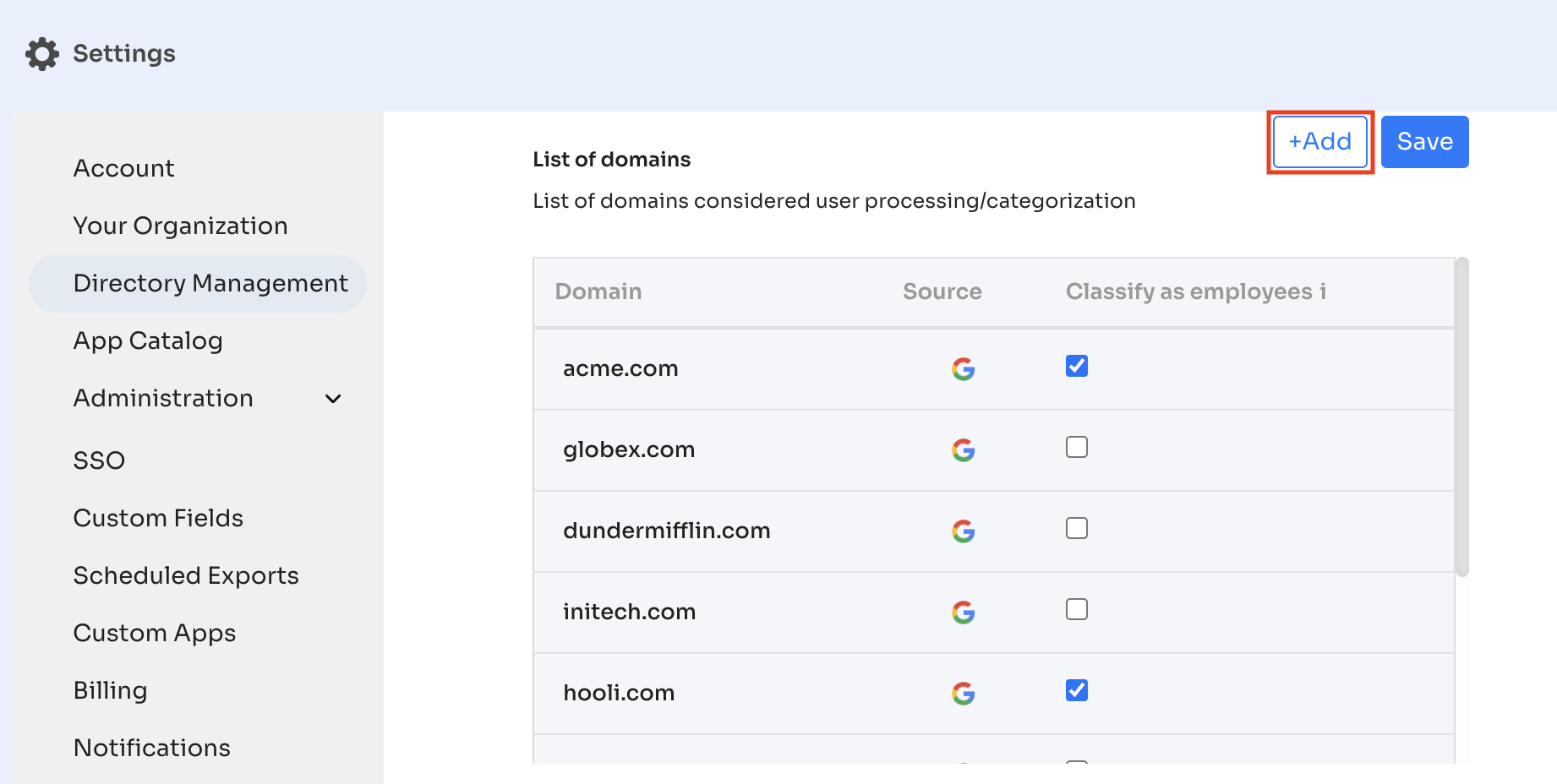
- Enter the domain
- (Optional) Select Classify users from this domain as employee
- Select Add Domain
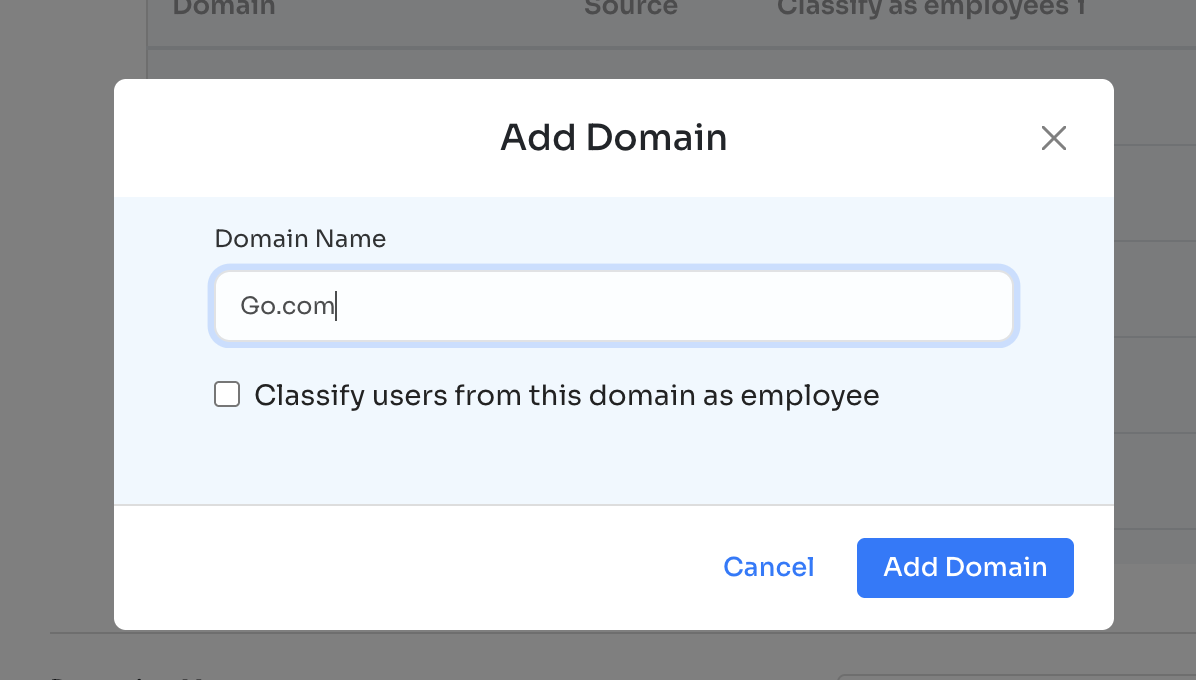
New domains apply immediately to classification rules.
Additional Attribute Mapping
Scrolling down in Directory Management reveals additional fields available for mapping to connected systems:
- Reporting Manager (supports Custom Field)
- Onboarding Date
- Personal Email
- Business Unit
- Cost Center
For each attribute, select the appropriate system from the dropdown and select Save.
Updated 7 months ago