
User Merge
Zluri automatically merges users when one user’s primary email is found as an alternate email of another user in any SSO.
This ensures alias emails are consolidated into a single user, since aliases can be used to access applications.
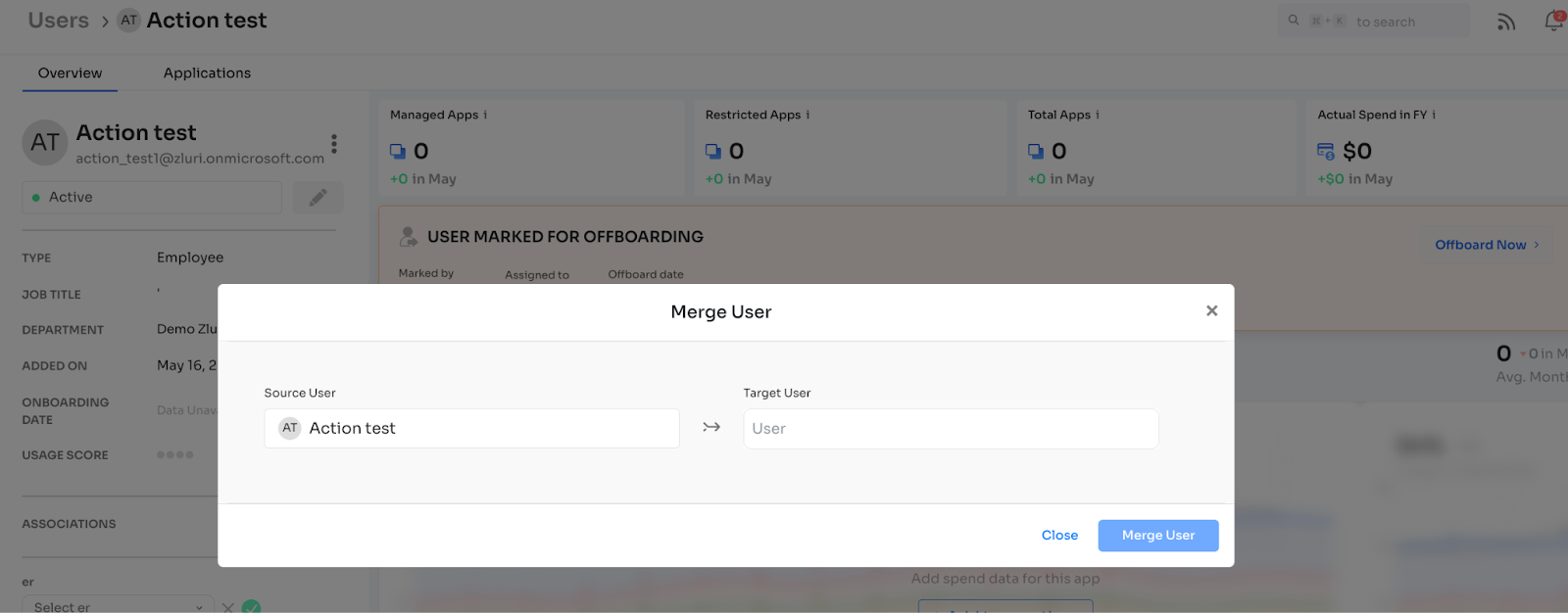
User merge can also be performed from the UI.
Behaviour on Merge
- Applications and activities of the source user are combined with those of the target user.
- Metadata of the target user remains intact.
- The source user is deleted from the list of users and no longer appears in the system.
Detailed Operations
- Sources of the source user are added to the sources list of the target user.
- The primary source of the target user remains unchanged, even if the source and target had different primary sources before the merge.
- Statuses of the source user (per source) are added to the status list of the target user.
- Primary email and other emails of the source user become alternate emails/aliases of the target user.
- Source user activity is appended to the target user’s activity for each application.
- Unique ID of the source user is lost; only the target user’s ID persists.
- Name and attribute metadata (with source) from the source user are added to the target user.
Attributes Updated During Merge
The following attributes (and sub-attributes) of the source user are merged into the target user with source references:
- Role
- Department
- Job Title
- Reporting Manager
- Cost Center
- Business Unit
- Location
- Date of Joining
- License assigned
- Transactions
- App Ownership Transfer
- Contract Ownership Transfer
- Task Ownership Transfer
- Scheduled Notifications / Workflows / Task Dashboard
Steps to Merge a User
-
Go to Directory from the left navigation panel.
-
Open the Users section.
-
Select the user you want to merge to open their profile.
-
Click the three-dot menu (⋮) in the top-right corner of the user profile to open additional actions.
-
Choose Merge with Another User from the menu.
-
In the merge window, enter the email of the target user you want to merge into.
-
Select the correct target user from the results.
-
Click Merge User to start the merge process.
-
Click Continue on the confirmation prompt to complete the merge.
-
The merge is now completed.

Current Behaviour
- User merge occurs if a user’s email appears as an alternate email of another user.
- This can be triggered by the Data Engineering pipeline or directly from the UI.
- Status change logs are not merged.
- Audit logs of the source user are not merged and will not be visible in the UI.
- A backend data script runs to complete the merge:
- The source user is deleted.
- Applications and activity from the source user are appended to the target.
- Licenses and roles do not merge.
- Ownerships transfer to the target user (except Negotiation Owner):
- Applications: Owner, IT Owner, Financial Owner
- Contracts: Owner, IT Owner, Financial Owner
- Vendors: Owner
- User: Reporting Manager
- Department: Head
- Primary email and other emails of the source user are added as aliases of the target.
- Attributes merged: Designation, Department, Job Title.
Scheduled Notifications / Workflows
- If the deleted user is re-discovered from an integration, the new user will not be automatically unmerged.
- The new discovery will be processed under the target user’s source.
Settings
- Aliases can be excluded from processing for any connection via backend configuration.
Important Points
- After a merge, combined activities do not appear immediately. They are visible only after the standard SLA window (24 hours).
- If app A1 (under parent P1) is merged into A2 (under parent P2):
- All activities from A1 and A2 merge under P2.
- Activities from P1 do not merge.
- These cannot be removed, since the original child-app source is not stored.
Updated 11 months ago