
Overview Screen
The Overview Screen is the landing page after logging into Zluri. The screen provides quick access to important identity and access information, giving users and administrators a high-level overview of activity, applications, and workflows. The screen adapts based on the user’s role, showing relevant data and features for Administrators and Employees.
Admin Overview
The Admin Overview is the primary landing view for administrators. It provides a consolidated summary of application activity, access insights, and security indicators. The screen displays high-level metrics for shadow applications, restricted applications, AI tools, and access-related risks.
The overview also includes a list of recent application discoveries and activity patterns. Charts and visual panels show usage trends, workflow performance, and external account distribution. These components help administrators monitor application growth, identify potential risks, and track identity-related changes across the organization.
Admin: IGA (Identity Governance and Administration)
In Admin: IGA, administrators manage identity-related tasks, including user provisioning, access control, and compliance.
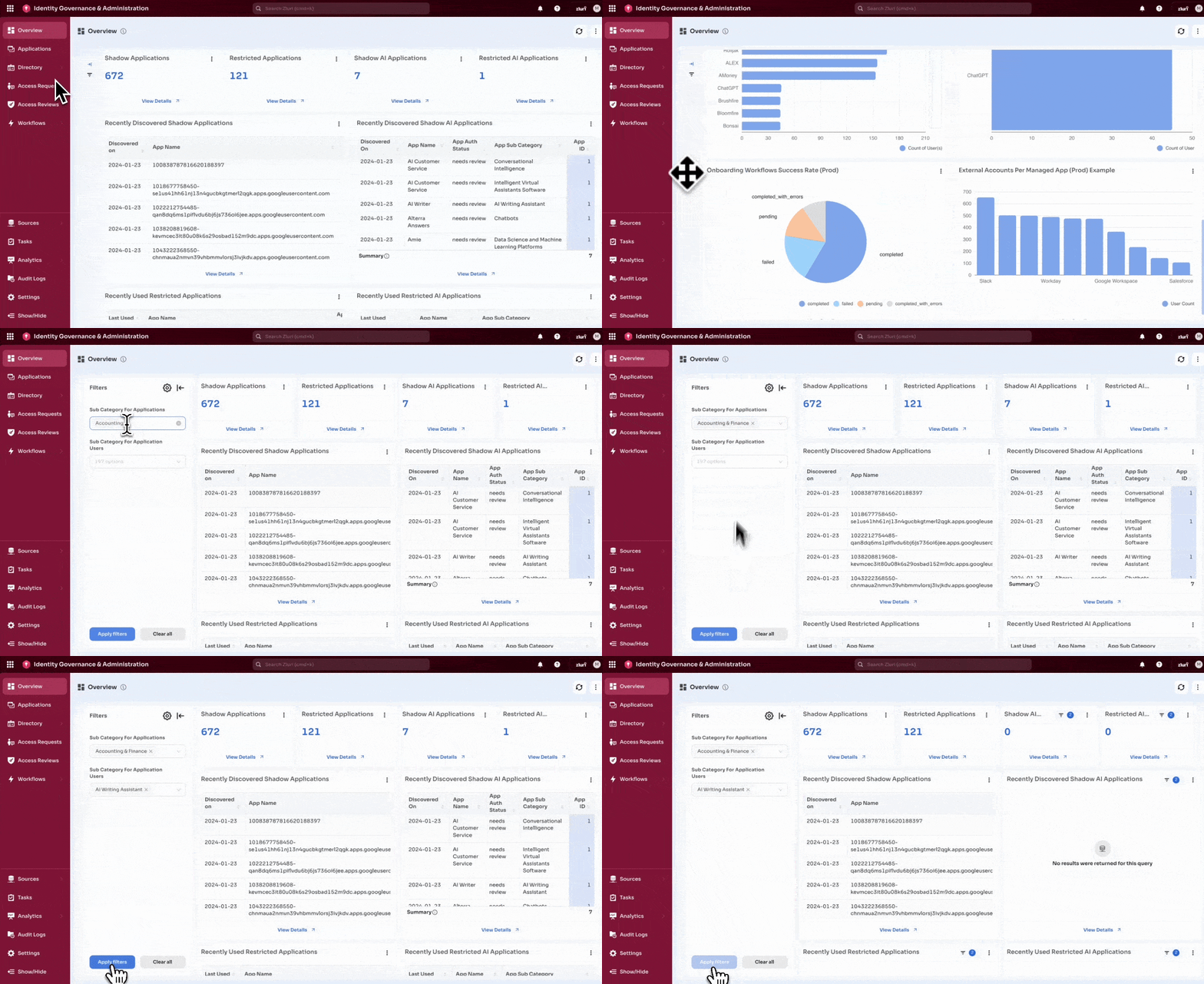
The IGA overview includes a Filters panel on the left side. The filters control what data is shown in the overview cards, charts, and discovery lists.
Available filters include:
- Application Sub-Category: Filters overview data by application sub-categories.
- Application User Sub-Category: Filters data based on user-level categorization linked to applications.
- Search: Searches within available filter values.
- Apply Filters / Clear All: Applies selected filters or resets the view.
When filters are applied, the system updates all IGA overview metrics, tables, and discovery panels.
Key Features
- Identity Discovery: Automatically discover all users and applications, including shadow IT.
- Access Management: Automate user onboarding, role changes, and offboarding.
- Access Reviews: Regularly review and certify user access to applications, ensuring compliance with policies.
- Risk Management: Detect orphaned accounts, over-privileged users, and unauthorized access.
Admin: SaaS Management
In Admin: SaaS Management, administrators can manage the organization’s SaaS applications and optimize costs.
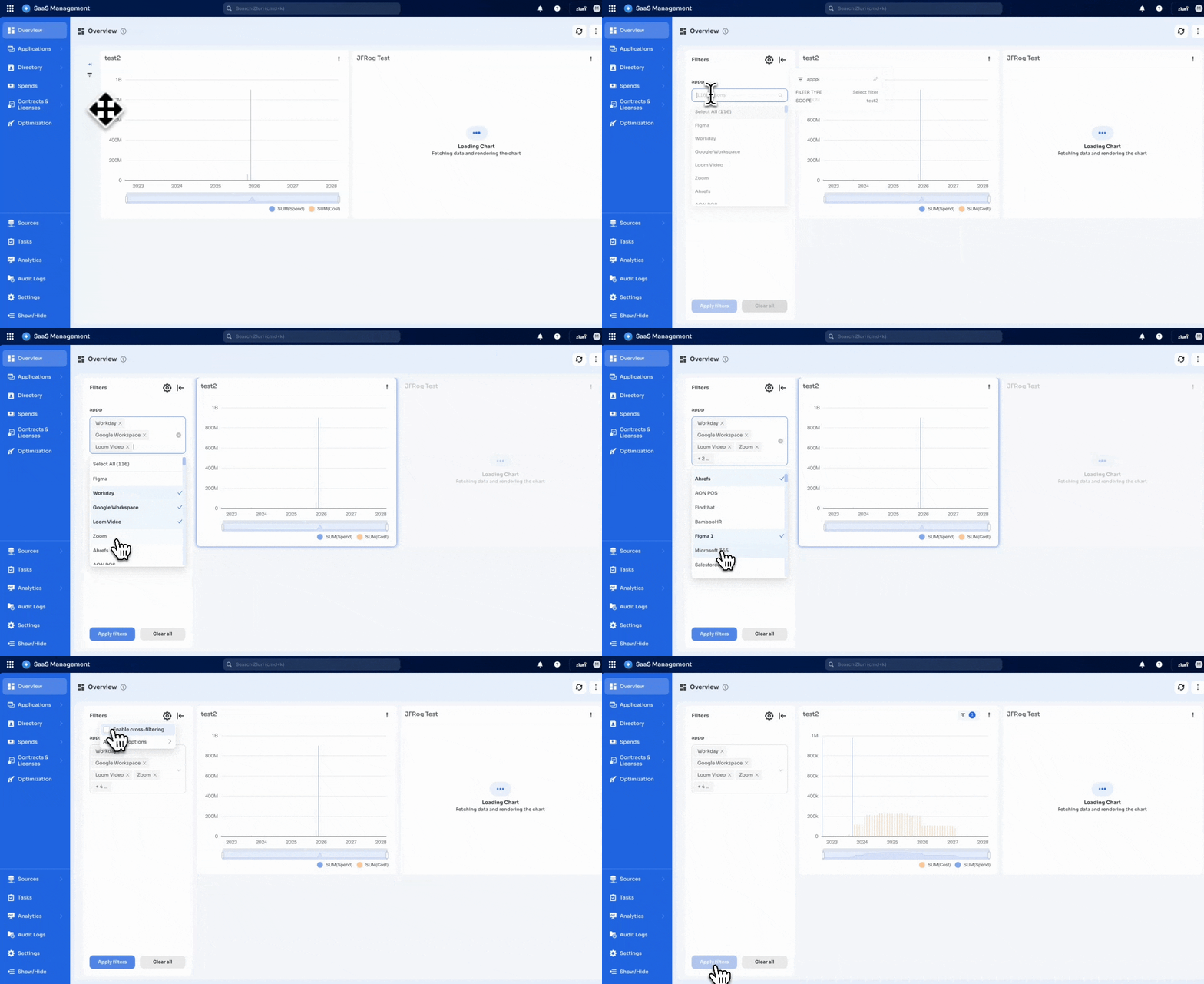
The SaaS overview includes a Filters panel used to control the applications included in charts, usage insights, and cost analysis. Filter controls include:
- Applications: Multi-select list of applications tracked in the organization.
- Search Field: Searches for applications within the filter list.
- Apply Filters / Clear All: Applies the selected filters or resets them.
Applying filters updates all SaaS overview panels, including spend charts, usage dashboards, and optimization insights.
Key Features
- Shadow IT Detection: Identify unauthorized apps in use across the organization.
- Cost Optimization: Monitor SaaS spending and reduce redundant or unused applications.
- AI App Management: Detect and manage AI tools to ensure compliance and mitigate security risks.
- Application Categorization: Organize apps into categories such as security, collaboration, finance, and more.
Employee Overview
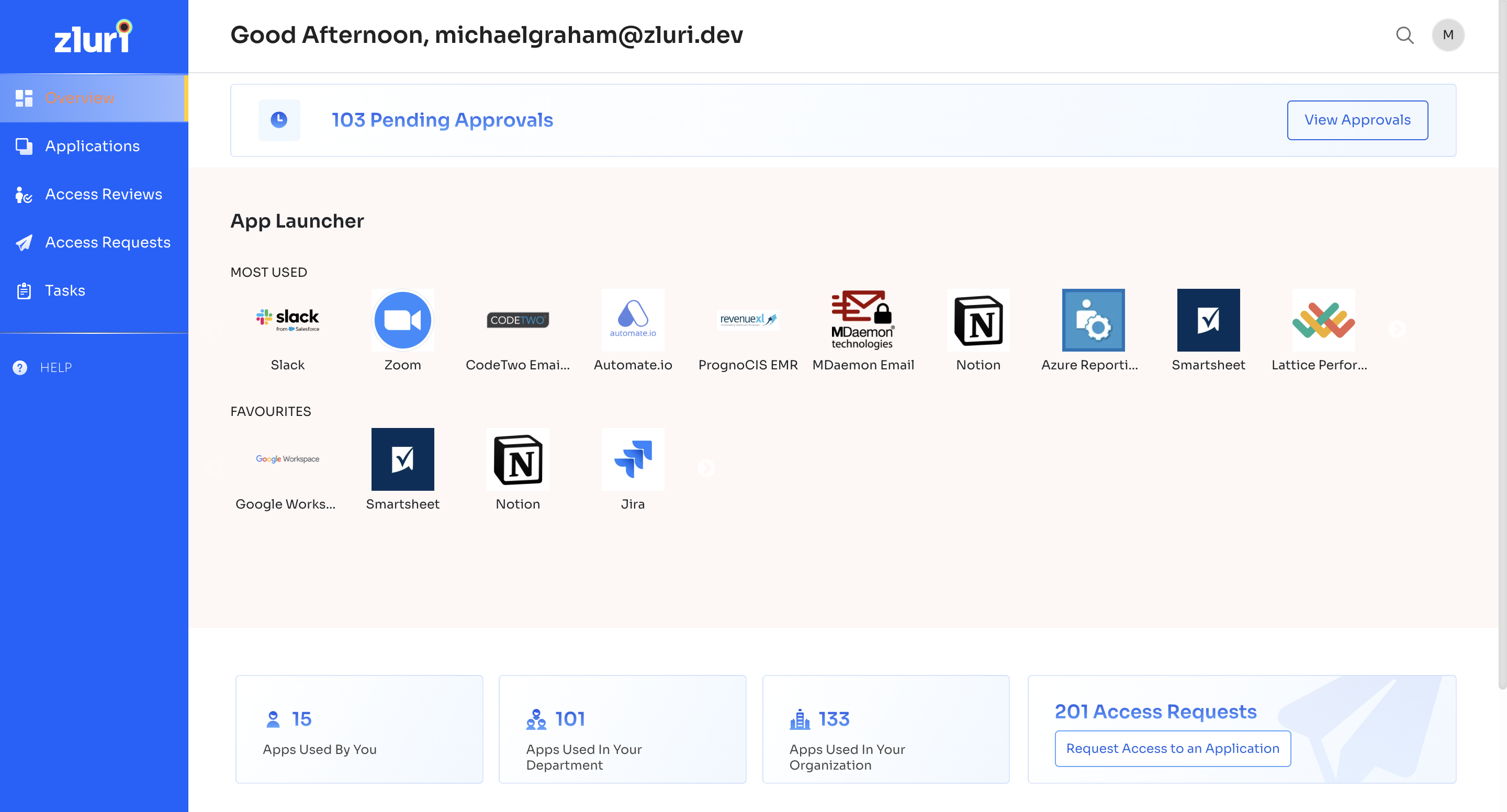
The Employee Overview provides a simplified interface for end users, focused on personal access and application management. Employees can view their frequently used apps, manage pending requests, and access their tasks.
Key Features
- App Launcher: Displays Most Used and Favourites apps for easy access.
- Quick Access Tiles: Shows apps used by the employee, the department, and the organization.
- Access Requests: Allows employees to request access to new applications and track pending approvals.
Updated 7 months ago