
Role-Based Access Control (RBAC) Setup
Zluri uses Role-Based Access Control (RBAC) to control what administrators can view and manage within the platform. RBAC is implemented using roles, where each role defines a set of permissions across modules.
Zluri supports two role types:
- System Roles
- Custom Roles
Roles apply only to administrative access within Zluri. They do not control end-user access to applications.
Role Types
System Roles
System roles are predefined roles provided by Zluri. These roles cover common administrative responsibilities and cannot be edited or archived.
Examples include:
-
Owner
Full access to all modules, including billing and platform-wide settings.
-
Admin
Full access to operational modules required for day-to-day administration.
-
Viewer
Read-only access across modules. No configuration or action permissions.
-
Security Admin
Access to security-related modules, audit logs, and access reviews.
-
Integration Admin
Access to manage integrations and source connections.
System roles support only View and Duplicate actions.
Custom Roles
Custom roles allow administrators to define tailored permission sets based on job functions or responsibilities.
Typical use cases include:
- HR teams managing users and lifecycle workflows
- Finance teams with read-only access to spends and contracts
- Auditors requiring limited, read-only access to selected modules
Custom roles support View, Edit, Archive, and Duplicate actions.
Accessing the Roles Page
- Go to Settings → Administration
- Open the Roles tab
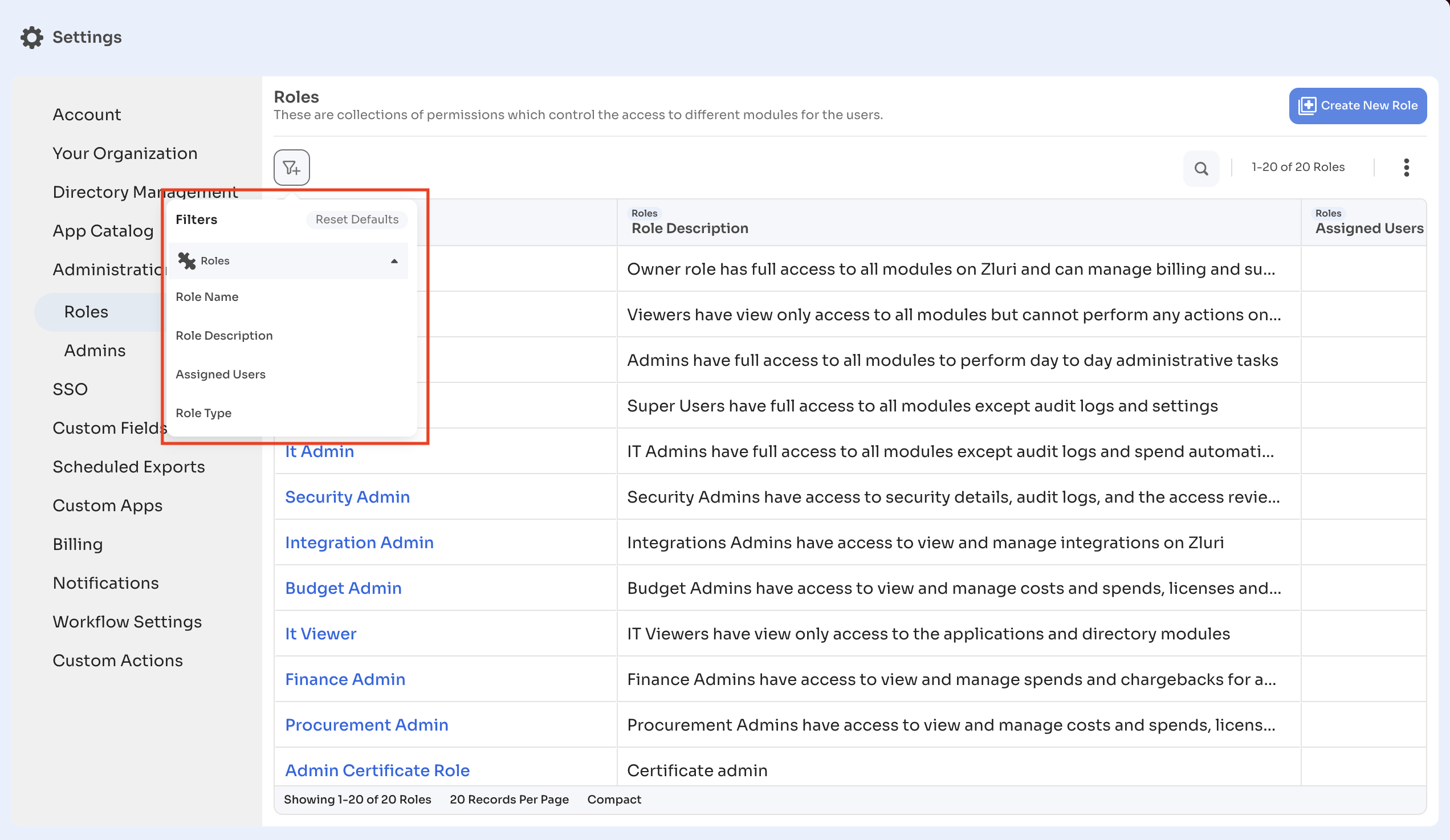
Roles Page Layout
The Roles page displays all system and custom roles in a table.
Columns displayed
Each role row includes:
- Role Name
- Role Description
- Assigned Users – Number of users currently assigned
- Role Type – Standard (system) or Custom
- Actions – Role-specific actions (row-level menu)
Page-Level Controls
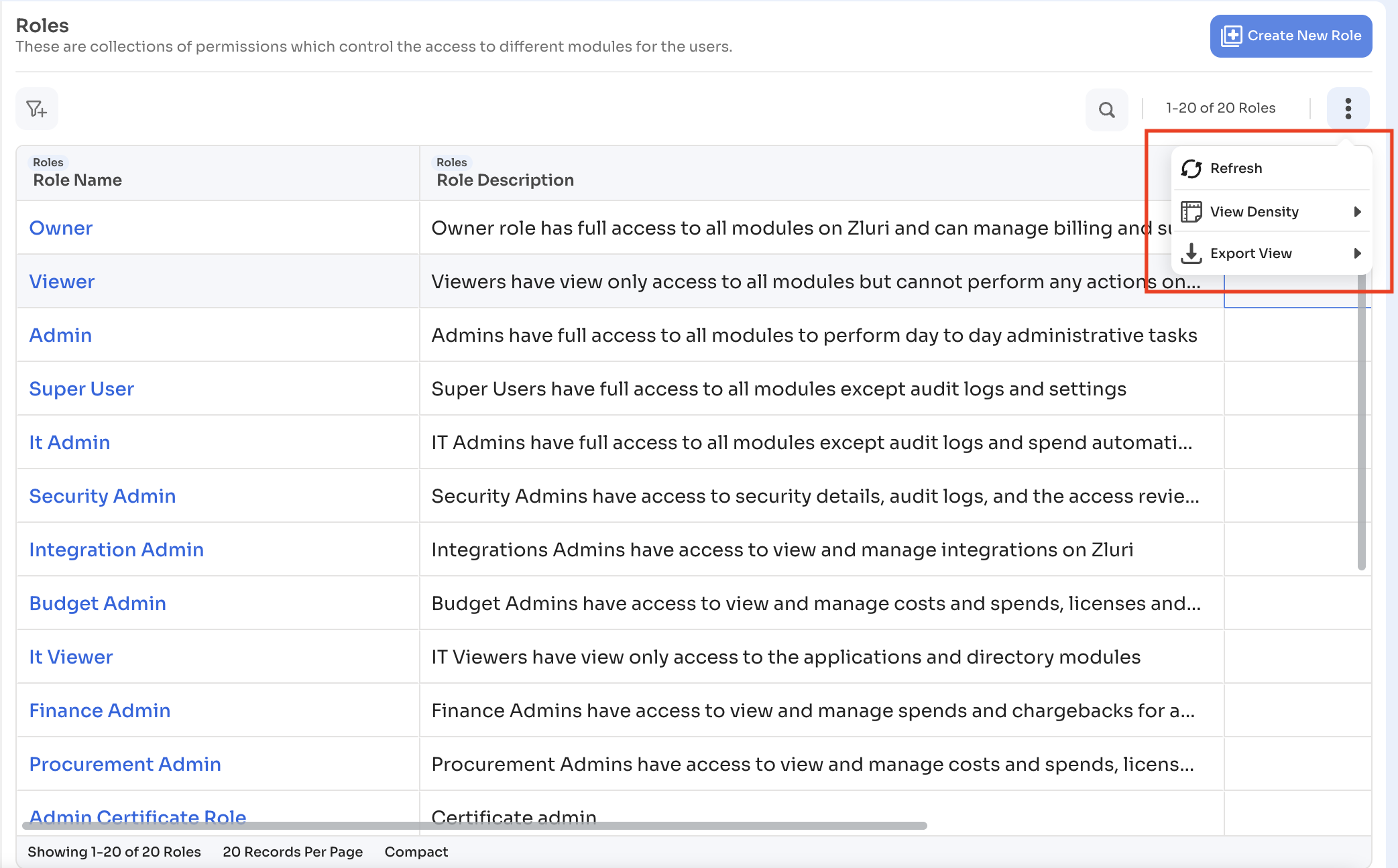
The top-right three-dot menu on the Roles page provides page-level actions, not role-specific actions.
Available options include:
- Refresh – Reload the roles list
- View Density – Adjust table spacing
- Export View – Export the roles list
These actions apply to the entire table, not individual roles.
Role Row Actions
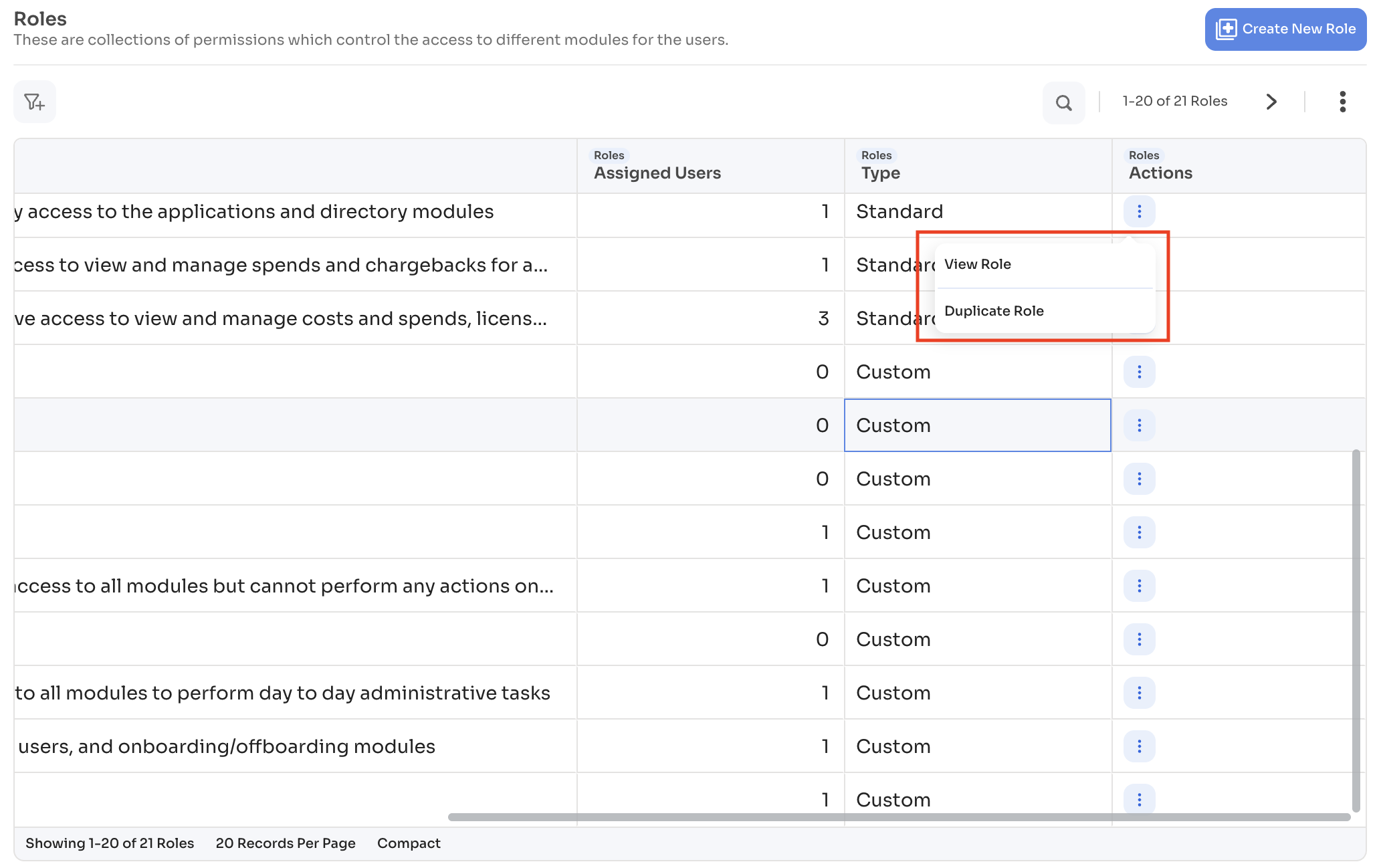
Each role row includes its own Actions menu.
System roles
- View
- Duplicate
System roles cannot be edited or archived.
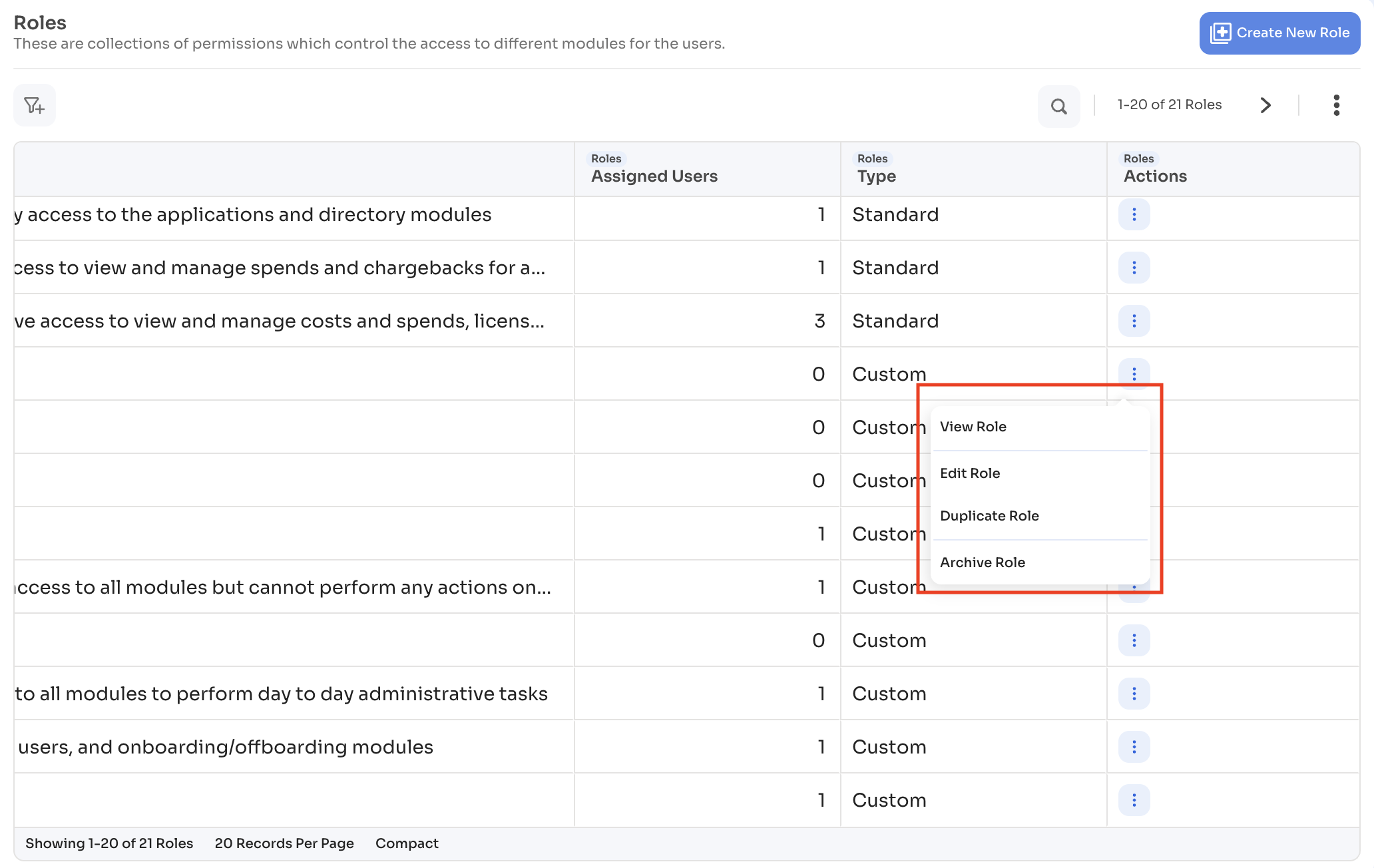
Custom roles
- View
- Edit
- Archive
- Duplicate
A custom role cannot be archived if it is currently assigned to one or more users.
Creating a Custom Role
-
From the Roles tab, click Create New Role
-
Enter a Role Name
Use a clear, functional name that reflects responsibility (for example, Finance – Read Only).
-
Enter a Description
Describe the scope of access provided by the role.
-
Configure permissions
-
Click Save
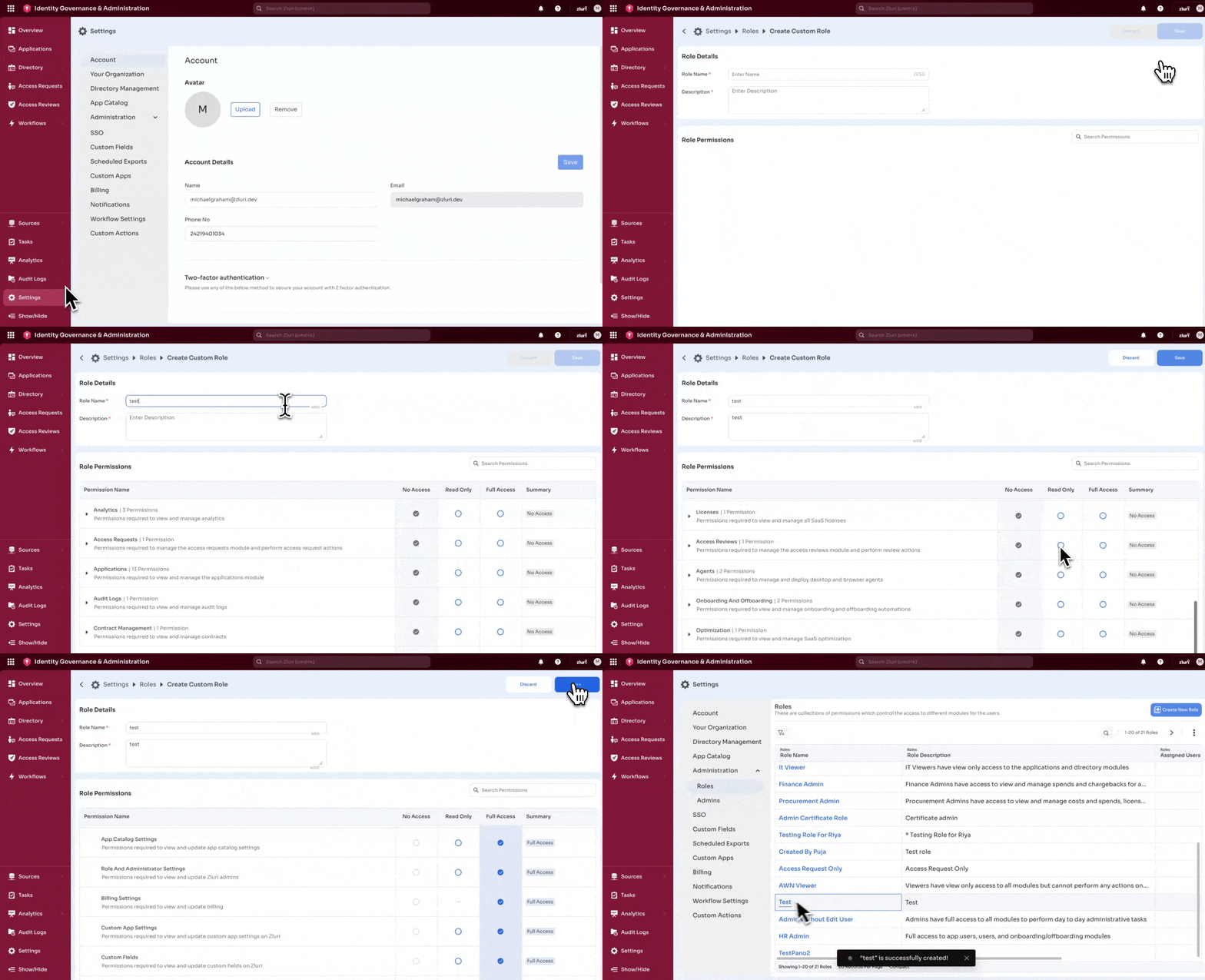
Configuring Permissions
Zluri organizes permissions hierarchically by module.
Permission levels
At every level, you can assign one of the following:
- No Access
- Read Only
- Full Access (Read + Write)
Permission hierarchy behavior
- Granting access at a higher level propagates downward by default.
- Modifying individual sub-permissions changes the module summary to Custom.
- Sub-permissions require at least Read Only access on the parent module.
- Some permissions are base permissions and are always granted (for example, basic employee-view access).
- Certain modules support Read-only access only.
Permissions appear only for modules enabled in the organization’s subscription.
Managing Custom Roles
Custom roles can be managed from the Roles page.
Available actions:
- Edit – Update role name, description, or permissions
- Archive – Remove the role from active use
- Duplicate – Create a new role using the same configuration
- View – Inspect role configuration
System roles do not support Edit or Archive.
Assigning Roles to Users
Zluri assigns roles through the Admins table (v2).
From the Admins table, administrators can:
- View active and inactive admins
- Assign or change roles
- Filter admins by role
- Remove inactive admins
Roles can be assigned:
- During admin invitation (direct invite or shareable invite link)
- By updating the role of an existing admin
Role assignment rules
- Each user can have only one role
- Role changes apply the next time the user logs in
- Roles affect administrative access only
Updated 8 months ago