
Connect
This guide explains how to connect your Intuit QuickBooks account to Zluri using OAuth authorization
Prerequisites
Before starting the integration, ensure the following:
- An active Intuit QuickBooks account
- Administrator access to QuickBooks to authorize the integration
Step 1: Authorize QuickBooks Access
- Log in to the Intuit QuickBooks Admin Console.
- When prompted by Zluri, review the requested permissions.
- Grant access by selecting Authorize.
Note: Only a QuickBooks Administrator can approve this integration.
Step 2: Select Scopes in Zluri
-
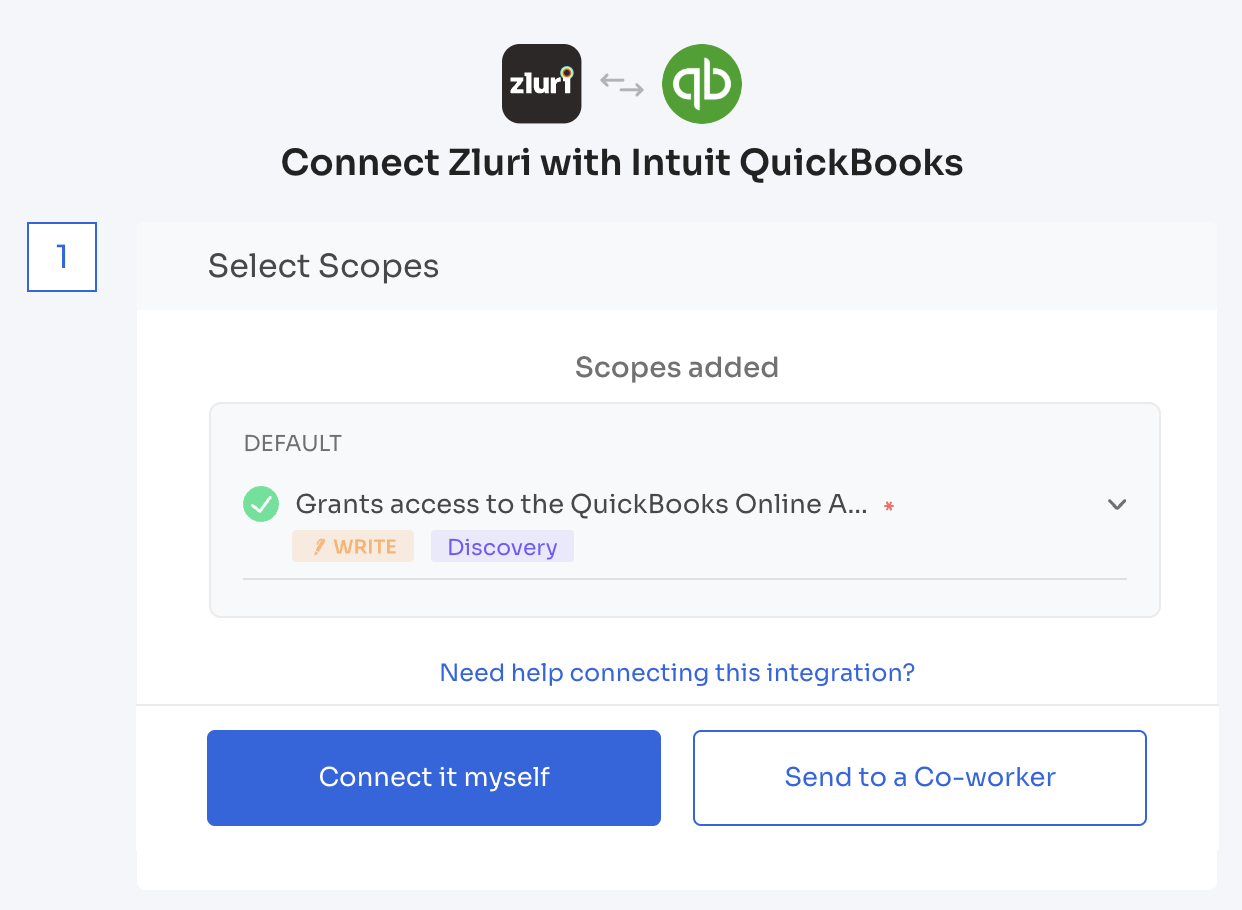
In Zluri, navigate to the QuickBooks integration page.
-
Select the required scopes for the integration. For example:
-
Discovery and Workflows features require specific permissions.
-
Alternatively, select Default scopes for a hassle-free setup.
-
Step 3: Authorize the Connection in Zluri
-
Click Connect Integration in Zluri to initiate the OAuth flow.
-
Choose Self-Authorization or Co-worker Authorization:
- Self-Authorization: Complete the authorization yourself with admin credentials.
- Co-worker Authorization: Send an invitation to a co-worker who is a QuickBooks admin to authorize the connection.
Step 4: Save the Integration Instance
- Once the connection is authorized, Zluri will save the integration instance.
- Multiple instances of QuickBooks can be connected with different scopes as needed.
Integration Complete
The Intuit QuickBooks account is now connected to Zluri. Data will begin syncing automatically.
Updated 11 months ago
Did this page help you?