
Integration Catalog and Connecting Applications
The Integration Catalog in Zluri lists all supported integrations across SSO systems, HRMS platforms, and business applications. Use the catalog to browse available connectors, review integration details, and initiate setup from one place.
Accessing the Integration Catalog
- Go to Sources → Integrations in the left sidebar.
- Click Browse Catalog to open the full list of integrations.
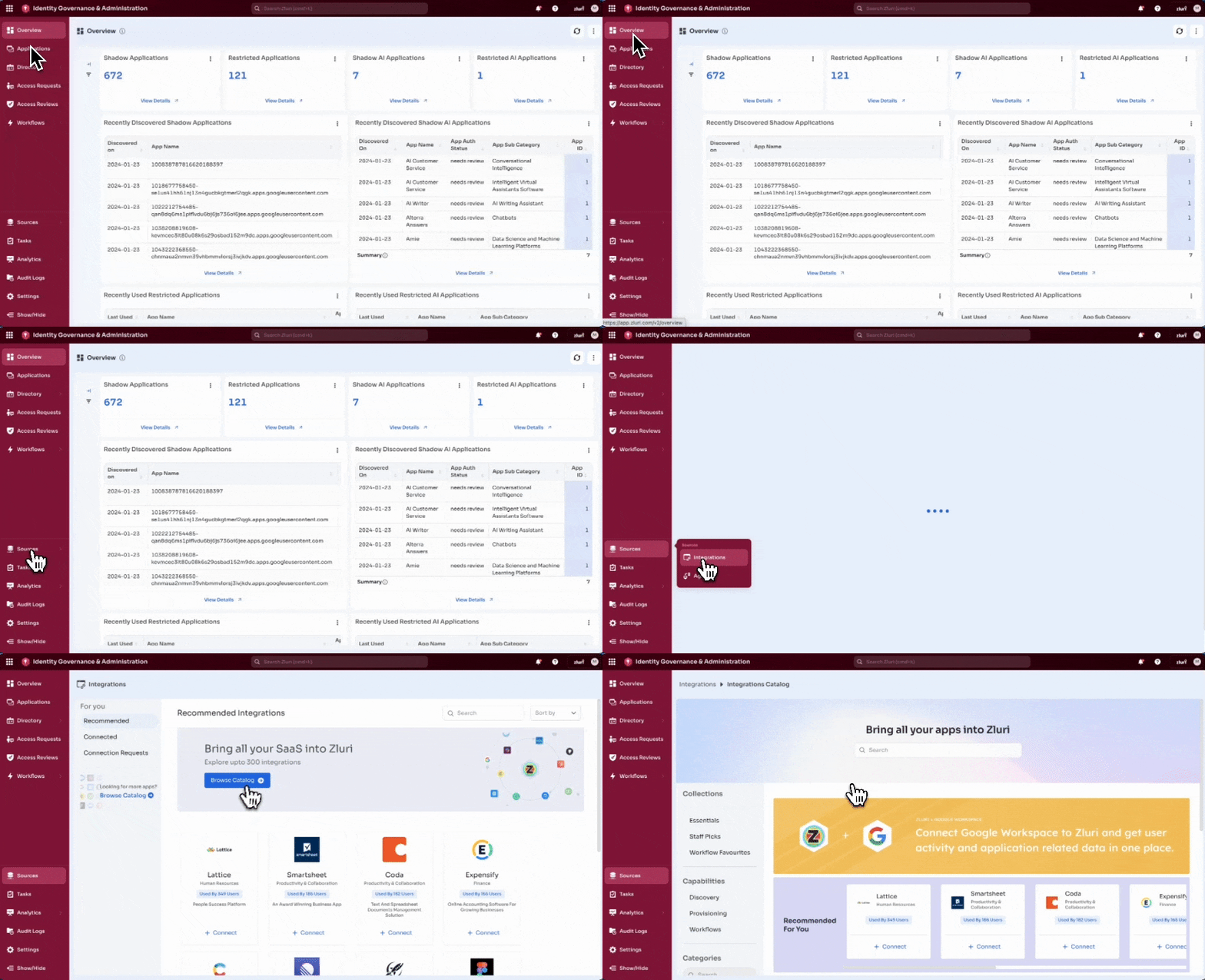
Integration Catalog Layout
The catalog organizes integrations into structured navigation components.
Collections
- Essentials
- Staff Picks
- Workflow Favourites
Capabilities
Filter applications based on supported capabilities:
- Discovery
- Provisioning
- Workflows
Categories
Browse integrations by functional category. The search bar at the top of the list helps quickly locate a category or app.
- All
- Productivity & Collaboration
- IT Operations & ITSM
- Developer Tools
- Human Resources
- Sales & Marketing
- Security
- Finance
- Analytics & BI
- Customer Experience
- IAM & SSO
- Cloud Platforms
- Product & Engineering
- Infrastructure & Data
- Design & Creative
- Others
- QA & Testing
Search and Sort
- Use the search bar to find any app by name.
- Use Sort by to reorder results.
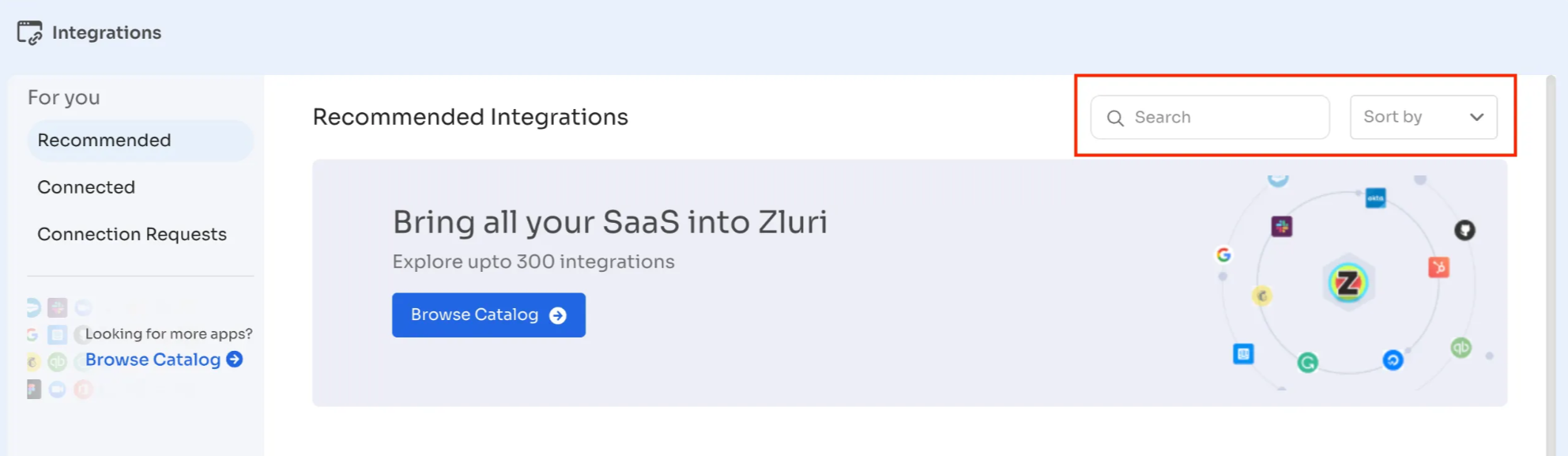
Connecting SSO and HRMS Tools: Hyperlink pages connect articles
SSO and HRMS integrations supply Zluri with identity and workforce data. These integrations support user discovery, lifecycle management, and access governance.
How to Access SSO Integrations
- Open Browse Catalog.
- Select Categories → IAM & SSO.
Zluri displays all supported SSO and identity providers, such as:
- Azure AD
- Azure AD (Machine to Machine)
- Google Workspace
- Okta
- OneLogin
- JumpCloud
- PingIdentity
Each tile shows the app name, category, usage count, and availability (Connect, Connected, Raise Request).
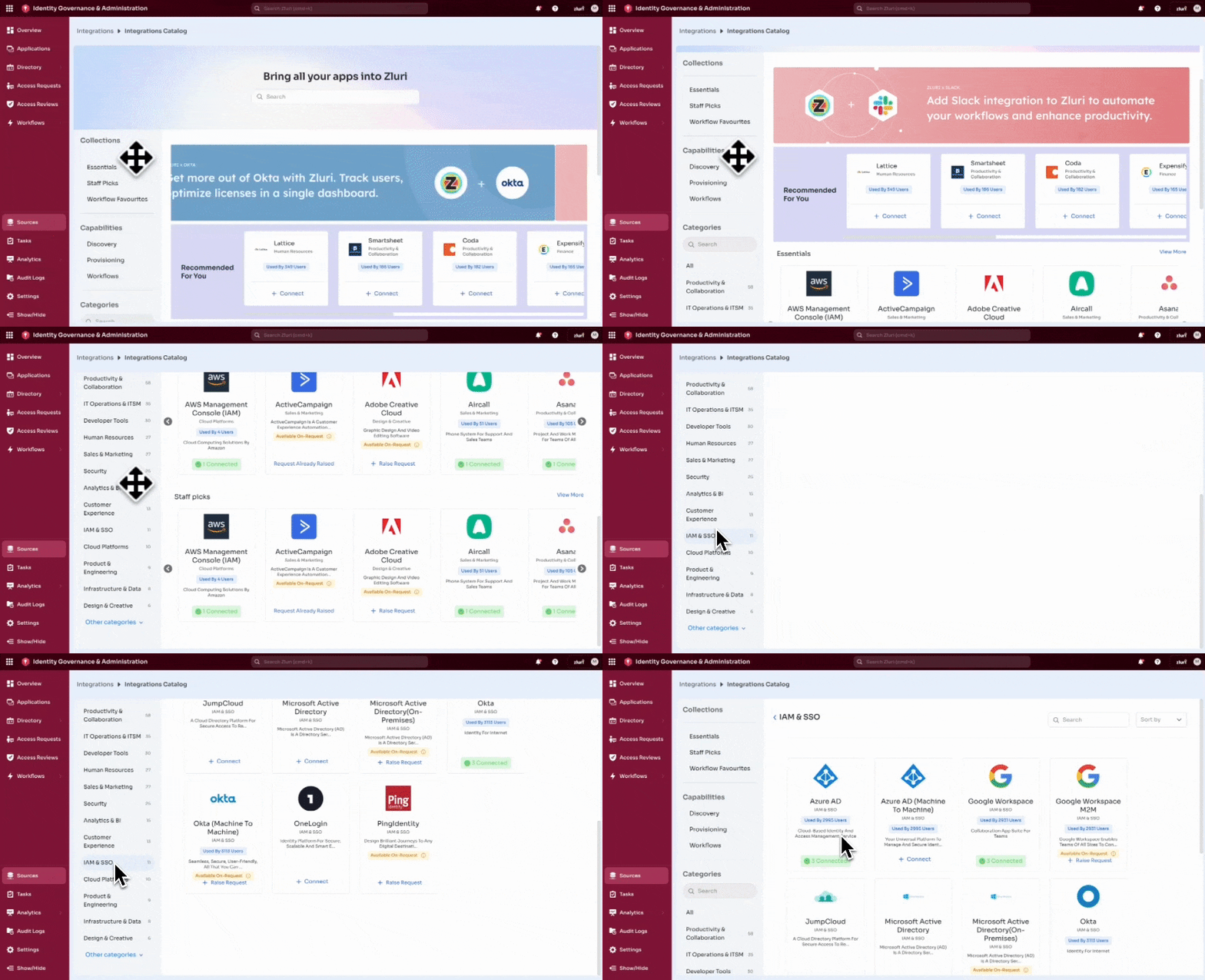
How to Access HRMS Integrations
- Open Browse Catalog.
- Select Categories → Human Resources.
Zluri lists HRMS systems such as:
- BambooHR
- HiBob
- Workday
- Personio
- SuccessFactors
- Keka
Each tile includes an overview, availability status, and supported capabilities.
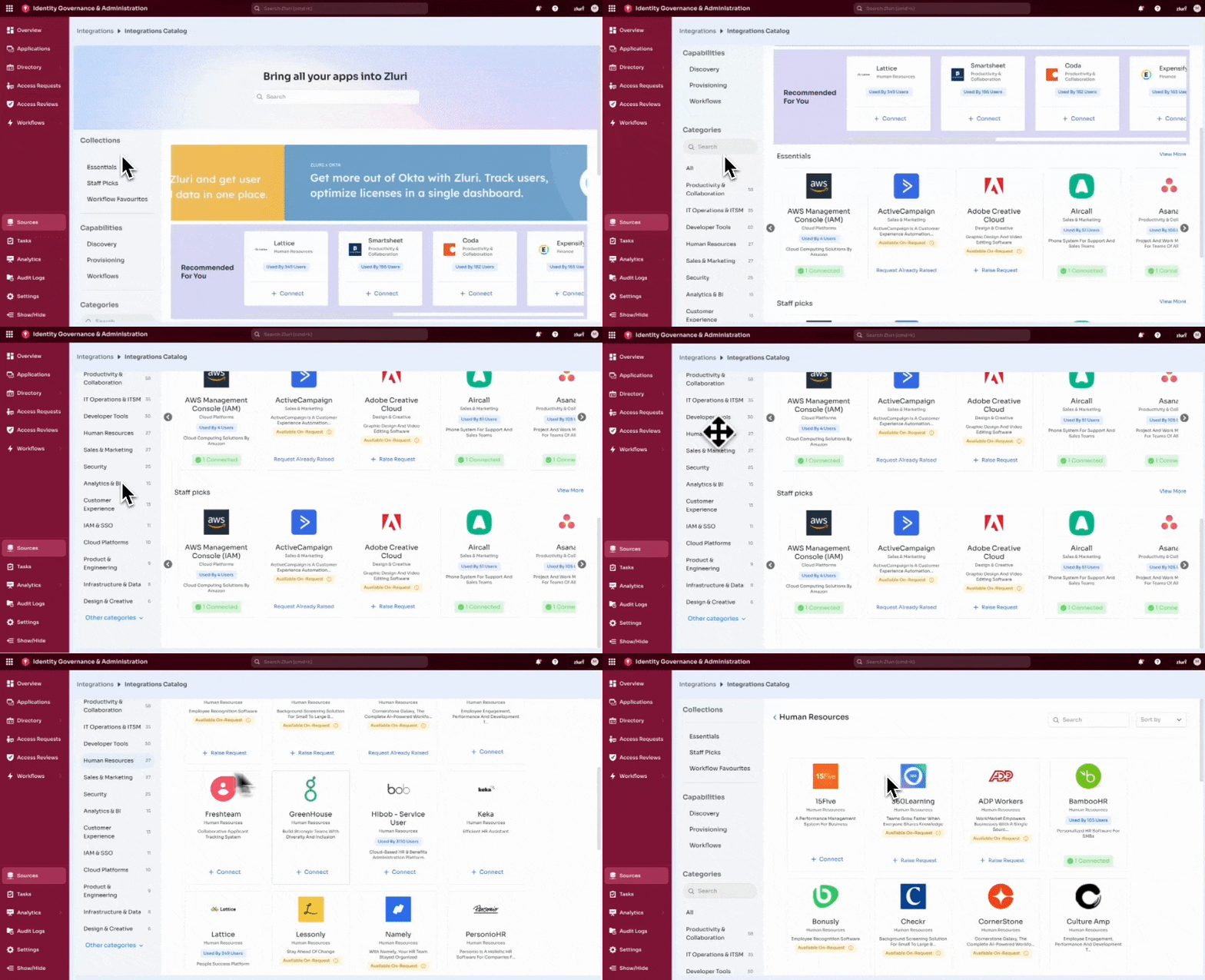
Connecting Other Critical Applications
Zluri supports integrations across major business application categories. You can browse these apps using the Categories section in the catalog.
Examples by category:
IT Operations & ITSM
- Jira
- ServiceNow
- Freshservice
Collaboration
- Slack
- Zoom
- Microsoft 365
Security & MDM
- Jamf
- Intune
- Okta Admin APIs
Finance
- Expensify
- QuickBooks
Sales & CRM
- Salesforce
- HubSpot
Cloud Platforms
- AWS
- GCP
- Azure
Integration Detail Page
When an administrator selects an integration from the catalog, Zluri opens the Integration Detail Page. This page shows configuration details, supported capabilities, required scopes, workflow actions, and connection instructions.
The page is structured into four sections:
- Sidebar
- Overview tab
- Capabilities tab
- How-To tab
Each section is described below.
Sidebar
The left sidebar provides application-specific information and actions. It includes:
- Application logo
- Connect another instance (appears if multiple instances are supported)
- Category (e.g., Cloud Platforms, Collaboration)
- Supported Languages
- Suggested Role (recommended admin role for managing this integration)
- Developer Contact (Zluri support email)
- Tags
- Functional tags such as “Application Servers”, “High Performance Computing”, “Databases”, etc.
The sidebar is fixed and remains visible while switching between tabs.
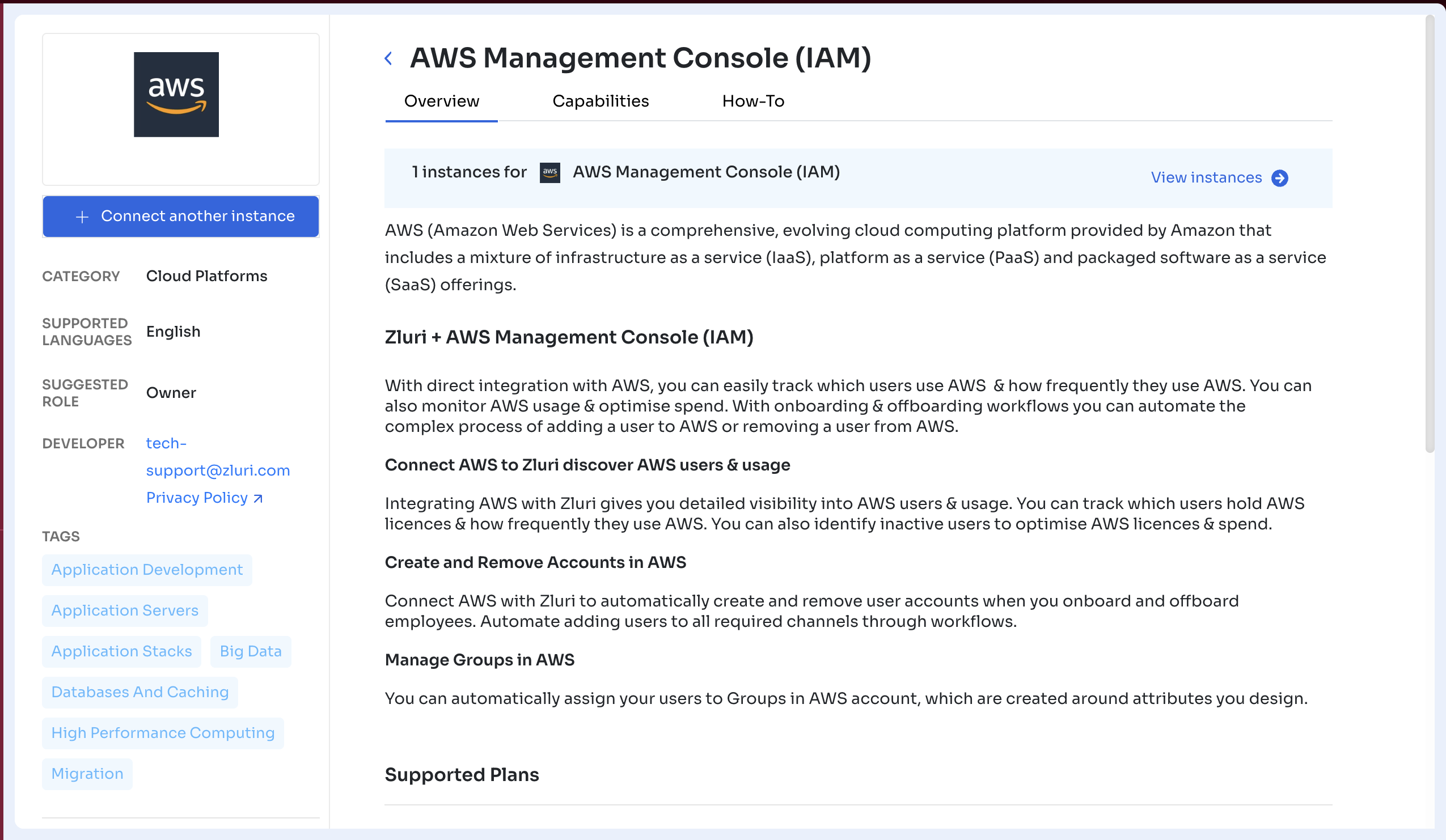
Overview Tab
The Overview tab gives administrators a high-level view of the integration, including a brief description of the application and how it works with Zluri.
It helps set context on the integration’s purpose and supported outcomes before configuration or connection.
Capabilities Tab
The Capabilities tab provides detailed technical information about what Zluri can read or perform within the selected integration.
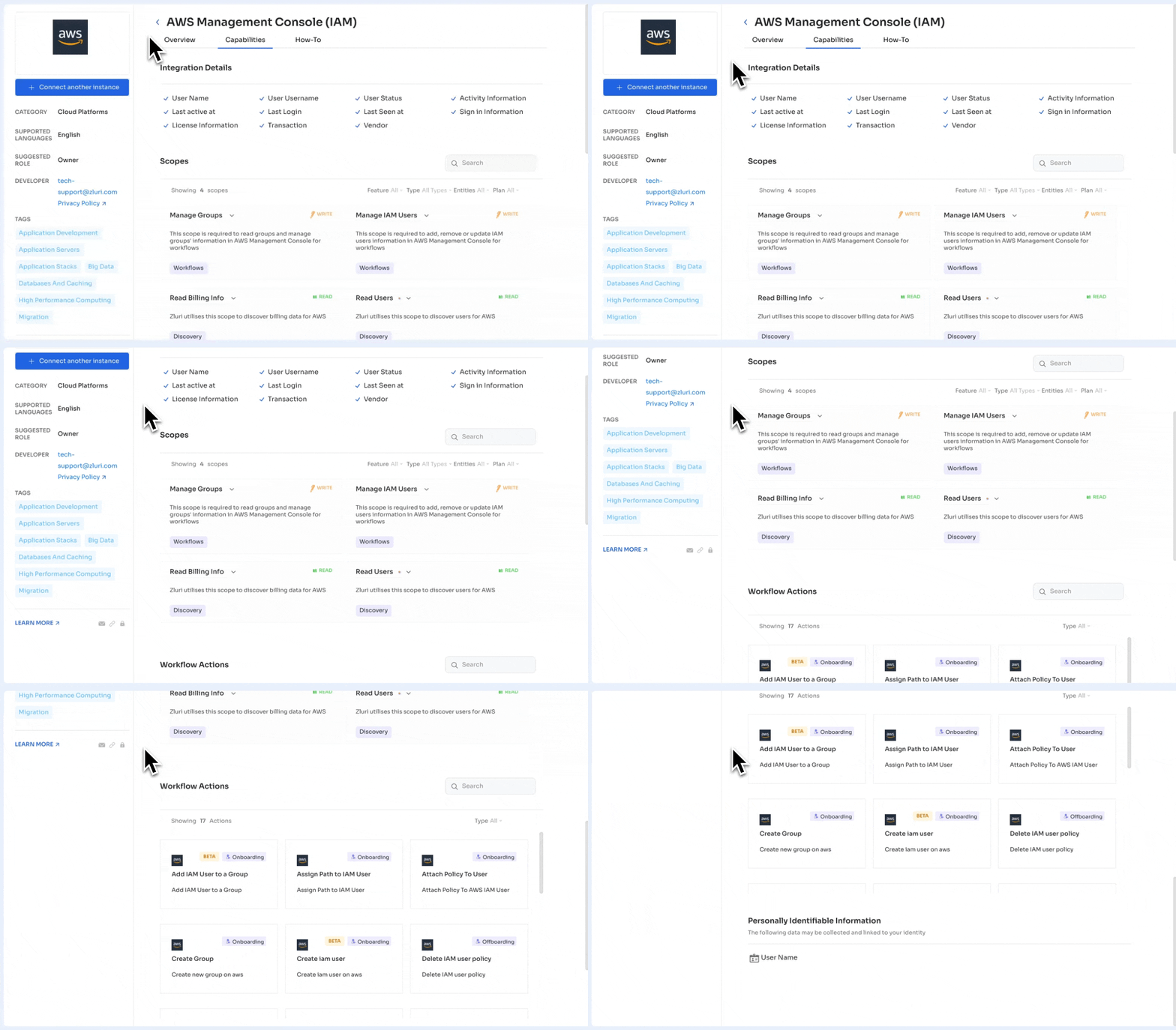
It includes three subsections:
1. Integration Details
This lists all user and app attributes Zluri can retrieve, such as:
- User Name
- Username
- User Status
- Activity Information
- Last Active At
- Last Login
- Last Seen At
- Sign-in Information
- License Information
- Vendor
- Transaction
The exact fields vary per app depending on provider APIs.
2. Scopes
This section lists all API scopes Zluri requires to support Discovery and automation actions for the integration.
Each scope shows:
- Scope name (for example, Manage Groups, Read Billing Info)
- Access type (READ or WRITE)
- A short description of what the scope allows
- Capability tags that indicate how the scope is used:
- Discovery. Used to fetch users, usage, billing, or other metadata
- Workflows. Used by automation workflows such as onboarding, offboarding, or updates
- Provisioning. Used specifically for creating, updating, or removing accounts and access
Scopes help administrators clearly understand which permissions are required, and why, before connecting the integration.
3. Workflow Actions
This section lists all automated actions available for workflows.
- Add IAM User to a Group
- Assign Path to IAM User
- Attach Policy to User
- Create Group
- Create IAM User
- Delete IAM User Policy
Each action shows:
- Integration icon
- Action name
- Action type:
- Onboarding
- Offboarding
- Beta label (if applicable)
A Type dropdown lets administrators filter actions by:
- All
- Onboarding
- Offboarding
4. Personally Identifiable Information (PII)
The PII section lists the identity attributes collected from the connected application. These fields may be associated with a user’s identity within Zluri.
The fields displayed in the example include:
- User Profile Picture
- User Email
- User Name
The list varies based on the data made available by each integration.
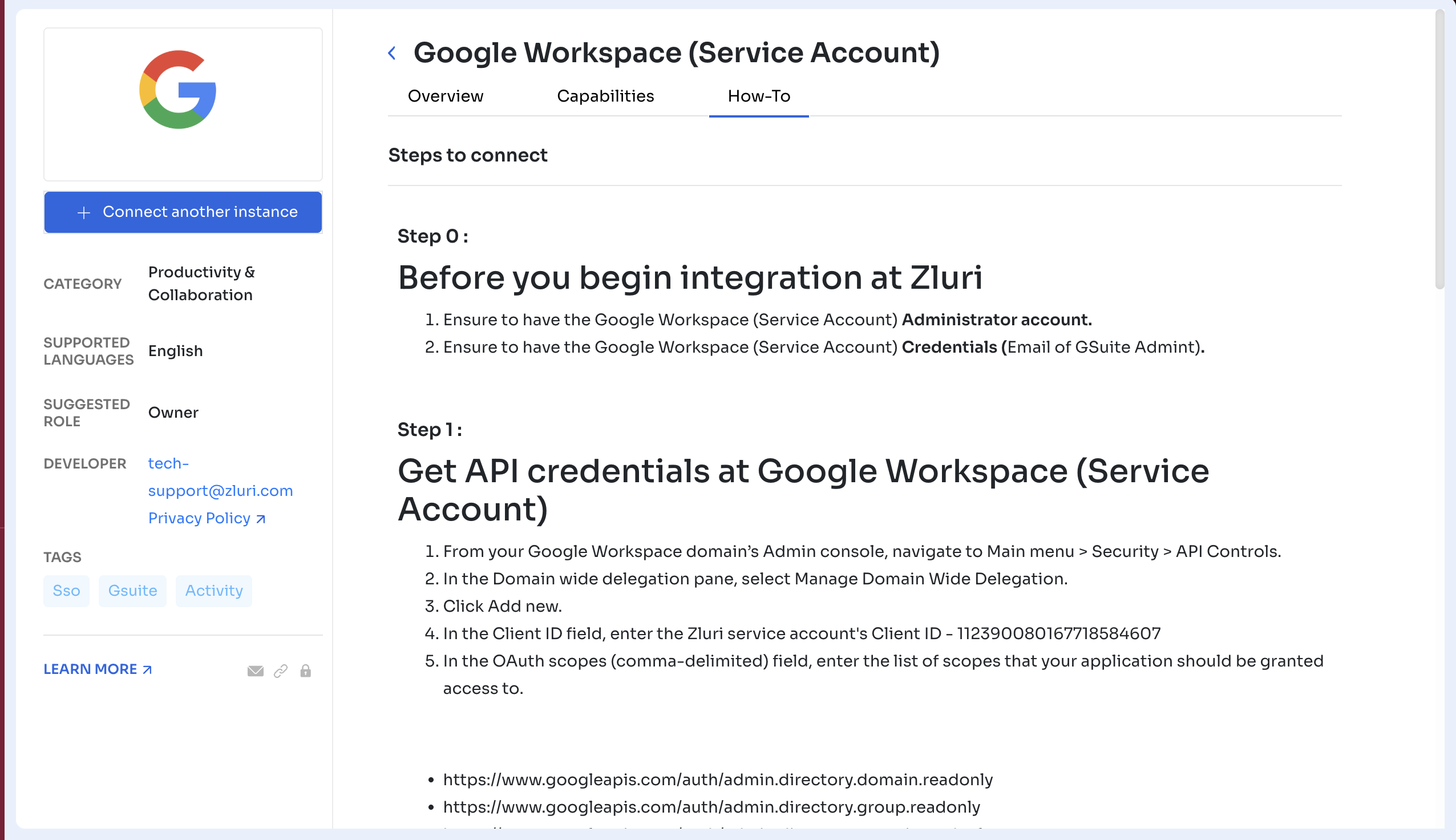
How-To Tab (Connecting the Integration)
The How-To tab provides the steps required to connect this integration to Zluri.
This usually includes:
- API prerequisites
- Required account permissions
- Steps to generate API keys / tokens
- Instructions for entering credentials into Zluri
- Connection testing
- Verification steps
If multiple authentication methods exist, Zluri shows them in sequence (e.g., OAuth, API Key, Service Account).
This tab is the source of truth for completing the integration setup. The same setup instructions and troubleshooting guidance are also available in the Integrations section of the Zluri Help Portal.
Updated 7 months ago