
Bulk Data Upload
Bulk upload supports large-scale data imports and updates across Zluri. It is used during onboarding, when synchronizing existing records, or when updating multiple entries at once. This capability helps maintain accurate and consistent identity, application, contract, and spend data across the platform.
Supported Entities
Zluri supports CSV-based bulk upload for the following entities:
- Users – Import or update user attributes such as email, department, or job title
- Applications – Update fields such as application name, type, status, owner details
- Contracts – Load contract details like vendor, renewal dates, contract metadata
- Spends – Import historical transactions or update spend records
Each bulk upload path ensures that organizations can maintain accurate, up-to-date data across systems.
Structured Imports
For every supported entity, Zluri provides a predefined CSV template to maintain consistency and prevent input errors.
Templates include standardized columns for:
- User attributes (email, role, department, custom fields)
- Application metadata (name, type, authorization state, owners)
- Contract details (start/end dates, vendor, amount)
- Spend and transaction records (amount, currency, date, vendor)
Structured templates reduce formatting errors and maintain uniformity across imported datasets.
Data Validation
Zluri validates each CSV during upload. Validation checks include:
- Template headers match required column names
- Required fields are present
- Data types follow supported formats (dates, currency codes, numbers, email formats)
- Values conform to platform rules
Rows with issues are flagged, and error messages identify the specific columns and required fixes. The corrected CSV can then be reuploaded.
Bulk Update for Applications
Bulk Update allows administrators to modify multiple existing applications at once from the Applications module.
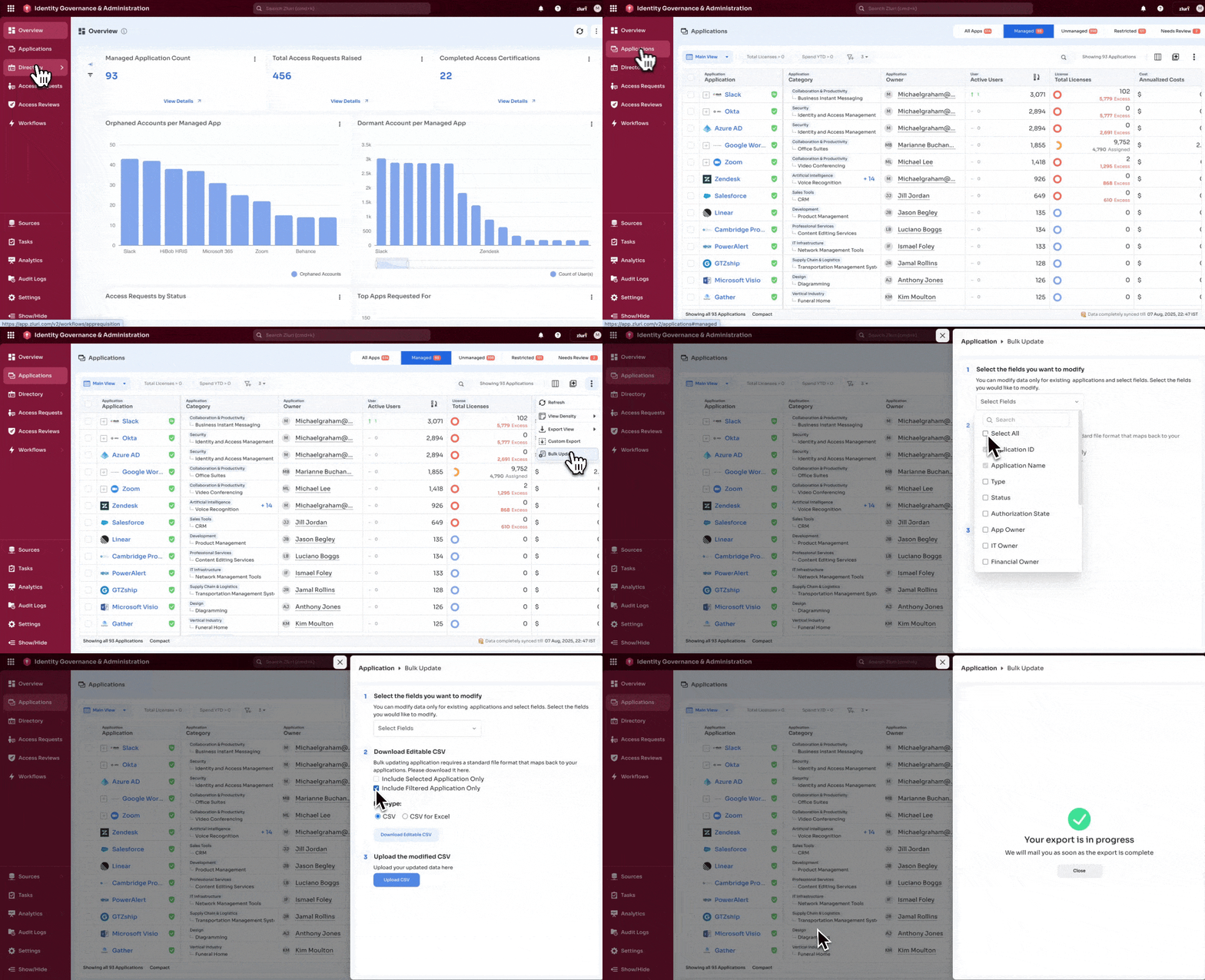
Select fields and download the editable CSV
- Open Applications.
- Select the three-dot menu.
- Choose Bulk Update.
- Open Select Fields.
- Select the attributes to update (ID, Name, Type, Status, Authorization State, App Owner, IT Owner, Financial Owner).
- Choose Selected Applications Only or Filtered Applications Only.
- Select the download format (CSV or CSV for Excel).
- Download the editable file.
Edit and upload the CSV
- Edit the downloaded CSV and keep the headers unchanged.
- Return to the Bulk Update panel.
- Upload the file using Upload CSV.
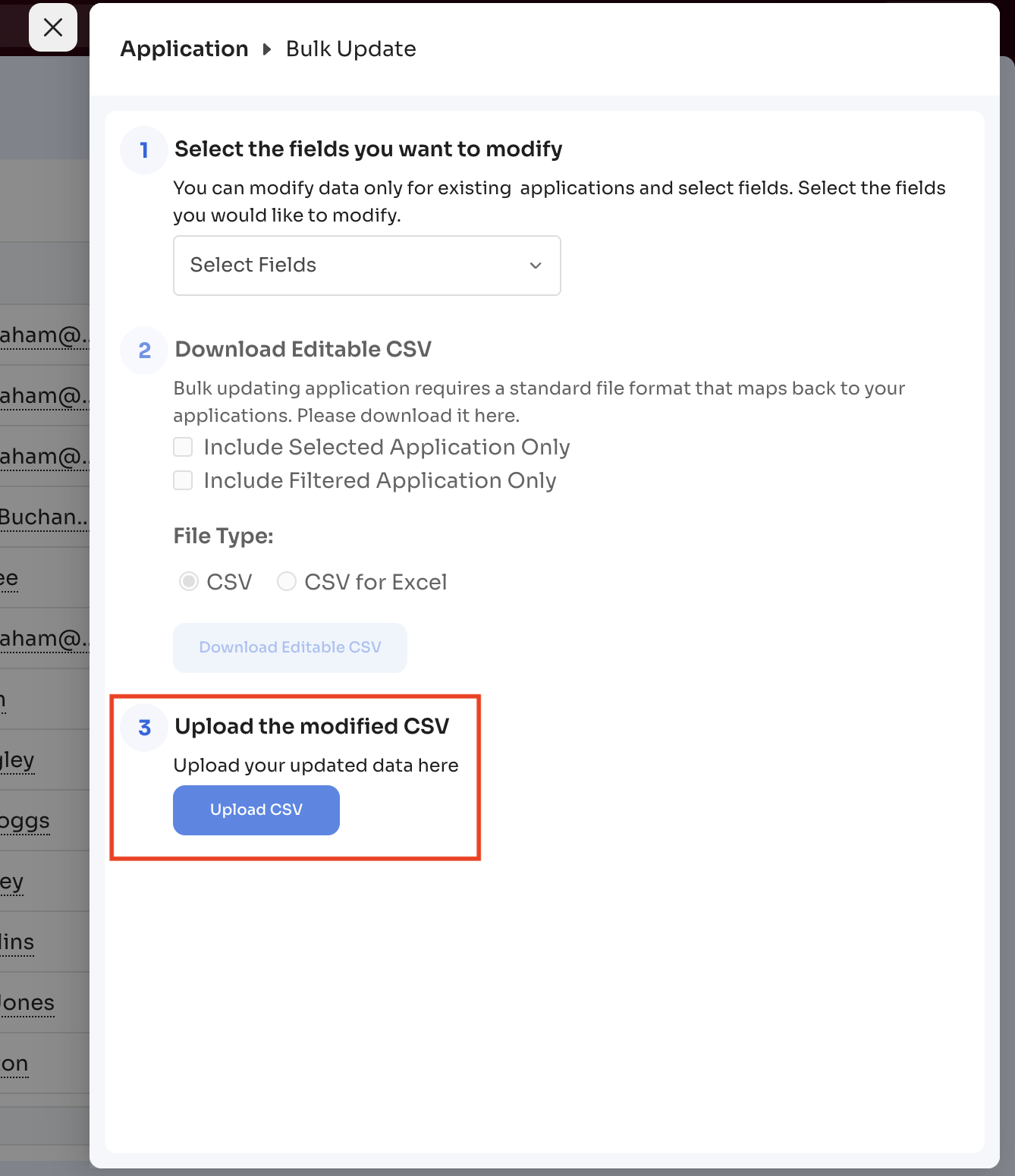
- Zluri processes and applies the updates.
Bulk Update for Users
Bulk Update allows administrators to modify multiple existing users at once from the Directory → Users page.
Select fields and download the editable CSV
- Open Directory.
- Go to Users.
- Select the three-dot menu.
- Choose Bulk Update.
- Open Select Fields.
- Select the user attributes to update.
- Choose Selected Users Only or Filtered Users Only.
- Select the download format (CSV or CSV for Excel).
- Download the editable file.
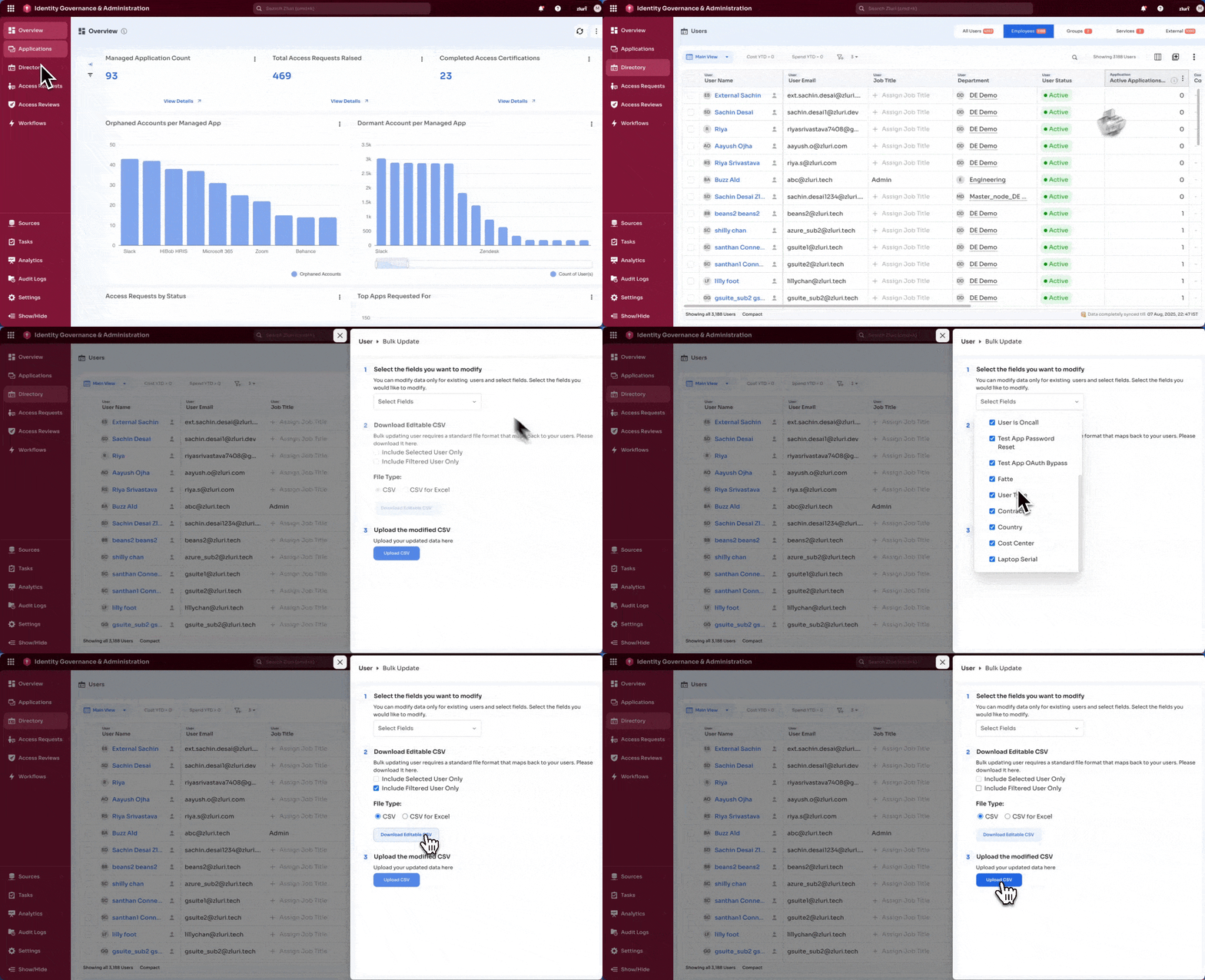
The steps to edit and upload the CSV are the same as described in Bulk Update for Applications.
Usage in Onboarding and Maintenance
Bulk upload is typically used to:
- Load user or application lists during onboarding
- Import historical contract and spend data
- Correct discrepancies across identity or finance systems
- Populate metadata not available through integrations
- Update owner information in bulk (App Owner, IT Owner)
- Normalize fields such as authorization state or status
Once processed, imported records become available across:
- Dashboards
- Reports
- Exports
- Automation workflows
Bulk upload ensures consistent, accurate data and reduces manual update work across systems.
Updated 8 months ago