
Automation Rules (Onboarding + Offboarding)
Automate workflow execution based on user attributes and events
Automation Rules
The Automation Rules tab allows defining automatic playbook execution timing and methods. Instead of manual playbook launches, configure rules based on user attributes or events (like new hires, department changes, or user departures).
This ensures provisioning and deprovisioning is policy-driven, consistent, and scalable, reducing manual effort for IT teams.
Using Automation Rules
Onboarding:
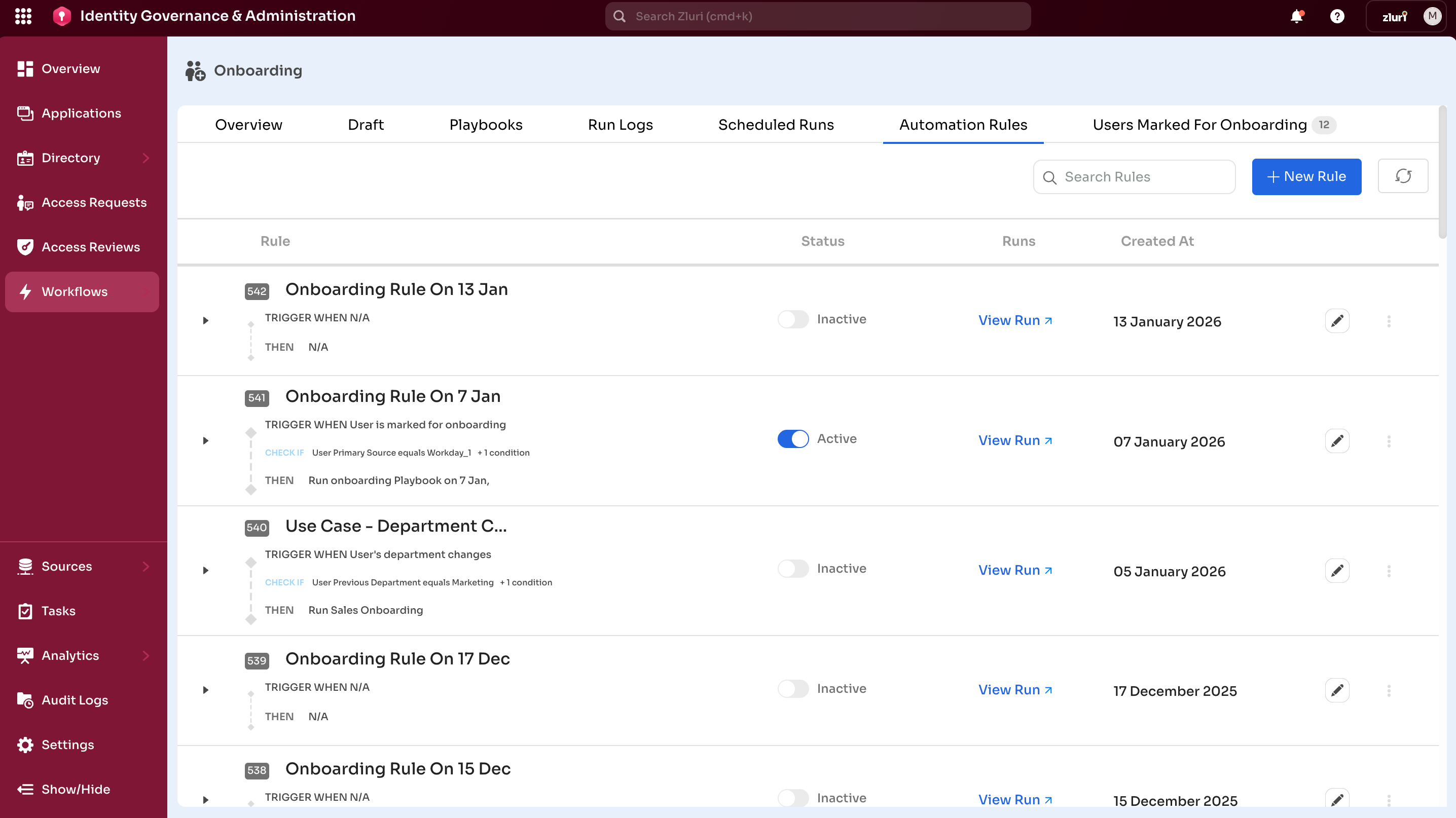
- Consistency – Standardized access across roles and departments
- Efficiency – Removes repetitive manual tasks for IT
- Timeliness – New hires get apps on Day-1 without delays
- Scalability – Rules apply to all future hires meeting the defined conditions
Offboarding:
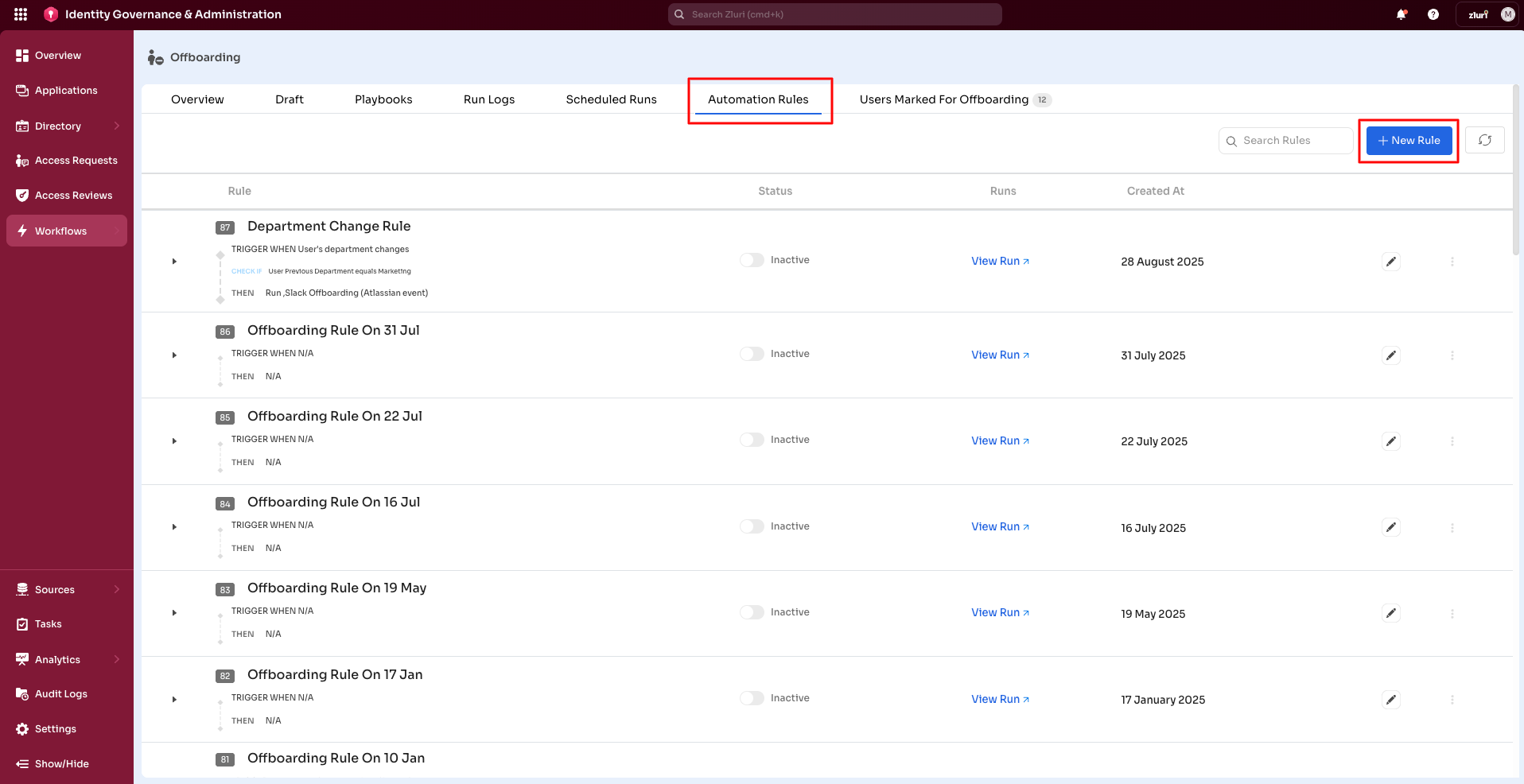
Offboarding workflow → Automation Rules dashboard
- Automation – User offboarding through event-based triggers
- Consistency – Ensures uniform deprovisioning across all departments
- Risk Reduction – Reduces IT workload and mitigates compliance risks
- Security – Prevents overlooked accounts and security vulnerabilities
Automation Rules Process
Automation Rules in Zluri follow a WHEN → IF → THEN model:
WHEN (Trigger)
Defines rule activation—an event occurs to trigger the rule.
Onboarding triggers:
- User is marked for onboarding
- New user for an app detected
Offboarding triggers:
- User is marked for offboarding
- User is removed from a group
- User is archived
IF (Condition)
Defines rule application scope by filtering based on user attributes.
Supports AND/OR logic for complex conditions.
Examples:
- Department = Sales
- Location = UK
- Role = Engineering Manager
- Department = Marketing AND Location = UK
- Department = Sales OR Role = Manager
THEN (Action)
If all defined conditions are met, Zluri automatically performs the selected action—typically running one or more playbooks.
Onboarding actions:
- Run Sales Onboarding Playbook
- Assign app access
- Execute Zluri Action
Offboarding actions:
- Run Standard Exit Playbook
- Revoke app access
- Create manual task
This structure enables hands-free, policy-driven workflows, ensuring employees always have the right access at the right time.
Key Features
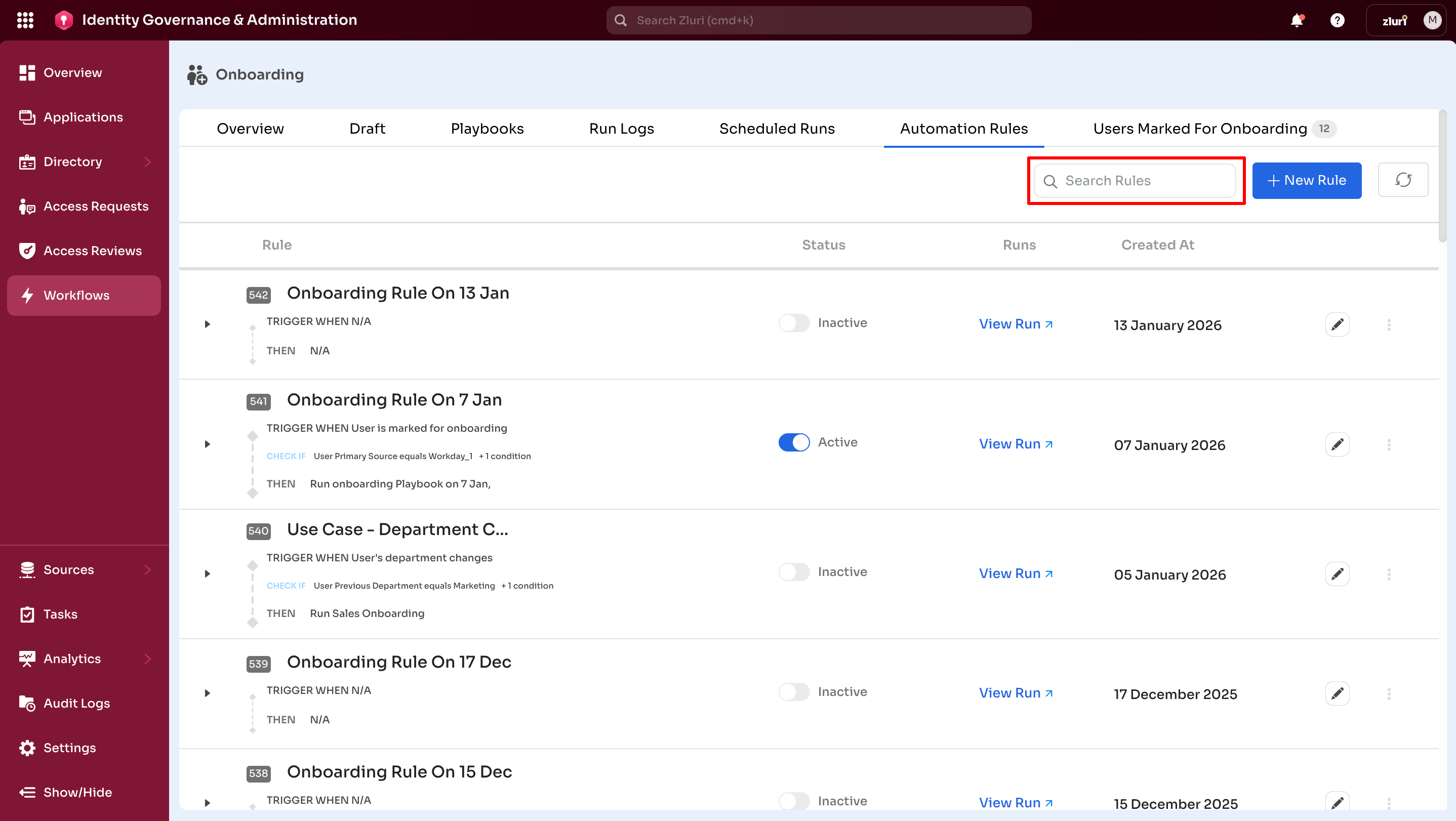
Search Rules
Quickly find rules by name using the search field. Useful for large organizations with multiple rules.
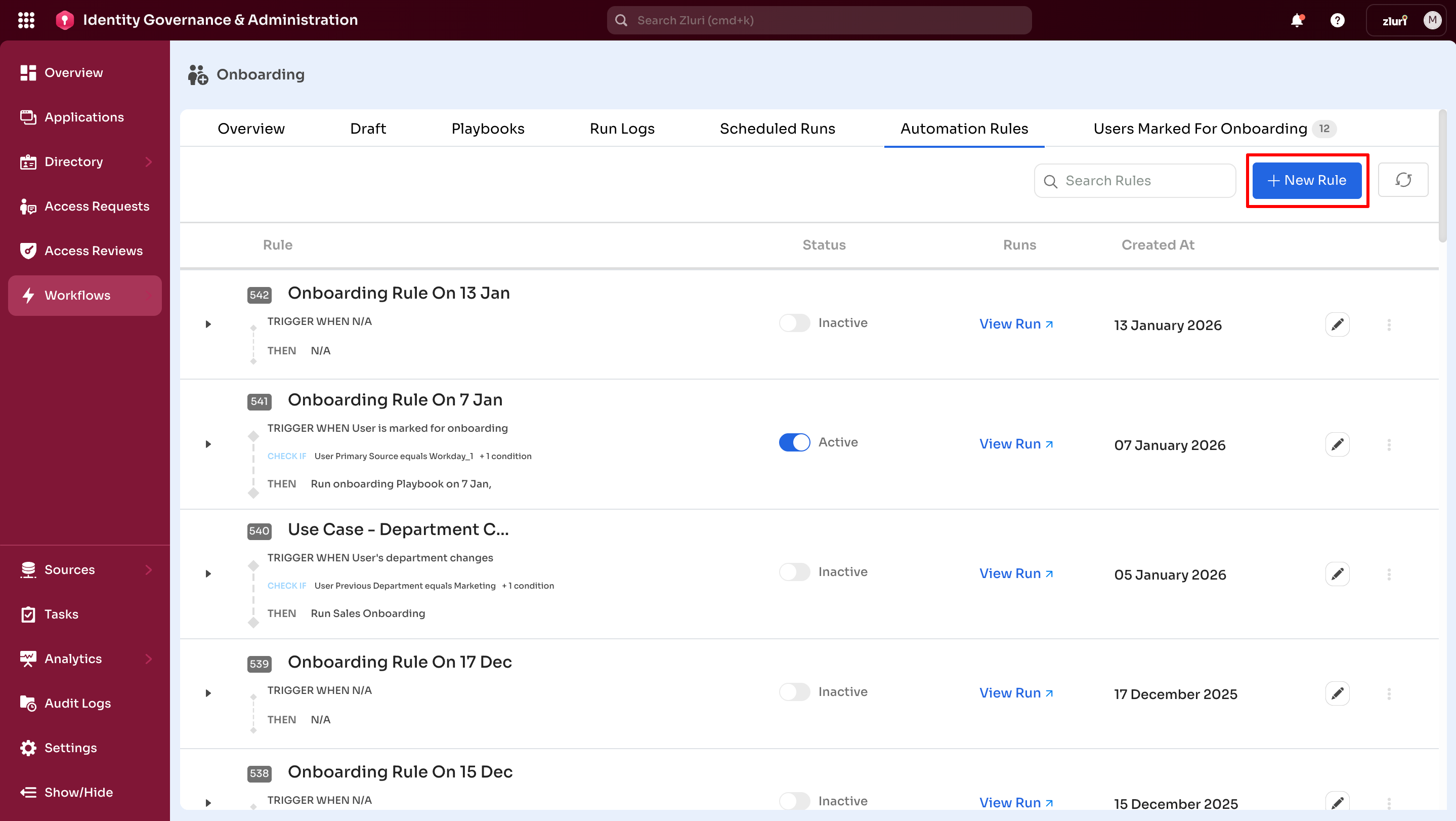
New Rule
Create and configure a new automation rule.
Important: Automation rules do not run retroactively. Users must be marked after the rule is active.
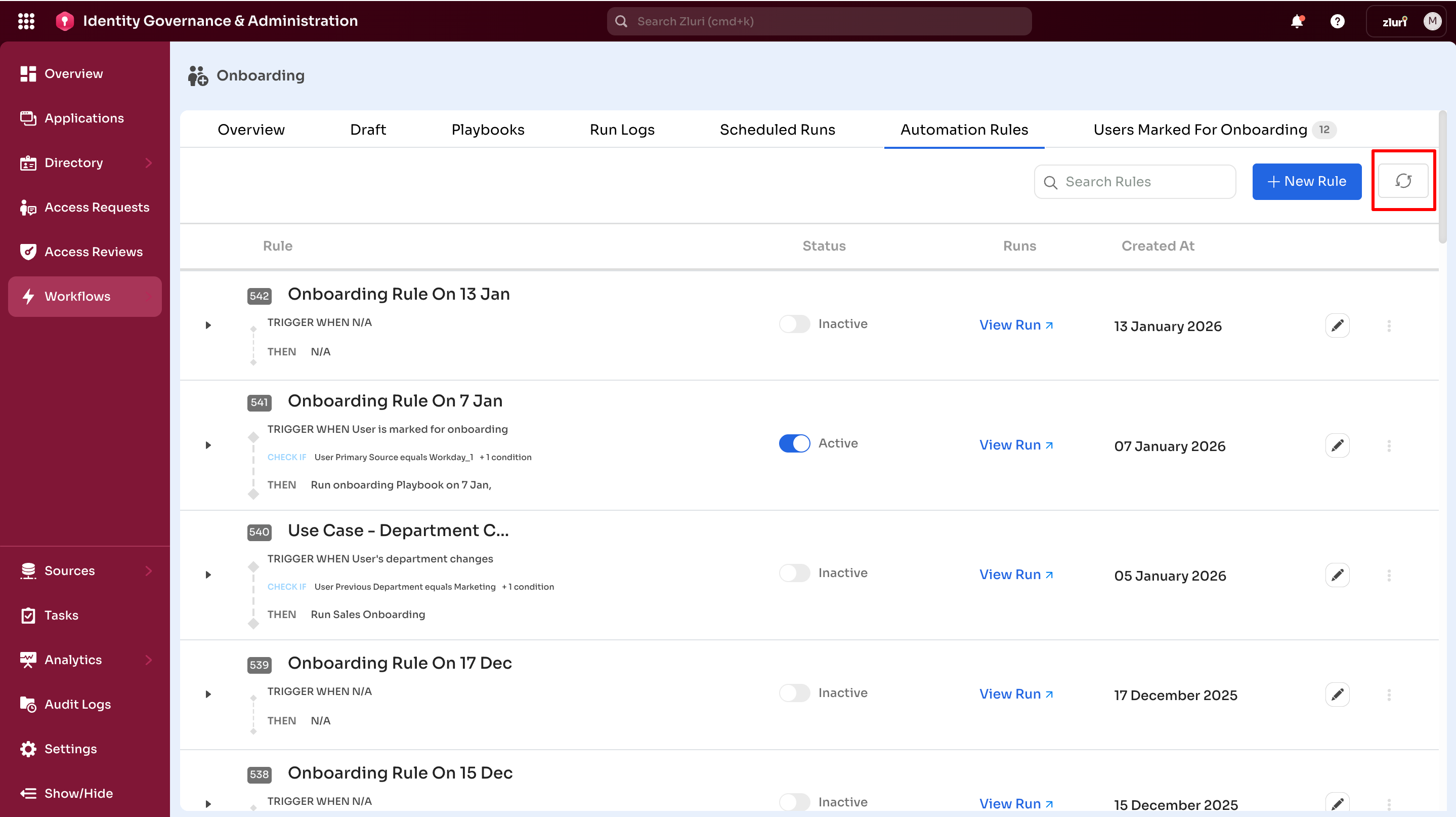
Refresh
Reload the view to reflect recent changes. Especially useful after creating or editing a rule.
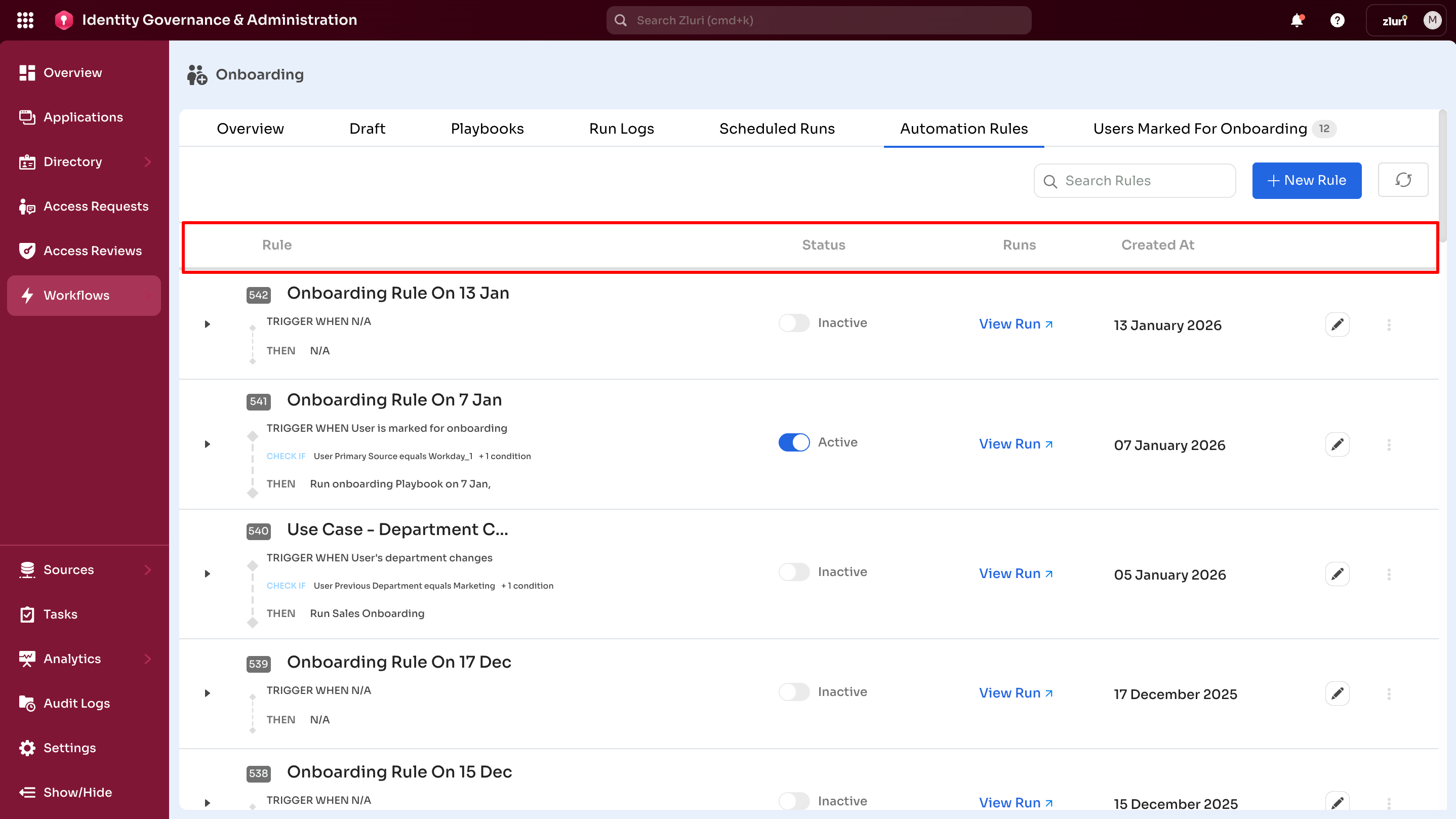
Automation Rules Table
Table columns:
| Column | Description |
|---|---|
| Rule | Lists all created rules (most recent first). Expand each row to see admin email and notification recipients. |
| Status | Toggle Active/Inactive to enable or disable a rule. |
| Runs | View logs of users onboarded or offboarded due to the specific rule. |
| Created At | Date on which the rule was created. |
Row actions:
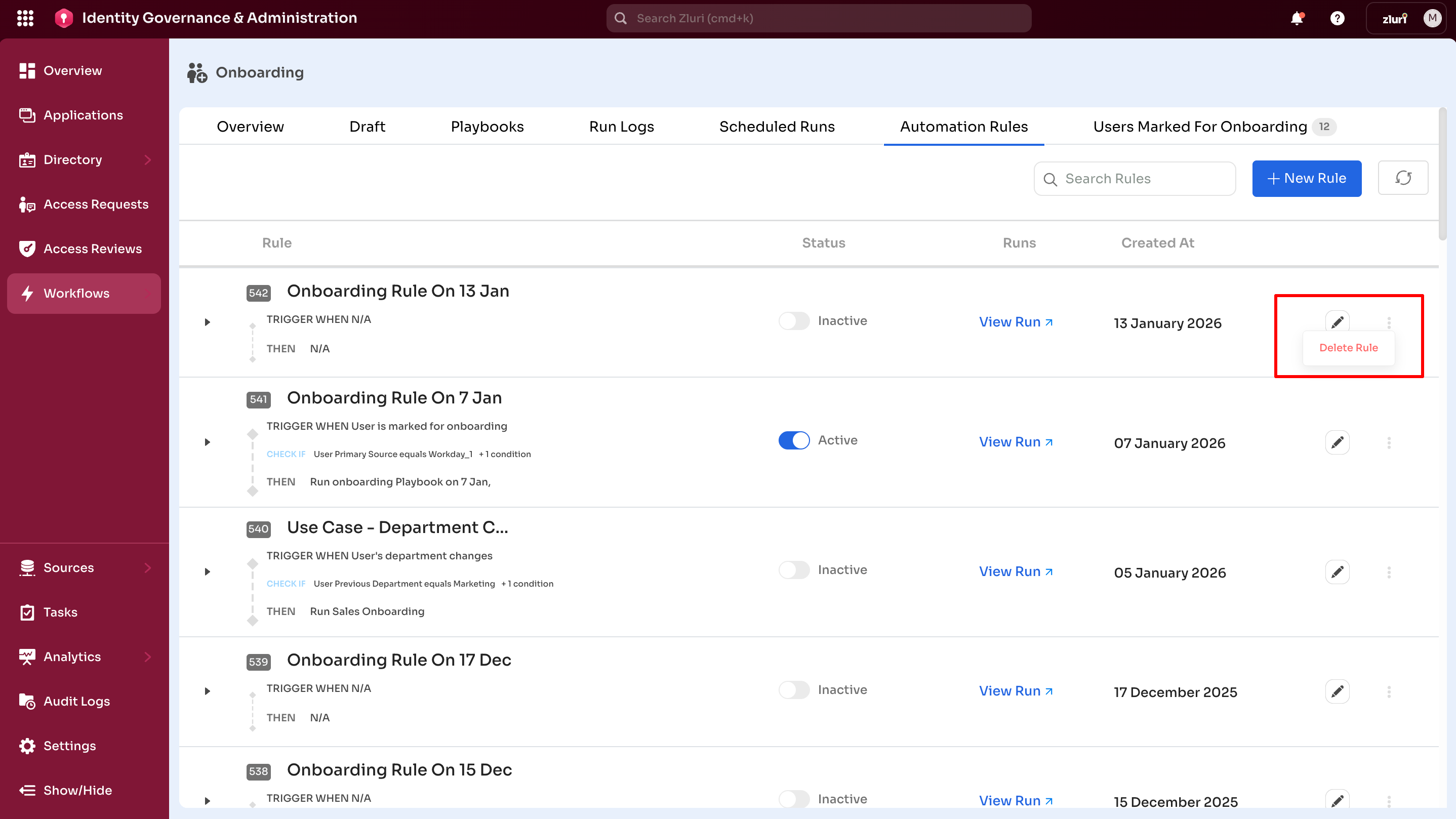
- Pencil Icon – Edit or modify the rule
- Three Vertical Dots Menu – Delete the rule (only way to remove a rule)
Creating Automation Rules
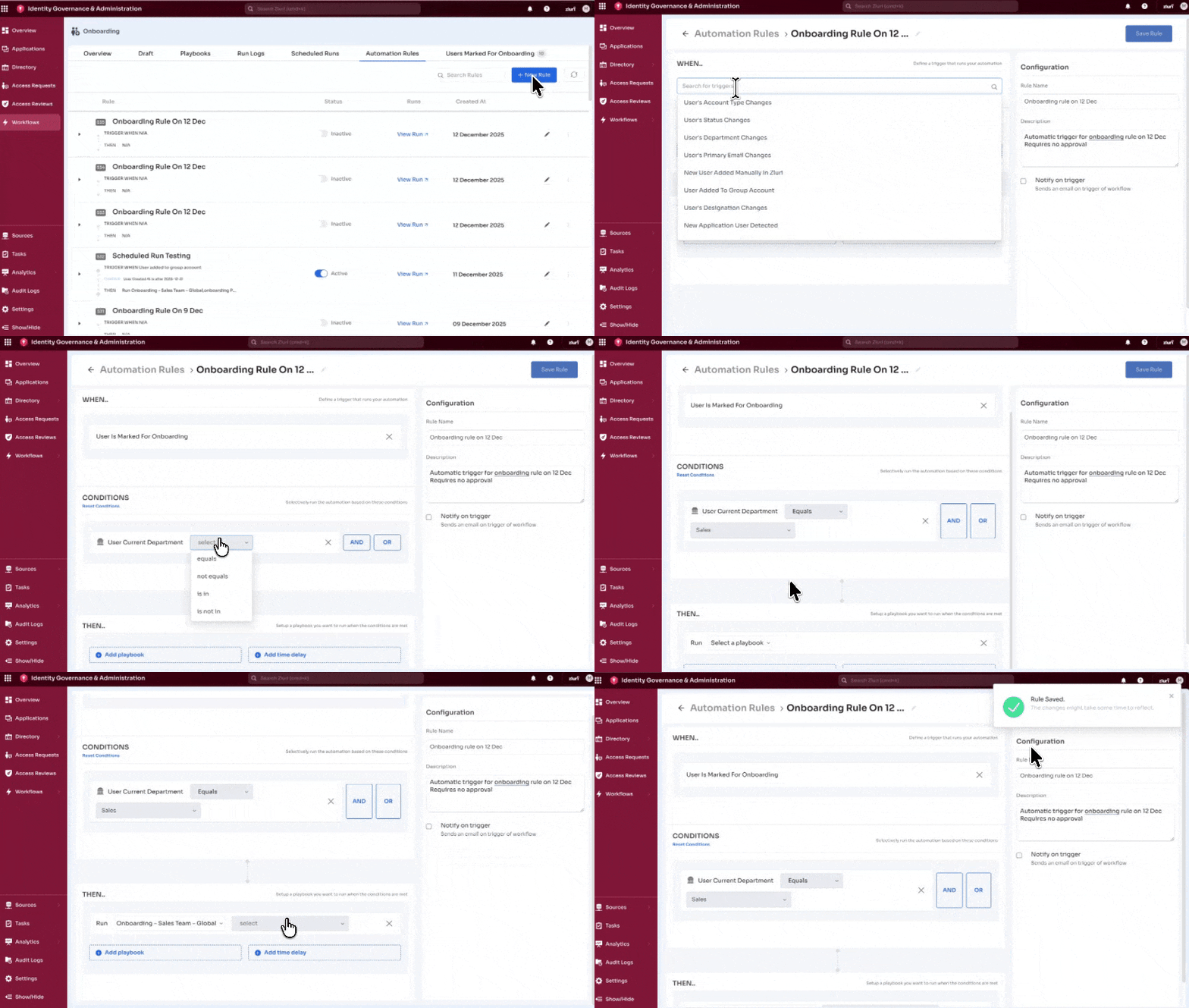
Step 1: Start a New Rule
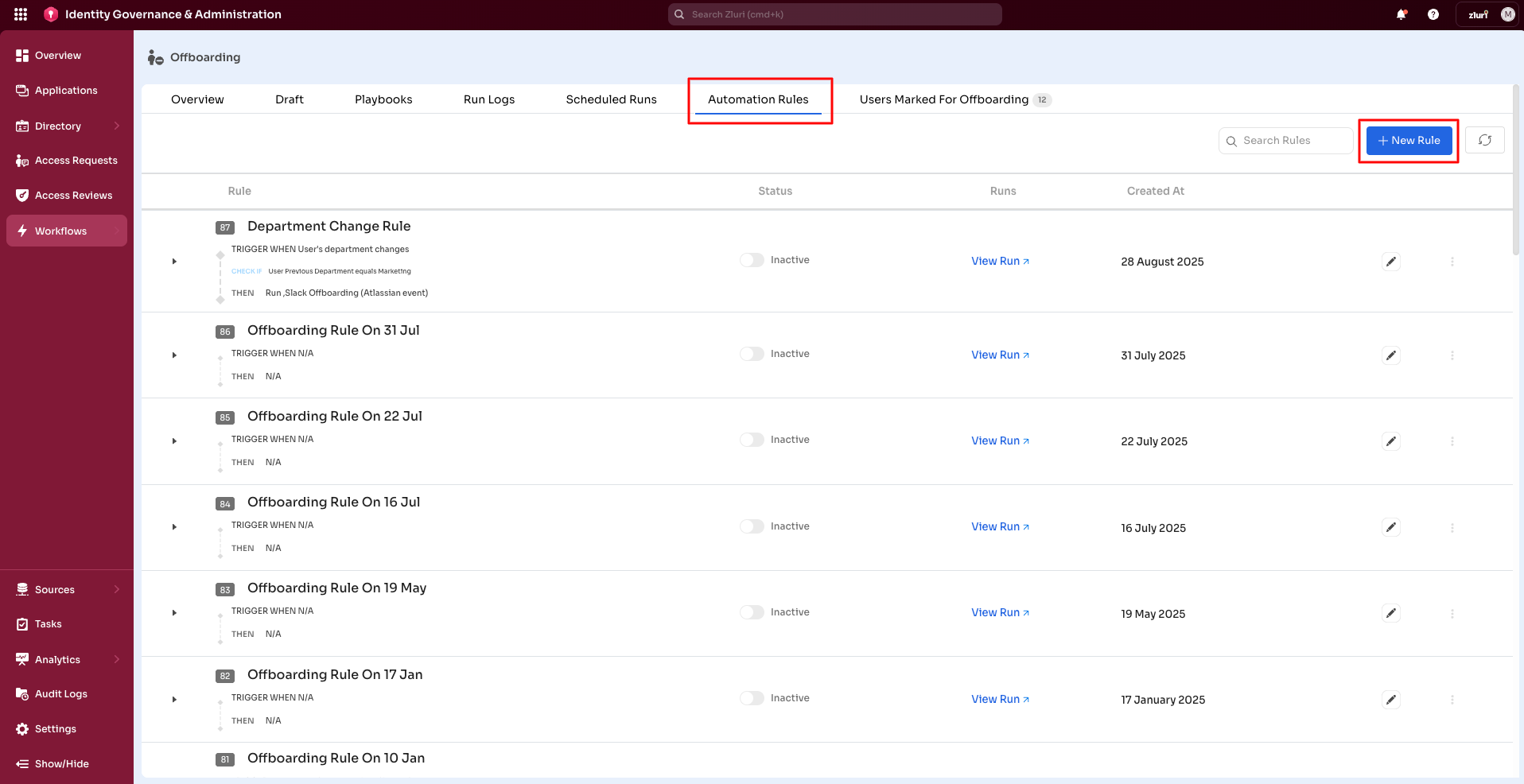
- Go to Workflows → Onboarding/Offboarding → Automation Rules
- Select + New Rule (top-right)
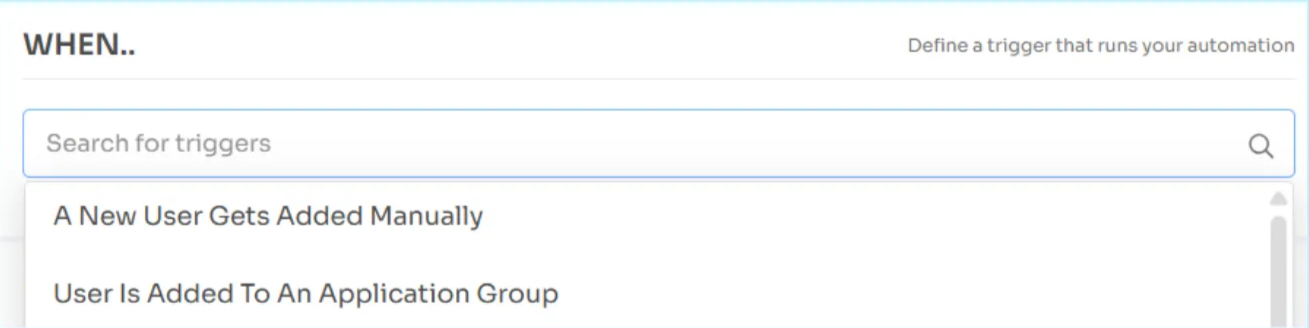
Step 2: Set the Trigger (WHEN)
Select the activation trigger from the 'WHEN' dropdown.
Onboarding triggers:
- User is Marked for Onboarding
- New User for an App Detected
Offboarding triggers:
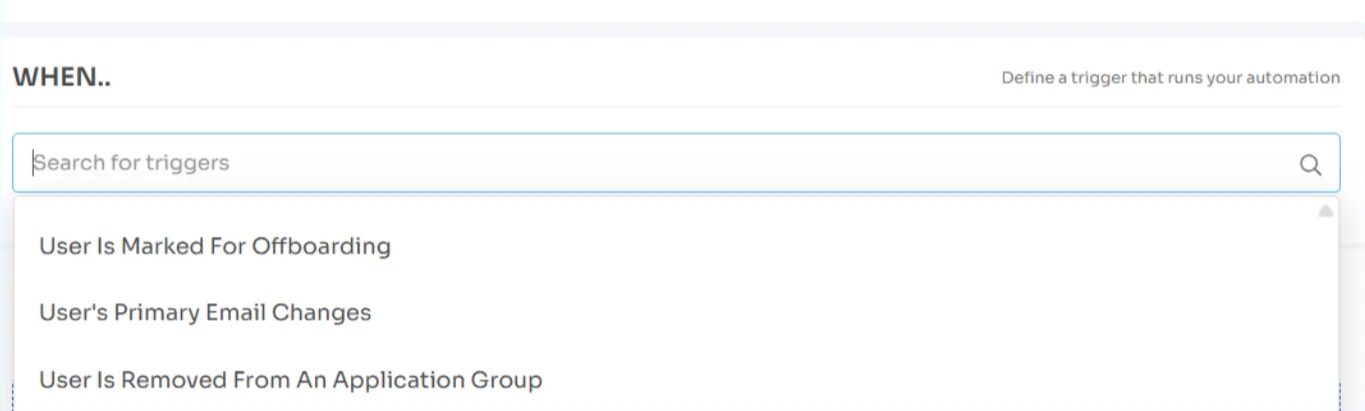
- User is Marked for Offboarding
- User is Removed from a Group
- User is Archived
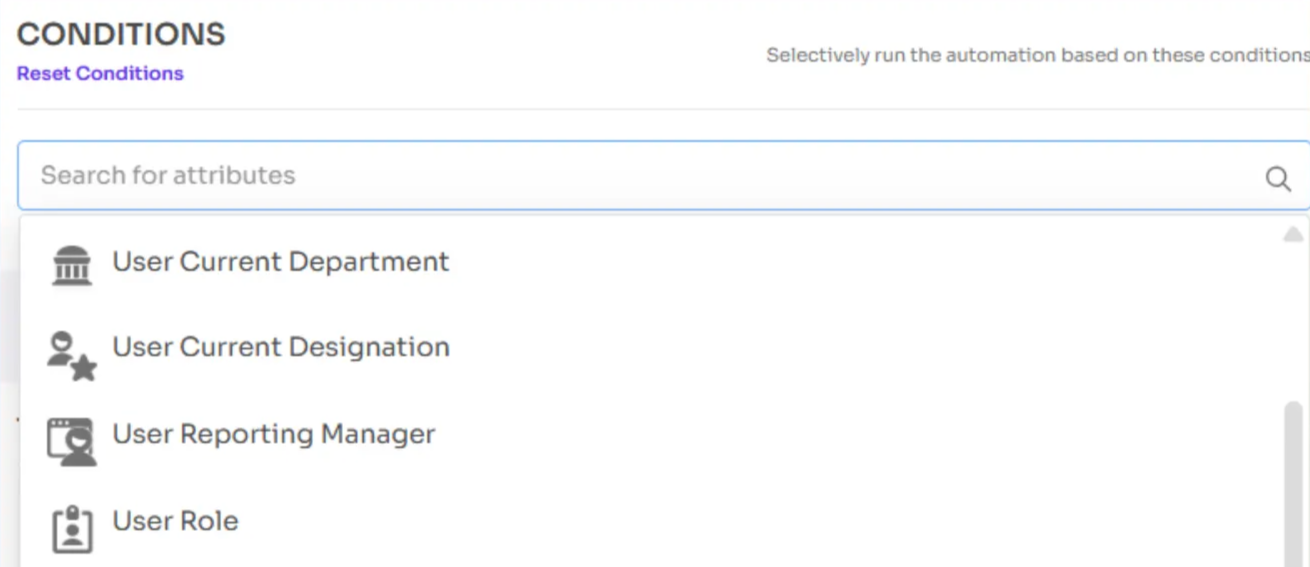
Step 3: Define Conditions (IF)
Conditions define rule triggers for playbook execution. Add filters to narrow down playbook execution timing. Define filters like department, location, or role.
-
Examples:
- If User’s Department = Sales, run the Sales Playbook.
- If Location = UK, run the Sales Playbook.
- If Role = Engineering Manager, run the Sales Playbook.
-
Options include:
-
Standard Fields: Department, Location
-
Custom Fields: Organization-specific attributes
Example:
- Condition: User Current Department = Sales
- THEN: Run Sales-specific playbook
-
Supports AND/OR logic for complex conditions.
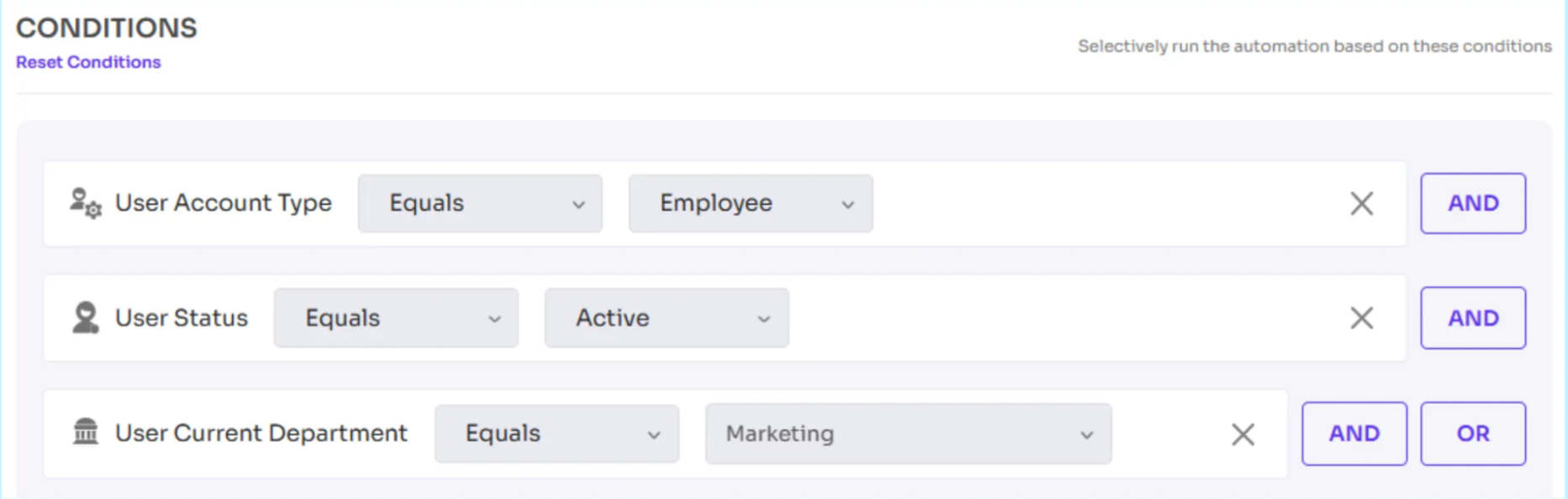
Step 4: Configure Conditions with AND/OR Logic
Combine multiple attributes using AND or OR logic.
AND – The rule only triggers if all selected conditions are true
Example: Department = Sales AND Location = UK → Run Sales Onboarding Playbook only for UK Sales users
OR – The rule triggers if any one of the selected conditions is true
Example: Department = Marketing OR Role = Manager → Run Marketing Playbook for either Marketing users or any Manager role
Step 5: Configure Actions (THEN)
Select one or more playbooks in the Run field to act as the rule's automated actions.
Multiple Playbooks:
Add multiple playbooks to a single rule to run sequentially or in parallel as needed.
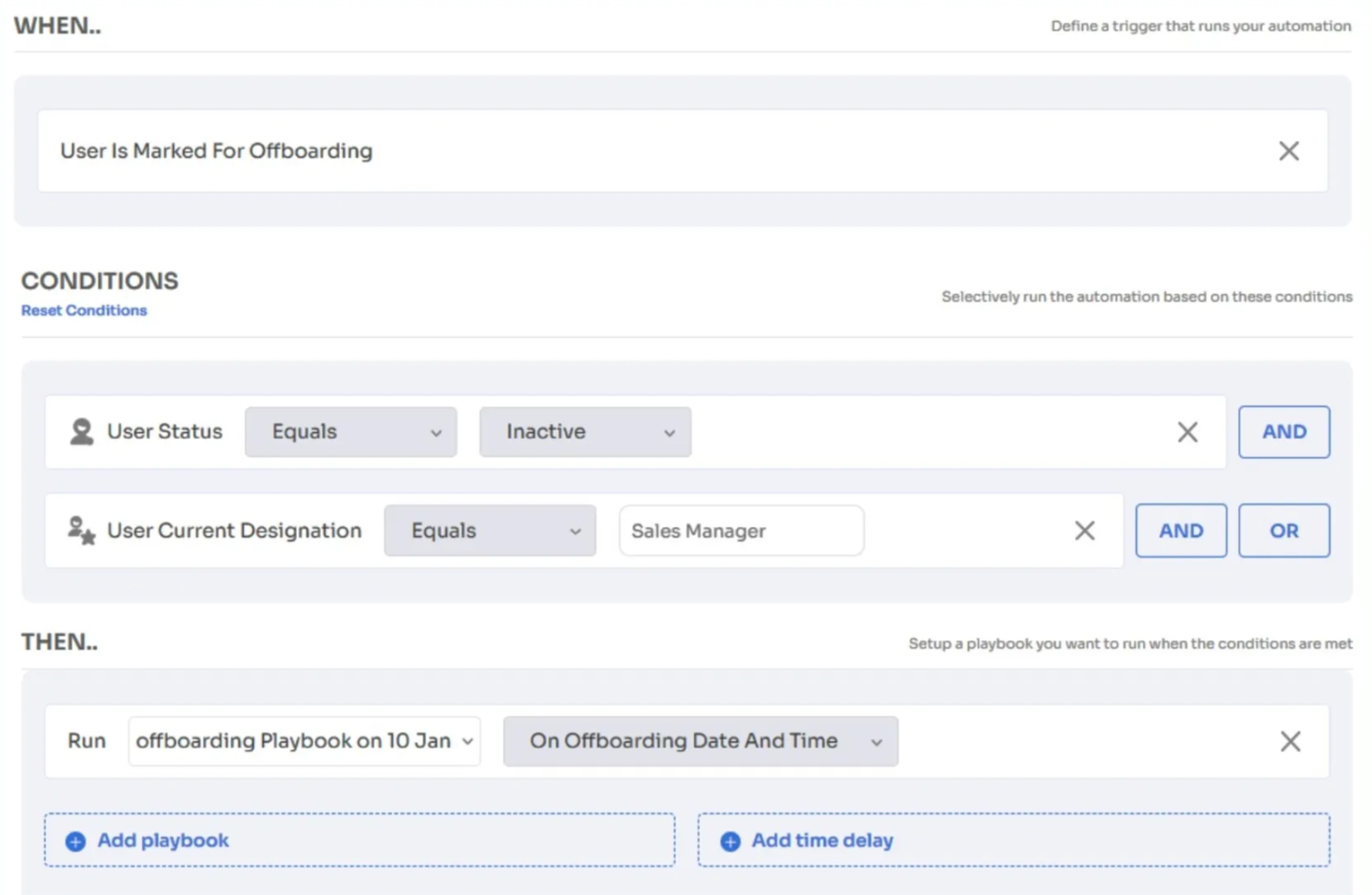
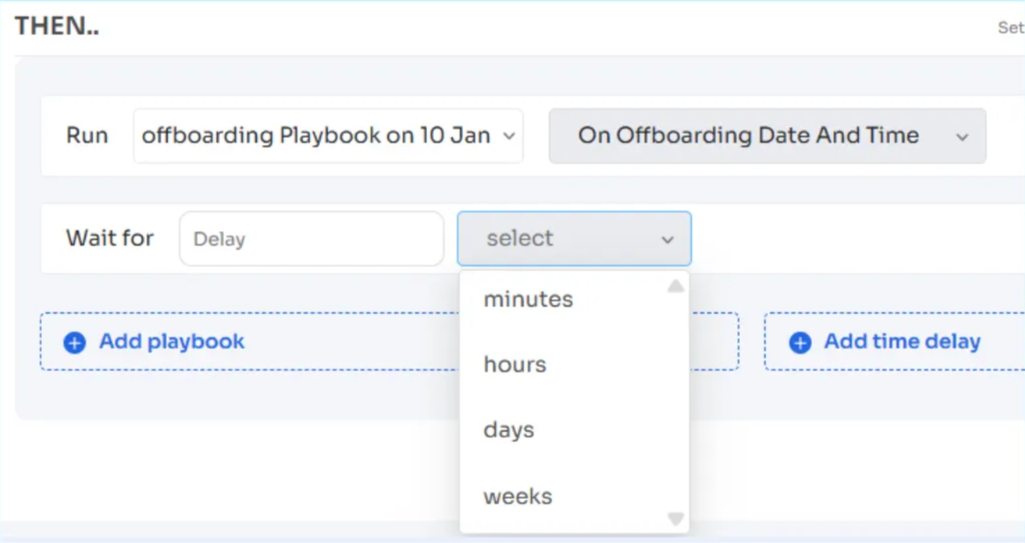
Wait for x days:
Add time delay between playbook executions. Configure a delay (in days) to schedule when the action should run after the playbook is triggered. This helps in sequencing actions, ensuring specific tasks execute only after a defined time gap.
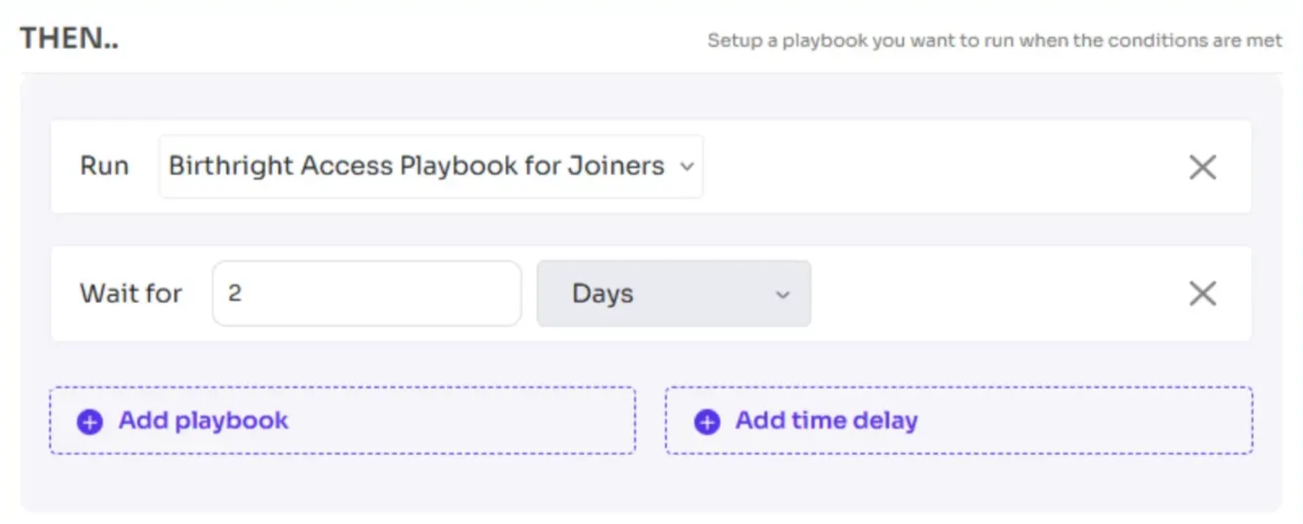
Step 6: Set Scheduling (Optional)
Scheduling options are available for specific triggers.
Onboarding: Available for "User is marked for Onboarding" trigger
Offboarding: Available for "User is marked for Offboarding" trigger
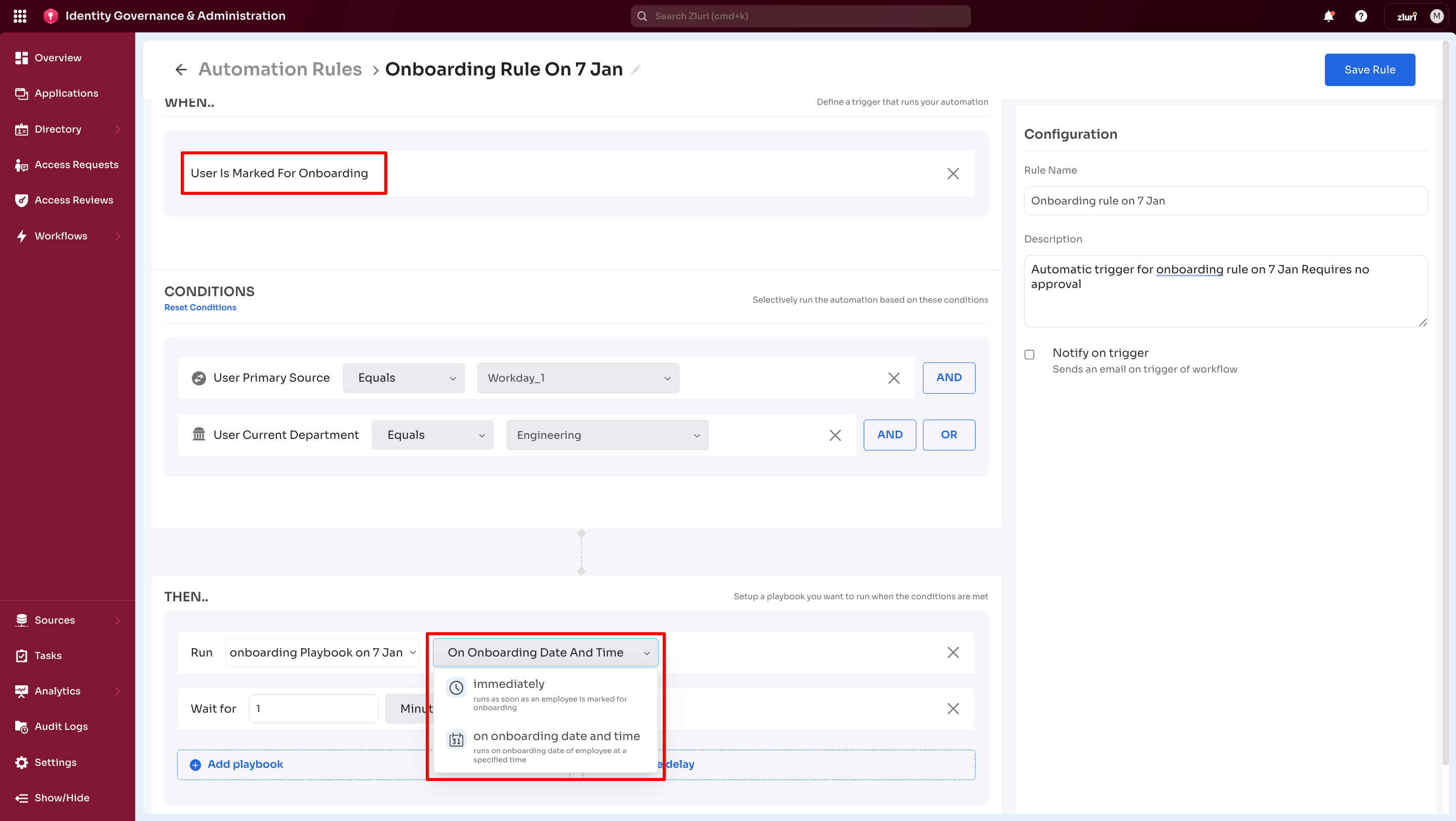
Two scheduling options:
- Immediately – For urgent onboarding or offboarding
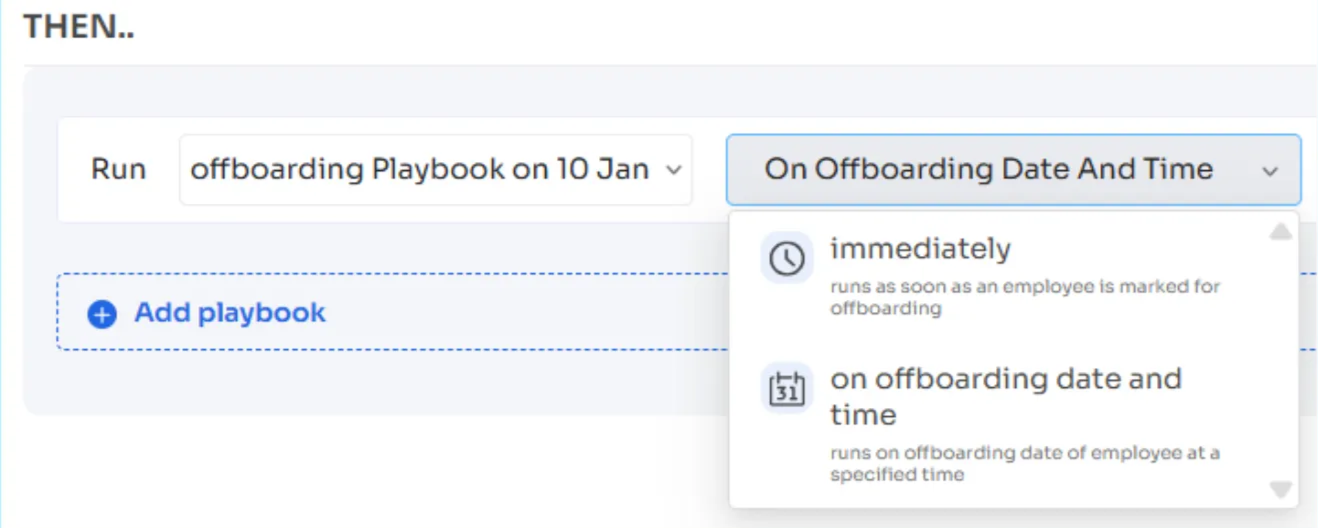
- On onboarding/offboarding date and time – Schedule the rule for a specific date and time, ideal for planned transitions
Step 7: Save the Rule
-
Select Save Rule (top-right)
-
A confirmation pop-up appears
Note: Saving the rule does not activate it.
Step 8: Activate the Rule
-
The saved rule appears in the Automation Rules table
-
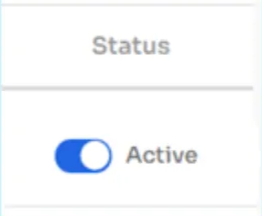
Switch the Status toggle to Active
-
Once active, the rule begins functioning for users marked after activation
-
Onboarding:

-
Offboarding:
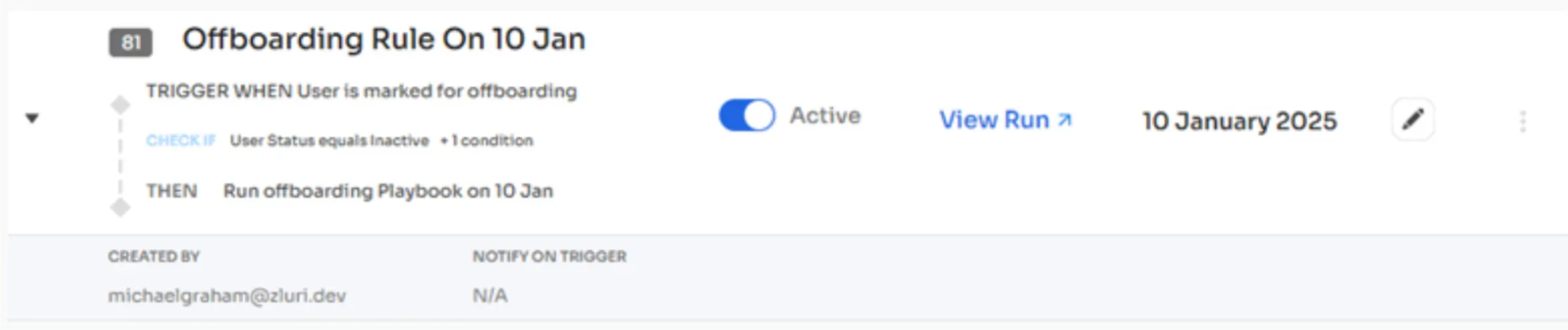
Example: Automation Rule in Onboarding
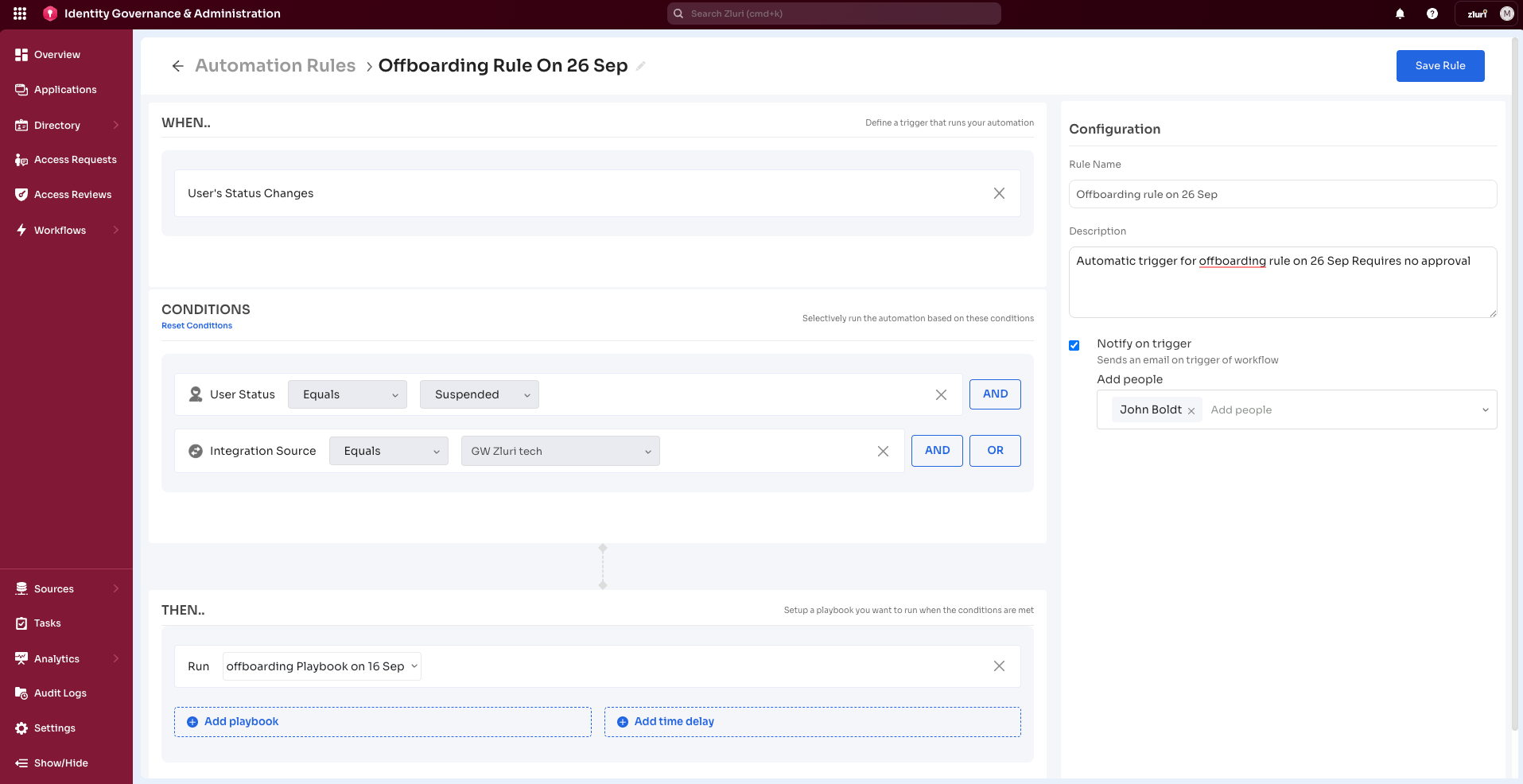
Example: Automation Rule in Offboarding
_For example, the Offboarding Rule dated 26 Sep is configured as follows:
-
First, the trigger initiates as the user’s status changes,
-
then it checks if the user’s status is Suspended,
-
and then runs the offboarding playbook created on 16 Sep.
After creating an automation rule, ensure it is marked as active. If not activated, the rule will not run.
Example Use Cases
Example: Department-Specific Onboarding
Scenario: Emily joins the Sales team.
- WHEN → User is marked for onboarding.
- IF → Department = Sales.
- THEN → Run Sales Onboarding Sales Team Global Playbook to provision:
- Salesforce access.
- Zendesk license.
- Slack #sales channel invite.
Outcome: Emily’s access is provisioned automatically and immediately on Day 1 without IT intervention.
There are scheduling options available exclusively for Trigger: ‘User is marked for Onboarding’.
Two run schedule options are available: 'Immediately' and 'On onboarding date and time.'
- Select 'Immediately' for urgent onboardings.
- Alternatively, select 'On Onboarding date and time' to schedule the rule for a specific date and time. This option is ideal for planned onboardings requiring actions at a later date.
Offboarding: Contractor Exit Automation
Scenario: HR marks an employee as leaving.
- WHEN → User is marked for offboarding
- IF → Employee Type = Contractor
- THEN → Run Contractor Exit Playbook to:
- Remove user from Google Workspace
- Revoke Slack access
- Revoke Jira license
- Mark user as inactive in Zluri
Outcome: Contractor access is automatically removed as soon as HR updates their status.
Offboarding: Group-Based Deprovisioning
Scenario: A contractor is removed from the "APAC Contractors" group in Azure AD.
- WHEN → User is removed from a group
- IF → Group = APAC Contractors
- THEN → Run Contractor Exit Playbook
Outcome: Automated deprovisioning triggers immediately as the group membership changes.
Updated 4 months ago