
Running Options for Workflows
Execute workflows immediately, save for reuse, or schedule for later.
Note: While this documentation references onboarding workflows for illustration, the process of running workflows applies identically to offboarding.
Running Workflows
Once the workflow is configured with applications, actions, and conditions, it is ready for final execution. Zluri offers three options for running workflows, plus automatic draft saving.
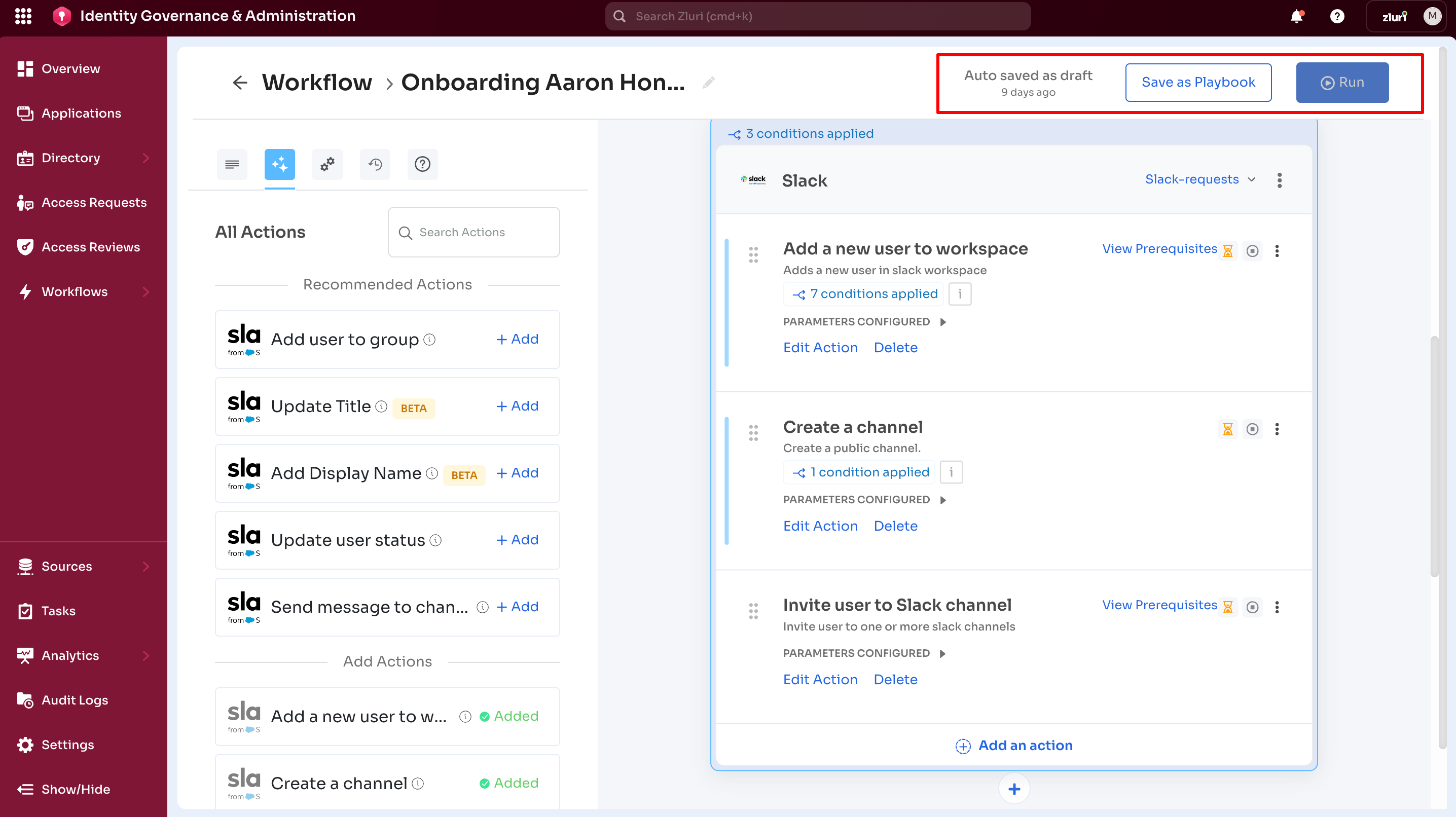
1. Auto-Save as Draft
Workflows automatically save as drafts if they are not explicitly run or saved. This feature prevents work loss from technical issues or forgotten saves.
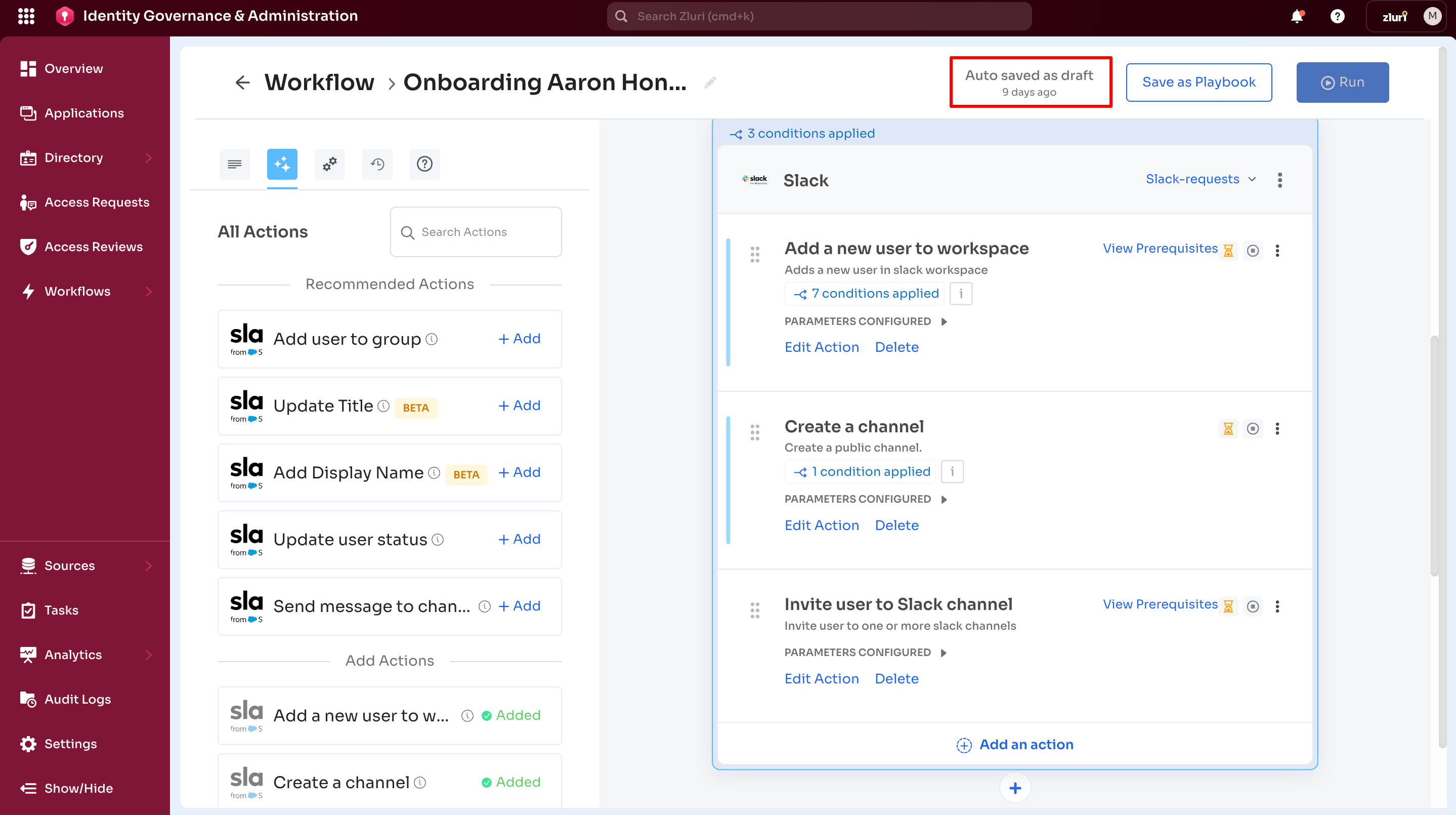
Functionality
If no execution actions are performed (Run, Save as Playbook, or Schedule for Later), the unfinished workflow remains listed under the Drafts tab for further editing.
Drafts are auto-saved if the admin or user:
- Navigate away from the workflow page
- Session times out
- Close browser
- The system detects inactivity
Resume Editing
Find the auto-saved draft in the Drafts tab. Select Edit to continue configuration.
Draft retention:
Drafts remain available indefinitely until the admin or the user deletes them or converts them to playbooks.
2. Save as Playbook
Convert the workflow into a reusable template stored in the Playbooks tab.
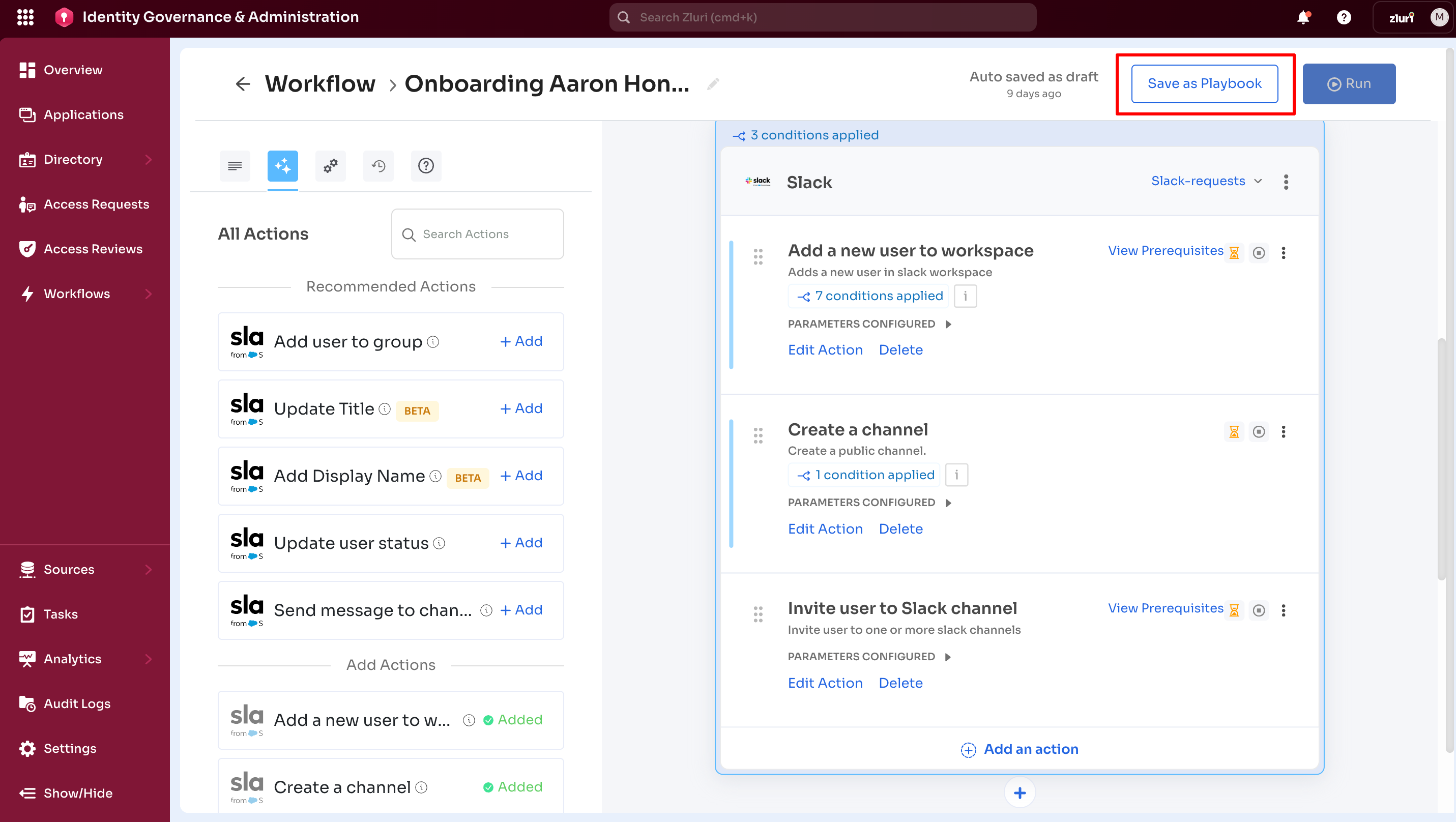
Playbooks Use Cases
- Onboarding multiple users with the same role
- Standardizing provisioning across departments
- Creating templates for common scenarios
- Building library of reusable workflows
Steps to Save as Playbook
- Select Save as Playbook in the top menu
- Provide a playbook name
- Use descriptive names (For example, "Engineering Onboarding", "Sales Manager Provisioning")
- Include role, department, or scenario in the name
- Select Save
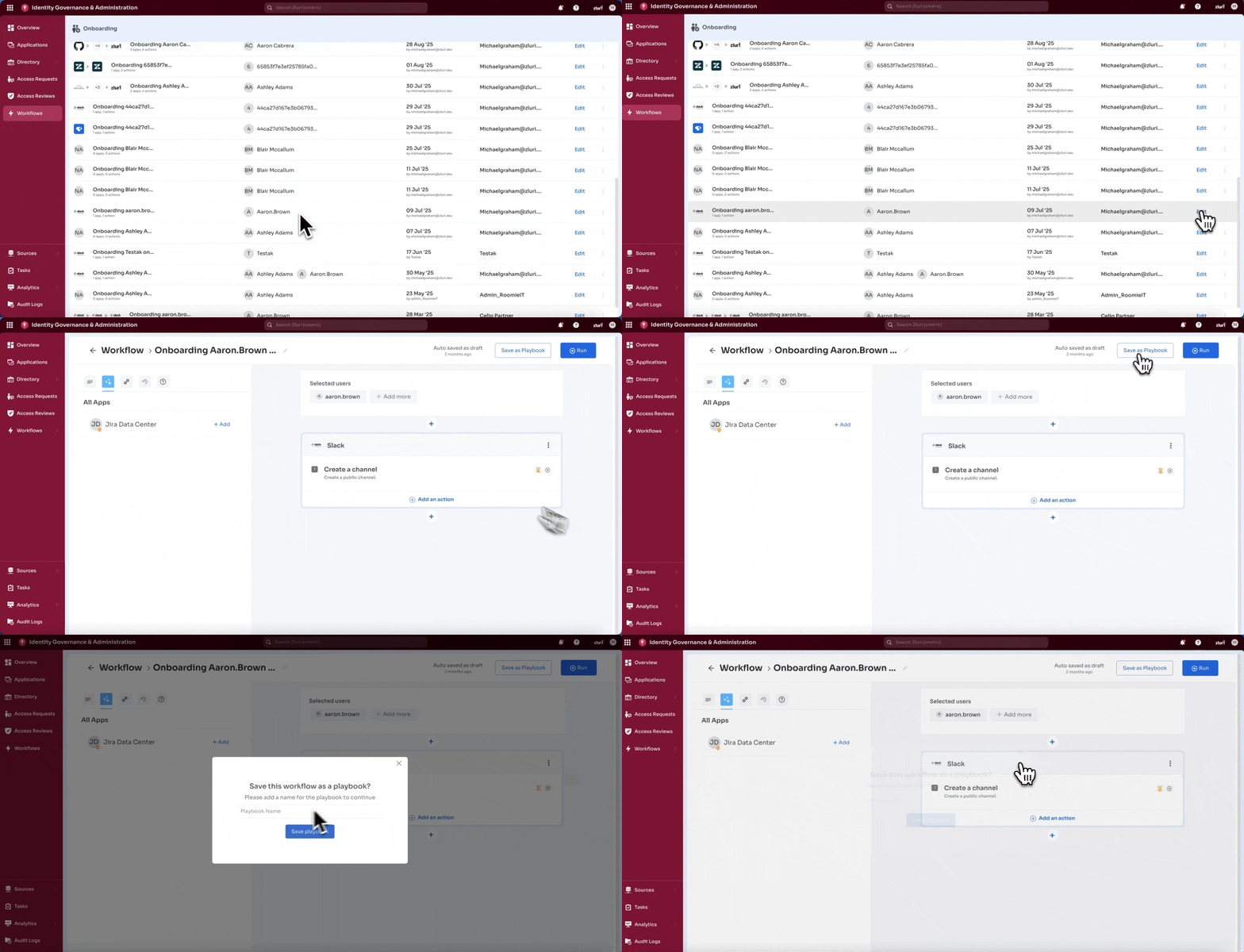
The workflow is now available in the Playbooks tab for future use.
Benefits of Playbooks
- Consistency - Every user receives identical access
- Efficiency - No need to rebuild workflows from scratch
- Scalability - Run the same playbook for dozens of users
- Compliance - Standardized access reduces audit risks
Learn more about creating and managing playbooks
3. Run
Execute the workflow immediately or schedule for later execution.
Run Immediately
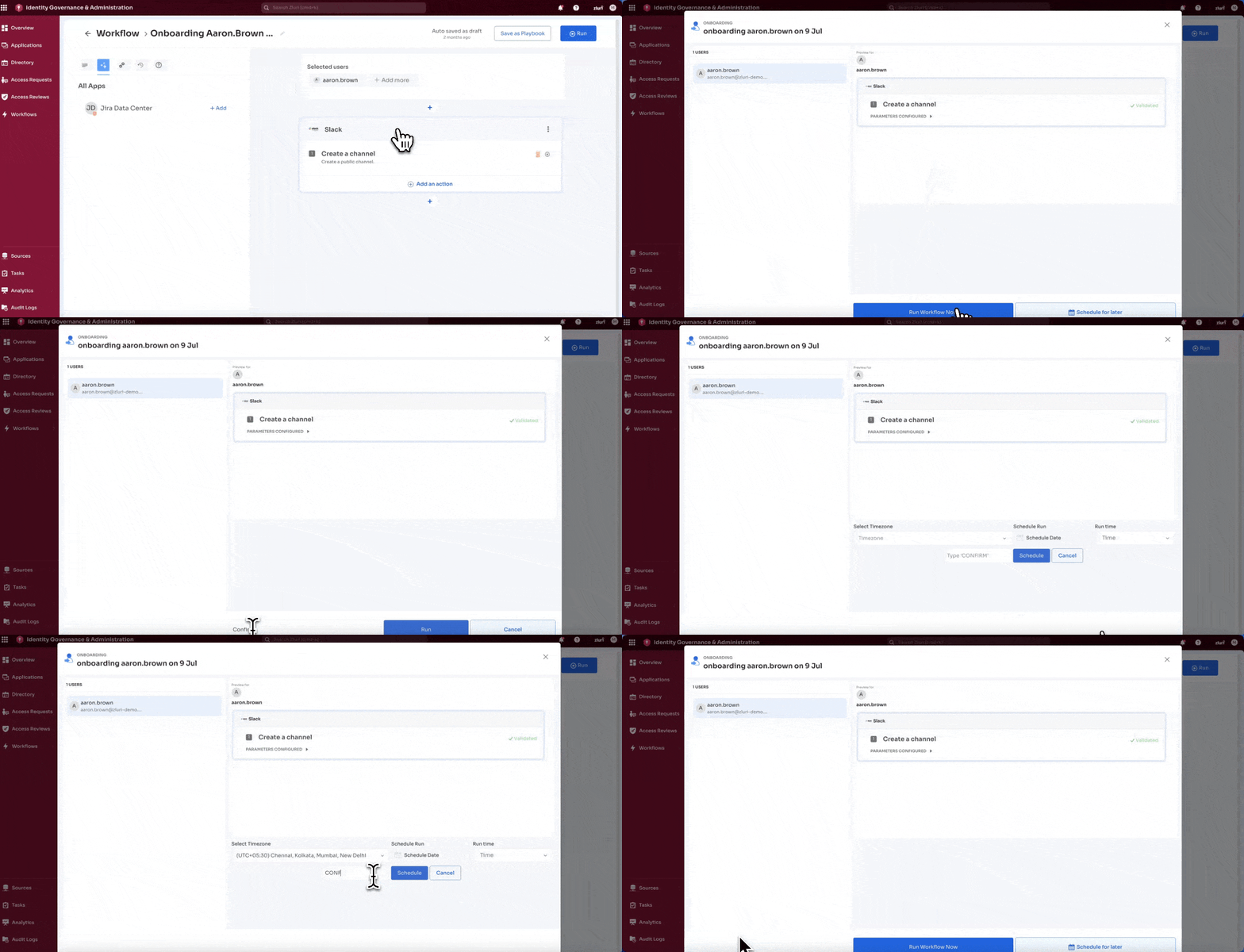
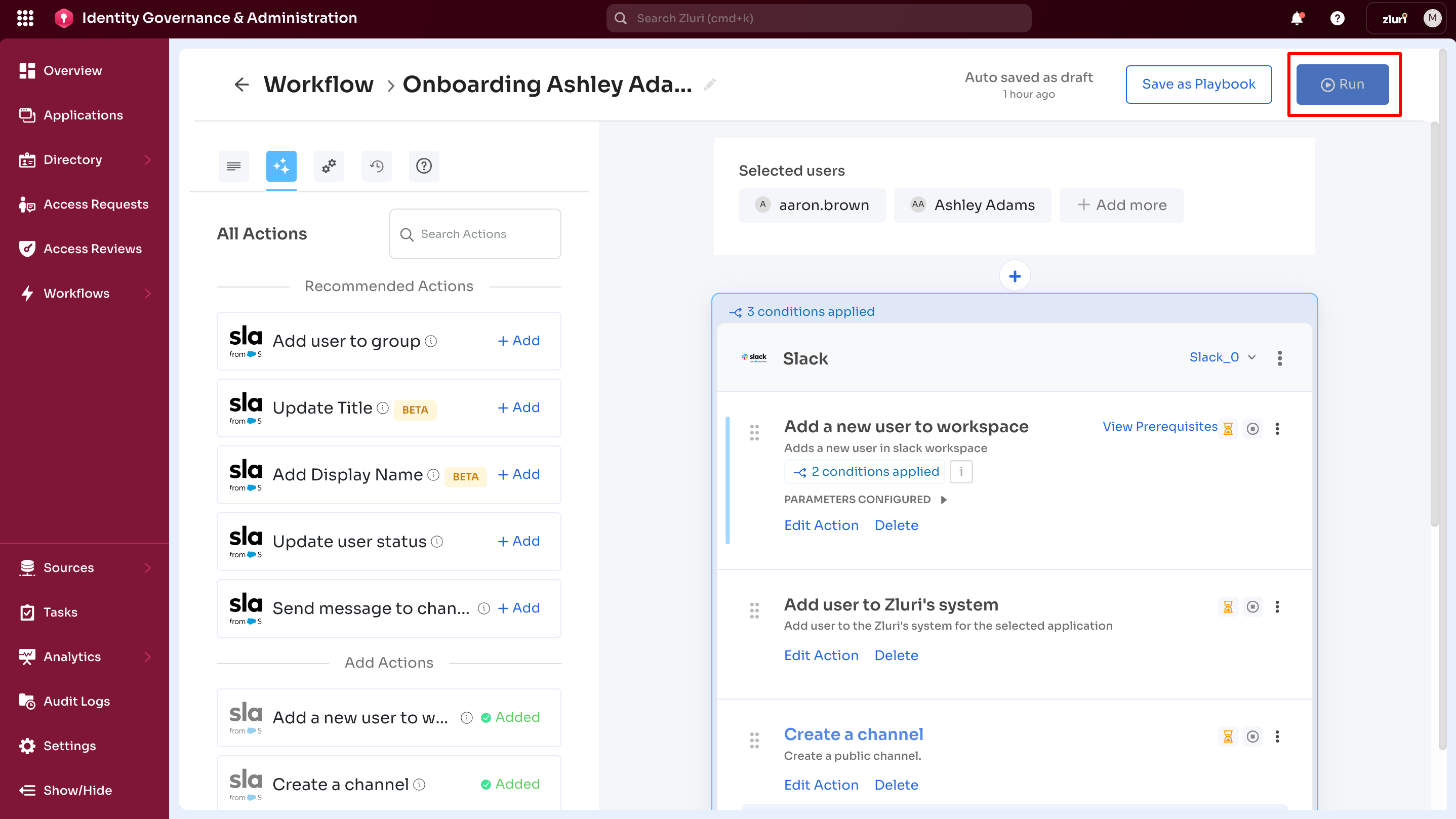
Select Run → Run Workflow Now for immediate execution.
Next steps:
- Workflow validates all configurations
- Actions execute in order for selected users
- Real-time status updates appear in the interface
- Execution completes with success or failure status
Results recorded in:
- Run Logs tab with complete execution details
- Timestamps for each action
- Success/failure status for each step
- Error messages for failed actions
Use cases:
- Emergency access provisioning
- Single user onboarding
- Testing new workflows
- Ad-hoc access requests
Schedule for Later
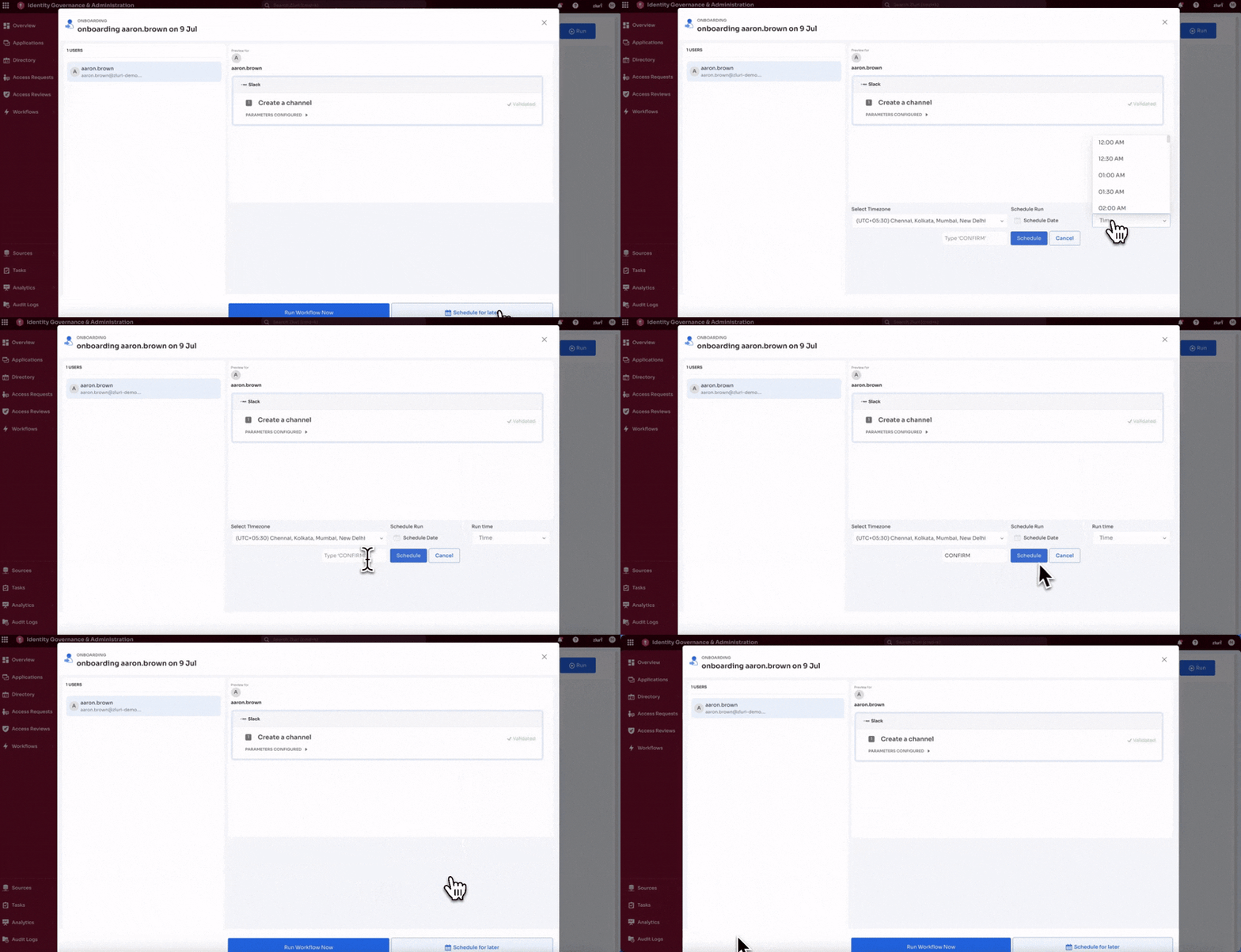
Select Run → Schedule for Later to execute at a future date and time.
Configuration options:
1. Select Timezone
Choose the appropriate timezone for execution. Important for distributed teams to ensure workflows run at the correct local time.
2. Specify Date
Pick the future execution date using the calendar picker.
3. Choose Run Time
Set the specific time (hours and minutes) for execution.
4. Confirm Scheduling
Type "CONFIRM" in the confirmation field to prevent accidental scheduling.
After scheduling:
- Scheduled workflows appear in the Scheduled Runs tab
- View all upcoming scheduled executions
- Edit or cancel scheduled runs before execution
- Receive notifications for completed scheduled runs
Use cases:
- New employee start dates (provision access day before or morning of start date)
- Coordinated team onboarding
- After-hours provisioning to avoid business disruption
- Timezone-appropriate execution for global teams
Execution Validation
Before running, Zluri validates the workflow configuration:
Required Elements Checked
- Users selected - At least one user must be selected
- Applications added - At least one application with actions
- Actions configured - All actions must have complete parameters
- Prerequisites met - All action prerequisites must be satisfied
- No blue ribbon notes - All required parameters filled
Updated 6 months ago