
Drafts Tab (Onboarding+Offboarding)
Drafts Tab
The Drafts tab stores unsaved workflows and provides a workspace for creating one-time workflows that can be executed immediately or saved as reusable playbooks.
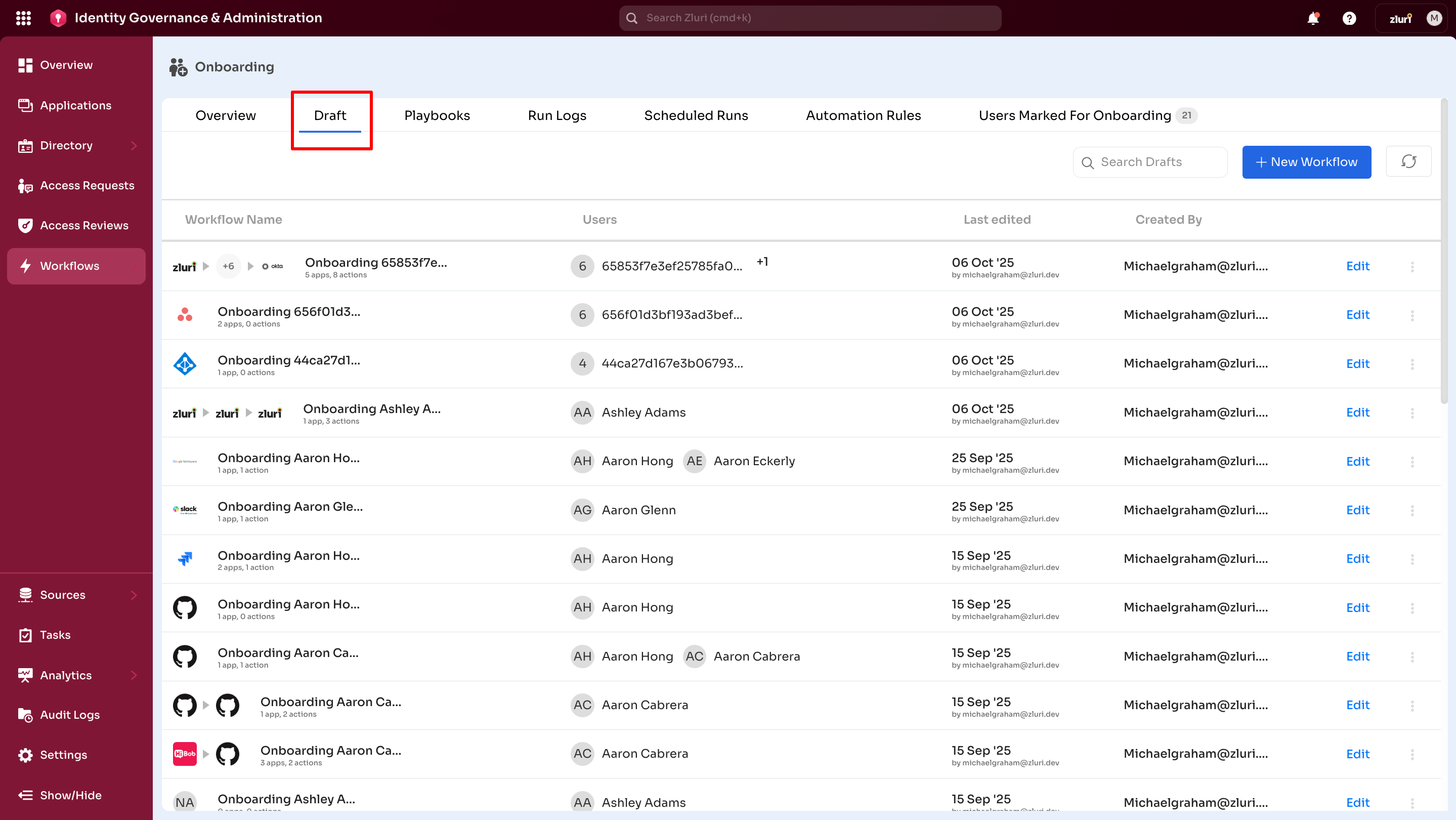
Core Features
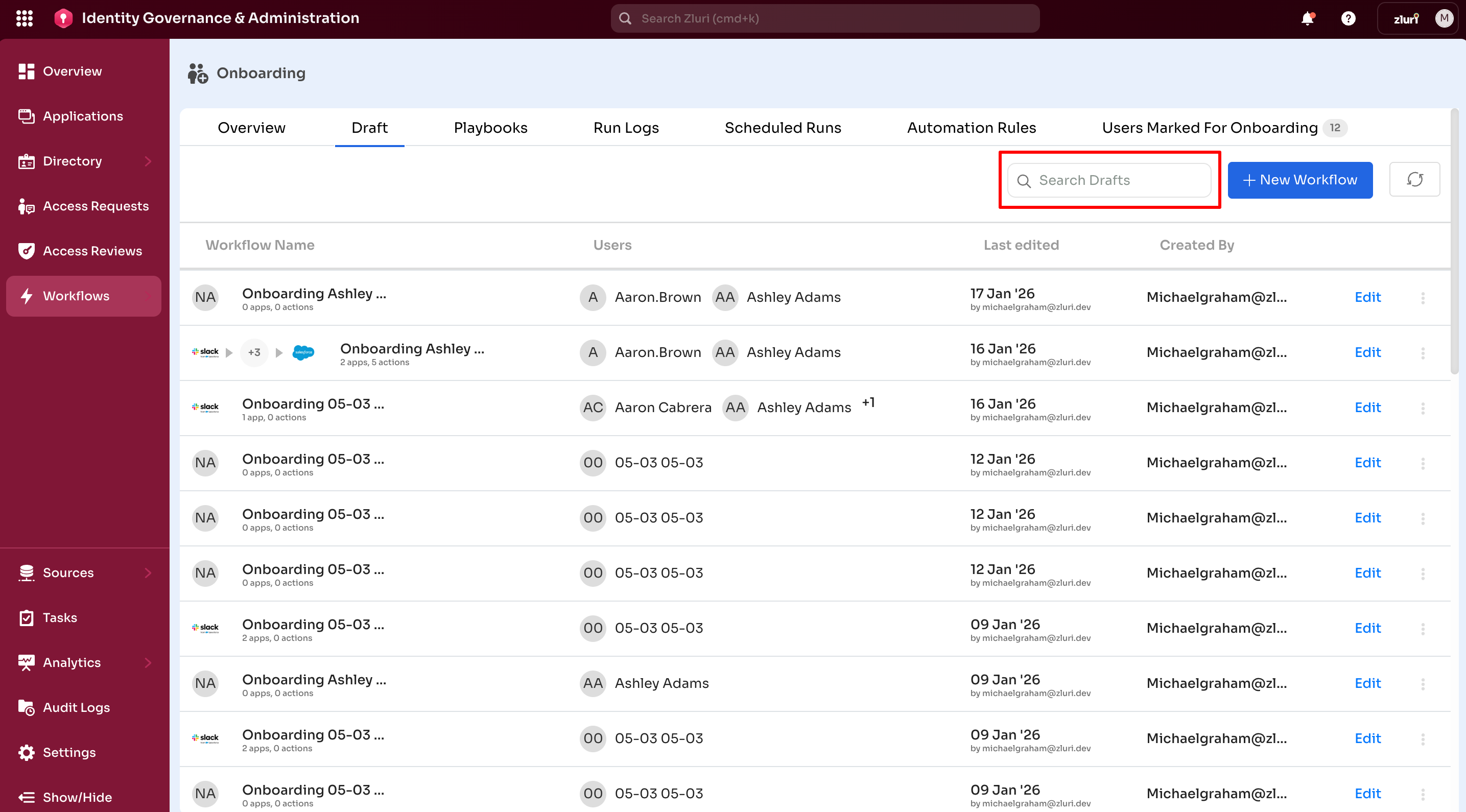
Search Drafts
Use the search bar (top-right) to locate specific workflows in long lists.
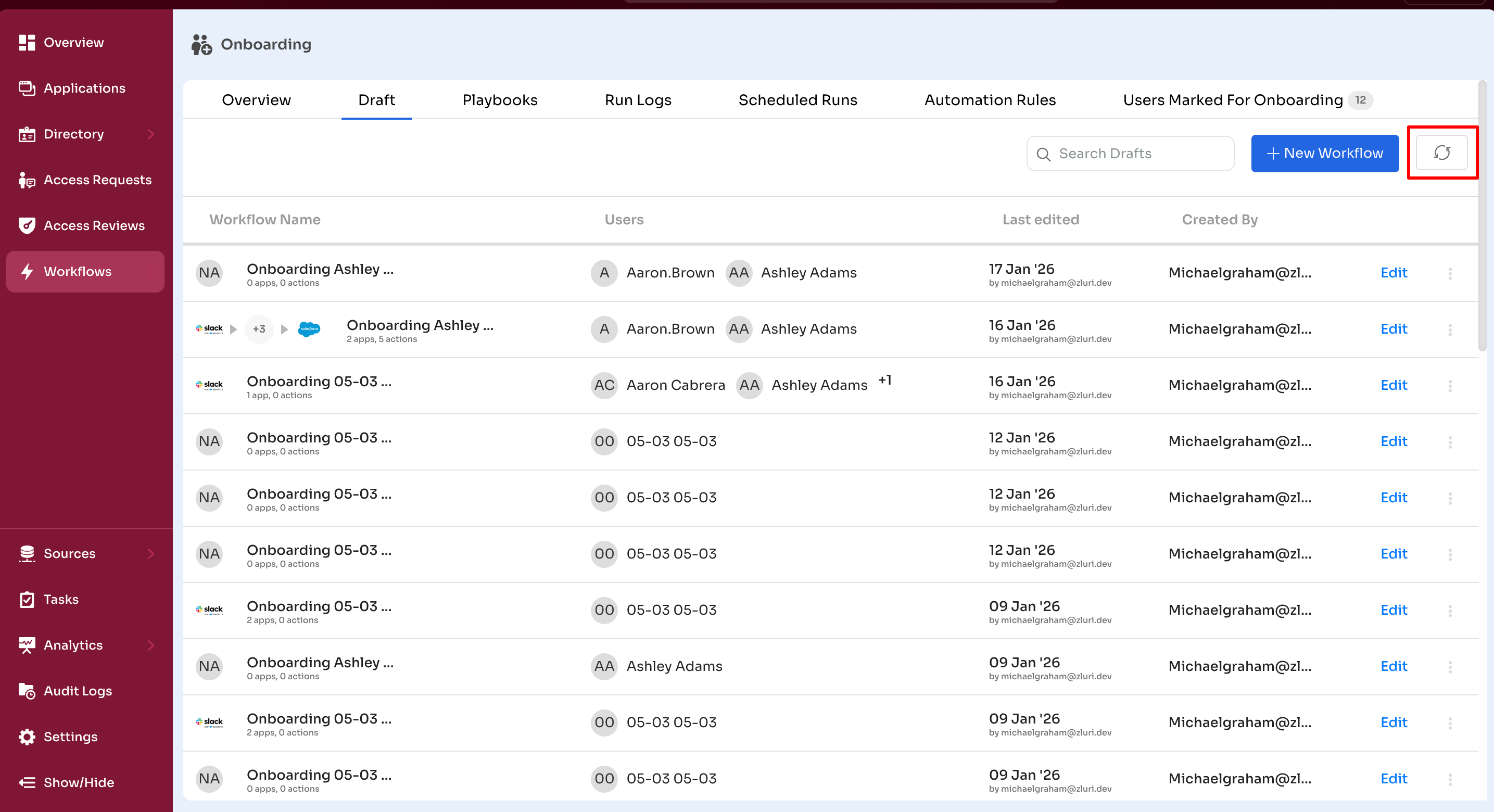
Page Refresh
The refresh option reloads the Drafts view to ensure the latest changes are visible.
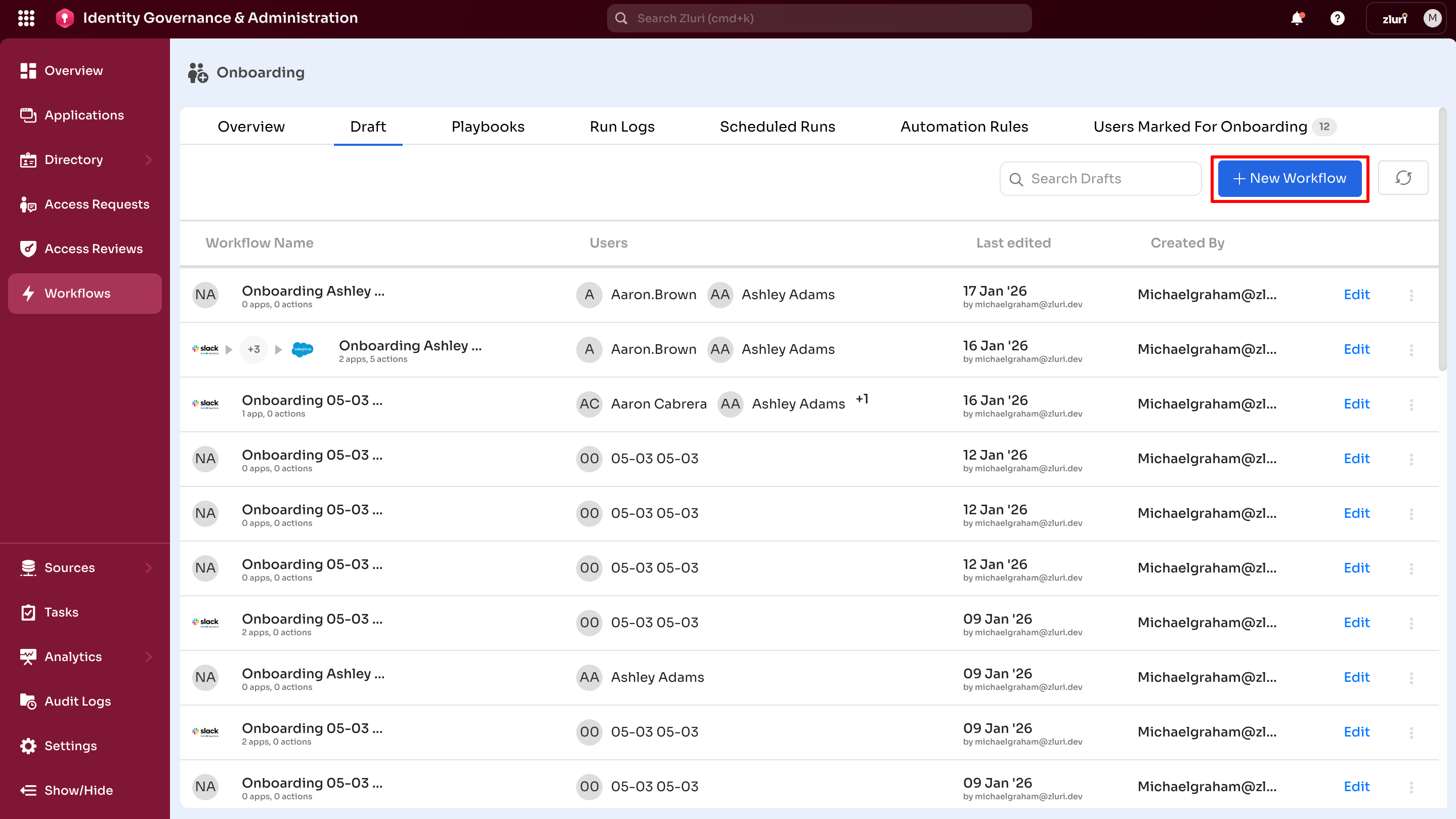
New Workflow
Select + New Workflow to create a new workflow. This opens the workflow builder page.
Onboarding:
The workflow builder allows configuring onboarding actions for new hires.
Offboarding:
The configuration page auto-populates all applications tied to the selected user's account for deprovisioning.
Note: The New Workflow option appears on both the Overview page and Drafts page for convenience—they open the same workflow builder.
Drafts Table
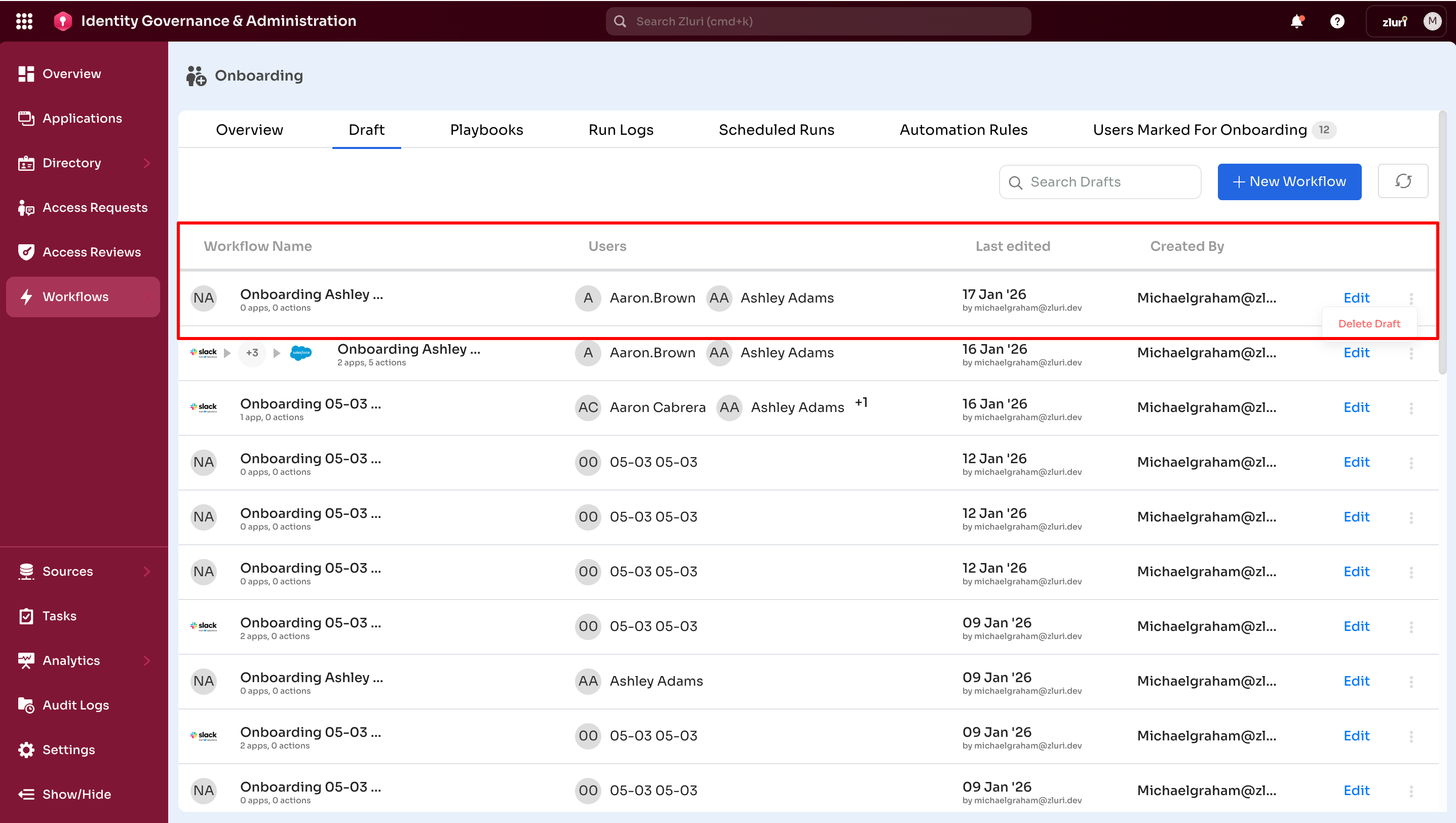
Displays all draft workflows with the following details:
Table columns:
- Workflow Name – Shows the names of draft workflows
- Onboarding: Automatically generated as "Onboarding [First Last Name]" if not renamed
- Offboarding: Default format is "Offboarding [Creator Name] [Date]" (For example, "Offboarding Anne Bolt 5 July")
- Users – Displays the users for whom the workflow is being prepared
- Last Edited – Shows the workflow last updated date and the admin email who modified it
- Created By – Email address of the workflow creator
Row actions:
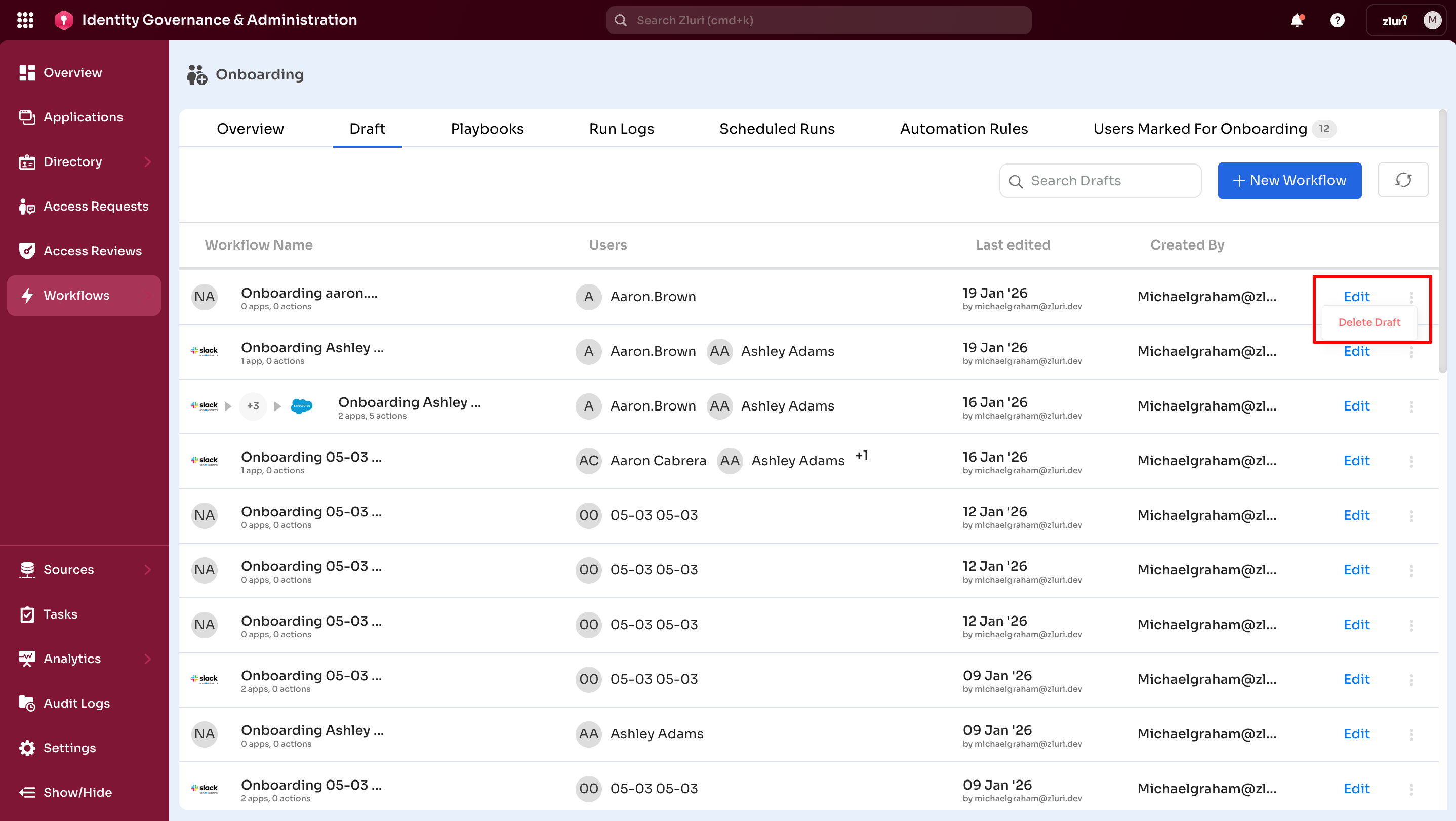
- Edit – Opens the workflow builder to reconfigure draft actions and settings
- Delete – Removes the draft permanently (via three dot menu)
Note: Double-check before deleting—this action is permanent.
Updated 6 months ago