
Trigger a Playbook Action
Trigger a Playbook
The Trigger a Playbook action allows one playbook to run another, enabling reuse across onboarding, offboarding, provisioning, access reviews, and access requests without duplicating steps.
Purpose of the feature
This feature enables modular and reusable automations by allowing one playbook to trigger another. It helps:
- Reuse existing playbooks instead of rebuilding logic
- Maintain consistency across automation workflows
- Reduce duplication of effort
- Improve flexibility in playbook design
- Save time while managing complex automation scenarios
Supported and unsupported playbooks
Supported playbooks
The Trigger a Playbook action supports the following playbook types:
- Onboarding playbooks
- Offboarding playbooks
- Provisioning playbooks (application-level)
- Deprovisioning playbooks (application-level)
- Access request playbooks
- Access review playbooks
Unsupported playbooks
- All App Automation playbooks
Playbooks created under the All App Automation module cannot be triggered from the supported playbook types listed above. Supported playbook types cannot be triggered from All App Automation playbooks.
Using the “Trigger a Playbook” action
Follow the steps below to add the Trigger a Playbook action to an automation:
- Sign in to the Zluri platform.
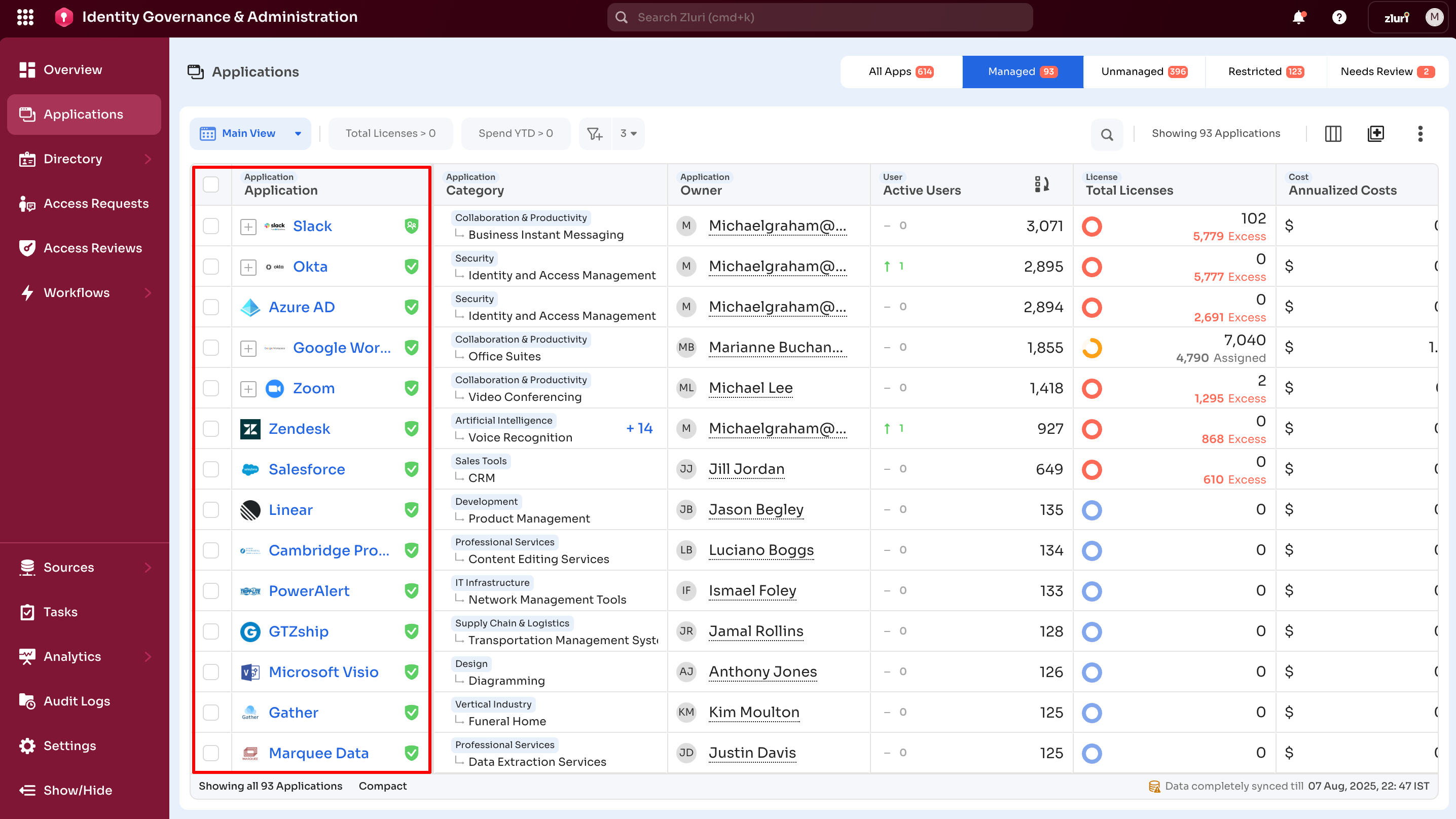
- From the Overview page, select Applications from the left navigation menu.
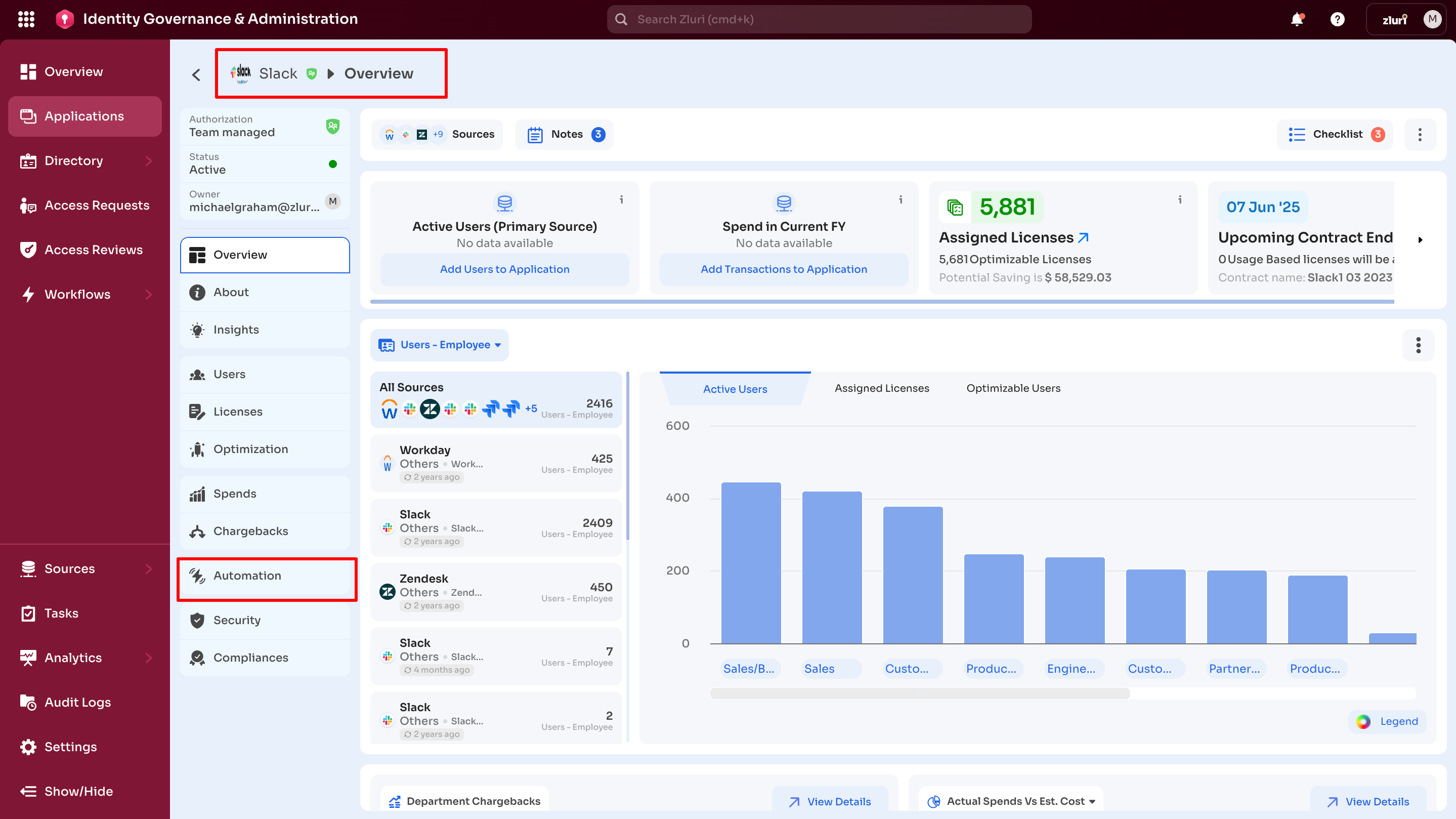
- Select the required application and open the Automation tab within the application.
-
Choose an existing playbook or create a new one.
-
Scenario 1: Add New playbook
To create a new one, click the Add New option.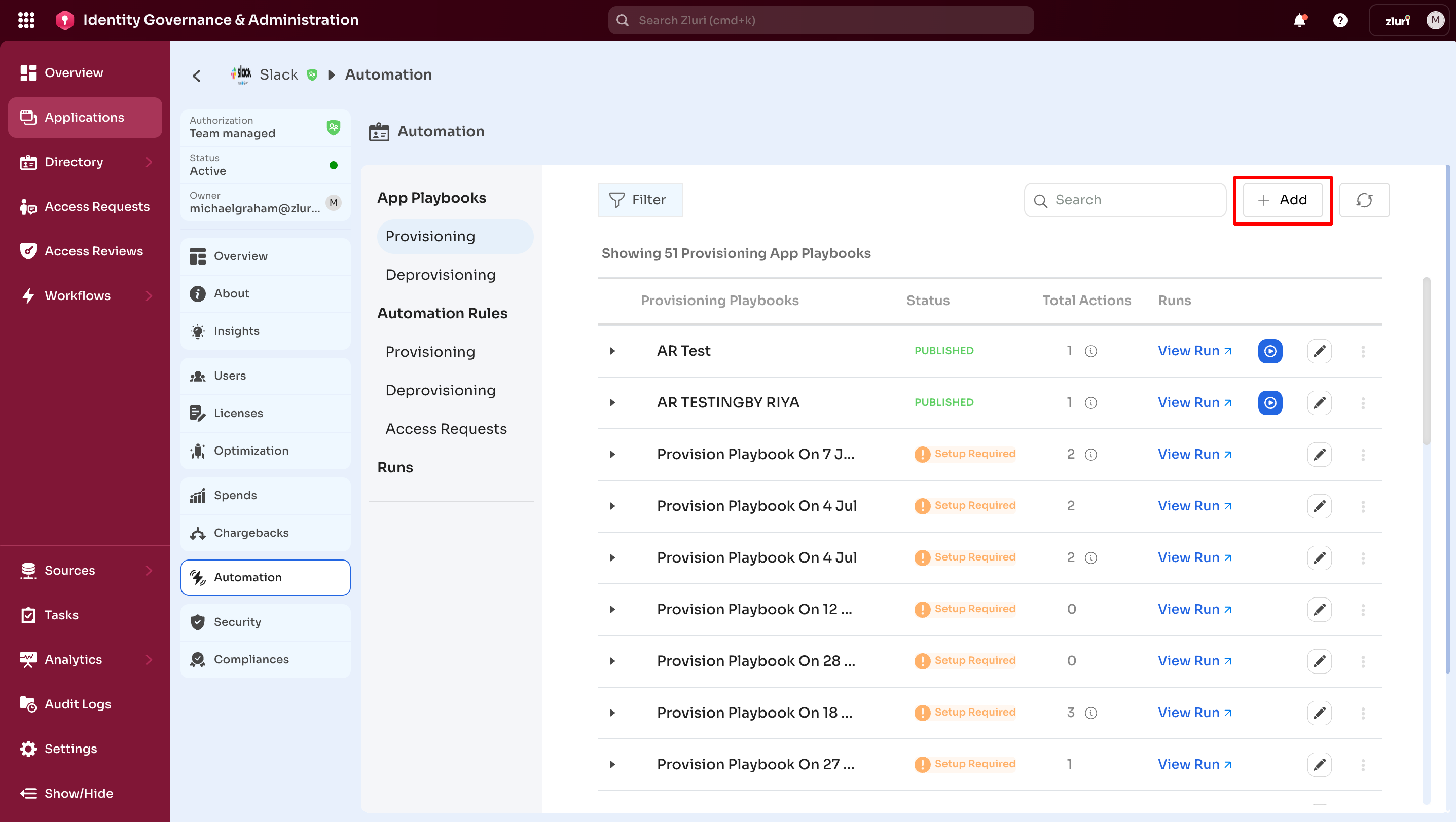
Click on Add an Action to add a new action step.
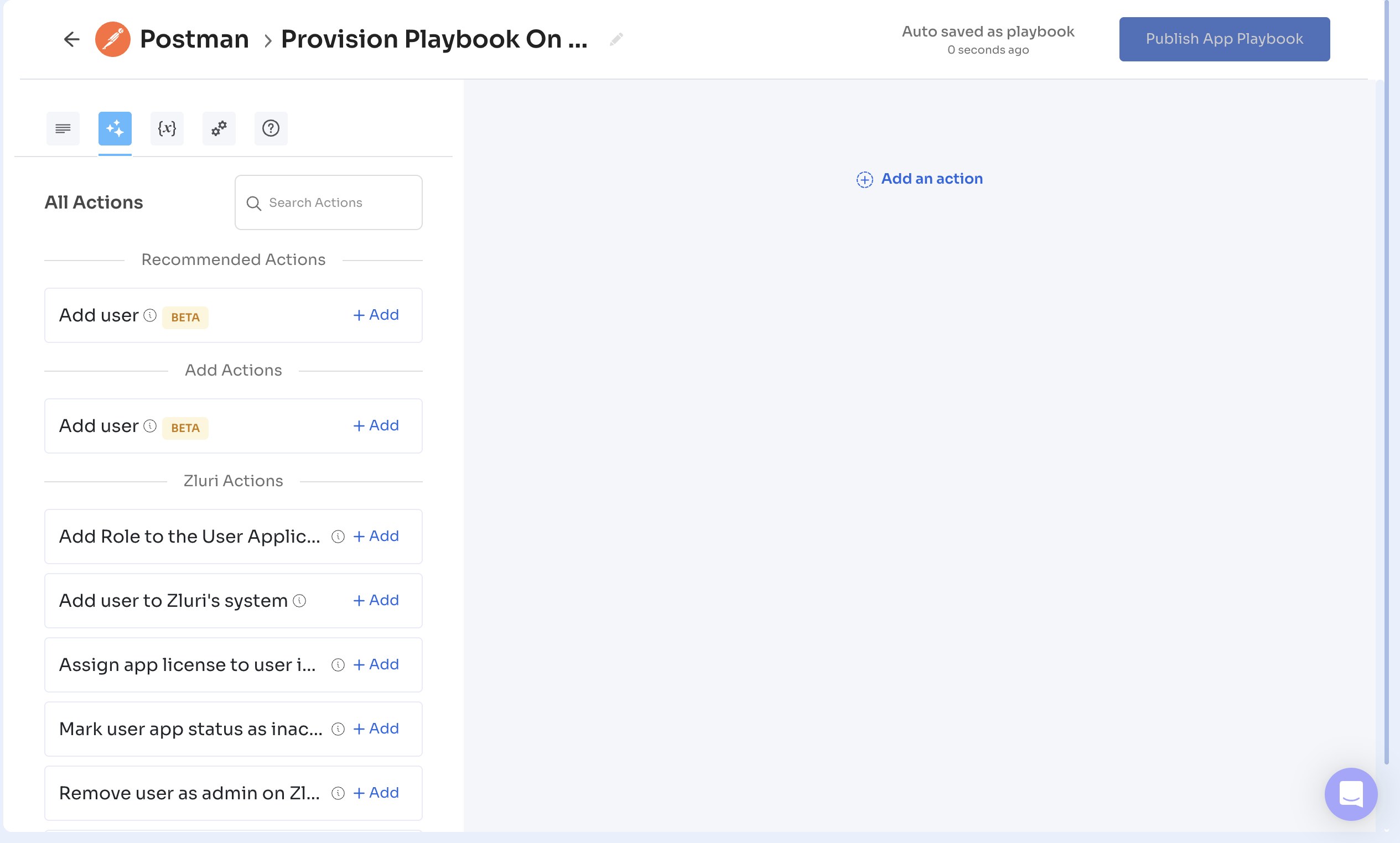
From the list of actions, select Trigger a Playbook.
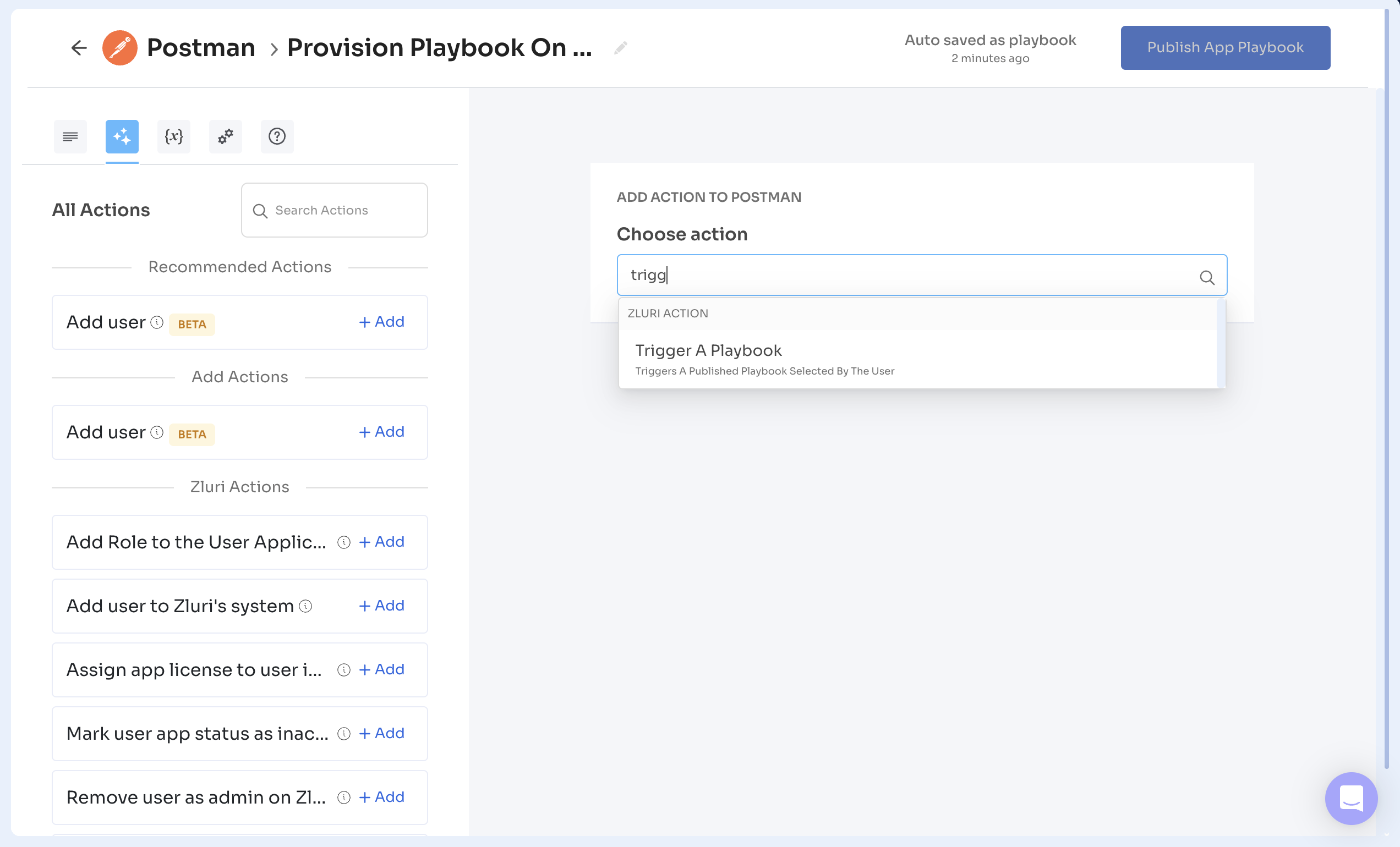
Use the search bar to locate the required playbook.
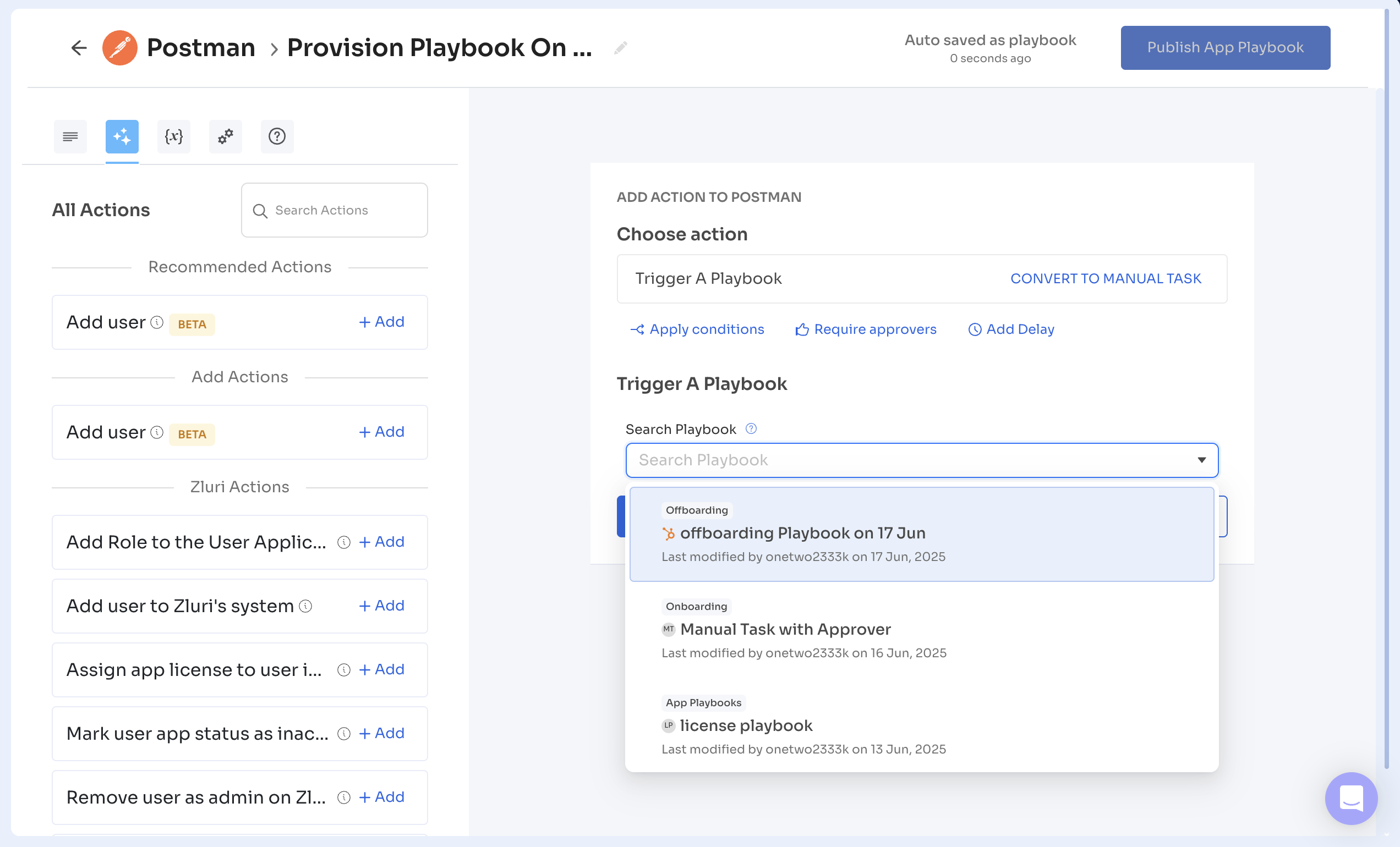
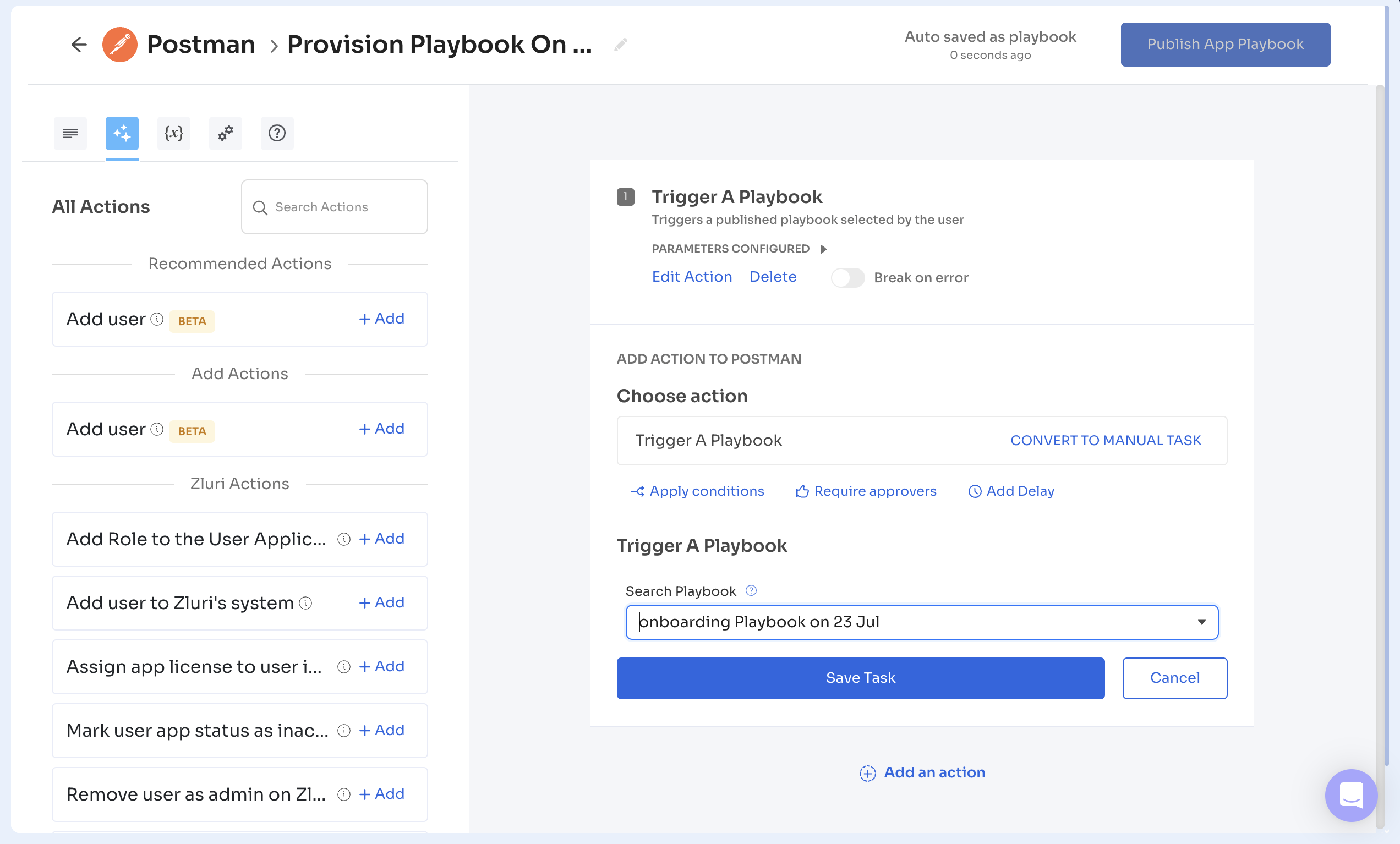
Select the playbook and click Save Task.
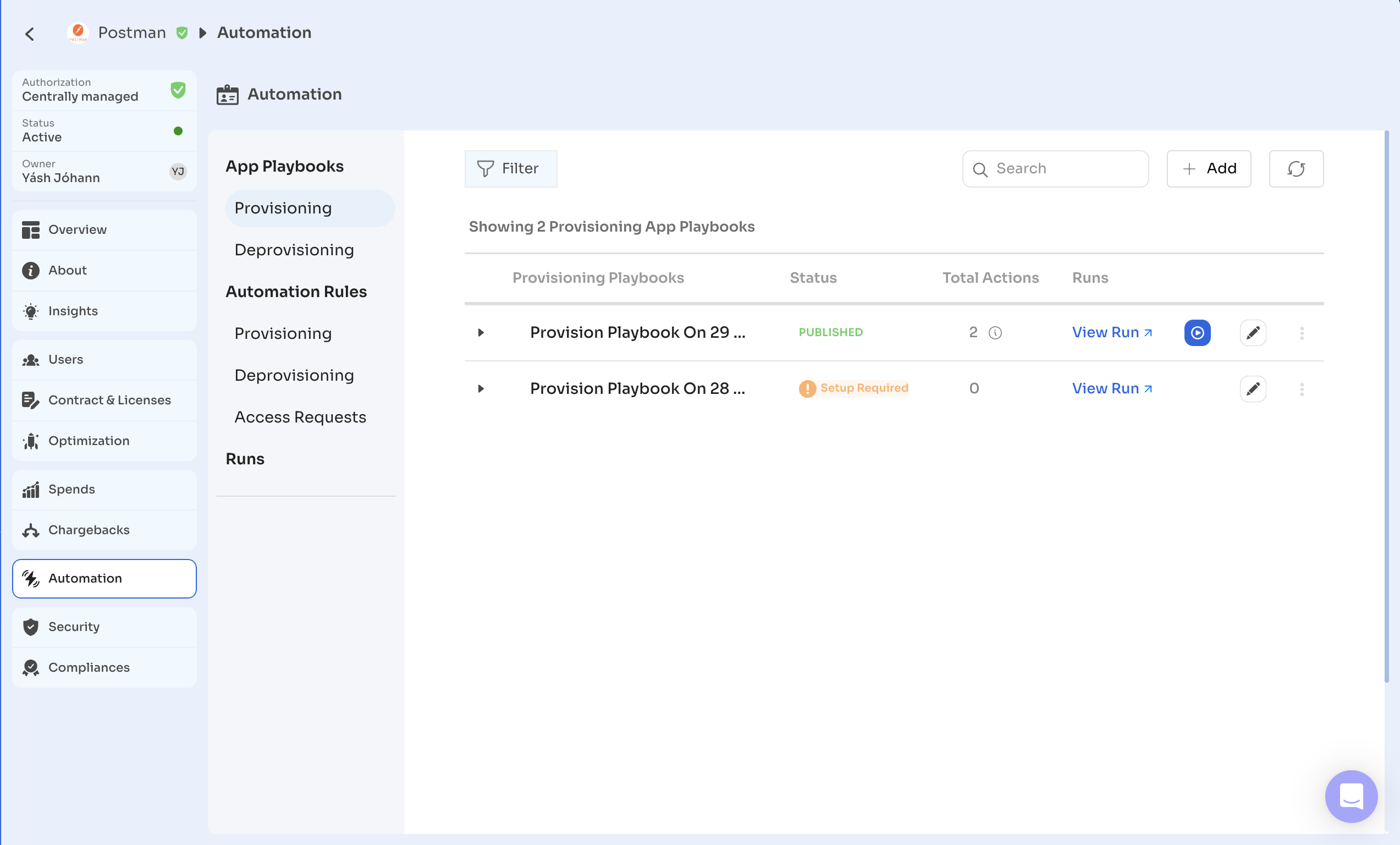
After completing all changes, select Publish to activate the playbook.
Scenario 2: Choose an existing playbook-
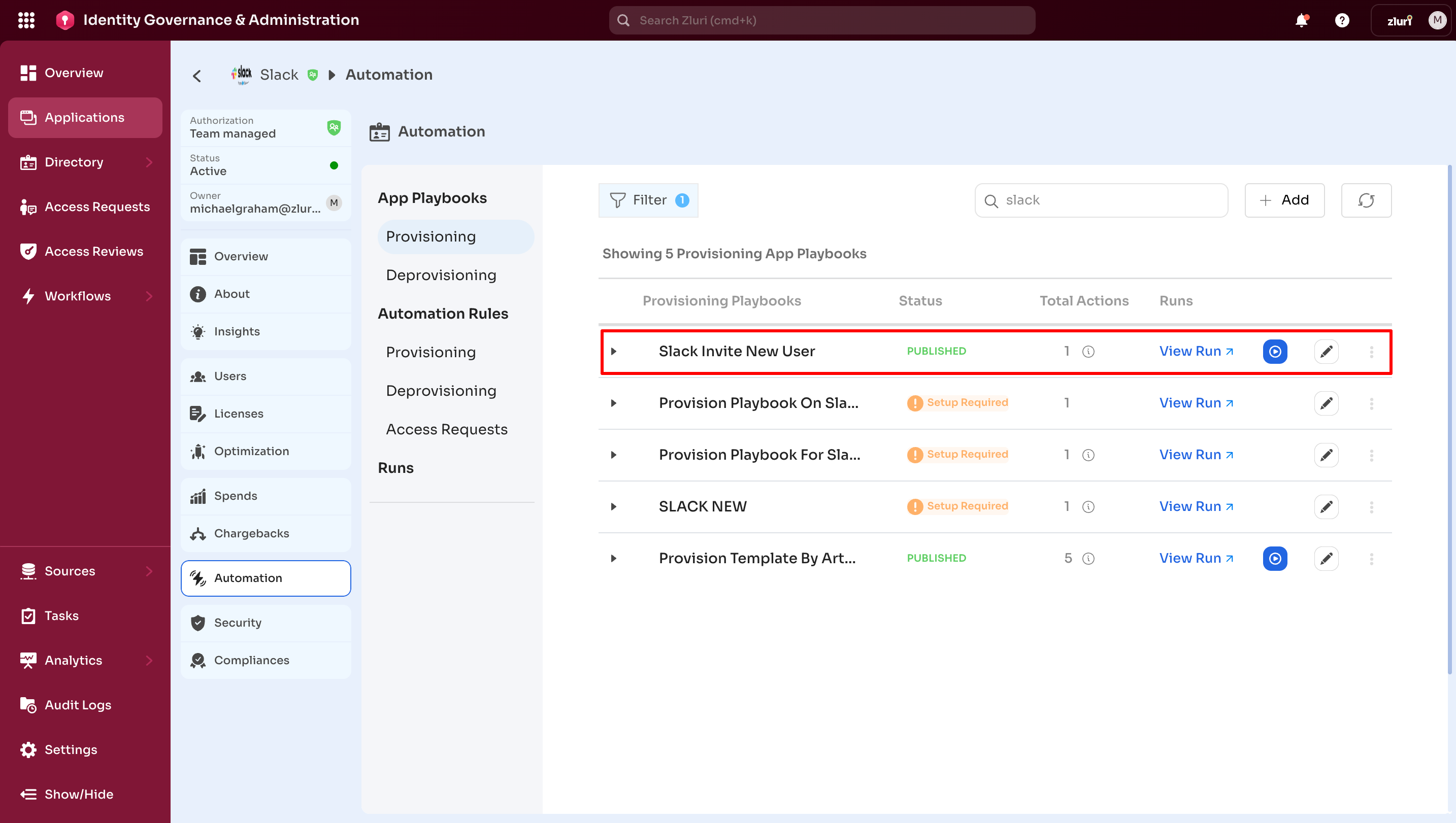
Select an existing playbook for editing. In this example, the Slack application is selected.
-
Select Edit to open the playbook editor.

-
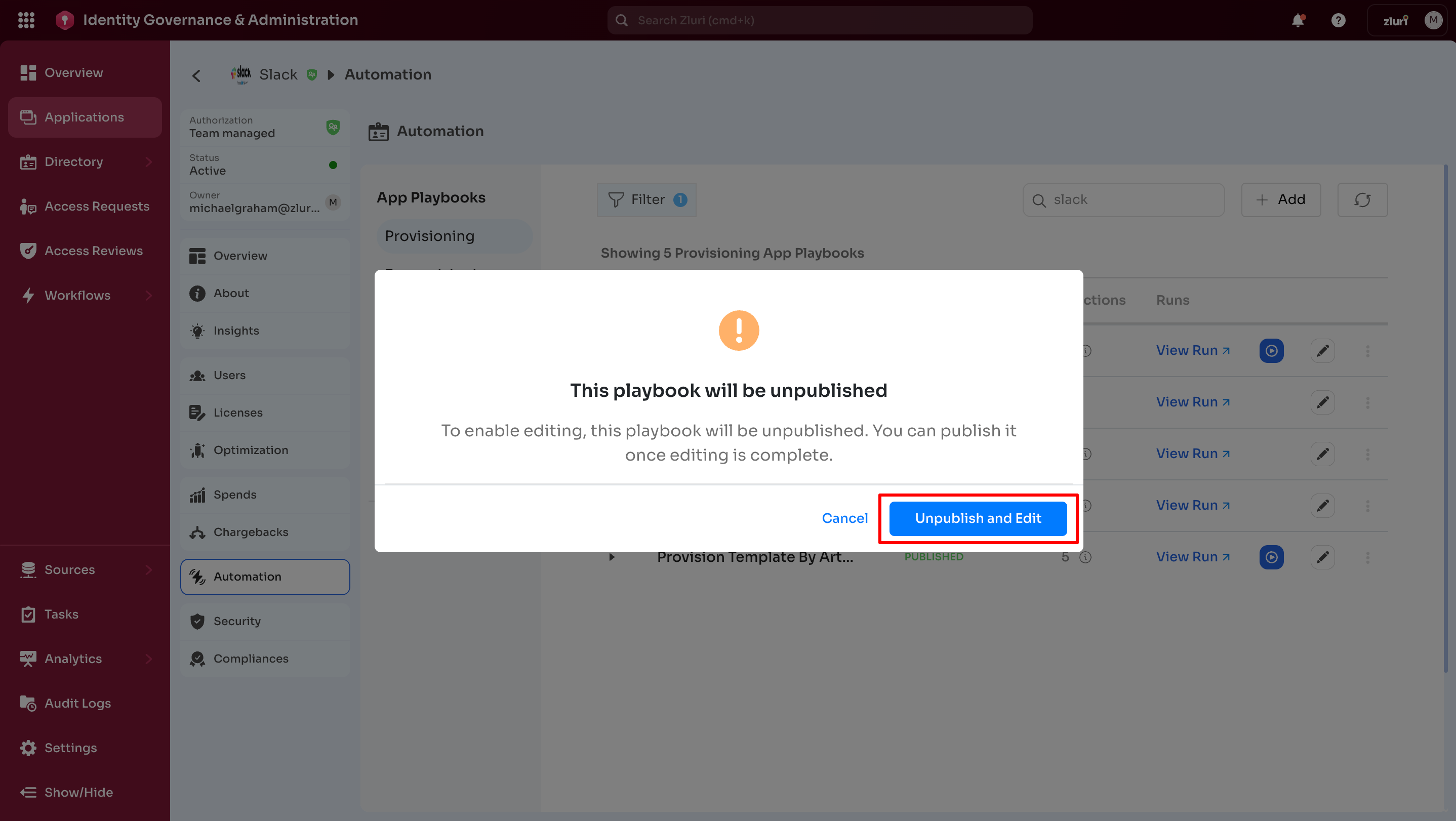
A confirmation dialog appears with options to Unpublish and Edit or cancel the action.
-
Select Unpublish and Edit to open the playbook editor.
-
Update the configuration by editing an existing action or adding a new action.
-
After completing the configuration, select Publish App Playbook from the top-right corner.
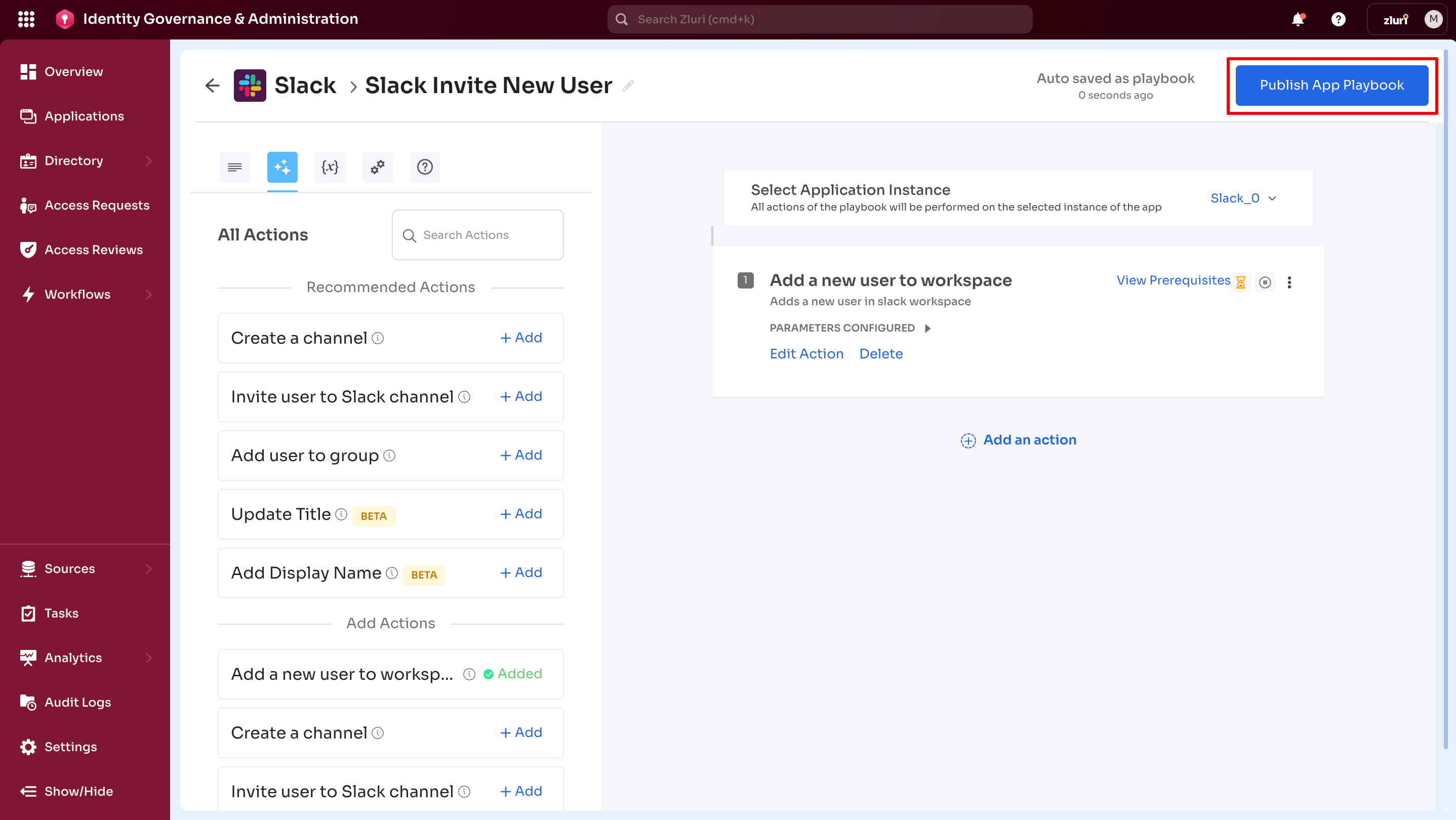
The selected playbook runs automatically as part of the current workflow after activation.
-
Got questions? Feel free to submit a ticket or contact us directly at [email protected].
Updated 7 months ago