
Scheduled Runs (Onboarding + Offboarding)
Scheduled Runs
Scheduled Runs enable the configuration of workflows or playbooks to run at a specified future date and time, rather than immediately.
This scheduling ensures:
Onboarding: Provisioning tasks (such as provisioning Slack, Jira, and GitHub) occur exactly on Day 1.
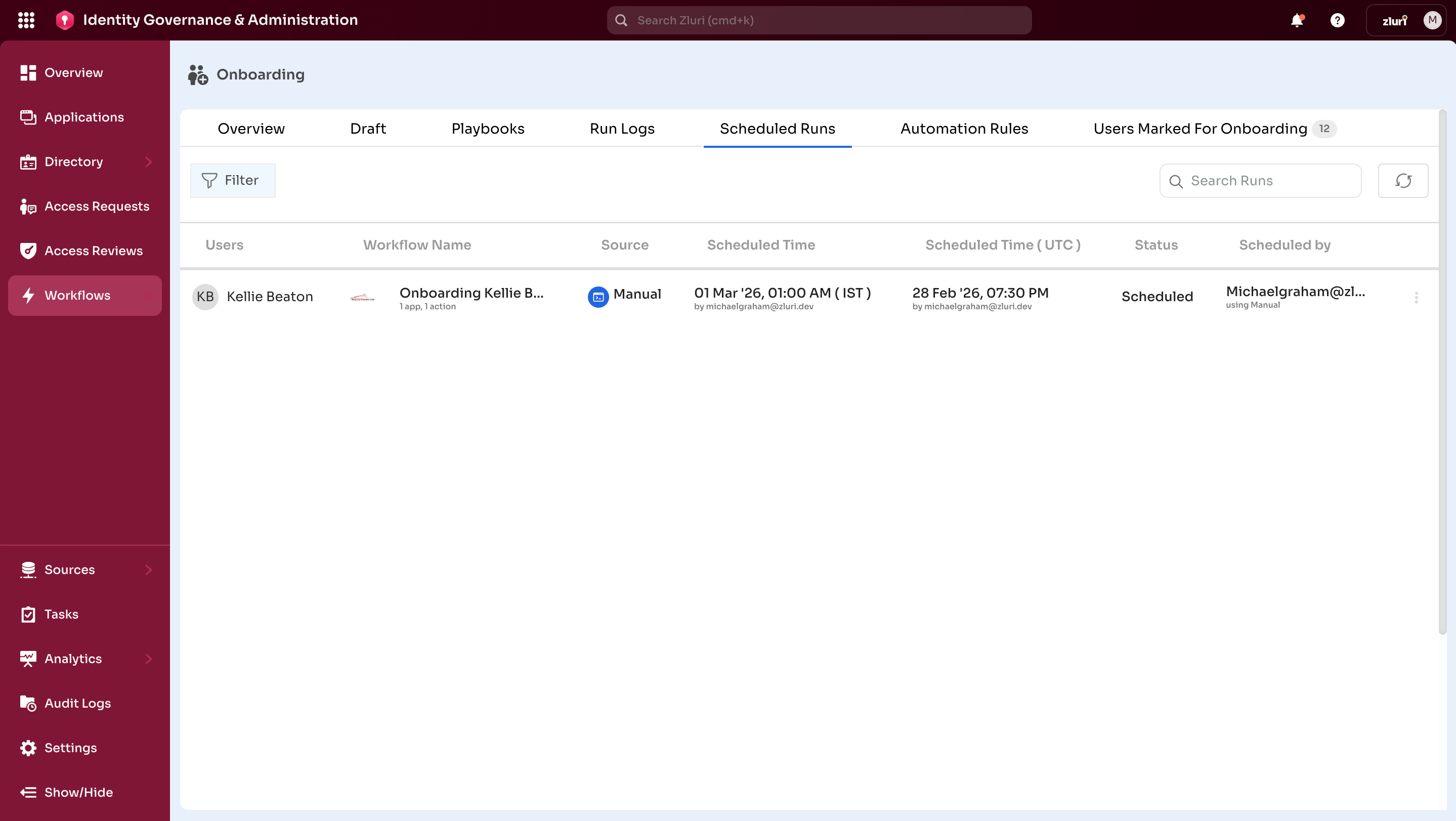
Offboarding: Deprovisioning tasks (such as revoking access to Salesforce, Microsoft 365, and HubSpot) occur precisely on the last working day.
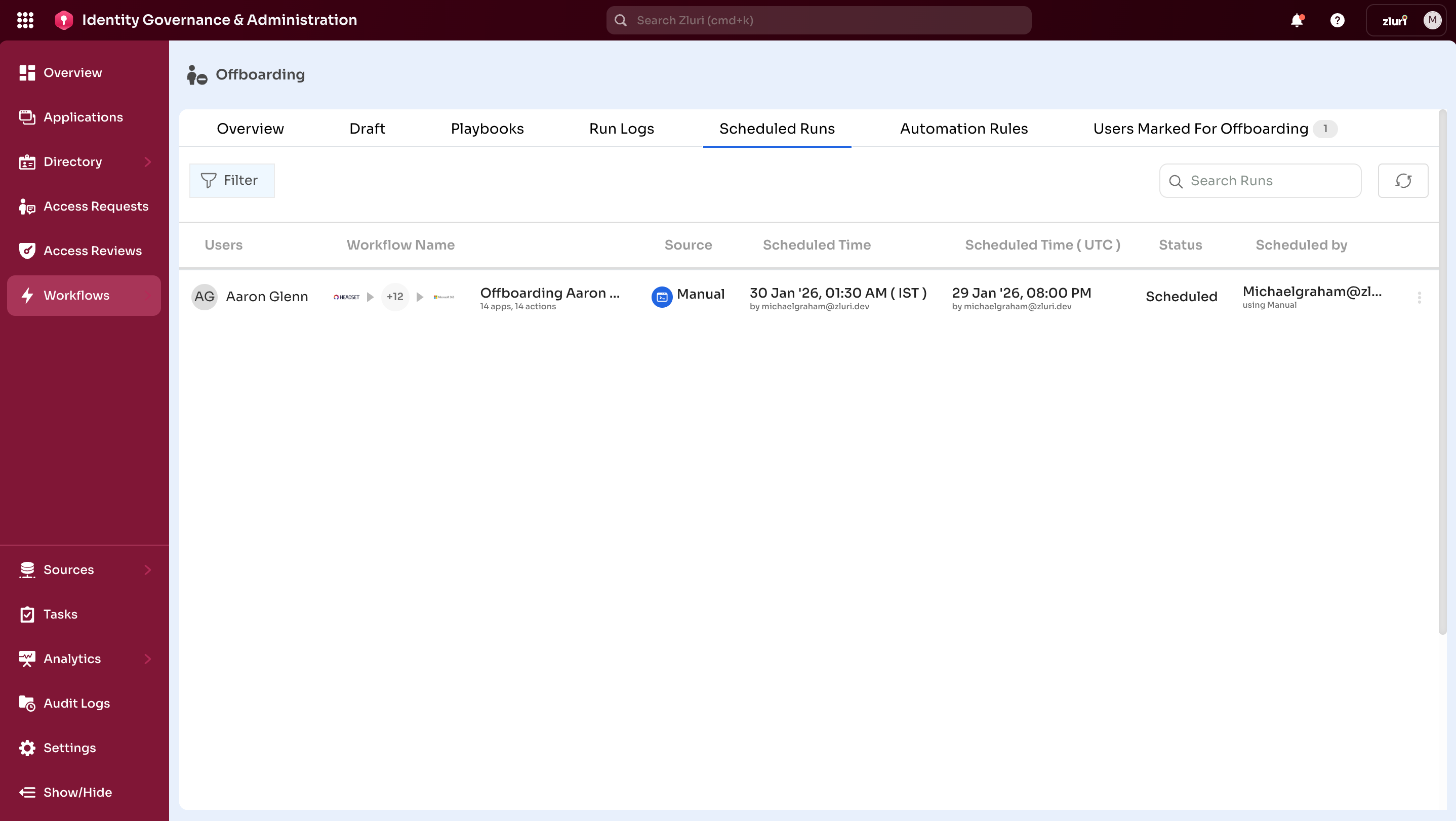
Using Scheduled Runs
Onboarding:
- Day-1 Readiness – Ensures new hires have access to all necessary apps on their start date
- Advanced Planning – IT teams can automate provisioning in advance
- Time Zone Coordination – Schedule runs across different time zones for global teams
- Compliance – Proves employees had access only from their start date
Offboarding:
- Precise Timing – Access ends exactly as required (last working day or contract end date)
- Risk Reduction – Prevents both premature deprovisioning (disrupts productivity) and delayed deprovisioning (creates security risks)
- Advanced Coordination – Aligns with HR exit timelines
- Audit Trail – Proves departing employees lost access immediately at exit
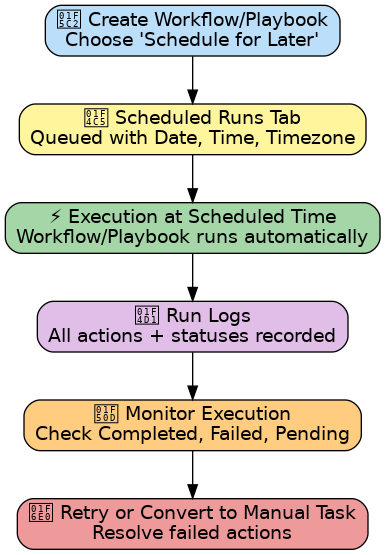
Scheduled Runs Process
Workflow execution process:
-
Create workflow/playbook → choose Schedule for Later
-
The task appears in the Scheduled Runs tab with the date/time
-
At the scheduled time, Zluri executes automatically
-
Results recorded in Run Logs
-
Admins monitor execution → Completed / Failed / Pending
-
If needed → Retry or Convert to Manual Task
Onboarding vs. Offboarding Scheduled Runs

| Feature | Onboarding | Offboarding |
|---|---|---|
| Purpose | Provision Day-1 access to apps on official start date/time | Revoke access on the exact exit date/time |
| Typical Use Cases | New hire starting next Monday; batch onboarding of interns | Employee leaving at end of month; contractors offboarding |
| Schedule | Select Schedule for Later to run workflow/playbook at a specific timezone, date, and time | Same steps; configured for exit date instead of start date |
| Execution Outcome | Provisioning begins automatically at scheduled time | Deprovisioning begins automatically at scheduled time |
| Audit Use Case | Proves employees had access only from their start date | Proves departing employees lost access immediately at exit |
Key Features
Search Runs
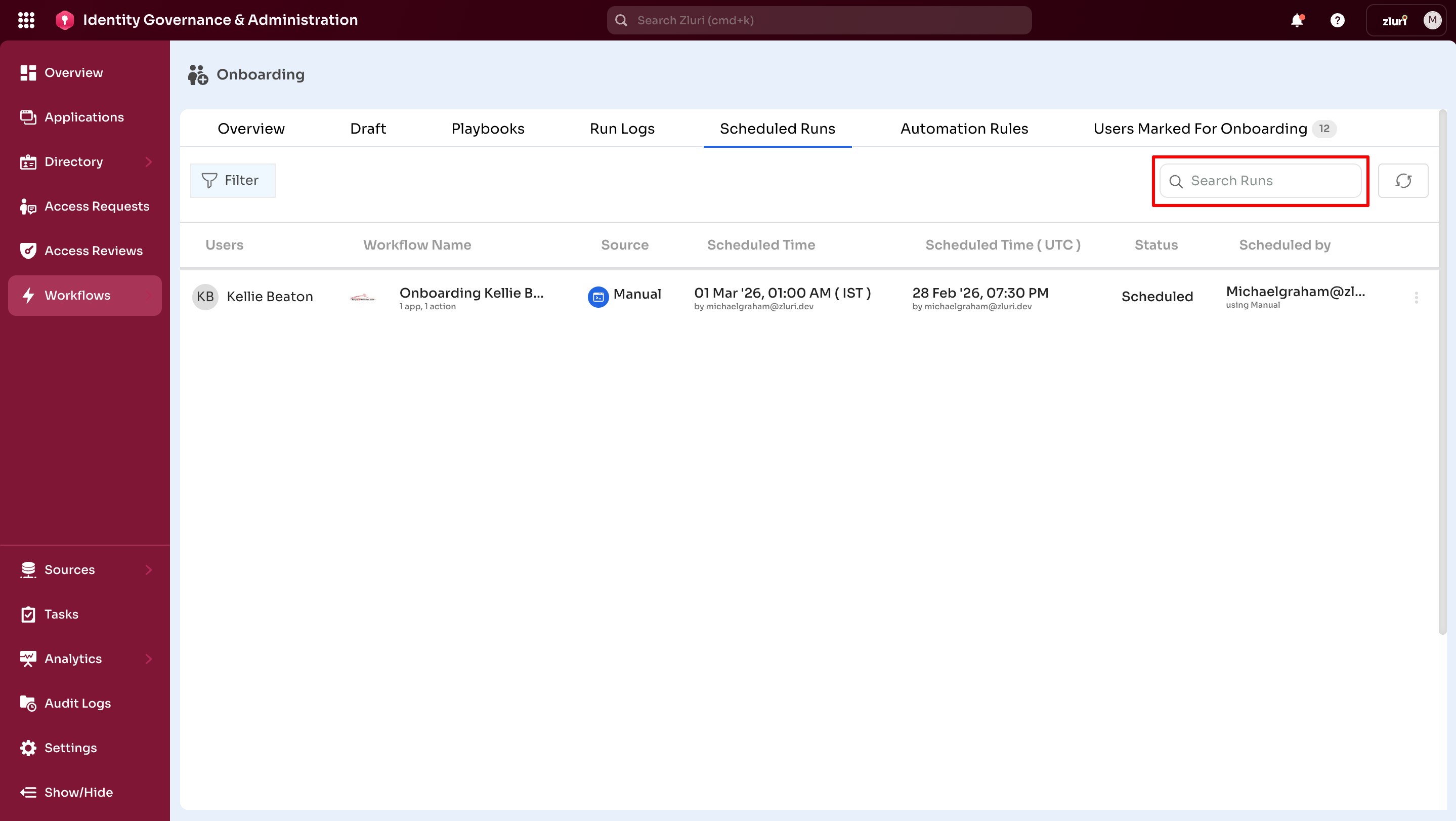
The Search Runs field allows admins to quickly locate a scheduled run by typing:
- Workflow or playbook name
- User name or email
- Any relevant identifier
Provides fast access for managing a large number of scheduled runs.
Filters
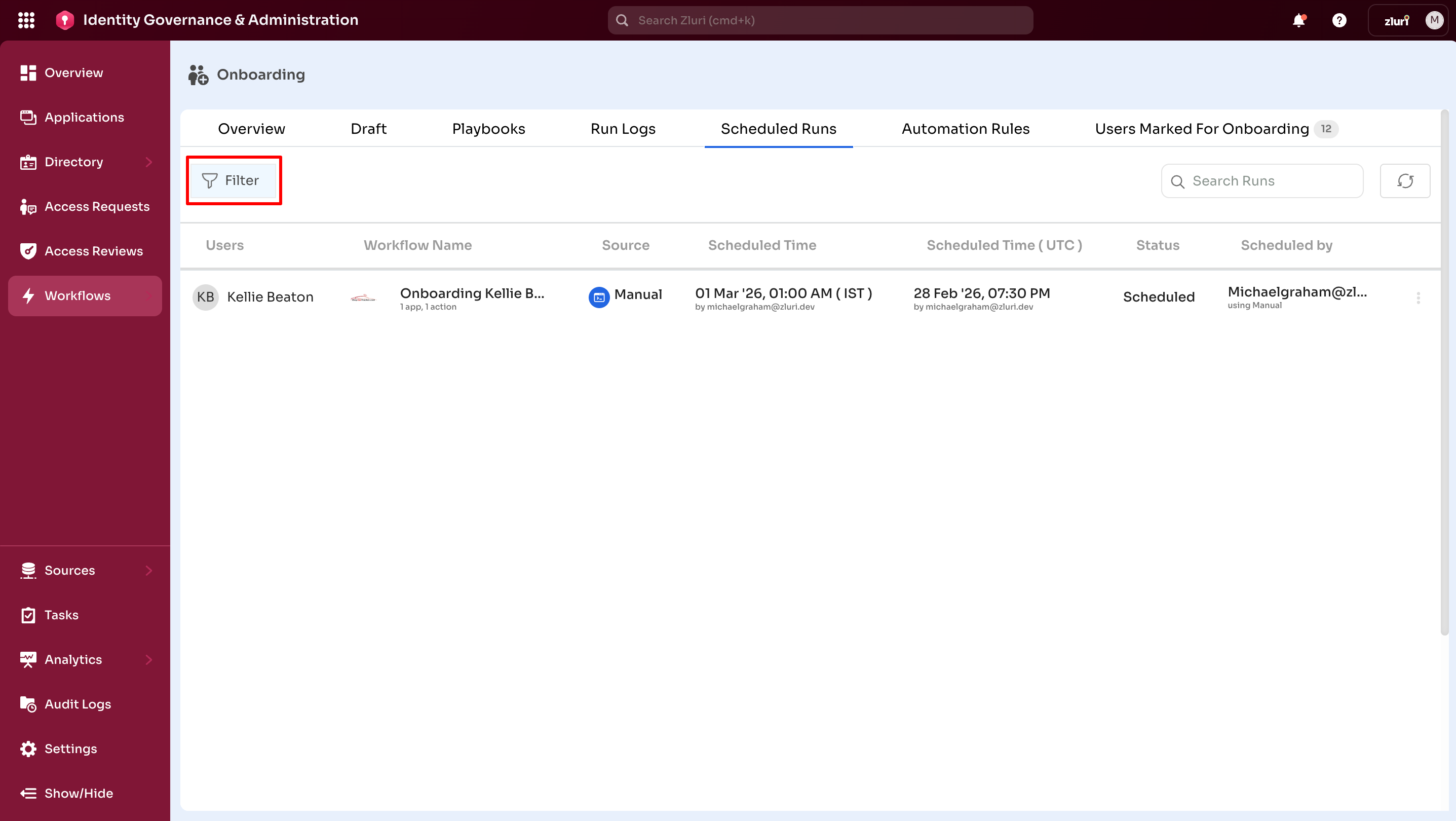
Refine the Scheduled Runs view based on multiple criteria:
Filter scheduled runs by:
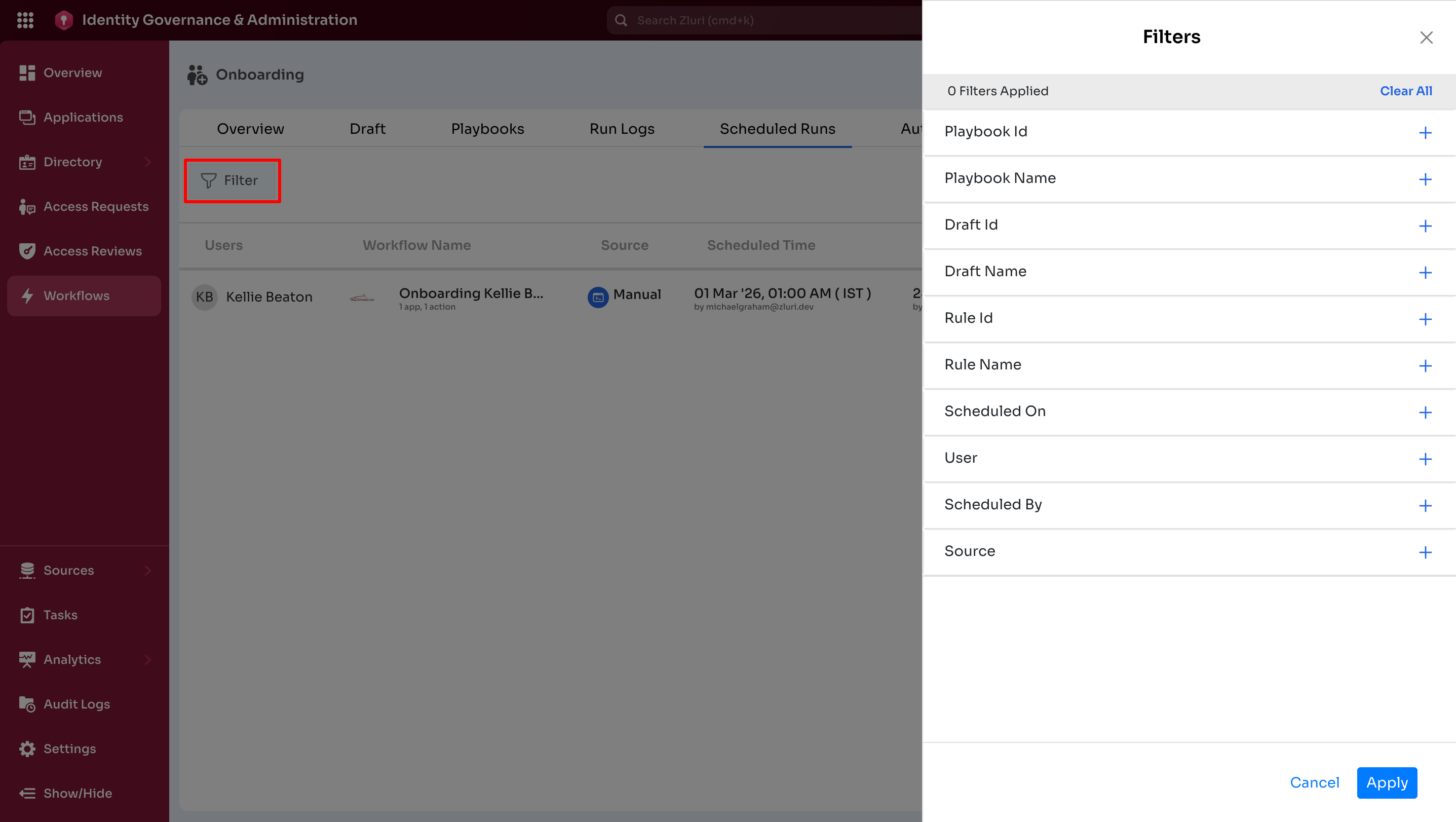
- Playbook Id
- Playbook Name
- Draft Id
- Draft Name
- Rule Id
- Rule Name
- Scheduled On
- User
- Scheduled By
- Source
The + icon in front of each criterion allows to add filters to refine search. After selecting all criteria and their respective parameters, select Apply to save and apply the options.
Refresh
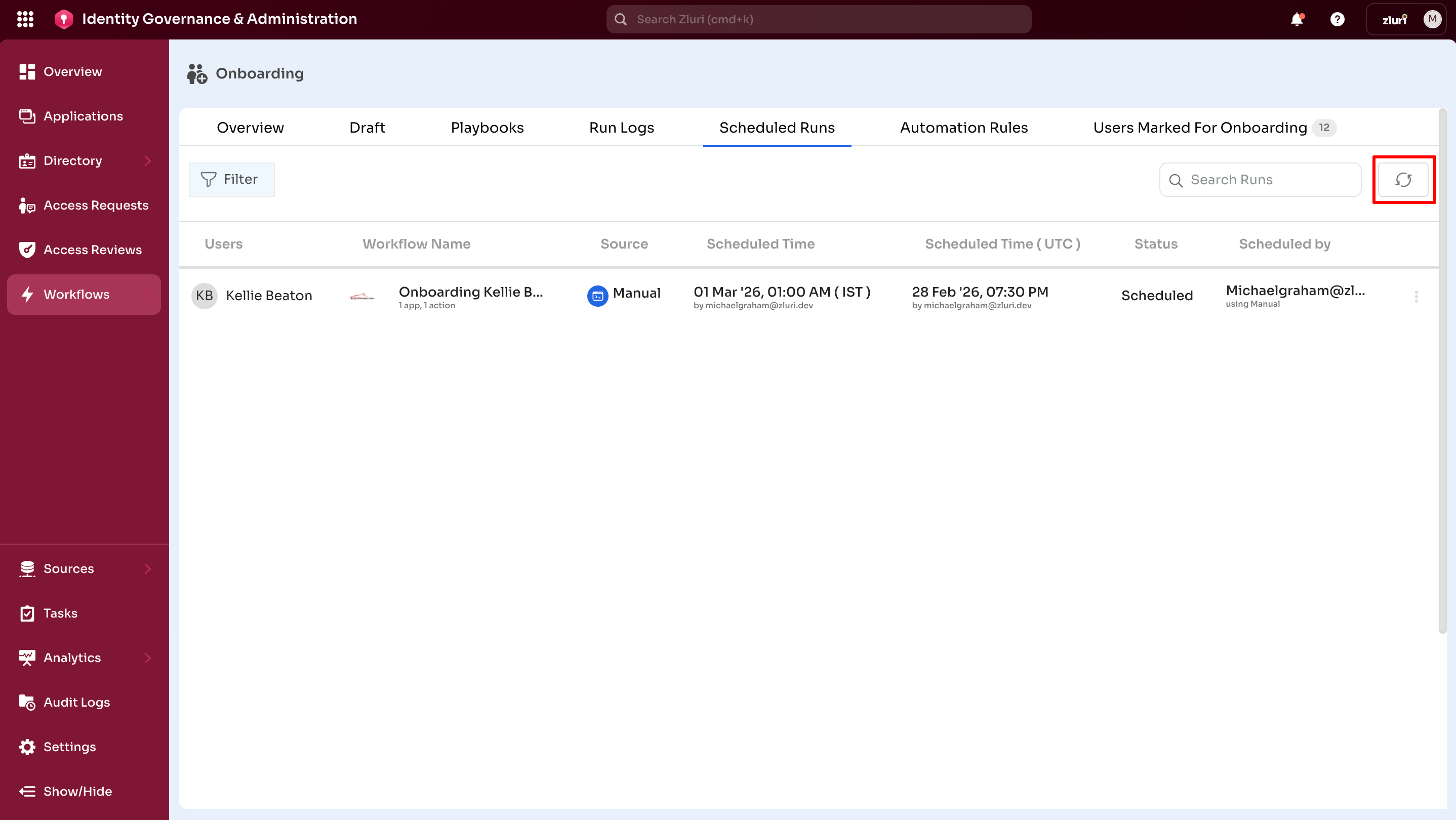
The Refresh reloads the Scheduled Runs view to reflect the latest changes.
Useful after:
- Creating a new scheduled run
- Editing or rescheduling an existing run
- Canceling a run
Scheduled Runs Table
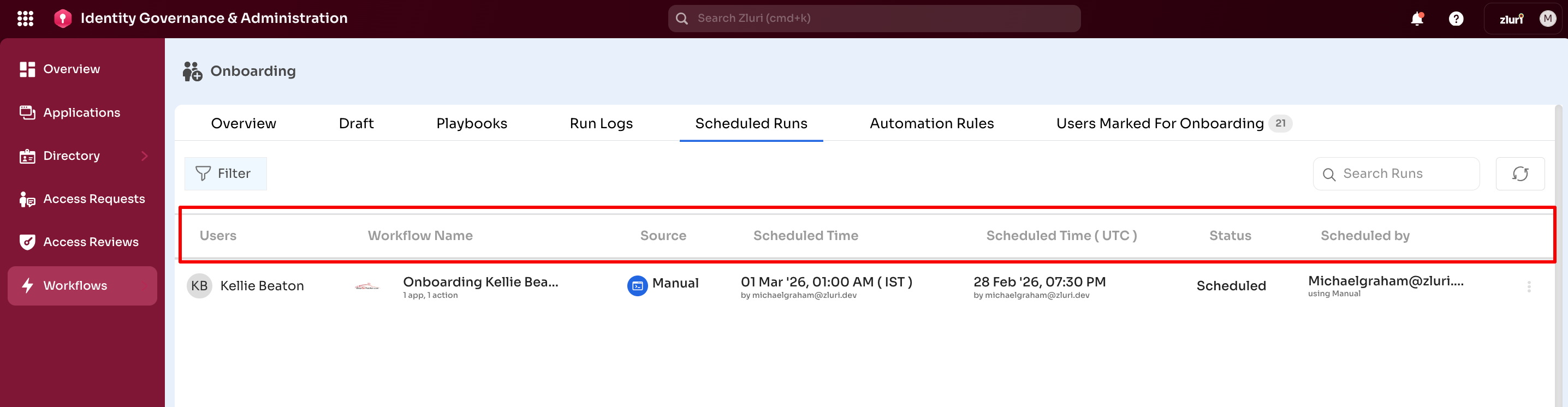
The Scheduled Runs table displays all scheduled workflows and playbooks with the following columns:
Users The employee(s) the run applies to.
Workflow/Rule Name The specific playbook, draft, or automation rule scheduled.
Source Shows the source information from where it is scheduled.
Scheduled Time Date and time of the scheduled run. The Scheduled Time column displays the exact date and time for workflow/playbook execution.
Onboarding: Ensures provisioning aligns with HR start dates.
Offboarding: Ensures deprovisioning aligns with exit dates.
Helps plan runs across different time zones for global teams.
Status Status of the Scheduled Run.
Scheduled By Admin scheduling the run.
Three-Dot Menu Actions
The three-dot menu on the right side of each scheduled run row provides two actions:
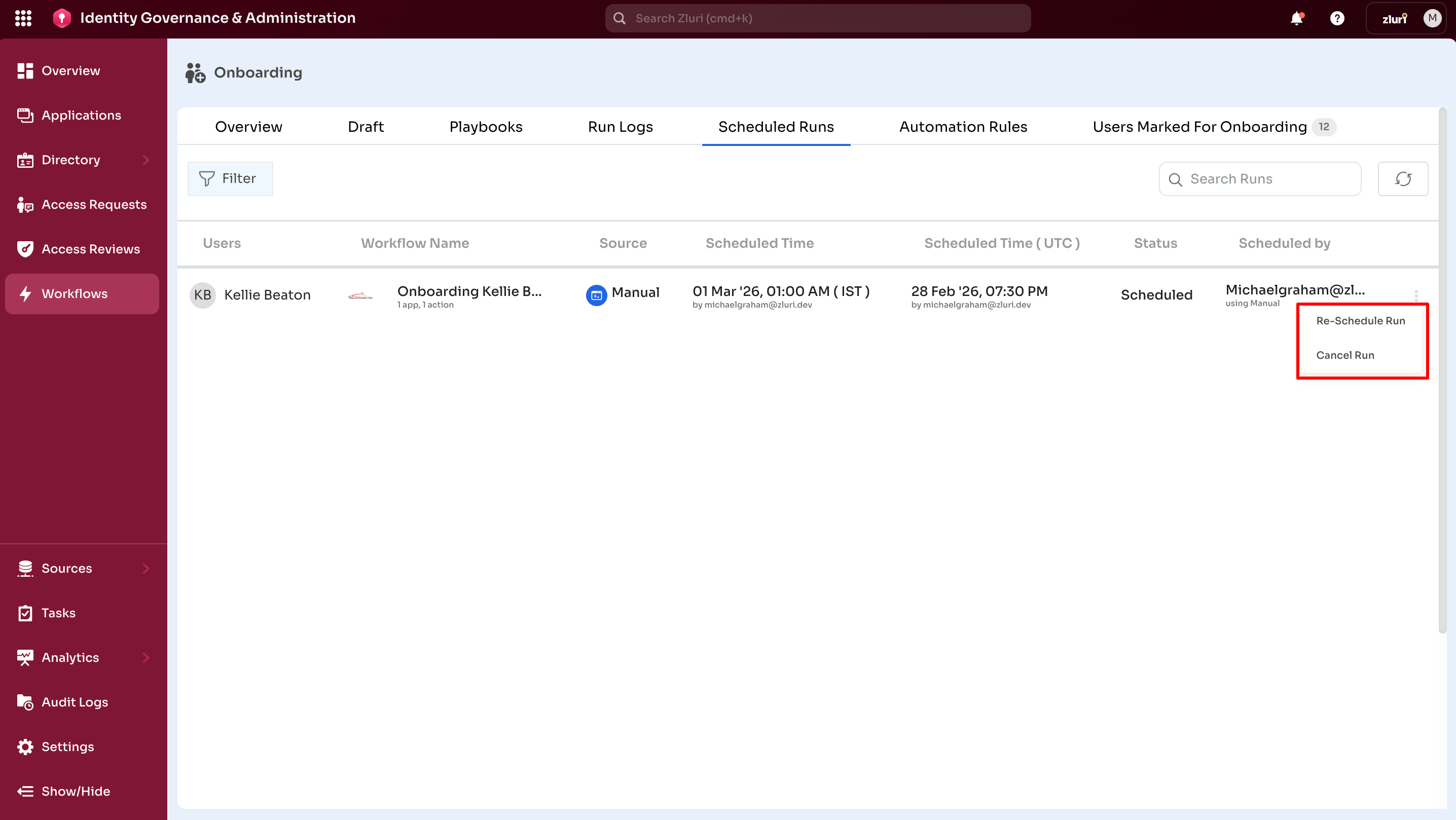
1. Re-schedule Run
Allows admins to change the date and time for a scheduled execution.
Use for:
-
Start/end dates shift
-
Onboarding or offboarding needs to be delayed
-
Time zone adjustments are required
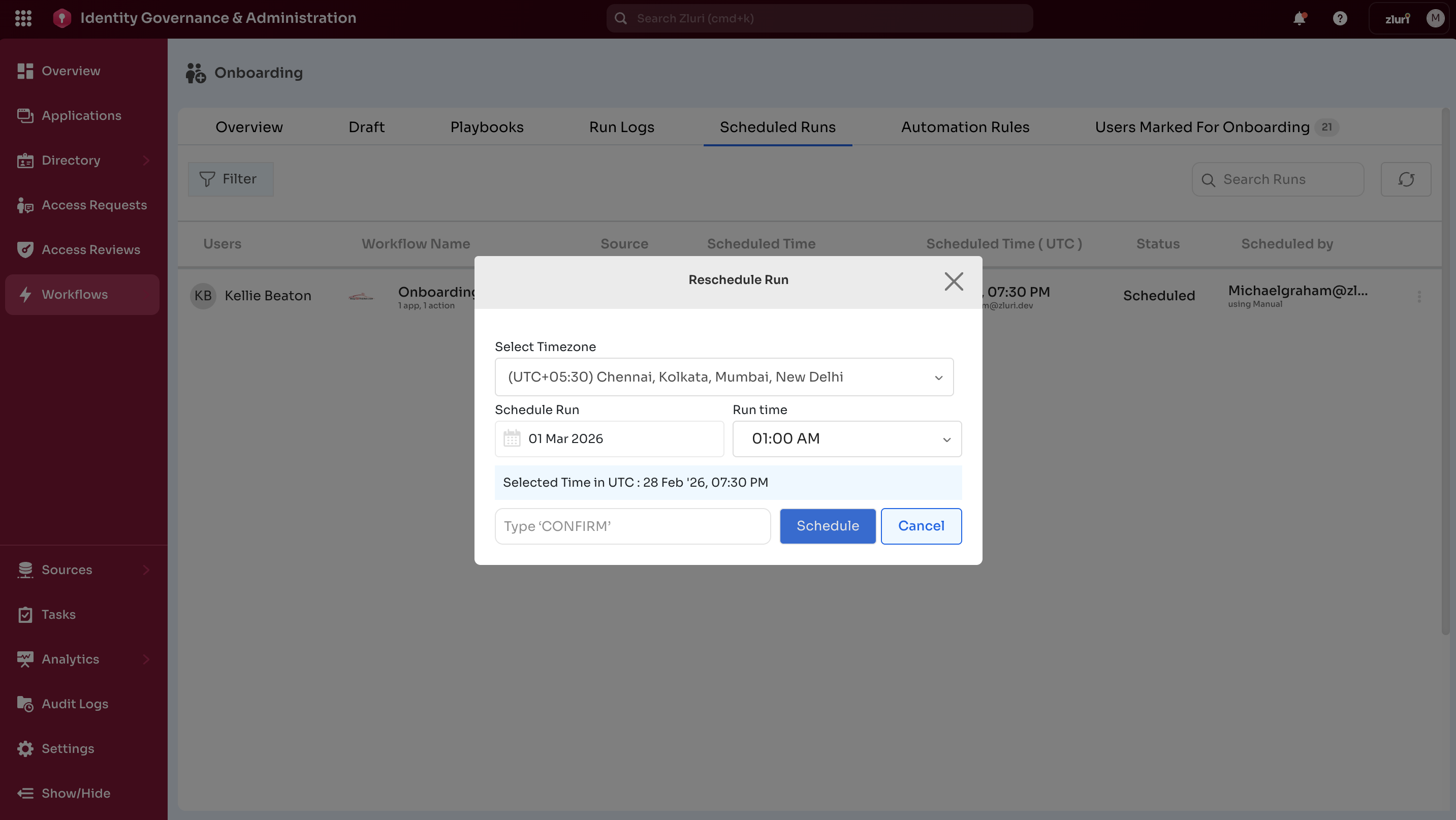
2. Cancel Run
Allows admins to cancel a scheduled workflow/playbook before it executes. Canceling prevents execution and removes the run from the active schedule.
Scheduling Workflows
A. From Workflows or Playbooks
The Scheduled Runs page lists all workflows and published playbooks manually scheduled to run at a future date and time.
Step-by-step:
- Create a Workflow or Playbook
- From the Drafts or Playbooks tab, configure the workflow as usual
- Choose Run
- After setup, select Run
- Two options are available to choose from:
- Run Now – Executes immediately
- Schedule for Later – Opens scheduling options
- Set Date and Time
- Select the timezone, date, and time for execution
- Confirm the schedule (note: typing "CONFIRM" is required before saving)
- Verify in Scheduled Runs
- The workflow scheduled for later now appears in the Scheduled Runs tab
- Review Execution
- After the scheduled time has passed, check the Run Logs tab to verify the results
B. From Automation Rules
For New Rule creation in the Automation Rules tab, select from the following run options:
- Immediately – As soon as the employee is marked for onboarding/offboarding
- Schedule for a future date and time – Runs on the onboarding/offboarding date of the employee at a specified time
Workflows scheduled through Automation Rules will also appear on the Scheduled Runs page.
C. From the Users Section under the Directory
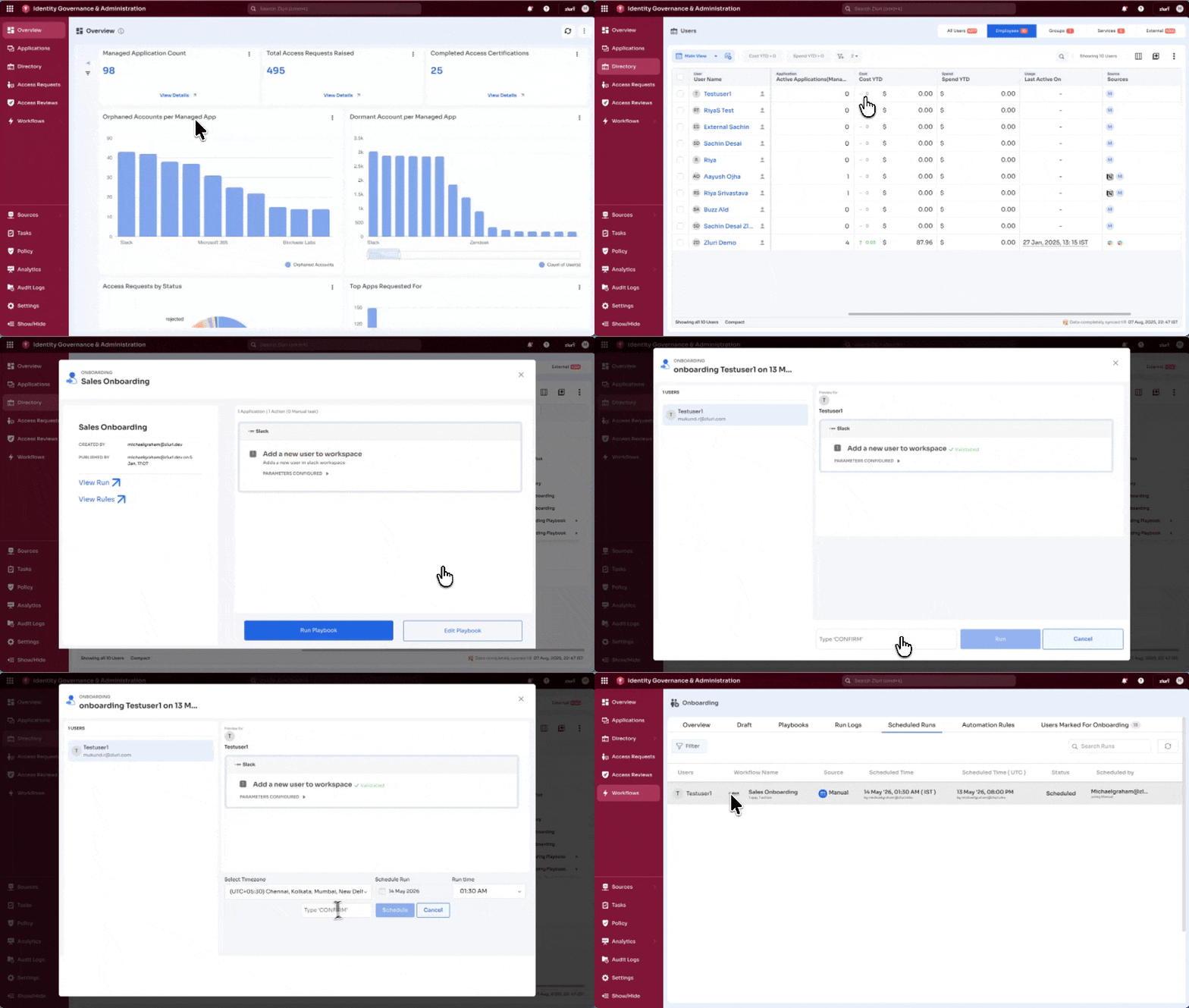
Another option for scheduling runs is via Users in the Directory section.
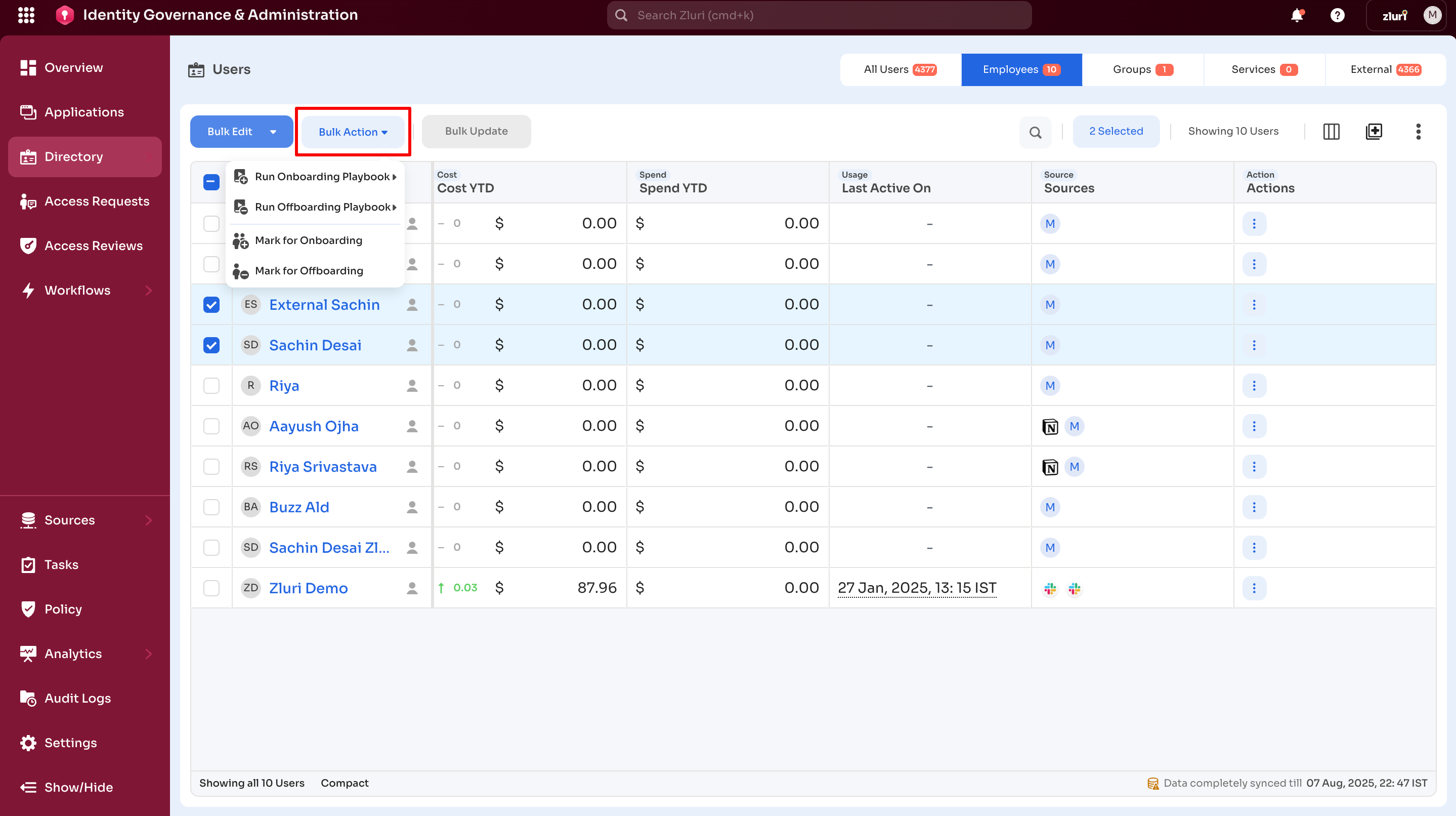
Step-by-step:
- Go to Directory → Users.
- Select the user(s) for whom you want to schedule runs:
- Single user — Click the three-dot icon in the Actions column next to the user.
- Multiple users — Check the box next to each username, then select Bulk Action from the top menu.
- Select Run Onboarding Playbook or Run Offboarding Playbook.
- Choose the playbook name from the search box.
- Select Run Playbook, then click Validate and Continue.
- Choose one of the two execution options:
- Run Workflow Now — Executes immediately.
- Schedule for Later — Opens the scheduling options.
- Set the Date and Time:
- Select the timezone, date, and time for execution.
- Type CONFIRM in the confirmation field, then save.
- Verify the schedule in the Scheduled Runs tab.
- After the scheduled time has passed, go to the Run Logs tab to review the execution results.
Automated Execution
Upon reaching the scheduled date and time:
- Zluri automatically executes the playbook or workflow
- No manual intervention is required
- After execution, the record moves from Scheduled Runs to Run Logs
- The outcome can be reviewed in Run Logs
Monitoring Scheduled Runs & Run Logs
In Scheduled Runs:
- View all future executions, including the user, workflow, and scheduled time
After Execution (in Run Logs): Check for statuses:
- Completed – All actions succeeded
- Completed with Errors – Some actions failed
- Failed – All actions failed
- Pending – Waiting on manual tasks or dependencies
For any failures, retry the action or convert it to a manual task.
Example Scenarios
Onboarding Example
Scenario: New hire starting next Monday at 9:00 AM.
Setup:
- Create onboarding workflow with Slack, Jira, and GitHub provisioning
- Choose Schedule for Later
- Set date to next Monday, 9:00 AM, select appropriate timezone
- Confirm schedule
Outcome: On Monday at 9:00 AM, Zluri automatically provisions access. Results appear in Run Logs for verification.
Offboarding Example
Scenario: A contractor's departure is scheduled for September 30th at 6:00 PM local time.
Setup:
- Create Offboarding Playbook to:
- Remove Google Workspace access
- Deprovision Slack account
- Revoke Microsoft 365 license
- Schedule workflow to run at the specified exit date and time
Execution: On September 30th at 6:00 PM, Zluri executes the workflow automatically.
Results in Run Logs:
- Google Workspace → Completed
- Slack → Completed
- Microsoft 365 → Completed with Errors (license conflict)
Action: Review and resolve Microsoft 365 error to prevent recurrence in future cases.
Updated 5 months ago