
Overview Tab (Onboarding+Offboarding)
Overview Tab
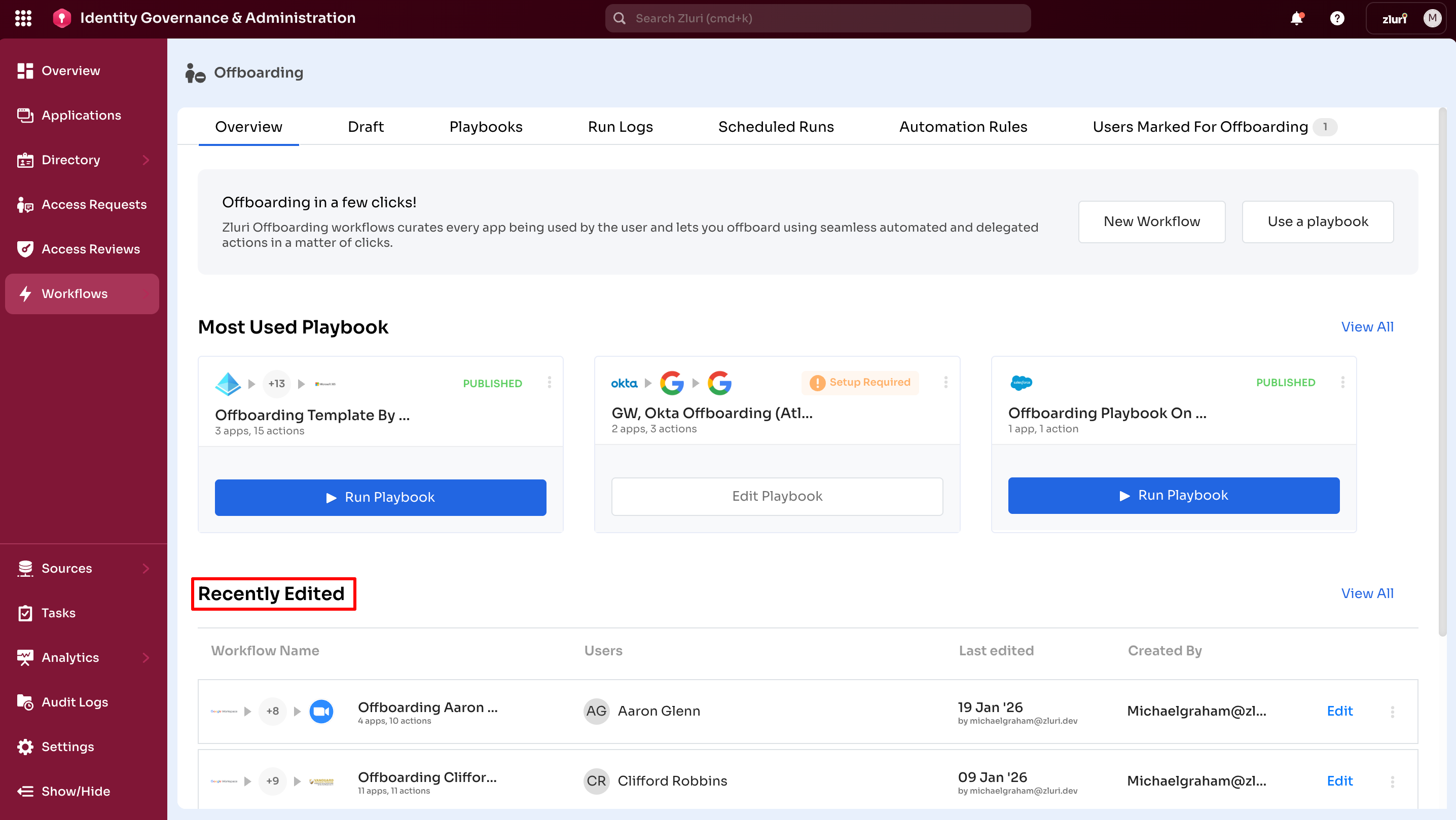
The Overview tab serves as the control center for both the Onboarding and Offboarding modules. It provides admins with a quick access to start new workflows, run existing playbooks. Admins can also view recently edited workflows, combining shortcuts, history, and quick-launch options in one place.
Core Features
1. New Workflow
Creates a one-time workflow for onboarding or offboarding users.
Use this for:
- Onboarding or offboarding a single user outside standard processes
- Handling special cases not covered by existing playbooks
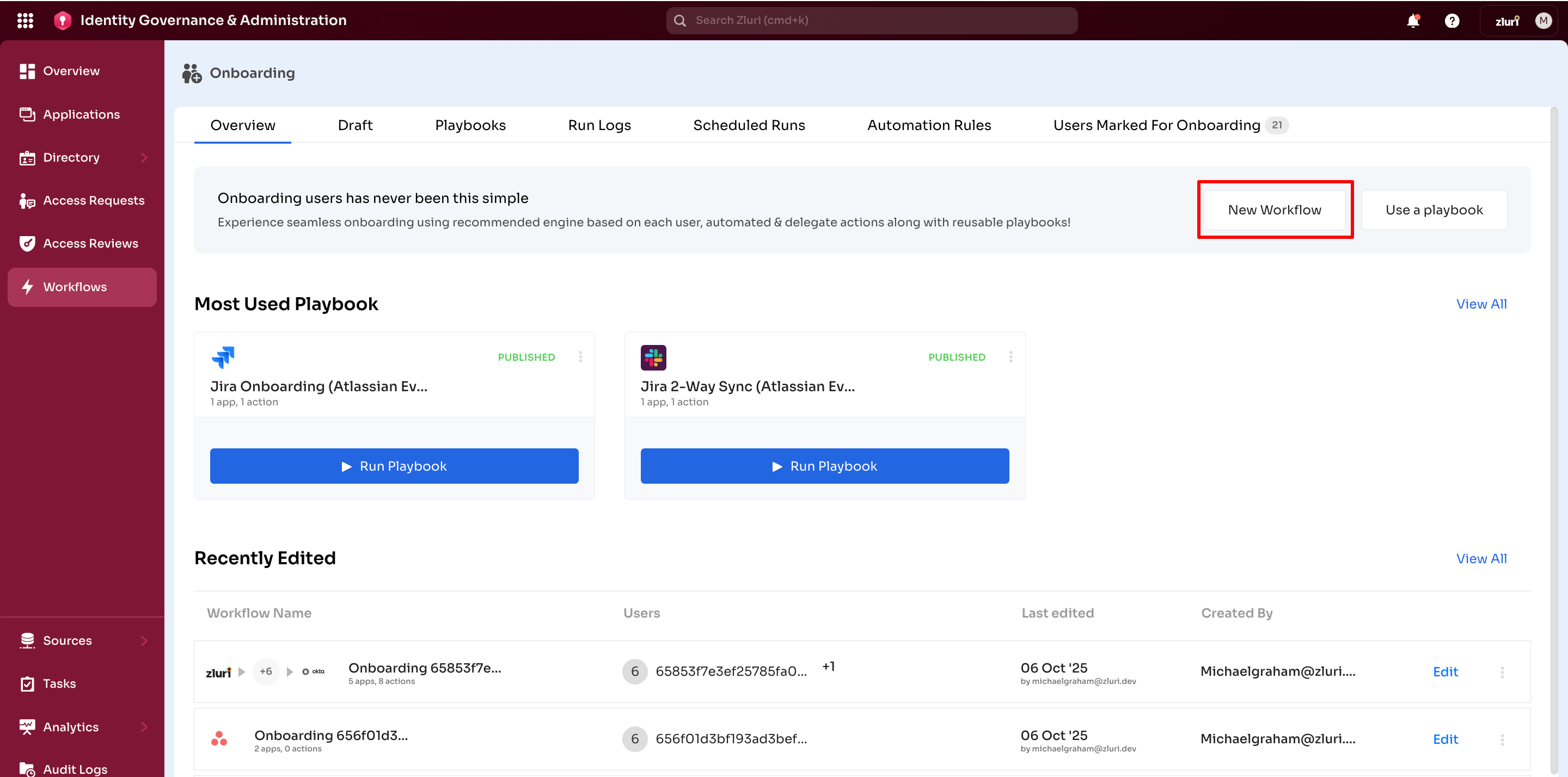
Onboarding:
Select New Workflow to open the workflow configuration page Admins can selects users, adds applications, configures actions, and sets conditions. After configuration, run the workflow immediately or save it as a playbook for reuse.
Offboarding:
Select New Workflow in the Offboarding section. Administrators select one or more users for offboarding. Zluri automatically lists all applications the selected user has access to. For each application, set the recommended actions, such as Remove User, Revoke License, or Set Email Forwarding.
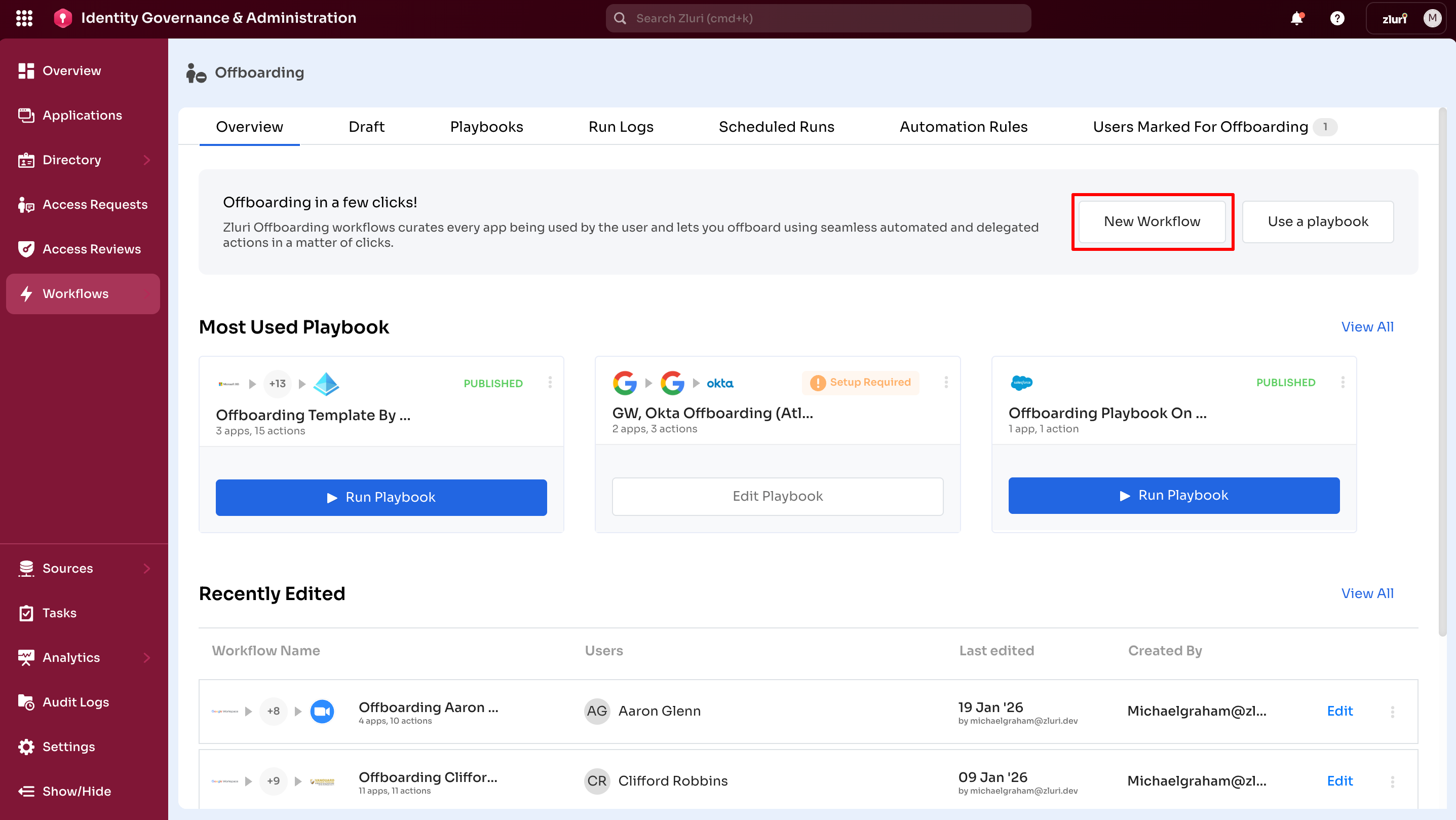
Example: When a Marketing employee eaves the organization admins can create an offboarding workflow to revoke access to applications such as Slack, HubSpot, and Canva.
2. Use a Playbook
Opens the Playbooks page to select and run pre-configured workflows.
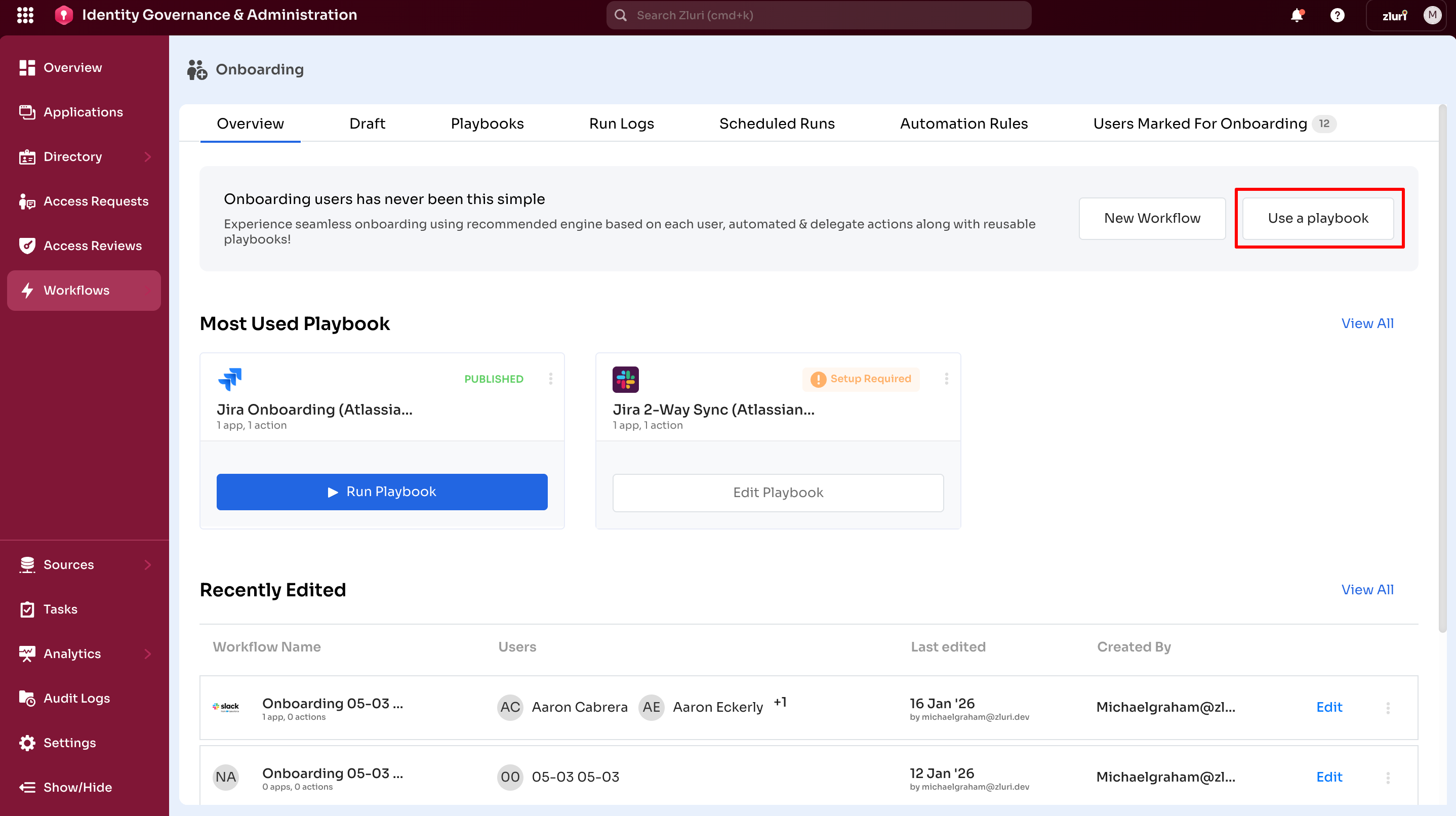
Onboarding:
Playbooks are reusable workflows with preconfigured steps. They standardize onboarding by applying consistent access across users with the same role or department, such as assigning the same applications and permissions to all sales hires. Playbooks also reduce manual effort by eliminating repetitive workflow creation.
Offboarding:
Select Use a Playbook in the Offboarding module. Admins can select the required playbook for example, Standard Employee Exit, Contractor Exit. Run the playbook to execute preconfigured deprovisioning actions for all included applications.
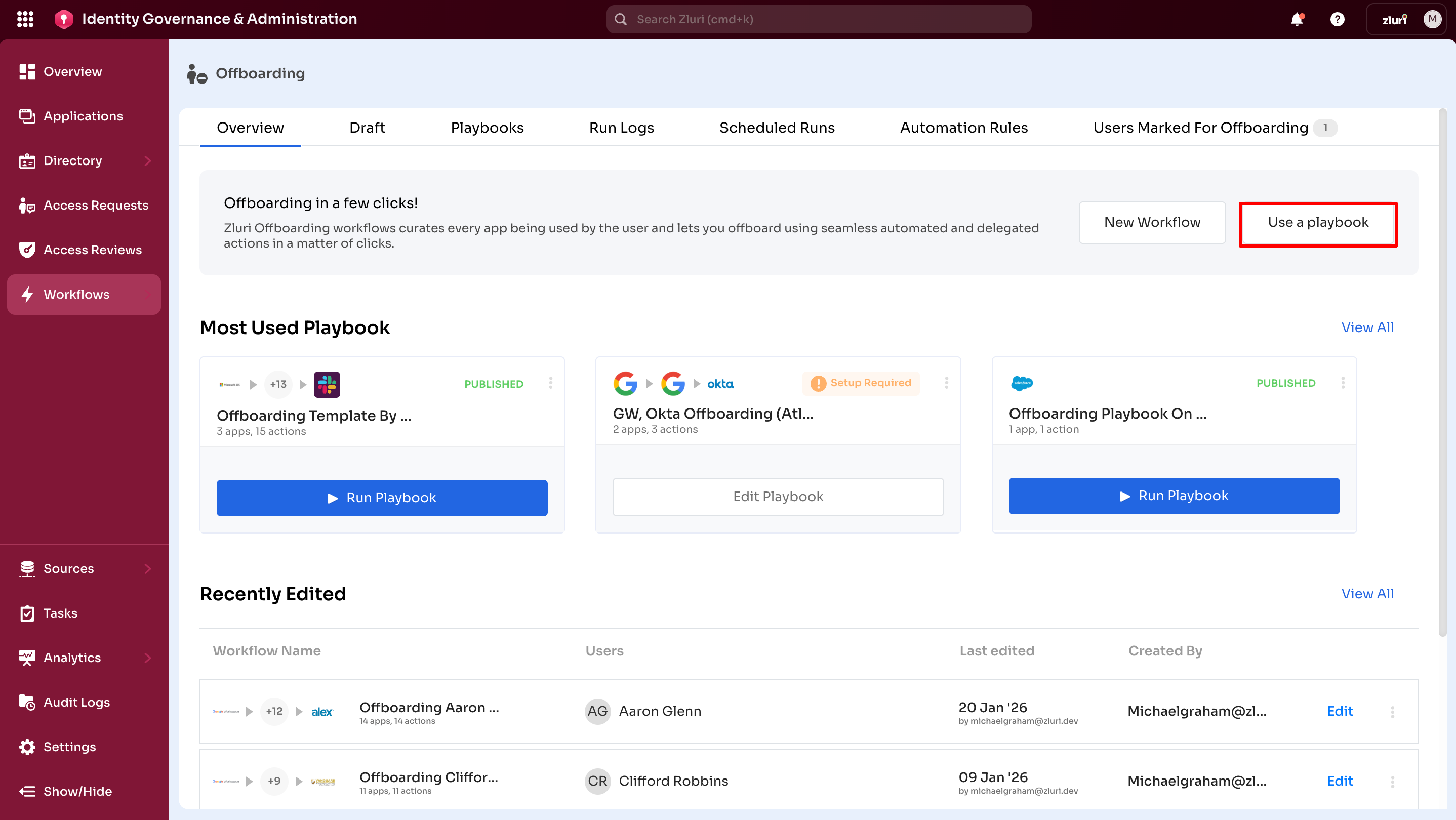
Benefit: Saves time by applying consistent onboarding or offboarding processes to multiple employees.
Example: A Standard Employee Exit Playbook automatically deprovisions access to applications Google Workspace, Slack, and Microsoft 365.
For more information, see Playbooks
3. Most Used Playbooks
Onboarding:
Displays up to three frequently run playbooks in the organization.
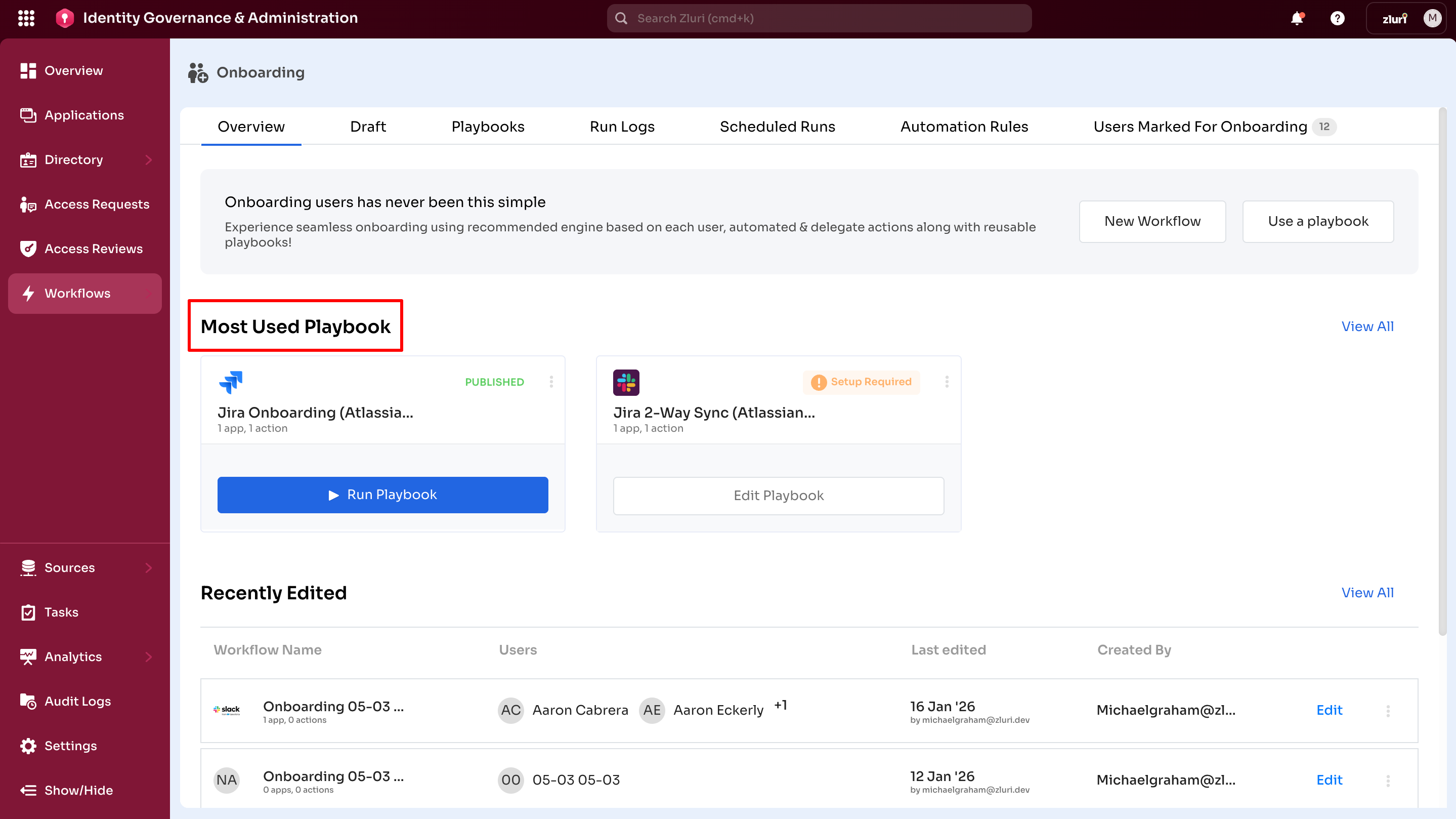
Each entry includes a Run Playbook option for quick execution.
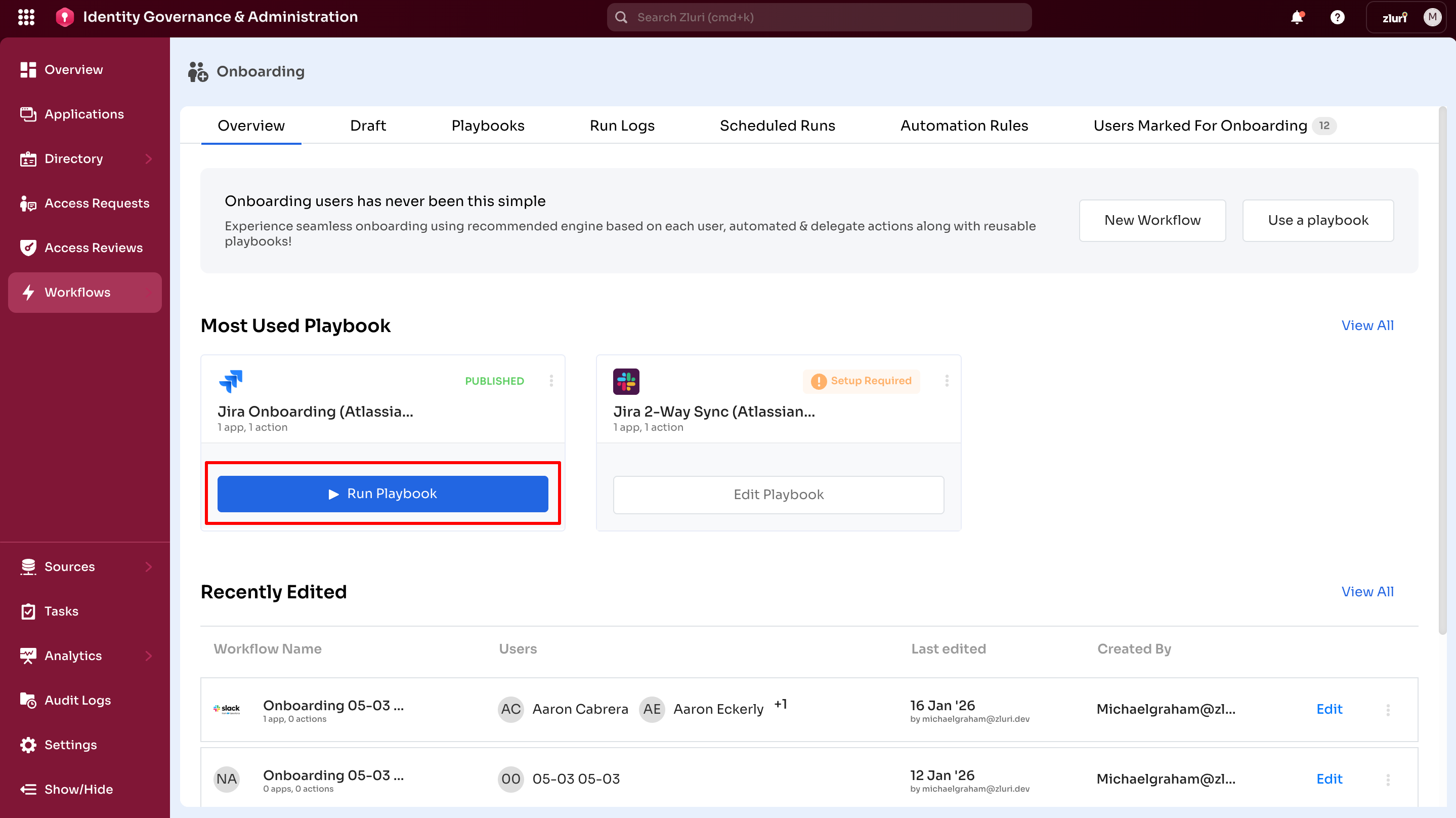
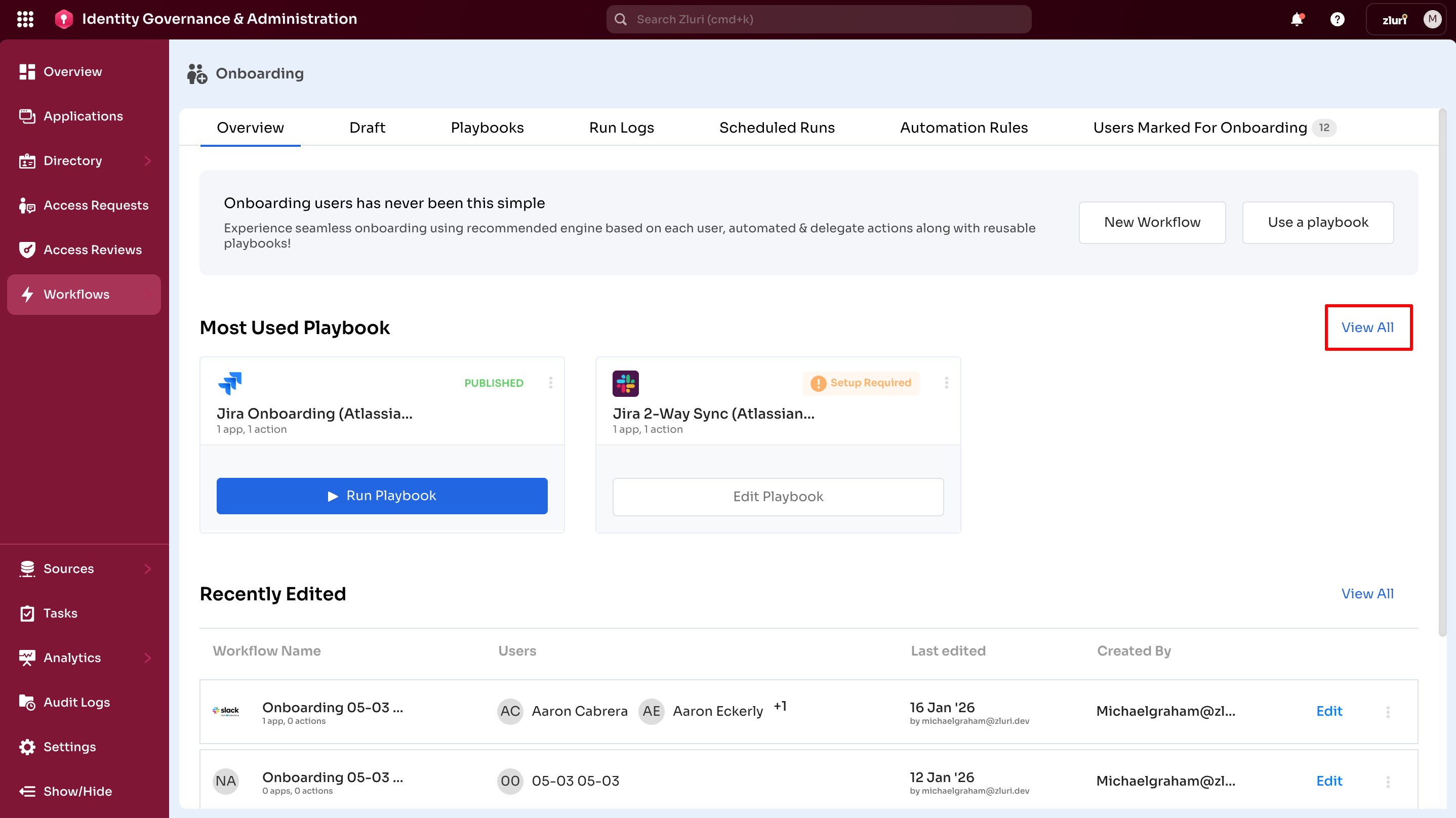
Select View All to navigate to the Playbooks tab.
Offboarding:
Select Run Playbook below the Playbook name to execute it for selected users. To adjust deprovisioning settings, select Edit Playbook.

Benefit: Provides quick access to frequently used playbooks, reducing the need to search the full list.
Example: The Contractor Offboarding Playbook is commonly used for short-term staff exits.
4. Recently Edited
Recently modified workflows including newly created workflows are displayed for quick access.
Onboarding:
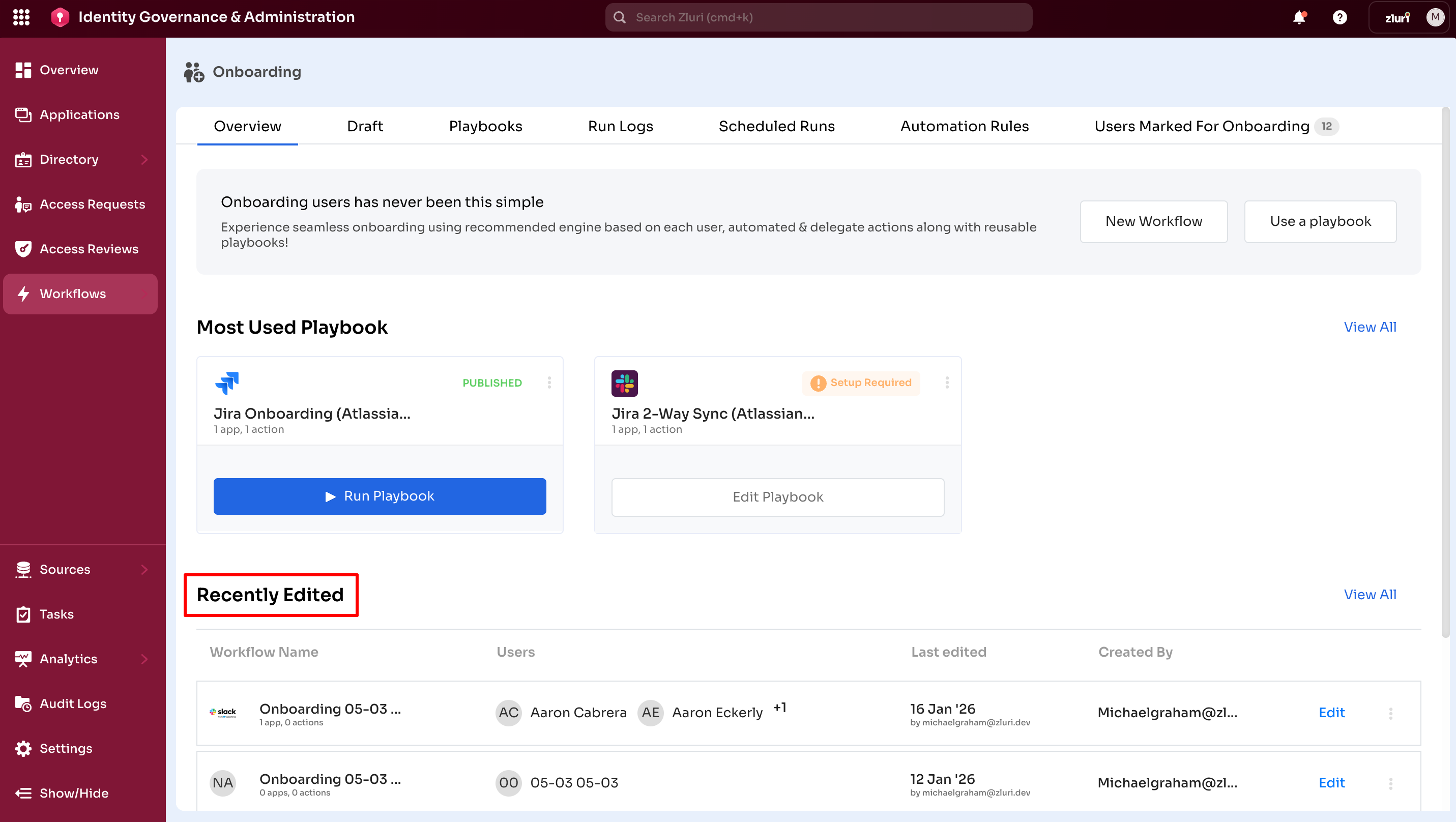
Use this to: Quickly return to workflows in progress or resume active workflows and playbooks.
Table columns:
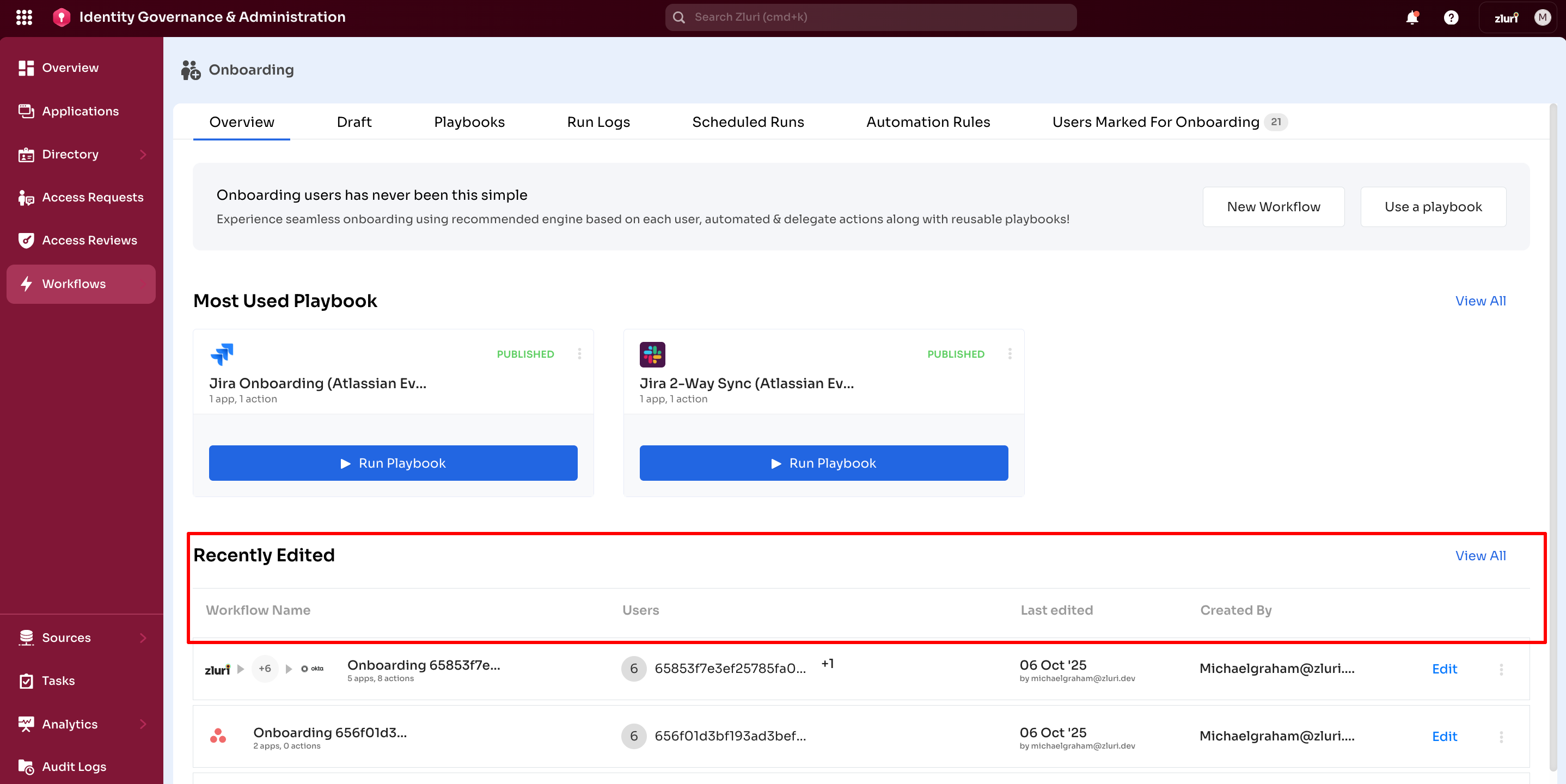
- Workflow Name – Name of the workflow
- Users – Users associated with the workflow
- Last Edited – Date and email of the last editor
- Created By – Workflow owner email
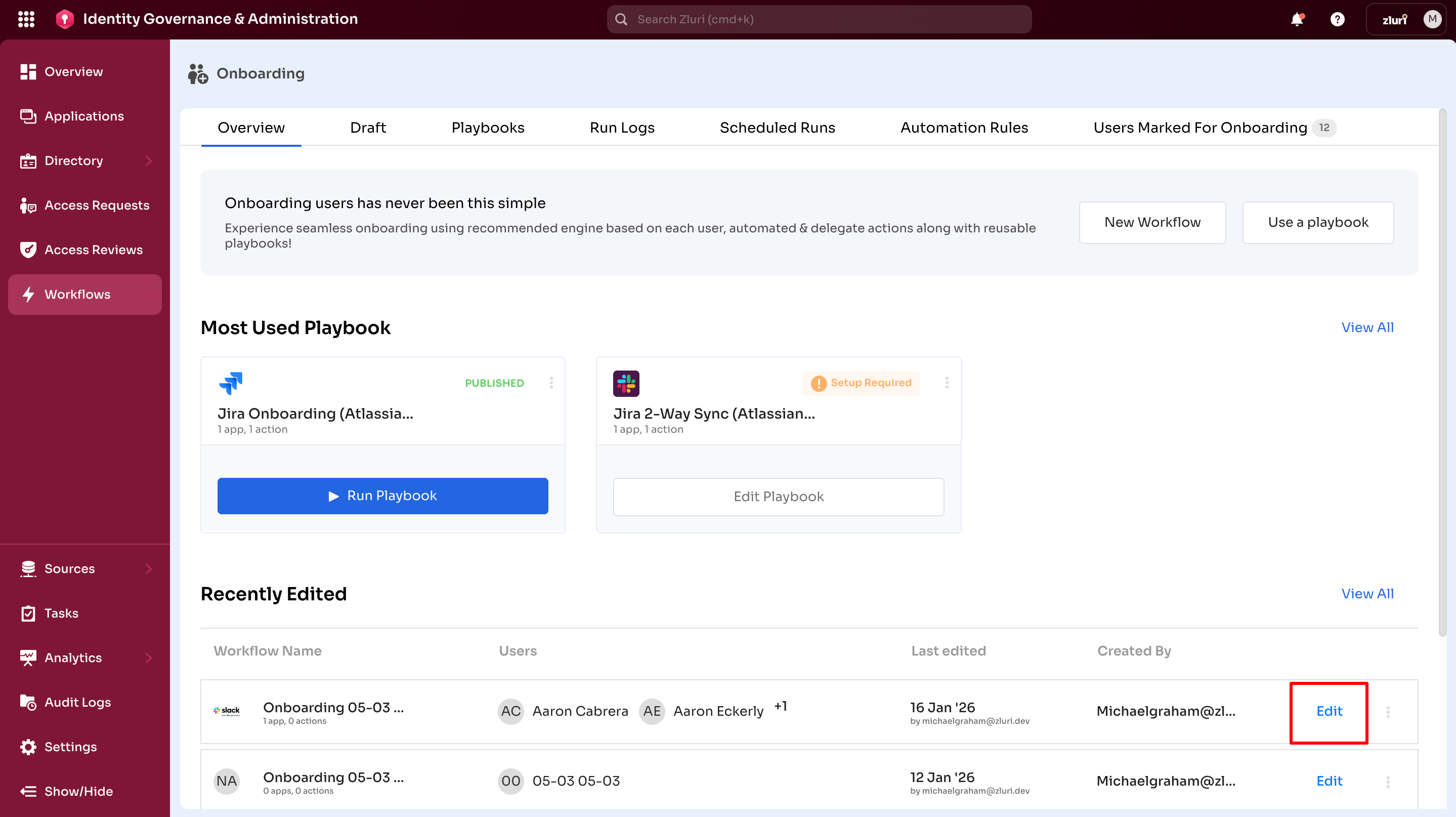
Row actions:
- Edit – Opens the workflow builder to modify the workflow.
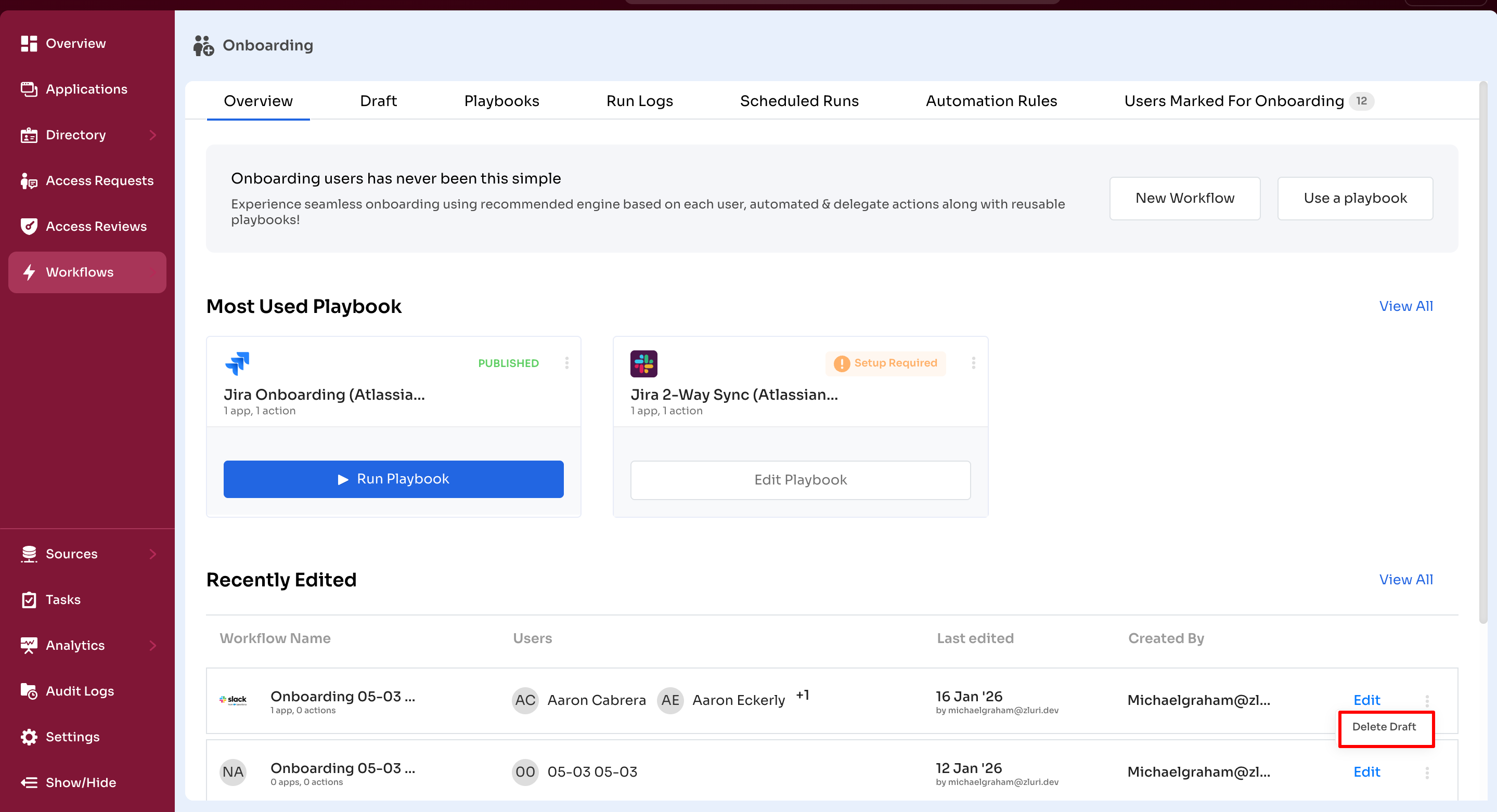
- Delete Draft – Deletes the workflow draft from the three-dot menu
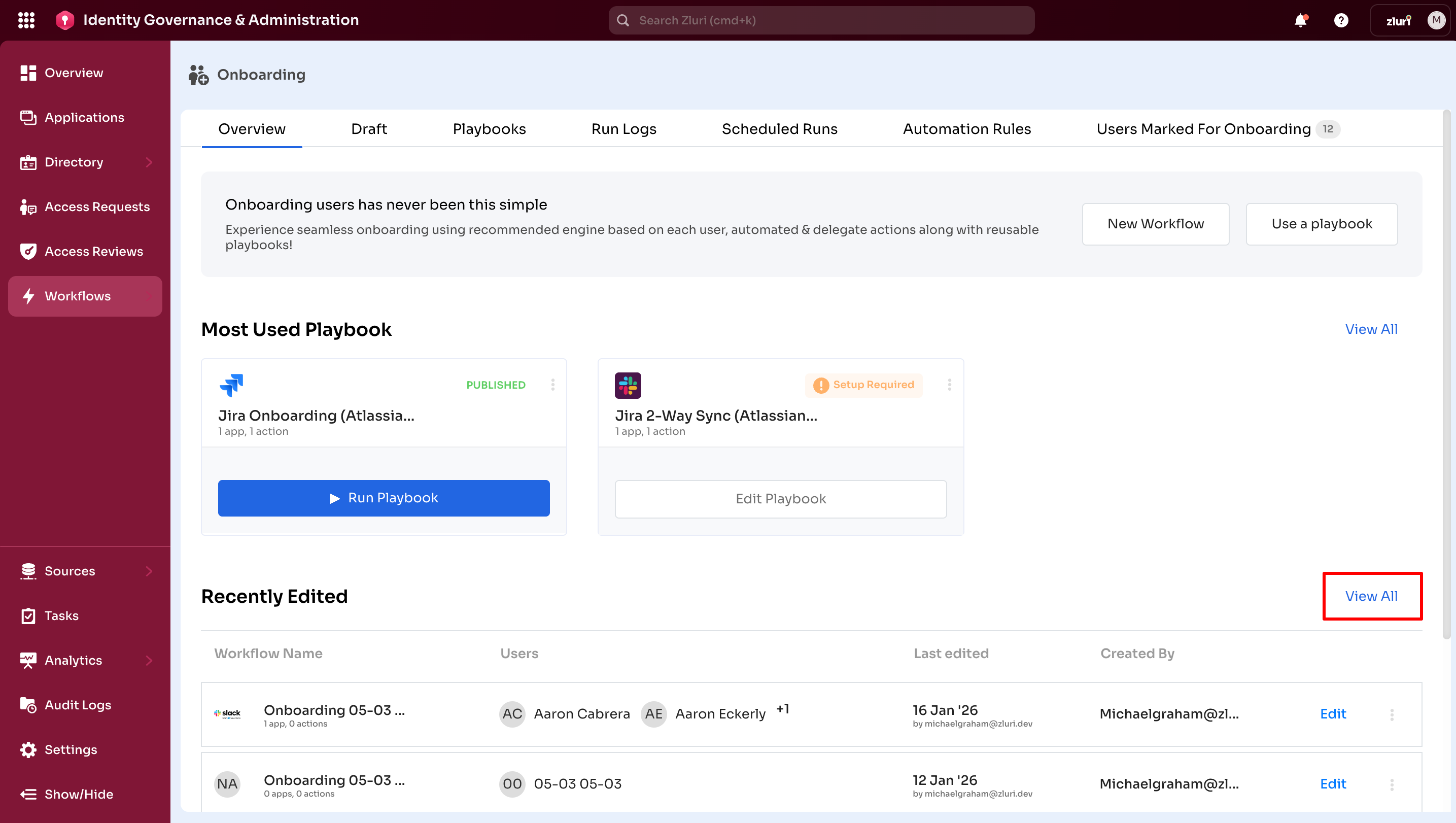
Select View All to navigate to the Drafts tab.
Offboarding:
Select a recently edited workflow to open and continue configuring. The Offboarding module uses the same features and functionality as Onboarding.
Updated 6 months ago