
Create an access certification
Access certifications let you configure and launch access review campaigns from the Access Reviews module. Each certification defines a set of entities to review, along with the population to review, reviewers, data visibility, and remediation actions.
Certifications support one-time and recurring schedules. Save a certification as a draft at any step and resume it later.
Known Accounts availabilityKnown Accounts reviews are available to all organisations with Accounts and Instances enabled. The Known Accounts option appears automatically in the certification creation wizard and doesn't require additional setup.
Known Accounts reviews coexist with existing reviews. Creating an account-level certification doesn't affect your existing certifications. Choose whichever path fits your audit goal.
When to use each review type
Choose the entity type and review access option based on what you want to review.
| Entity type | Review access across | Use when | Example |
|---|---|---|---|
| Applications | App Users | Reviewing which users have access to a specific application | Quarterly Okta review or annual Salesforce certification |
| Applications | Known Accounts | Reviewing all individual accounts in an application, including service accounts, orphaned accounts, and accounts with no active owner | Auditing all Salesforce accounts to find dormant or privileged accounts, or reviewing service accounts and API keys in GitHub |
| Groups | — | Reviewing membership in a specific group | Active Directory group cleanup or Okta group certification |
| Users | Applications | Reviewing the access held by specific users across applications | Contractor reviews, post-project cleanup, or access reviews after internal role changes |
| Users | Groups | Reviewing which groups specific users belong to | Reviewing group memberships after a team reorganisation or role change |
| Users | Known Accounts | Reviewing the individual accounts held by specific users across one or more applications | Manager-led review of a team's accounts on Okta or Salesforce to confirm that each account is still appropriate |
Configure certification details
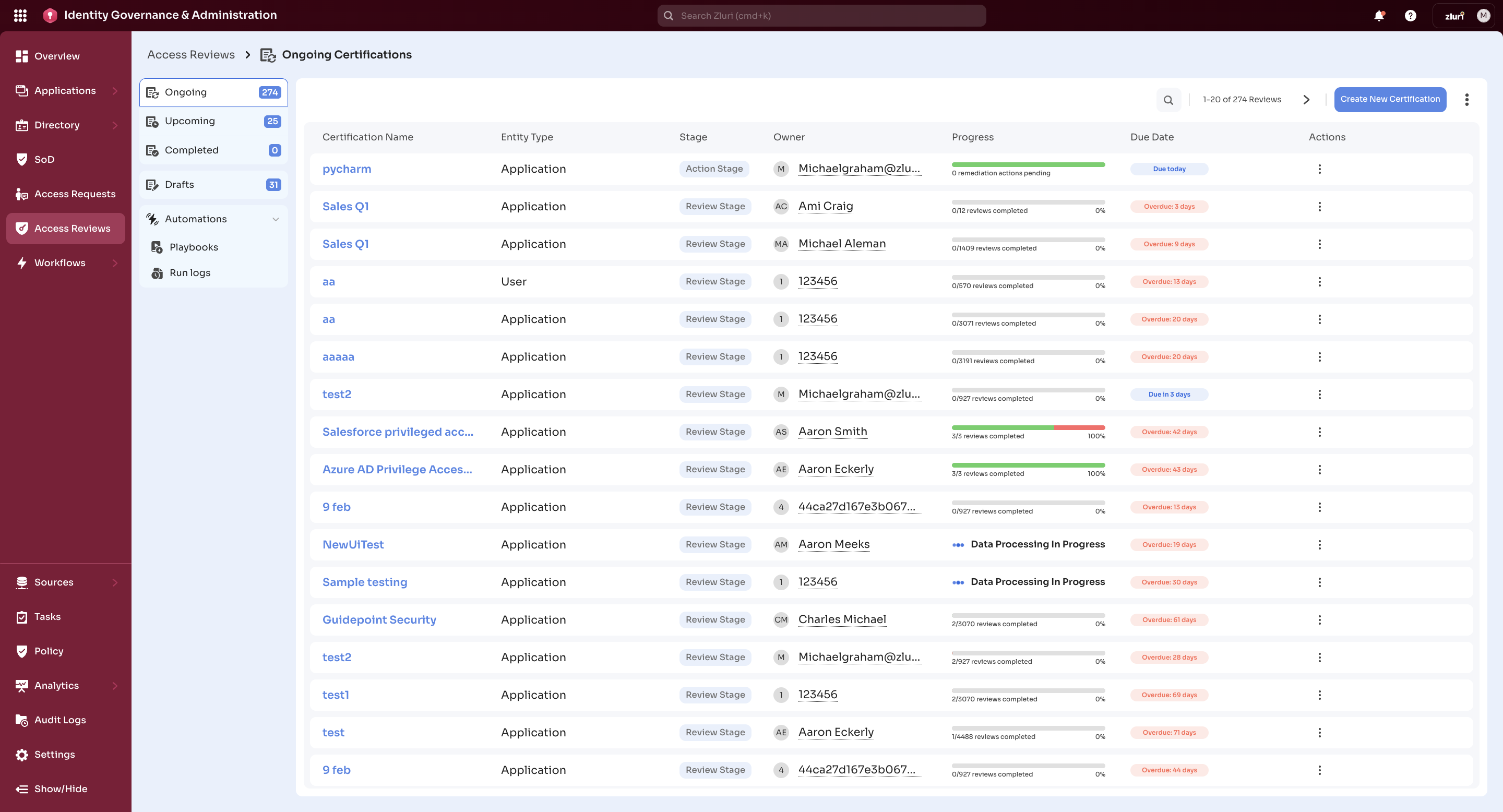
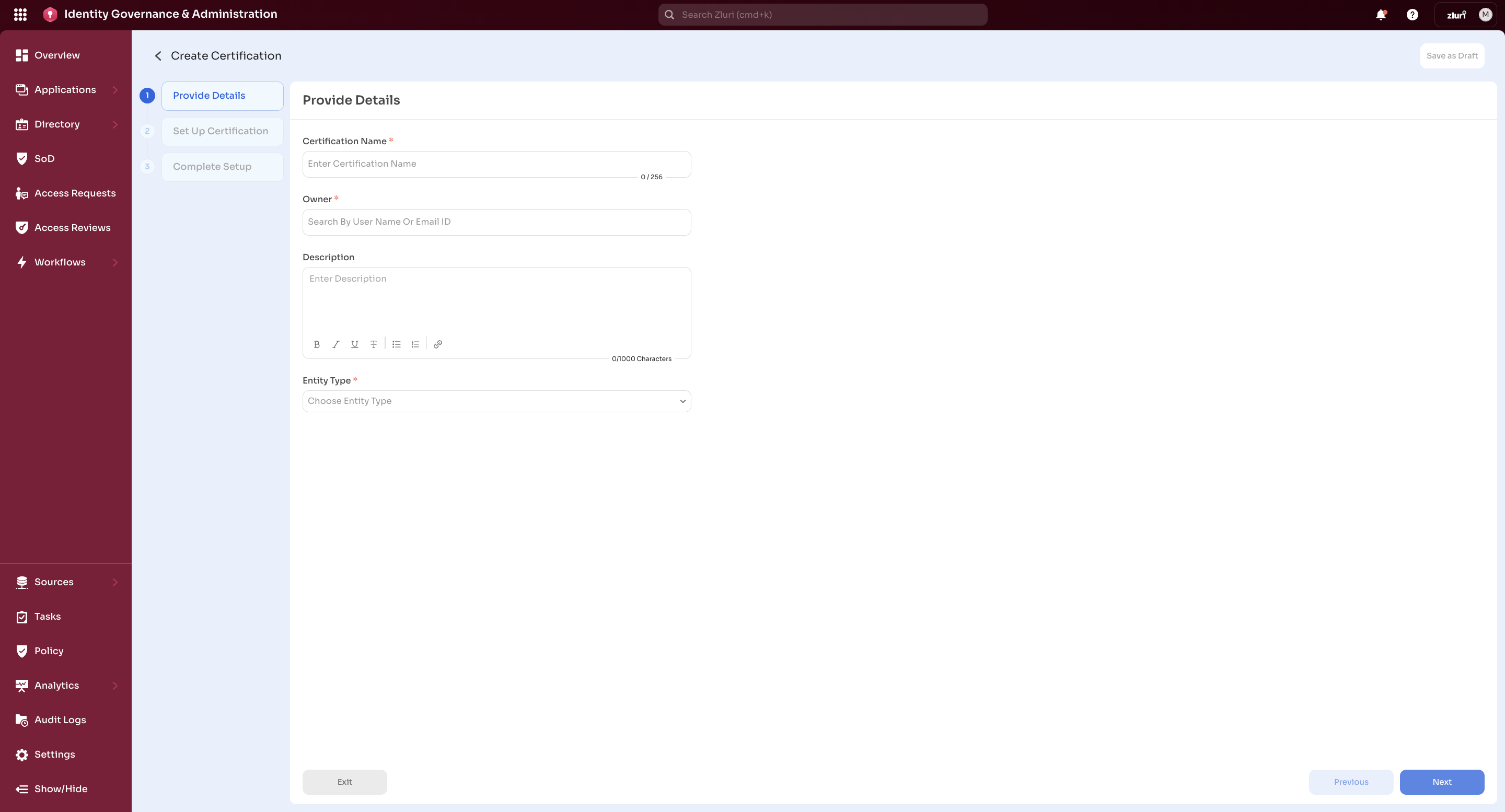
Navigate to Access Reviews in the left sidebar and select Create New Certification in the top-right corner. A configuration wizard opens with three steps: Provide Details, Set Up Certification, and Complete Setup.
Steps
-
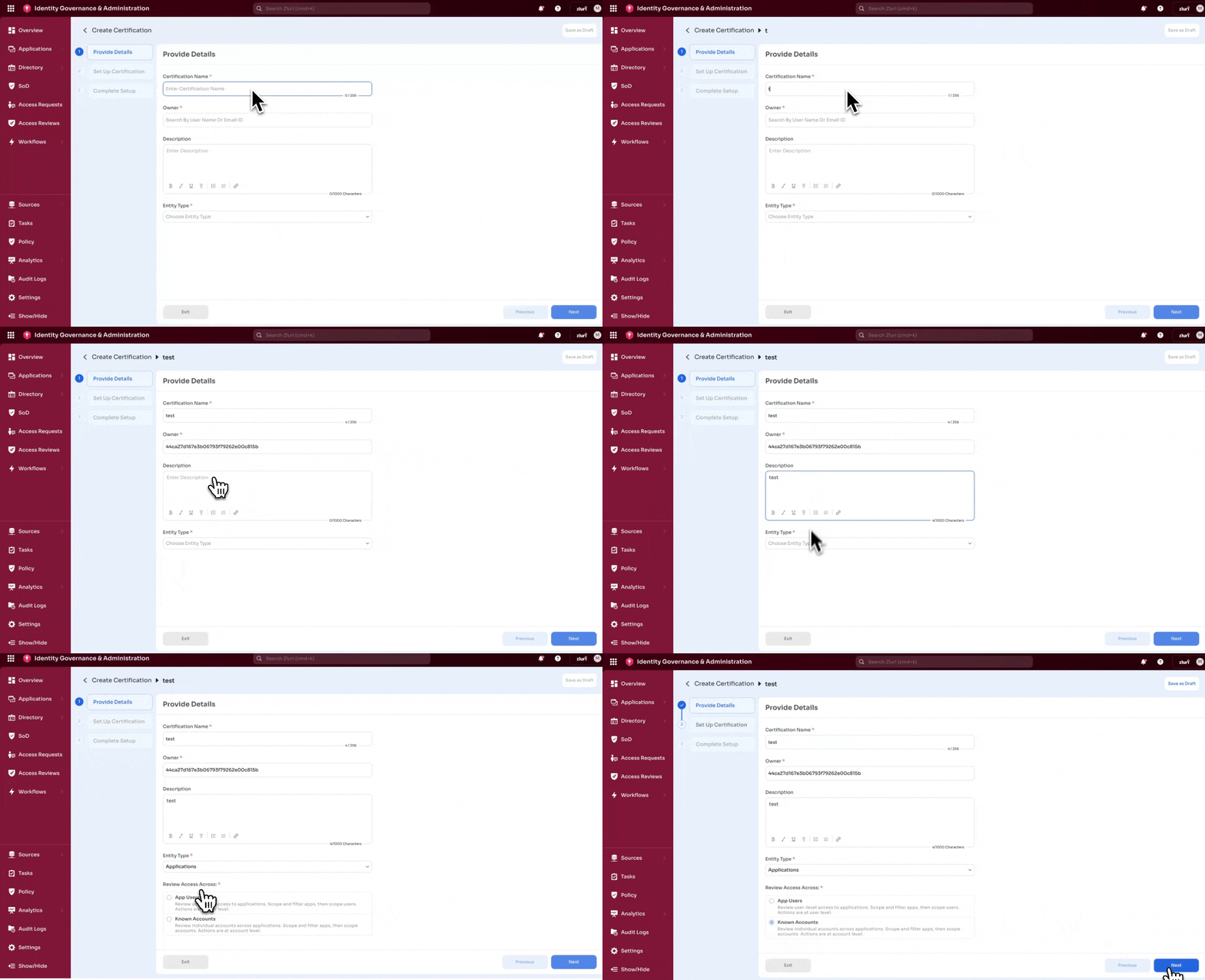
Enter a Certification Name.
-
Assign a Certification Owner. Owners must have Owner, Admin, or IT Admin privileges.
-
Optionally add a Certification Description. The description field supports rich text and links. For example, link to a knowledge base article with review process guidelines, or an access matrix that reviewers can reference while making decisions.
-
Select the Entity Type: Applications, Groups, or Users.
-
If you selected Applications or Users, select an option under Review Access Across.
If you selected Applications, the available options are:
- App Users: review user-level access to applications. Scope and filter apps, then scope users. Actions are at user level.
- Known Accounts: review individual accounts across applications. Scope and filter apps, then scope accounts. Actions are at account level.
If you selected Groups, the wizard skips directly to group scoping.
If you selected Users, the available options are:
- Applications: review which applications the selected users have access to. Actions are at user level.
- Groups: review which groups the selected users belong to.
- Known Accounts: review individual accounts across applications. Scope and filter apps, then scope accounts. Actions are at account level.
-
Select Next to continue.
Set up the certification
The Set Up Certification step contains scoping, reviewer assignment, and override configuration. The sections that appear and their order depend on the entity type and review subject you selected.
The following table shows which scoping steps apply to each review type.
| Entity type | Review access across | Scoping order |
|---|---|---|
| Applications | App Users | Scope Applications, then Scope Users |
| Applications | Known Accounts | Scope Applications, then Scope Accounts |
| Groups | — | Scope Groups, then Scope Users |
| Users | Applications | Scope Users, then Scope Applications |
| Users | Groups | Scope Users, then Scope Groups |
| Users | Known Accounts | Scope Users, then Scope Accounts |
After the scoping steps, all review types follow the same Set Defaults, Configure Overrides, and Validate steps.
Scope applications
This step applies to application-based reviews (App Users and Known Accounts) and is the first scoping step for those review types. For user-based App Users reviews, this step follows user scoping.
The Scope Applications panel lists the applications included in the certification. Define the scope by selecting applications individually or by criteria.
Steps
- Select applications using one of the following methods:
- Add specific applications: search and select applications by name. Use this option when you already know which applications are relevant to the review.
- Add applications by criteria: define scope using filters such as application type, category, restricted status, or archive status. Use this option when you want to review a class of applications rather than selecting each one manually.
- Optionally exclude specific applications or applications matching criteria.
- Select Preview to view the final set of applications included after applying filters.
Scope groups
This step applies to group-based reviews and is the first scoping step for that review type.
The Scope Groups panel lists the groups included in the certification. Define the scope by selecting groups individually or by criteria.
Steps
- Select groups using one of the following methods:
- Add specific groups: search and select groups by name. Use this option when you already know which groups are relevant to the review.
- Add groups by criteria: define scope using filters such as group type or category. Use this option when you want to review a class of groups rather than selecting each one manually.
- Optionally exclude specific groups or groups matching criteria.
- Select Preview to view the final set of groups included after applying filters.
Scope users
For application-based and group-based reviews, this section follows resource scoping and defines which users Zluri includes in the review of those resources. For user-based reviews, this is the first scoping section and defines the people whose access the certification covers.
The Scope Users panel defines which users Zluri includes in the review.
Steps
- Select users using one of the following methods:
- Add specific users: add users individually by name. Use this option for small, targeted reviews, such as reviewing access for a project team or users identified during a security investigation.
- Add users by criteria: define a user population with attribute-based criteria. Filters include default attributes such as department, employment status, and location, and account-level attributes such as app roles, licenses, and last login. Use this option for larger reviews that target a category of users, such as contractors, external employees, or a specific department.
- Optionally exclude specific users or users matching criteria. For example, include all external users but exclude users in a specific country if another team manages that population.
- Select Preview to verify the number of users included. The preview updates as you add or change inclusion and exclusion rules. For user-based certifications, switch between users in the preview to inspect each user's review scope before continuing.
Scope accounts
This step applies to Known Accounts reviews: the application-based path (Applications → Known Accounts) and the user-based path (Users → Known Accounts). For the application-based path, this step follows application scoping. For the user-based path, this step follows user scoping.
The Scope Accounts panel defines which accounts Zluri includes in the certification. Define the scope by adding accounts by criteria or by selecting specific accounts.
Account-level actionsReview actions in a Known Accounts certification target the individual account record, not the user. If a user holds multiple accounts on the same application, revoking one account's access removes only that account. Their other accounts, and their overall access to the application through those accounts, stay intact.
Steps
- Select accounts using one of the following methods:
- Add accounts by criteria: filter accounts using one or more filter groups. Combine filters across groups using AND logic within a criteria set, and add multiple criteria sets using OR logic between them. Use this option when you want to scope a class of accounts, for example all active service accounts in Salesforce, all accounts with privileged roles, or all accounts not linked to an active user.
- Add specific accounts: search by the name of the linked user (the user the account is linked to) to get all accounts belonging to that user. Use this option when you already know which specific accounts to review and don't need to filter by account attributes.
- Select Preview to verify the accounts included. The preview shows four columns: Account, Email, Status, and Linked User.
The filter groups and their available filters appear below. The combination available to you depends on the type of review you're creating.
Account Attributes
| Filter | Type |
|---|---|
| Account | Dynamic string (contains / does not contain) |
| Account Email | String |
| Account Status | Multi-select: Active, Inactive, Suspended |
| Account Type | Multi-select: Service, API, Group, Employee, Shared |
| Has Privileged Role | Boolean |
| Sources | Sources |
| App Instance | Dynamic |
| Assigned Licenses | Licenses held by the account |
| Assigned Roles | Roles assigned to the account |
App Attributes
| Filter | Type |
|---|---|
| Application | Dynamic (cascades to App Instance) |
| App Instance | Dynamic |
| Application Archive | Boolean (default: off) |
| App Owner | Dynamic |
| App Category | Dynamic |
| Application Type | Multi-select: Managed, Unmanaged, Restricted |
| Application Status | Multi-select |
App Custom Fields
Available when you've configured custom fields for applications.
Linked User Attributes
Filters based on the user the account is linked to.
| Filter | Type |
|---|---|
| User | Dynamic |
| User Status | Multi-select |
| Reporting Manager | Dynamic |
| Job Title | Dynamic |
| Department | Dynamic |
| Cost Centre | String |
| Business Unit | String |
Set defaults
Configure default reviewer assignment, data visibility, and remediation actions that apply across all entities in the certification. Setting defaults is optional; configure individual overrides in the next step.
Steps
-
Configure Default Reviewers.
- Assign reviewers for applications: select role-based or specific reviewers. Zluri supports multi-level reviews. Options include App Owner and Reporting Manager.
- Assign reviewers for groups: select role-based or specific reviewers. Options include Reporting Manager and Department Head.
-
Configure Data Visibility. Select which columns reviewers see during the review.
For App Users reviews, available columns include:
Column Description App Role The role assigned to the user in the application License Type The license assigned to the user Last Login The date the user last logged in Department The user's department Employment Status Whether the user is an employee, contractor, or other type For Known Accounts reviews, available columns include:
Column Description Application The application the account belongs to App Instance The specific instance of the application Account Status The current status of the account: Active, Inactive, or Suspended Assigned Licenses Licenses held by the account Assigned Roles Roles assigned to the account Sources The integration sources that discovered this account Reorder columns to prioritise critical information.
-
Configure Default Remediations. Assign playbooks for revoke or modify actions.
Note: You can only select global playbooks in this step. Application-specific or group-specific playbooks aren't available as defaults. To use a different playbook for a specific entity, configure it as an override in the next step.
Examples:
- Deprovision user access
- Modify access permissions
- Trigger notifications or tickets
For Known Accounts certifications, navigate to the playbook and add Account as a variable to configure remediations that act at the account level rather than the user level.
Configure overrides
Override the default configuration for specific applications, groups, users, or accounts. Each entity can switch between the default configuration and a custom configuration. Entities with overrides appear marked as Custom.
Steps
-
Select the entity to override.
-
Override any combination of the following settings.
Setting Description User scope (App Users reviews) Narrow the user population for this entity Account scope (Known Accounts reviews) Narrow the account scope for this application Reviewers Assign a different reviewer for this entity Data Visibility Customise which columns reviewers see for this entity Remediation Actions Override the default playbooks for this entity
Use overrides when a small number of entities need different handling without splitting the review into separate certifications. For user-based certifications, overrides apply per user. For example, assign a different reviewer for a specific user, or narrow the application or group scope for that user's review.
Validate the configuration
Check the certification for configuration issues before proceeding to the final step.
Steps
- Select Check Invalid Configurations.
- Review the identified issues. Common issues include:
- Deleted or unpublished remediation playbooks: a playbook assigned as a default or override no longer exists or is unpublished. Reassign a valid global playbook to resolve.
- Inactive or removed reviewers: a reviewer assigned at the default or override level is no longer active. Reassign to an active user or role.
- Incomplete override configurations: you switched an entity to Custom but haven't filled in required fields such as reviewers or remediation actions.
- Resolve all issues before continuing.
Complete setup and launch
Steps
-
Choose when the certification starts:
- Start Now: Zluri launches the certification immediately. It appears under Ongoing and Zluri notifies reviewers to begin.
- Start Later: schedule for a future date. The certification appears under Upcoming and remains locked until the start date.
-
Set timelines:
- Set the Review End Date: the deadline for reviewers to complete actions.
- Set the Remediation End Date: the deadline for remediation tasks.
Zluri sends automated reminders to reviewers with pending actions before the review end date, and to the certification owner before the remediation end date.
-
Configure self-review handling. Select how to handle self-review records:
- Allow Self Review: reviewers can approve or revoke their own records.
- Auto-Reassign: Zluri reassigns self-review records to another role or user.
If you selected Auto-Reassign, choose a reassignment option.
Option Description Reporting Manager Reassigns to the user's reporting manager Department Head Reassigns to the user's department head Certification Owner Reassigns to the certification owner Fallback Reviewer Reassigns to a designated fallback reviewer Specific user Reassigns to a named user -
Optionally turn on Recurring Certifications and select a frequency such as monthly or quarterly.
-
Select Create Certification to finalise and launch, or select Save Draft to continue later.
Common scenarios
The scenarios below show how each review type is used in practice.
Application-based reviews — App Users
Quarterly SaaS access review
Run a quarterly review of access to a business-critical application such as Salesforce or GitHub. Create an application-based App Users certification, scope the application, define the user population (for example, all active employees), assign the App Owner or a designated reviewer, and schedule it to recur quarterly. This validates access on a regular cadence without requiring a manual process each time.
Post-integration cleanup
When a new application joins your environment, existing users may already have access provisioned as part of the rollout. Create an application-based certification to review who has access, what roles they hold, and whether that access remains appropriate now that the integration is live.
Compliance-driven application certification
When an audit program requires evidence that you've reviewed access to regulated applications such as an HRIS or financial system, create an application-based certification scoped to those applications, assign reviewers, configure remediations, and export the results as evidence after the review is complete.
Application-based reviews — Known Accounts
Full account audit for a business-critical application
When you need to audit every account in Salesforce, including service accounts, accounts with no active owner, and shared credentials, create an application-based Known Accounts certification, scope Salesforce, and use the Insights bar to surface orphaned, privileged, and inactive accounts for prioritised review. Reviewers see each account's type, roles, and linked identity, and can revoke or modify access at the account level.
Service account and API key governance
When you need to identify and review all service accounts and API keys across integrated applications, create an application-based Known Accounts certification and filter accounts by Account Type: Service or API in the Account Attributes filter group. Assign the App Owner as the primary reviewer for all accounts in scope and configure a revoke or modify playbook for remediating inappropriate access.
Post-offboarding stale account cleanup
Users who leave the organisation may retain application accounts even after their user record is deactivated. Create an application-based Known Accounts certification and select the Orphaned Accounts insight chip to scope only accounts with no active linked user. Reviewers evaluate each orphaned account and revoke access for any that should no longer exist.
User-based reviews — Known Accounts
Manager review of team accounts
As a manager, confirm that each member of your team holds only the accounts appropriate to their current role on Okta. Create a user-based Known Accounts certification, scope your team members in the Scope Users step, select Okta in the Scope Accounts step, and assign yourself as reviewer. You see a list of team members at the top level and drill into each person to review their individual accounts by application and instance.
Account review after internal transfers
When your team reorganises and several employees move to new roles, create a user-based Known Accounts certification for the affected users to evaluate the accounts they still hold from their previous role. This surfaces accounts that remain active but may no longer be appropriate, and lets reviewers revoke or modify access at the account level.
Group-based reviews
Active Directory or Okta group cleanup
Groups accumulate members over time as people join projects, change roles, or move teams. Create a group-based certification scoped to stale or high-risk groups, assign the group owner or department head as reviewer, and use the certification to remove members who no longer belong.
Privileged group review
A group can grant elevated permissions such as admin access or access to sensitive infrastructure. Create a group-based certification scoped to that group, assign a senior reviewer, and run the certification before a compliance deadline or after a team change to confirm that membership is intentional and current.
User-based reviews — App Users
Post-project access cleanup
When a project ends, users may still hold the elevated access to applications they received during the project. Create a user-based App Users certification for those users, scope the applications used during the project, assign the appropriate reviewer, and launch the certification. This removes access that is no longer needed after the project closes.
Annual contractor or external user review
When your compliance program requires an annual review of contractor or external user access, create a user-based App Users certification, define the user population with criteria, exclude users managed by another team if needed, scope critical applications or groups, assign reviewers, and schedule the certification to recur each year.
Security response
When a user appears in a security alert or investigation, create a user-based App Users certification for that user or a set of users, scope sensitive applications, assign the security team as reviewer, and launch quickly. This gives a focused view of the user's access in one place.
Team changes and internal transfers
When your team reorganises or employees move to new roles, create a user-based App Users certification for the affected users to evaluate the access they still hold from their previous role, project, or business unit. This identifies and removes retained access that is no longer appropriate.
Updated about 1 month ago