
Playbooks Tab (Onboarding+Offboarding)
Create reusable templates for consistent onboarding and offboardin
Workflows v2If your tenant has the workflows v2 feature enabled, refer to this article for details on how to set up a playbook and navigate run logs.
About Playbooks
A playbook in Zluri is a reusable template for onboarding or offboarding. Unlike workflows often built for one-time cases, playbooks provide standardized, repeatable processes for multiple employees.
Playbooks are:
- Reusable – Apply to multiple employees
- Standardized – Maintain consistency across departments and roles
- User-agnostic – Configure apps and actions once, apply repeatedly to matching users
- Automated – Trigger via Automation Rules
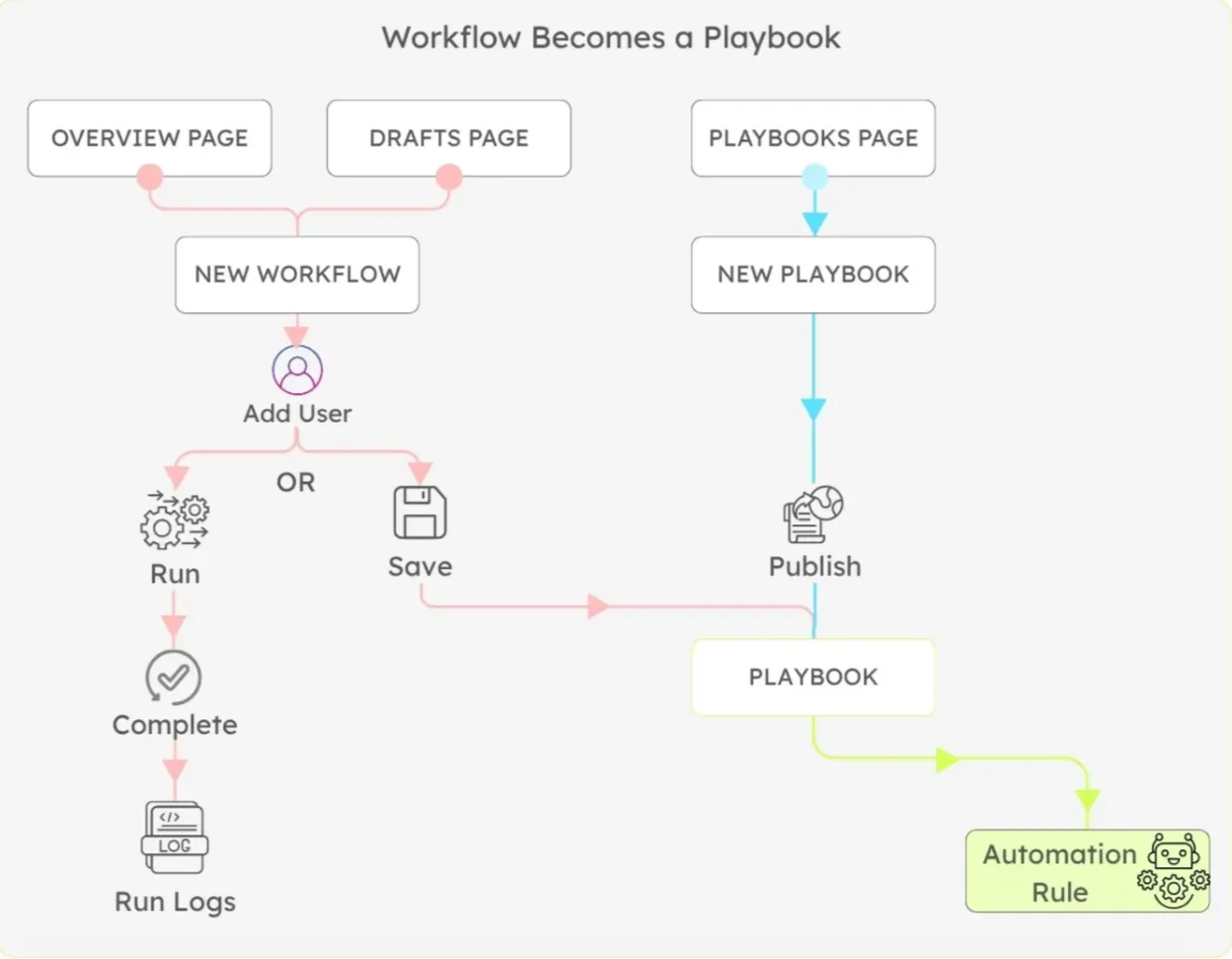
Workflows vs. Playbooks
Workflows are typically created for one-time or user-specific scenarios. Playbooks are reusable templates—configure the steps once, then run them for any user with a similar access pattern requirements.
| Aspect | Workflows | Playbooks |
|---|---|---|
| Purpose | One-time use for specific users | Reusable templates for recurring tasks |
| Execution | Manual trigger for specific users | Manual or automated for multiple users |
| Configuration | Ad-hoc for individual users | Predefined, reusable steps |
| Example Use Case | Emergency access for one employee | Standard sales team onboarding |
| Best For | Specific, one-time provisioning | Standard processes across multiple employees |
Playbooks Tab Overview
The Playbooks tab displays all saved playbooks in the organization.
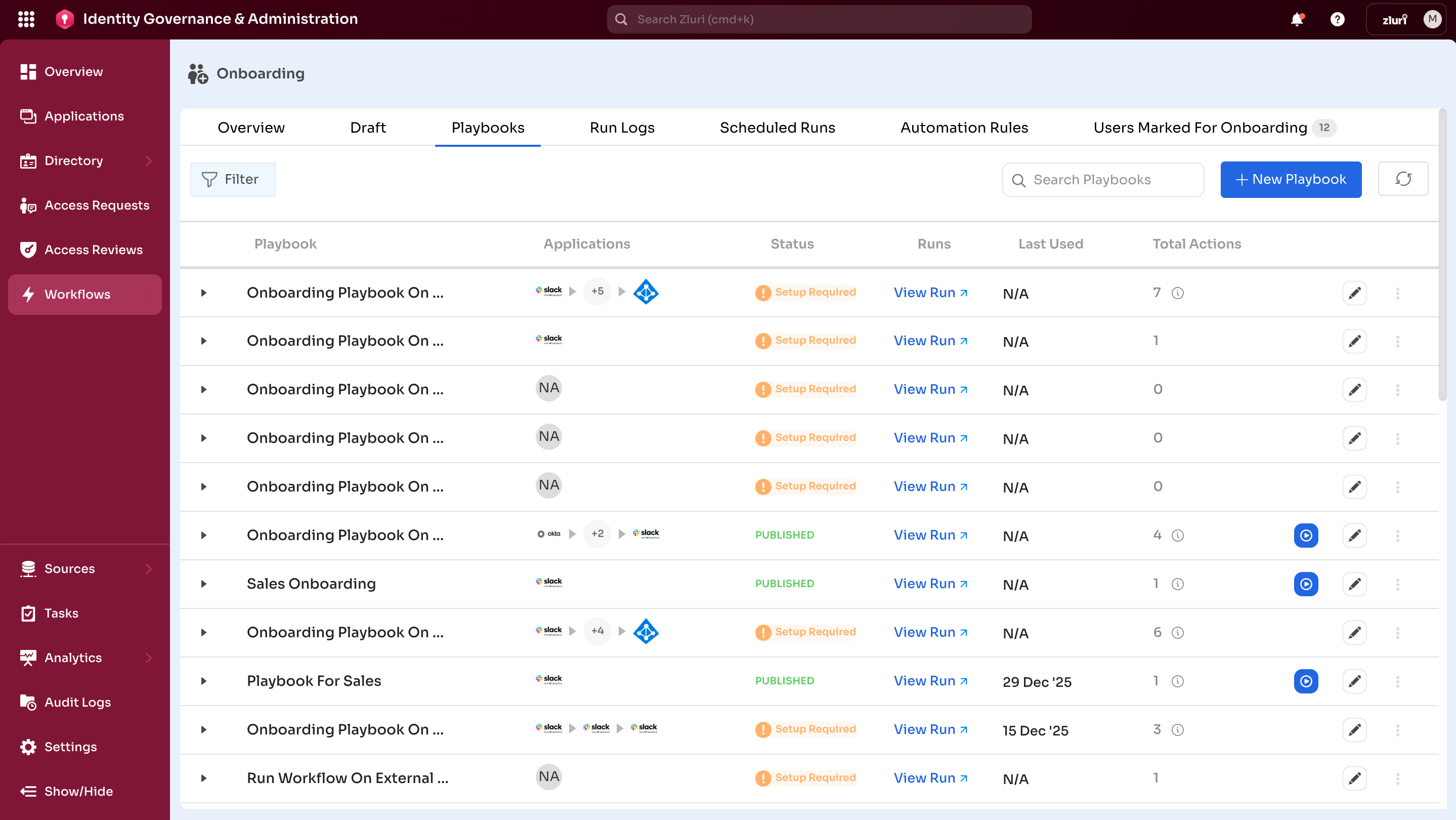
Core Features
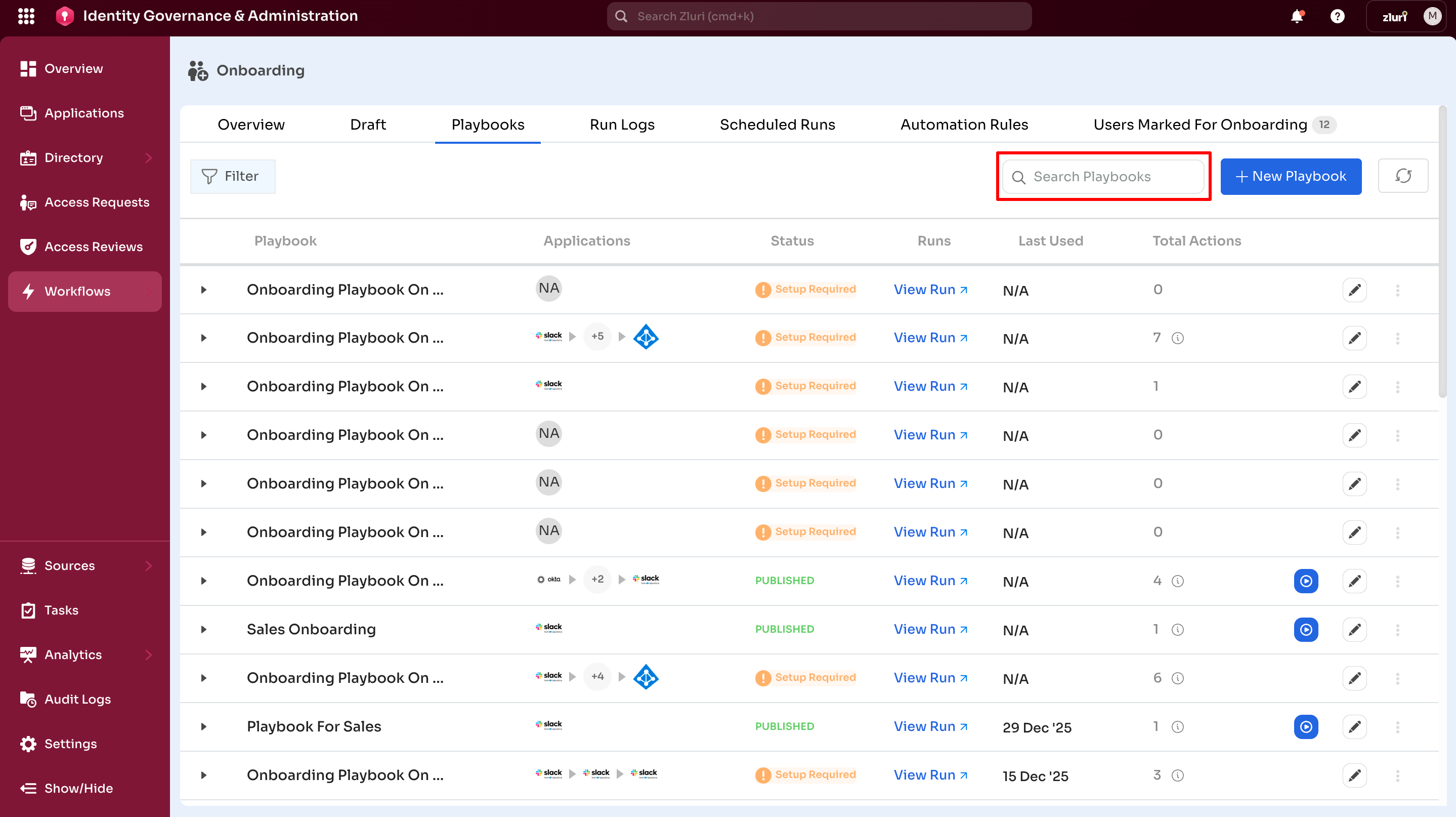
Search
Use the search bar to quickly locate specific playbooks.
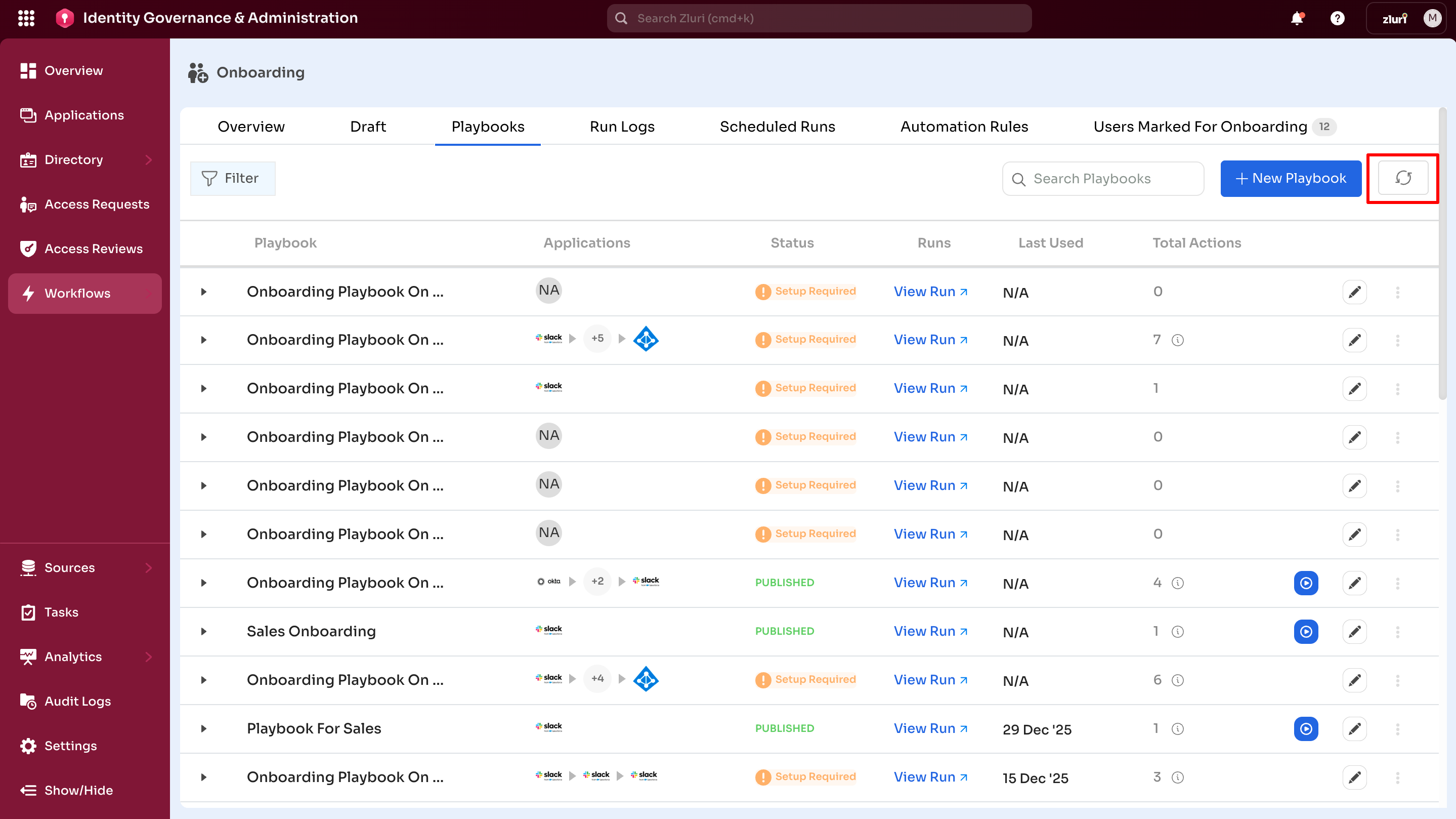
Refresh
Select Refresh to display the most recently saved and updated playbooks.
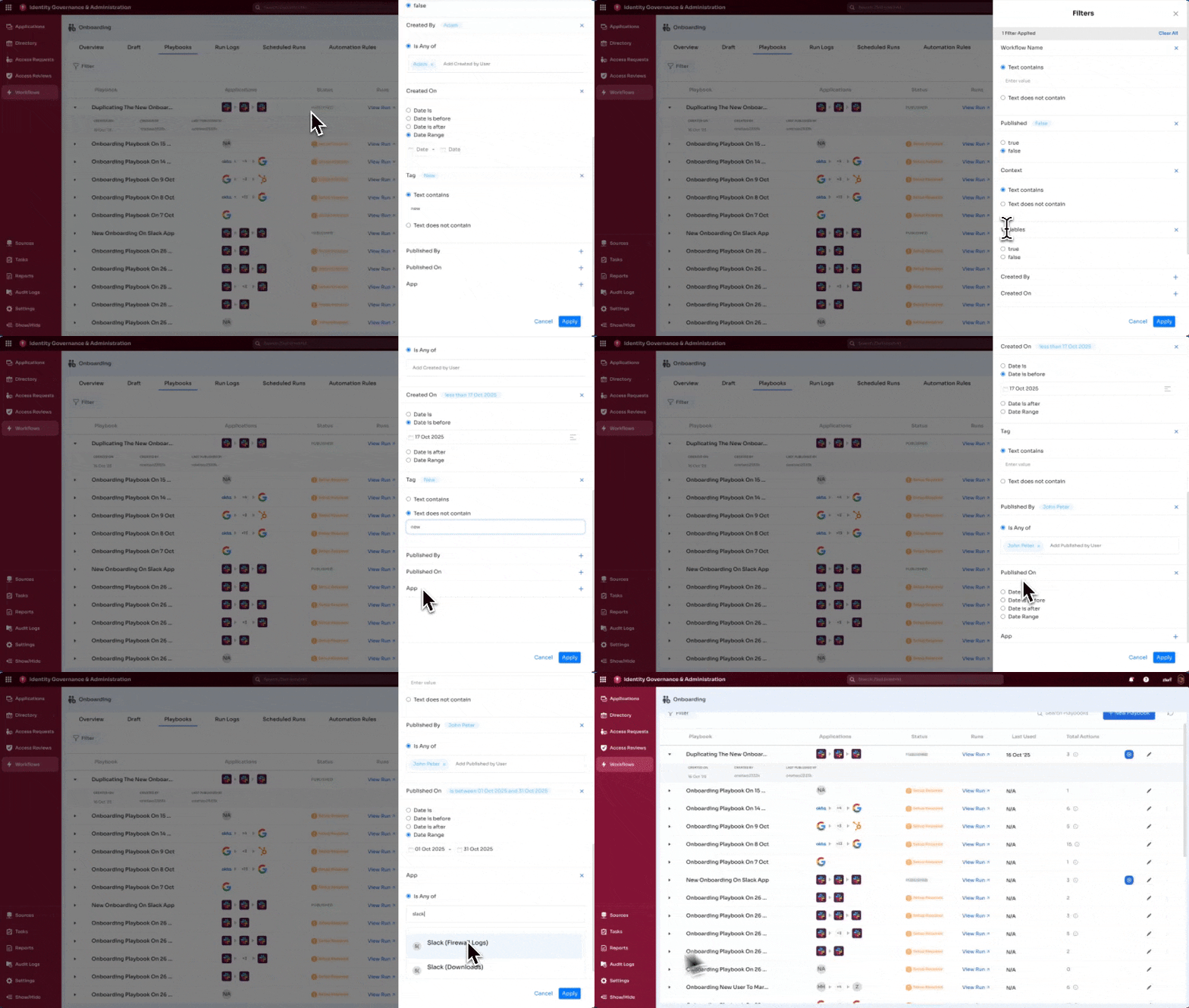
Filter
Use filters to narrow long lists and find relevant playbooks quickly.
Filter by
- Playbook name
- Status (Published, Setup Required)
- Applications included
Playbooks Table
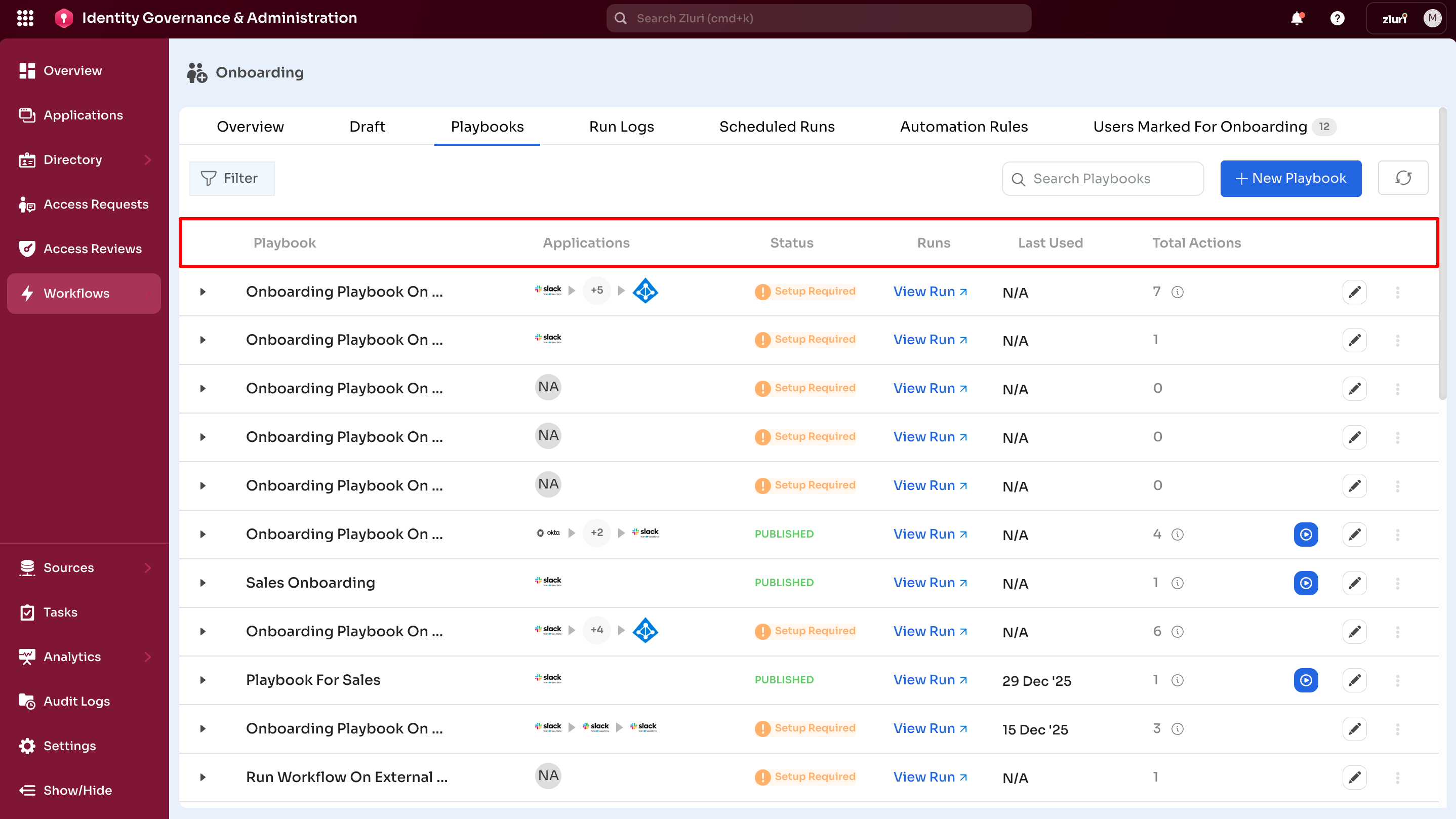
The Playbooks table displays key information for each playbook.
Playbook
- Displays the playbook name
- Default naming follows the format Onboarding Playbook on [Date] or Offboarding Playbook on [Date]
Applications
- Displays applications included in the playbook.
- Displays up to three application icons.
- Displays a count when more than three applications are included.
Status
- Published – Ready to run
- Setup Required – Needs configuration
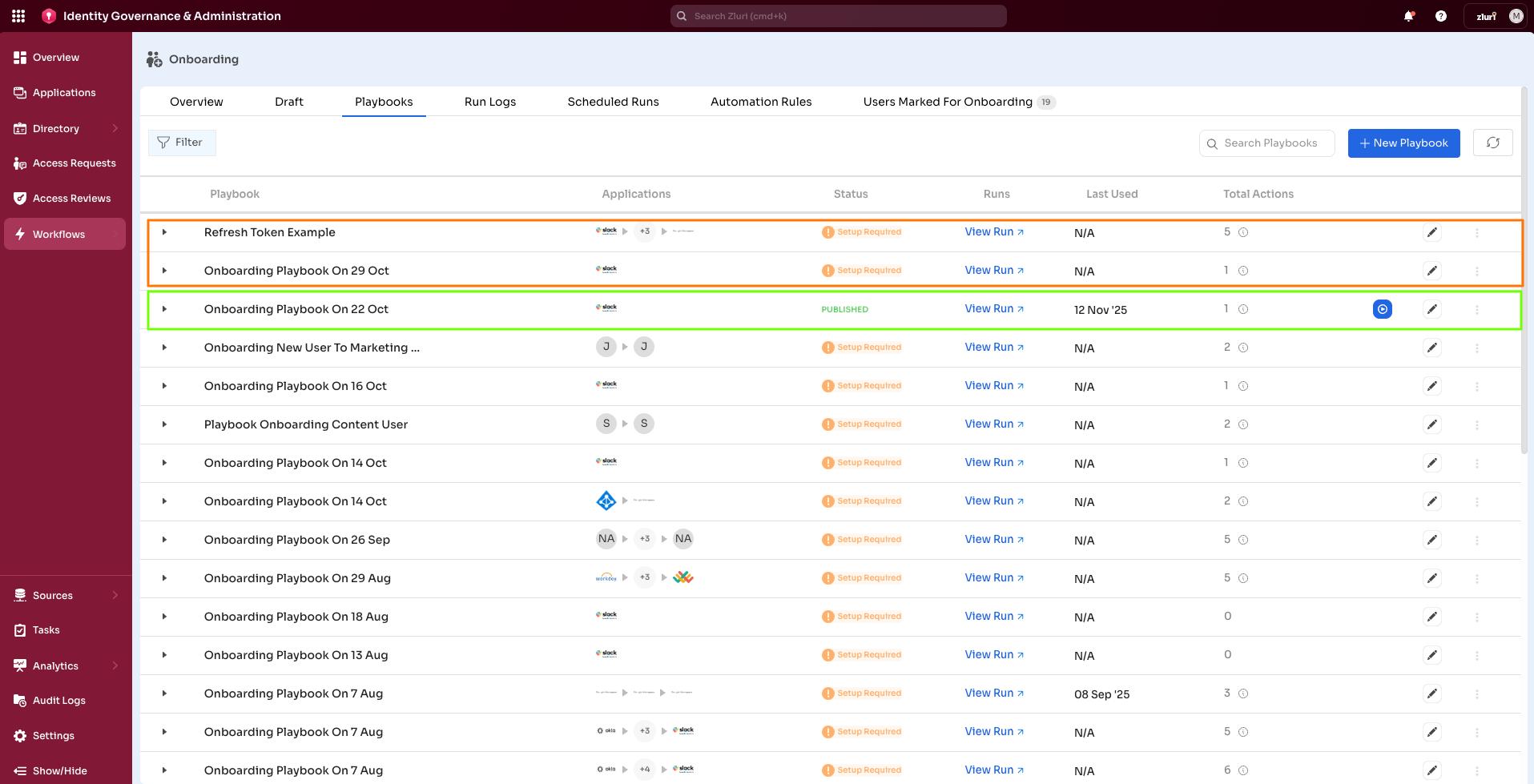
Offboarding Playbook tab with two types of setup status: Published and Setup required.
Runs
- Select View Runs to open playbook run logs
Last Used
- Displays last edited, published, or executed
- Displays "N/A" if the playbook is not set up
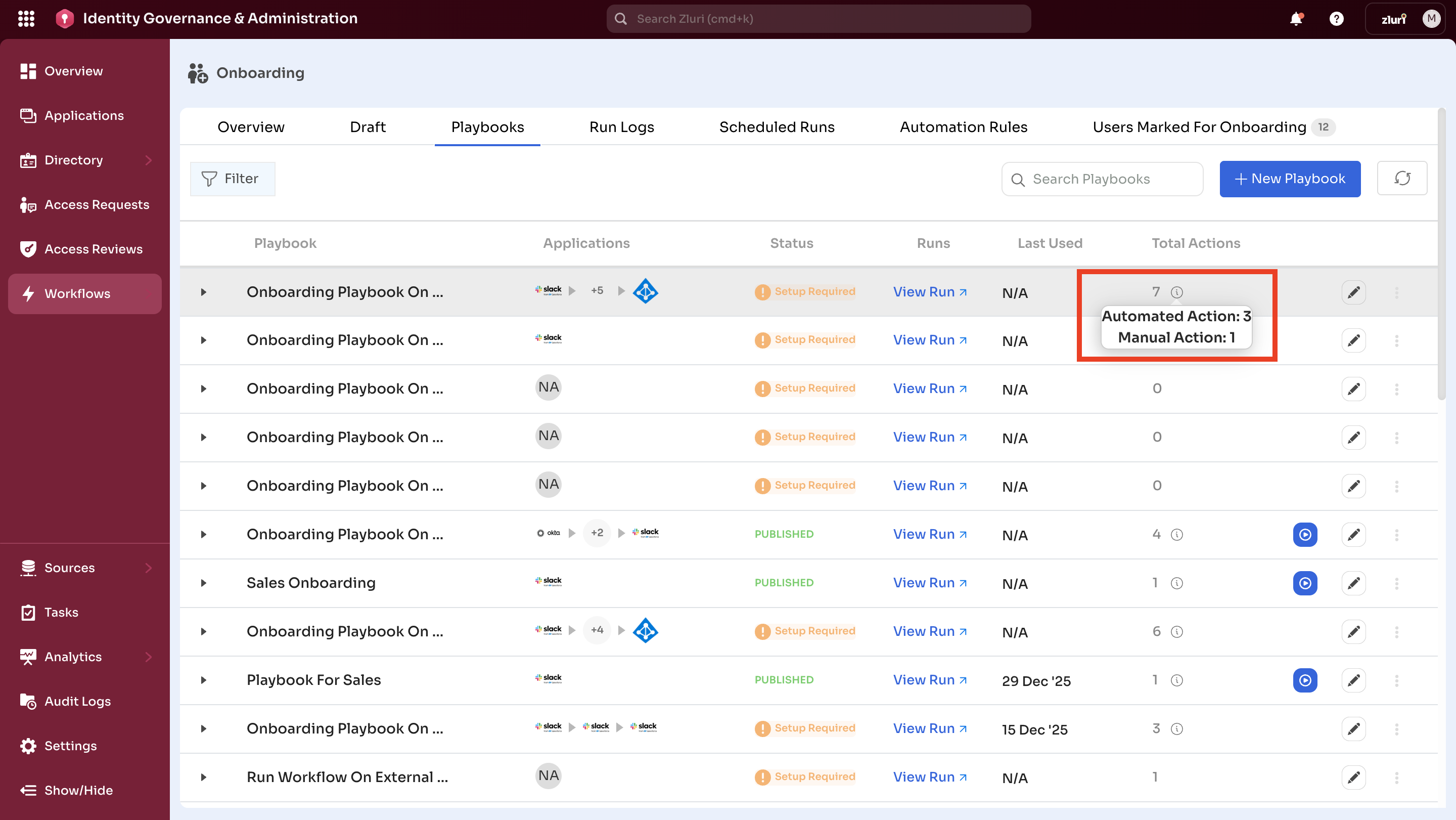
Total Actions
- Displays the number of actions in the playbook
- Select the information (i) icon to view automated and manual action counts.
Managing Playbooks
Run Playbook
Onboarding: Select Run Playbook to execute provisioning actions for selected users.
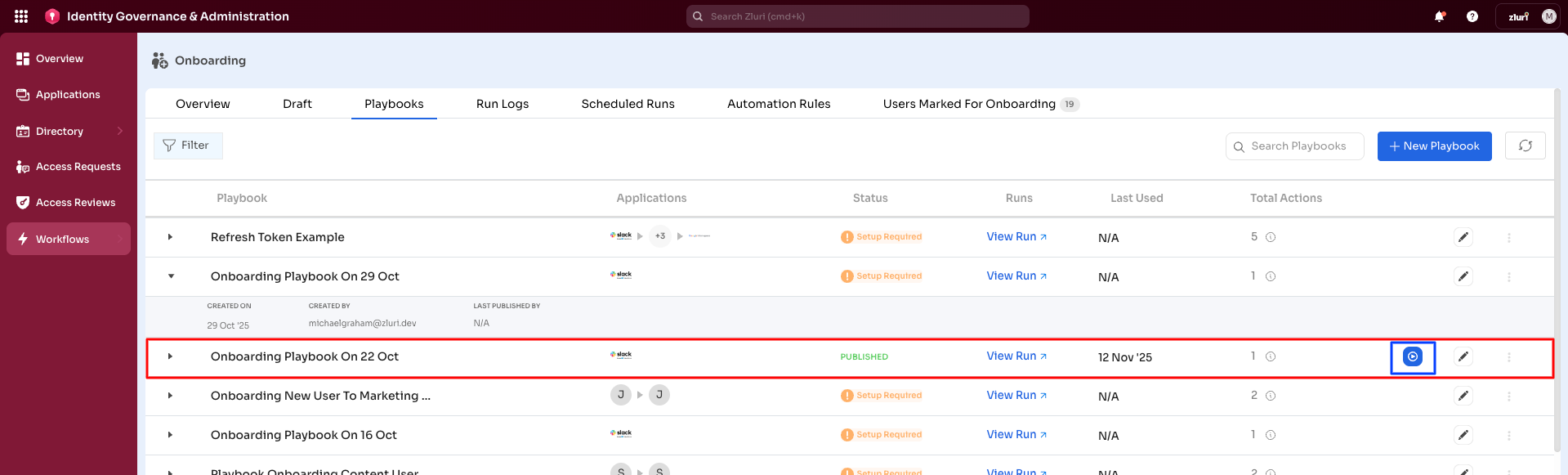
Offboarding: Select Run Playbook to execute deprovisioning actions.
Note: Only published playbooks display the blue arrow icon and can be executed. Playbooks with the "Setup Required" status cannot be run until configuration is complete.
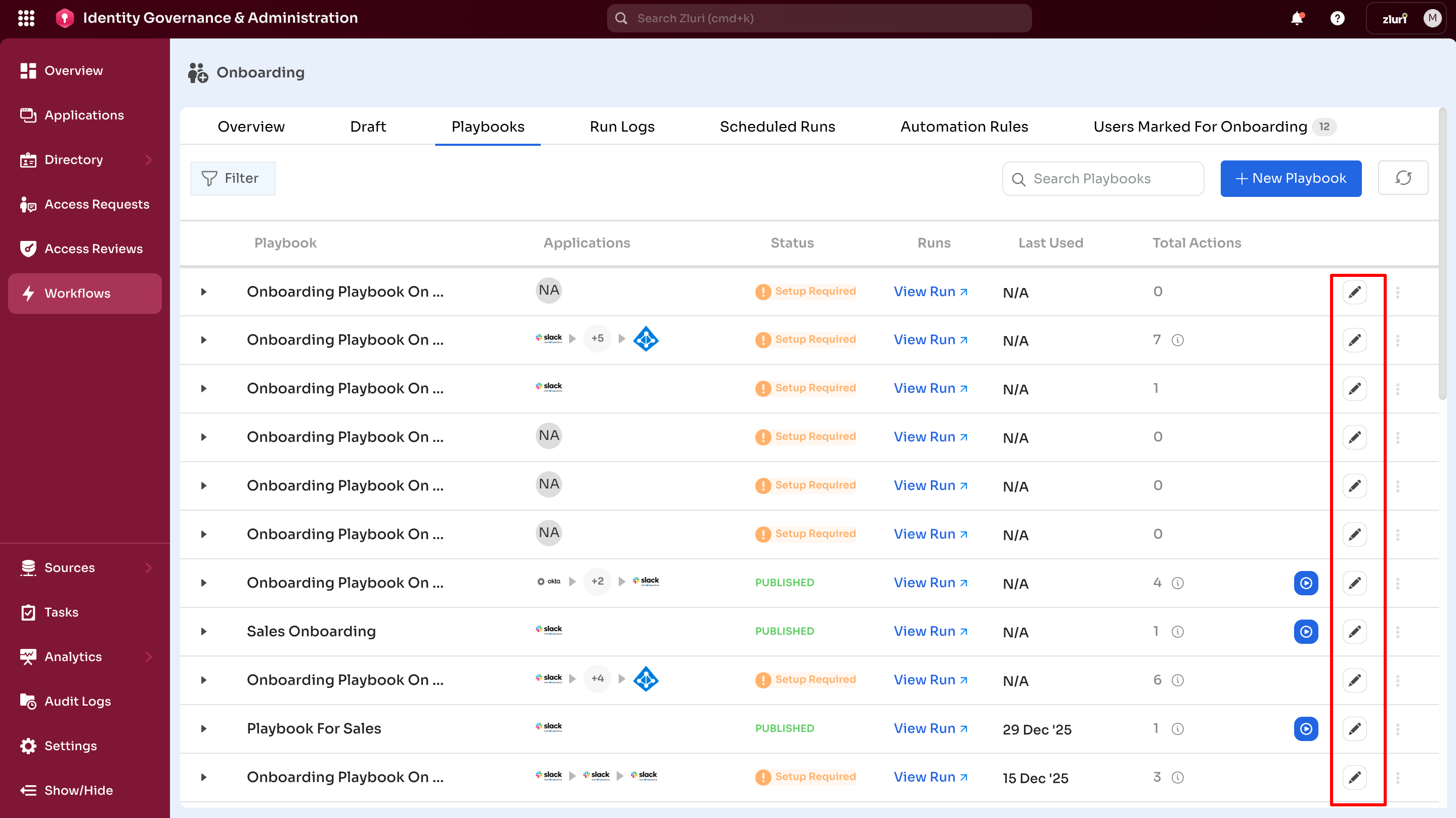
Edit Playbook
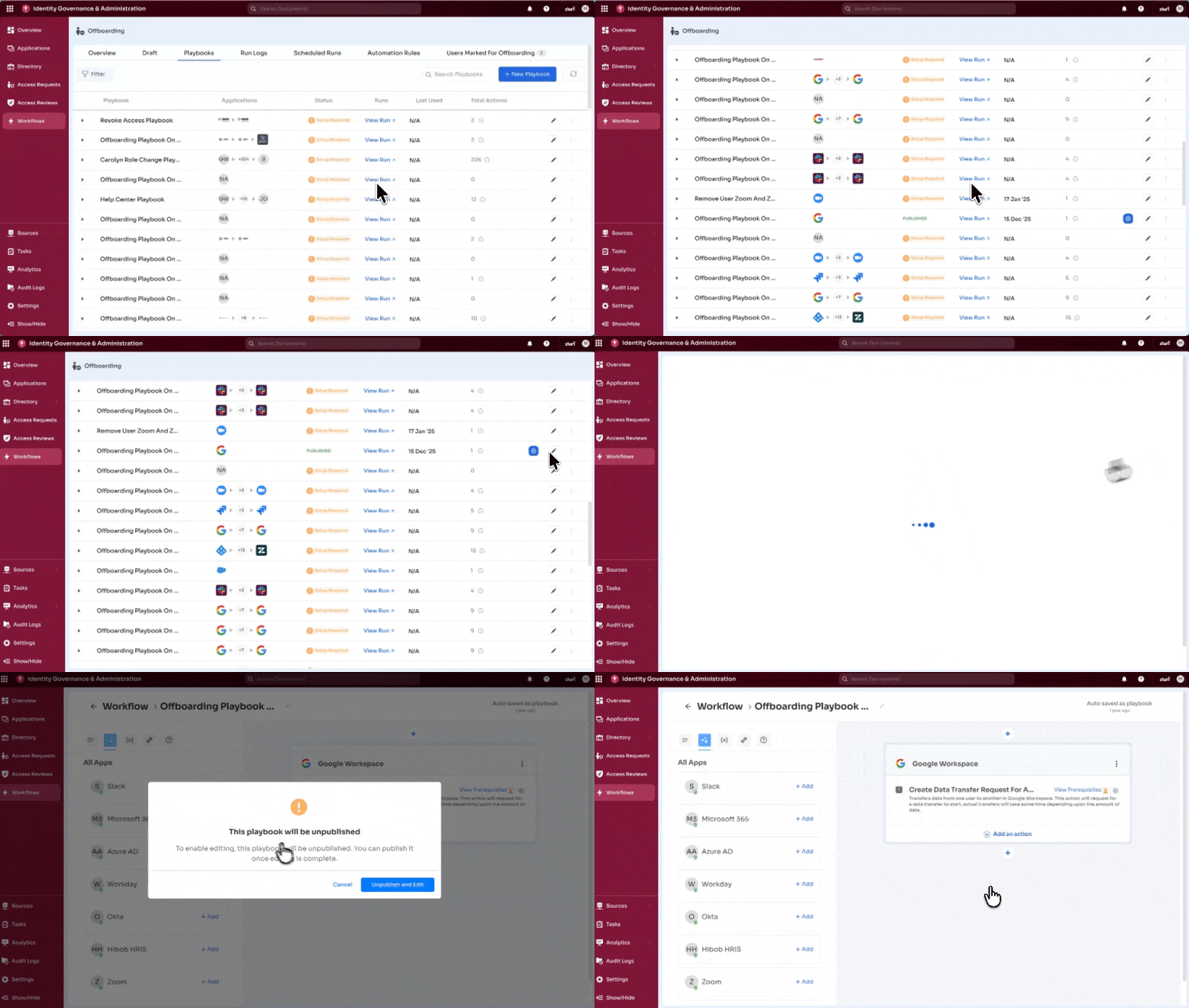
Select the pencil icon next to any playbook to modify its configuration.
Published playbooks: Select Unpublish and Edit to make changes.
Playbook Actions Menu
Select the three-dot icon for additional options:
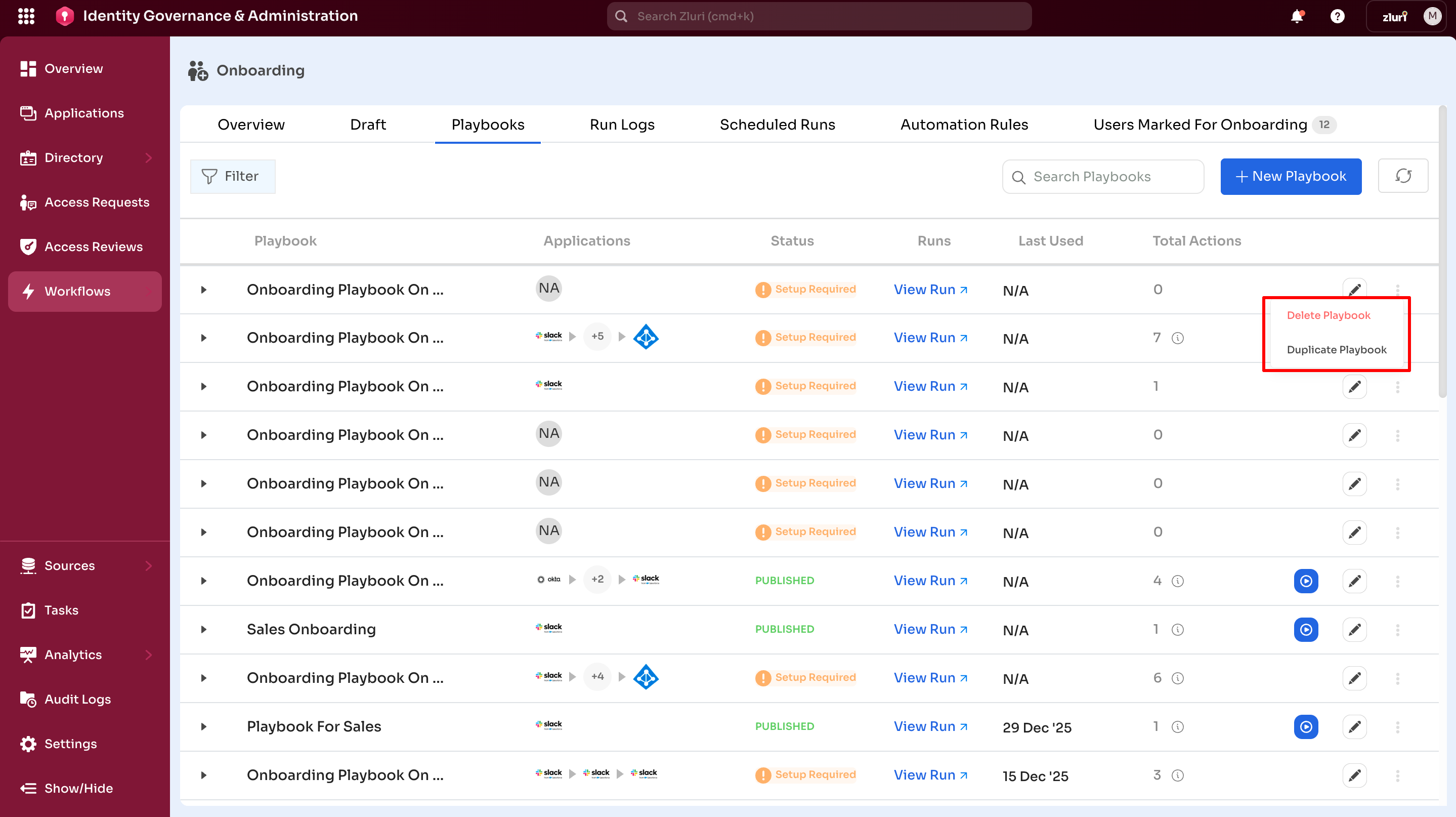
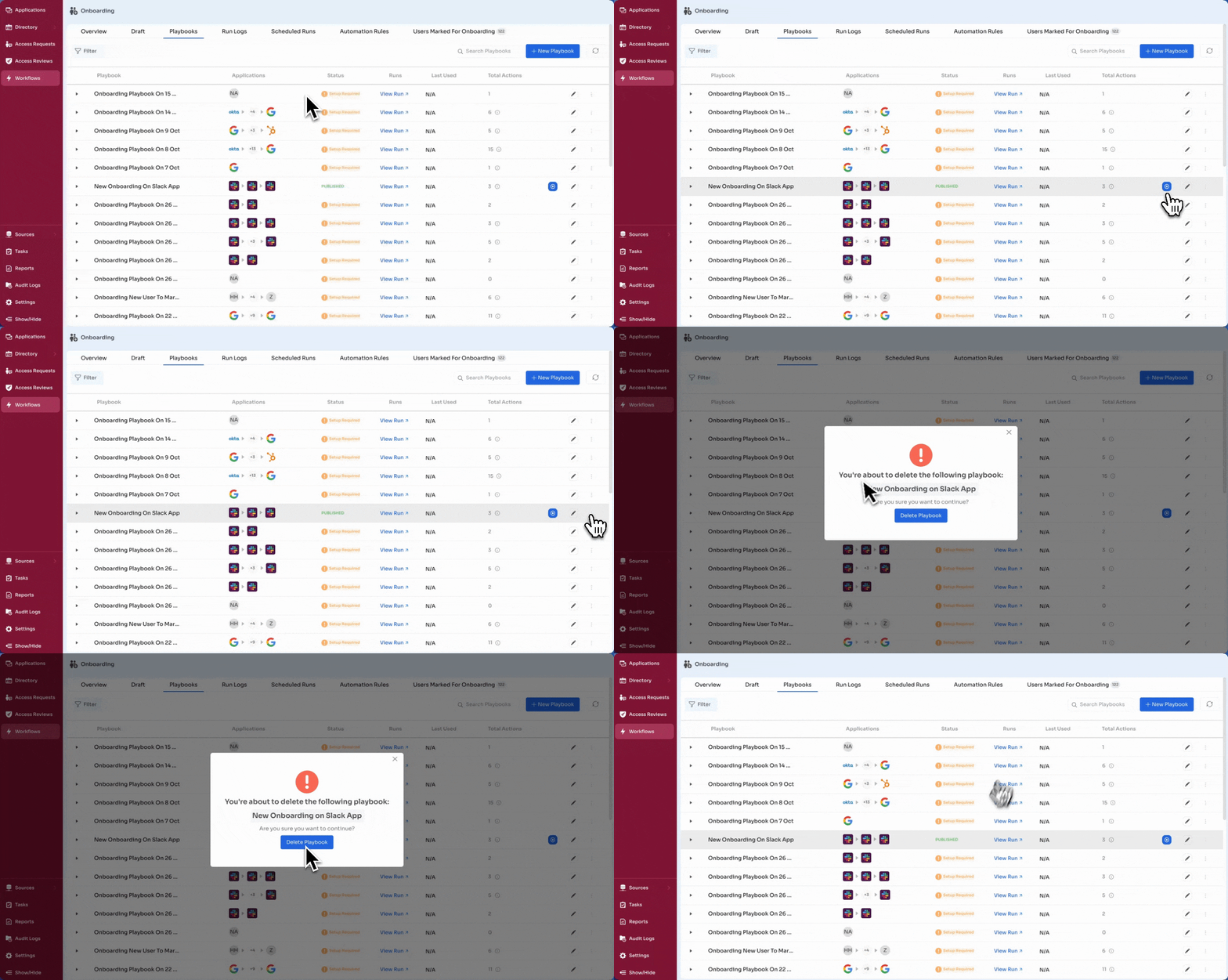
Delete
Permanently removes the playbook. Use this option with caution.
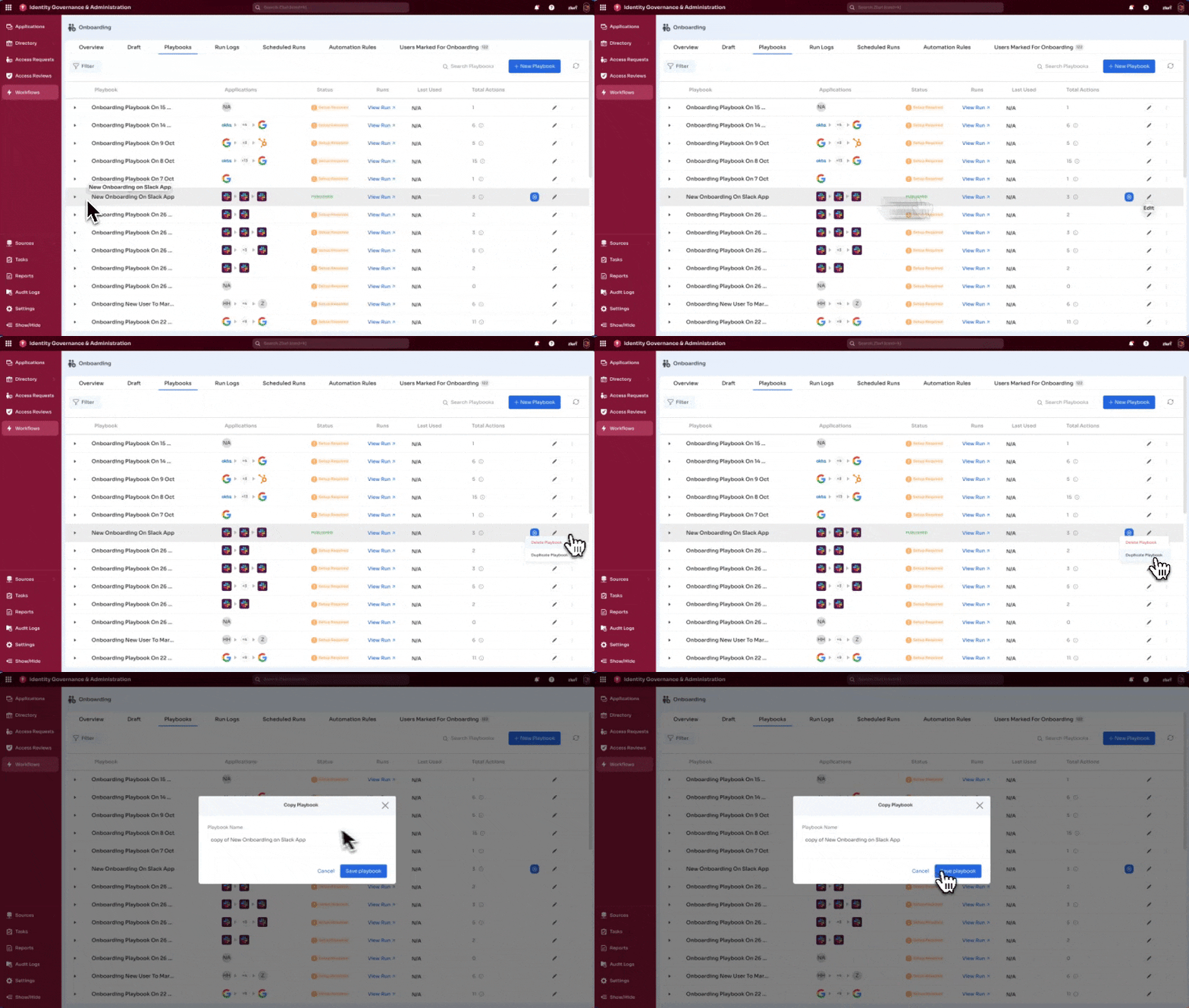
Duplicate
Creates a copy of the existing playbook. Useful for:
- Creating variations for different departments
- Testing modifications without affecting the original
- Building similar playbooks faster
Playbook Actions
Onboarding Actions
Onboarding playbooks support provisioning actions such as:
- Add User
- Assign License
- Add to Group
Offboarding Actions
Offboarding playbooks support deprovisioning actions such as:
- Remove User
- Revoke License
- Set Email Forwarding
- Create Data Transfer Request
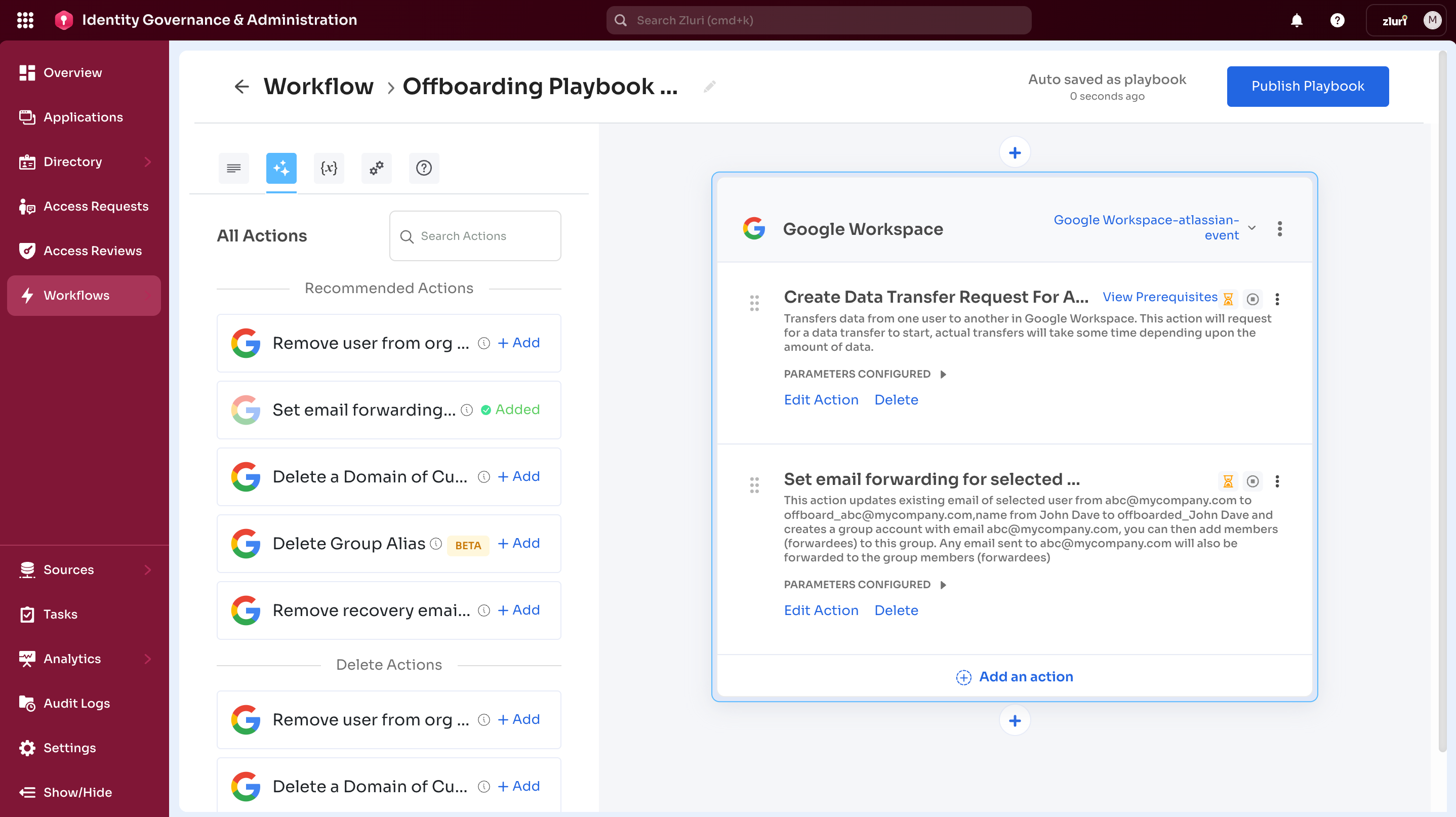
Example: An offboarding playbook includes Google Workspace with two deprovisioning actions:
- Set email forwarding for selected users.
- Create Data Transfer Request for all Applications
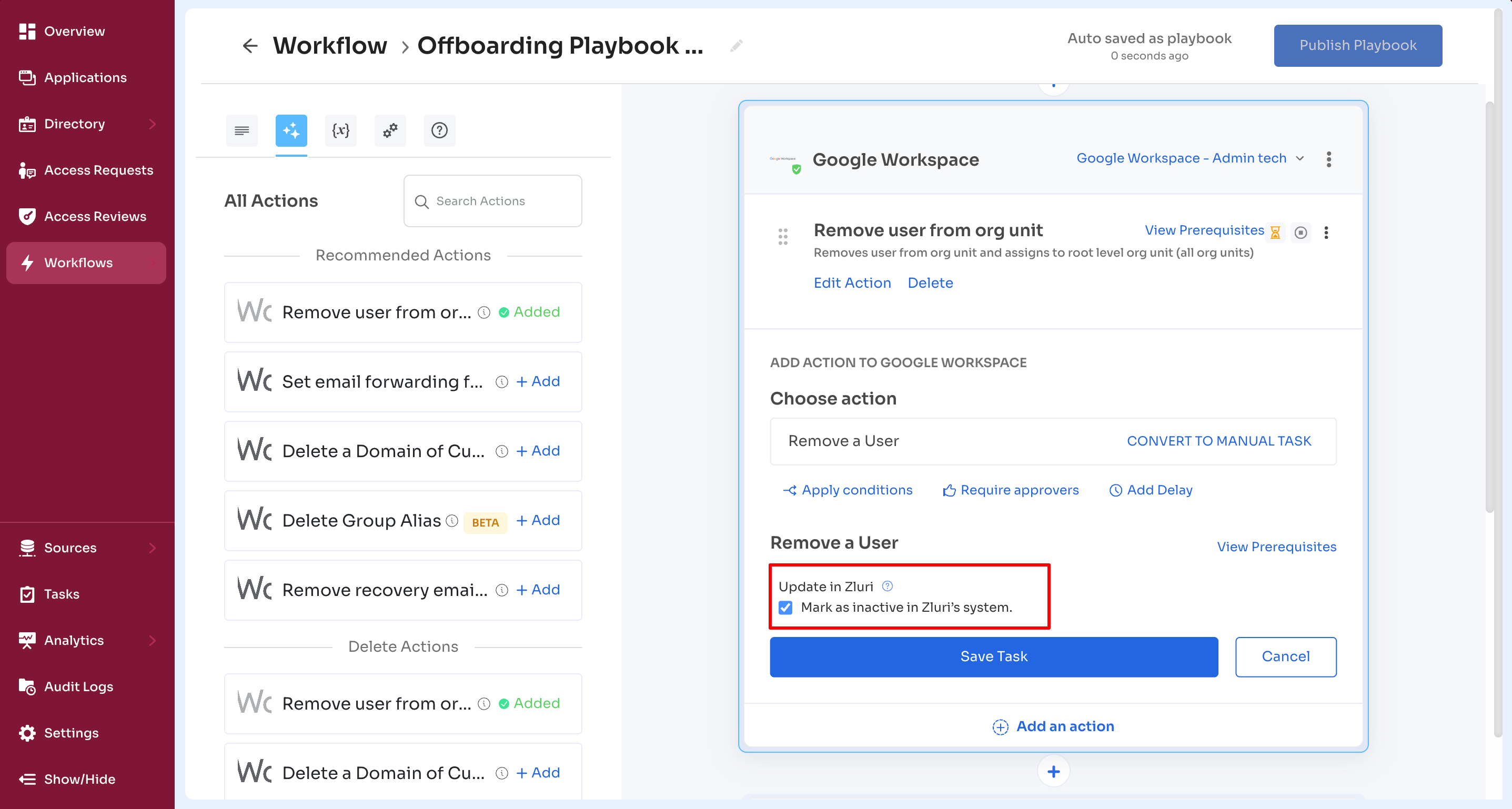
Update in Zluri (Offboarding Only)
Mark as Inactive in Zluri’s system flags users as inactive once the playbook run completes. This capability is available only for offboarding playbooks. It helps maintain an accurate directory of active and inactive users in Zluri.
Example: Admins can create a playbook to revoke access to Slack, HubSpot, and Microsoft 365 select Update in Zluri - Mark as Inactive in Zluri’s system. Once the workflow completes, the employee is automatically marked as inactive in the Zluri IGA system.
Example Use Cases
Onboarding: Sales Team Playbook
- Apps included: Salesforce, Slack, HubSpot
- Actions configured:
- Salesforce → Add User, Assign Sales Cloud License
- Slack → Add to #sales channel
- HubSpot → Add User, Assign Sales Seat
- Outcome: Published as "Sales Team Onboarding" and applied to all new sales hires
Offboarding: Contractor Exit Playbook
- Apps included: Google Workspace, Slack, Jira
- Actions configured:
- Google Workspace → Remove User
- Slack → Remove User from workspace
- Jira → Revoke License
- Update in Zluri: Selected to mark the contractor as inactive once execution is complete
- Outcome: Published as "Contractor Exit" and applied to any future contractors leaving the company
Updated about 2 months ago