
Custom Access request Forms for Applications
Admins can customize access request forms to control what information users provide when requesting access.
The default form acts as the baseline for all applications. For managed applications, admins can create application-specific forms to tailor the request experience.
Use this feature to:
- collect additional context for critical applications
- reduce unnecessary fields for simple applications
- improve approval speed and clarity
Navigation
- Go to Settings
- Select Access Request Form
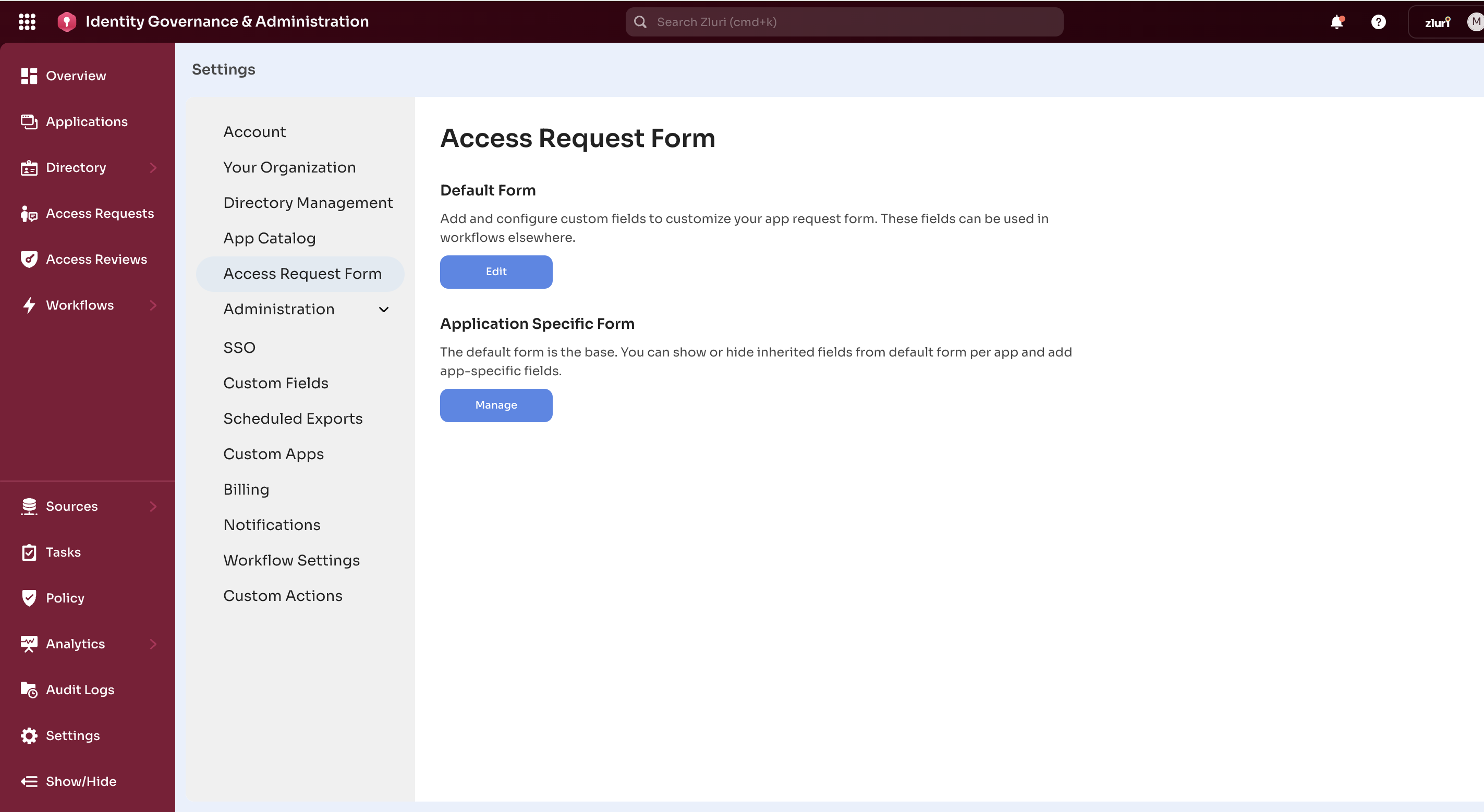
User will see:
- Default Form
- Application Specific Form
Default form
The default form applies to all applications unless an app has its own custom form.
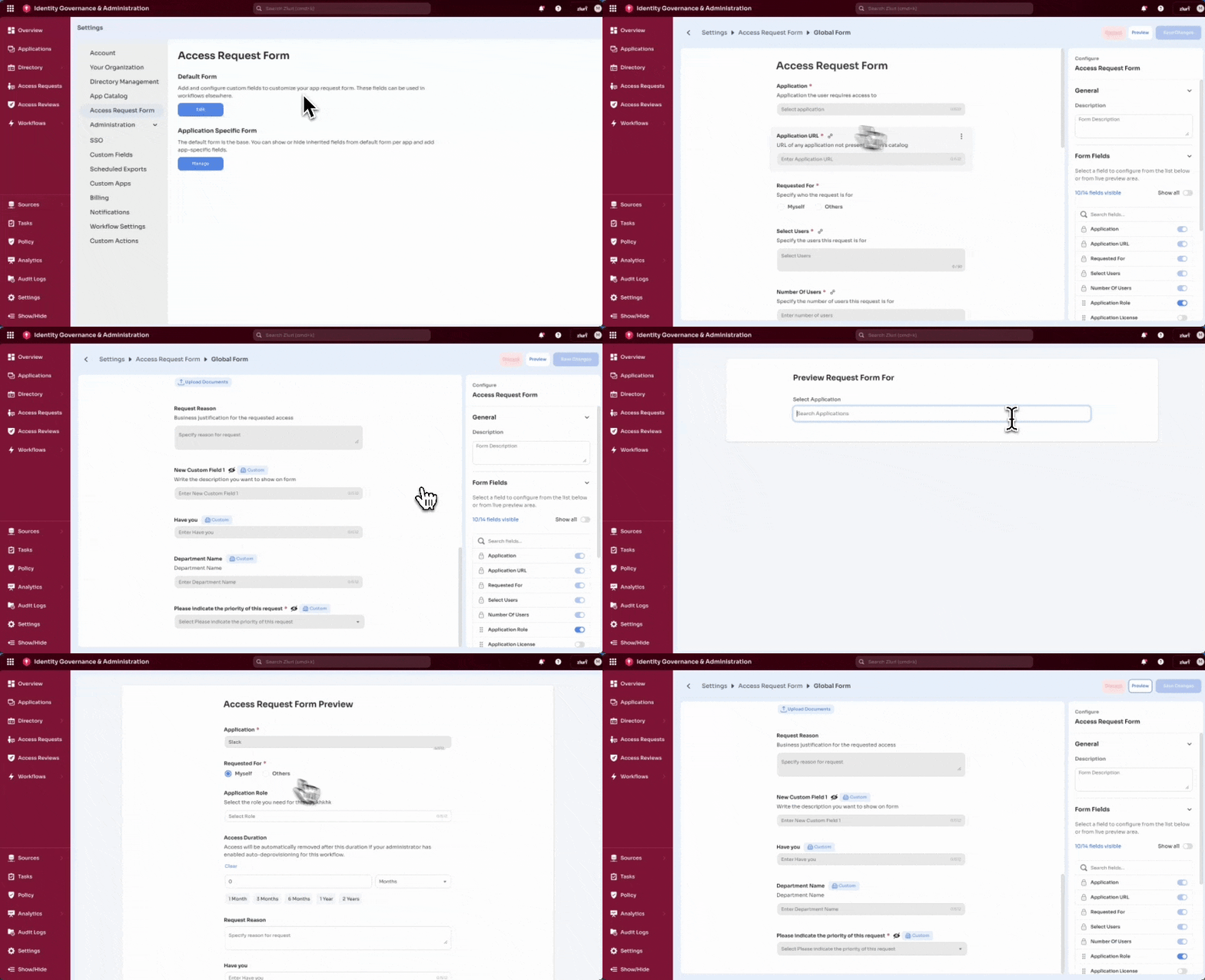
Configure the default form
- Select Edit under Default Form
- Use the form builder to:
- show or hide fields
- reorder fields
- mark fields as required or optional
- configure field details (description, placeholder, helper text)
- Select Save changes
Application-specific form
Application-specific forms override the default form for individual applications.
Application-specific forms are available for managed applications.
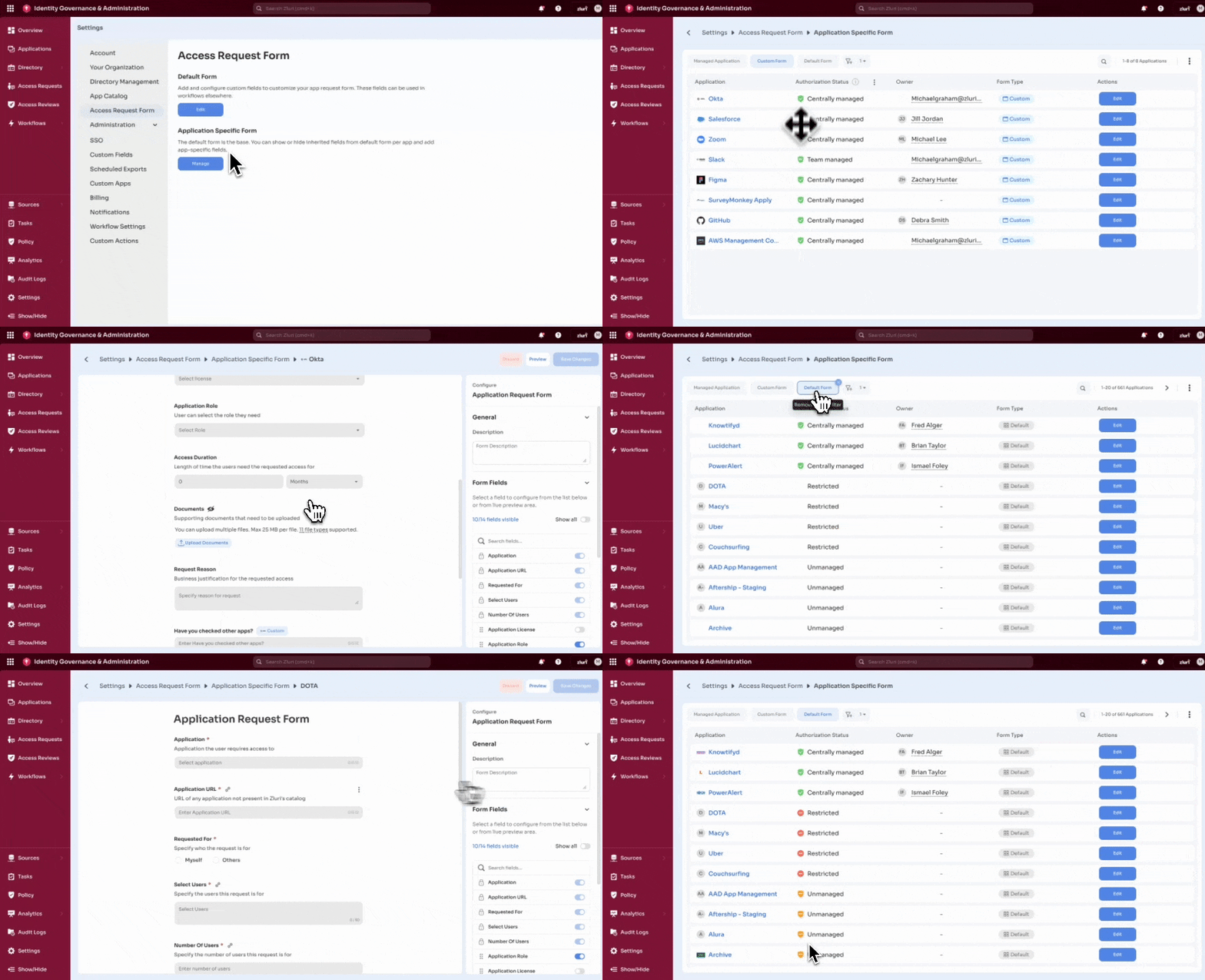
The list shows each application and whether it uses the default form or a custom form:
- Default Form – uses the default configuration
- Custom Form – includes application-specific changes
Open an application form
- Go to Application Specific Form
- Select Manage
- Search for an application
- Select Edit
Customize the application form
Add custom fields
- Select Add Custom Field
- Choose a field type:
- Text
- Dropdown
- Boolean
- Date
- Configure the field:
- name
- description
- placeholder
- required setting
- Save changes
Field limitations
- Dropdown options must be under 70 characters. Options exceeding this limit can cause the request form to fail to load in Slack.
- The web form is not affected by this limit.
- Some fields may not appear in the Slack request modal due to Slack UI constraints.
Hide fields
Turn off fields that are not required for the application.
Reorder fields
Drag fields to change the order.
The Application field always remains at the top.
Save changes
Select Save changes.
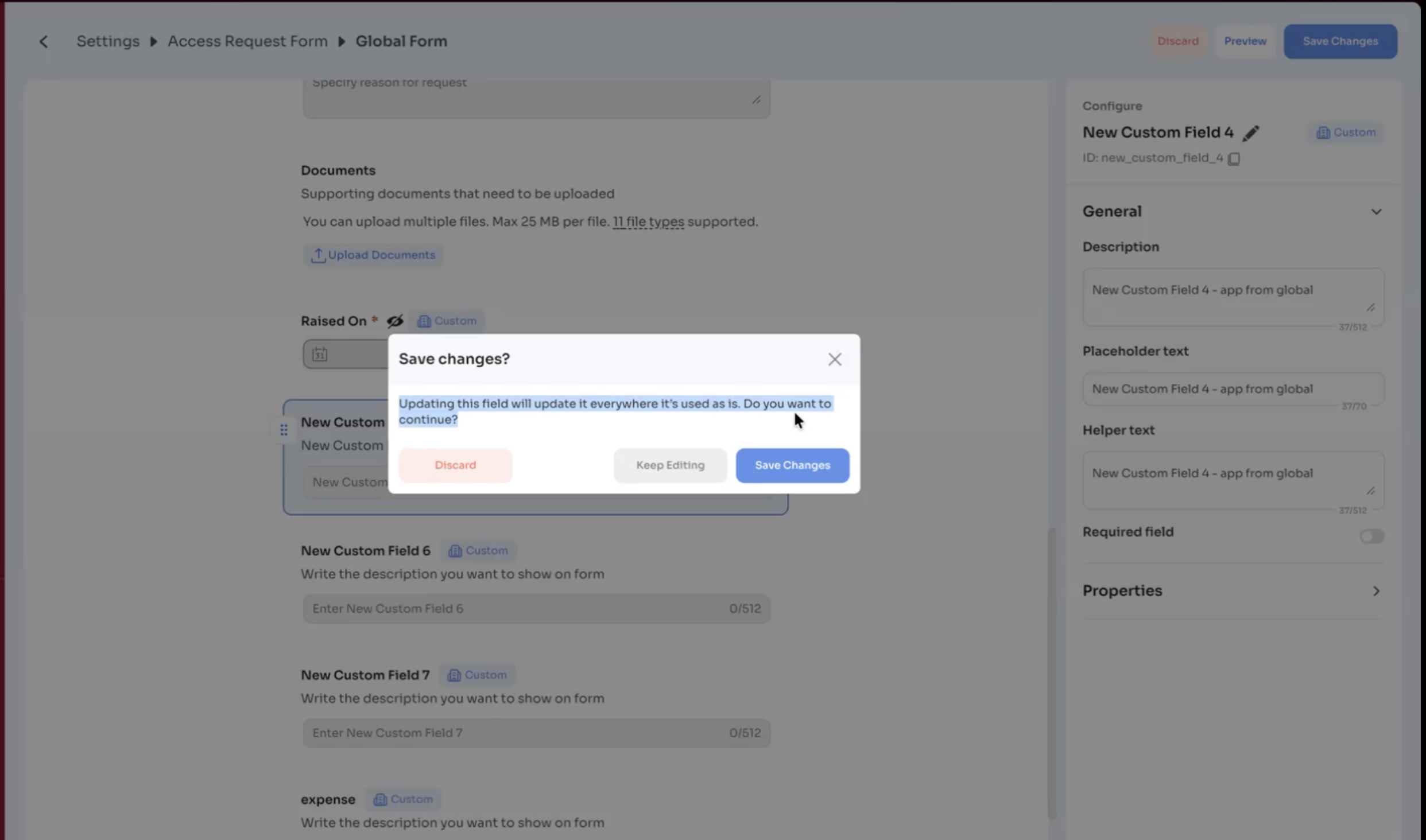
Changes apply only to the selected application.
Form behavior
Default form updates
The system handles default form updates based on the type of change.
Change the form structure
- Add a new field
- Reorder fields
- Mark a field as required or optional
These changes apply only to applications that are still using the default form as is.
Changes to a field
- Rename a field
- Edit field configuration
- Delete a field
These changes apply to all forms where the field has not been modified.
Changes always flow from the default form to applications.
Changes made in an application-specific form do not affect the default form or other applications.
Note: Changes made to the default form do not apply to applications that already use custom forms. Update those forms individually if needed.
Field detachment
While editing a default field inside an application-specific form, the system creates a separate version of that field for that application.
After this change:
- the field becomes specific to that application
- changes made to the same field in the default form do not apply to this application
Example:
If the “Application Role” field is modified for one application, that version is no longer linked to the default form. Future updates to “Application Role” in the default form will not affect this application.
Updated 5 months ago