
Adding Applications to Workflows
Learn to add and manage applications in onboarding workflows.
Application Management
Before adding applications, understand Zluri categorizes applications based on authorization status.
Application Authorization Statuses
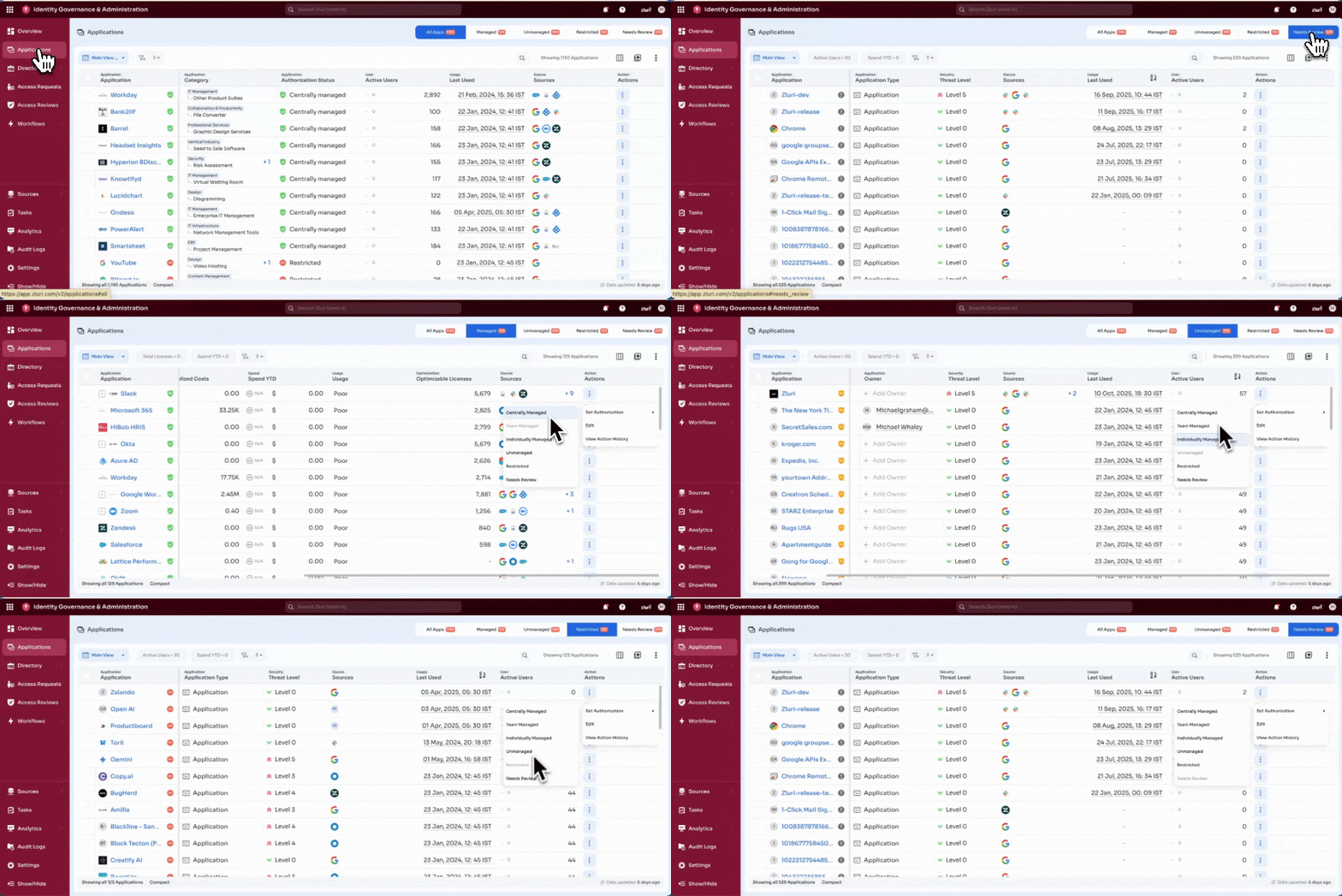
There are four primary authorization statuses for applications on the Zluri IGA platform:
1. Managed Apps (Green Tick Icon)
Applications discovered and managed within the organization. These are further classified into:
- Centrally Managed Apps
All applications discovered and managed by an IT admin. These have full administrative oversight and control. - Team Managed
Managed by specific teams within the organization.
Example: The Engineering team manages the GitHub application. - Individually Managed
Managed by individual users rather than centrally controlled by IT.
2. Restricted Apps
Applications restricted within the organization, typically due to:
- Security risks
- Malicious behavior
- Policy violations
- Compliance concerns
These applications cannot be provisioned through workflows.
3. Needs Review
Applications are currently under review by the IT administrator. Access decisions are pending administrative approval.
4. Unmanaged
Applications not managed by the IT admin within the organization. Using these apps makes individuals solely responsible for all possible risks they may pose.
Use caution: Provisioning unmanaged apps may introduce security or compliance risks.
Adding Applications to Workflows
Note: While this documentation references onboarding workflows for illustration, the process of adding applications applies identically to offboarding.
After selecting users for onboarding or offboarding, the next step is adding applications to the workflow. Select the + icon on the workflow canvas to begin.
The All Apps section expands to show three methods for browsing and adding applications: Search field, Recommended apps list, and Zluri Actions.
Three Ways to Add Applications
1. Search Field
Type the application name to find and add it to the workflow.
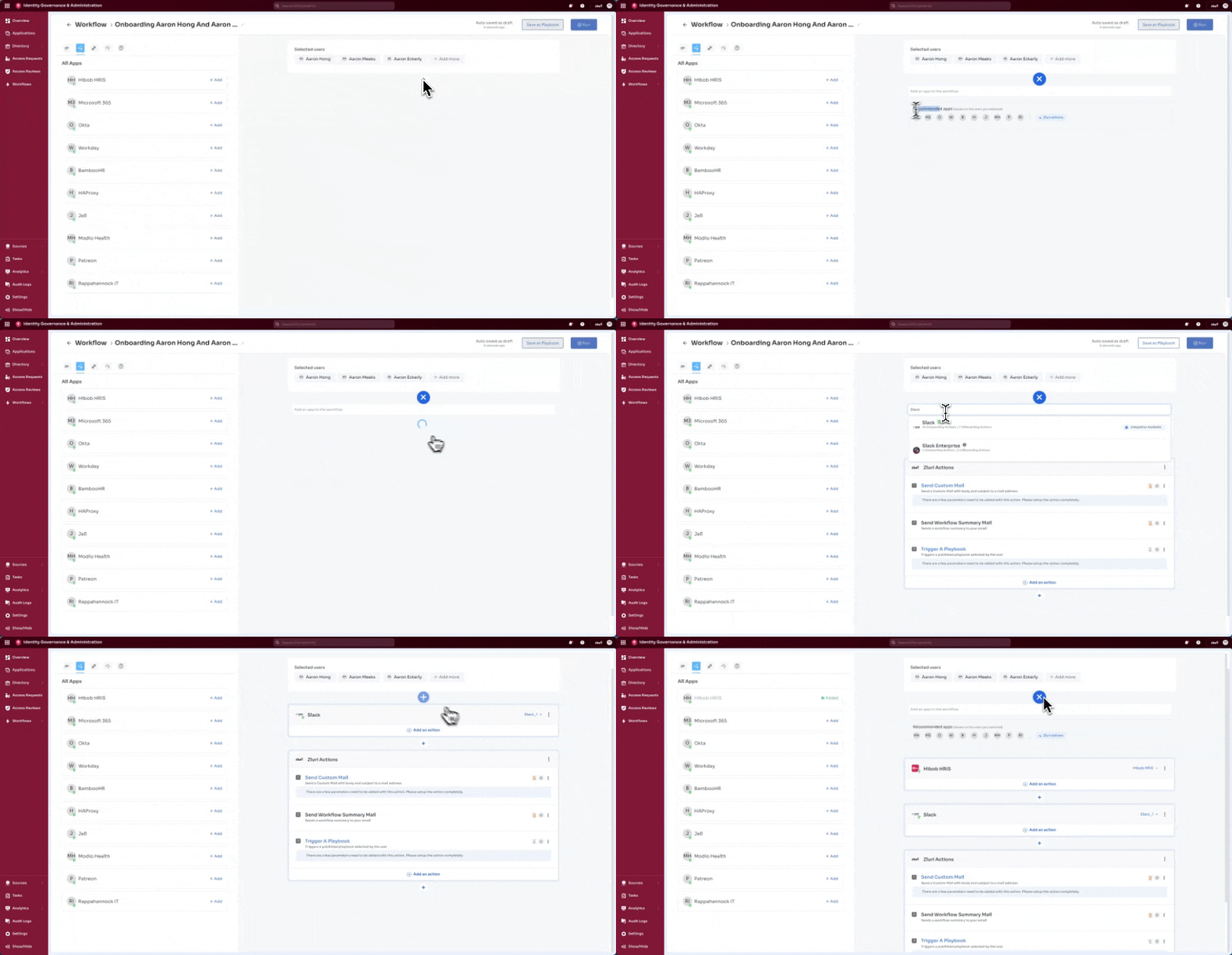
Searching for and selecting an application (For example, Slack) displays several details:
Application Details:
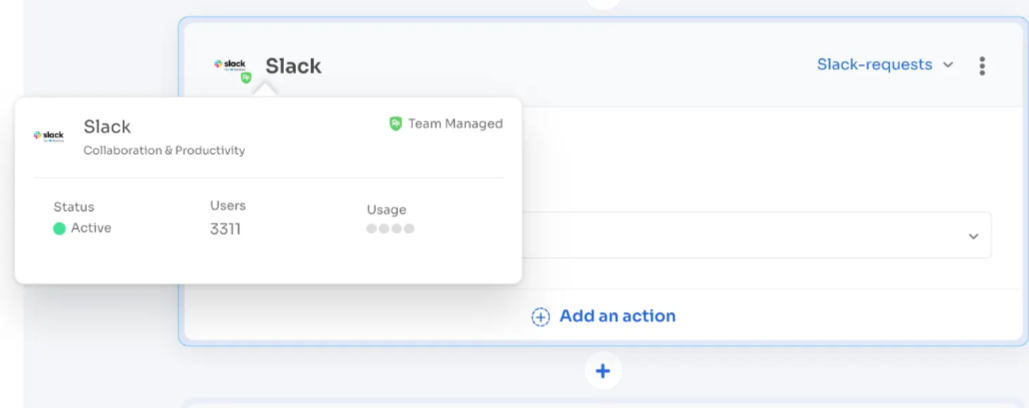
- Category - For example, Collaboration and Productivity
- Application Status - Active or Inactive
- Users Count - Number of users in the organization using this app (For example, 3311)
- Authorization Status - Team Managed or IT Managed
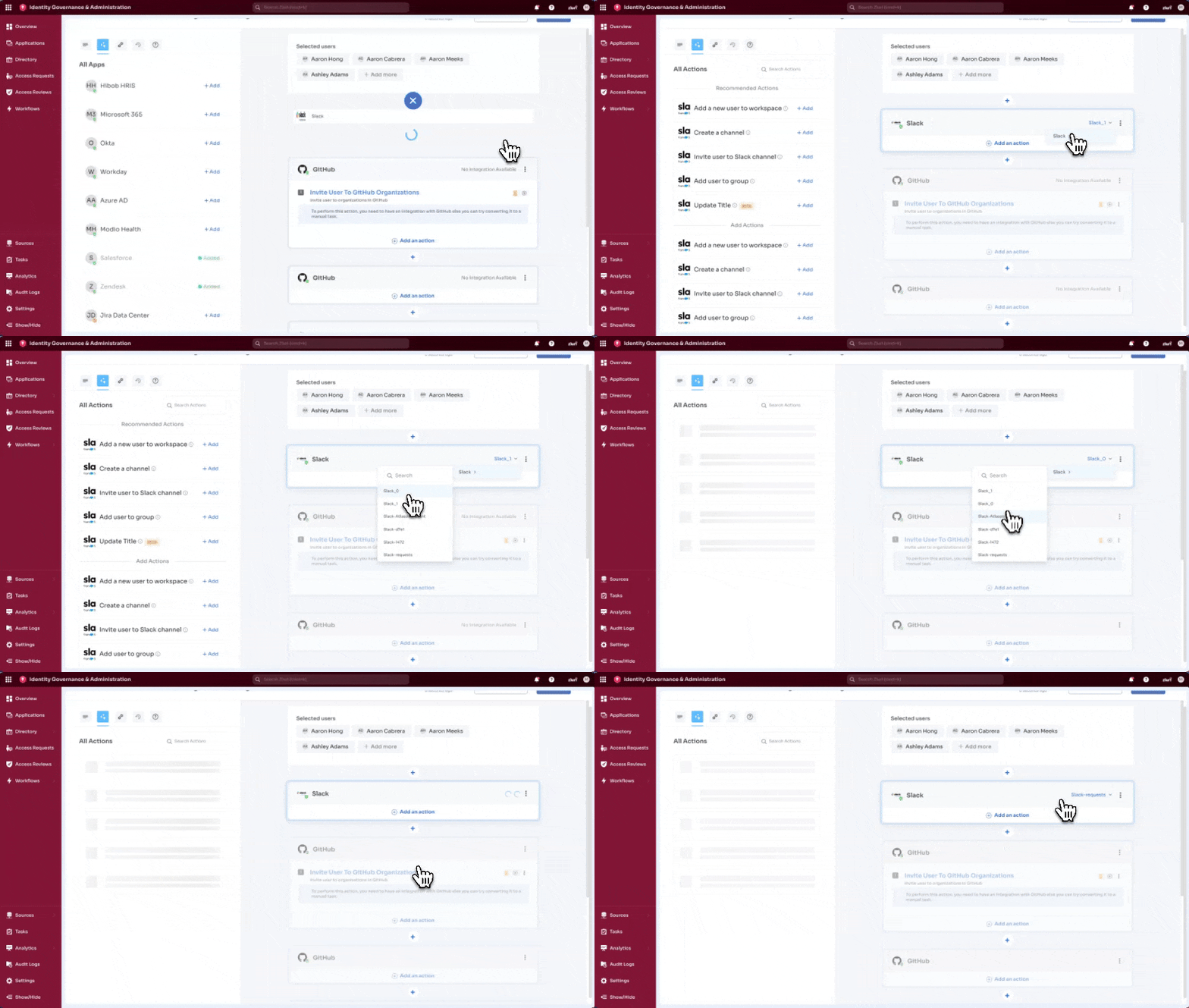
Integration Instance:
If the app is integrated with Zluri, select from multiple instances (For example, Slack_0, Slack_1). Choose the instance best applies to the use case. Change instances by selecting on the currently selected instance name.
Available Actions:
Each application displays counts for available actions:
- Onboarding actions - Tasks for provisioning access
- Offboarding actions - Tasks for deprovisioning access
Example: Slack shows "10 Onboarding Actions" and "7 Offboarding Actions"
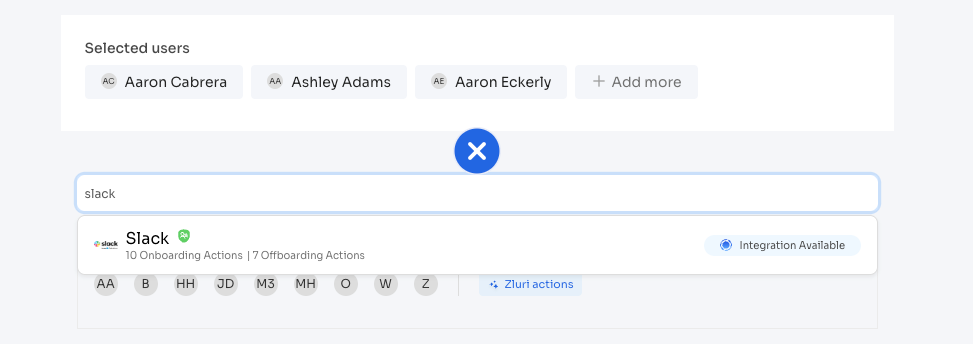
Multiple Integration Options:
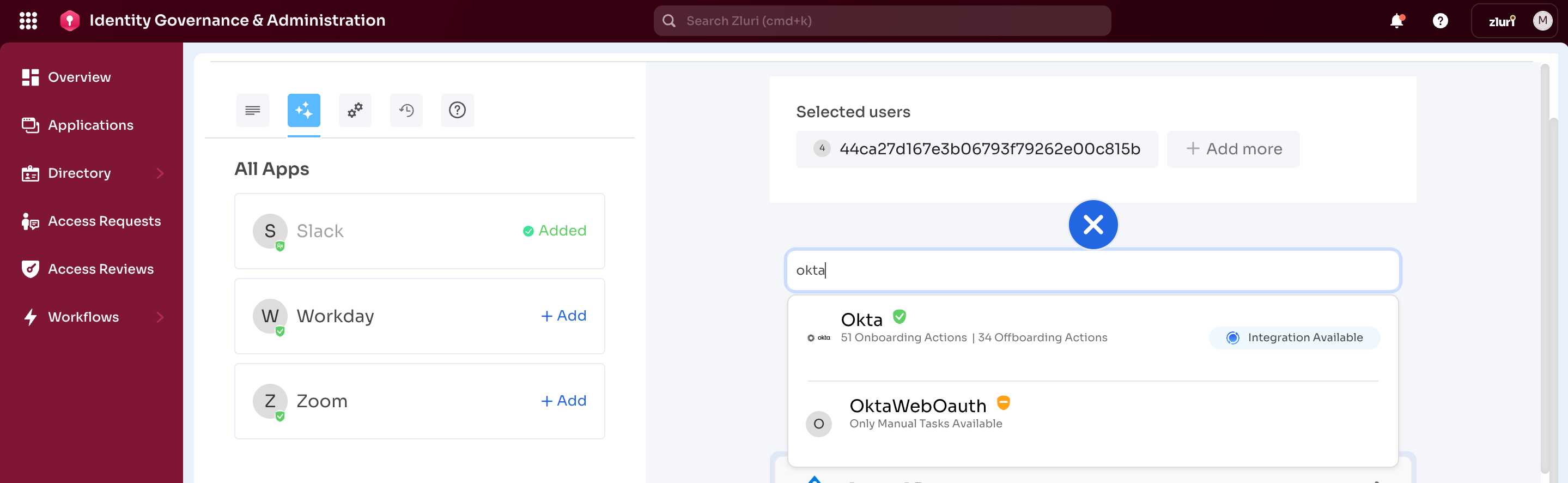
Some applications return multiple options with different integration types.
Example: Searching "Okta" returns:
- Okta - Integration available (blue label)
- OktaWebOauth - No label (no direct integration)
These are distinct applications with different integration capabilities. Choose based on the integration setup.
2. Recommended Apps
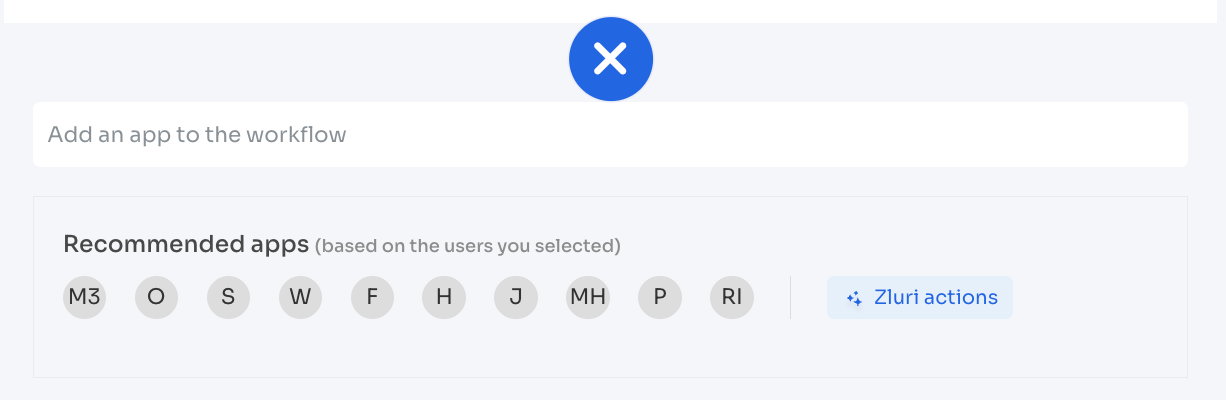
Pre-suggested applications based on selected users, shown with app initials (For example, Z for Zendesk, HH for Hibob HRIS). Select the name of the app to add it to the workflow without searching.
Recommendations update based on user attributes like role, department, and location.
3. Zluri Actions
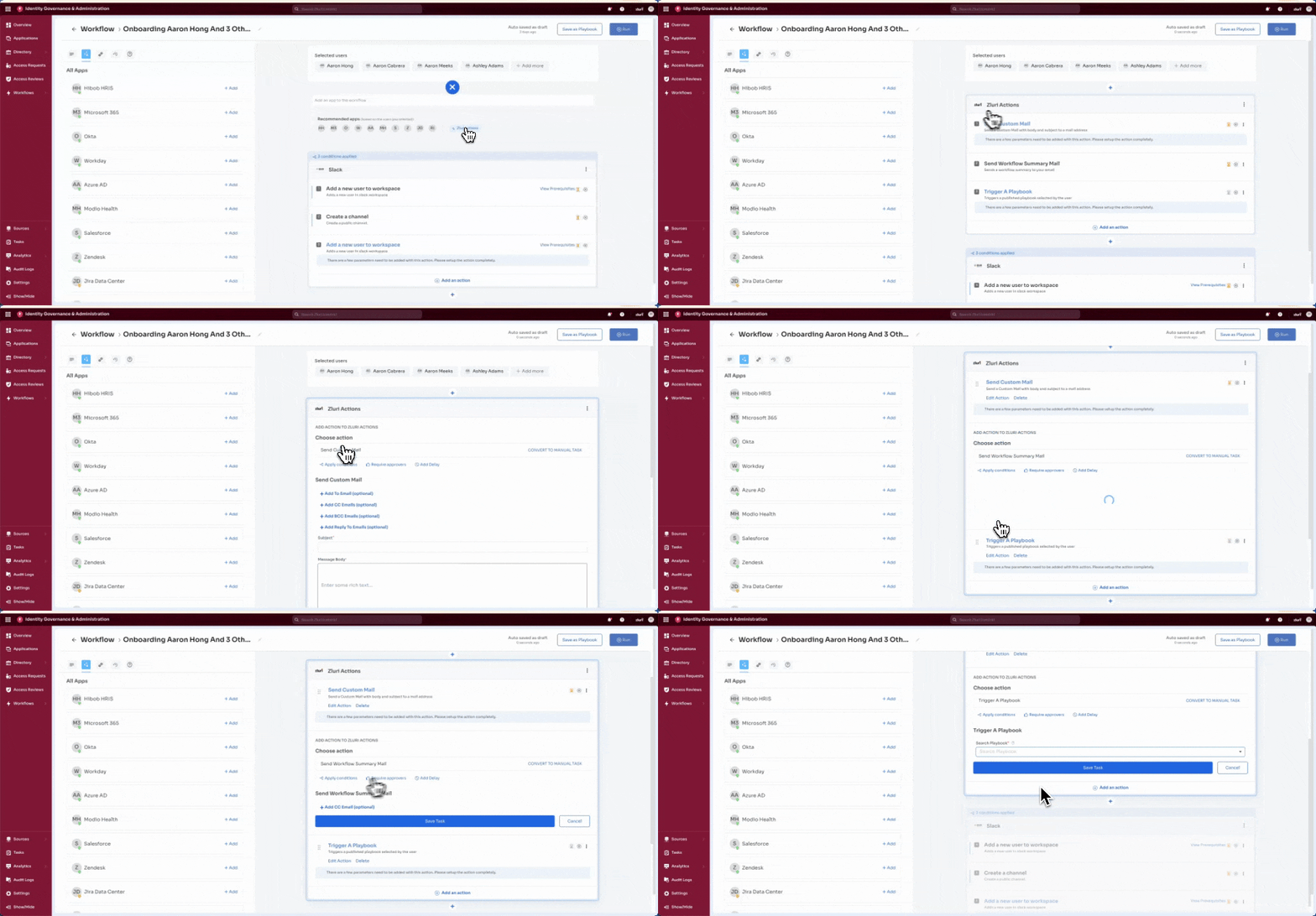
Understanding Integration Status
During application addition, Zluri indicates integration availability. This affects action automation capabilities.
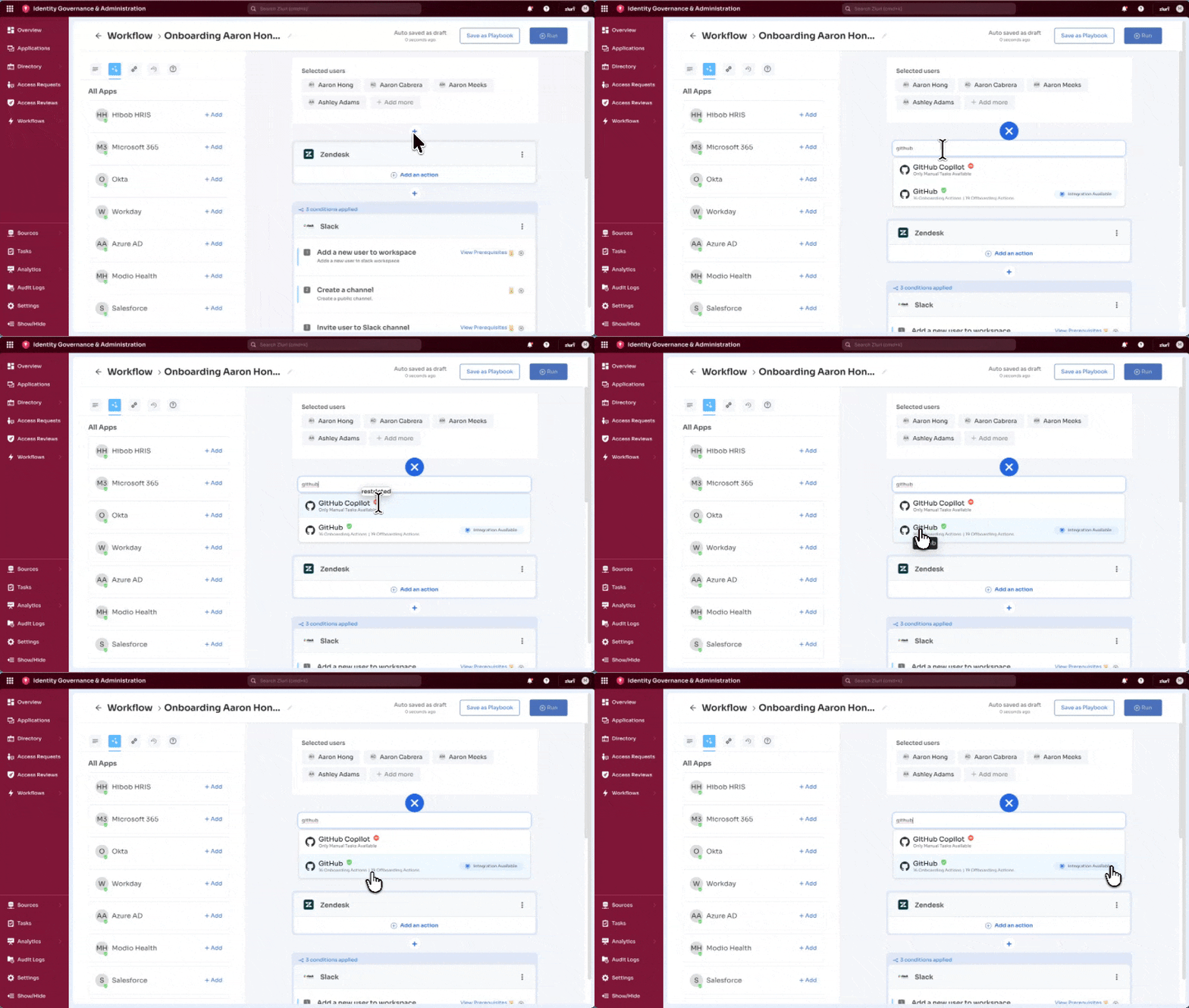
Integration Available (Blue Label)
Applications with this label support automated provisioning and deprovisioning:
- Shows count of available automated actions
- Supports out-of-the-box integrations
- Can execute actions without manual intervention
Example: GitHub displays "Integration available" with 8 onboarding actions and 5 offboarding actions
No Integration (No Label)
Applications without this label have limited automation:
- Only manual tasks can be configured
- No automated actions available
- Requires human intervention to complete tasks
Example: GitHub Copilot shows no label and no action counts. The admin can only set up manual tasks for this application.
GitHub Integration Example
Understanding the difference between integration types:
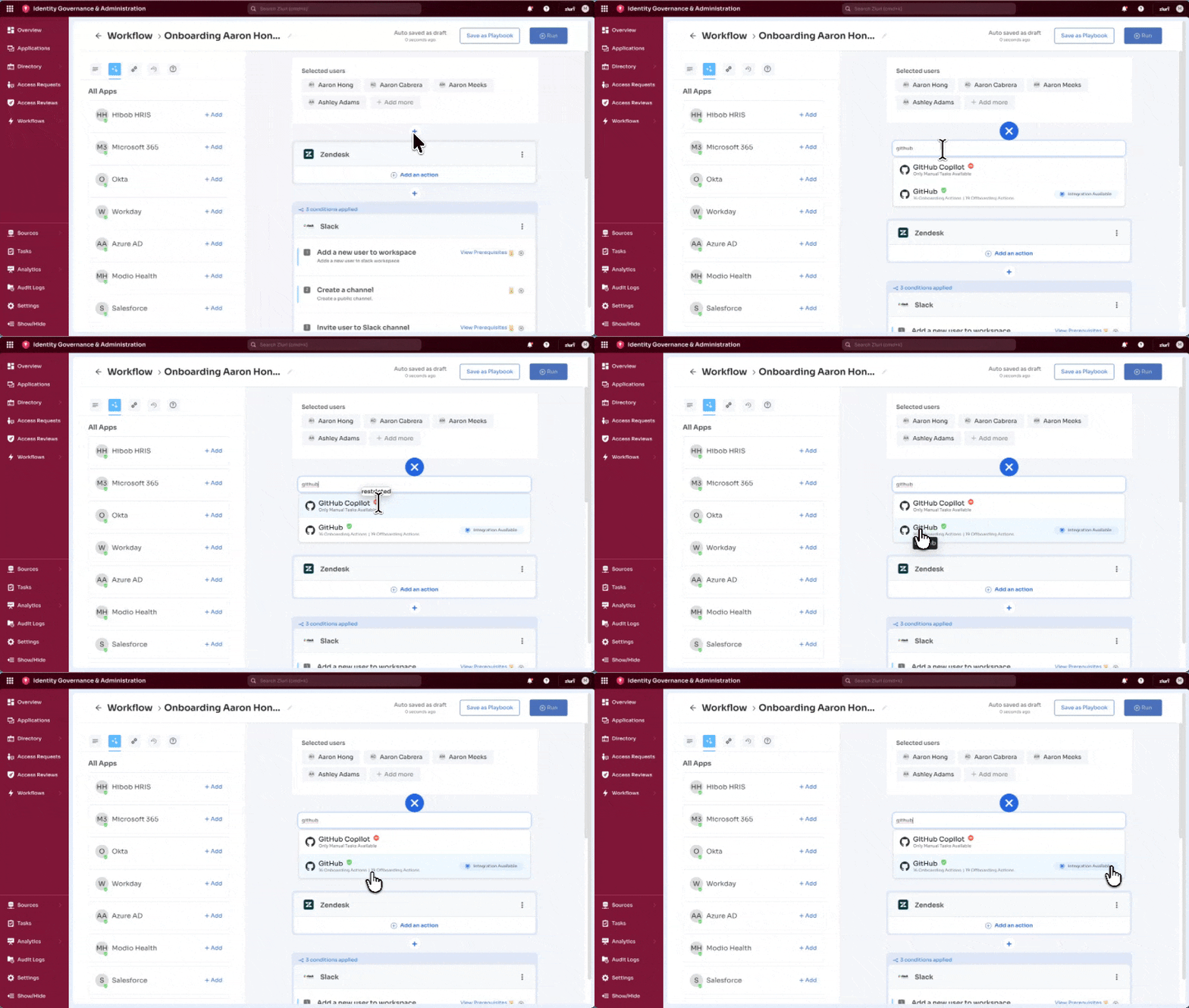
GitHub (Integration Available)
- Label: "Integration available" (blue)
- Onboarding actions: 8 automated actions
- Offboarding actions: 5 automated actions
- Capabilities: Full automation support for adding users, assigning roles, managing repositories
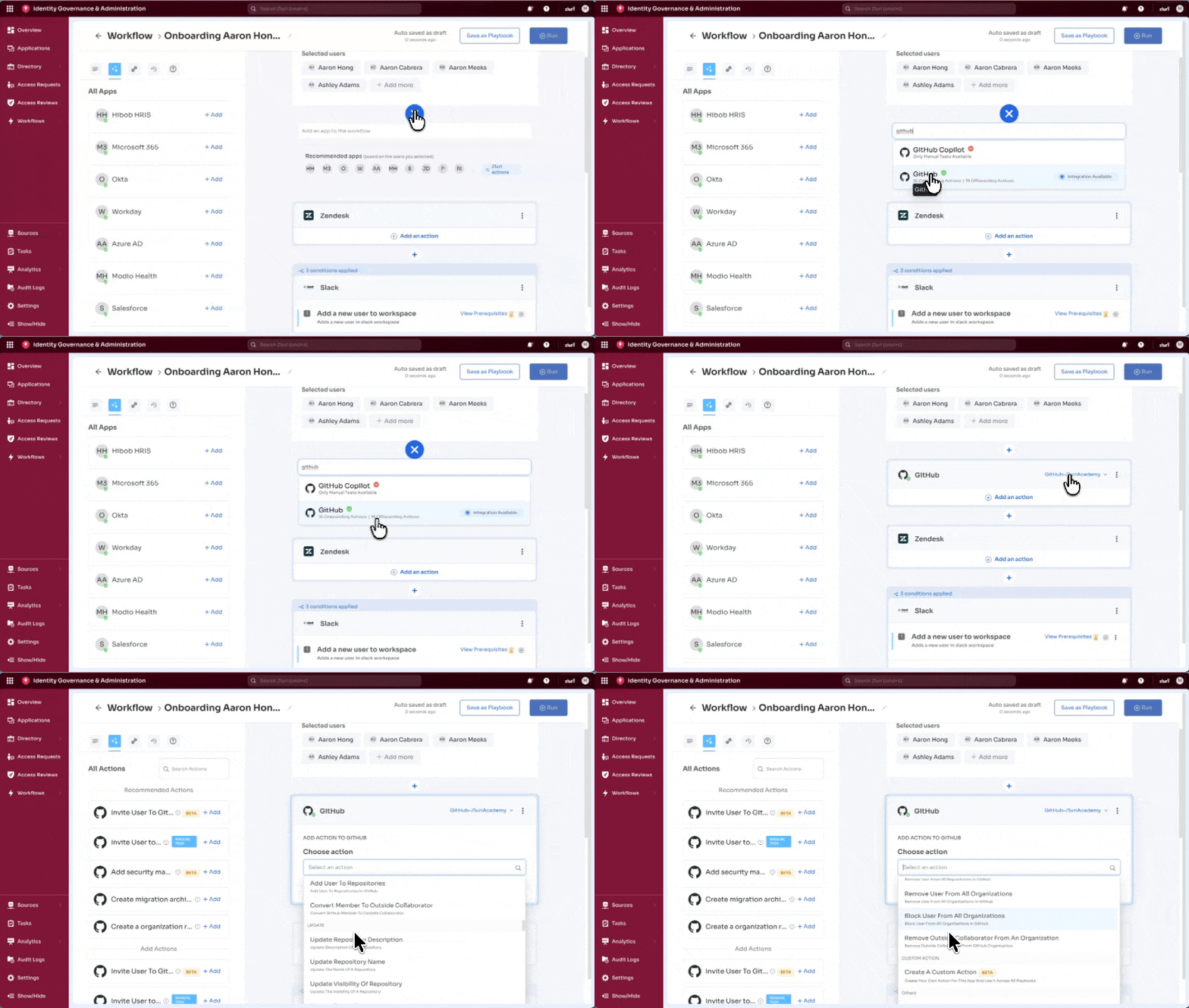
GitHub Copilot (No Integration)
- Label: None
- Actions: Manual tasks only
- Capabilities: Limited to human-executed tasks; no automated provisioning
During GitHub searches, both options appear. Choose based on provisioning requirements.
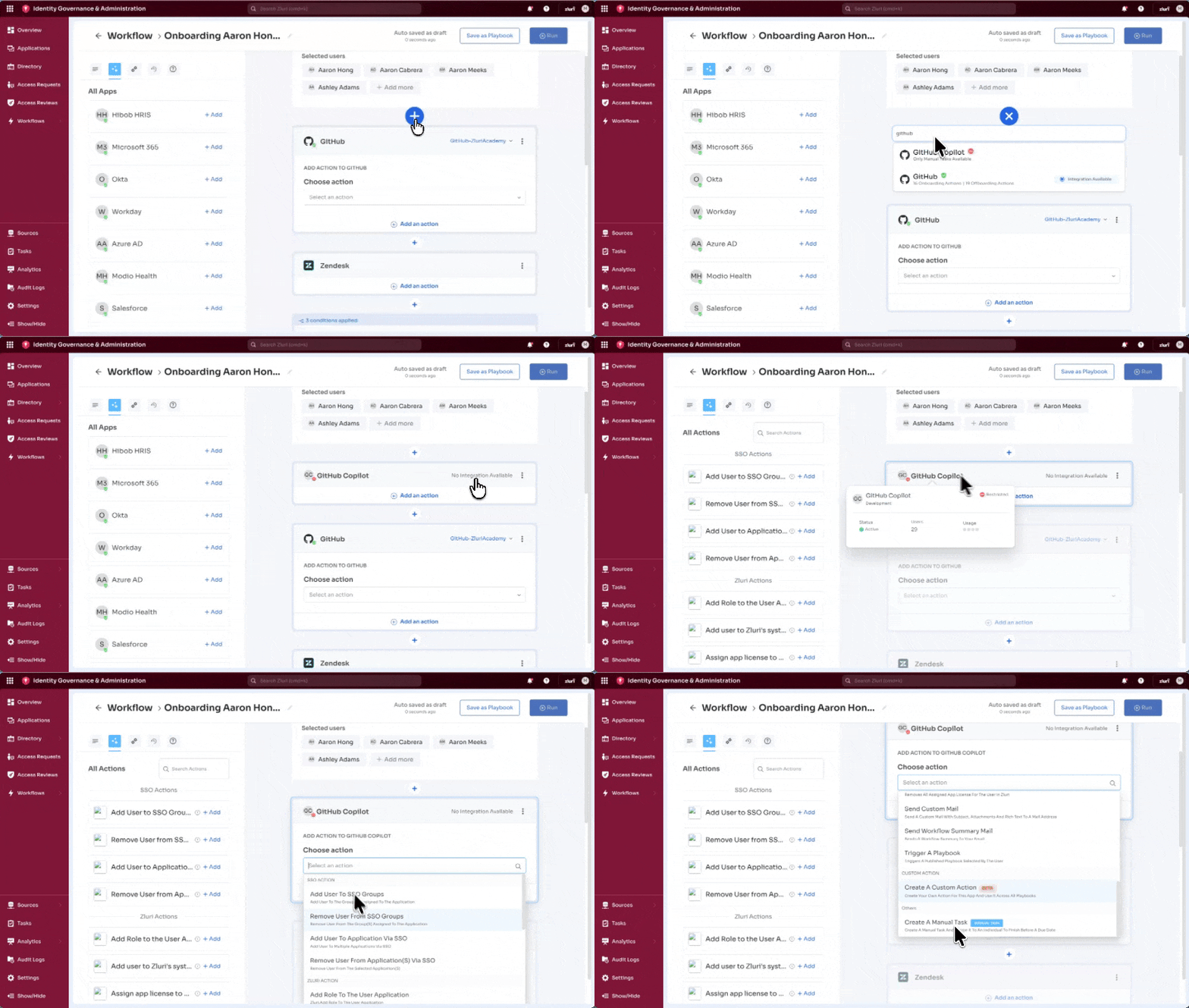
Managing Applications in Workflows
Remove an Application
Use the three dot menu on an app block → Remove Application to delete the entire app block from the workflow.
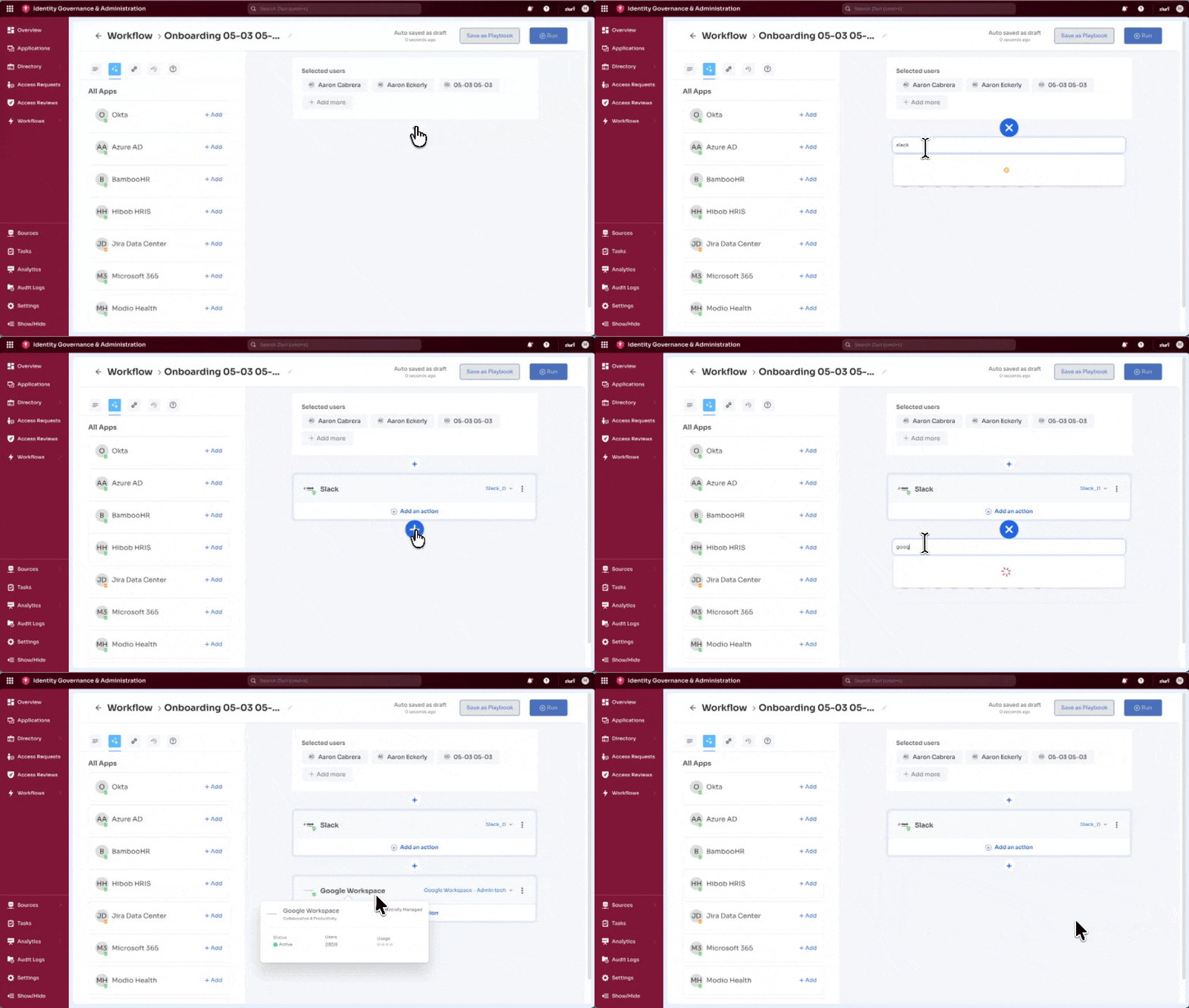
Important: This removes all configured actions and conditions for the specific application. Use carefully, as this needs to be reconfigured from scratch if it is re-added to the app.
Add Multiple Applications
The user can add multiple applications to a single workflow. Use the ‘+’ icon located at the following placements:
- Before the first app block
- Between app blocks
- After the last app block
There is no limit on the number of applications to be included in a workflow.
Reorder Applications
Applications execute in the order they appear in the workflow canvas. To change execution order, remove and re-add applications in the preferred sequence.
Note: Workflows support flexible application configuration. Add the same application multiple times with different integration methods or different actions. For example, add the Slack application twice in one workflow—once to add a user to the #general channel and again to add them to the #sales channel.
Next Steps
Once applications are added to the workflow, the next step is configuring actions for each application.
Updated 6 months ago