
Create Variables and Dynamic Inputs
Variables and dynamic inputs
Variables
Variables represent dynamic elements that change during each playbook run. These elements allow playbooks to adapt to different users, applications, or execution contexts.
For example, a Slack playbook may include an action to send an email to a new joiner after access is granted. Each new joiner has a different name, department, and email address. Variables insert this information dynamically instead of relying on hardcoded values.
Variables act as placeholders and fetch user-specific or context-specific data during execution. Common use cases include inserting names, departments, roles, or email addresses into actions.
Dynamic placeholders follow the format {{entity.attribute}}.
Examples:
{USER.FIRST_NAME}inserts the user’s first name{USER.DEPARTMENT}inserts the user’s department
This approach improves playbook flexibility, reuse, and accuracy across automation workflows.
Variables location
-
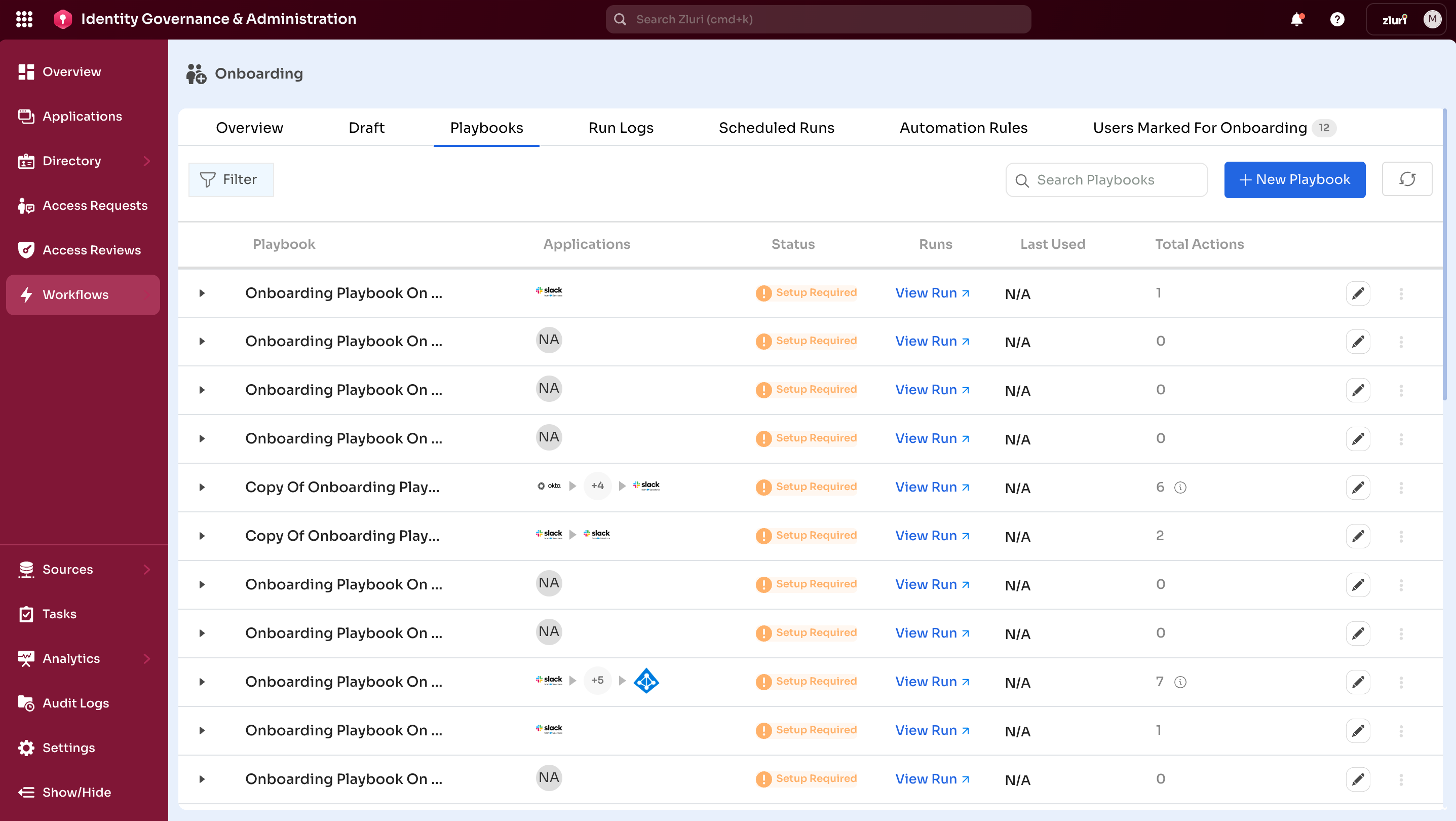
Open the Playbook tab from the onboarding workflow landing page.
-
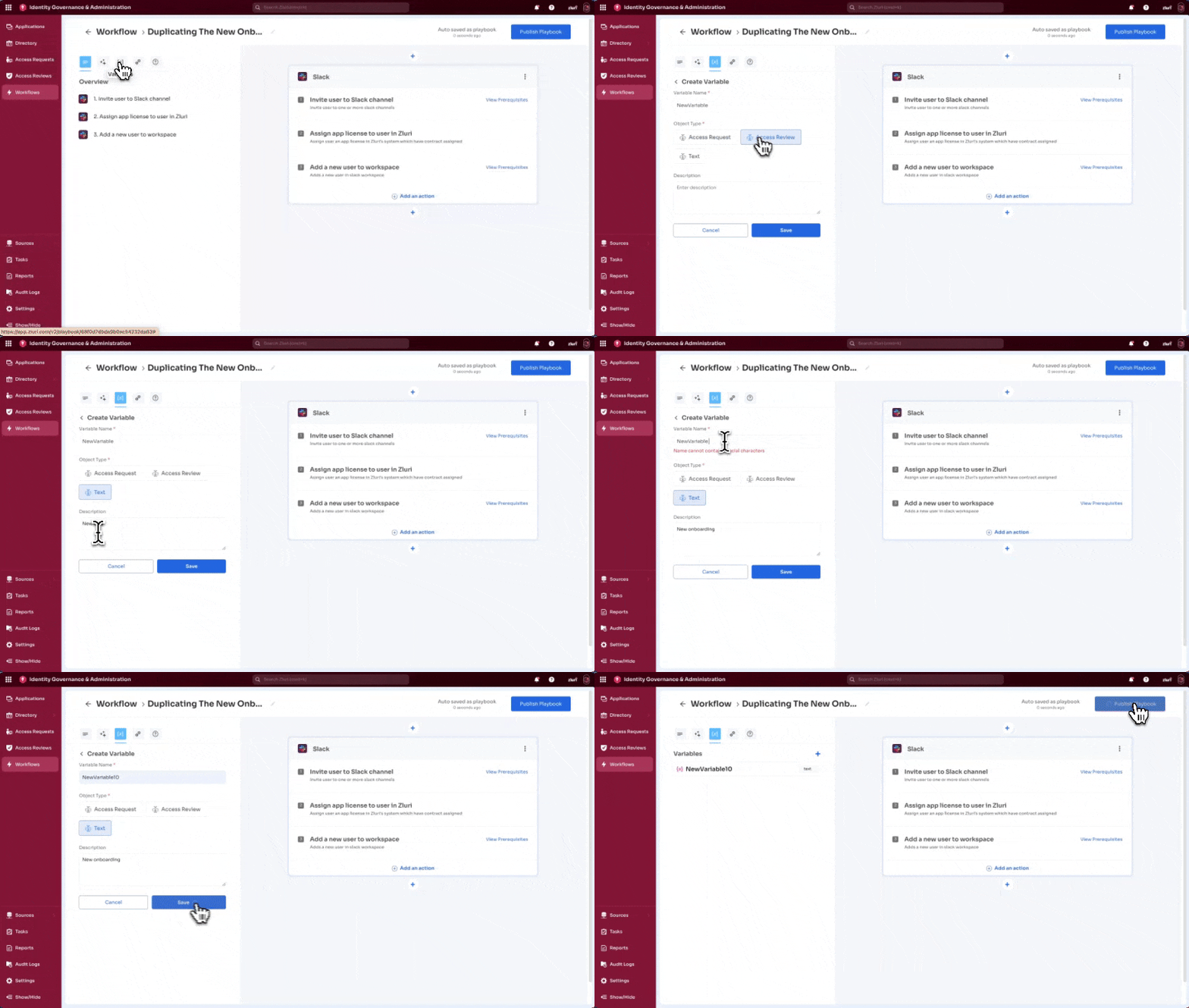
Open the playbook configuration page.
-
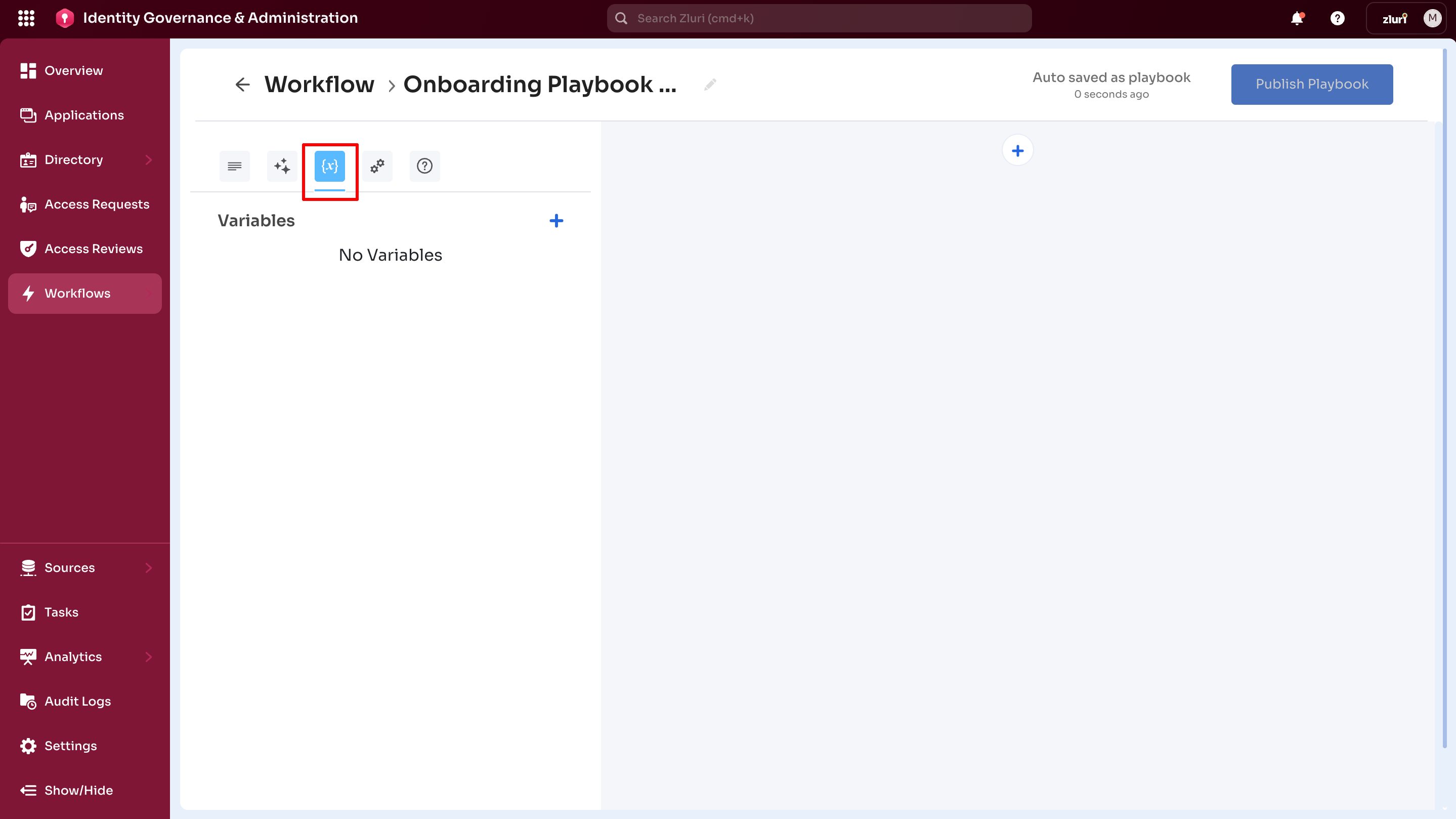
Use the variable icons highlighted in blue within the left-side panel.
-
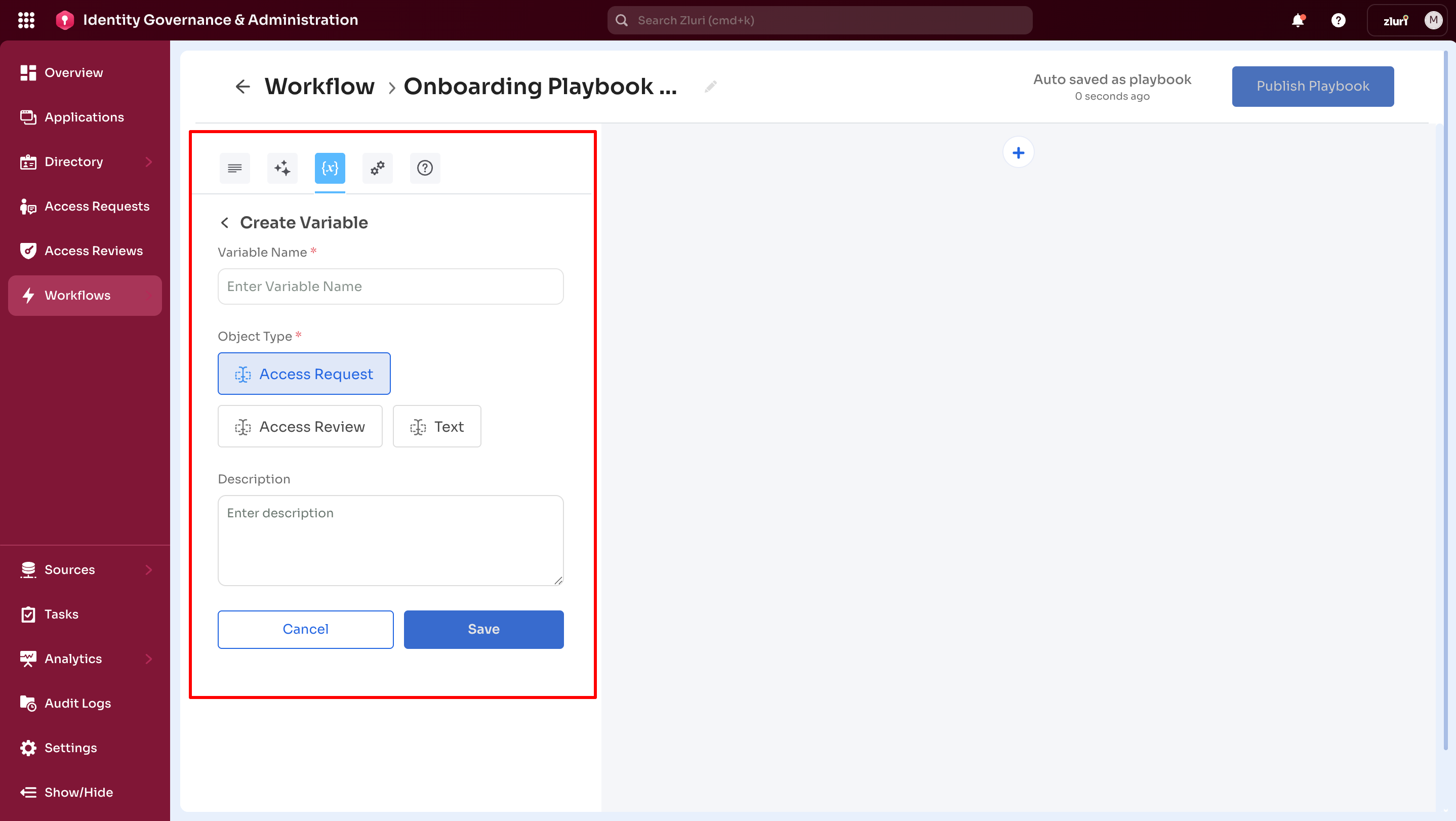
Apply variables to notifications, emails, or access rules without hardcoding values.
Object types
Playbooks run across multiple modules and external integrations. The entities responsible for triggering playbooks are referred to as object types.
Variables support the following object types:
Access Request
Used during execution from an access request workflow. Request-related fields such as role, license, or user ID pass into the playbook through the Trigger Playbook action.
Access Reviews
Used during execution from an access review workflow. Review-related data such as reviewer, review action, or review comment passes into the playbook through the Trigger Playbook action.
Text
Used for passing data from external systems such as ITSM tools or automation platforms.
For example, an onboarding ticket created in ServiceNow can pass a ticket ID into a Zluri playbook using the Text object type. The playbook updates the ticket automatically after provisioning completes, enabling tracking across systems.
Dynamic inputs
Dynamic inputs represent user-based and application-based attributes. These attributes update automatically based on the selected user and application during workflow execution.
For example, an Azure AD workflow action may assign a department value to a user. Static department values limit reuse across teams. Dynamic inputs insert the user’s department dynamically during execution.
Example:
{USER.USER_DEPARTMENT_NAME}
Components of a dynamic input
Each dynamic input includes two components:
Entity
Represents the source object. In Azure AD workflows, common entities include user and application.
Attribute
Represents the field associated with the entity.
Dynamic input format
{{entity.attribute}}
Example:
{USER.USER_DEPARTMENT_NAME}
Allowed dynamic inputs
| Entity | Attribute | Dynamic input | Description |
|---|---|---|---|
| user | user_email | {USER.USER_EMAIL} | Fetches user email |
| user | user_name | {USER.USER_NAME} | Fetches user name |
| user | user_designation | {USER.USER_DESIGNATION} | Fetches designation |
| user | user_status | {USER.USER_STATUS} | Fetches status |
| user | user_role | {USER.USER_ROLE} | Fetches role |
| user | user_department_name | {USER.USER_DEPARTMENT_NAME} | Fetches department |
| user | user_reporting_manager_name | {USER.USER_REPORTING_MANAGER_NAME} | Fetches reporting manager |
| app | app_status | {{app.app_status}} | Fetches app status |
| app | app_name | {{app.app_name}} | Fetches app name |
| app | app_owner_name | {{app.app_owner_name}} | Fetches app owner |
| app | app_owner_email | {{app.app_owner_email}} | Fetches app owner email |
| app | app_financial_owner_name | {{app.app_financial_owner_name}} | Fetches financial owner |
Custom dynamic inputs
Custom dynamic inputs support user fields defined in Zluri.
Format:
{{user.custom_field.name}}Example:
{{user.custom_field.location_id}}Custom dynamic inputs currently support Text field types only.
Example 1: Dynamic inputs in manual actions
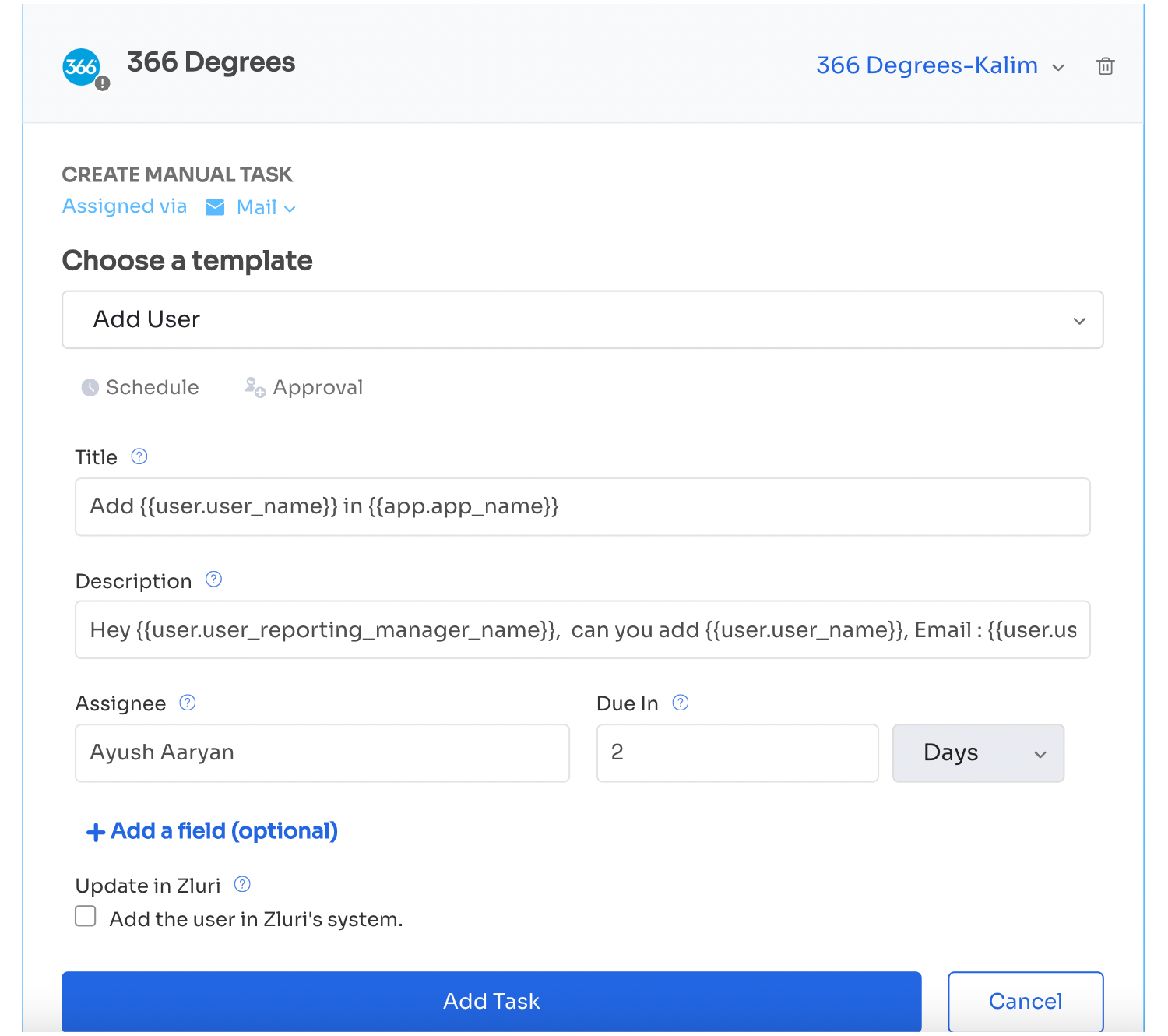
Manual actions require configuration of the task Title and Description. These fields form the email notification sent to the task assignee.
Setup
- Open onboarding or offboarding workflows.
- Create a new workflow or open an existing playbook.
New workflow configuration
- Add an application (example: 366 Degrees).
- Select Create manual task.
- Select a manual task (example: Add user).
- Populate the Title and Description fields using dynamic inputs from the supported variables list.
Example
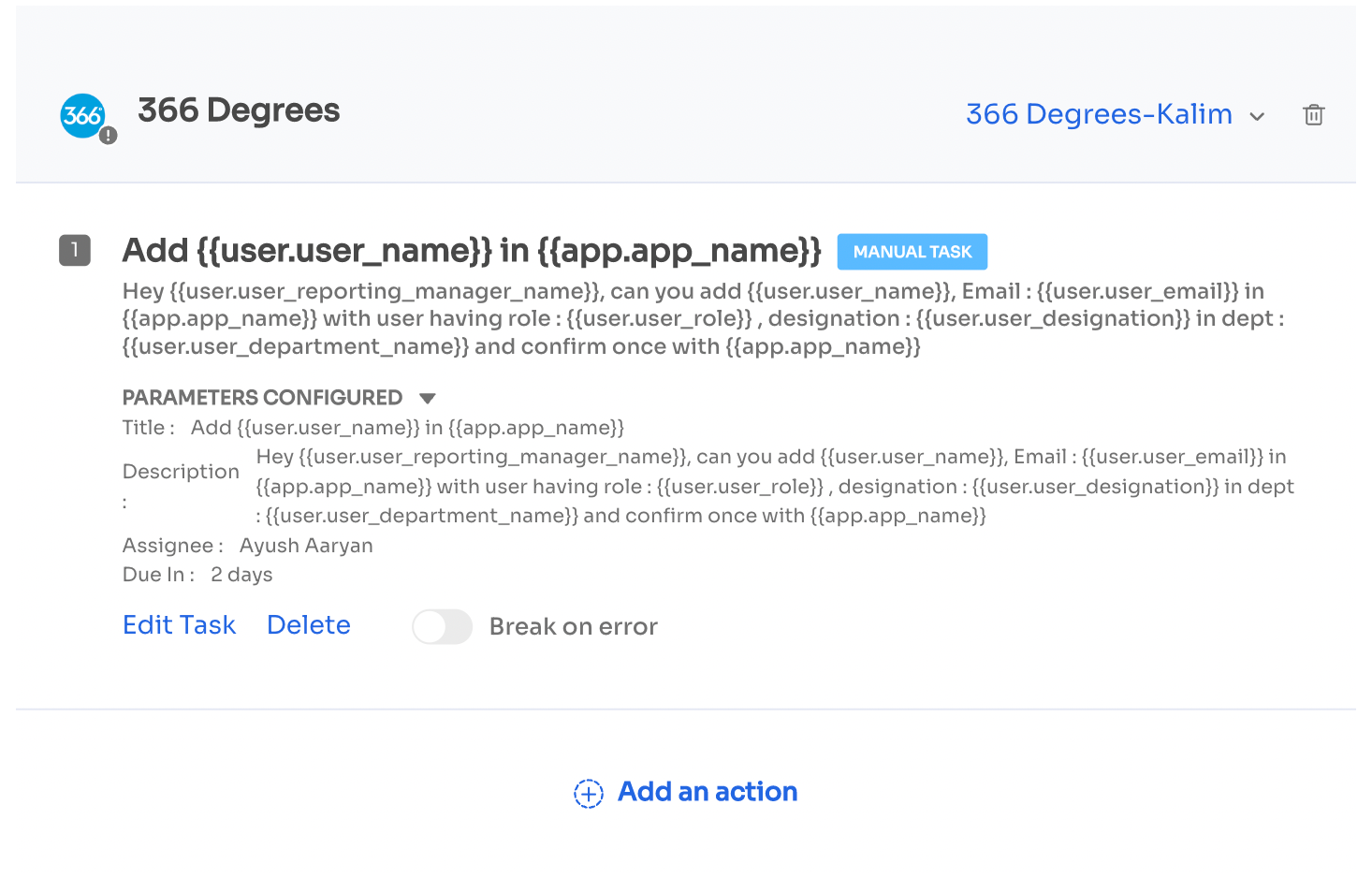
The following values demonstrate use of dynamic inputs in the task fields:
-
Title:
Add
{USER.USER_NAME}in{{app.app_name}} -
Description:
Add
{USER.USER_NAME}(email:{USER.USER_EMAIL}) to{{app.app_name}}with role{USER.USER_ROLE}, designation{USER.USER_DESIGNATION}, and department{USER.USER_DEPARTMENT_NAME}. Notify{USER.USER_REPORTING_MANAGER_NAME}after completion.
Existing playbooks
- Open a manual task for an application (example: Add user).
- Update the Title and Description fields using dynamic inputs from the supported variables list.
- Save the playbook.
Example values
-
Title:
Add
{USER.USER_NAME}in{{app.app_name}} -
Description:
Add
{USER.USER_NAME}(email:{USER.USER_EMAIL}) to{{app.app_name}}with role{USER.USER_ROLE}, designation{USER.USER_DESIGNATION}, and department{USER.USER_DEPARTMENT_NAME}. Notify{USER.USER_REPORTING_MANAGER_NAME}after completion.
Notes
-
Use double curly braces for all dynamic inputs in the format
{{entity.attribute}}.Example:
{USER.USER_NAME} -
Field values resolve dynamically based on the selected user during workflow execution.
Example
If a user’s department in Zluri is Product, the value of {USER.USER_DEPARTMENT_NAME} resolves to Product during the workflow run.
Example 2: Dynamic inputs in automated actions
Automated actions support dynamic inputs in user-related free-text fields.
Setup
- Open onboarding or offboarding workflows.
- Create a new workflow or open an existing playbook.
New workflow configuration
-
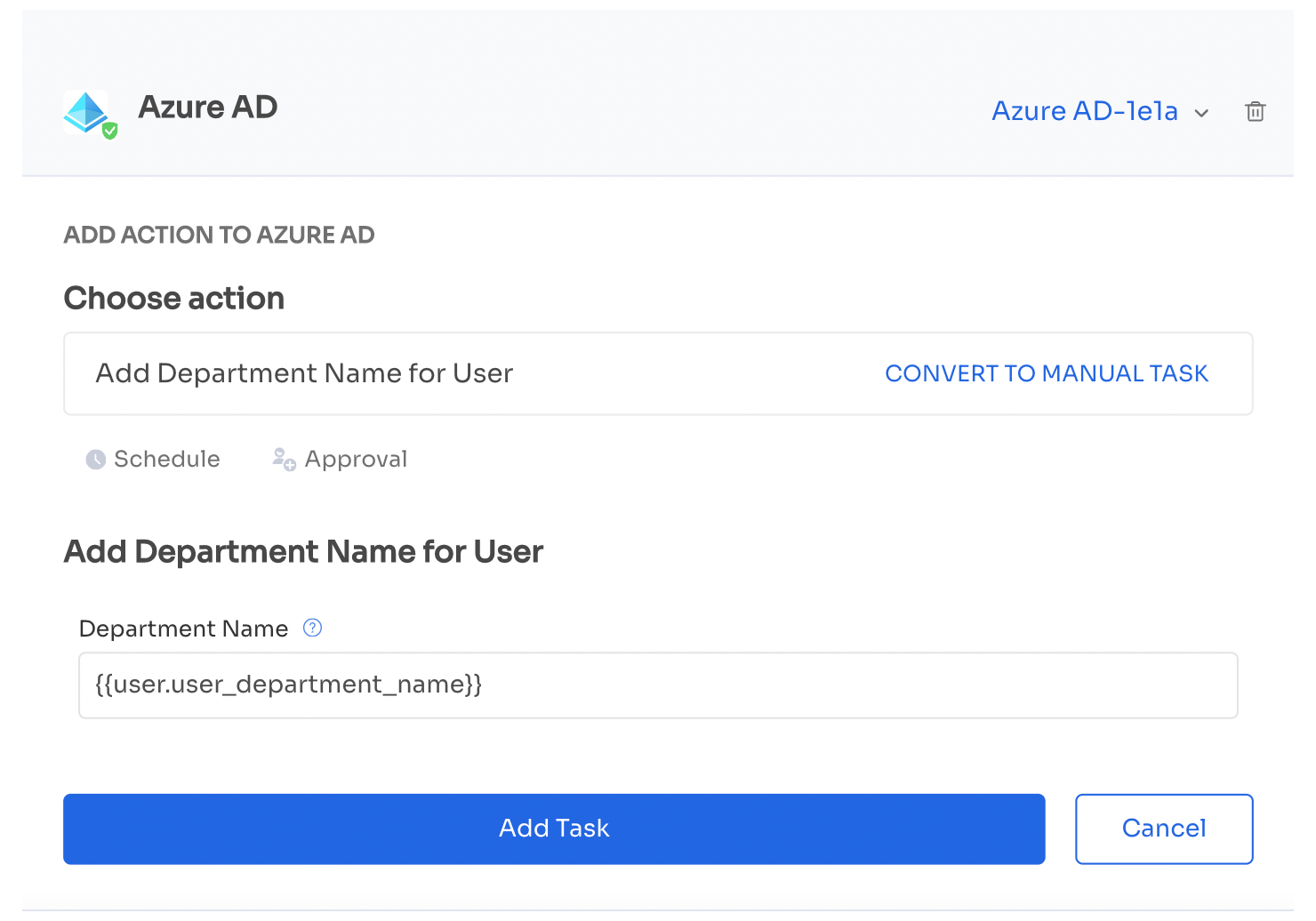
Add an application (example: Azure AD).
-
Select an action with a user-related free-text field (example: Add department name).
-
Populate the field using a dynamic input from the supported variables list.
Example
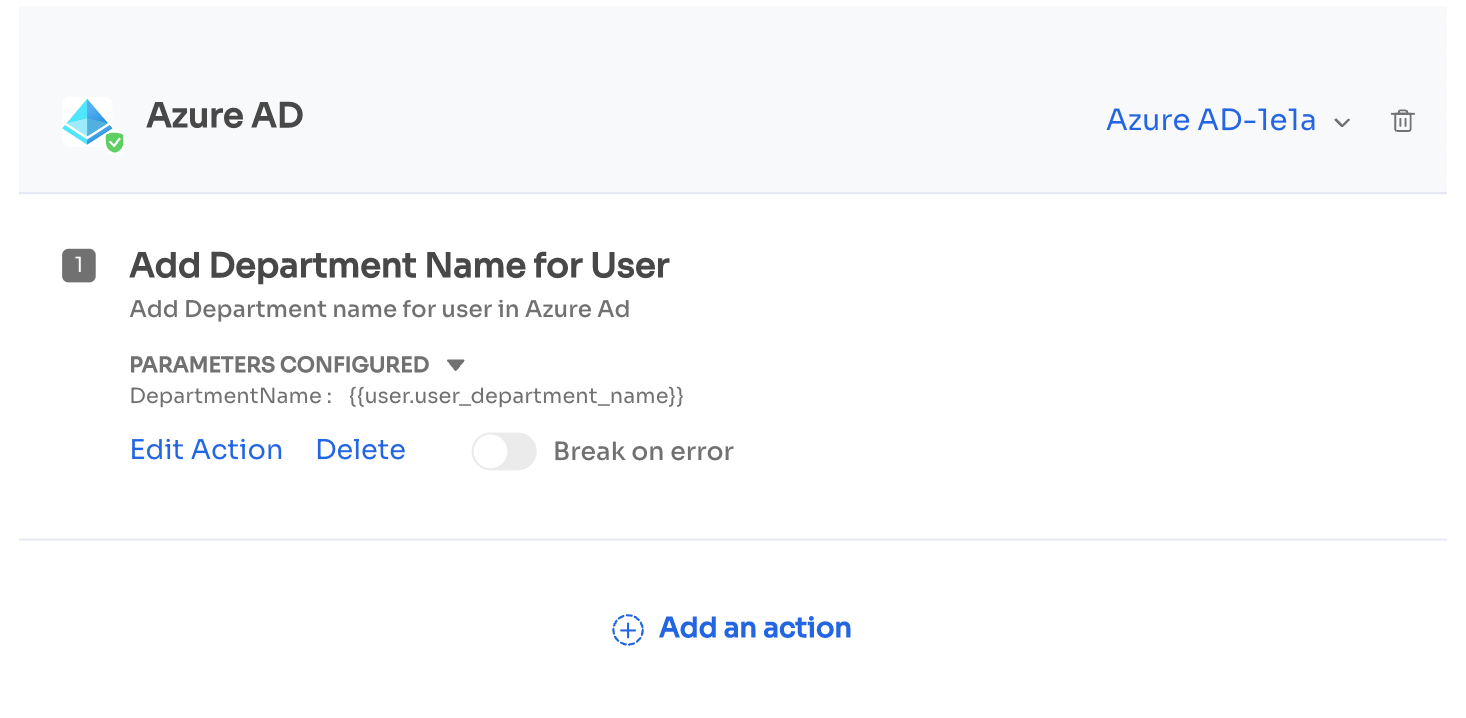
The Department field uses the dynamic input for user department, enabling automatic updates based on the selected user during execution.
Existing playbooks
- Open an action in the playbook with a user-related free-text field (example: Add department name).
- Populate the field using a dynamic input from the supported variables list.
- Save the playbook.
Note
Always format dynamic inputs using double curly braces in the format {{entity.attribute}}.
Example: {USER.USER_NAME}
Field values resolve dynamically based on the selected user during workflow execution.
Example
If a user’s department in Zluri is Product, the value of {USER.USER_DEPARTMENT_NAME} resolves to Product for that workflow run.
Example 3: Dynamic inputs in Zluri actions . HTTP request
Dynamic inputs are supported in Zluri HTTP request actions across URL, headers, and request body fields.
Setup
- Open onboarding or offboarding workflows.
- Create a new workflow or open an existing playbook.
New workflow configuration
- Select Zluri Actions.
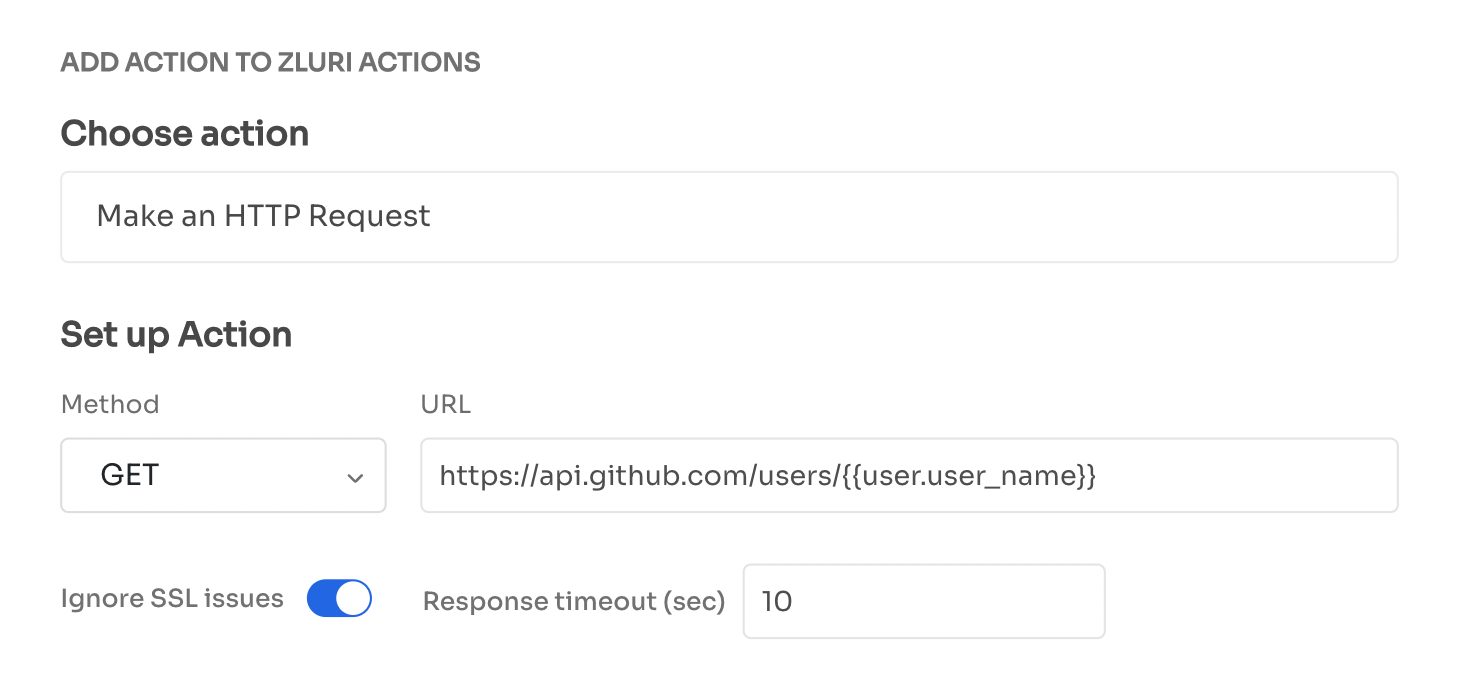
- Select Choose action > Make an HTTP Request.
- Populate the URL, Headers, and Values fields using dynamic inputs from the supported variables list.
Example
-
URL
Insert a dynamic input in the request parameter to update values during each workflow run.
https://api.github.com/users/{USER.USER_NAME}
This configuration updates the request dynamically based on the selected user during execution.
Headers
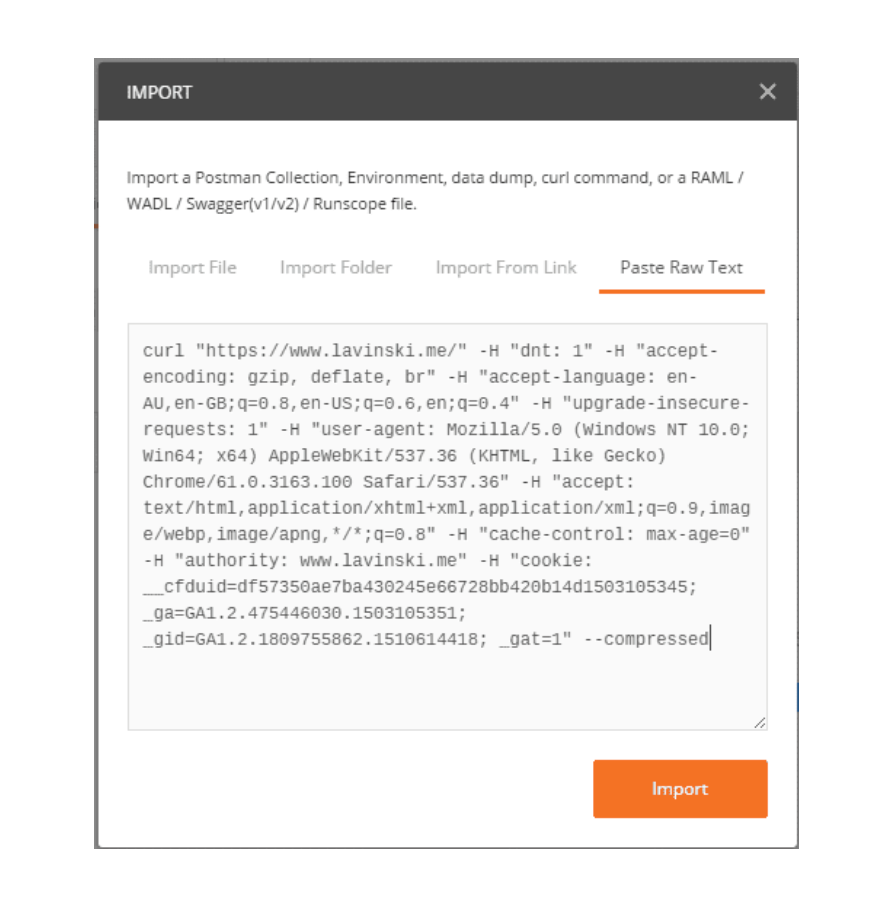
Add request headers as specified in the GitHub API documentation. Headers can be copied from the cURL command and pasted into Postman to extract the required values.
Existing playbooks
- Select Zluri Actions > Make an HTTP Request.
- Populate the URL, Headers, and Values fields using dynamic inputs from the supported variables list.
- Save the playbook.
Example configuration
-
URL
Insert a dynamic input into the request parameter to update values during each workflow run.
https://api.github.com/users/{USER.USER_NAME} -
Headers
Add request headers as specified in the GitHub API documentation. Headers can be copied from the cURL command and extracted using tools such as Postman.
Note
Always format dynamic inputs using double curly braces in the format {{entity.attribute}}.
Example: {USER.USER_NAME}
Field values resolve dynamically based on the selected user and application during workflow execution.
Example
In the URL https://api.github.com/users/{USER.USER_NAME}, the {USER.USER_NAME} parameter resolves to the username of the user associated with the workflow run.
Updated 5 months ago