
Workflows: Onboarding and Offboarding
Automate employee access provisioning and deprovisioning across the entire the employee lifecycle.
Workflows
Workflows in Zluri automate granting or revoking user access to applications across the organization. They consist of predefined, automated steps to streamline onboarding (provisioning) and offboarding (deprovisioning) operations.
Workflow Modules
Zluri provides two workflow modules.
- Onboarding
- Offboarding
Both modules share the same structure but serves their purposes and outcomes.
1. Onboarding Workflows module
Automate access provisioning for new users joining the organization. Use these workflows to add users, assign licenses, and add users to groups across multiple applications.
Purpose: Provide Day 1 access for new employees
Capabilities
- Birthright access based on role, department, and location
- Recommended applications based on user attributes
- Zero-touch automation with HRMS or SSO integration
- Day 1 readiness to ensure productivity from the start
Common use cases:
- New employee starting Monday
- Intern batch onboarding
- Contractor provisioning
- Role changes requiring additional access
Example: Onboarding – New Software Engineer
Scenario: John Smith starts Monday, March 10, 2026
Applications provisioned:
- GitHub (Developer access)
- Jira (Standard User)
- Slack (Add to #engineering and #backend-team)
- AWS (Developer access)
Result: Zluri provisions required access at the scheduled start time.
2. Offboarding Workflows module
Automate access removal for users leaving the organization. Use these workflows to remove users, revoke licenses, and remove users from groups across multiple applications.
Purpose: Securely revoke access for departing employees
Capabilities:
- Auto-population of user's current application footprint
- Suggested removal actions for each app
- Scheduled deprovisioning on exit date
- Complete audit trail for compliance
Common use cases:
- Employee resignation
- Contractor end date
- Termination requiring immediate access revocation
- Role change requiring access removal
Example: Offboarding: Departing Contractor
Scenario: A user’s last working day is Friday.
Applications deprovisioned:
- Salesforce (Remove user, revoke license)
- Google Workspace (Suspend account, transfer ownership)
- Slack (Deactivate user, remove from all channels)
- GitHub (Remove from all repositories)
Result: Zluri revokes access at the scheduled exit time.
Creating Workflows
Zluri supports two types of workflow.
Ad-Hoc Workflows
Create one-time workflows for specific users or scenarios, such as:
- Onboarding a single new hire
- Handling special access requests
- Testing new provisioning processes
- Emergency access provisioning
Run these workflows immediately or save them as a draft for later use.
Playbooks (Reusable Workflows)
Create reusable workflows that can be applied repeatedly, such as:
- Standard role-based onboarding for example, Engineering Onboarding
- Department-specific provisioning for example, Sales Team Setup
- Location-based access for example, US Employee Onboarding
During playbook creation, select a representative user. During execution, select the actual users to onboard.
Workflow Components
Workflows are flexible, allowing admins to combine three key components:
- Applications - Each application where Zluri grants or revokes access.
- Actions - Specific tasks within each application, such as Invite User, Assign License, or Remove User
- Conditions - Rules determining action execution:
- Add Conditions [Application-level conditions] - Apply to the entire application block
- Apply Conditions [Action-level conditions] - Apply to specific actions within an application
Learn more: Applications, Actions, and Conditions.
Automation Benefits
Onboarding: Eliminate Day 1 Delays
Manual provisioning causes two main issues:
- Delayed productivity - New employees wait days to access essential tools.
- IT bottleneck - Teams spend hours creating accounts across multiple applications.
Zluri's Onboarding module solves both by automating provisioning workflows based on role, department, and location.
Offboarding: Close Security Gaps
Manual deprovisioning is slow, error-prone, and can leave security gaps:
- Orphaned accounts - Departing employees retain access during manual deprovisioning
- Shadow IT oversight - Department-managed tools maybe overlooked
- Security risks - Every missed revocation is a potential data breach
- Compliance failures - Violations of regulations such as SOX, HIPAA, GDPR, and other applicable standards.
Zluri's Offboarding module automates deprovisioning, scans user application footprints, and maintain a complete audit trails.
Capabilities
Birthright Access (Onboarding)
Birthright access defines the standard applications and permissions every employee in a given role, department, or location receives automatically.
Examples:
- By role - Engineers receives GitHub and Jira; sales reps receives Salesforce
- By department - Marketing receives Mailchimp and Figma
- By location - US employees receives region-specific HR portals
Admins can customize conditions using user attributes to ensure entitlements are granted only (for example designation = Engineering Manager → elevated GitHub permissions).
Auto-Population (Offboarding)
During offboarding, Zluri automatically:
- Scans the user's current application footprint
- Auto-populates all applications the user has access to
- Suggests removal actions for each application
This ensures no applications are overlooked during deprovisioning.
Zero-Touch Automation
With HRMS or SSO integration, Zluri detects new hires, departing employees, and automatically triggers the appropriate playbook.
For more information, see Zero-Touch Onboarding
Benefits Overview
| Benefit | Onboarding | Offboarding |
|---|---|---|
| Speed | Employees start with all tools on Day 1 | Access revoked immediately on exit date |
| Efficiency | Eliminates repetitive manual provisioning | Automates deprovisioning across all apps |
| Consistency | Standard provisioning across roles and departments | Standardized exit processes for all employees |
| Security | Prevents over-provisioning through policy-driven access | Closes security gaps from orphaned accounts |
| Compliance | Complete audit trail via Run Logs | Proves timely access revocation for audits |
Workflows Module Structure
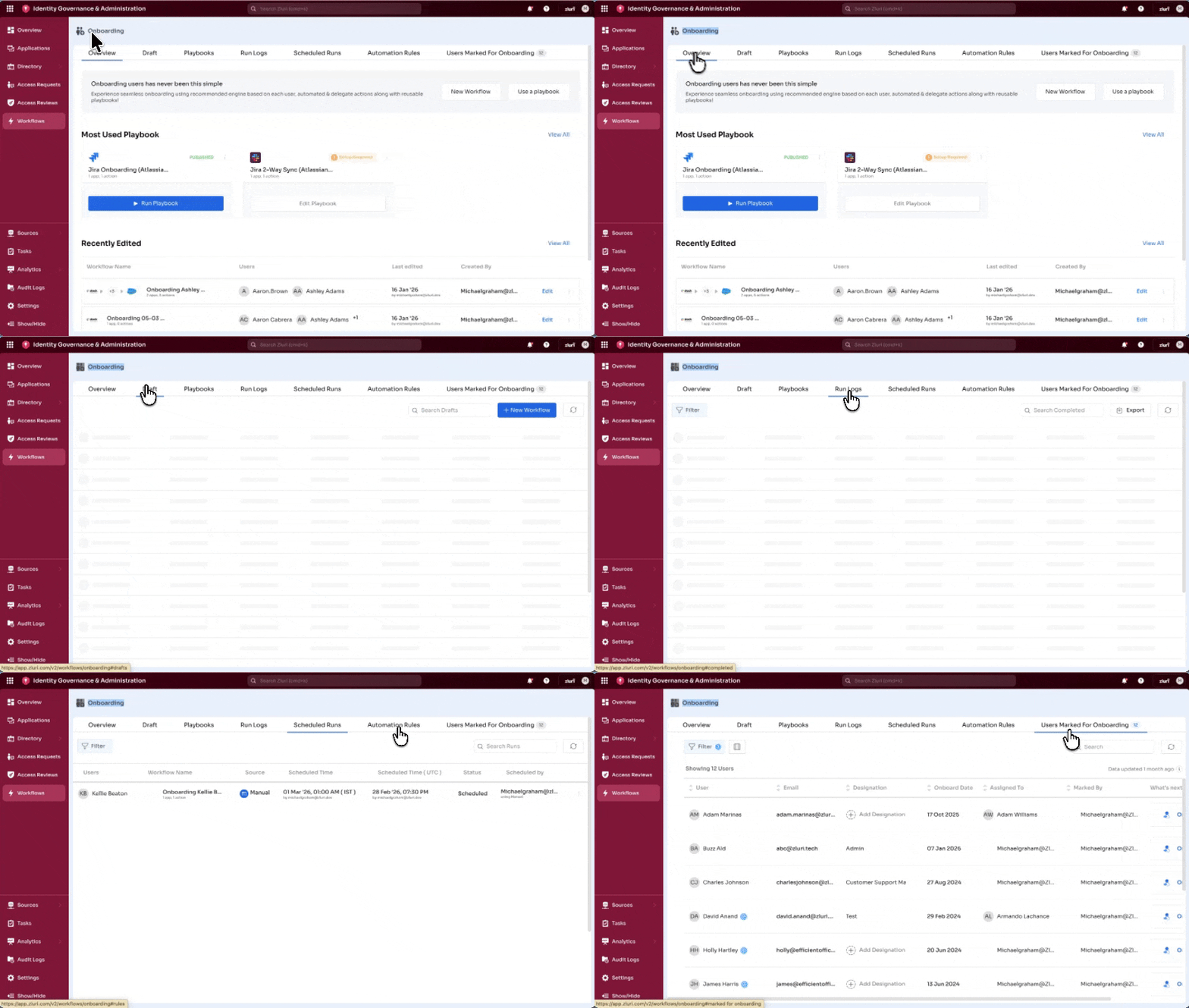
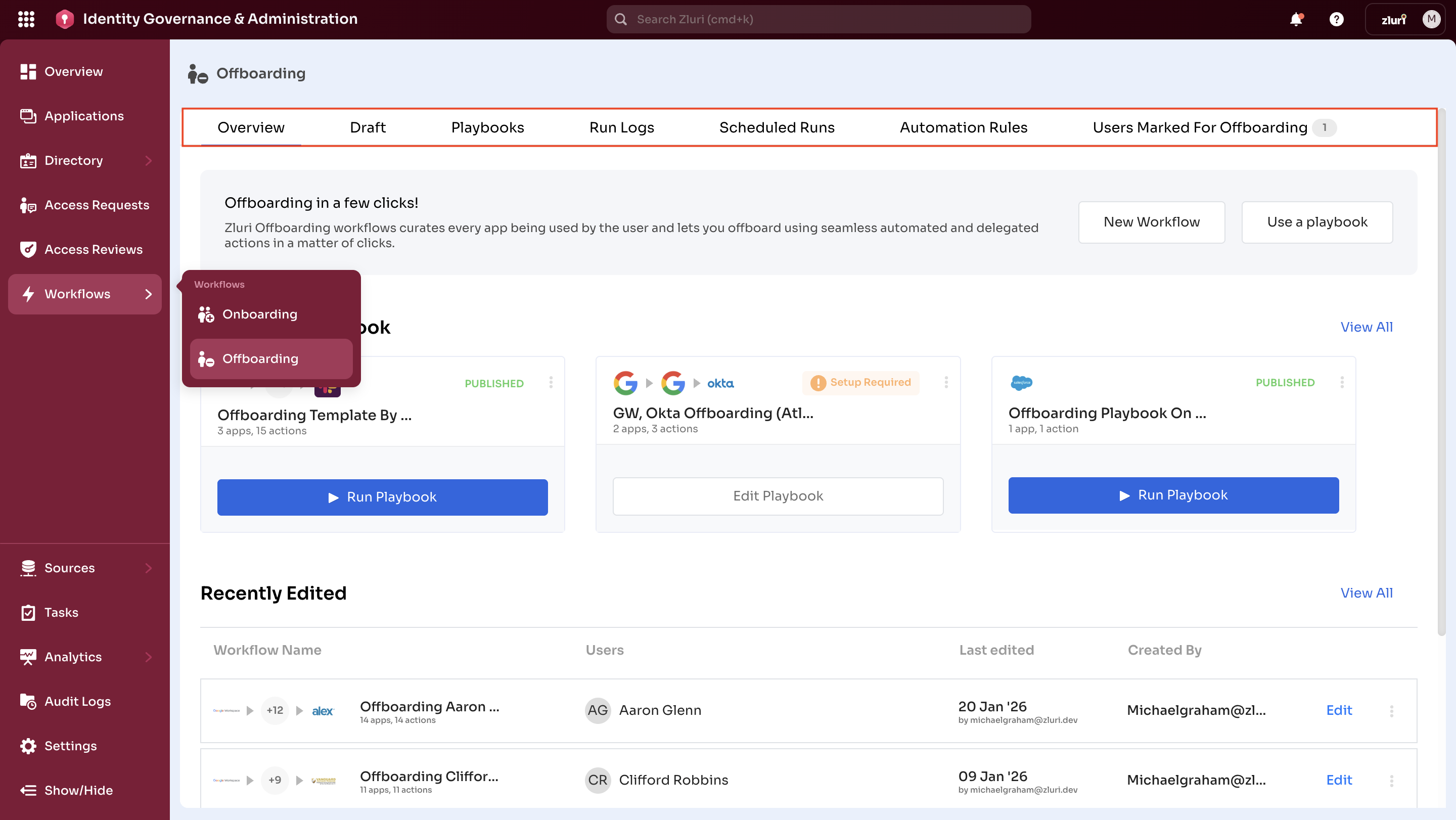
The Onboarding and Offboarding modules share the same features and functionality. Each module uses a seven-tab structure, to provide a consistent workflow across the employee lifecycle.
Onboarding Tabs
Offboarding Tabs
Tab Guides [Onboarding+Offboarding]
Each tab includes a dedicated help article with step-by-step instructions for both onboarding and offboarding workflows.
| Tab | Purpose | Onboarding Use | Offboarding Use |
|---|---|---|---|
| Overview | Quick access to workflows and playbooks. Displays the most used playbooks and recently edited workflows. | Create workflows, run playbooks, view recent activity | Same functionality for deprovisioning |
| Drafts | Build ad-hoc workflows for one-time provisioning or deprovisioning. Useful for specific cases without existing playbook coverage. | One-time onboarding for specific users | One-time offboarding for specific users |
| Playbooks | Build and manage predefined, reusable workflow automation templates for standardized onboarding or offboarding. | Standard role-based onboarding such as Engineering Onboarding, Sales Team Setup | Standard exit procedures (employee, contractor) |
| Run Logs | Tracks every workflow execution with timestamps. Monitor and troubleshoot workflow execution history. | Verify provisioning completed successfully | Verify deprovisioning completed successfully |
| Scheduled Runs | Schedule onboarding or offboarding workflows to execute at future dates and times | Provision access on start date such as scheduling the provisioning for Monday 9:00 AM upon new engineer arrival. | Revoke access on exit date such as scheduling deprovisioning for Friday 5:00 PM on last working day |
| Automation Rules | Define conditions to automatically trigger playbooks. | Trigger on new hire joining Sales. e.g., User joins Sales department → Run Sales Onboarding playbook | Trigger on user status = Suspended. e.g., User status = Suspended → Run Employee Exit playbook |
| Users Marked | Central table listing employees flagged for onboarding or offboarding. | Employees pending onboarding | Employees pending offboarding |
Updated 6 months ago