
Manual Task Assignment
The Manual Task Assignment feature in Zluri supports task assignment to individual users, roles, or groups.
Key benefits and capabilities
- Flexible assignment: Supports individuals, roles, or groups
- Shared responsibility: Any group member can complete a task, reducing delays during unavailability
- Improved collaboration: Team members coordinate through comments
- Clear accountability: Task completion records identify the acting user
Process overview
- Manual task creation includes selection of an individual, role, or group as the assignee.
- All group members receive task notifications.
- Any group member can act on the task.
- Members and admins can collaborate through comments.
- Task completion by one group member updates the task status for all members.
- Task activity details appear in workflow run logs.
Task notifications
Email notifications are sent in the following cases:
- Task assignment to a group
- Task comments added by a group member or admin
Task assignment setup
The example below illustrates a sample workflow configuration.
Create a manual task
- Navigate to Workflows → Onboarding → Playbooks → New Playbook.
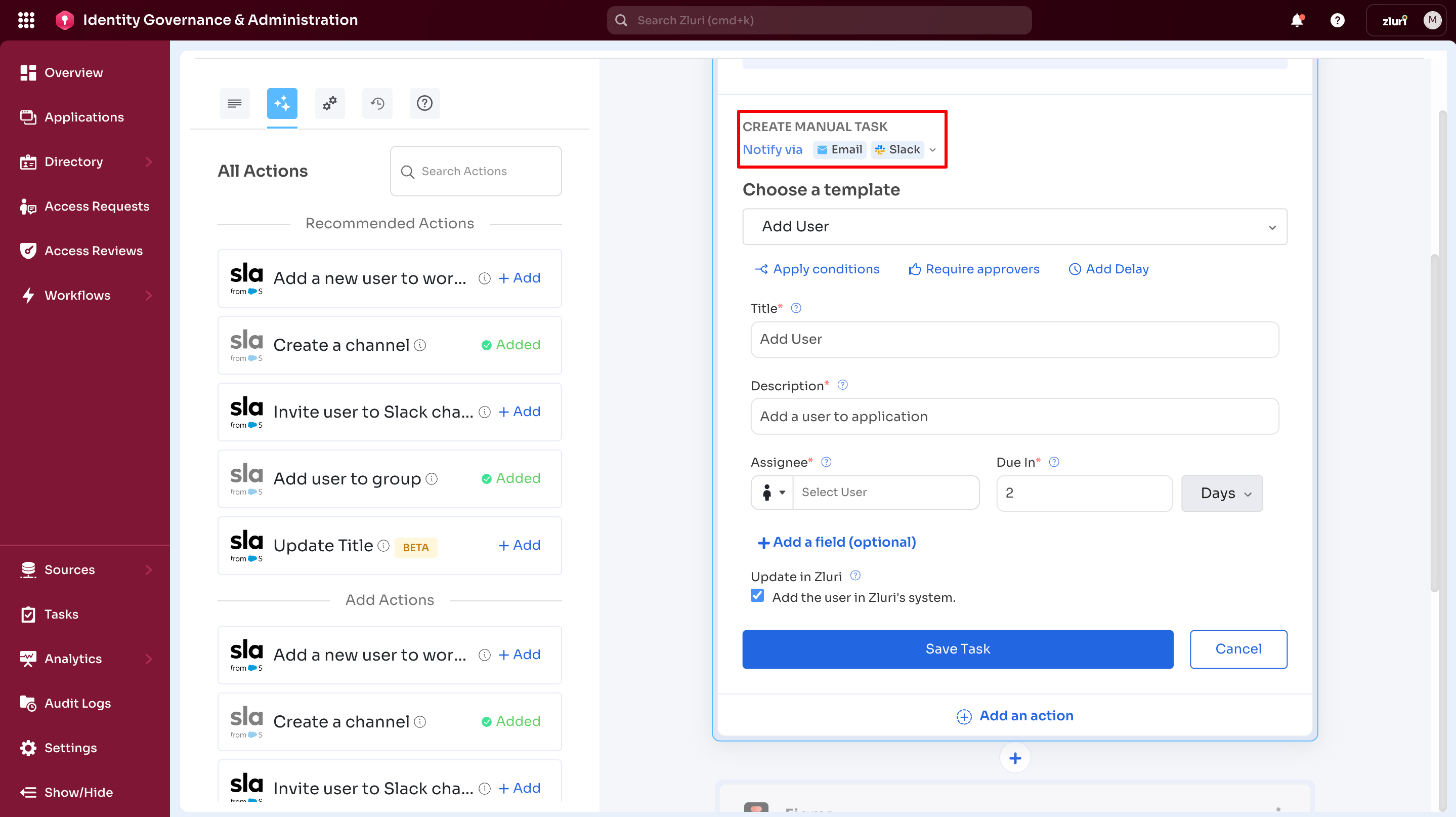
- Select the task assignment method and applications:
-
Select +Add next to the required application (Slack shown below).
-
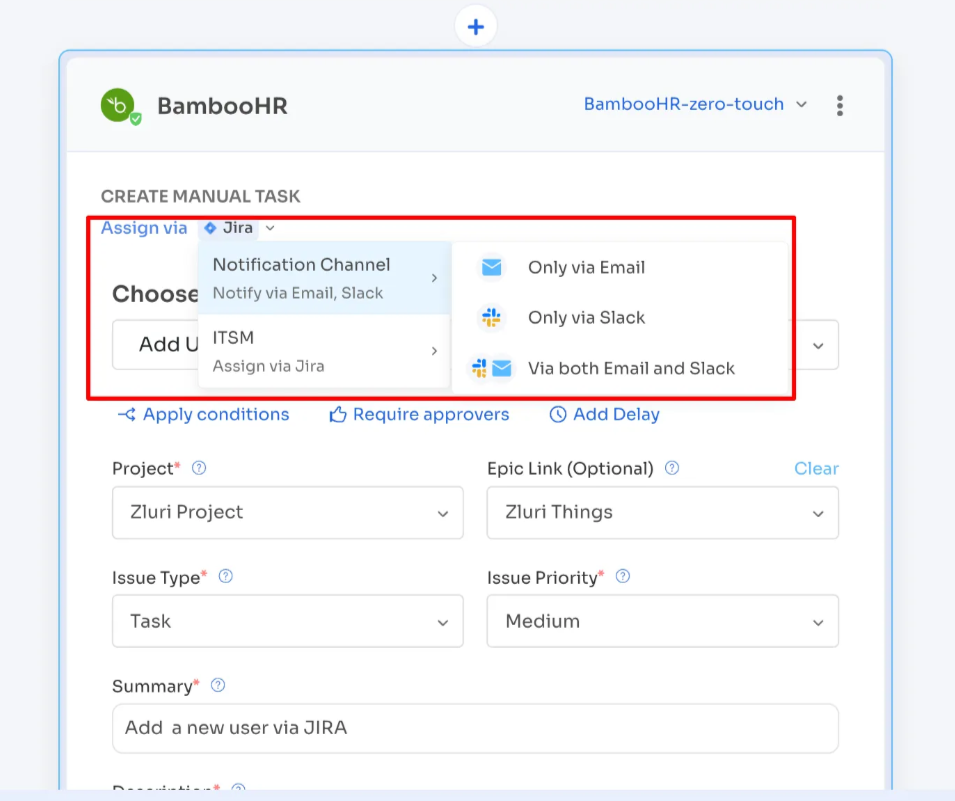
Select Assigned Via → Notification Channel and choose Email, Slack, or both.
-
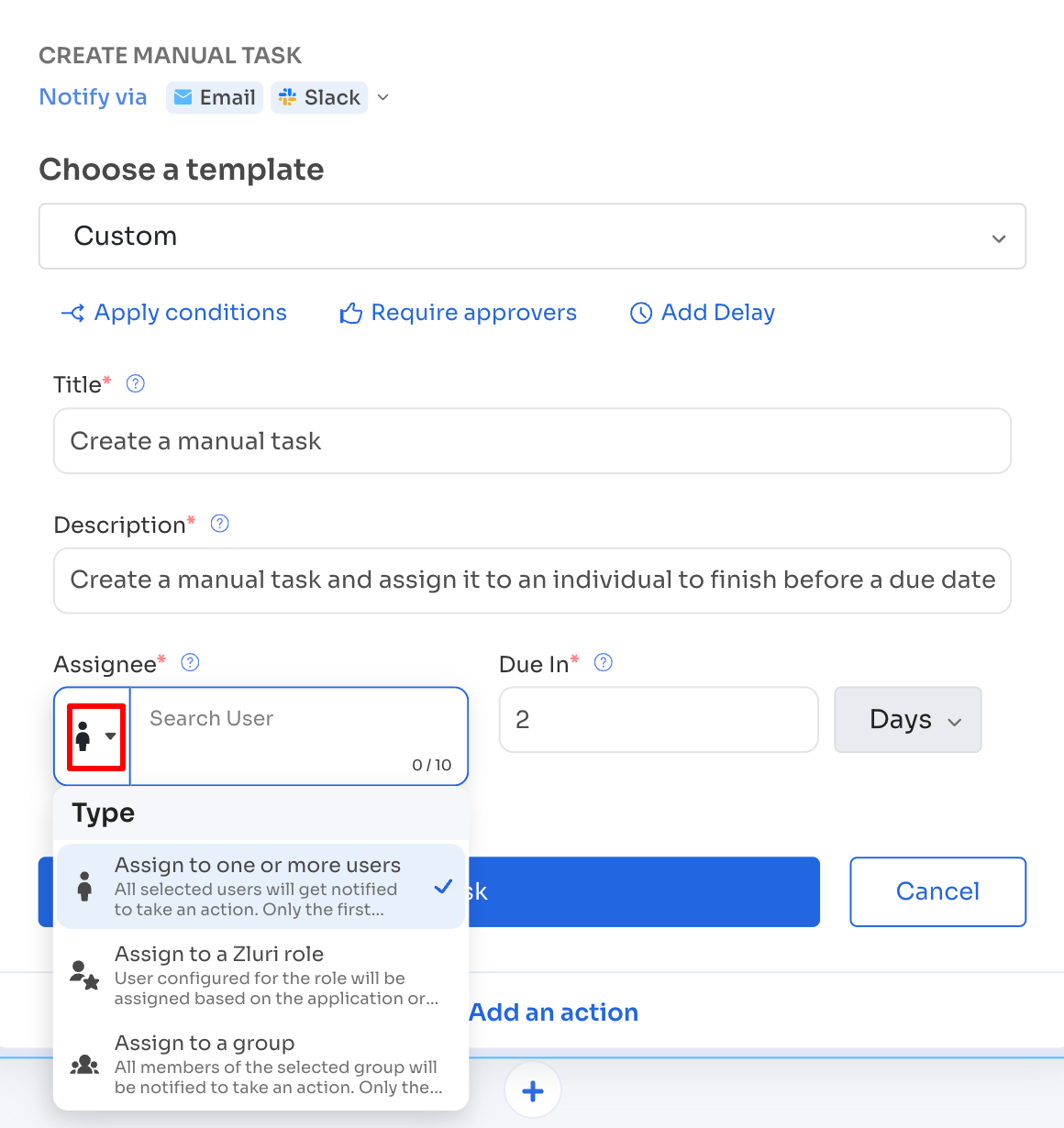
Three assignee types are supported: Individual, Role, and Group.
Option 1: Assign task to individual users
-
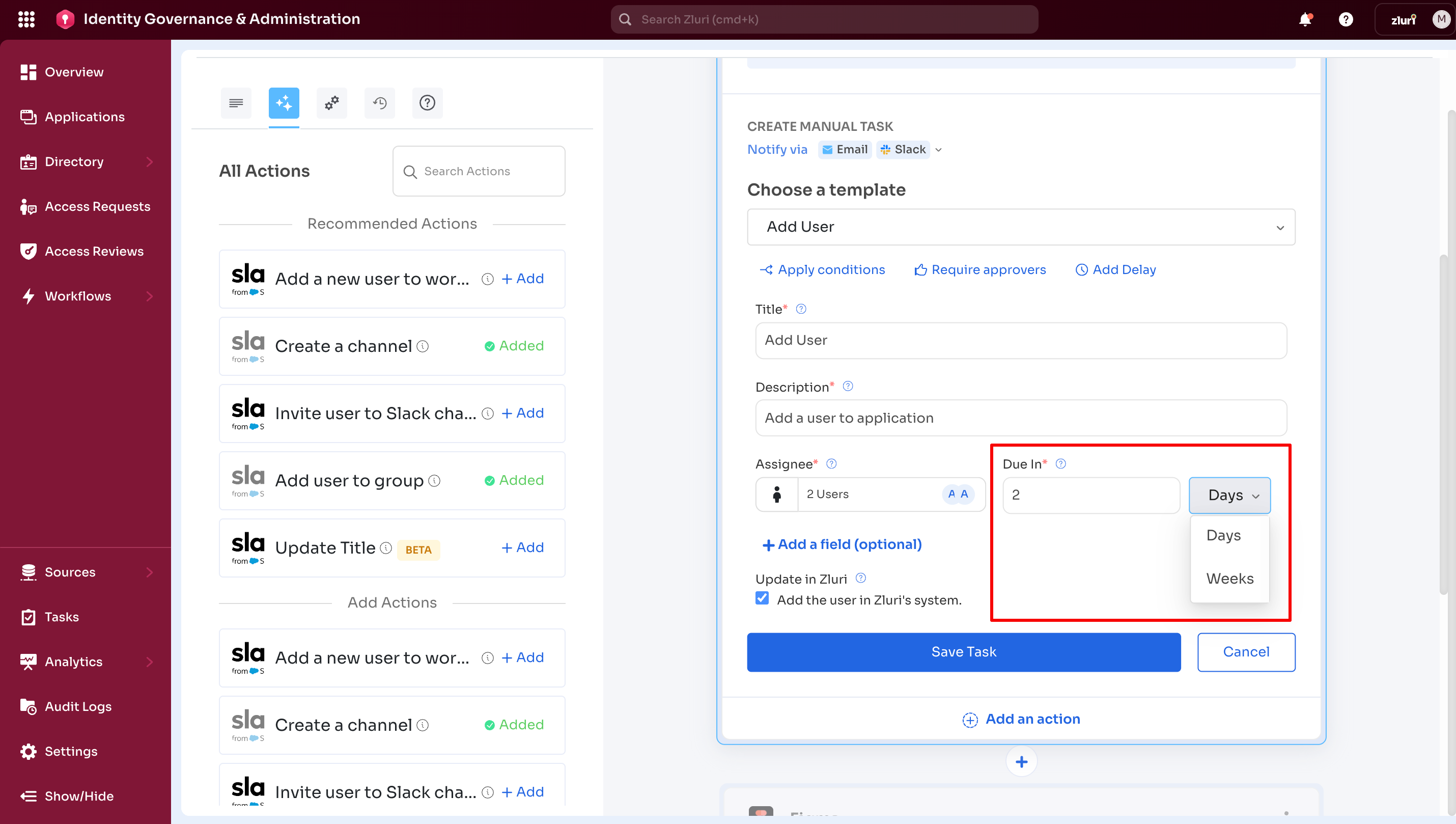
Set Assignee Type to Assign one or more users.
-
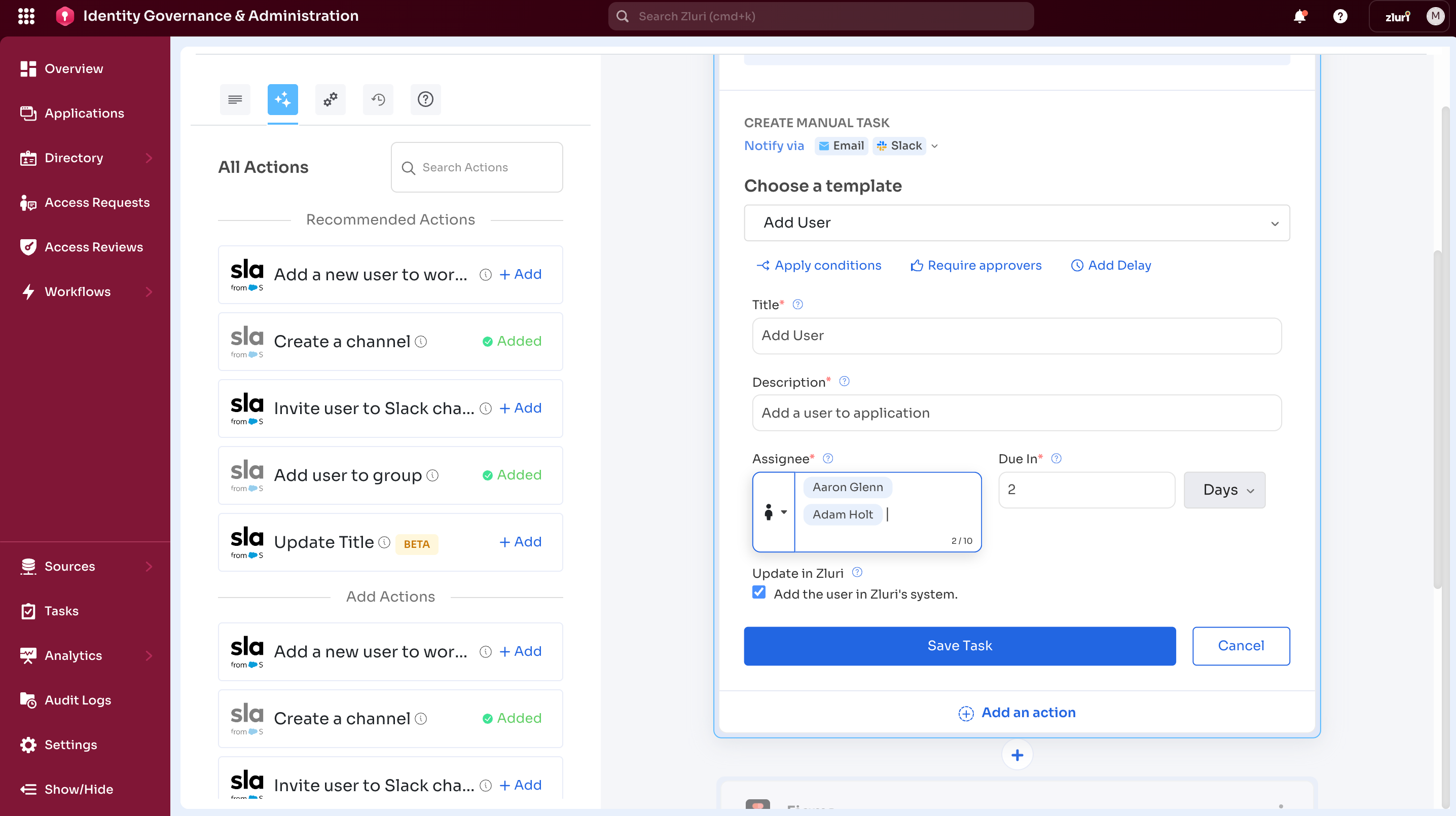
Search and select the required users.
-
Set a due date and select Save Task.
Option 2: Assign a task to a role
-
Set Assignee Type to Assign to a Zluri role.
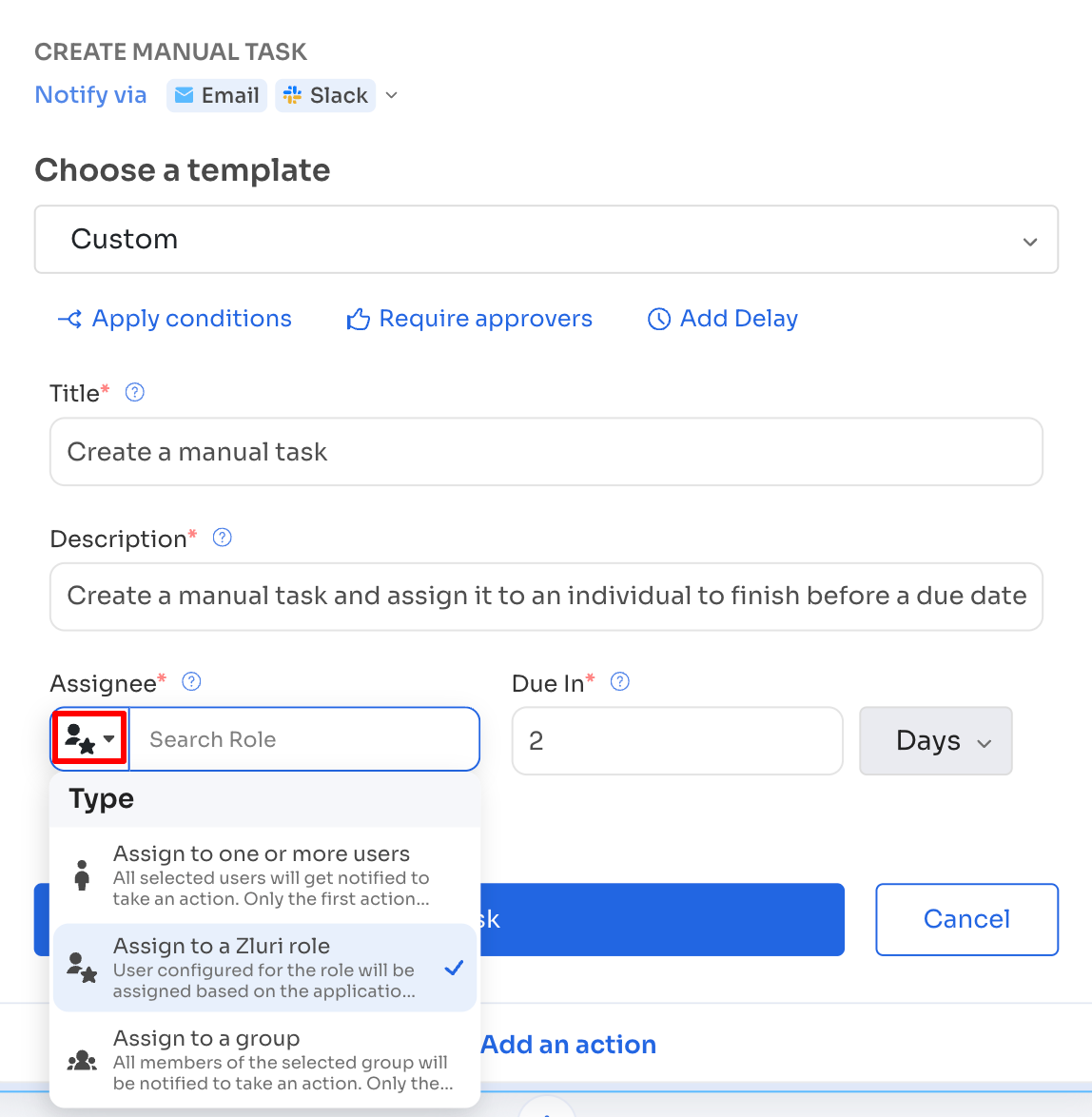
-
Select a role from the list.
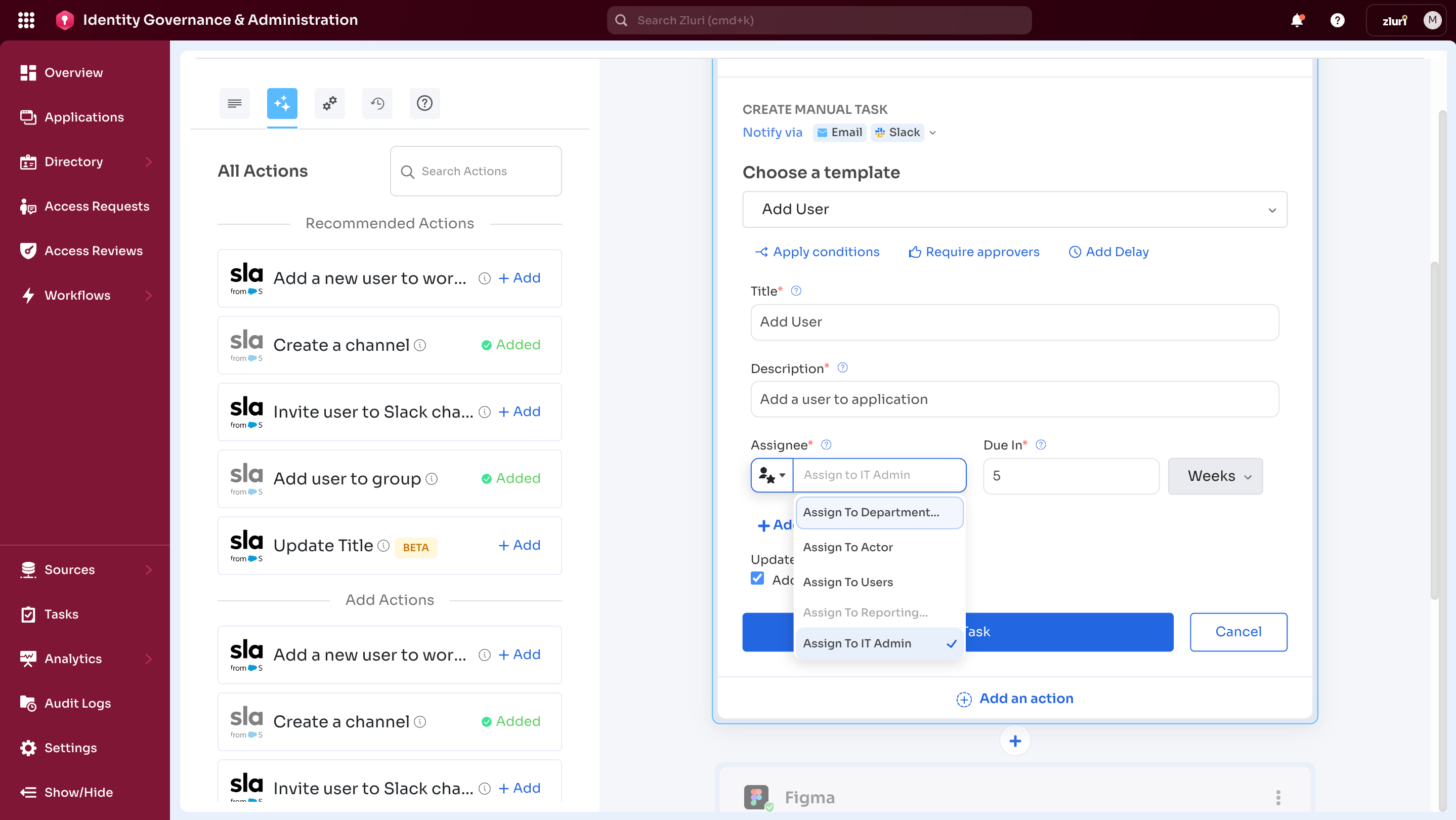
-
Add a due date and select Save Task or Cancel to remove configurations.
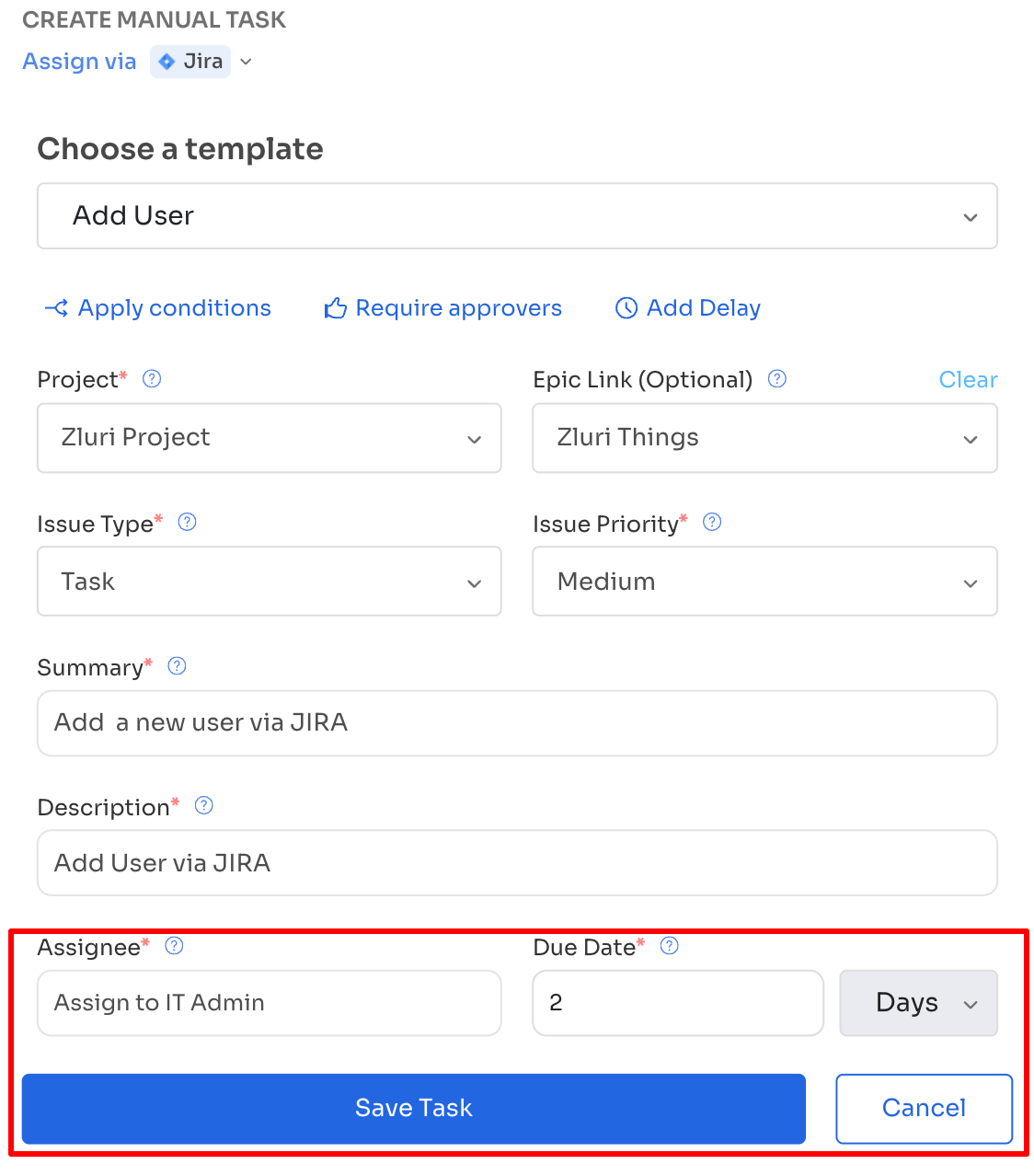
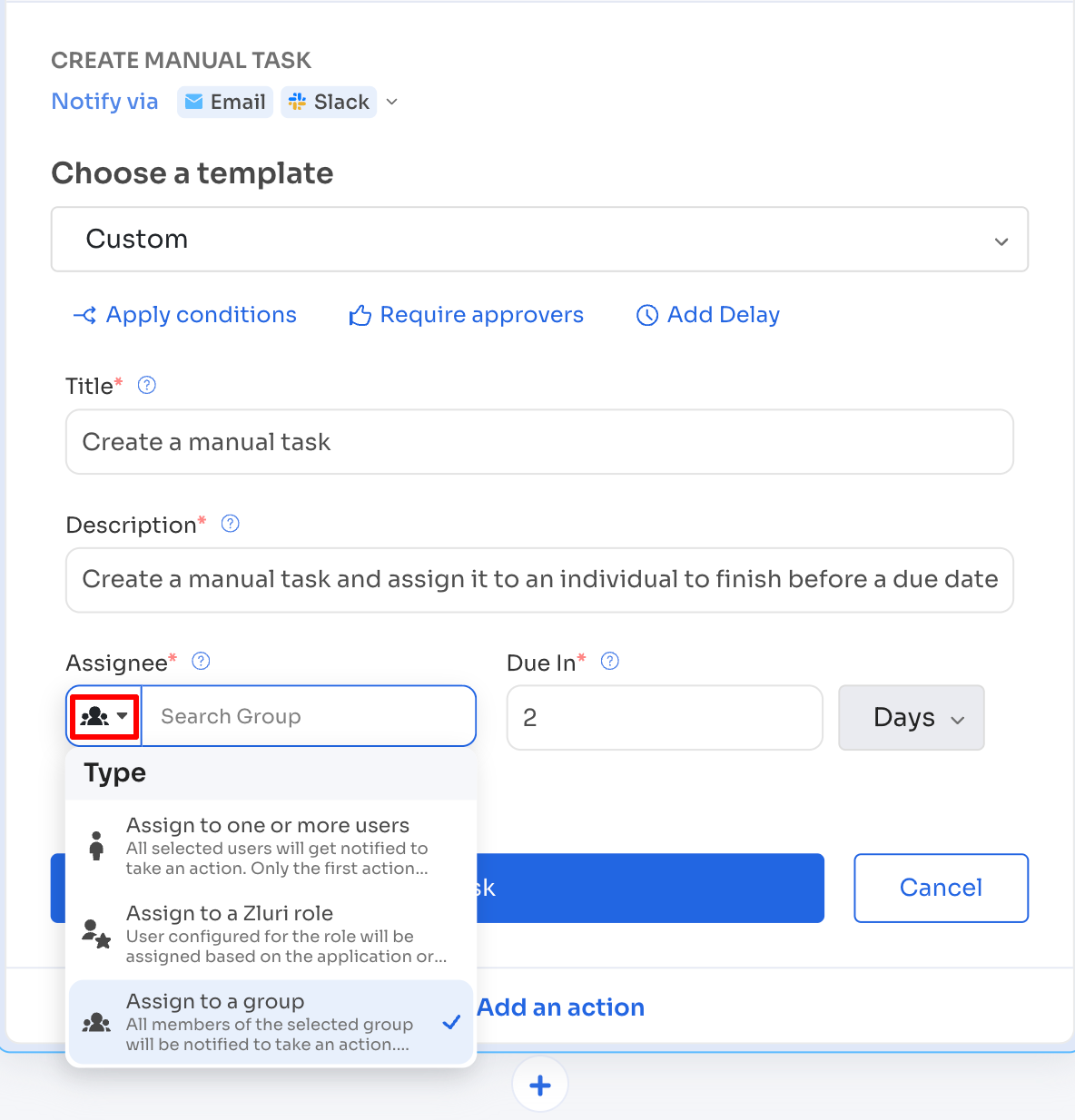
Option 3: Assign a task to a group
Task assignment supports any group listed under
-
Set Assignee Type to Assign to a group.
-
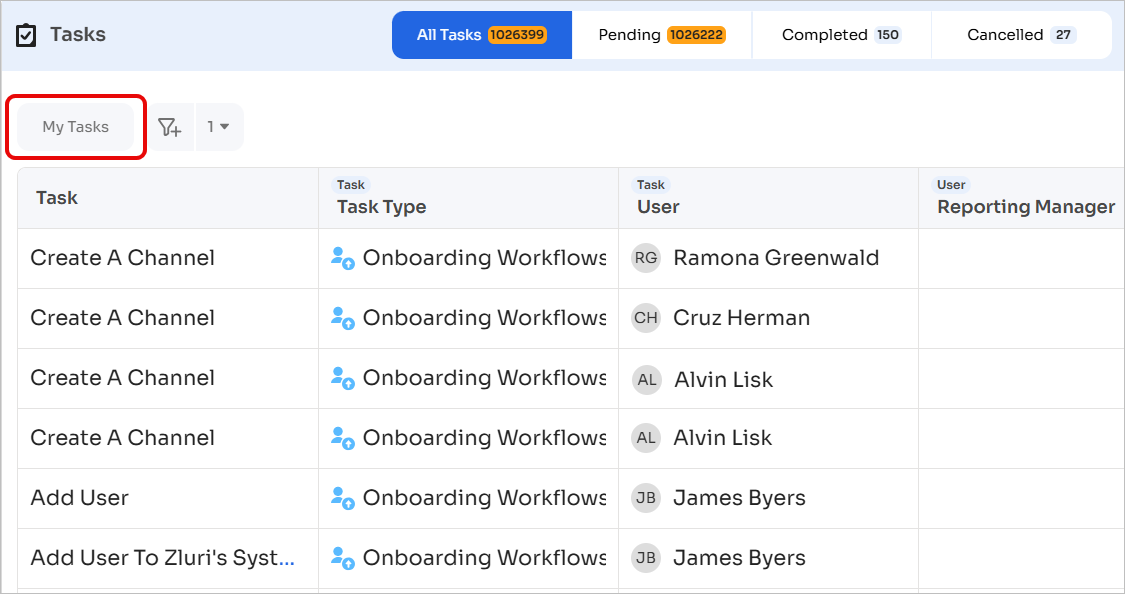
Search and select the required group.
-
Set a due date and select Add Manual Task.
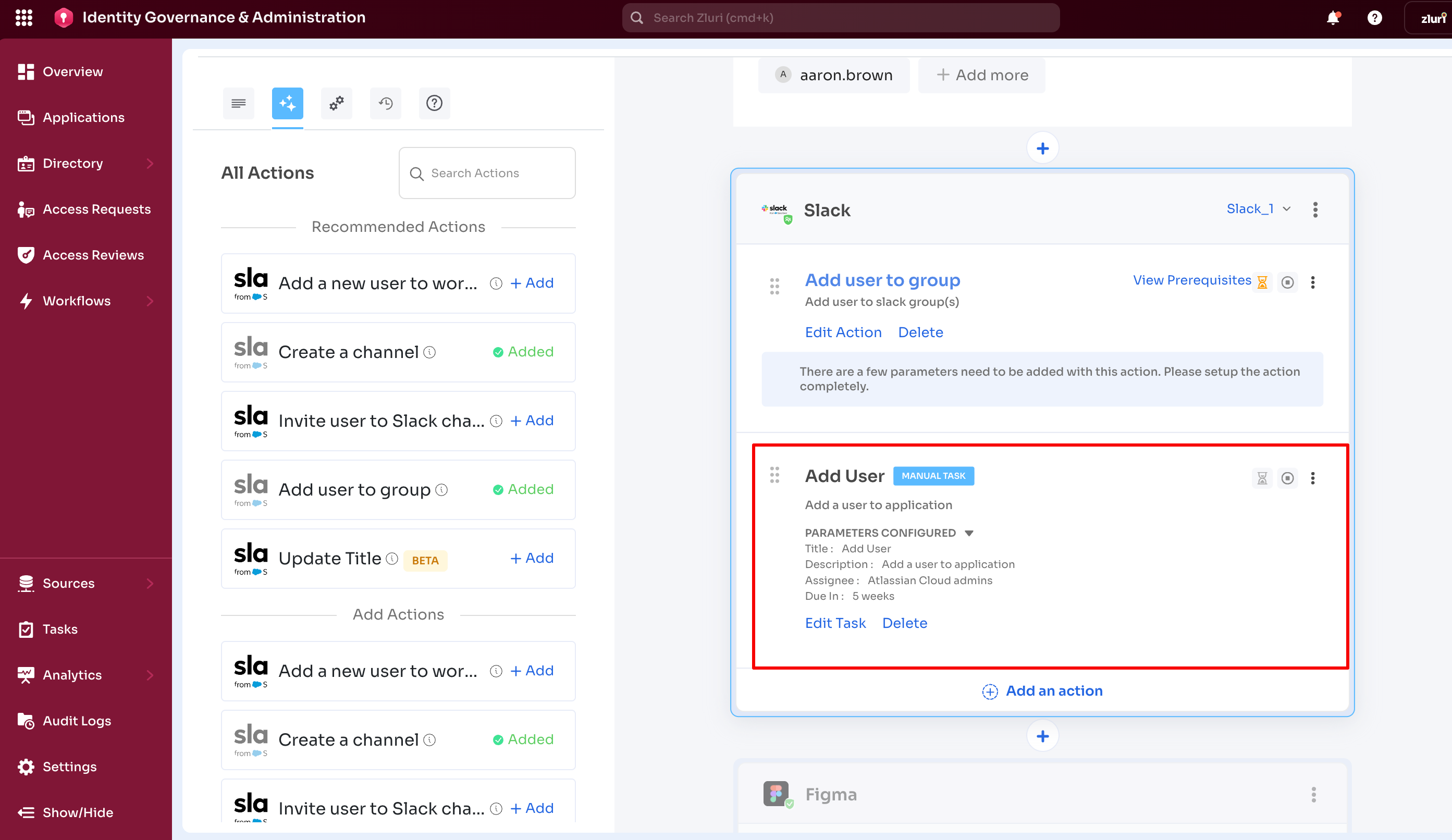
A successfully created task appears as shown below.
View and manage assigned tasks
Assigned tasks are available in the
Supported actions include task execution, comments, and task link sharing. Task handling for employee and admin views is covered below.
Tasks Dashboard → Employee and Admin View
Two views are available: Employee View and Admin View.
View switching is available from the profile menu.
Employee View
The image below shows the view toggle steps.
-
Open the profile menu in the top-right corner.
-
Select Employee Mode.
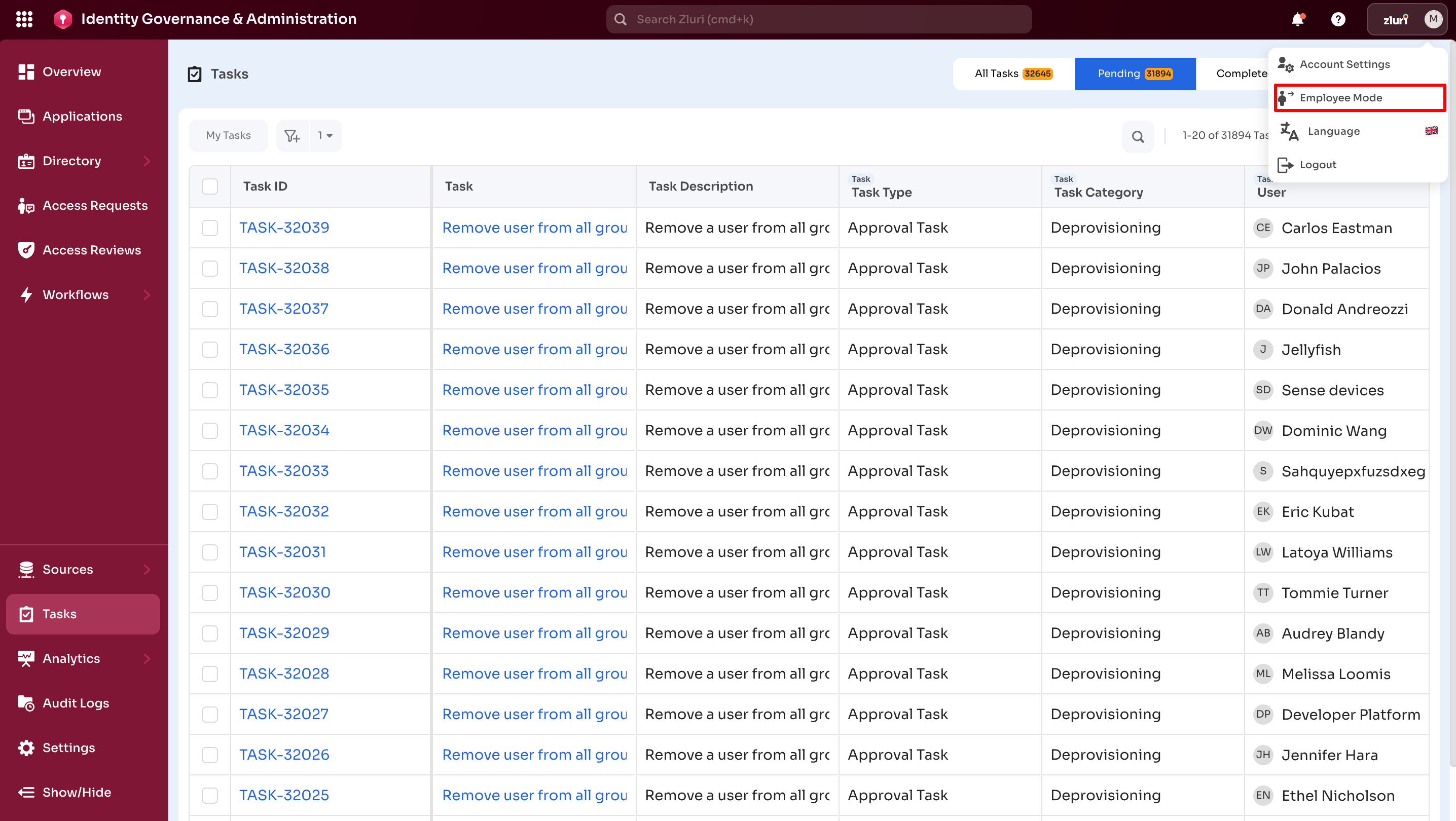
Toggle from Admin view: Tasks Dashboard to Employee Mode
Employee View supports the following:
-
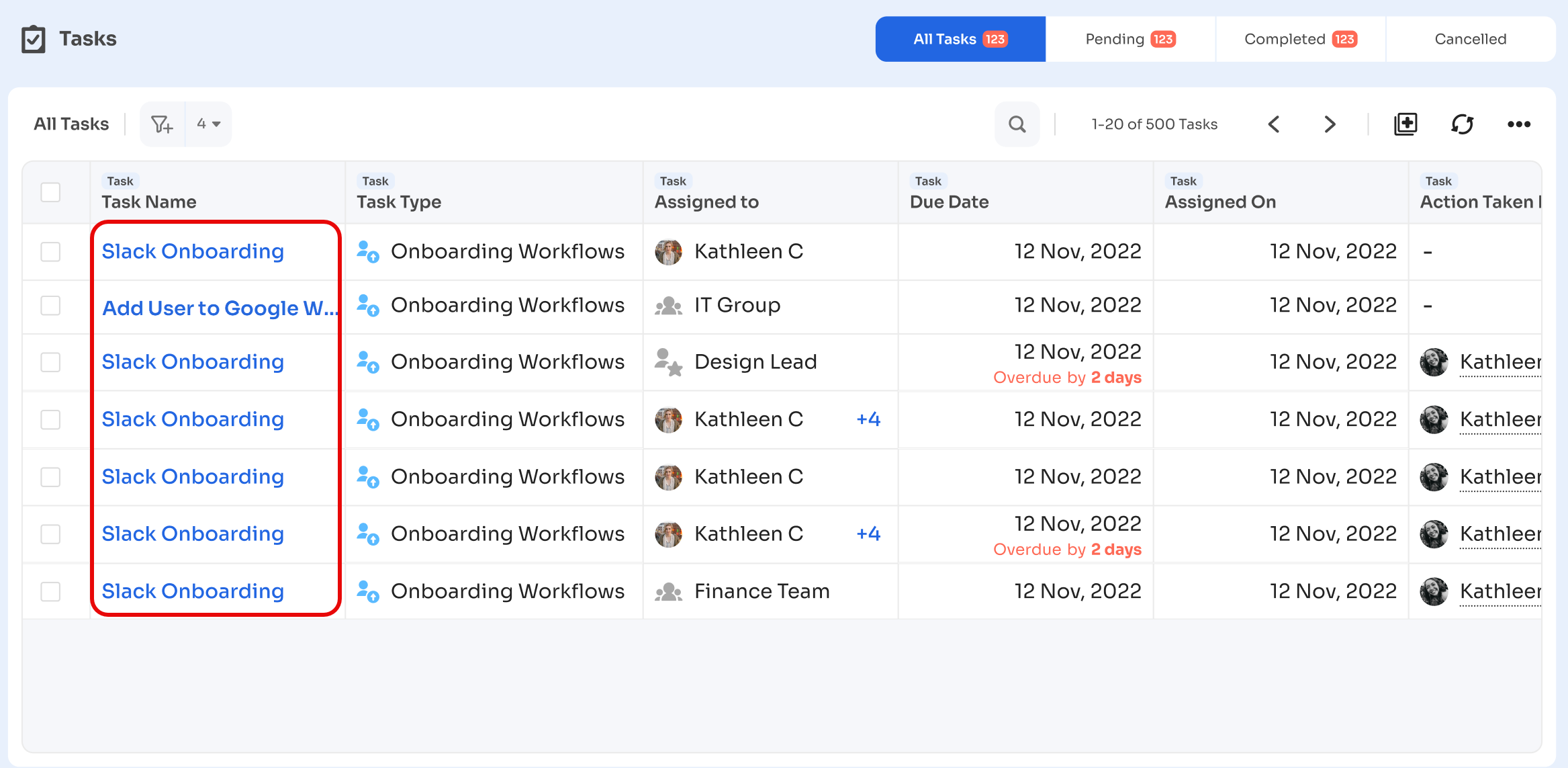
View tasks assigned directly and through groups.
-
Open a task to view details.
-
Perform task actions:
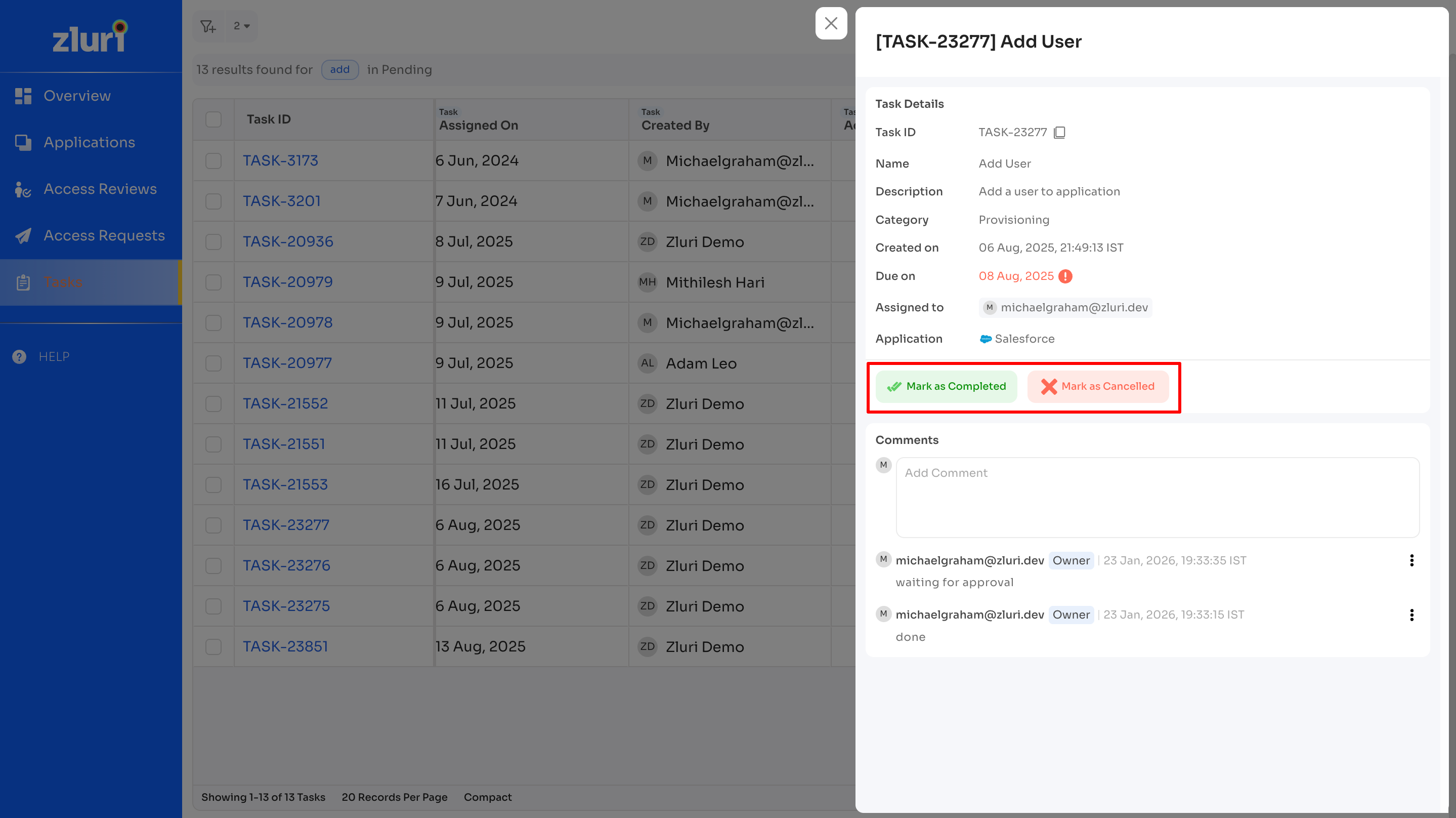
- Mark as Completed or Cancelled
- View or add comments
-
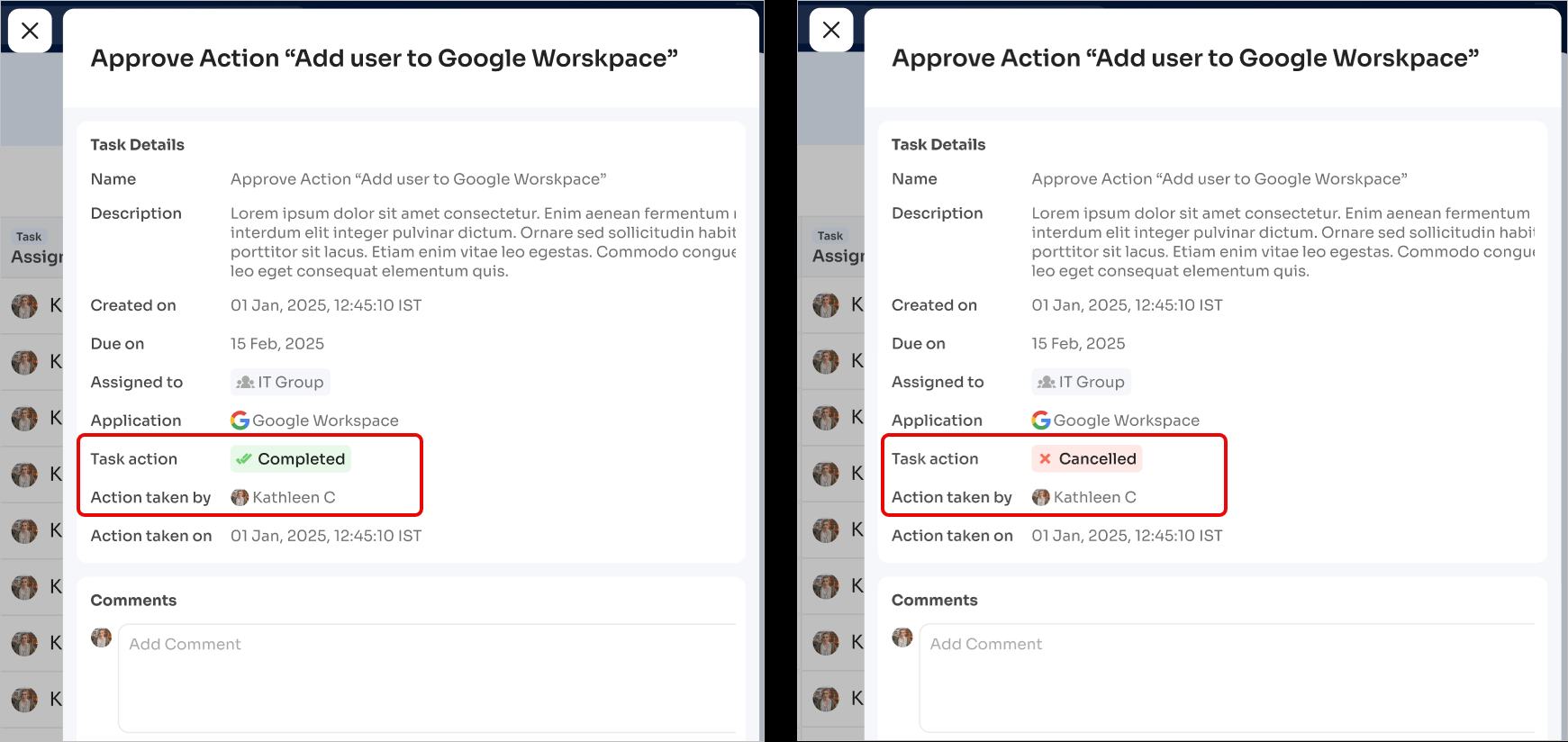
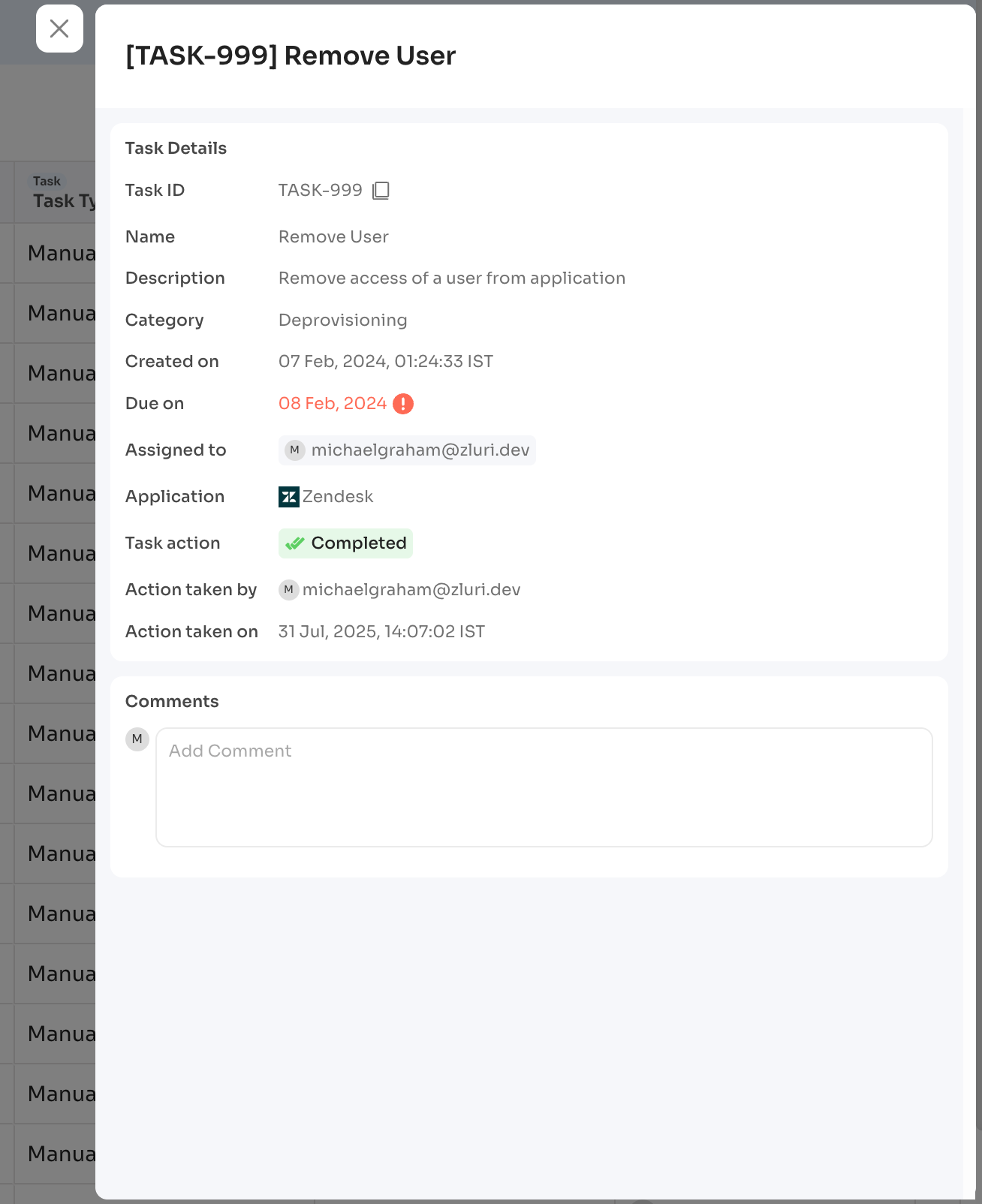
View action history, including action type and acting user.
Admin View
The image below shows the view toggle steps.
-
Open the profile menu.
-
Select Switch to Admin View.
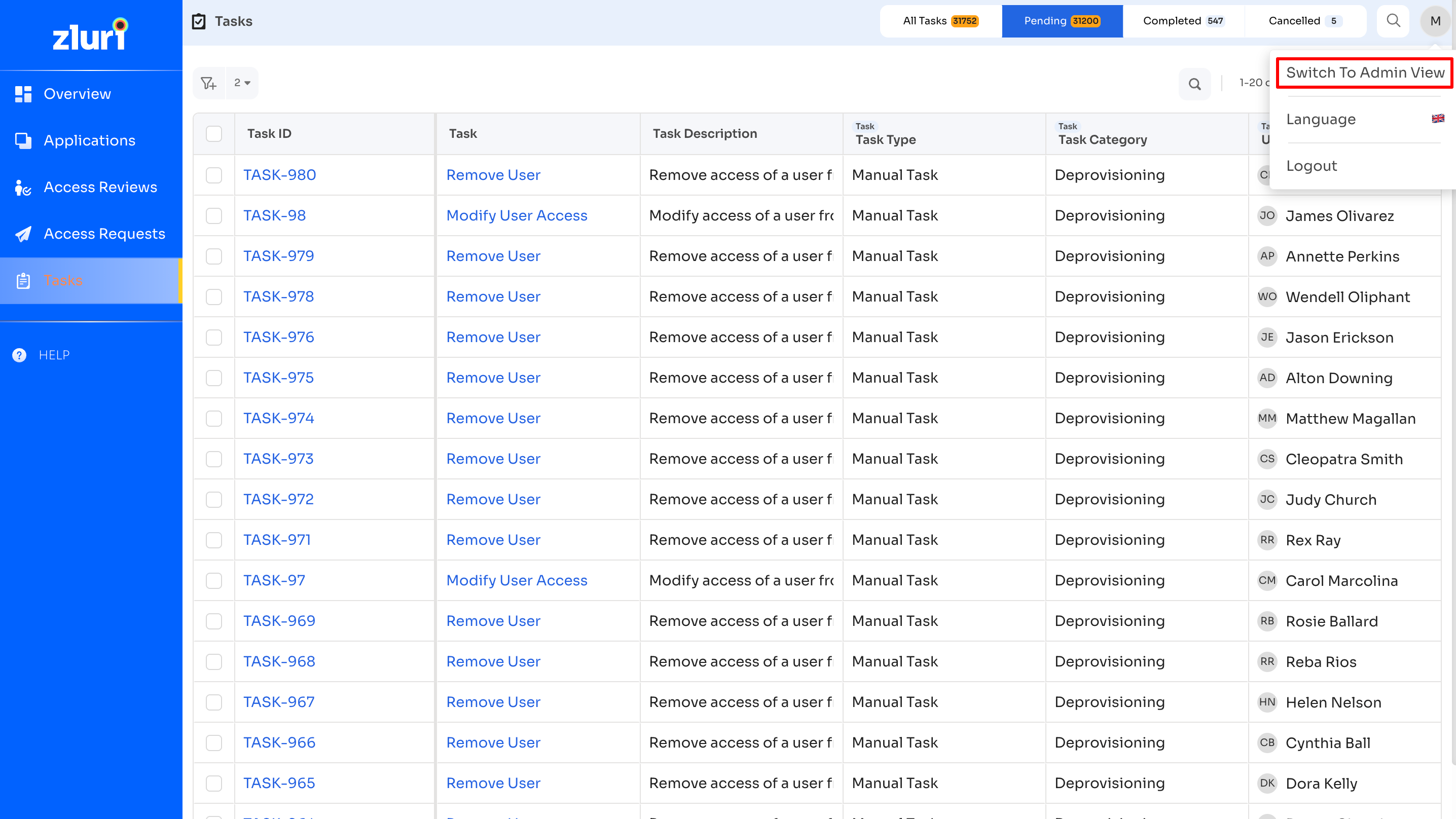
Switch to Admin view from Employee view: Tasks Dashboard
Admin view
The following user roles can access Admin View:
- Owner
- Admin
- Super User
- Integration Admin
- IT Admin
- Viewer
- IT Viewer
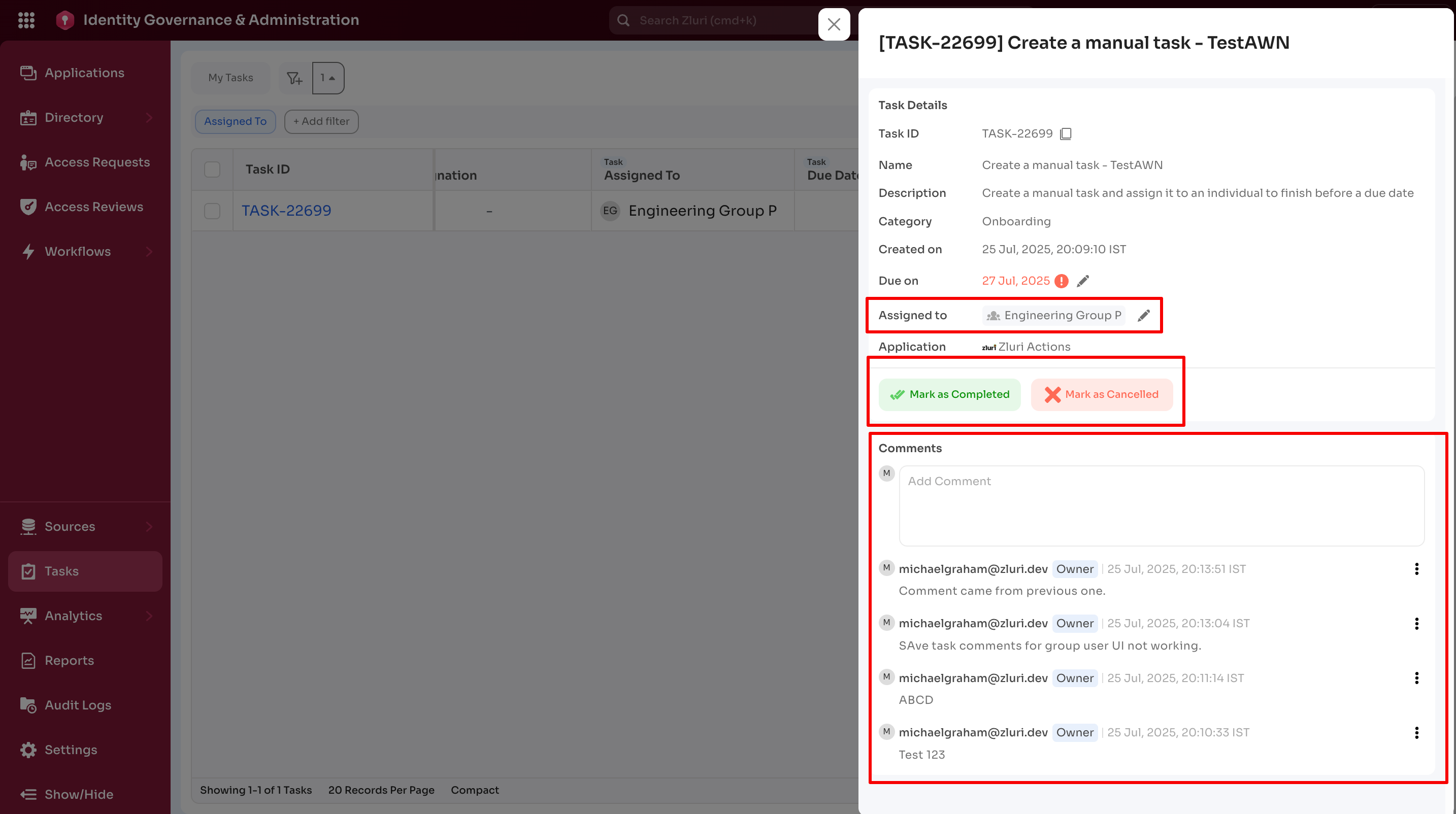
Admin View supports all employee actions, plus:
-
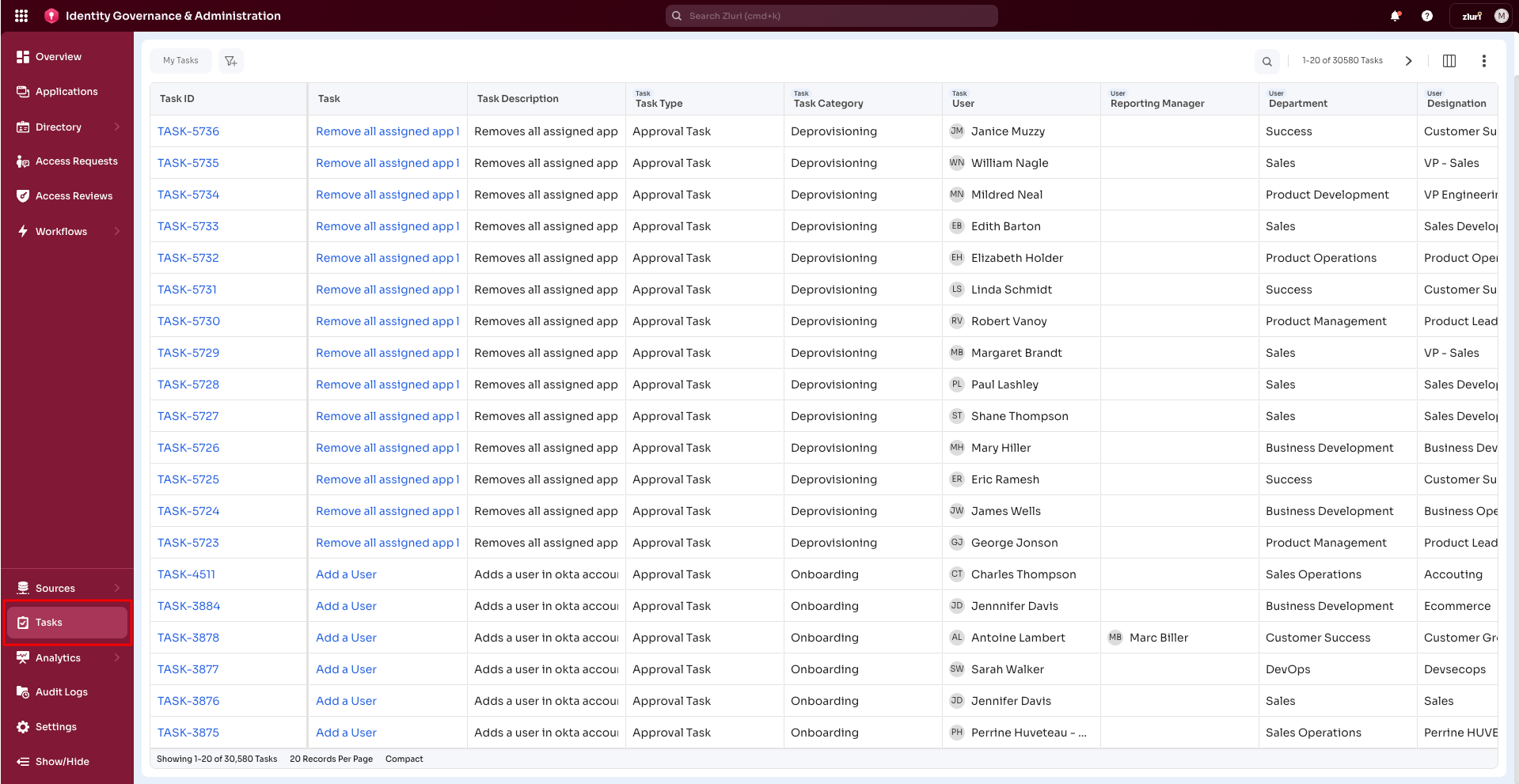
View all tasks in the Tasks dashboard.
-
Read and write comments on all tasks.
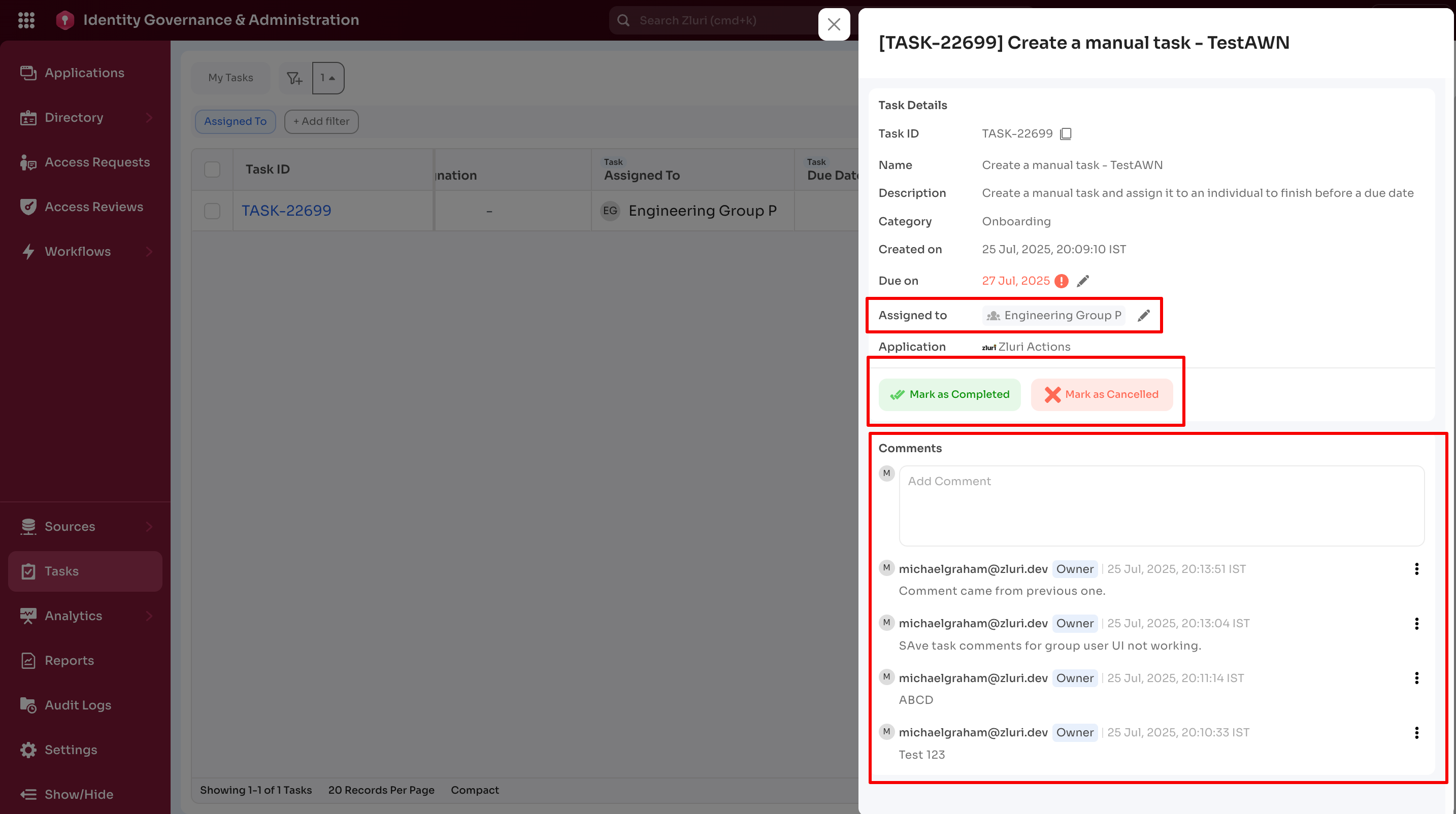
Note: Viewer and IT Viewer roles support view-only access.
-
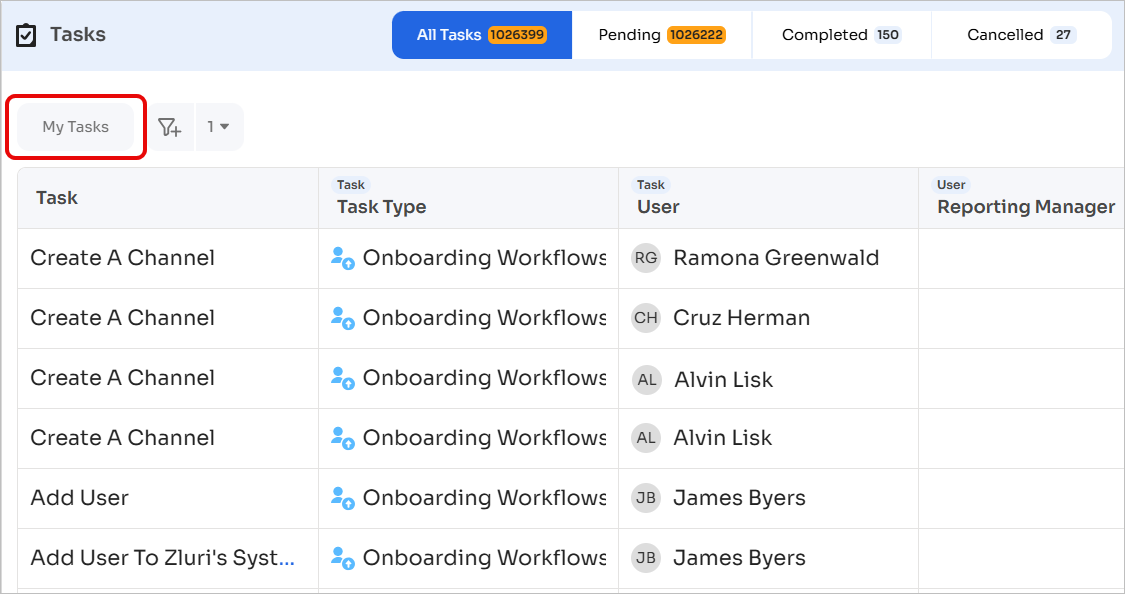
Filter tasks using My Tasks to display:
- Direct assignments
- Group-based assignments
-
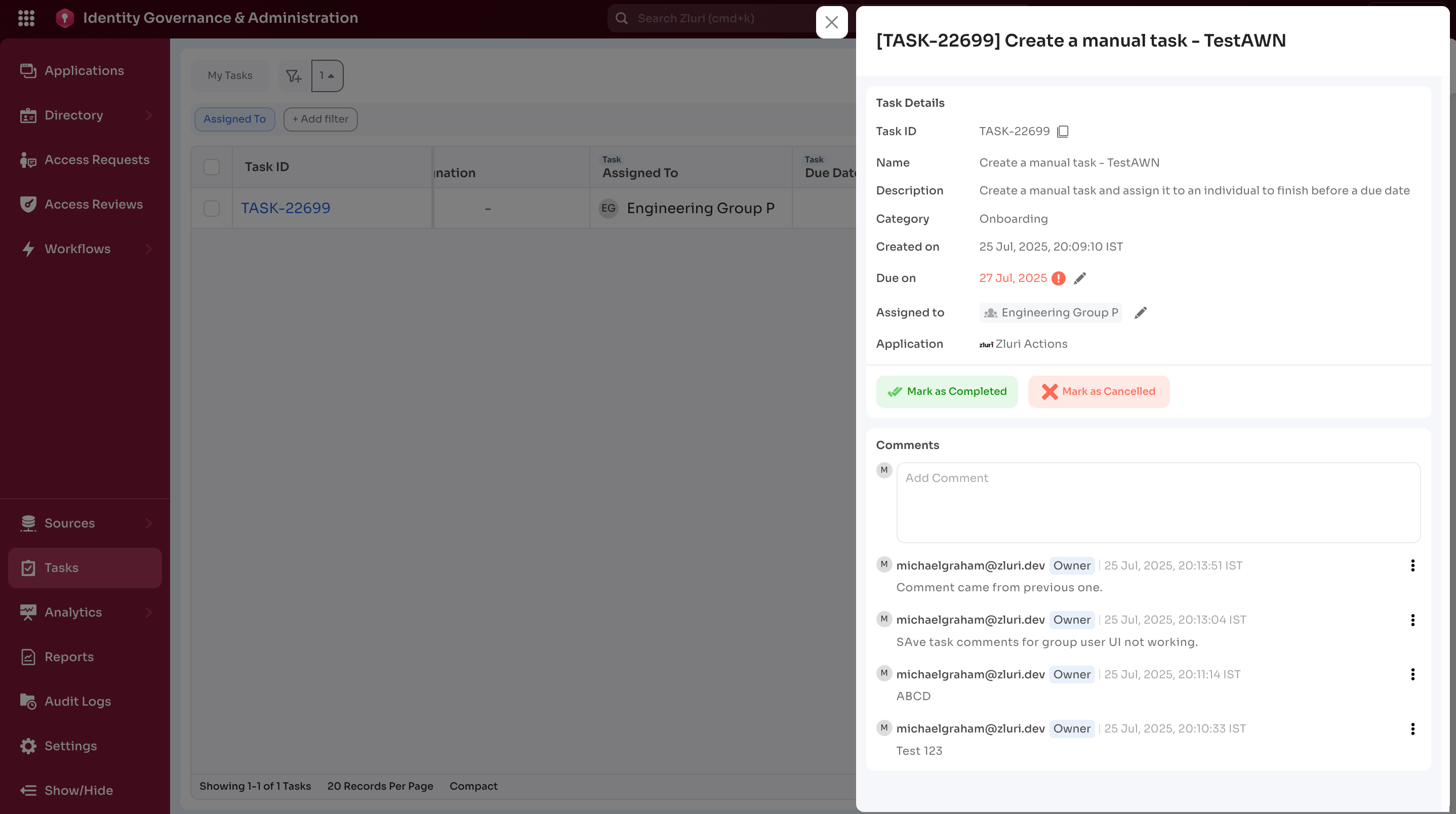
Perform task actions:
-
Mark as Completed or Cancelled
-
Add or view comments
-
-
Review task action history.
Viewing run logs
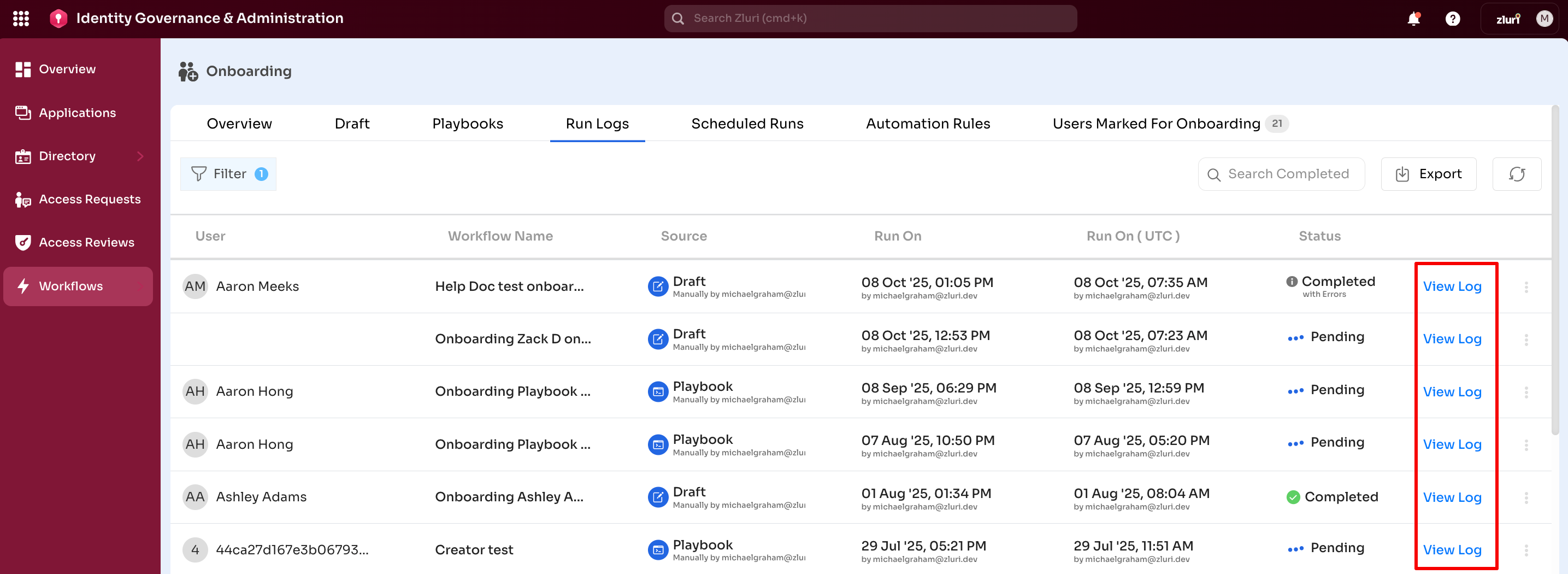
Run logs provide task assignment and completion details.
- Navigate to Workflows → Onboarding / Offboarding → Run Logs.
- Select View Log for the required workflow run.
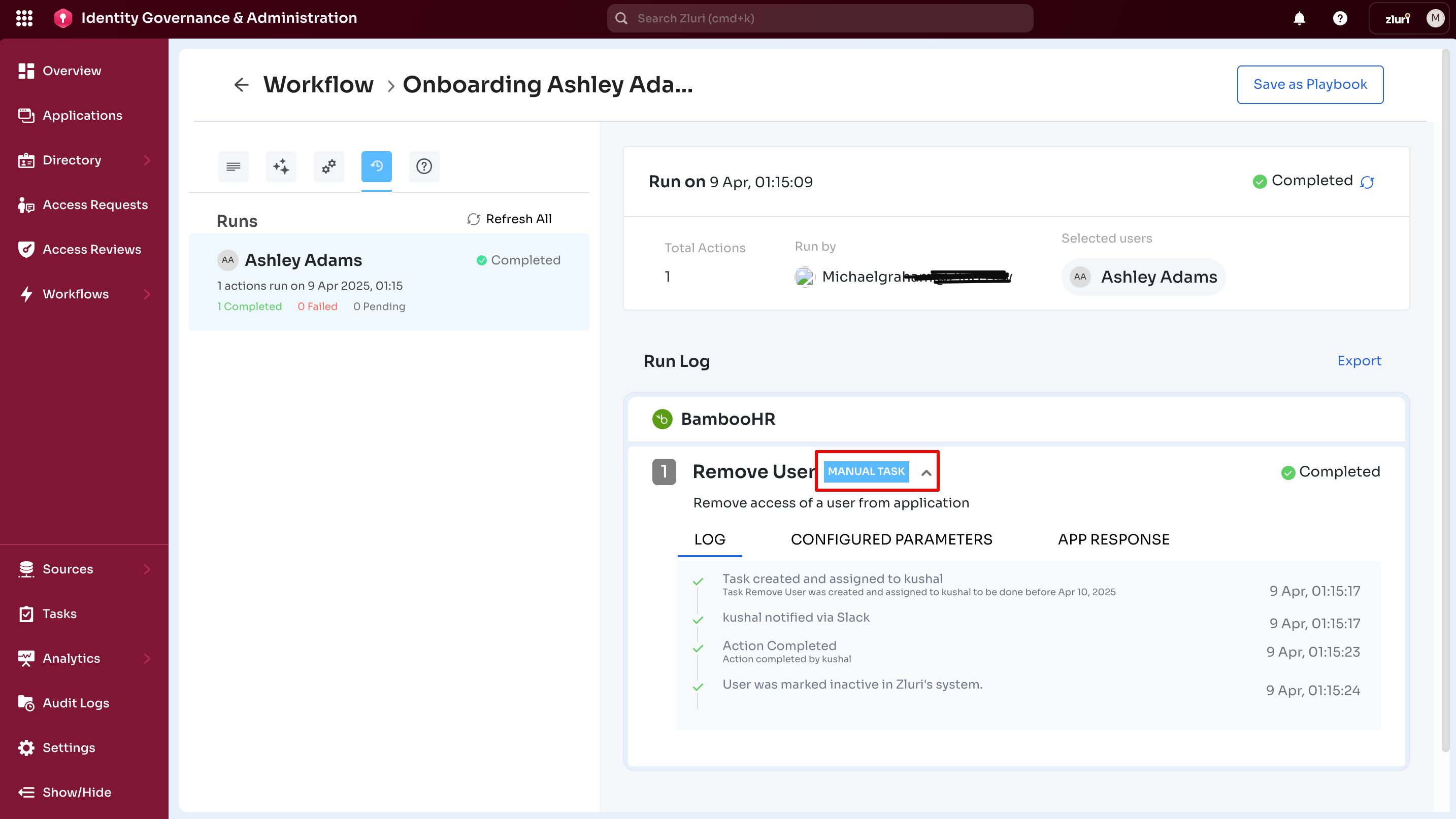
Displayed details include:
-
Task creation and assignment events
-
Notification delivery
-
Current task status
-
Acting user details
Additional task actions:
- Reassign the task
- Mark the task as completed or cancelled
Got questions? Feel free to submit a ticket or contact us directly at [email protected].
Updated 6 months ago