
Runs Logs Tab (Onboarding + Offboarding)
Track and troubleshoot workflow execution history
Run Logs
The Run Logs tab provides complete visibility into workflow execution history. Each time a playbook runs, whether triggered manually or by automation rules, Zluri records an entry with detailed execution data.
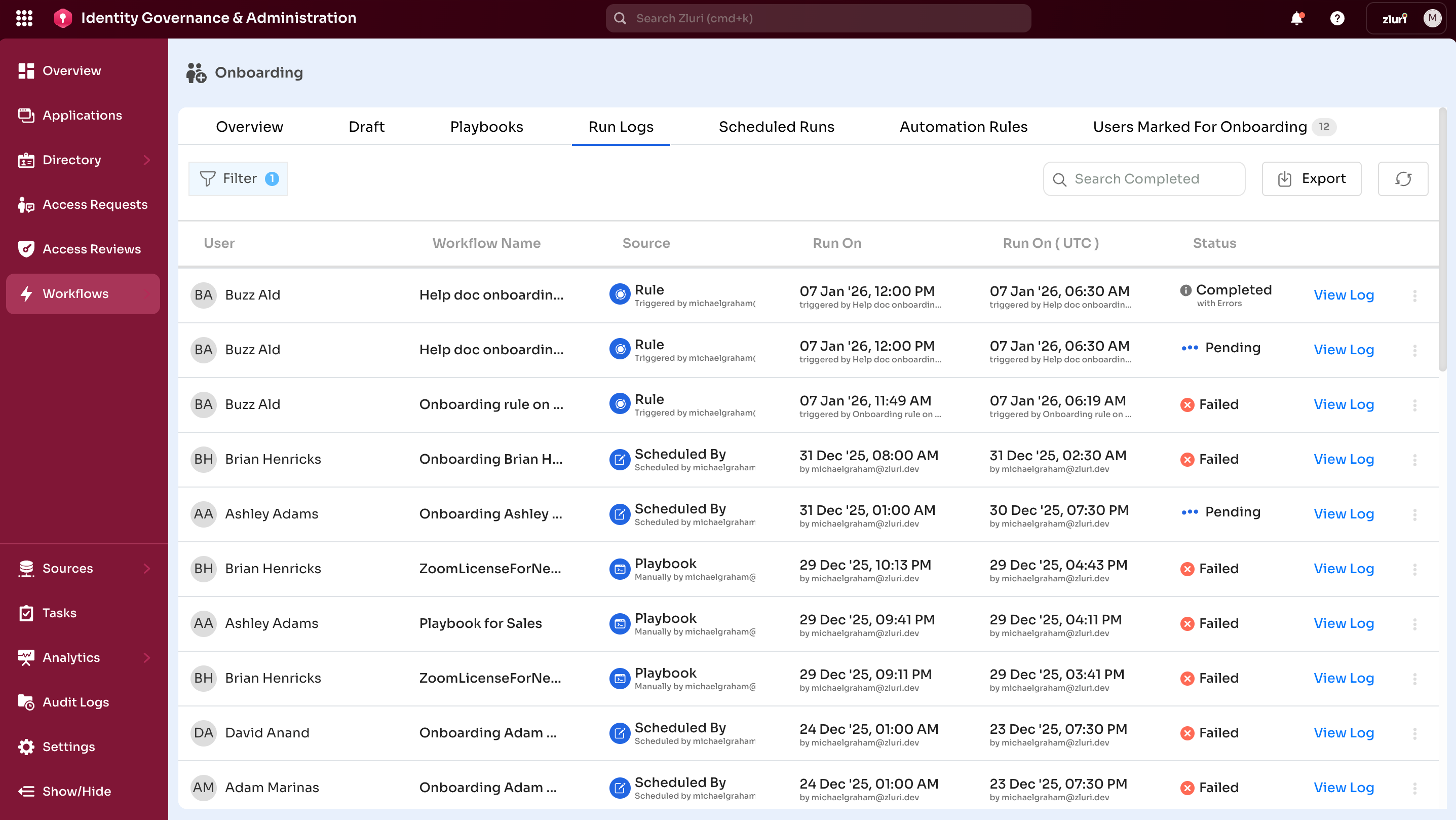
Run Logs track workflow execution details at the user level and support admins monitor.
- Users who received provisioned or deprovisioned access
- Workflow execution timing
- Executed playbook
- Actions performed
- Outcome of each action (Completed, Failed, Pending)
- Execution trigger source
Using Run Logs
Monitoring and Visibility
Onboarding: Run logs track provisioning activity and confirm successful workflow execution.
Offboarding: Run logs track deprovisioning activity, including the execution dates and timestamps.
Troubleshooting
Onboarding: Run logs help identify and resolve failed actions early and reduce onboarding delays.
Offboarding: Run logs detect failures and, retry actions or convert them into manual tasks when needed.
Compliance and Auditing
Onboarding: Export logs for compliance audits (SOX, HIPAA, GDPR) and internal reporting with a complete audit trail.
Offboarding: Provide audit-ready logs to demonstrate secure deprovisioning and evidence of timely access revocation.
Quality Assurance
Run logs help validate playbook configurations before scaling them to larger user groups.
Run Logs Table
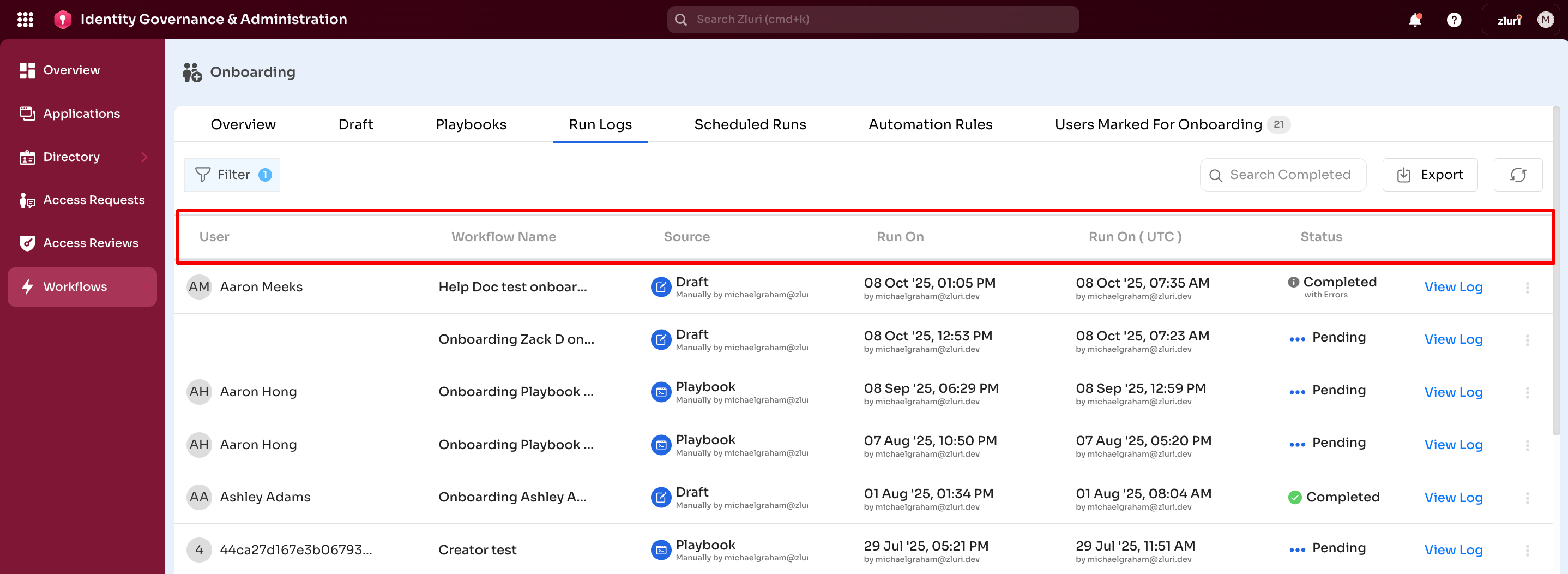
The Run Logs table lists all workflow executions and includes the following columns:
User
Name and email of the onboarded or offboarded user.
Workflow Name
Name of the executed playbook.
Source
Execution trigger method:
- Manual
- Automation rule
- Scheduled run
Run On
Date and time of execution
Run On (UTC)
Date and time of execution in UTC.
Status
Current execution state:
- Completed – All actions executed successfully
- Completed with Errors – Some actions
succeeded, but one or more stepsfailed - Failed – All actions failed or none were completed
- Pending – Execution (awaiting approvals, manual tasks, or synchronization)
Core Features
Search
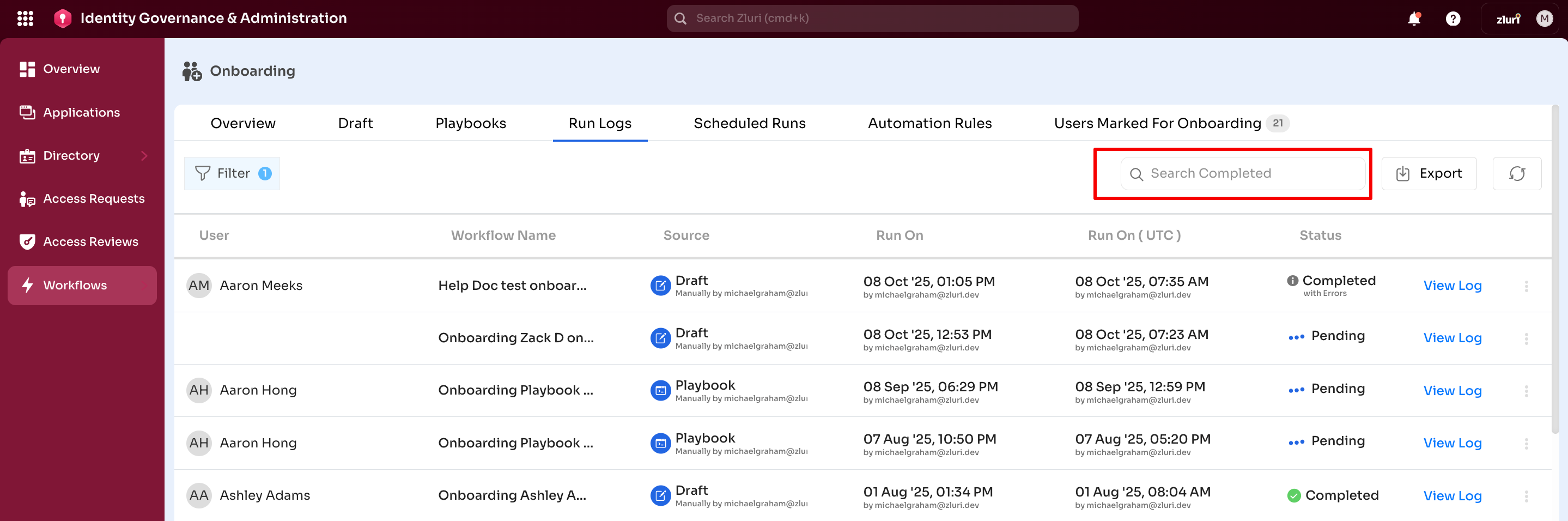
Search across all columns to quickly locate by user name, workflow name, or date.
Filter
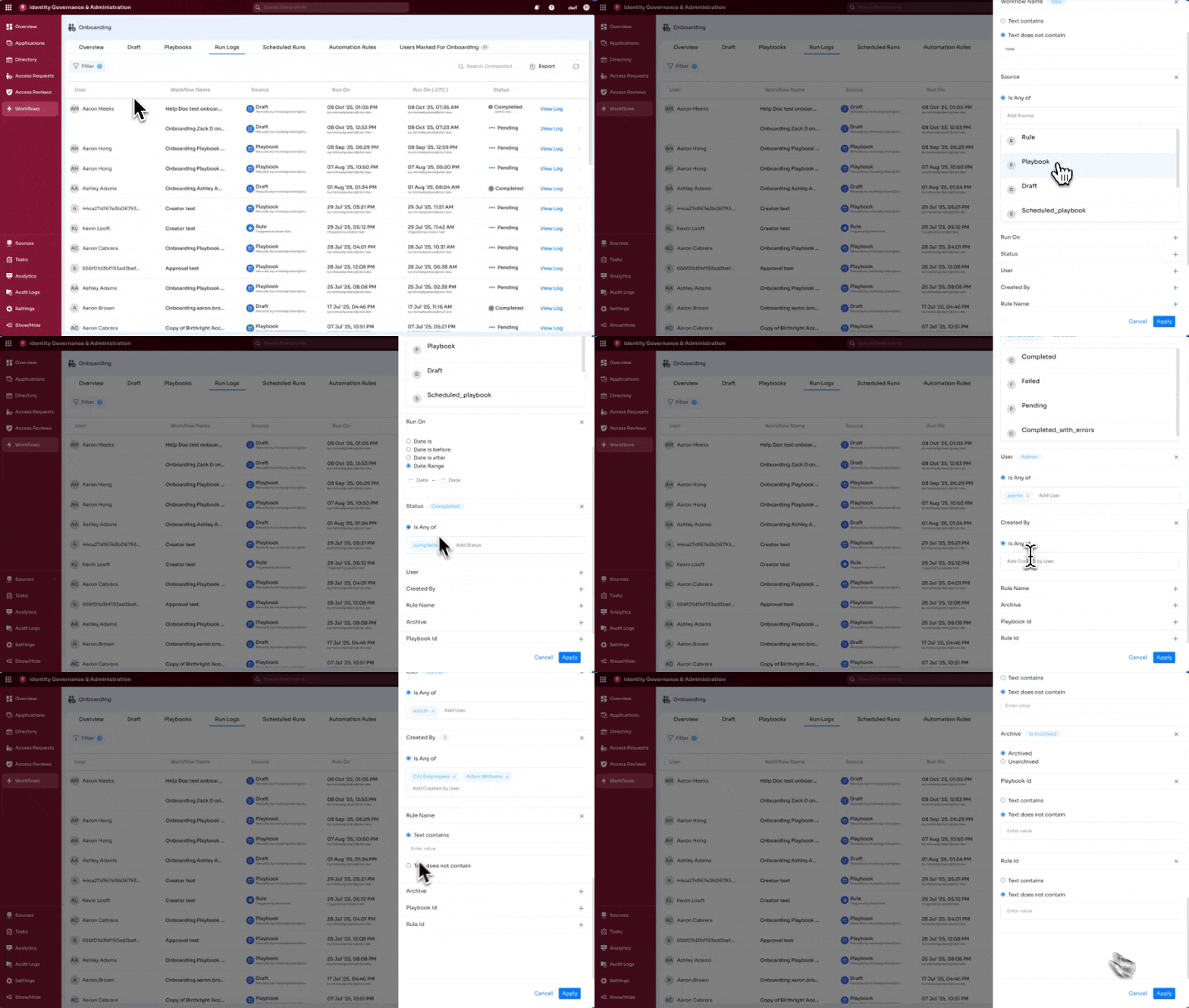
Filter run logs by the following criteria:
- Date range – View executions within specific timeframe
- Status – Filter by Completed, Failed, Pending, Completed with Errors
- Playbook – View logs for specific playbooks
- User – See all executions for specific users
- Source – Filter by trigger method (Manual, Automation Rule, Scheduled)
To filter:
- Select Filter
- Select filter criteria
- Select Apply
- Use Reset Filters to clear all filters
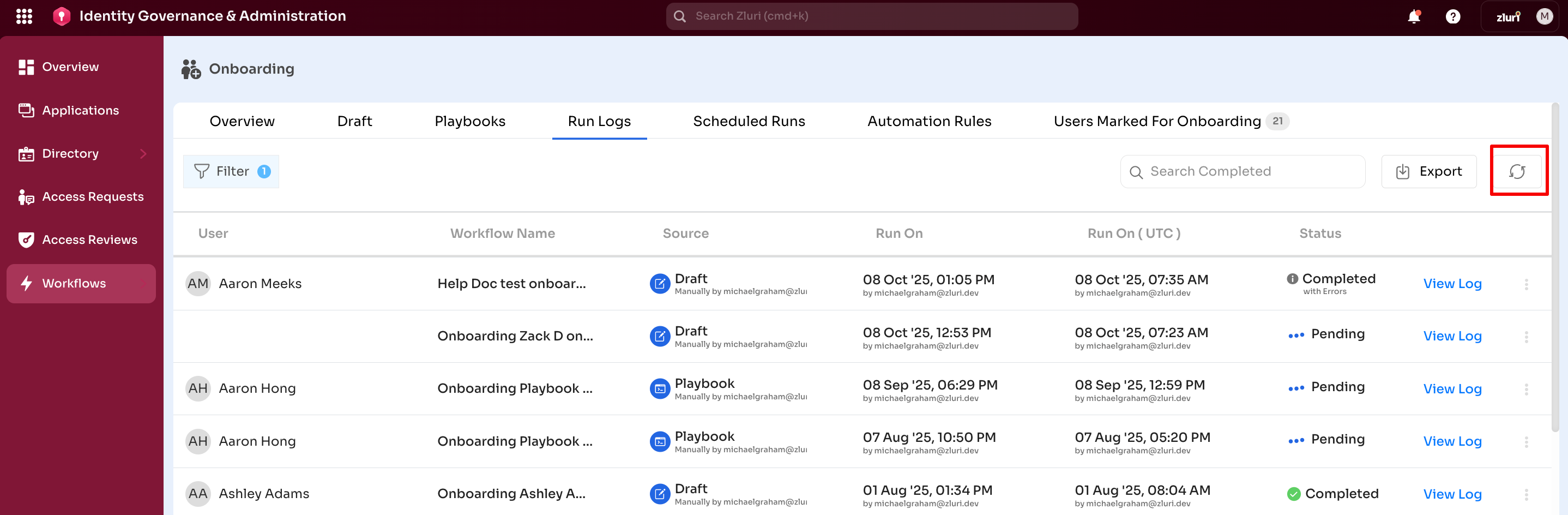
Refresh
Select Refresh All Runs to reload the page and display the most recent run logs.
Export
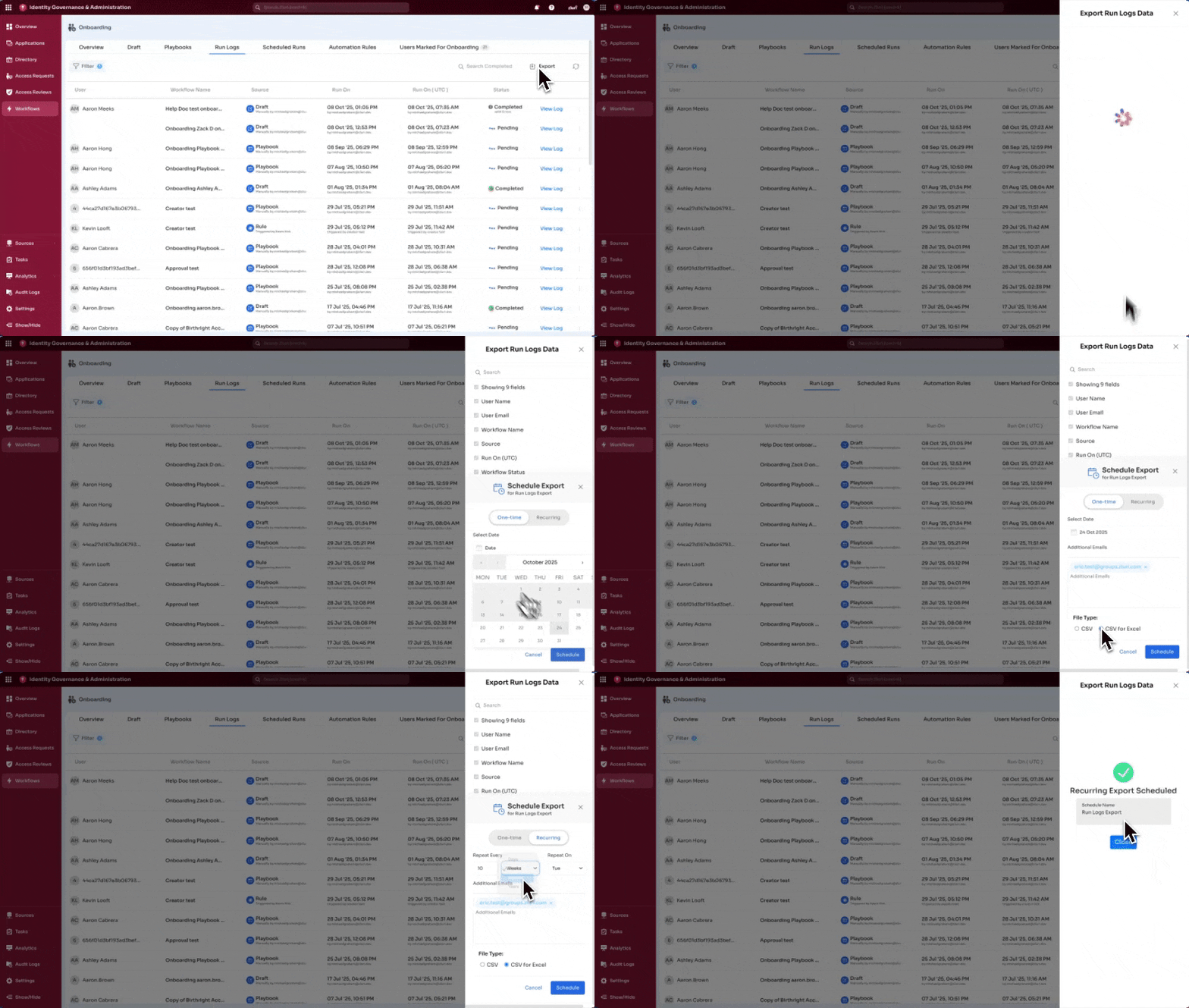
Export run log data for compliance audits or reporting. This feature is helpful for SOX, GDPR, or HIPAA audits.
One-time export:
- Select Export
- Select One-time
- Choose export date
- Add recipient email addresses
- Select file format (CSV or CSV for Excel)
- Select Export
Recurring export:
- Select Export
- Select Recurring
- Configure frequency (daily, weekly, monthly, yearly)
- Set interval and specific dates
- Add recipient email addresses
- Select file format
- Select Schedule
Recurring exports automatically send logs on the configured schedule.
Managing Run Logs
View Detailed Logs
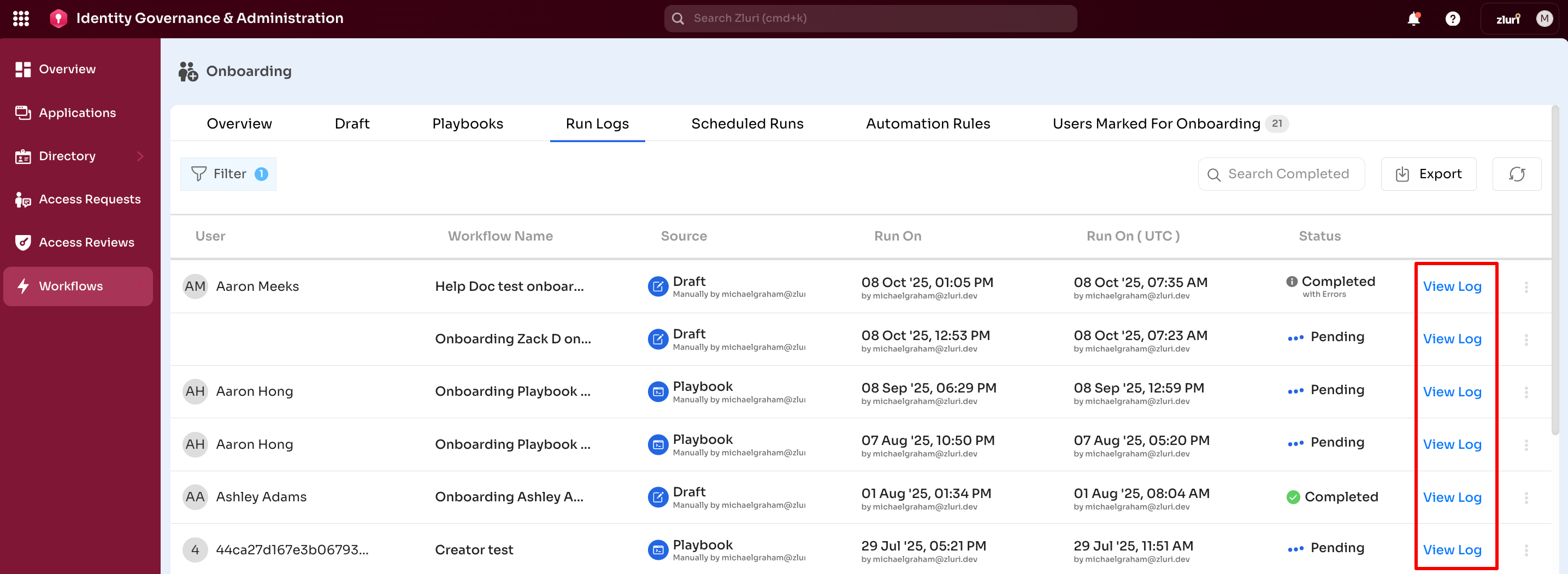
Select View Log next to any run to see detailed execution information.
The detailed log view displays:
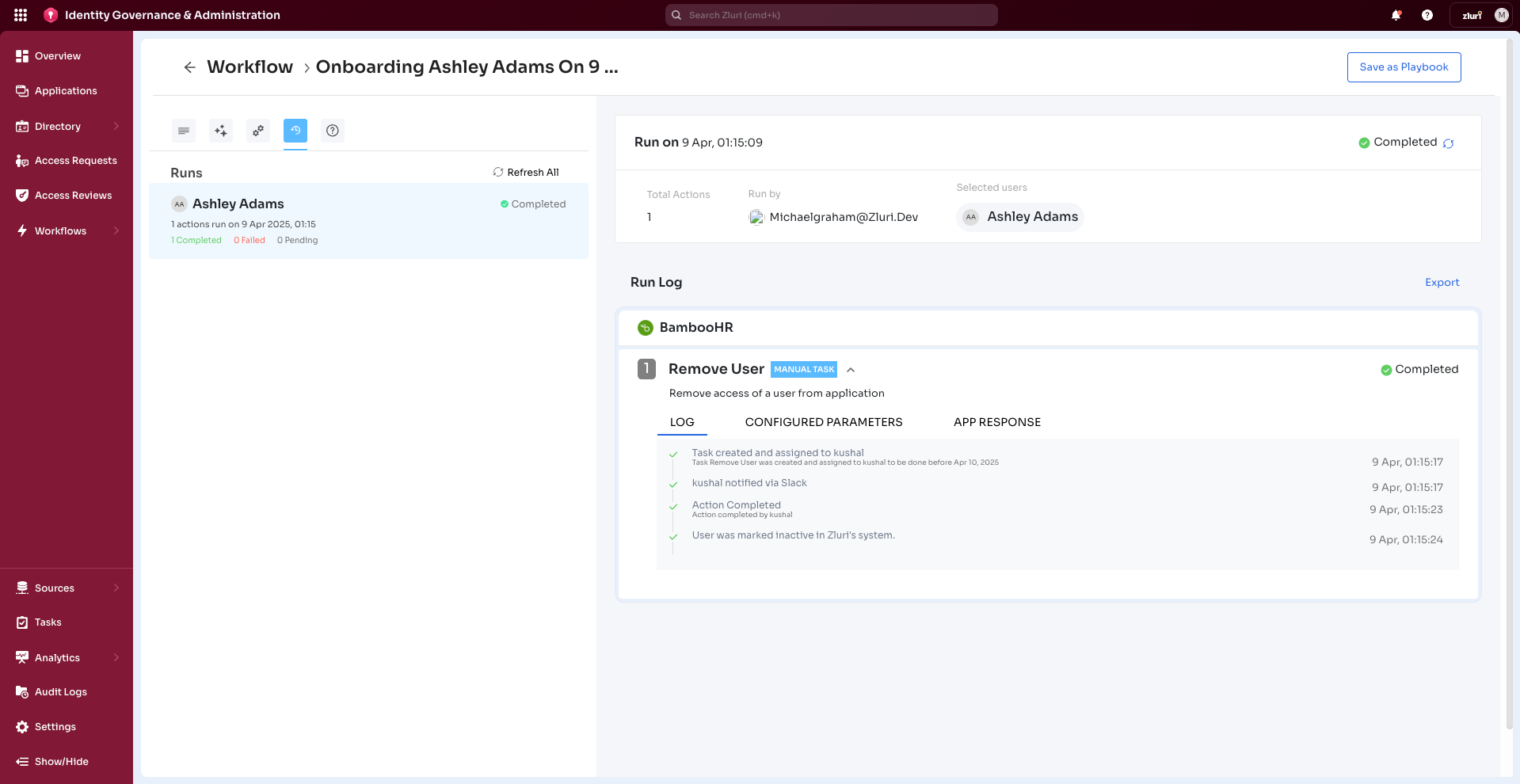
Control Panel:
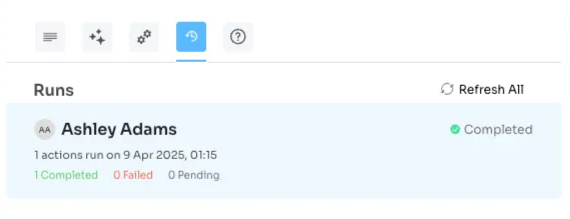
- Refresh All option
- Refreshes all runs for this specific workflow
- Run Status
- Current status (For example, "Completed" indicates successful execution)
- RUNS Summary
- Name of affected users
- Number of actions executed
- Date and timestamp of execution
- Status of actions: Number completed, failed, and pending
Workflow canvas:
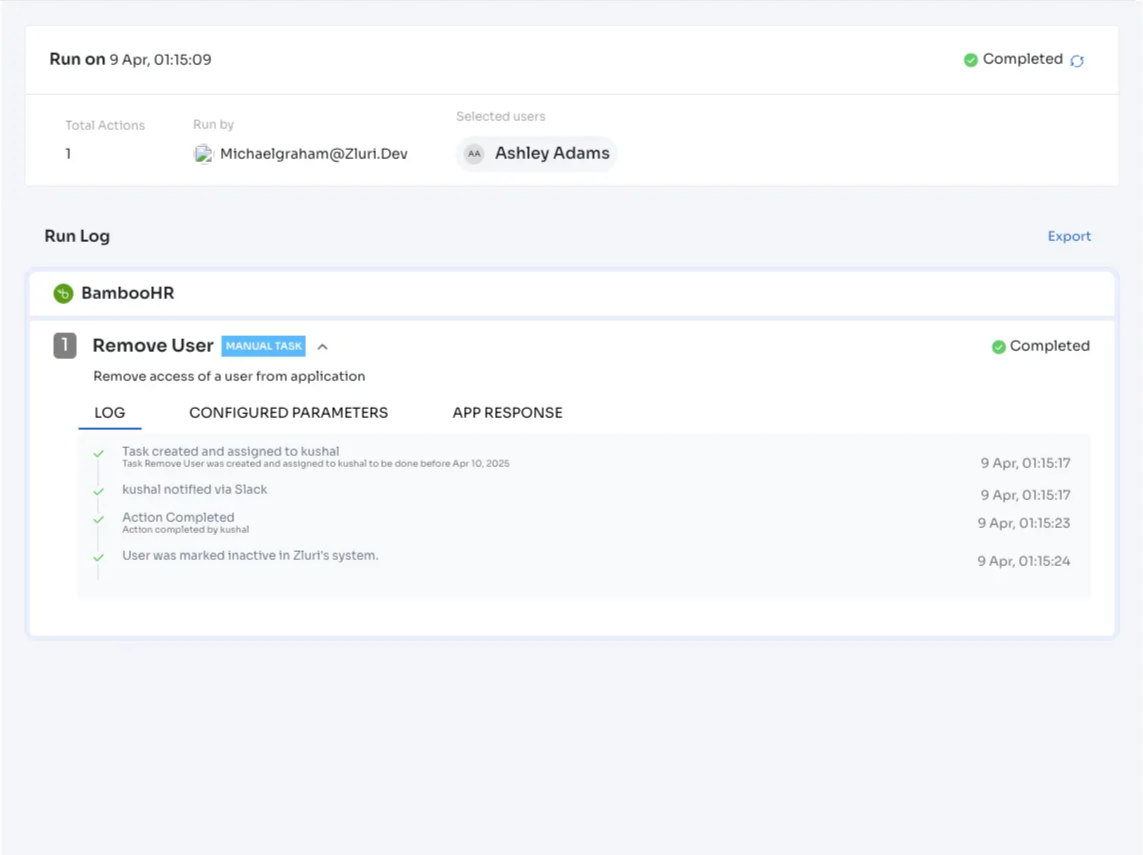
-
RUN On
- Date and timestamp of run execution
- Run status
- Run by: Email ID of the admin performing the run
- Selected user: Name of the user being onboarded or offboarded
-
Users (Onboarding)
- List of all users processed in this execution
- Individual status for each user
- Select user name to expand detailed actions
-
RUN LOG Section
Contains separate sections for each application added in the workflow:
- Name of the application (For example, Zoom, HubSpot)
- Status of the application execution
- Name of different actions included (For example, Remove User, Add User)
- Three sections with detailed logs:
- LOG – Step-by-step execution details with timings
- CONFIGURED PARAMETERS – Details about parameters and configurations
- APP RESPONSE – Final response received after workflow execution
-
Export Option
Download detailed logs as CSV for the specific execution.
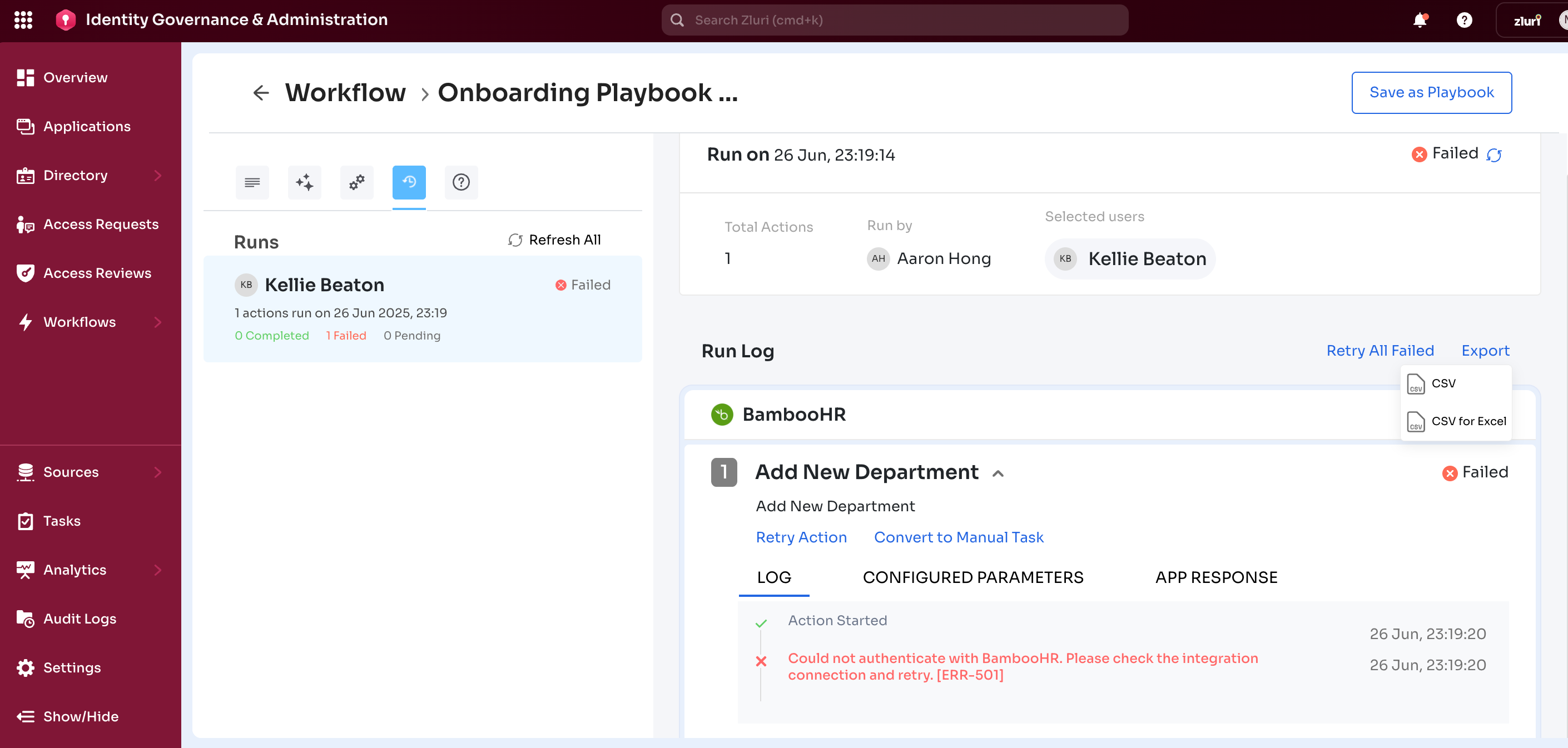
Select Export CSV to generate logs for compliance or internal reporting.
Review Execution History
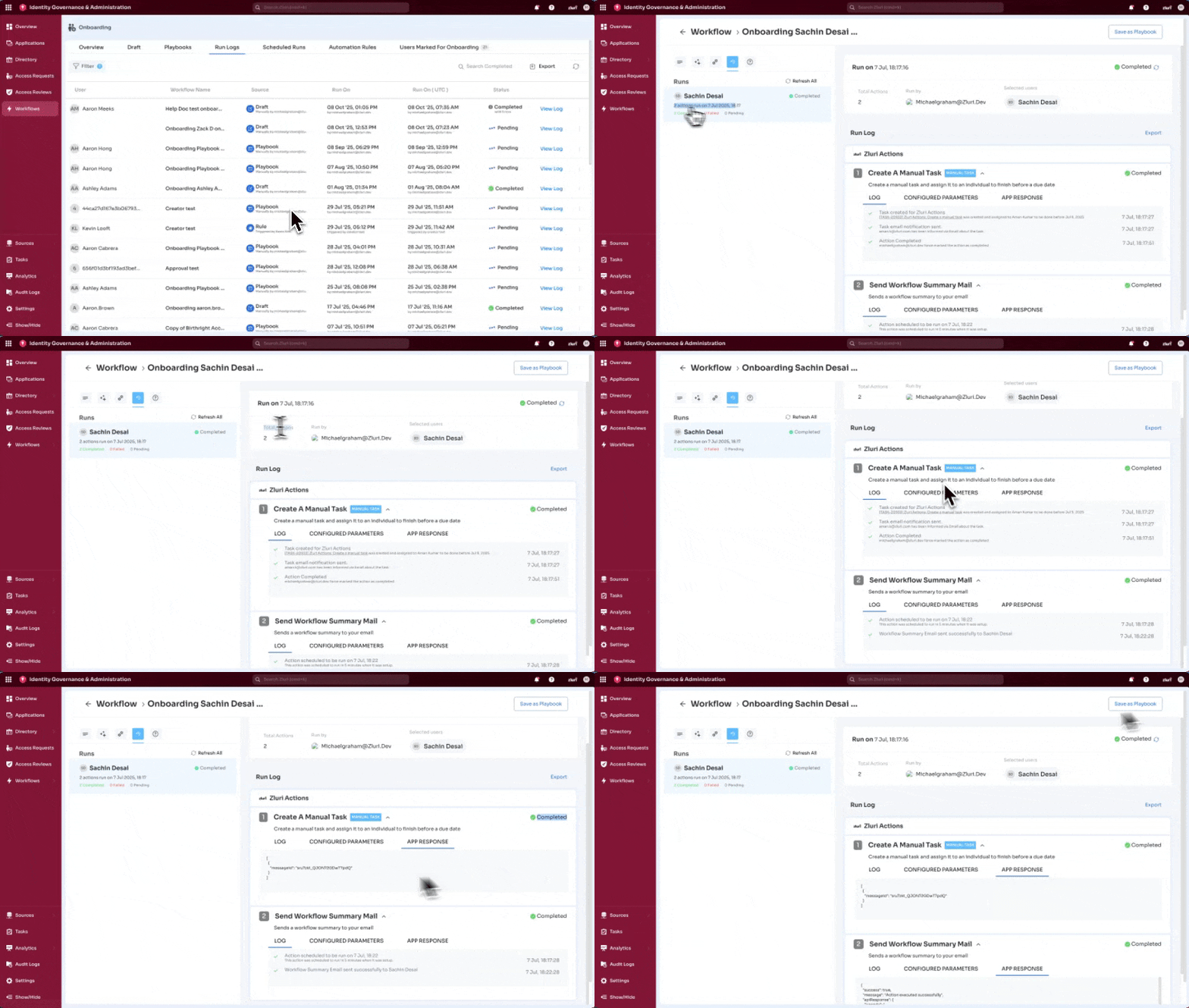
Archive Runs
Archive completed runs to declutter the Run Logs table while preserving data.
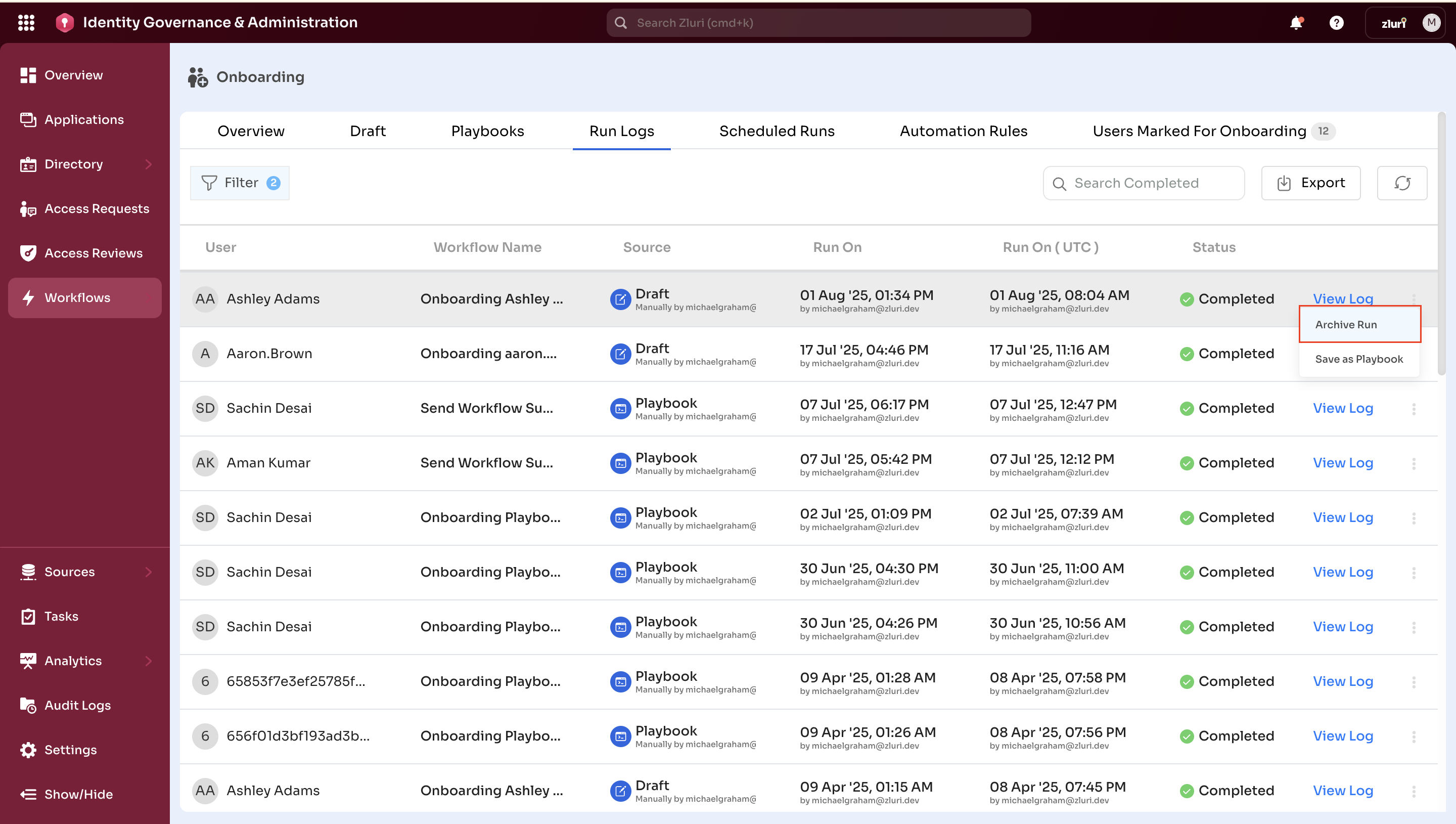
To archive:
- Select three-dot icon next to the run
- Select Archive Run
- Enter reason for archiving
- Select Proceed
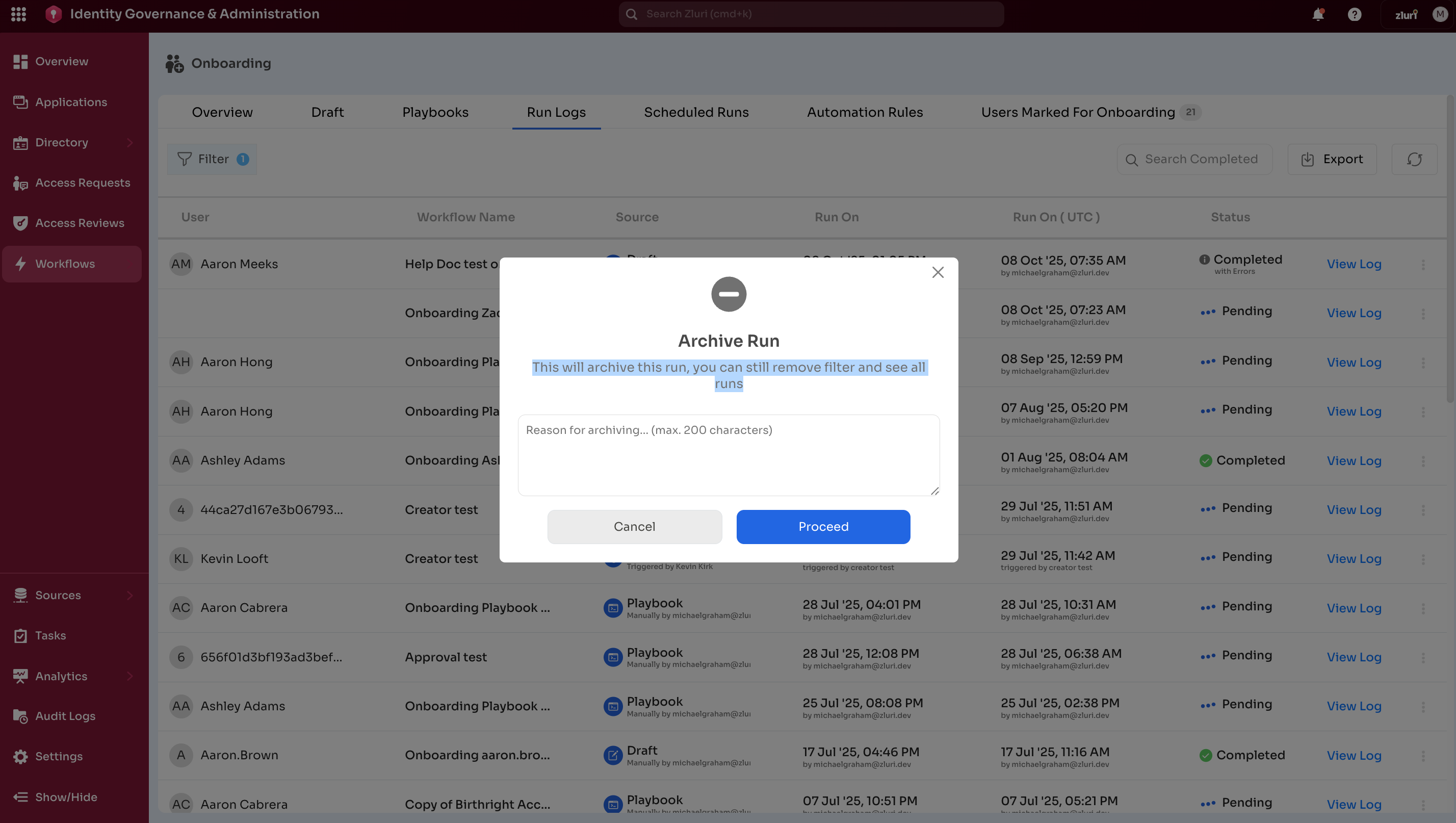
To view archived runs:
- Select Filter
- Find Archive filter
- Change value from "false" to "true"
- Apply filter
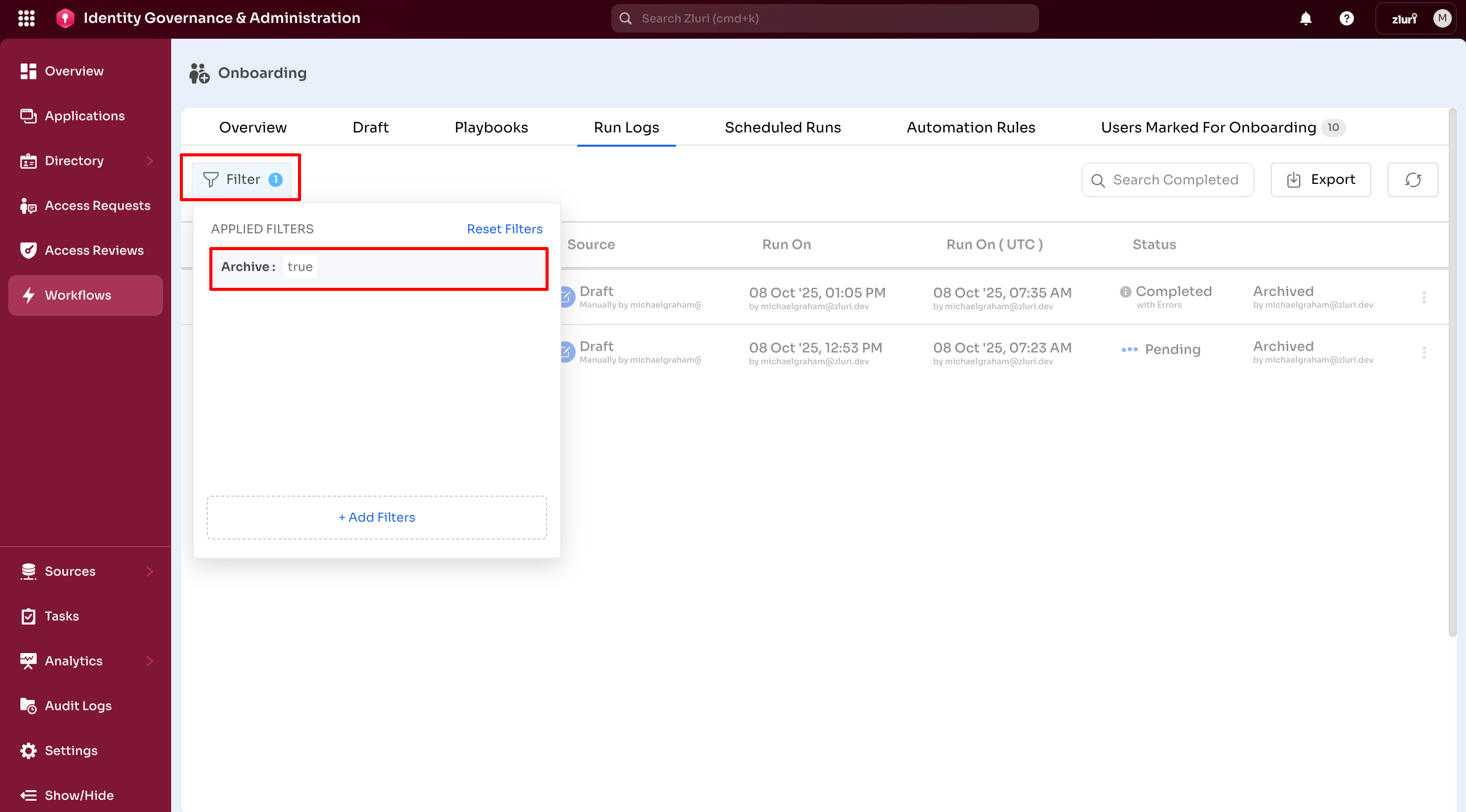
Archived runs remain accessible but don't appear in the default view.
Save as Playbook
Convert a successful workflow execution into a reusable playbook.
To save:
- Select three-dot icon next to the run
- Select Save as Playbook
- Enter playbook name
- Select Save
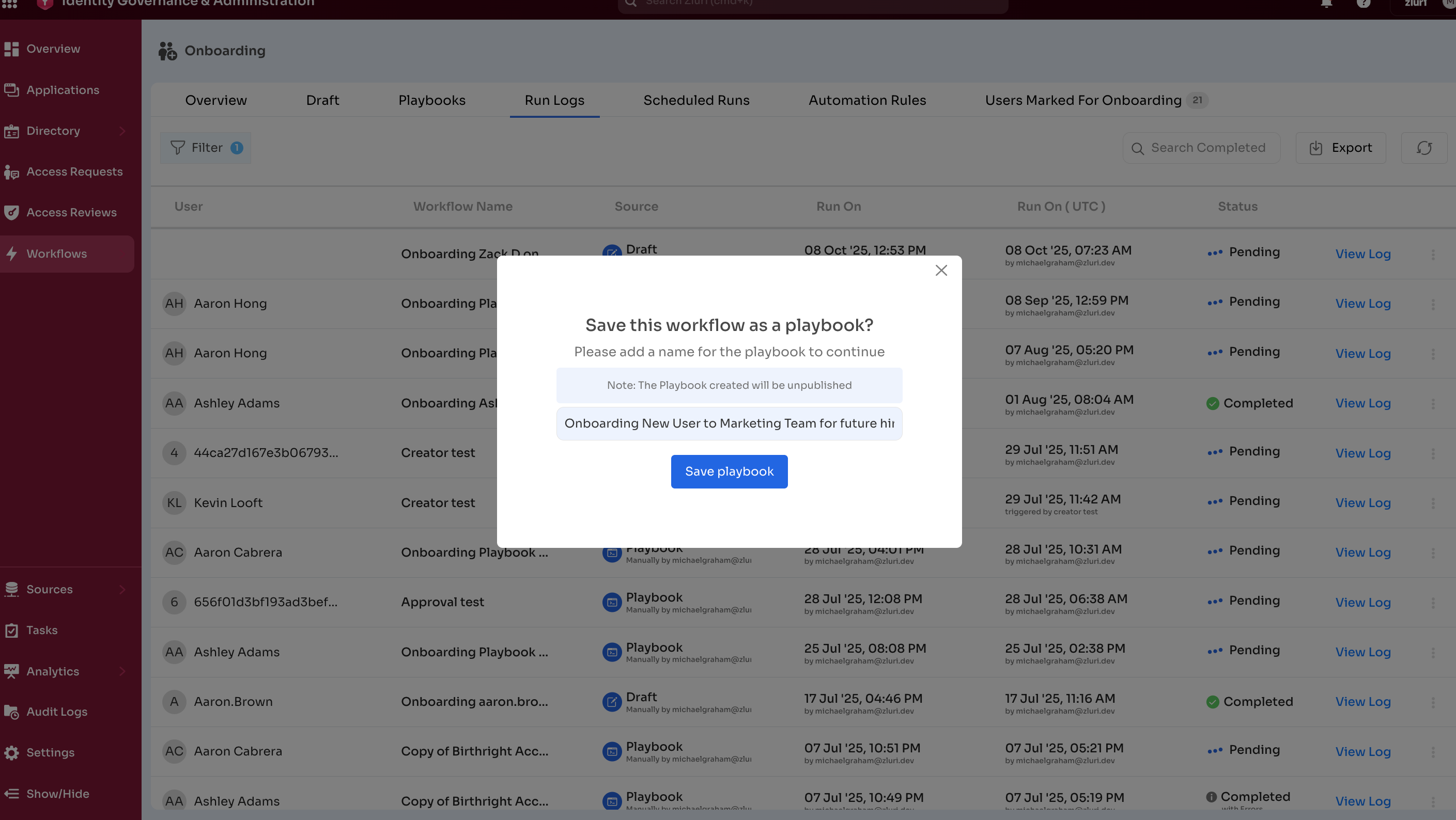
New playbook appears in the Playbooks tab with identical configuration.
Troubleshooting Failed Actions
For any action failure, Run Logs provides multiple options for resolution.
Retry Failed Actions
Retry All Failed
Re-execute all failed actions in the workflow.
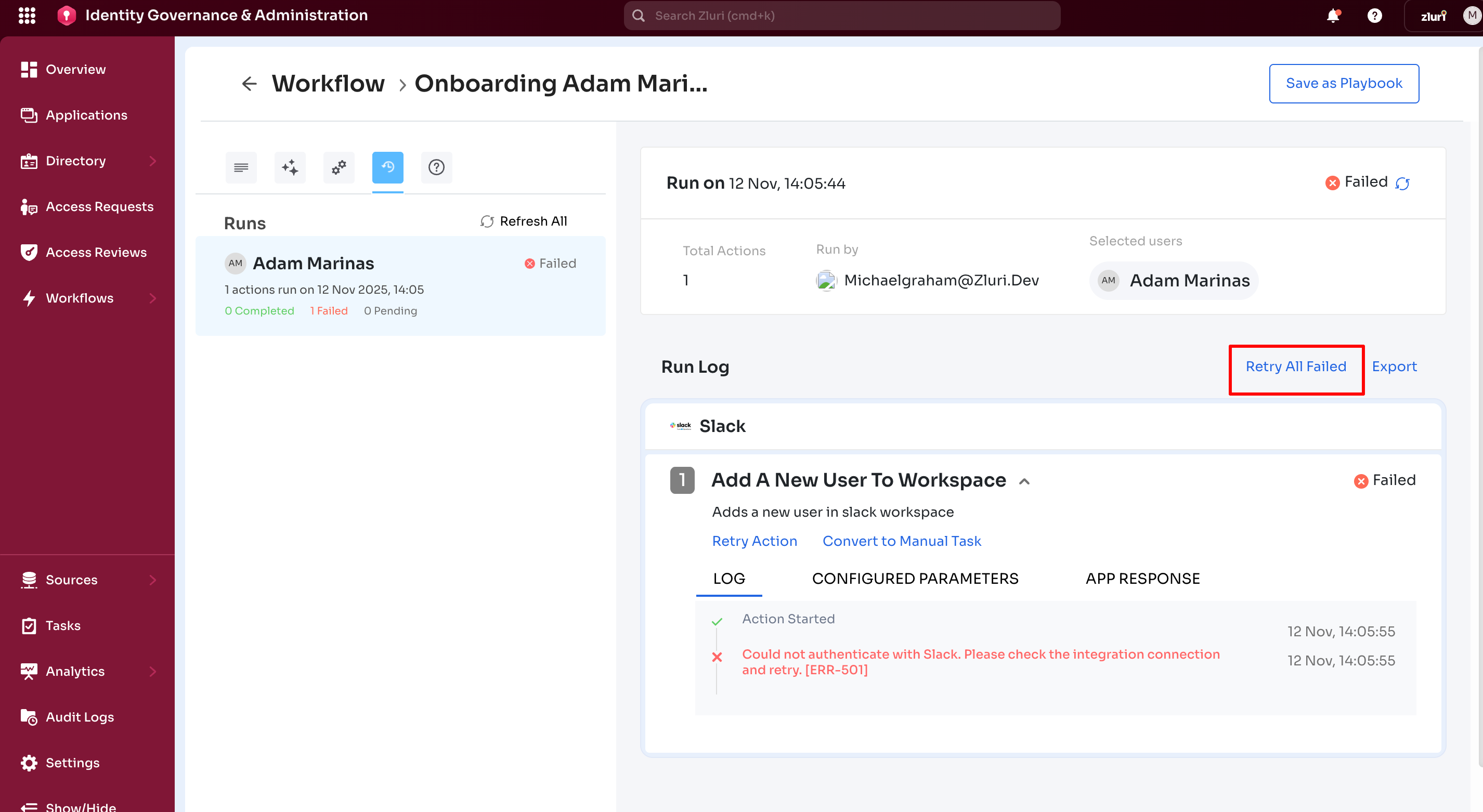
Use for:
- Multiple actions failed due to temporary issues
- Network interruptions caused failures
- Service outages are resolved
To retry all:
- Open detailed run log
- Select Retry All Failed option
- System re-executes all failed actions
- Check status updates
Retry Individual Action
Re-execute a single failed action.
Use for:
- Only one action failed
- Specific action requires retry after fix
- Testing individual action resolution
To retry individual action:
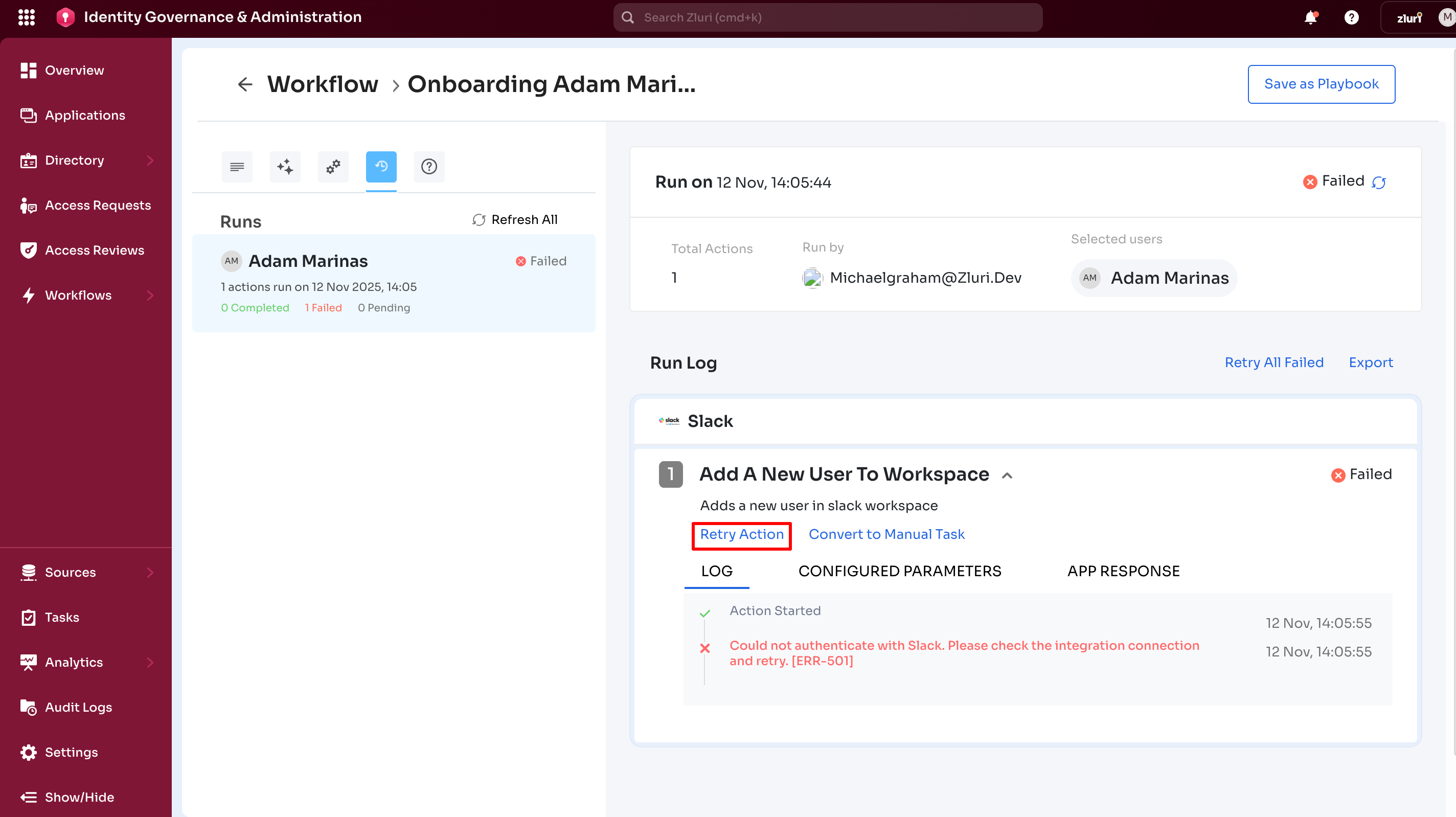
- Locate failed action in run log
- Select Retry Action
- Action re-executes with same configuration
- Select updated status
Convert to Manual Task
During automation failure resolution issues, convert failed actions to manual tasks.
Use cases:
- Permanent integration issues
- Invalid credentials requiring admin intervention
- Actions requiring manual verification
- Temporary workaround needed
To convert:
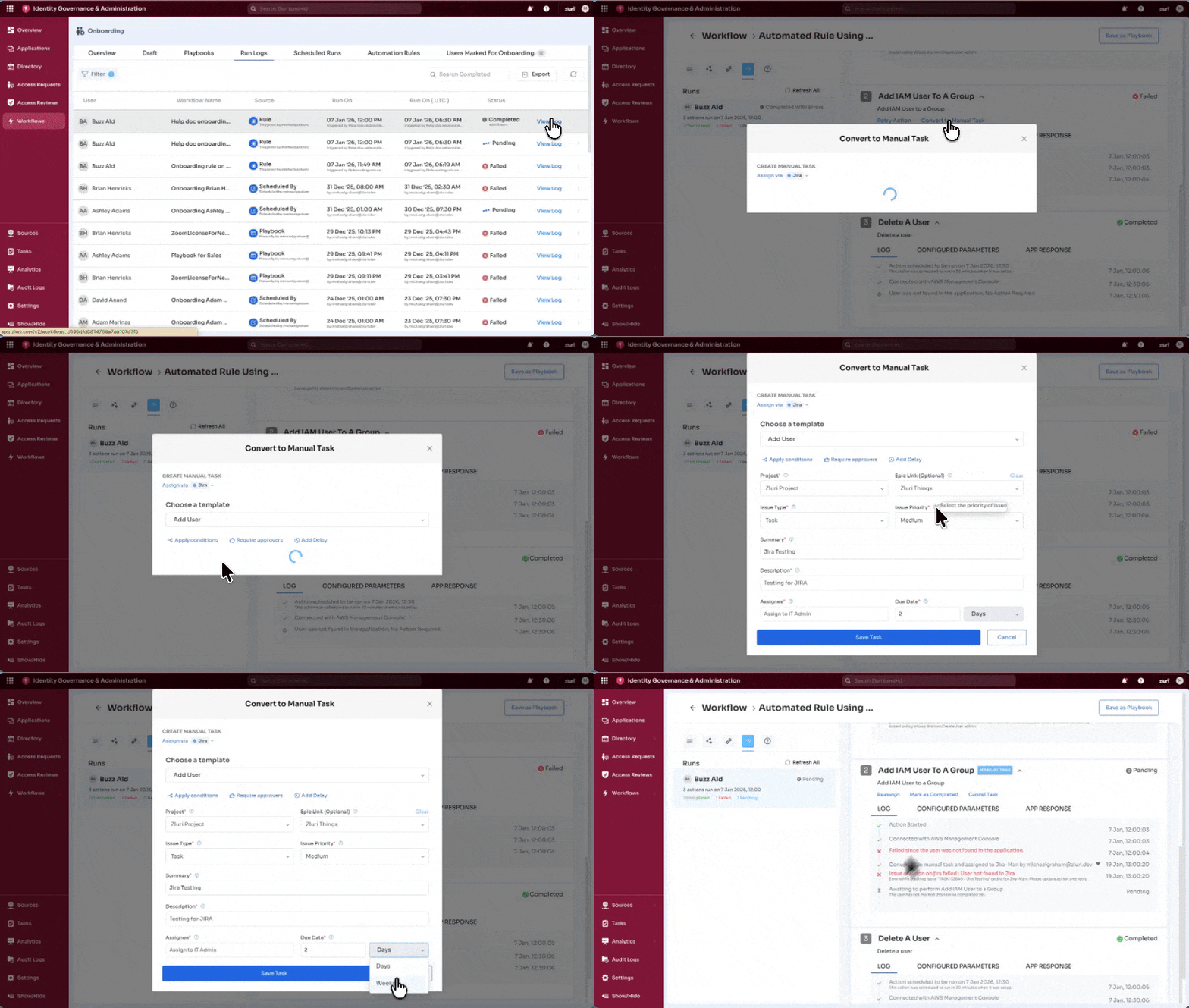
- Locate failed action in run log
- Select Convert to Manual Task
- Select notification method:
- Slack
- Email and Slack
- Jira ticket
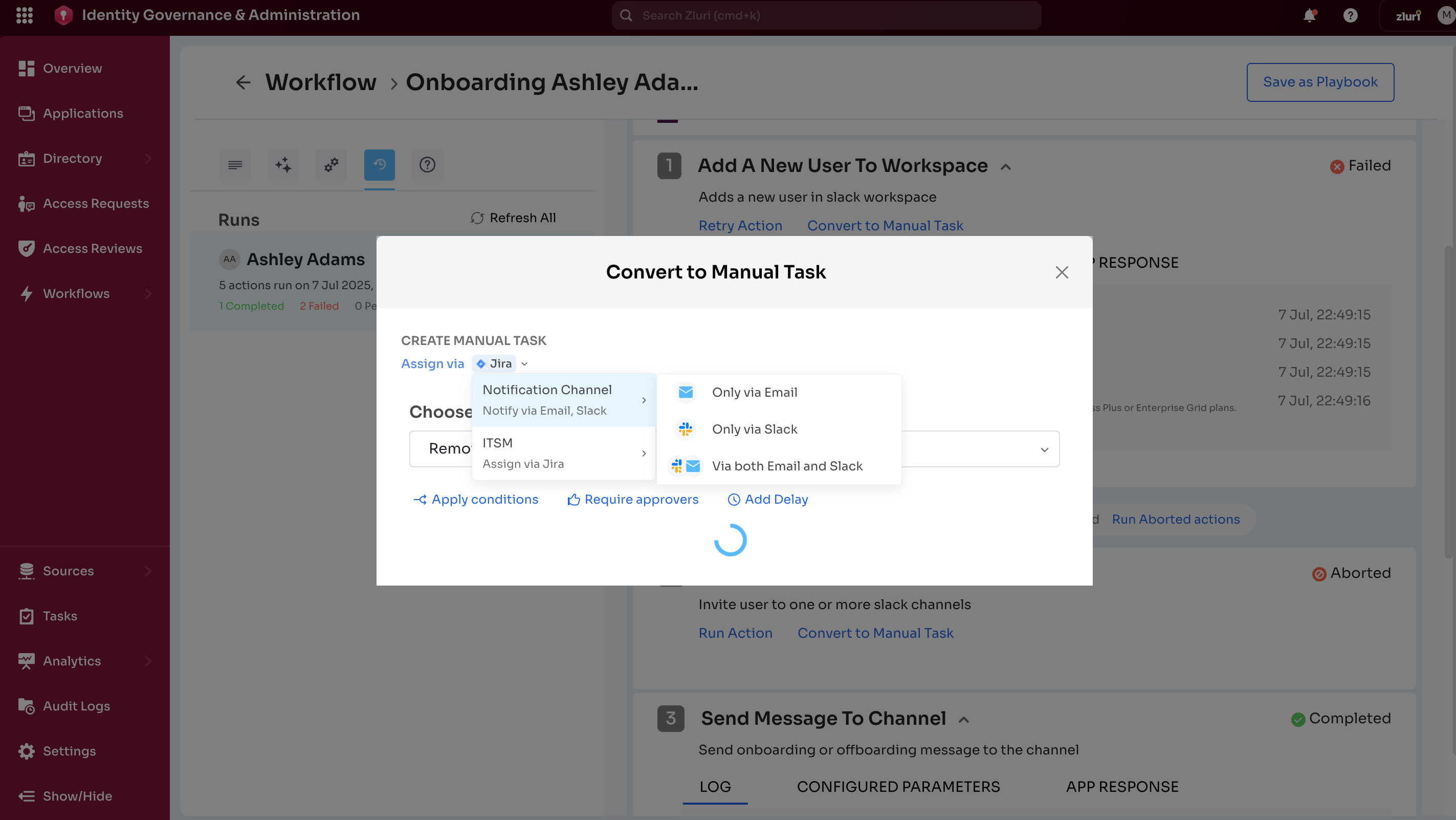
- Assign task owner
- Add task instructions
- Set due date (optional)
- Select Create Task
Manual task appears in Tasks section for assigned owner. Workflow status updates upon task completion.
Understanding Failure Types
Temporary Technical Failures
- Network interruptions
- Service timeouts
- Rate limiting
- Temporary API errors
Solution: Retry the action. Issue typically resolves automatically.
Permanent Issues
- Invalid credentials
- Missing permissions
- Integration disconnected
- User attribute errors
- API authentication issues
Solution: Fix underlying issue, then retry. Convert to manual task if immediate resolution isn't possible.
Example Scenarios
Onboarding Example
Scenario: Onboarding a new sales hire with access to Salesforce, Slack, and HubSpot.
The Run Logs show:
- Salesforce: Completed. User added and license assigned.
- Slack: Completed. User added to #sales channel.
- HubSpot: Failed due to rate limiting.
Action: Retry the HubSpot action after waiting a few minutes.
Offboarding Example
Scenario: Offboarding a user with access to HubSpot and Zendesk.
The Run Logs indicate:
- HubSpot: Completed. User was removed from the HubSpot app.
- Zendesk: Failed due to an API authentication issue, meaning the user still has access to Zendesk.
Action: Administrator retries the Zendesk removal. If the retry fails, the task is converted to a manual assignment and delegated to IT support through Jira.
Updated 7 months ago