
Verifying Granted App Access: Onboarding
Verifying Successful App Provisioning
After running onboarding workflows or playbooks, confirm that applications were successfully provisioned. Verification ensures employees have the necessary tools on Day 1, identifies missing apps due to failed automation, and enables quick troubleshooting.
Zluri provides two ways to verify app access:
- User Profile page
- Application page
Method 1: Verify via User Profile
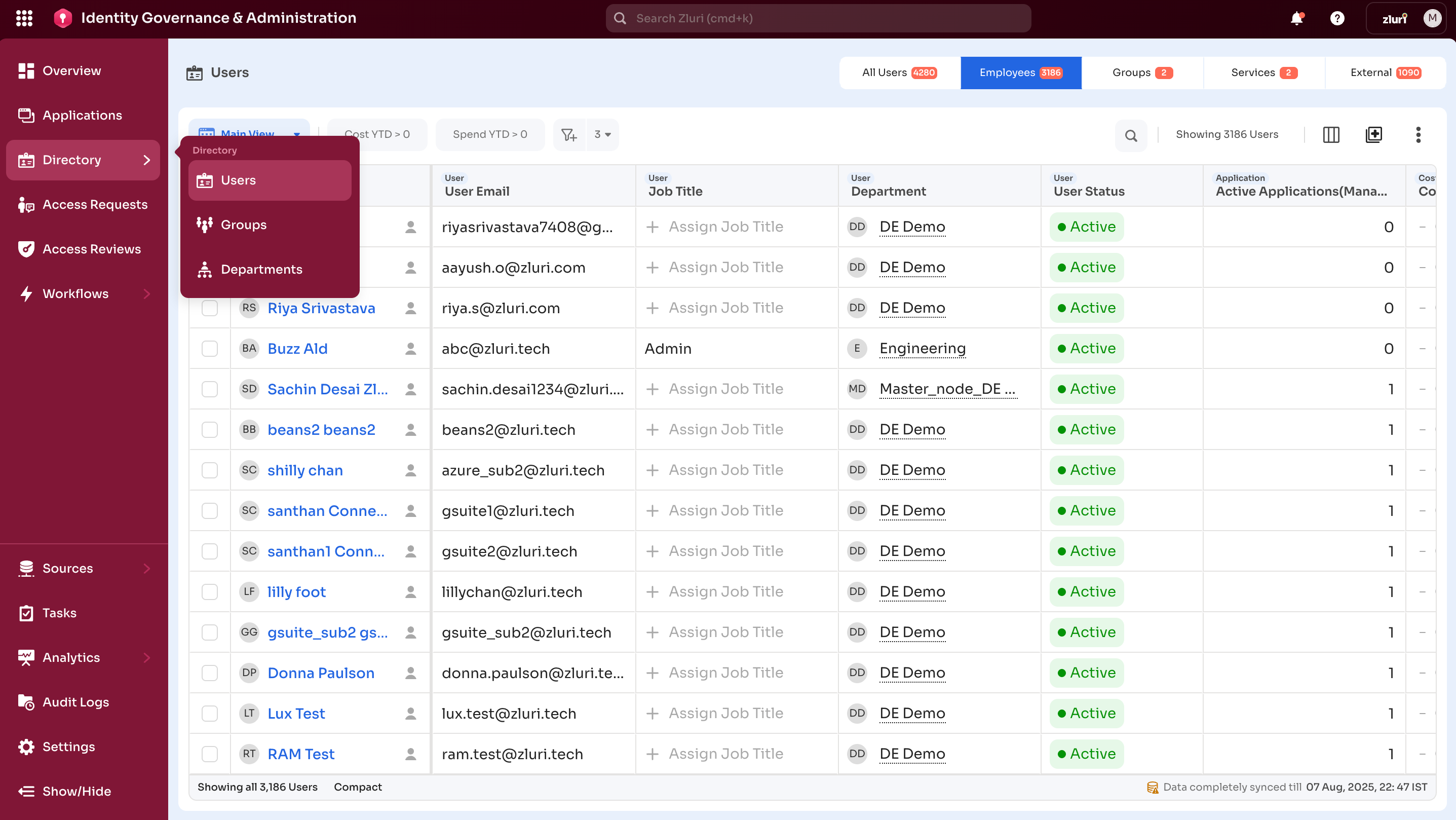
Step 1: Navigate to Directory
Go to IGA → Directory → Users
Step 2: Open the User Profile and Check the Applications Tab
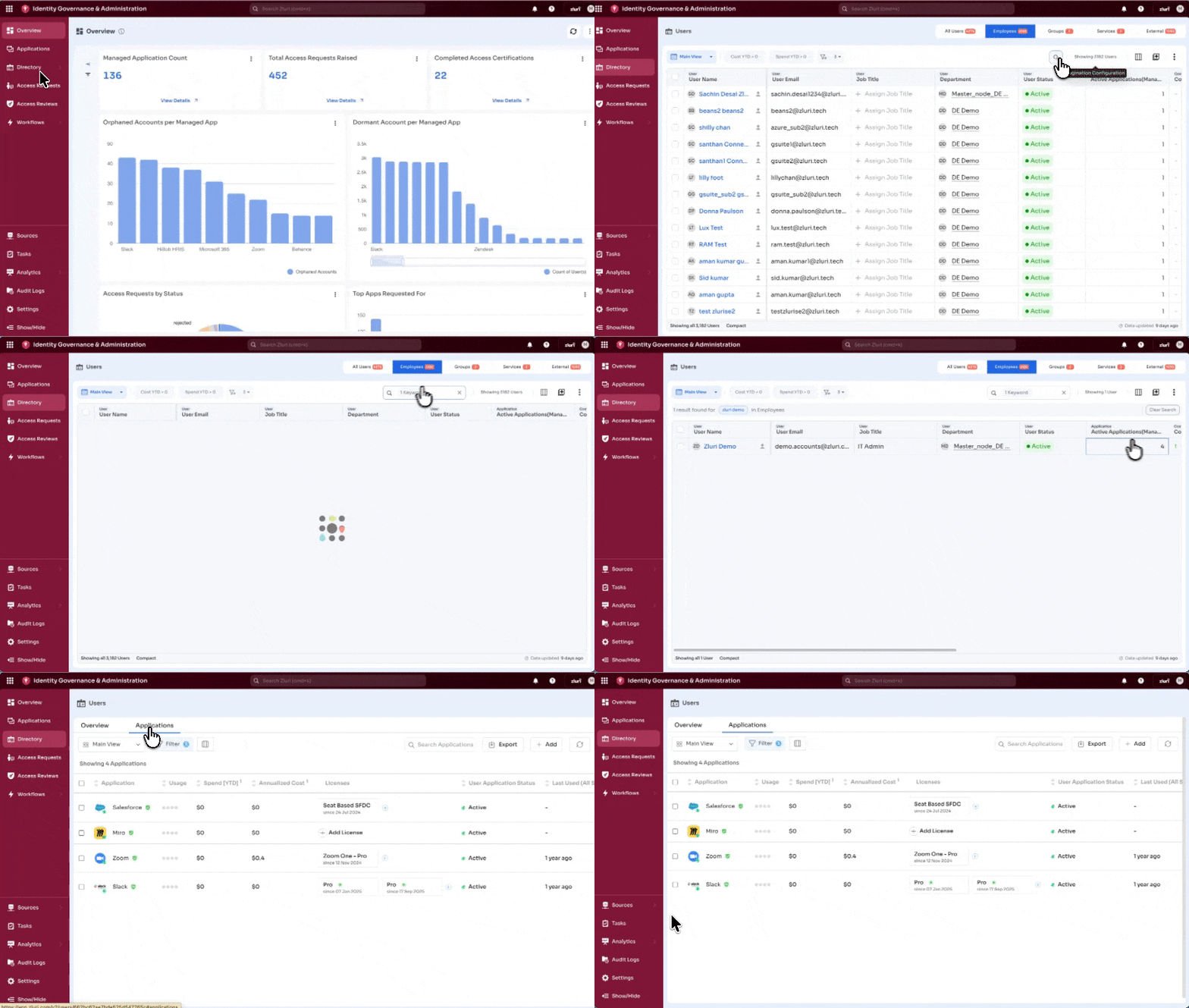
- In the user profile (For example, Zluri demo), select the Applications tab at the top
- Scroll through the list of applications assigned to this user
- Review assigned applications to confirm successful provisioning
Example: The user's profile shows four apps listed: Salesforce, Miro, Zoom, and Slack under the Applications tab. This confirms that access to these four applications was successfully provisioned during the onboarding process.
Method 2: Verify via Application Page
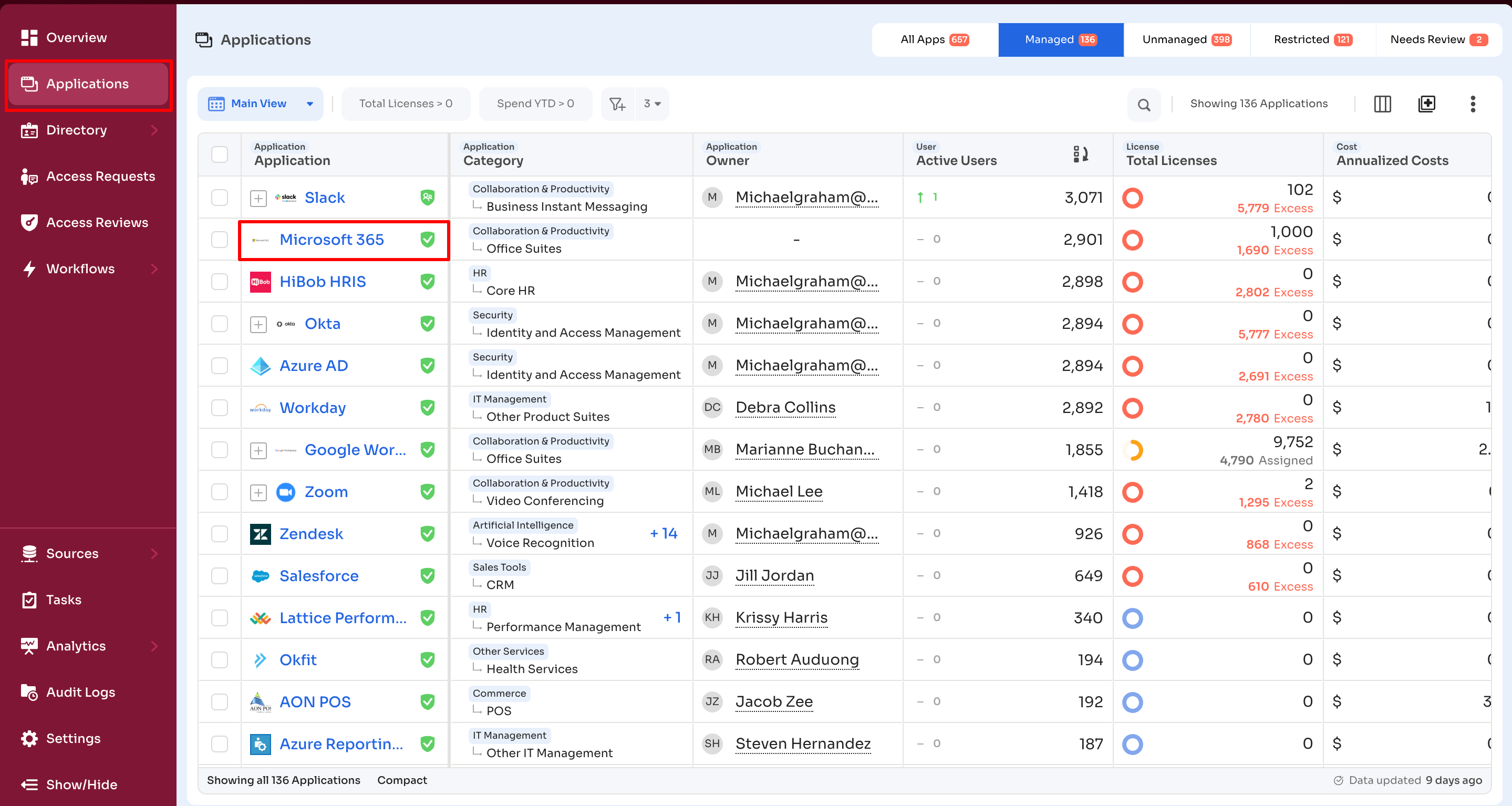
Step 1: Navigate to Applications
Go to IGA → Applications → [Select App]
Step 2: Open the Users Tab
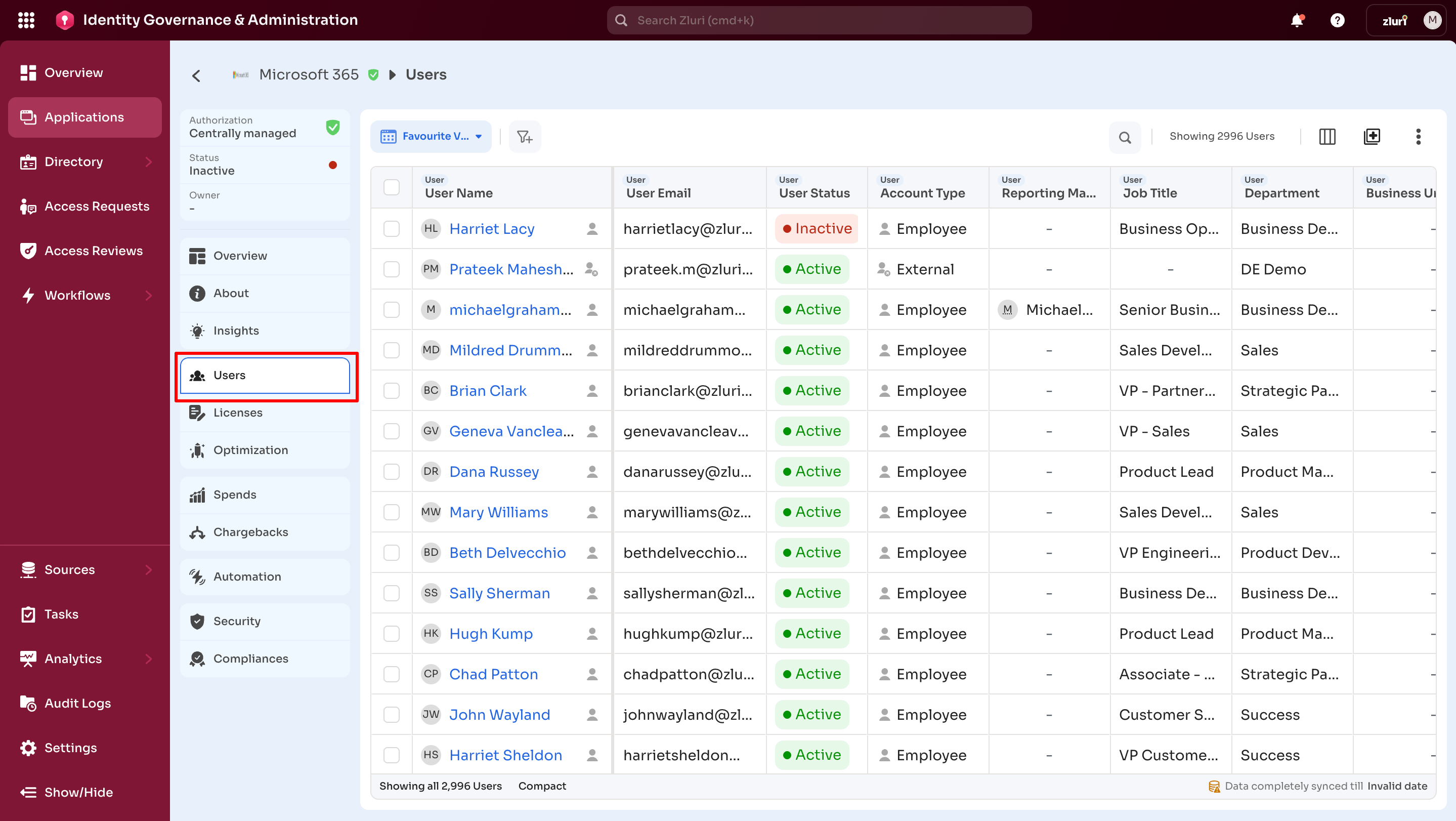
- Inside the selected app, select the Users tab
- This lists all employees currently provisioned with access to that app
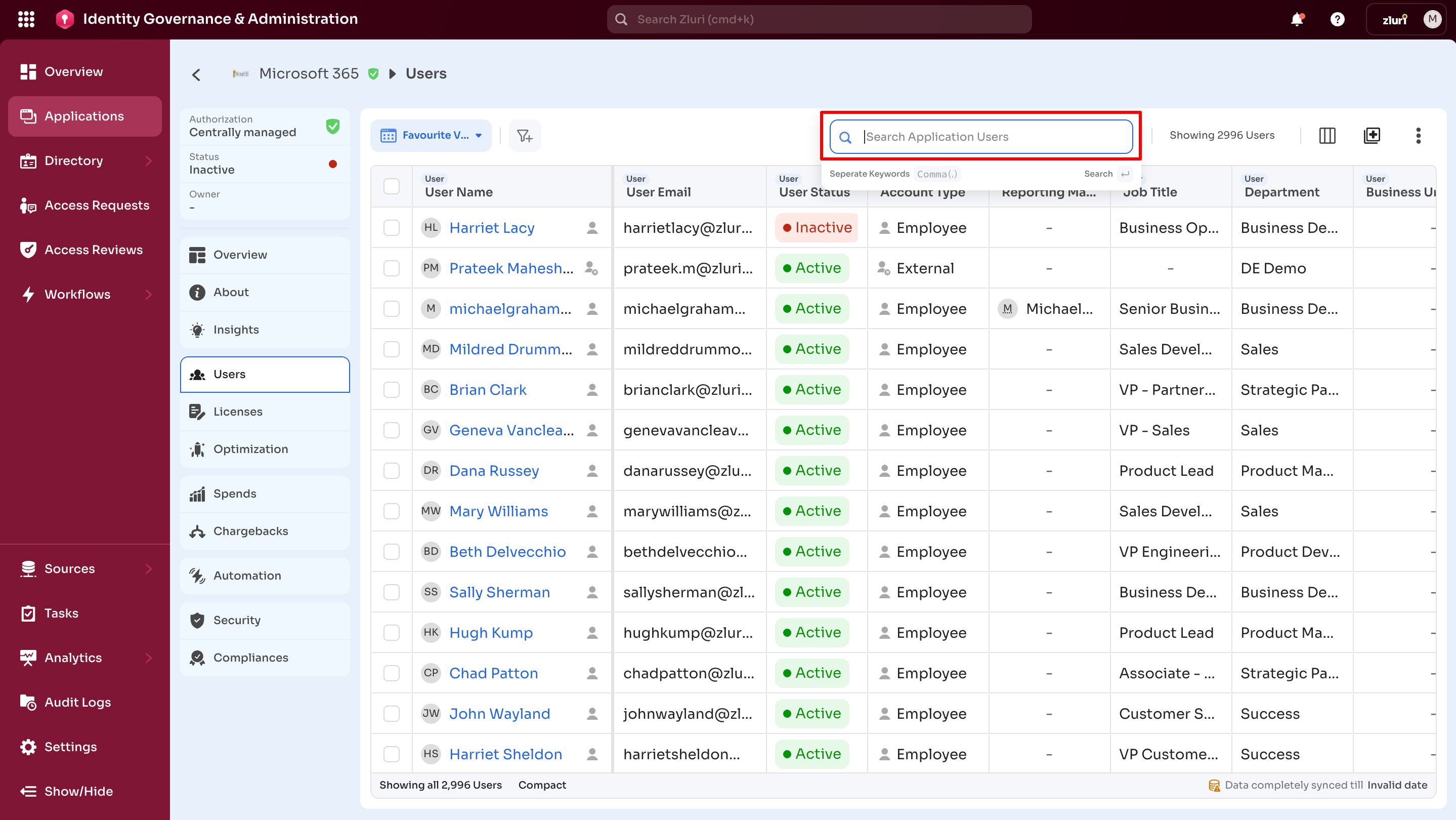
Step 3: Search for the User
Look for the employee's name or email in the list.
Example: Opening the Microsoft 365 app's Users tab shows the list of all active Microsoft 365 users. If the new hire appears here, provisioning was successful.
Troubleshooting Failed Access
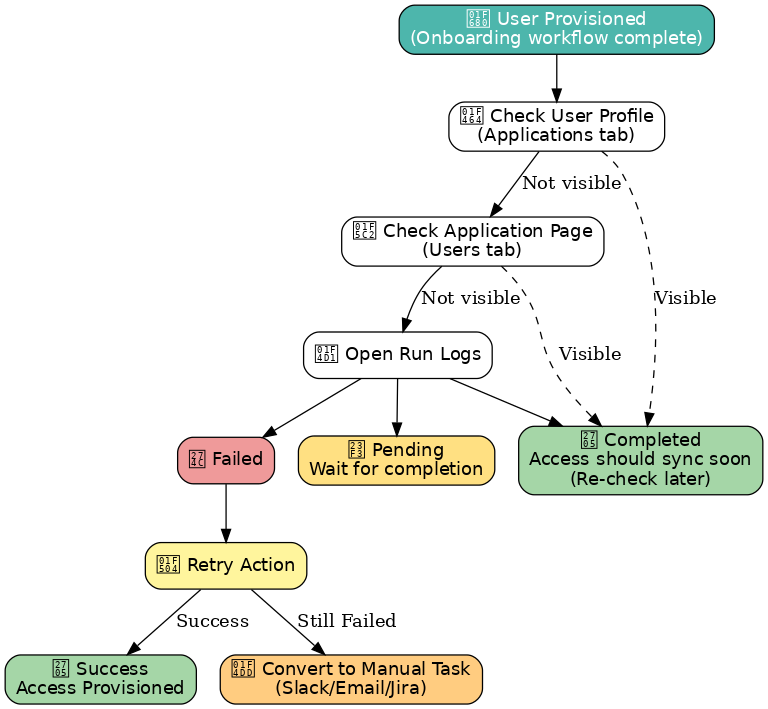
If the app does not appear in either the user profile or the application page:
- Check Run Logs for the onboarding playbook
- Identify if the action failed (status = Failed or Pending)
- Use Retry Action to re-execute the step
- Convert to Manual Task if automation cannot complete (For example, missing credentials)
Updated 7 months ago