
Connect Adobe [AI-Powered Integration] to Zluri
This guide walks you through connecting your Adobe [AI-Powered] account to Zluri.
Connect Adobe [AI-Powered Integration] to Zluri
This guide walks you through connecting your Adobe [AI-Powered] account to Zluri.
Security note: This method relies on forwarding email verification codes to a Zluri-controlled mailbox. Use it only if Adobe doesn't support a vendor-supported OAuth or API-based connection for your account type. Before you proceed, get explicit approval from your security team and review the interim-use requirements below.
Prerequisites
- Admin access to the Adobe account.
- Access to a dedicated, narrowly scoped Gmail account for this integration. Don't use a shared or personal mailbox.
- Security approval to use the email-forwarding authentication method (see Interim-use requirements).
- Permission to configure forwarding and filters on the dedicated Gmail account.
Note: A call with the Zluri team is required before you begin setup. Contact your Zluri representative to schedule this call before proceeding to Step 1.
Interim-use requirements
Use this flow only as a temporary measure while an OAuth or API-based connection isn't available. Before you proceed:
- Confirm explicit security approval to use this method.
- Use a dedicated Adobe-integration mailbox, not a shared inbox or a user's personal account.
- Scope the forwarding filter narrowly, as described in Step 2.
- Document the data processing and retention policy for forwarded emails with your security team.
- Set up monitoring on the dedicated mailbox for unexpected activity.
- Record a sunset date for this method and revisit it when Adobe or Zluri supports a non-human identity or OAuth/API connection.
Step 1: Name your instance (on a call with Zluri)
Complete this step during your scheduled call with the Zluri team.
-
Schedule a call with the Zluri team.
-
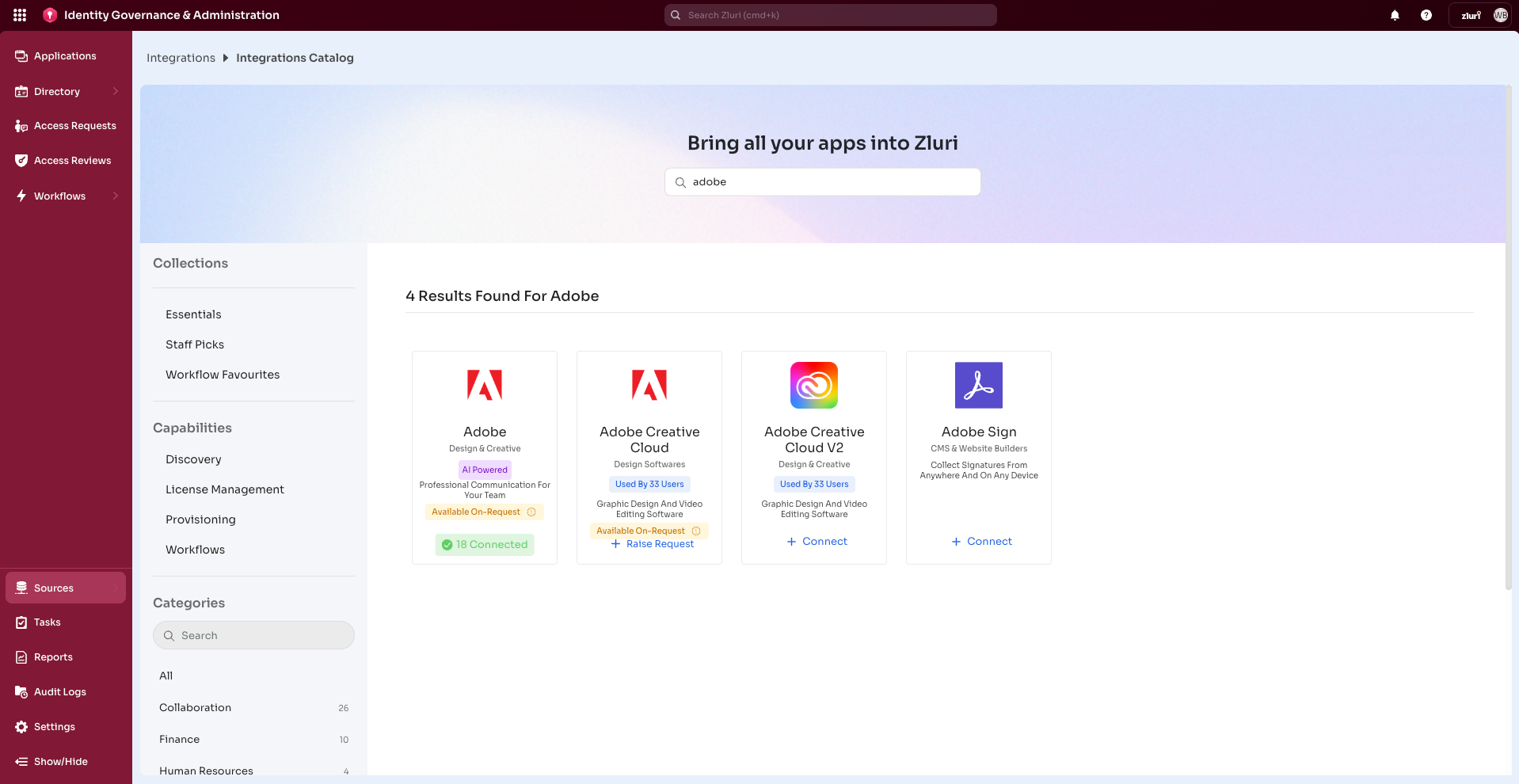
During the call, sign in to the Zluri dashboard and open the Integrations Catalog.
-
Search for Adobe (AI powered tag) and open the Adobe Integration page.
-
Select Connect Integration. If a connection already exists, select Connect another instance instead.
-
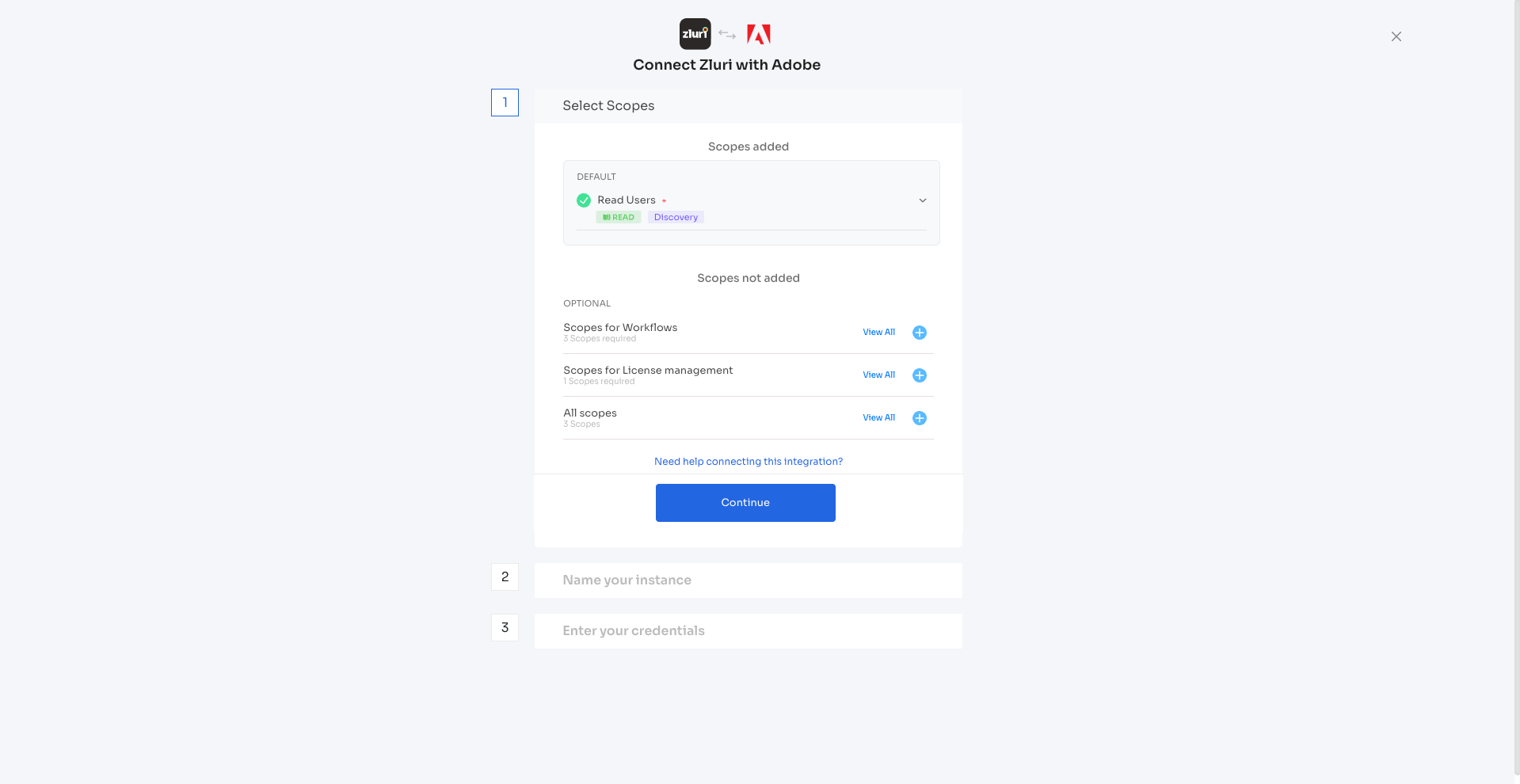
Review the required scopes and select Continue.
-
Enter an instance name, add a description, and select Connect it myself.
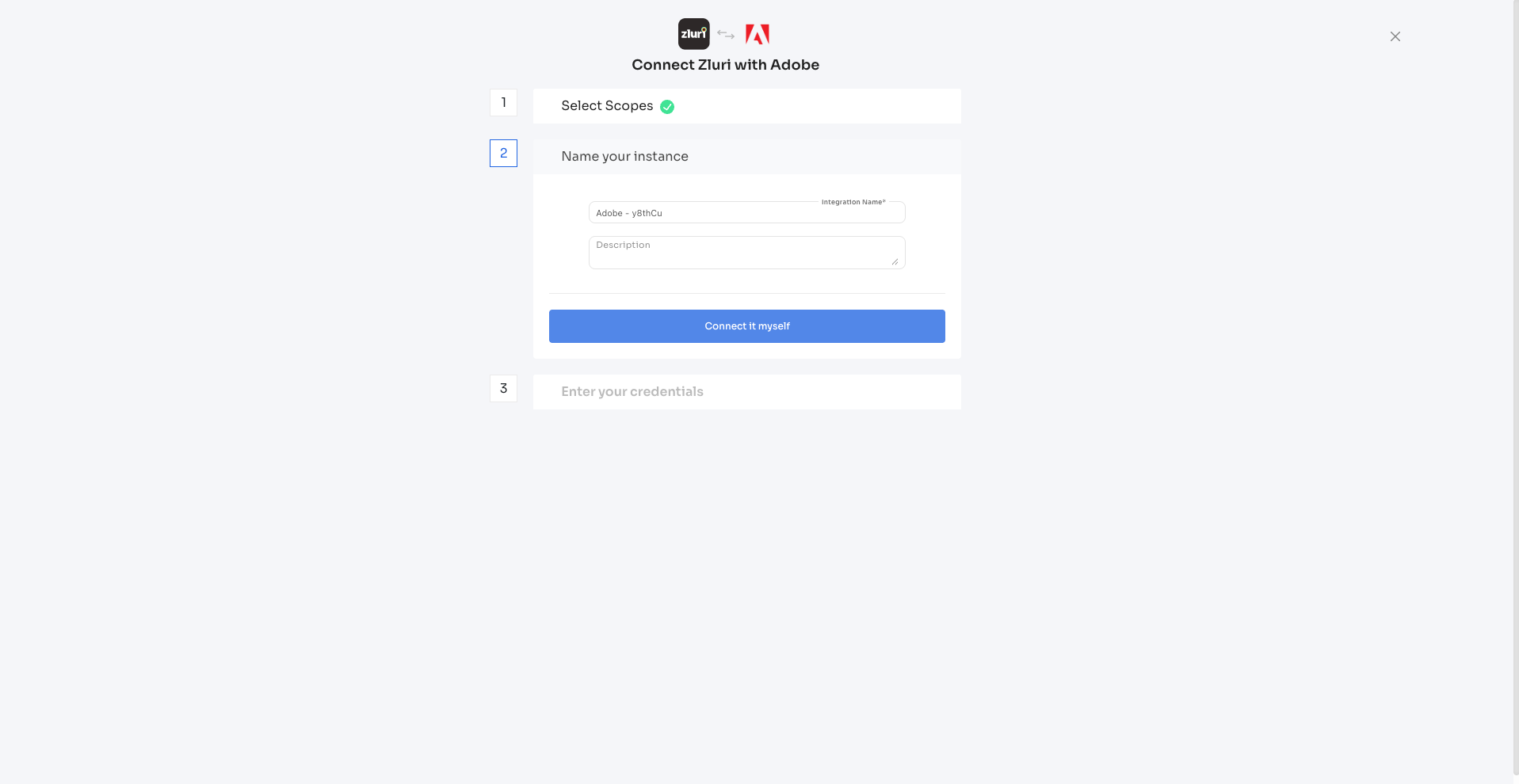
Note: The Zluri team provides a forwarding email address during this call. You need it in Step 2.
Step 2: Set up Gmail forwarding
Adobe's bot detection may trigger a Verification Code sent to the email during the integration process. This forwarding rule lets Zluri capture the code automatically and complete authentication without interruption. Set this up on the dedicated mailbox from your prerequisites, not a shared or personal account.
Configure the forwarding address
- Open Gmail on the dedicated mailbox and go to Settings (gear icon) > See all settings.
- Select the Forwarding and POP/IMAP tab.
- Select Add a forwarding address and enter the email address provided by the Zluri team.
- Confirm and verify the forwarding address as prompted.
- After verification, set forwarding to Disable forwarding. Don't enable general forwarding.
Create the filter
- In Gmail Settings, select the Filters and Blocked Addresses tab.
- Select Create a new filter.
- Enter the following filter criteria:
- From:
[email protected] - Subject:
Certification Code
- From:
- Select Create filter.
- On the next screen, select Forward it to and choose the Zluri forwarding address from the dropdown.
- Select Create filter to save.
Note: The forwarding address appears in the dropdown only after you configure and verify it in the Forwarding and POP/IMAP settings.
Step 3: Share your license information
If you plan to use the Assign License action in Zluri workflows, share the list of licenses in your Adobe organization with the Zluri team. This lets Zluri map the correct license types when automating provisioning.
Step 4: Confirm the correct profile
If your Adobe account has multiple profiles, confirm with the Zluri team which profile to use for the integration before you proceed to Step 5.
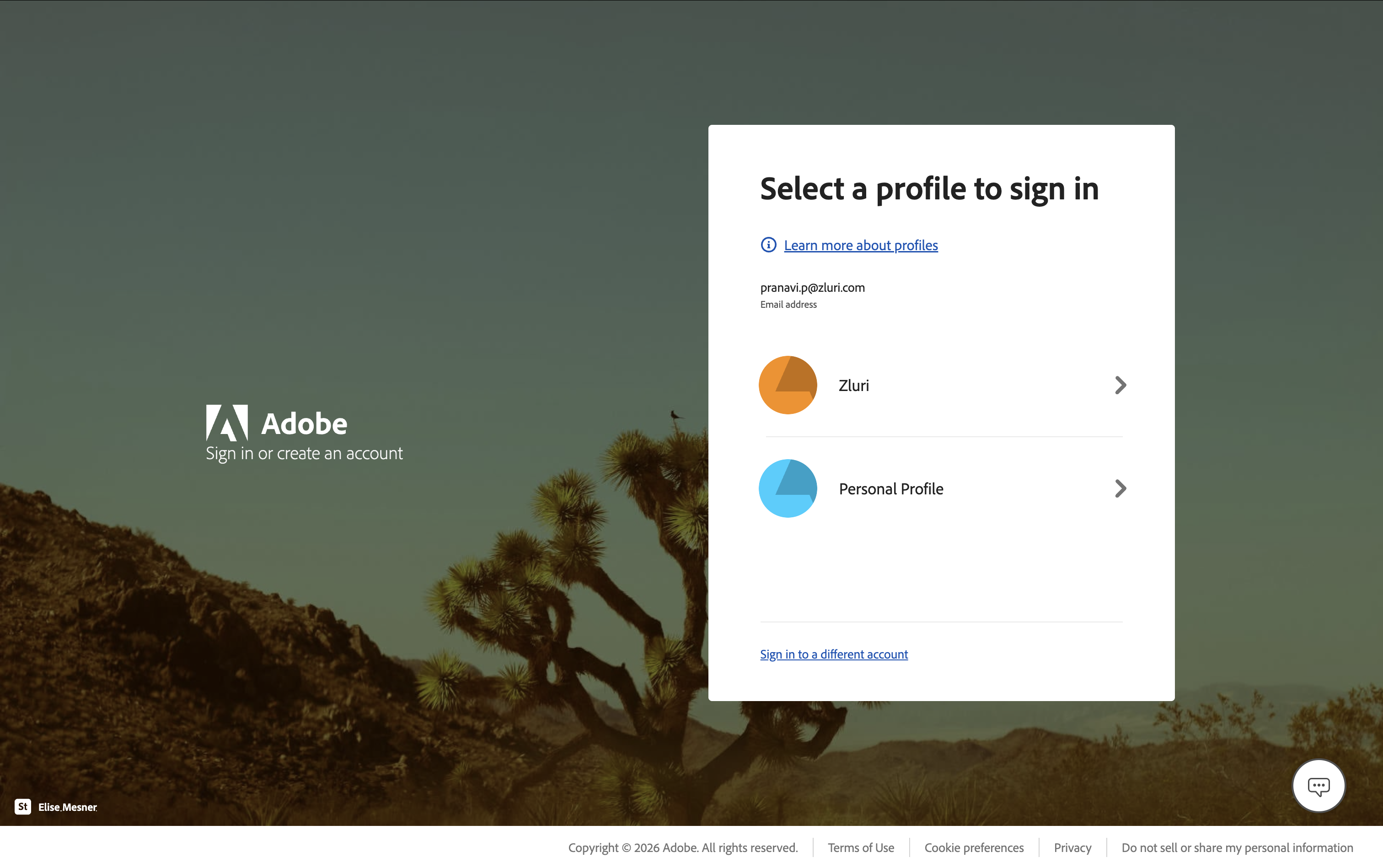
Step 5: Enter your credentials in Zluri
-
Return to the Zluri dashboard and go to the Adobe integration setup.
-
Enter your Adobe credentials in the respective fields.
-
Select Connect to complete the integration.
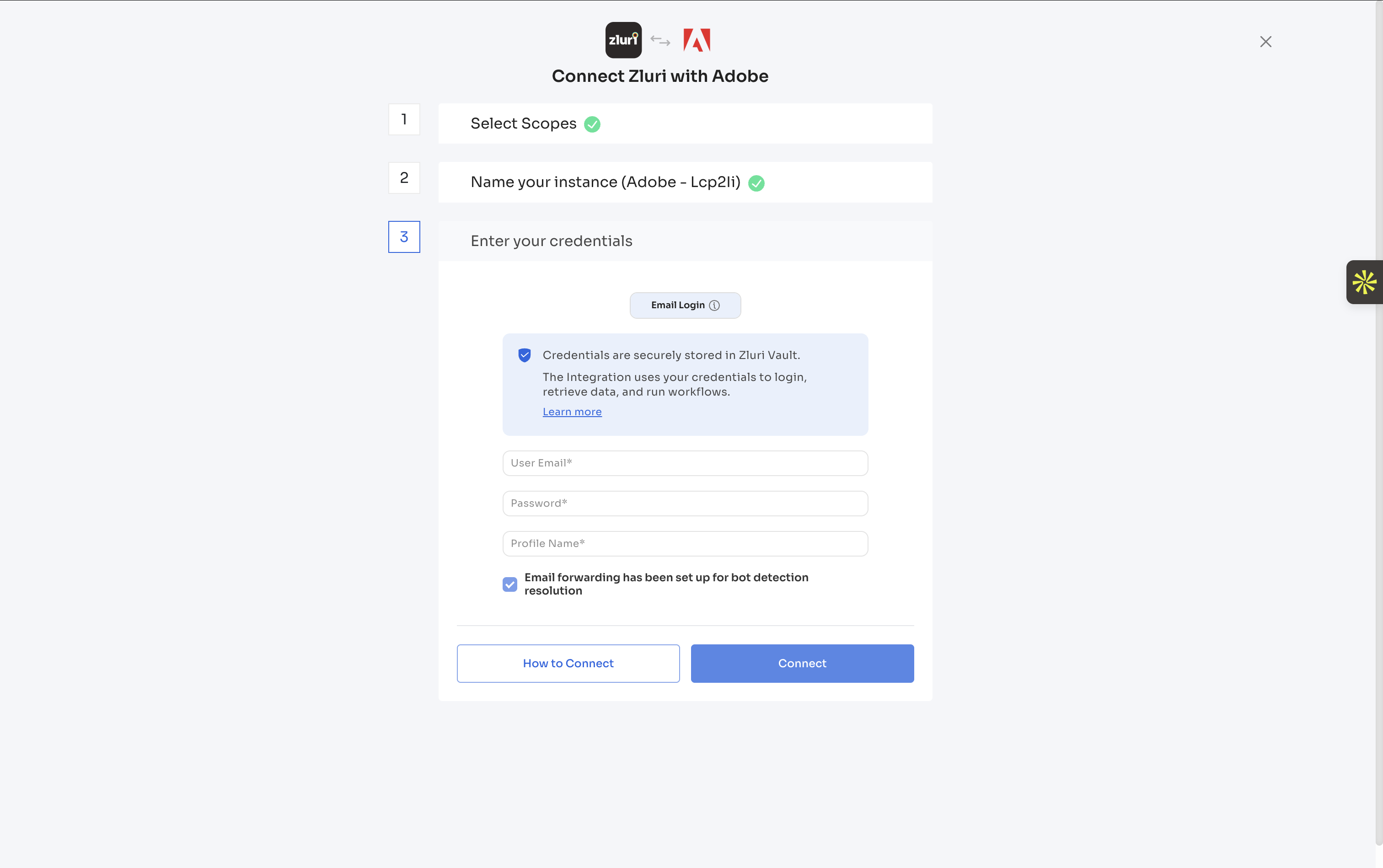
Zluri establishes the connection with Adobe. This process may take 5–10 minutes.
Note: The integration runs in the background. You can close the page while it's in progress. You receive an email notification when the connection succeeds or fails.
Step 6: Remove the forwarding filter and rotate credentials
Complete this step immediately after the connection succeeds.
- Return to the dedicated Gmail account's Filters and Blocked Addresses settings.
- Delete the filter you created in Step 2.
- Rotate the Adobe credentials used during setup.
- Confirm with the Zluri team that the connection remains active after you remove the filter.
Integration complete
Zluri is now connected to Adobe and begins syncing data automatically. Got questions? Feel free to submit a ticket or contact us directly at [email protected].
Updated 2 months ago