
DocuSign Connect [OAuth Method]
This guide provides the steps to connect a DocuSign account to Zluri.
Prerequisites
- Administrator access to the DocuSign account.
Step 1. Create a DocuSign user account
- Signup on Docusign website as a user with admin access.
Step 2. Connect DocuSign in Zluri
-
Log in to the Zluri dashboard.
-
Open the Integrations Catalog.
-
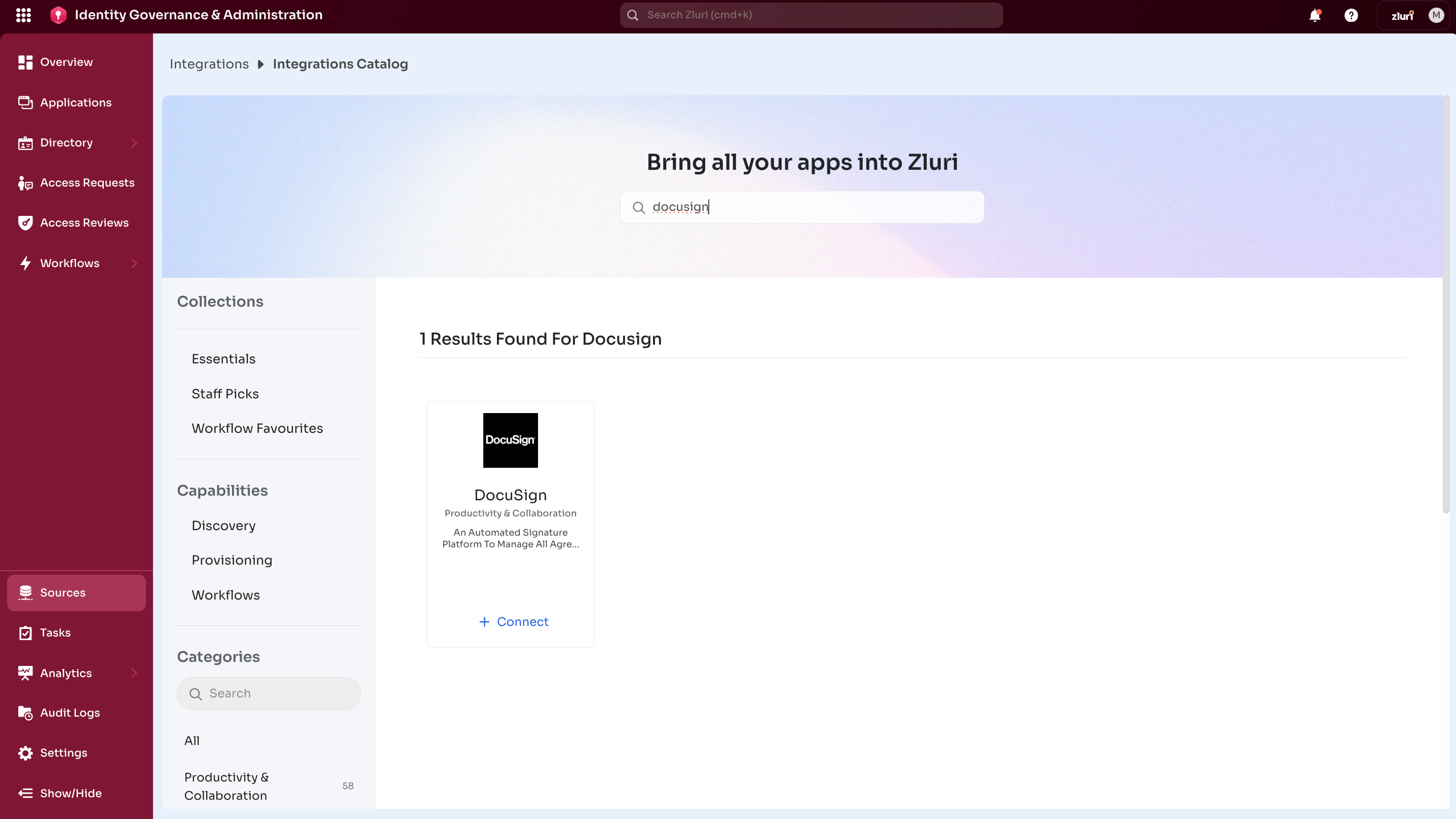
Search for Docusign. Open the Docusign Integration page.
-
Select Connect Integration or Connect another instance if an existing connection is already configured.
-
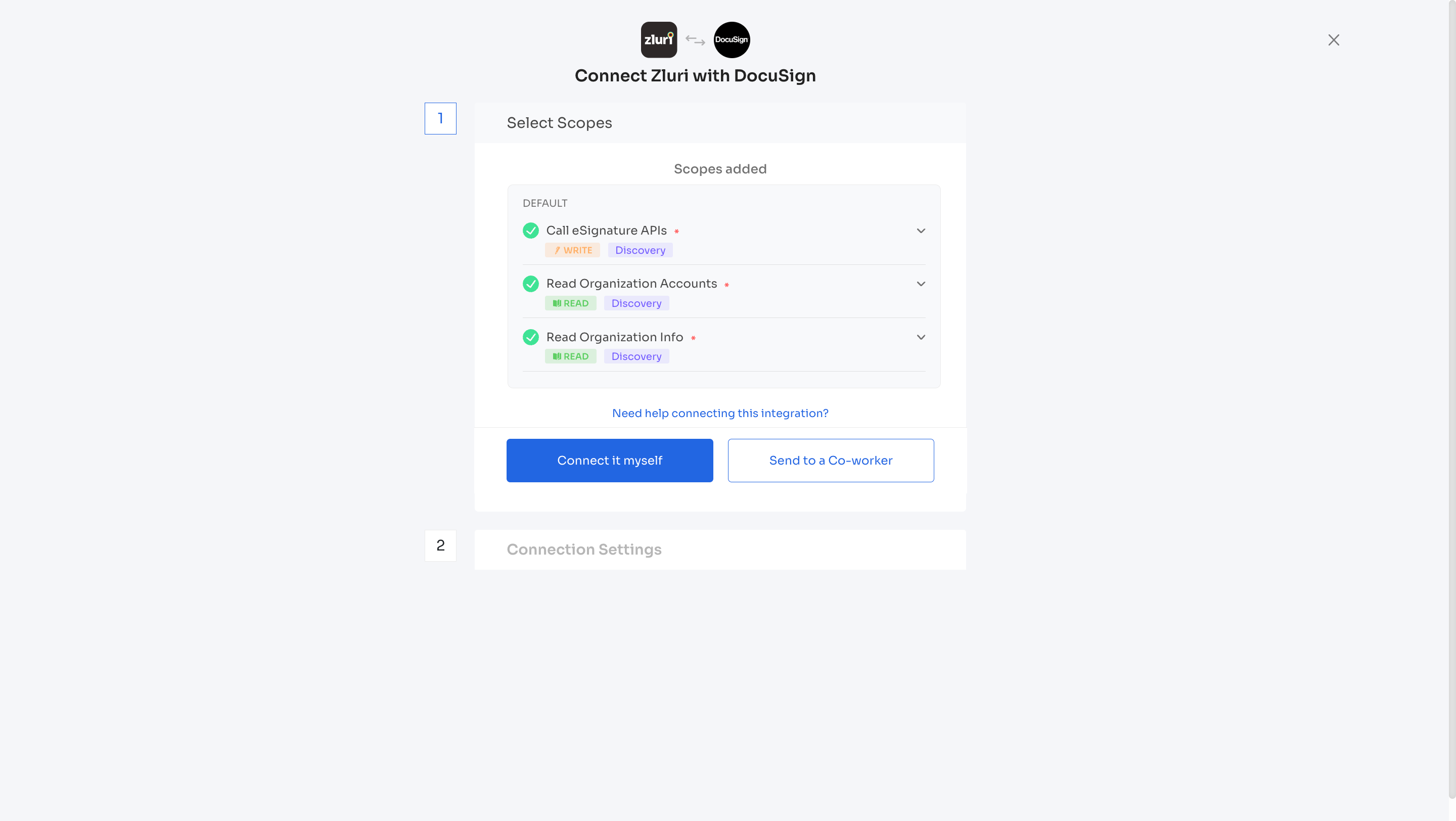
Authorization Options
Self-Authorization
- Select Connect it myself and ****proceed directly to complete authorization.
Co-worker Authorization
- Enter a co-worker’s details to share the access request.
- Zluri sends an invite email or link containing a unique Connect Code.
- The co-worker can use the code to approve and complete the connection setup.
Step 3: Authorize the Connection
-
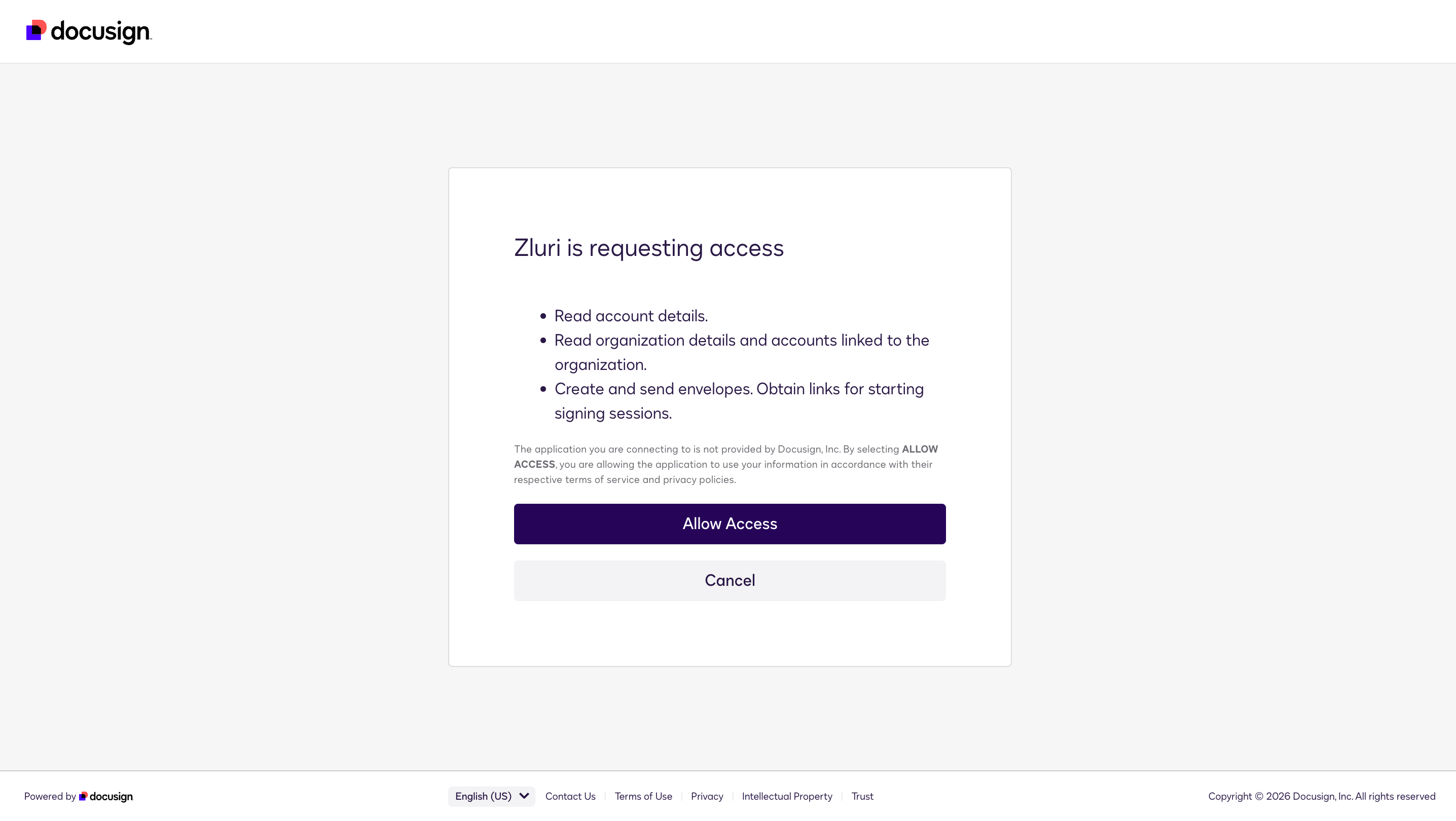
Depending on the authorization method (Connect it myself or Send to a Co-worker), enter the Docusign user account credentials.
-
After entering the credentials, the page redirects. Select Allow Access.
-
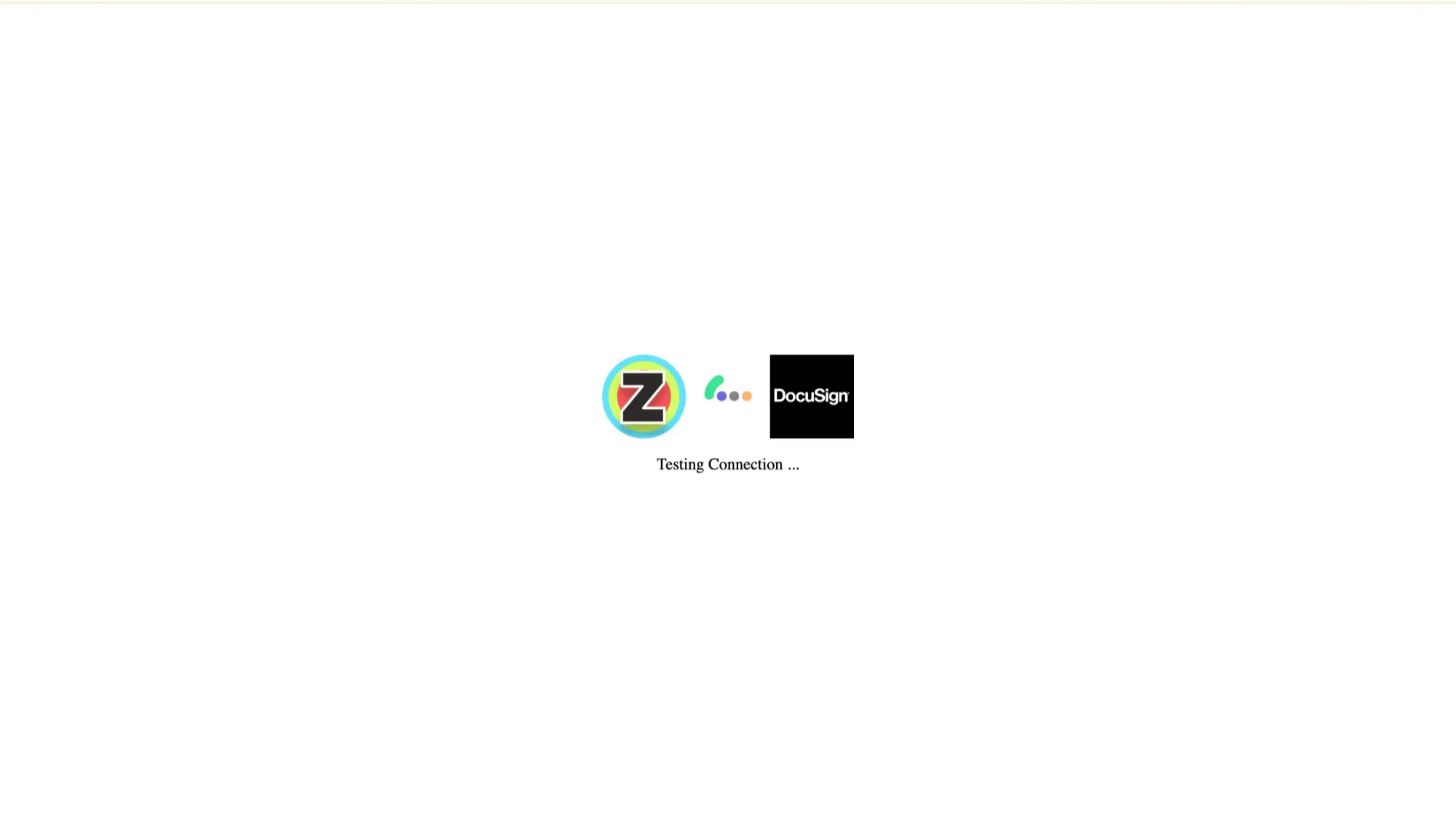
Authorize the connection.
-
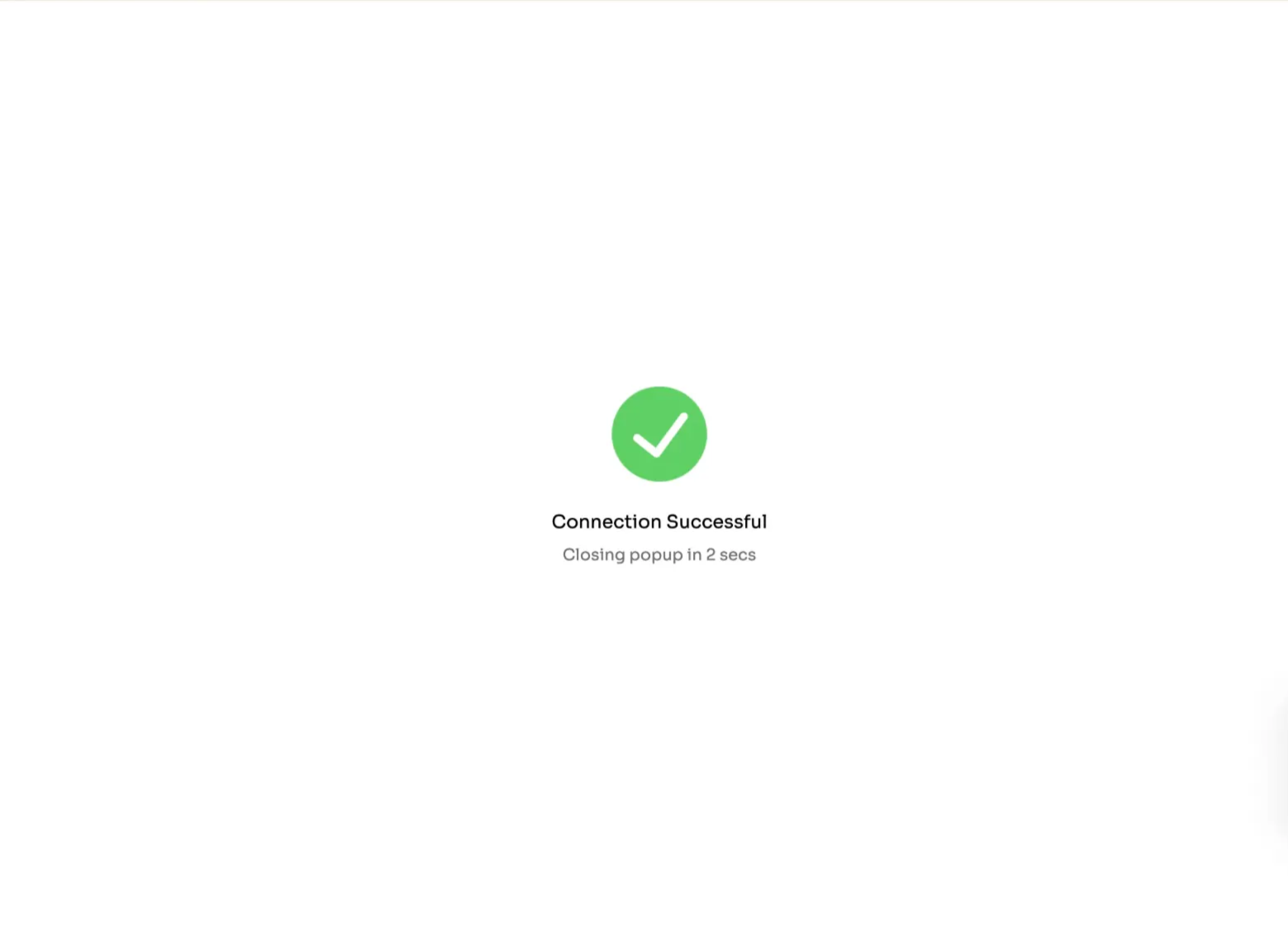
A page with Connection successful message will appear.
-
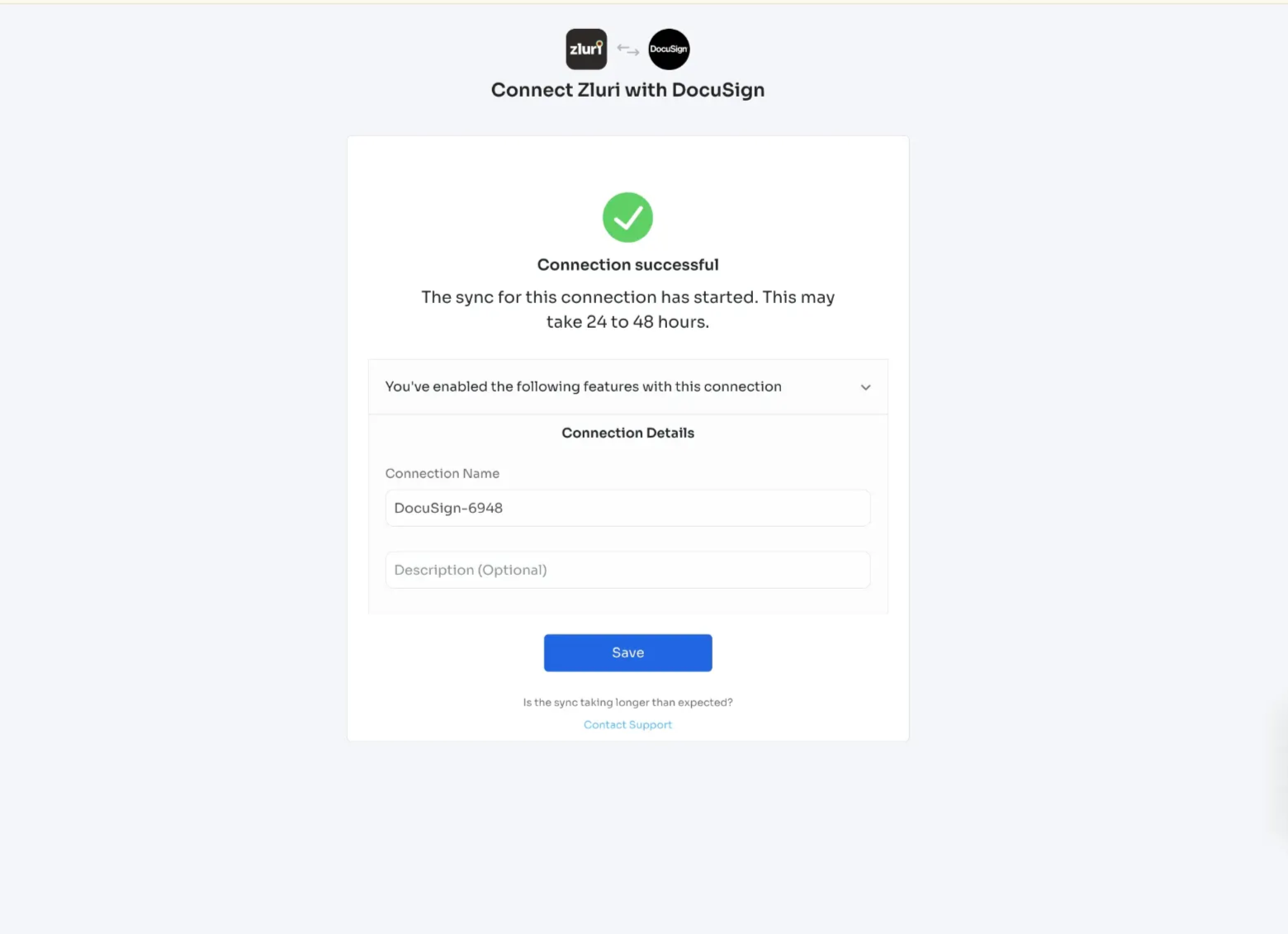
Zluri displays a default connection name on the Connection Details page after connecting to Docusign.
-
Once the authorization is successful, Zluri saves the connection instance. Multiple instances can be connected, each with customized scopes.
Integration Complete
Zluri is now successfully connected to DocuSign and starts discovering DocuSign users and access data.
Got questions? Feel free to submit a ticket or contact us directly at [email protected].
Updated 6 months ago