
Understanding Playbook Builder
Build reusable onboarding templates step-by-step. This guide explains the playbook interface.
Workflows v2If your tenant has the workflows v2 feature enabled, refer to this article for details on how to set up a playbook and navigate run logs.
Accessing the Playbook Builder
The playbook builder interface opens with a blank configuration with two main sections:
- Control Panel: The panel with 5 icons for quick configurations.
- Playbook Canvas: The main workspace for building a playbook.
Control Panel
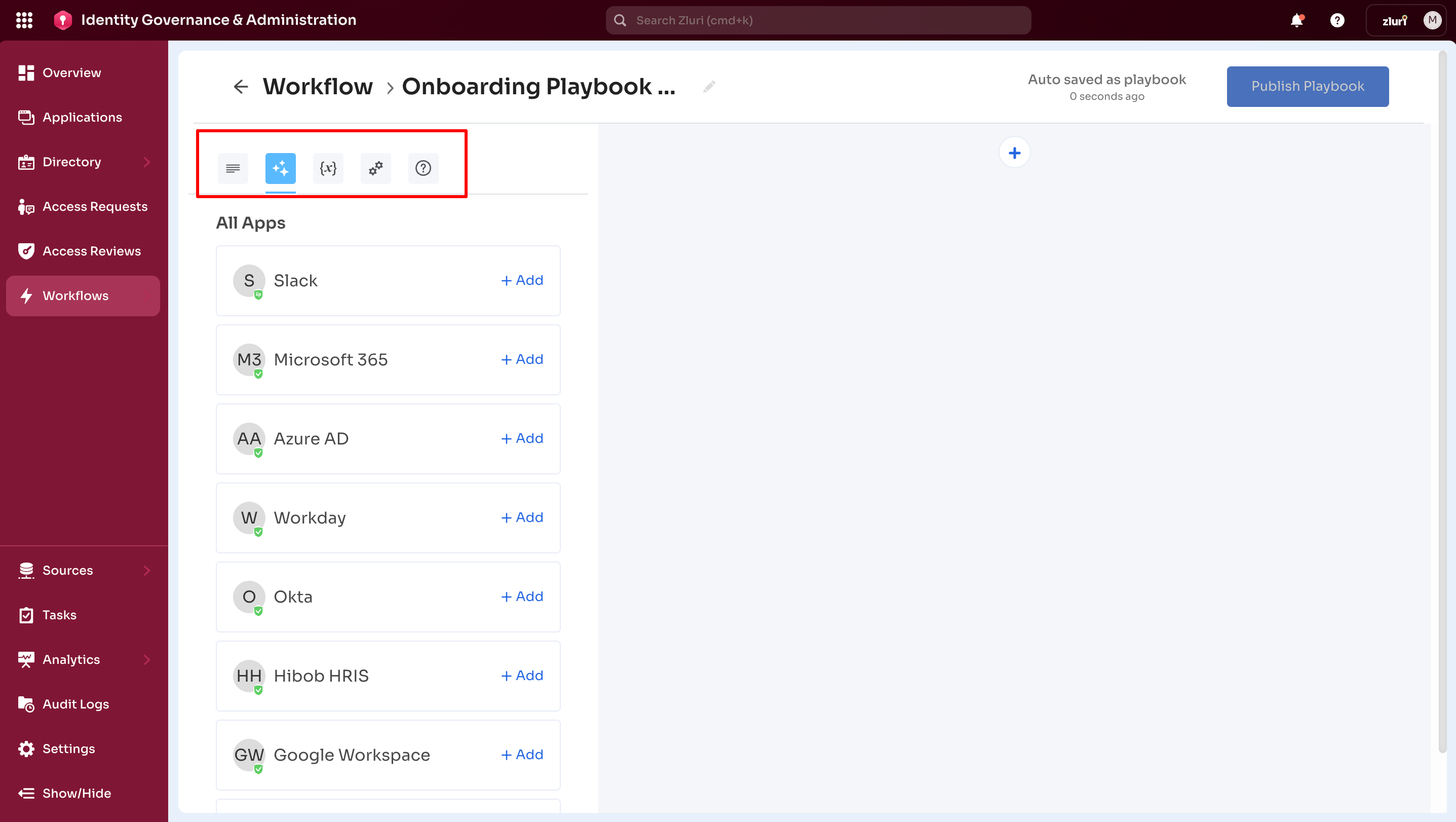
Contains five tabs for managing playbook configuration:
1. Overview
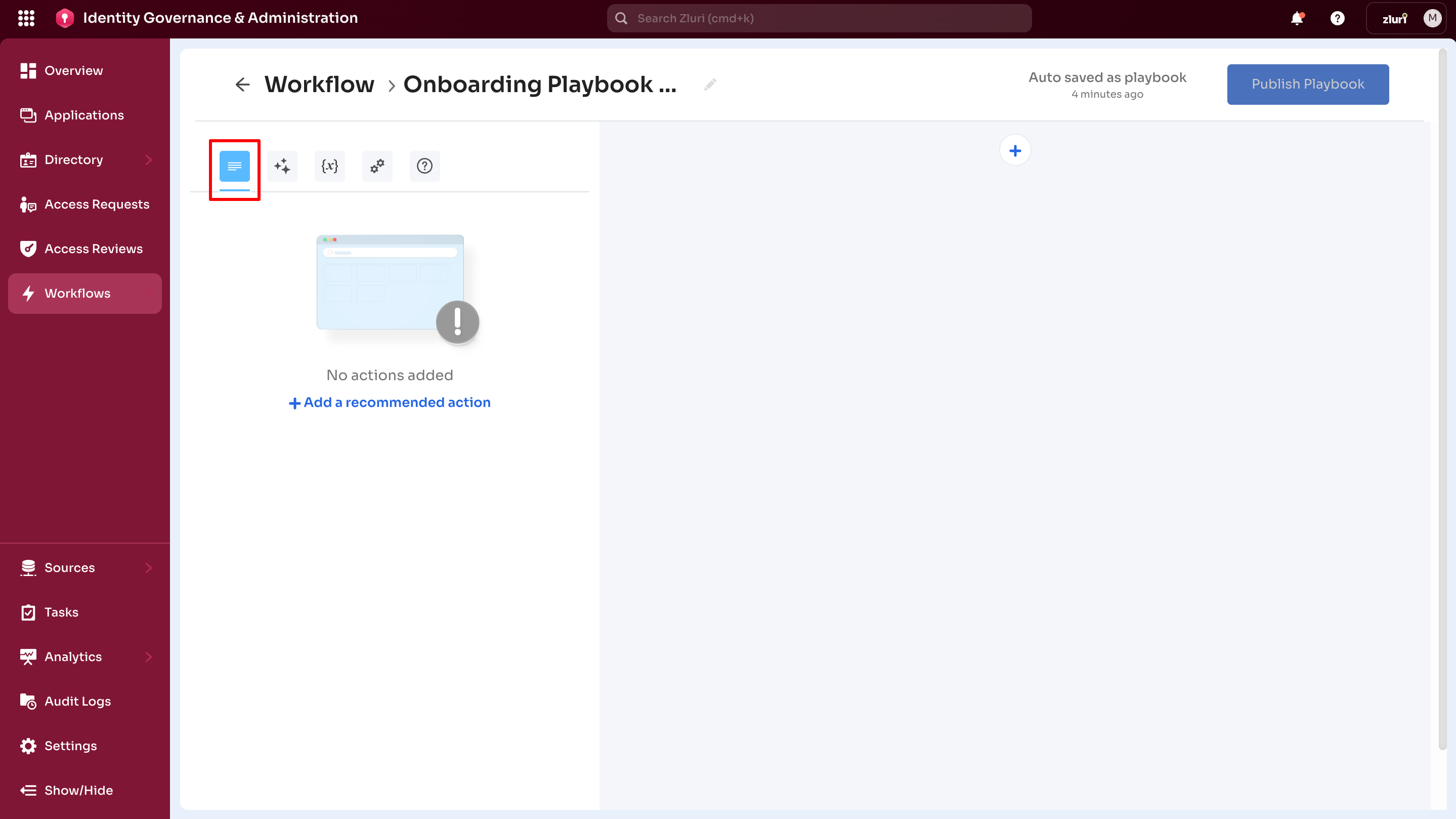
Displays all actions in the playbook at a glance.
Default state:
- Shows "No actions added" message at the starting of a new playbook
- Contains Add a recommended action link navigating to the Recommended tab
- As actions are added, they appear in a list providing quick snapshot of the playbook
2. Recommended
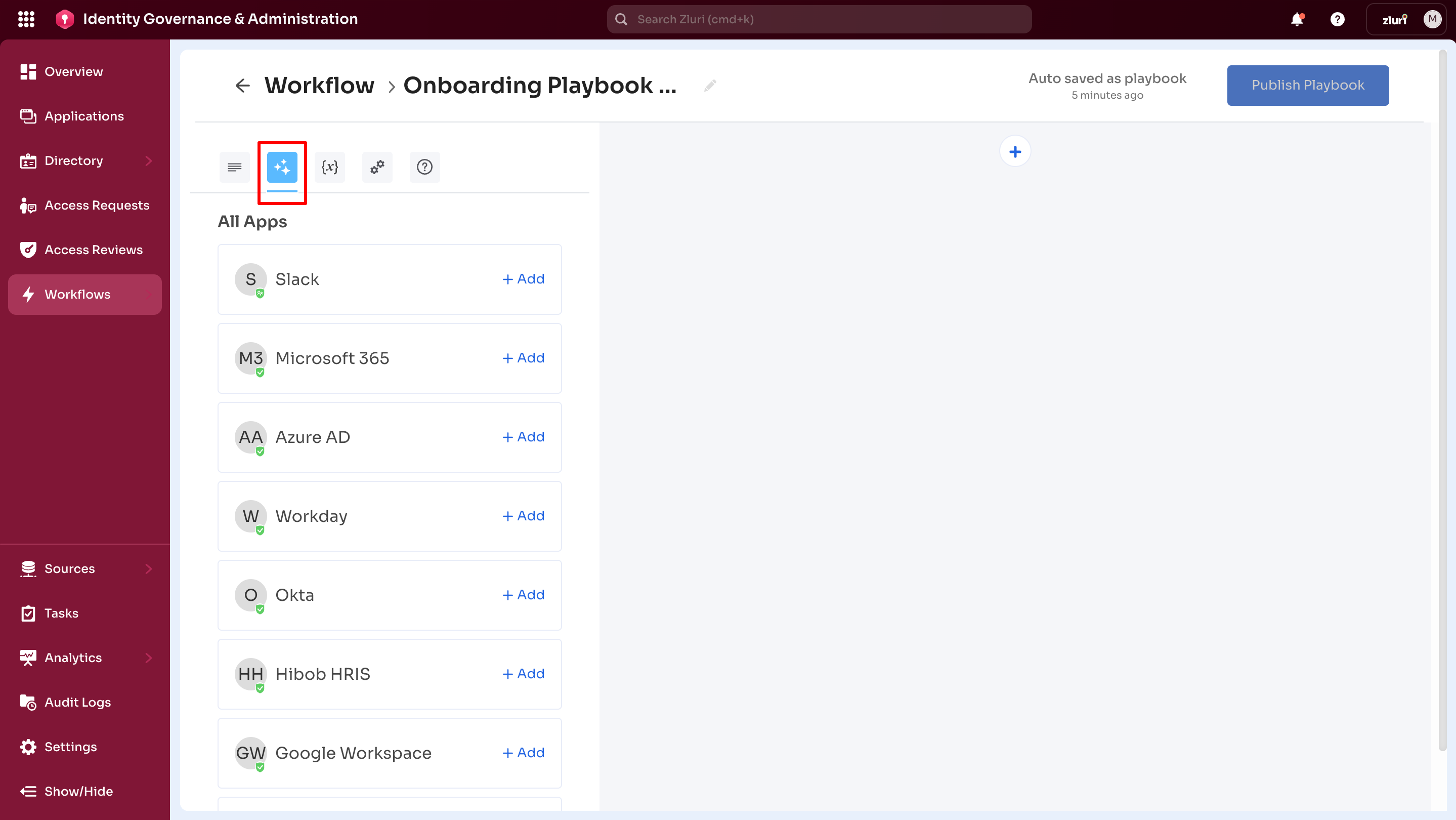
Shows suggested applications and actions for the playbook.
Before adding apps:
- Displays list of recommended applications with + Add options
- Shows most commonly used apps within the organization
After adding an app:
- Displays recommended actions for the selected application
- Updates dynamically upon different apps selection
Also includes link to Zluri Actions Block for adding platform-specific actions.
3. Variables
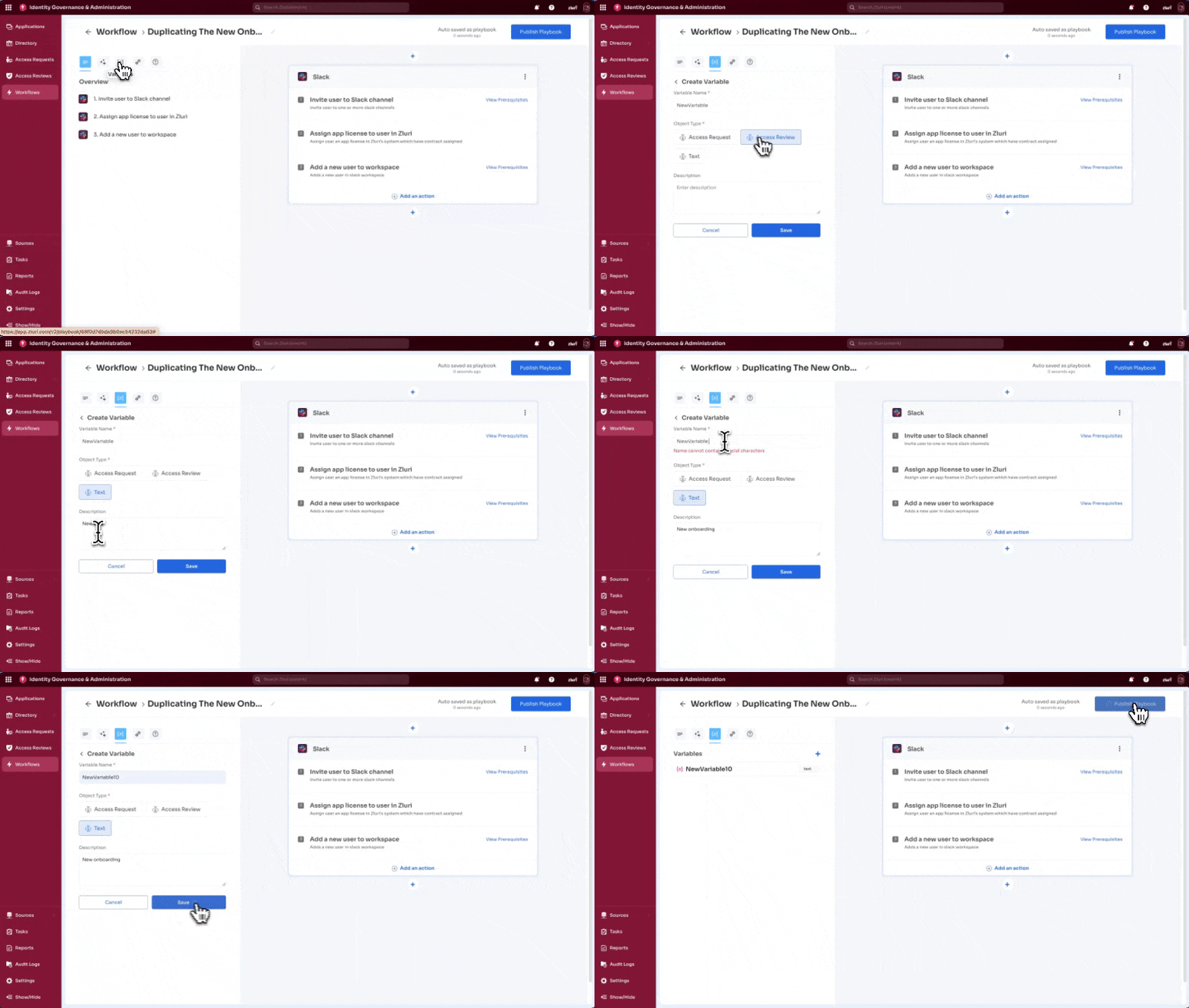
Variables are placeholders automatically fetching user-specific or context-specific data during execution.
Use cases:
- Personalize welcome emails with user names
- Insert department-specific information
- Add manager details to notifications
- Include user email addresses in account creation
Example:
While creating a Slack action to email new joiners about granted access, use variables like {USER.FIRST_NAME} instead of hardcoding names.
To create a variable:
Select the third icon in the control panel, then follow the variable creation steps.
Note: This feature requires enablement by the Customer Success Manager.
4. Settings
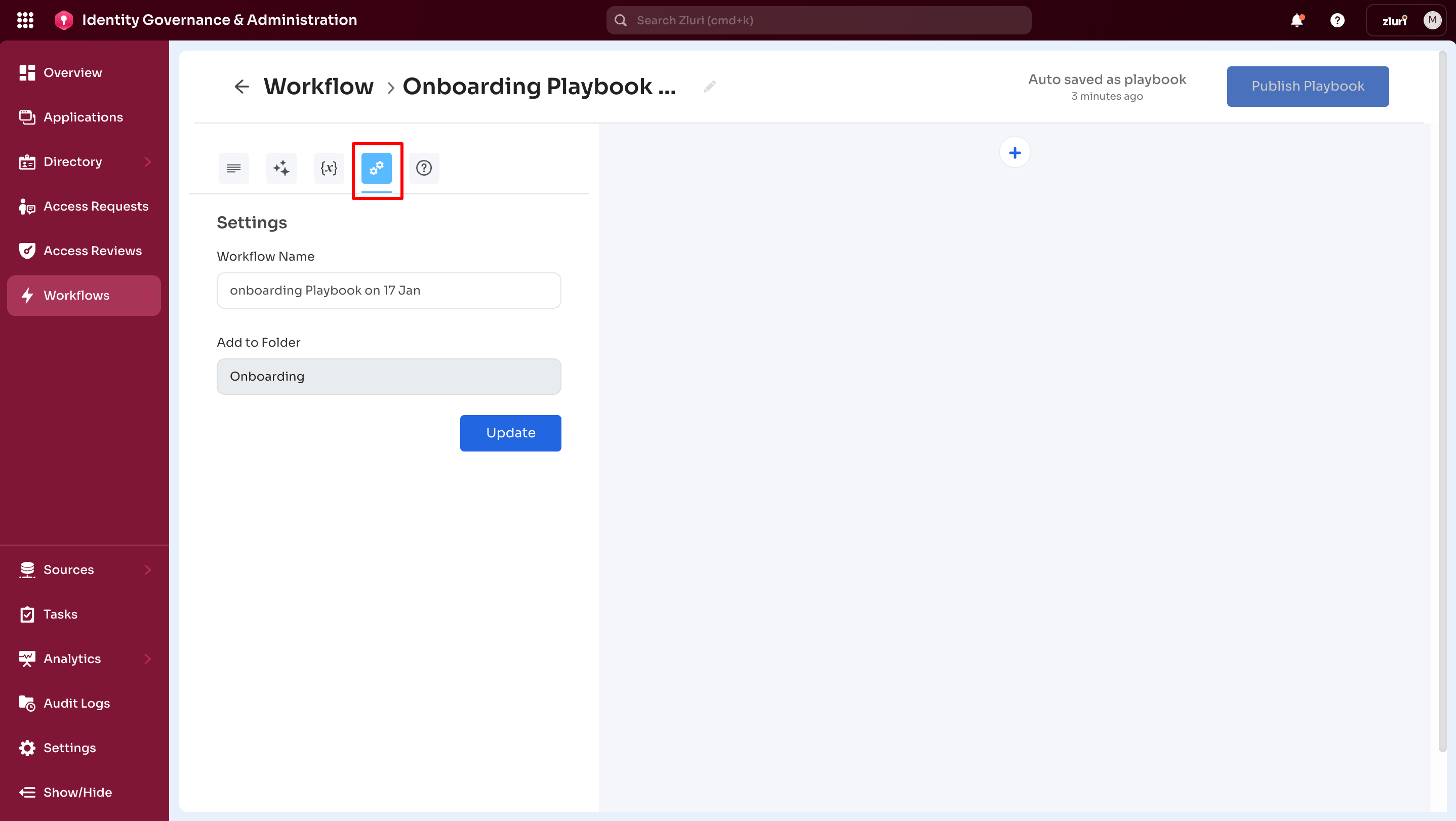
Organize and name the playbooks.
Playbook naming:
Use consistent naming conventions:
- "Onboarding – Sales Team – Global"
- "Onboarding – Engineering – India"
- "Onboarding – Marketing – US"
Folder organization:
- Playbooks save by default to the "Onboarding" folder
- Group related playbooks (For example, all sales onboarding in "Sales Onboarding" folder)
To update settings:
- Navigate to Settings tab
- Enter playbook name
- Select Update
5. Help
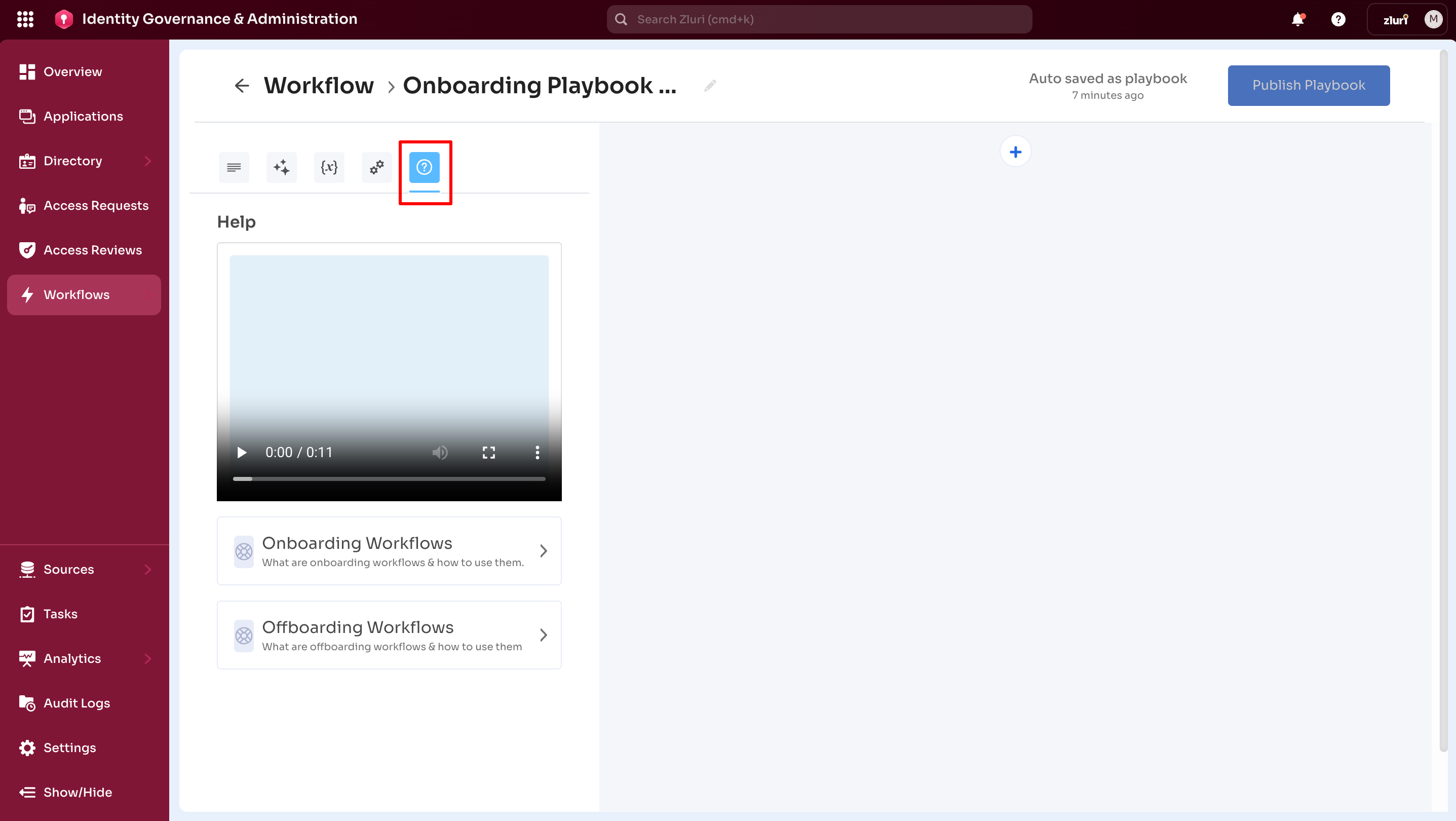
Access resources for creating playbooks:
- Short video demonstrations
- Step-by-step guides
- Links to onboarding and offboarding articles
- Direct access to help.zluri.com knowledge base that provides Access Management-specific articles without searching the broader knowledge base.
Playbook Canvas
The main workspace for building a playbook.
Add applications using two methods:
- Application menus (from Playbook Canvas)
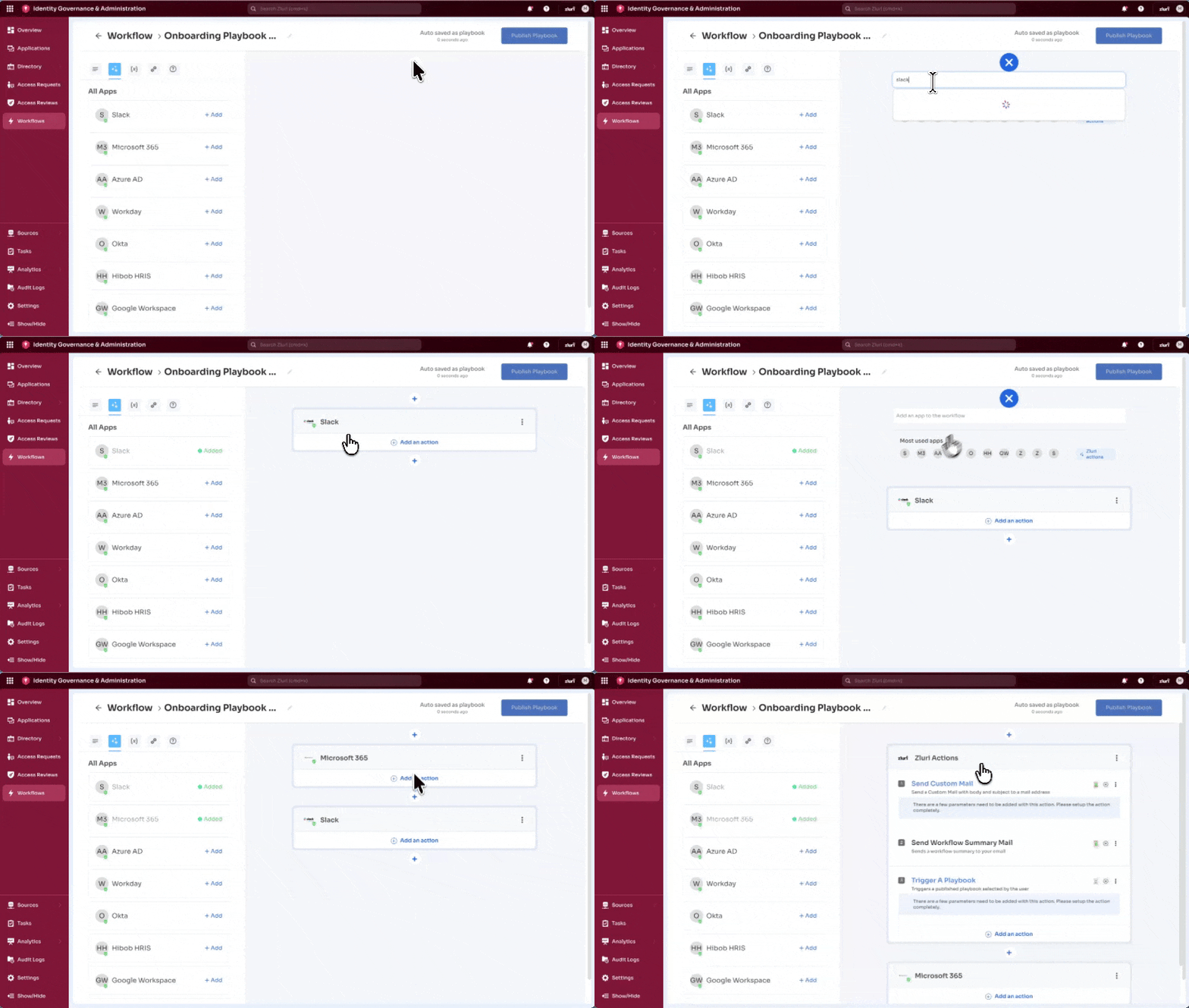
- Select + icon on the canvas
- Search for applications by name
- Select from Most Used Apps list
- Add Zluri Actions directly
- Recommended Apps (from Control Panel)
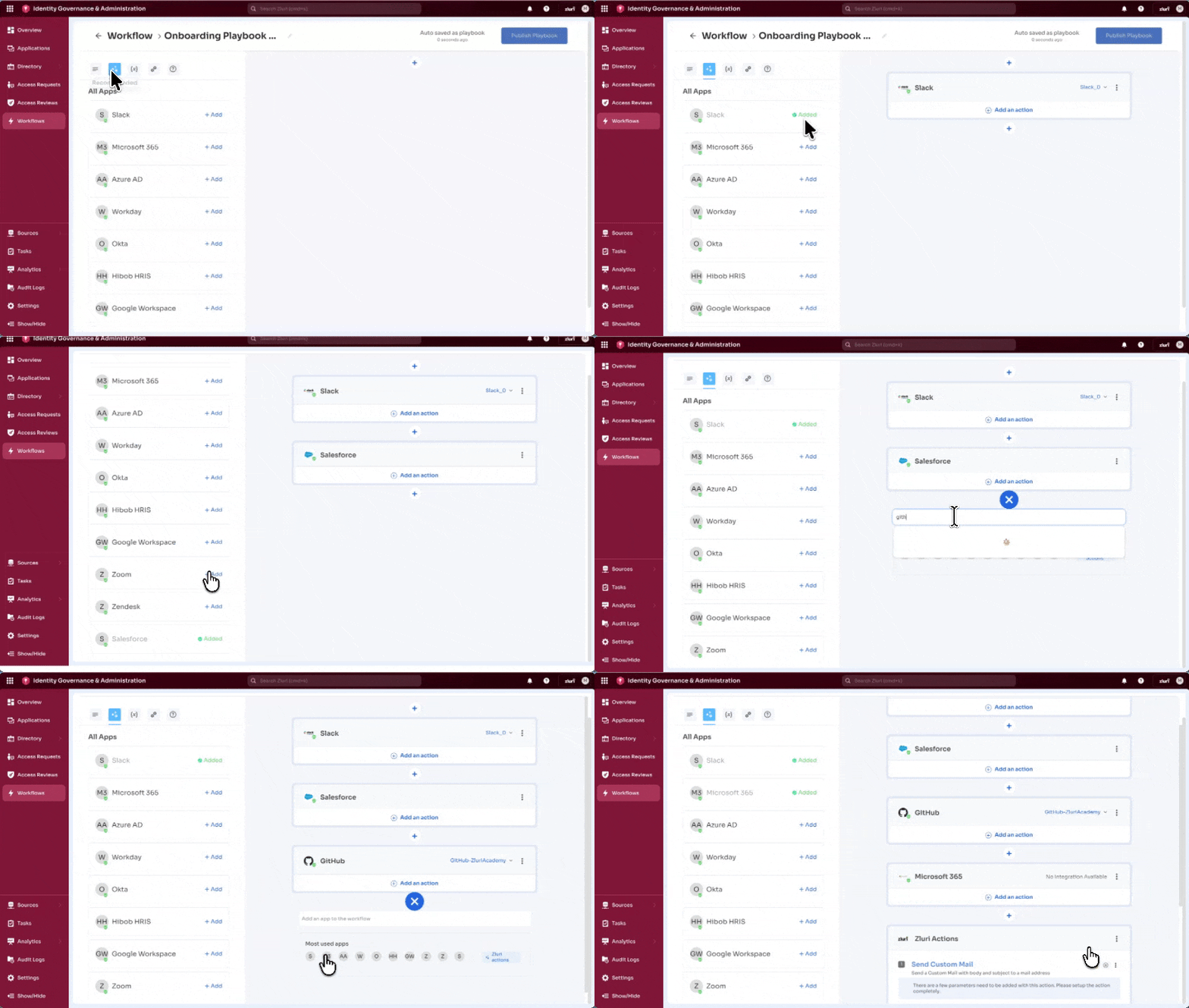
GIF demonstrating process of adding applications from control panel and workflow canvas to create a Playbook.
- Use + Add option next to apps in Recommended tab
- Automatically adds app to canvas.
Updated about 1 month ago