
Create Reusable Custom Action and use in Playbooks
Prerequisites
- Google Workspace integration connected in Zluri
- Google Workspace admin account with user management permissions
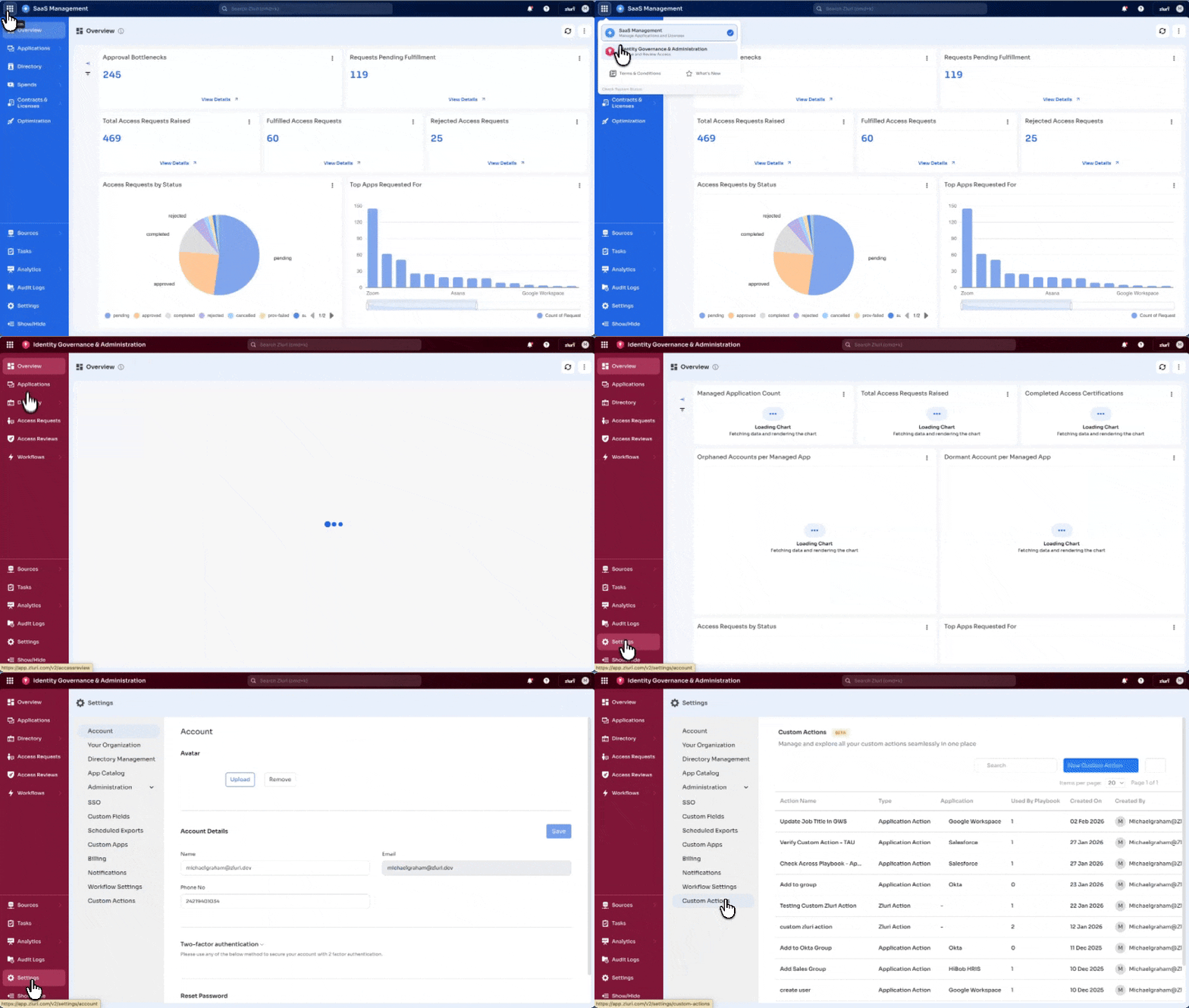
Step 1: Open Custom Actions
- Open the Zluri dashboard
- Navigate to Settings > Custom Actions
- Select Create Custom Action
Step 2: Select the application
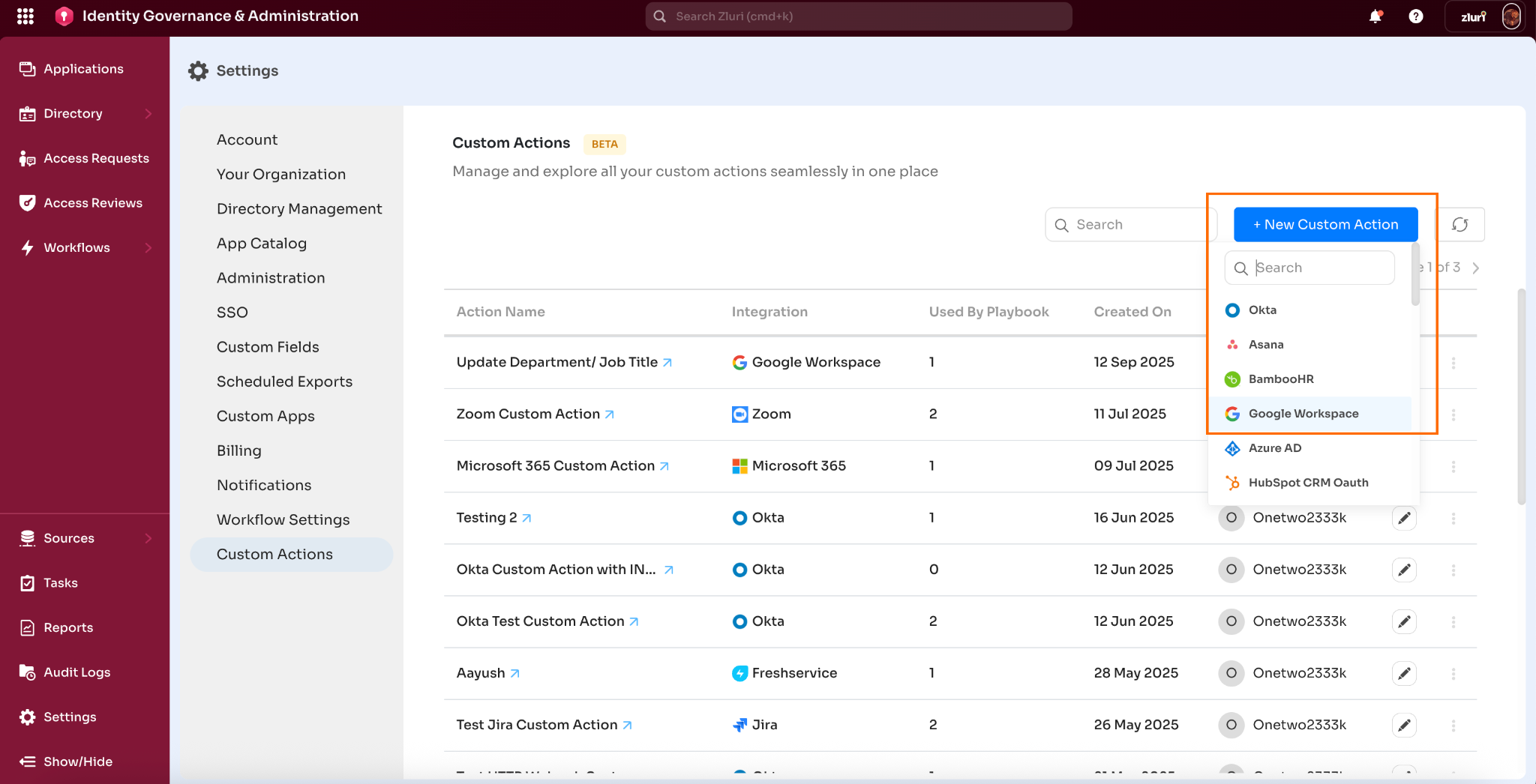
- Select Google Workspace from the application list
- Zluri uses the connected Google Workspace authentication
- OAuth tokens and API authentication are handled automatically
Step 3: Configure basic action details
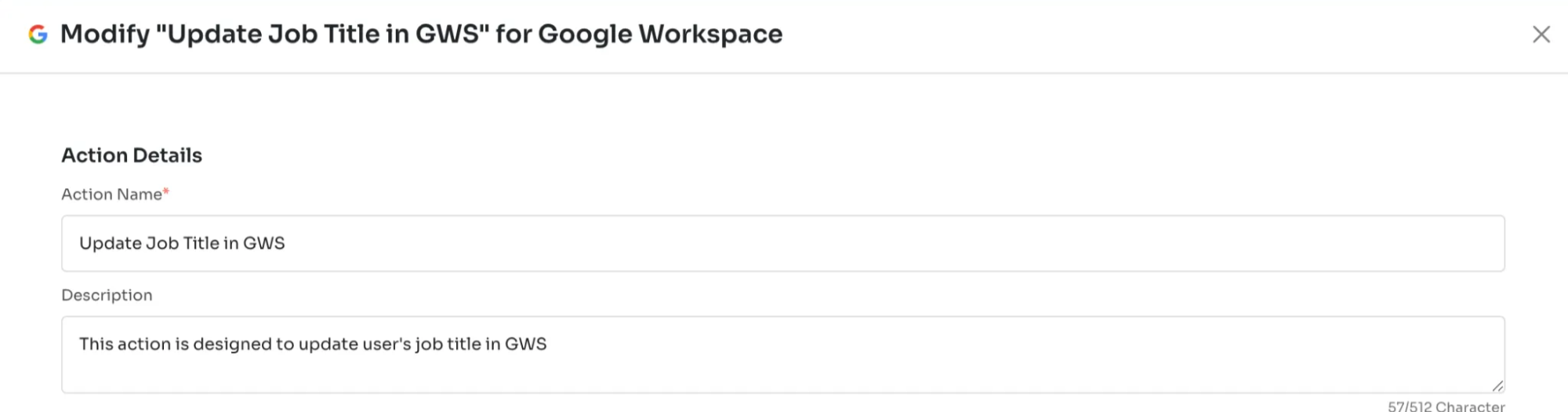
Action name
Update Job Title in GWS
Use a clear and descriptive name for identification during playbook creation.
Step 4: Define input fields
Input fields appear during playbook configuration.
Field: Job Title
- Field name:
jobTitle - Description: Enter the new job title for the user
- Required: Yes

Step 5: Configure API details
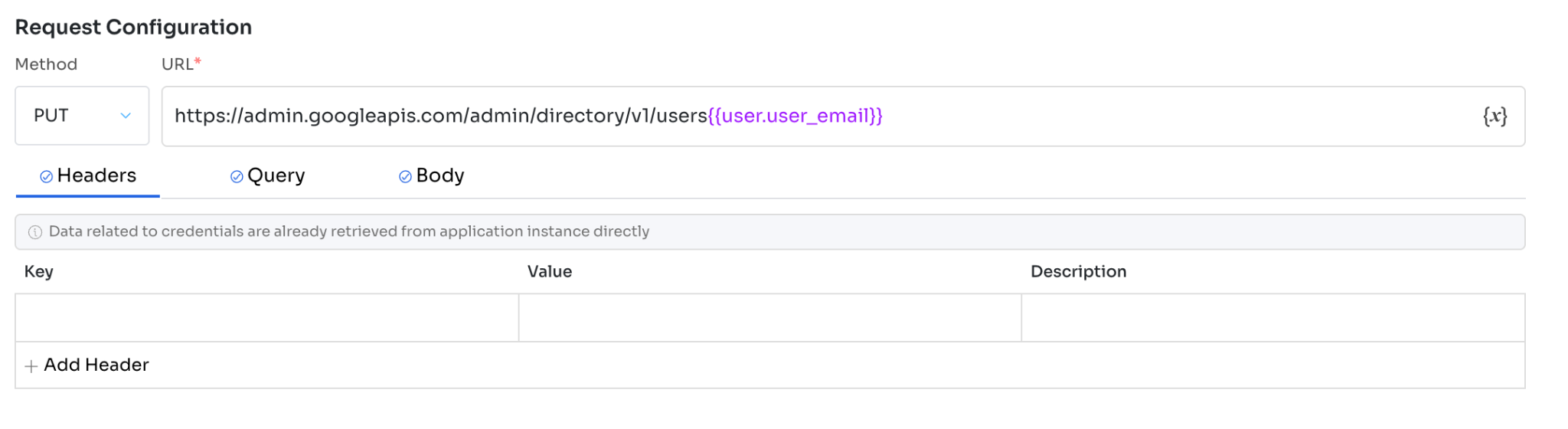
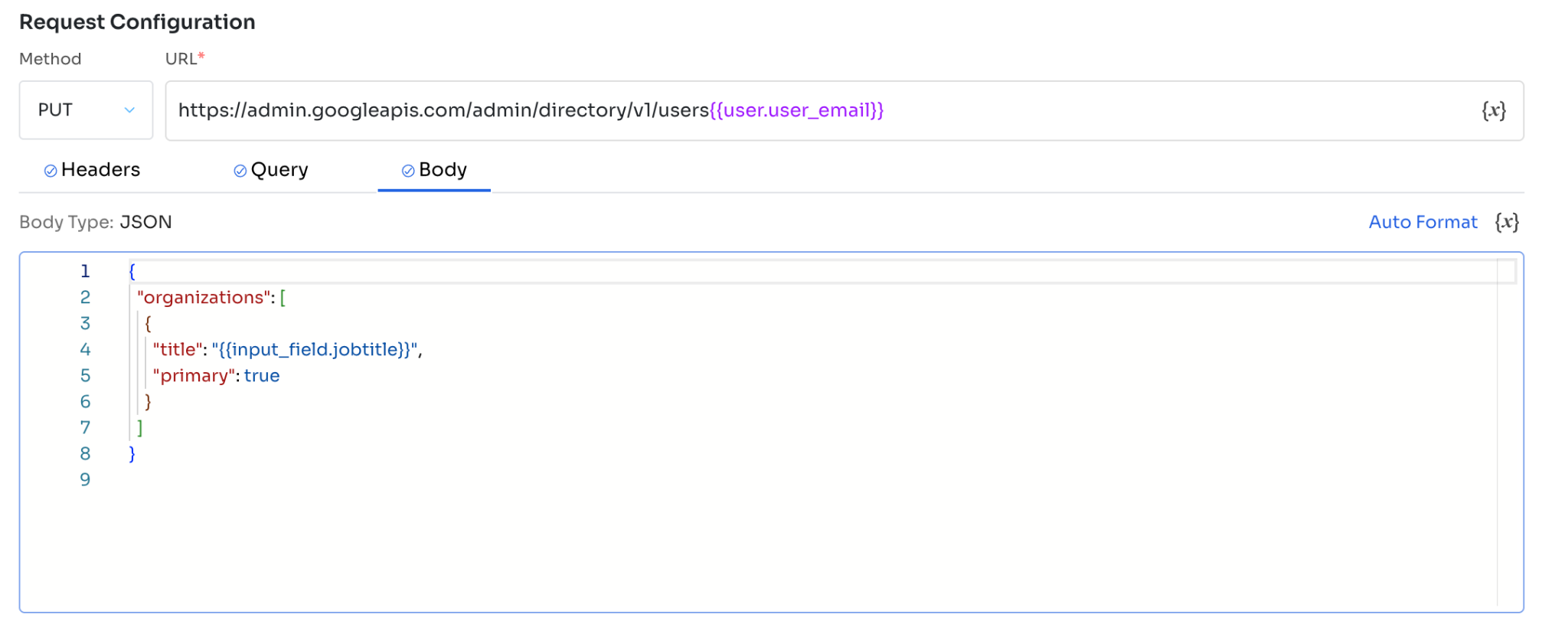
HTTP method
- Select
PUTto update existing user data
API endpoint URL
https://admin.googleapis.com/admin/directory/v1/users/{USER.USER_EMAIL}This endpoint updates user profile details using a dynamic user identifier.
Reference
https://developers.google.com/workspace/admin/directory/reference/rest/v1/users/update
Important
Replace USERKEY with a dynamic variable placeholder in Zluri. This enables automatic population of the user identifier during execution and supports reuse across users and automation workflows.
API endpoint example
https://admin.googleapis.com/admin/directory/v1/users/{USER.USER_EMAIL}Headers**(Optional)**
Leave this section empty. Zluri applies the required authentication headers automatically.

Step 6: Configure request body
Add the following JSON payload in the Body section:
{
"organizations":[
{
"title":"{{input_field.jobtitle}}",
"primary":true
}
]
}
The {{input_field.jobtitle}} value resolves dynamically during execution.
Step 7: Save and test
- Select Save Custom Action.
- The action becomes available across playbooks.
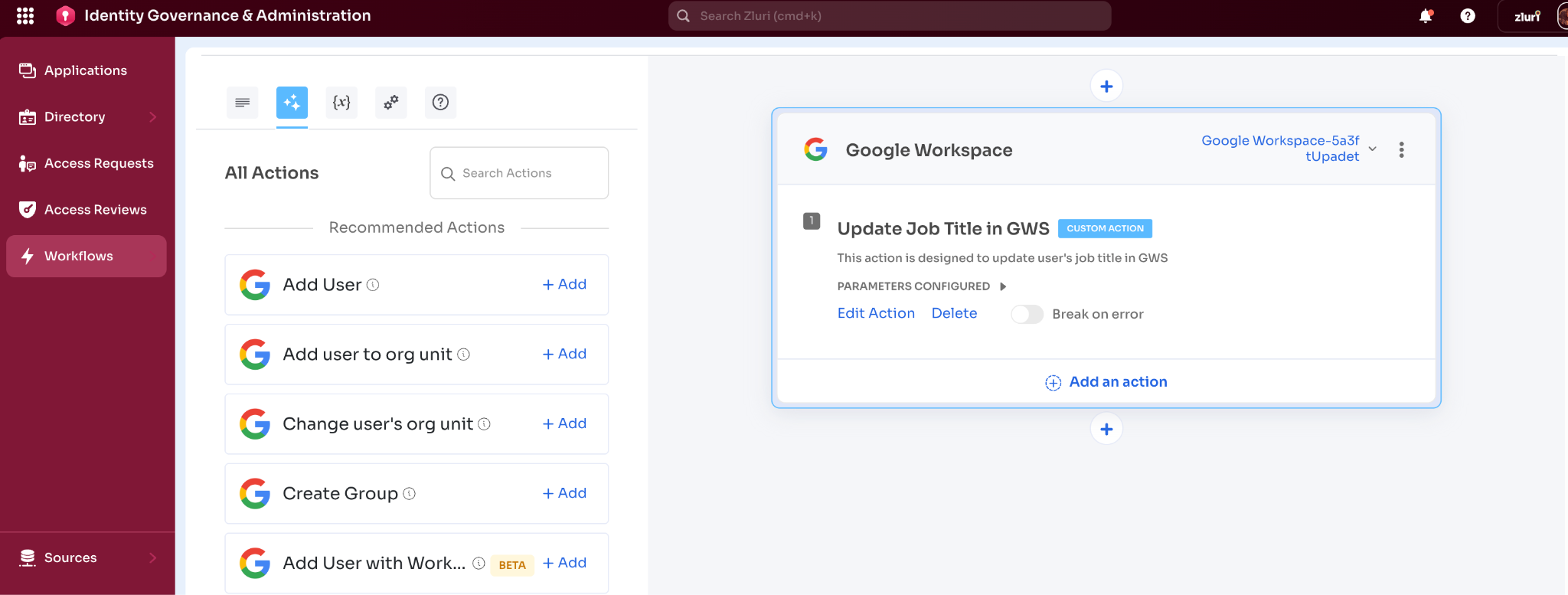
Step 8: Use the Custom Action in playbooks
-
Add the Custom Action to any playbook.

-
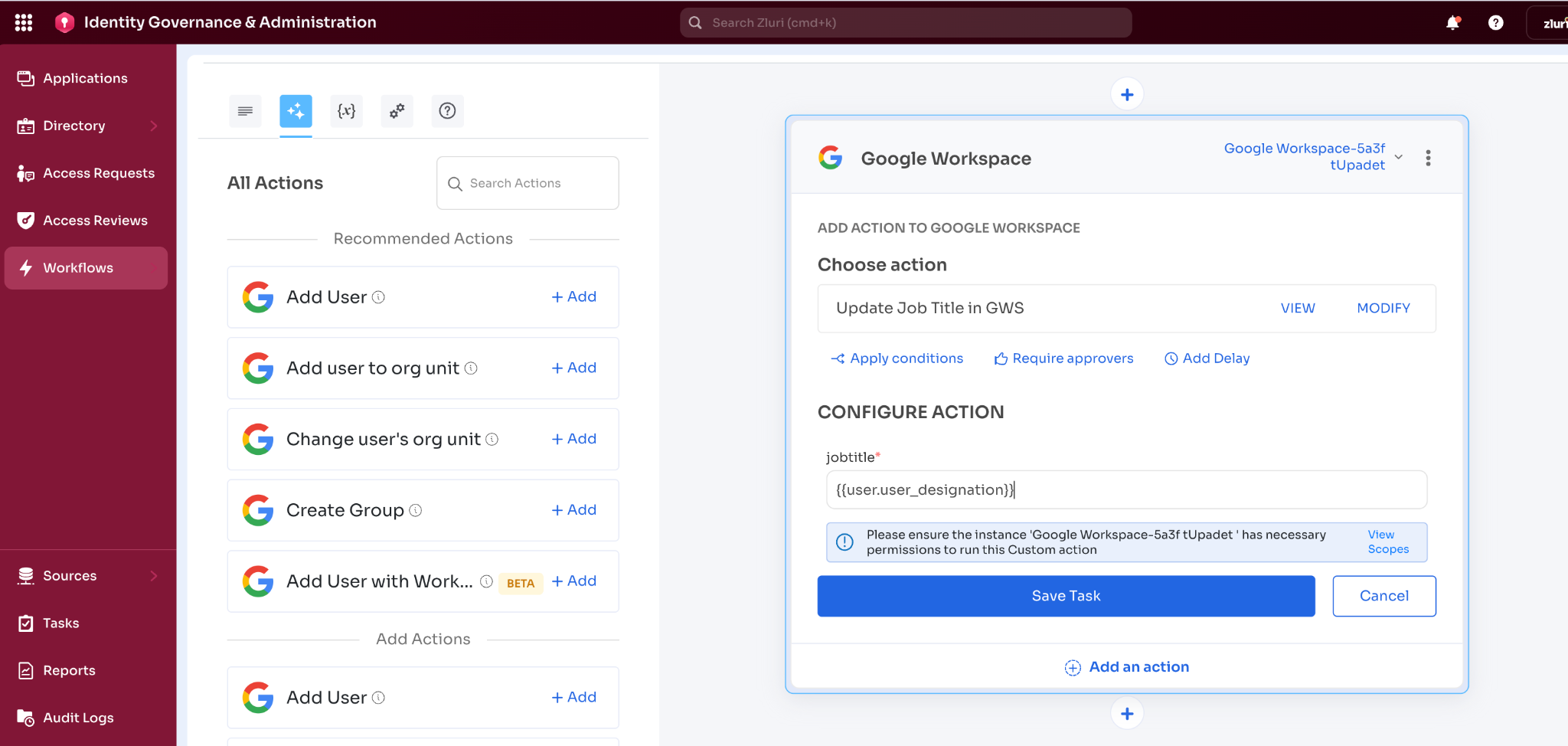
Configure the input field value during setup. Input values support static values or dynamic inputs.

Supported variables in Custom Actions
User attributes
user.user_iduser.user_emailuser.user_nameuser.user_designationuser.user_statususer.user_roleuser.user_department_nameuser.user_reporting_manager_name
Application attributes
app.app_idapp.app_nameapp.app_statusapp.app_owner_nameapp.app_owner_emailapp.app_financial_owner_nameapp.app_financial_owner_emailapp.app_technical_owner_nameapp.app_technical_owner_email
Updated 6 months ago