
ZIP Hq Connect
Connect Zip Hq to Zluri
Prerequisites
- A Zip Hq account with API access enabled
Note: Contact the Zip Hq support team at [email protected] to enable API access.
Integration Steps
Step 1: Create an API Key in Zip Hq
- Log in to the Zip Hq account.
- Select the Settings icon in the top right corner.
- Select Company settings.
- On the navigation menu, go to Setup → API
- Create a new API key:
- Open the API keys tab.
- Select + Create API key, then select Restricted.
- Configure the API key:
-
Enter a name for the API key (example: "Zluri Integration").
-
Set an expiration date in
MM/DD/YYYYformat. The key becomes invalid after this date.
-
- Set permissions:
- Under Access, grant read-only access to these four scopes: Approval, Request, Vendor, and Document.
- Repeat this step for each record type Zluri needs to discover.
- Select Create. Save this API key. It is required to configure the integration in Zluri.
Step 2: Connect Zip Hq to Zluri
-
In Zluri, navigate to Sources → Integrations.
-
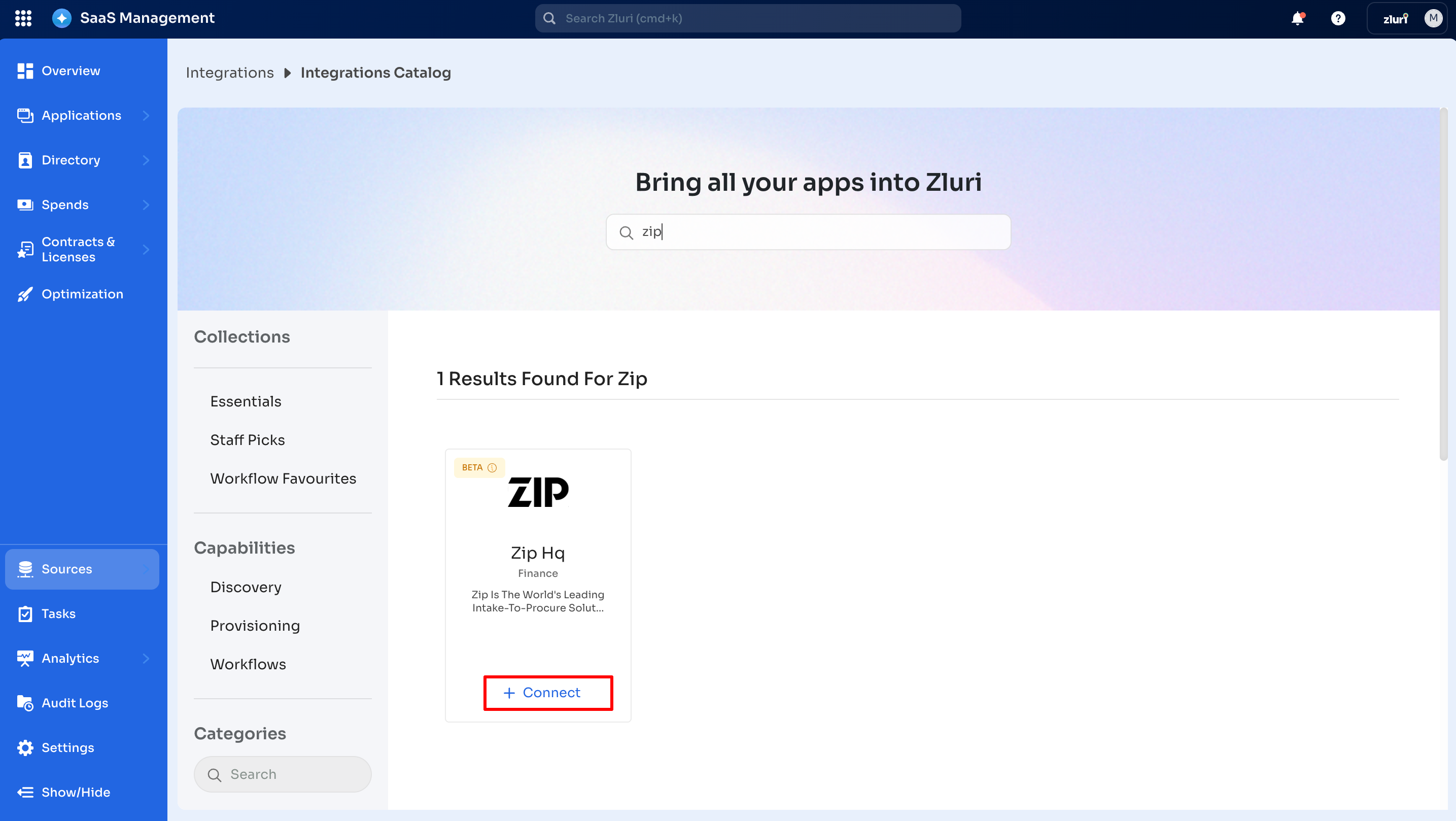
Open the Integrations Catalog.
-
Search for "Zip Hq" and select ➕ Connect.
-
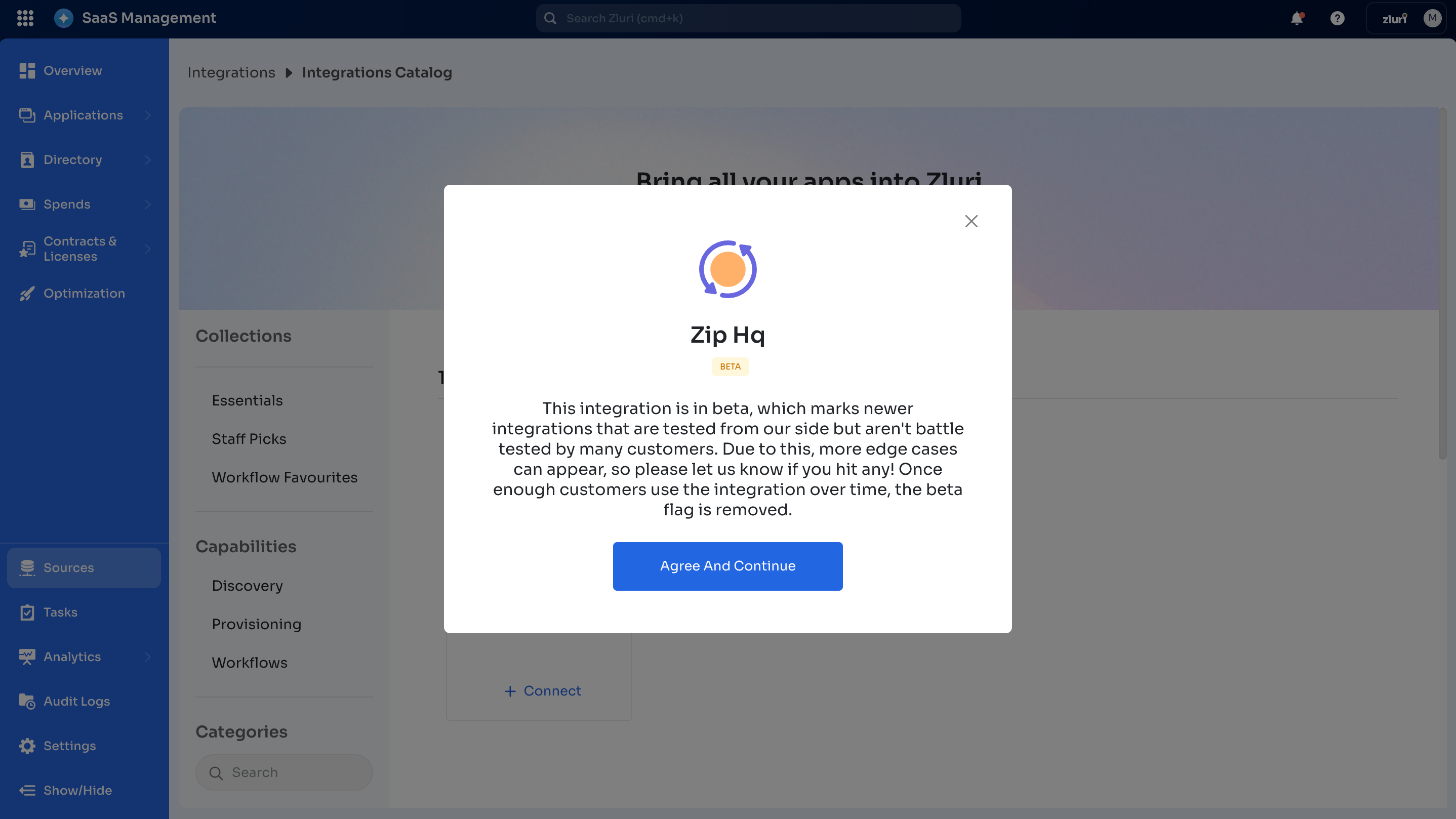
Select Agree and Continue in the dialog box.
Step 3: Authorize the Connection
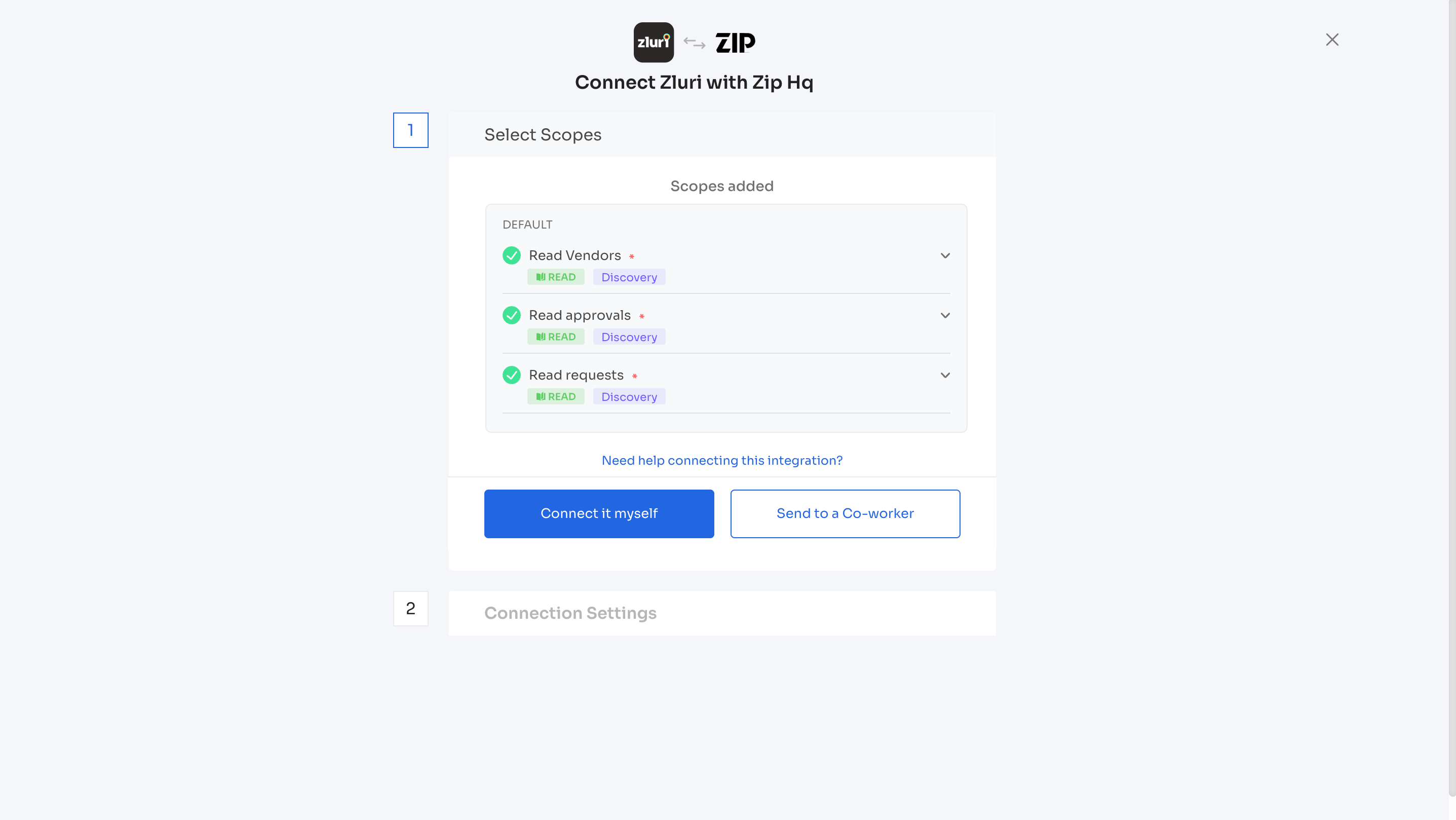
Authorization Options
Self-Authorization
- Proceed directly to complete authorization.
Co-worker Authorization
-
Enter a co-worker's details to share the access request.
-
Zluri sends an invite email or link containing a unique Connect Code.
-
The co-worker can use the code to approve and complete the connection setup.
-
Depending on the authorization method (Connect it myself or Send to a Co-worker), enter the necessary credentials.
-
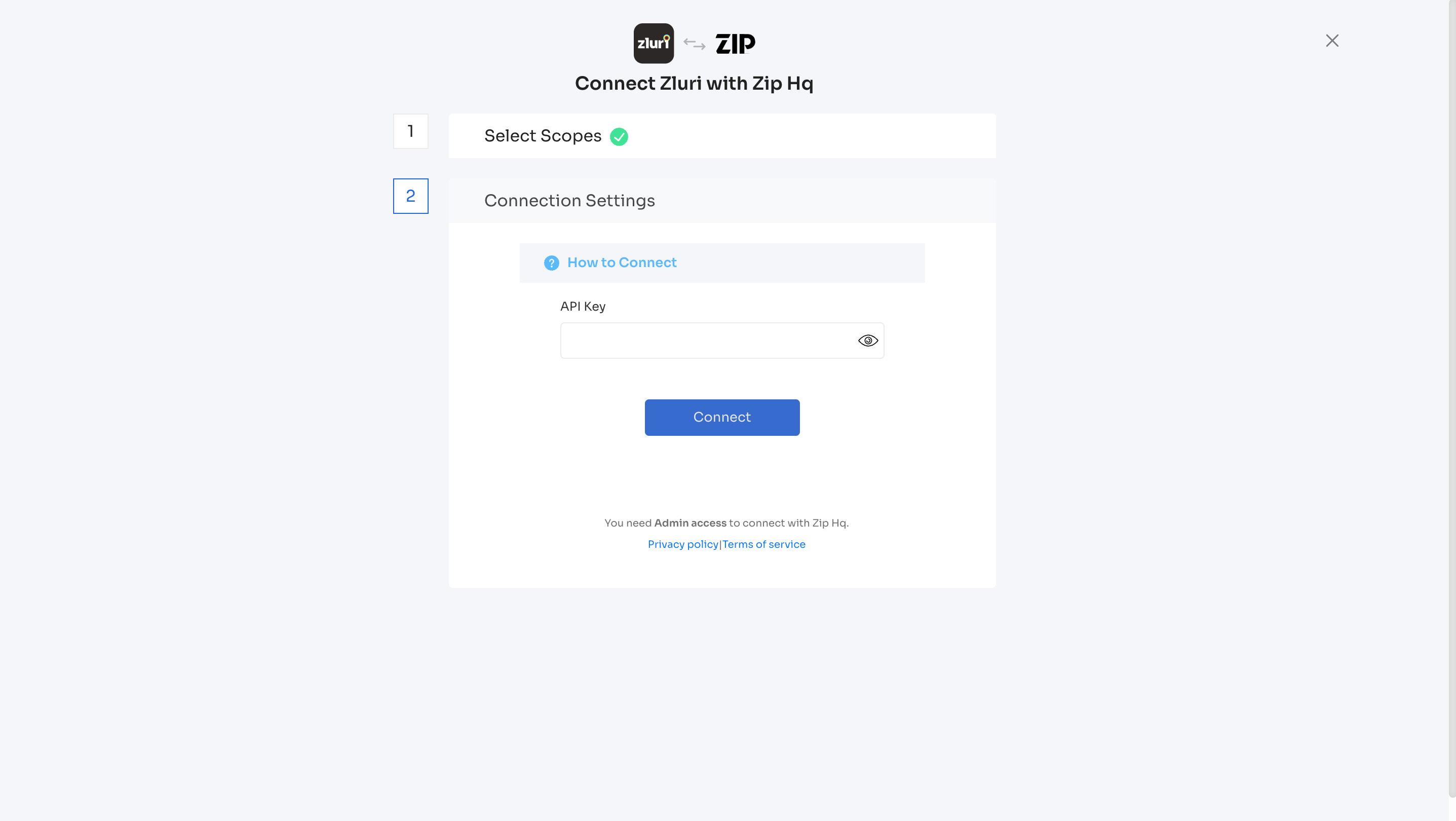
On the Connection settings tab, copy the generated API key from the Zip Hq admin workspace and paste it into the API Key field in Zluri.
-
Select Connect to complete the integration.
The Zip Hq integration is now connected to Zluri.
Got questions? Feel free to submit a ticket or contact us directly at [email protected].
Updated 6 months ago