
Figma Connect [AI-Powered Method]
This guide provides the steps to connect a Figma account to Zluri.
Prerequisites
- Administrator access to the Figma workspace on Organization plan.
Step 1: Update Authentication Settings in Figma
-
Log in to the Figma account.
-
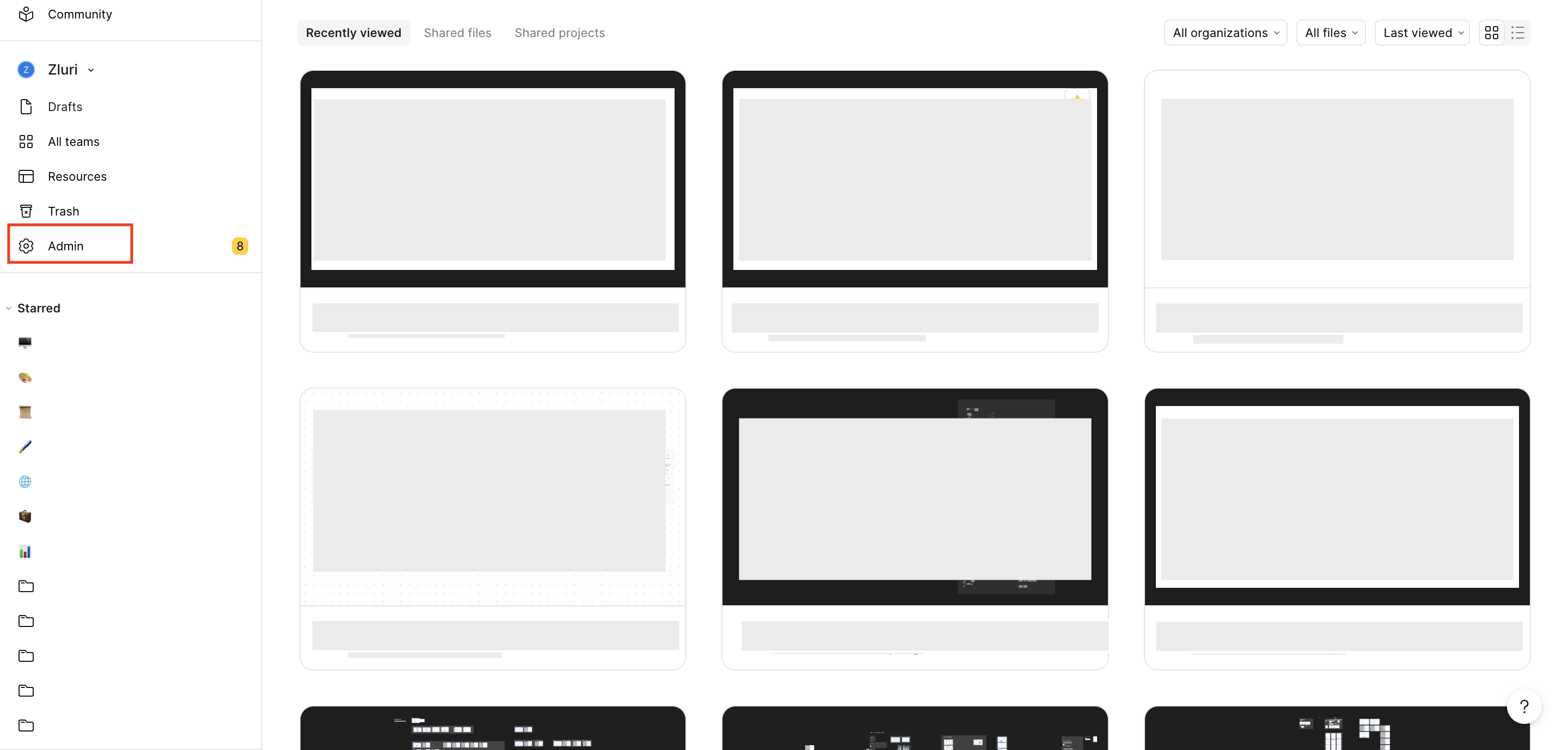
Navigate to Admin in the sidebar.
-
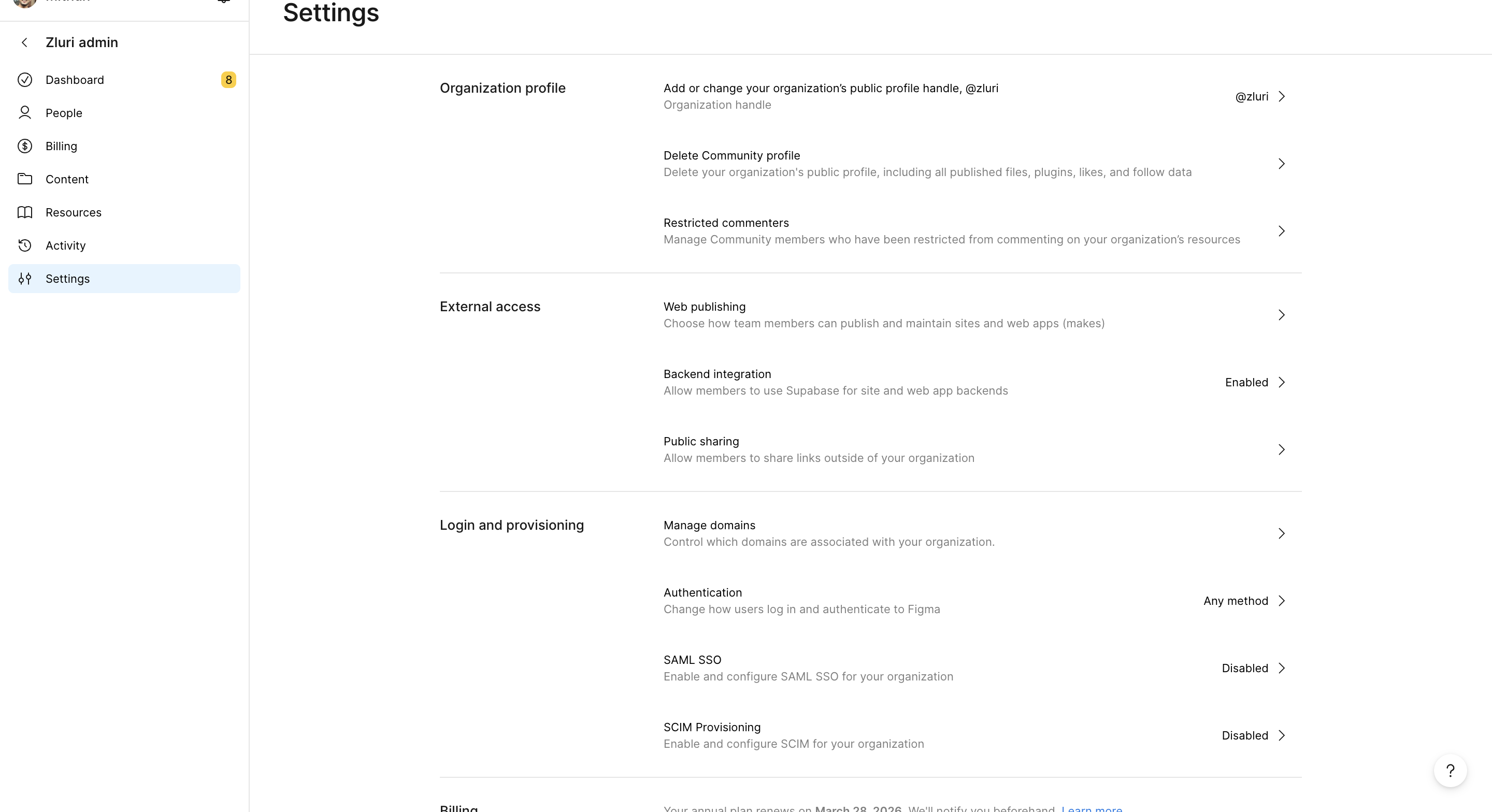
Select the Settings tab.
-
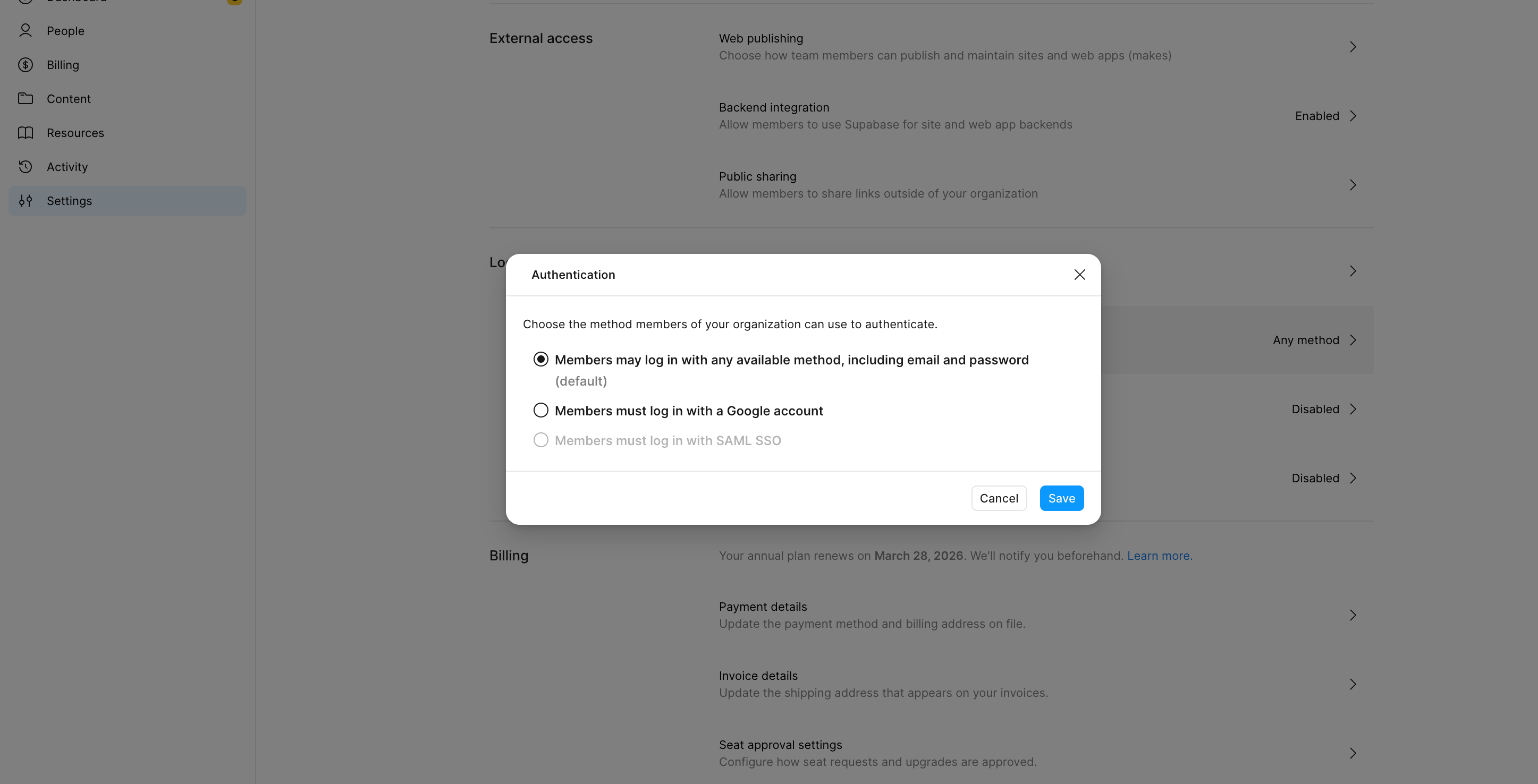
In the Login and provisioning section, select Authentication and enable email password login.
-
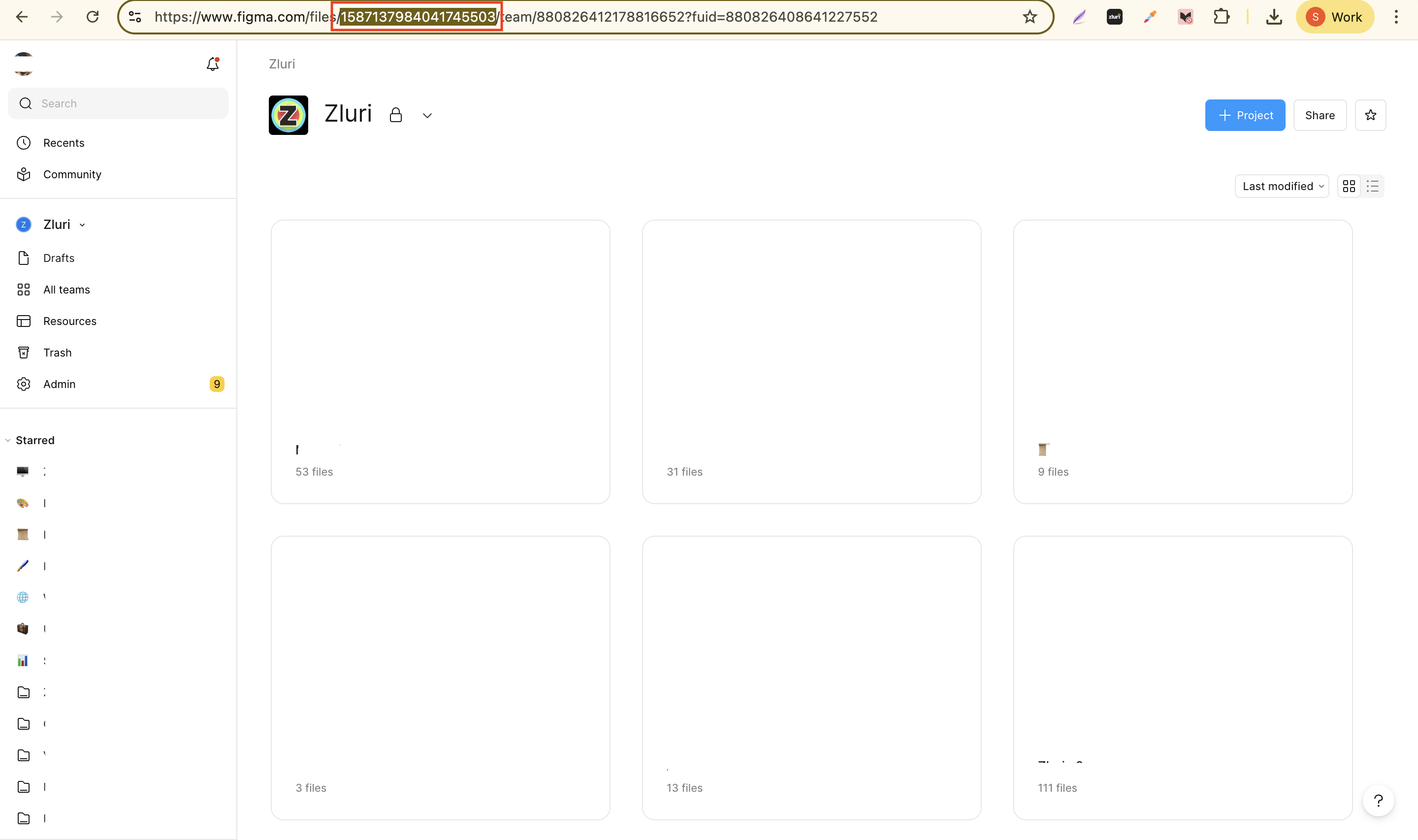
Copy Team Id from the URL that appears after www.figma.com/files/.
Step 2: Connect Figma in Zluri
-
Log in to the Zluri dashboard.
-
Open the Integrations Catalog.
-
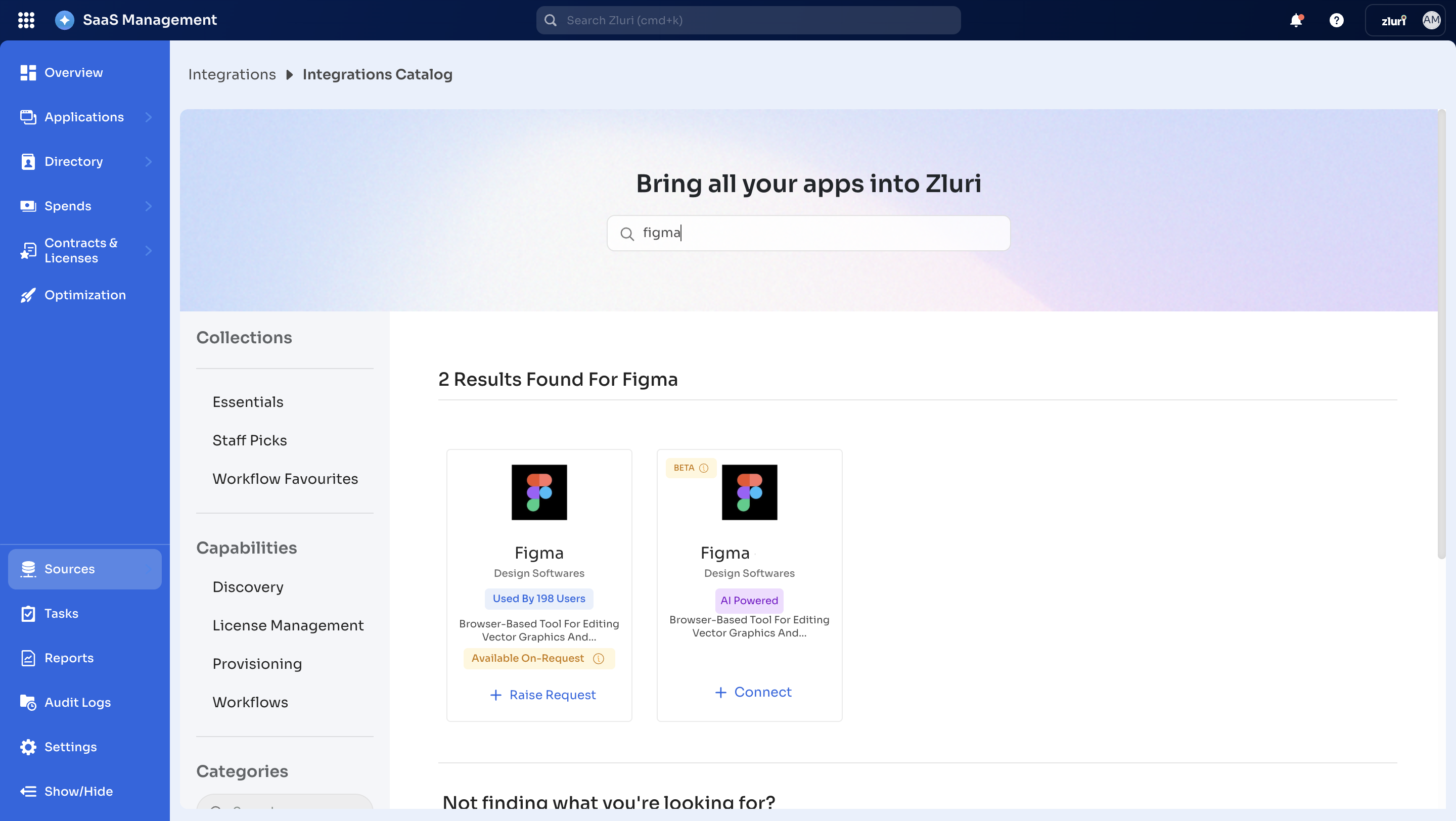
Search for Figma (AI powered tag). Open the Figma Integration page.
-
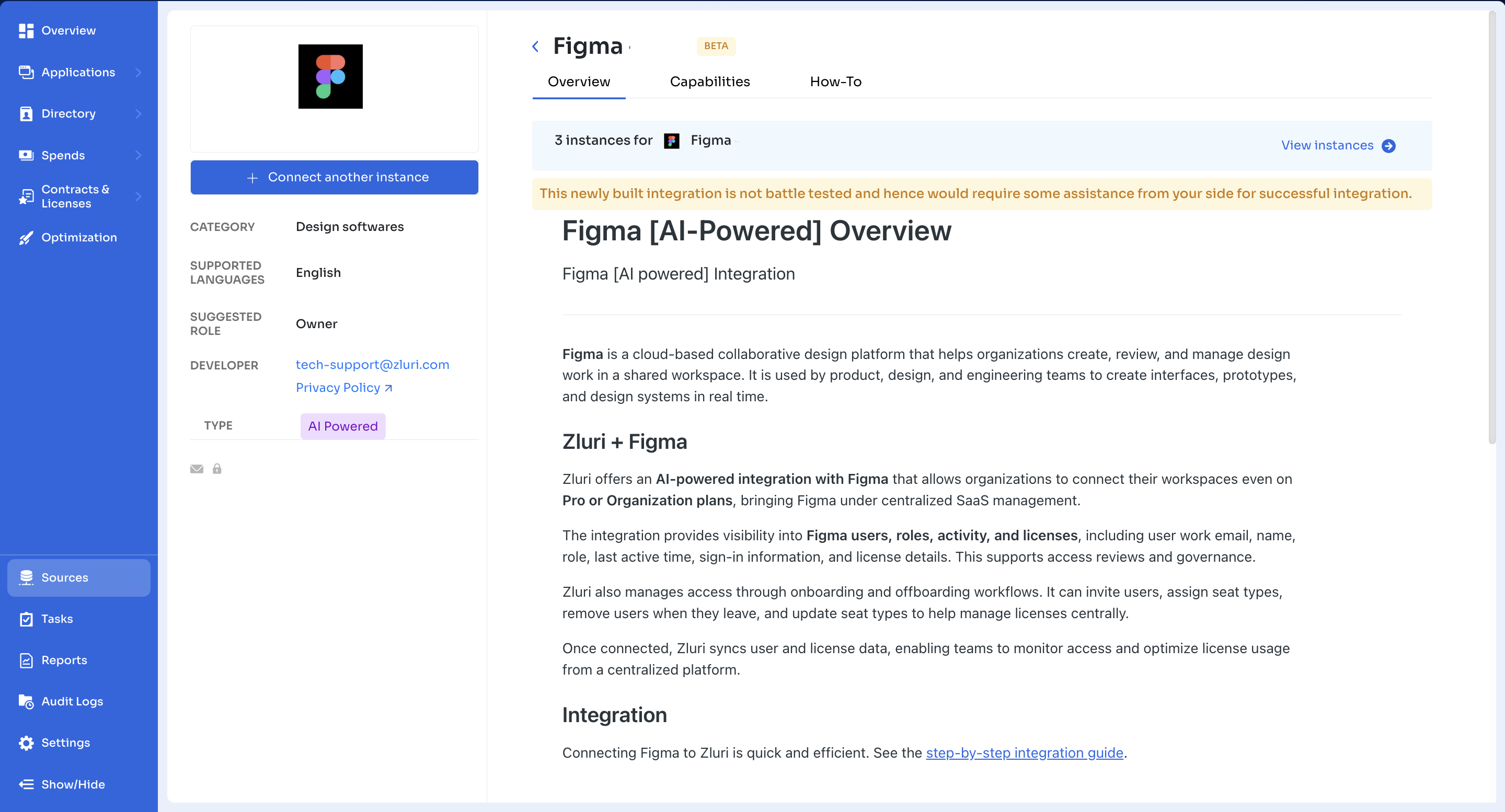
Select Connect Integration or Connect another instance if an existing connection is already configured.
-
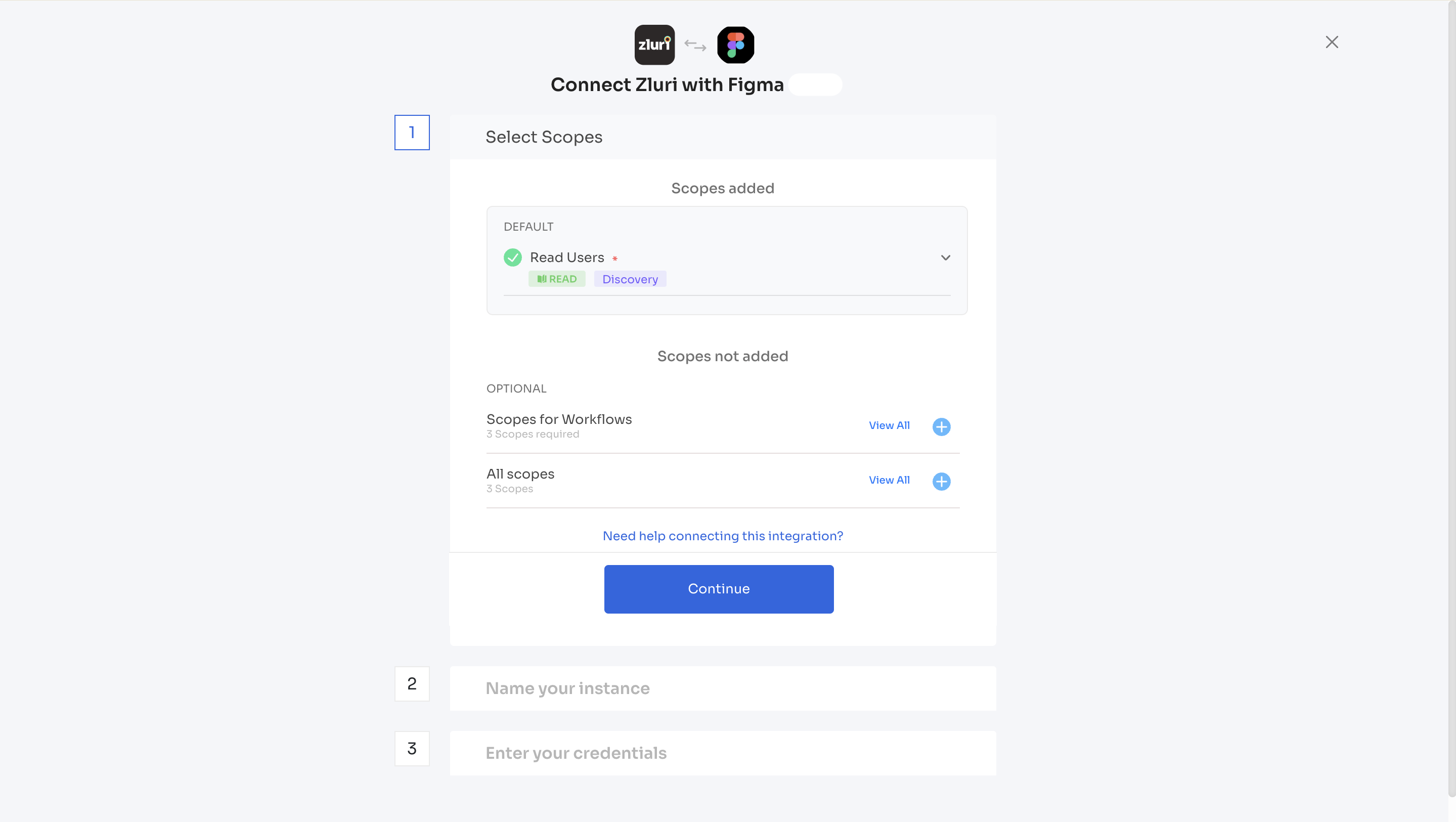
Review the required scopes displayed for the integration and select Continue.
-
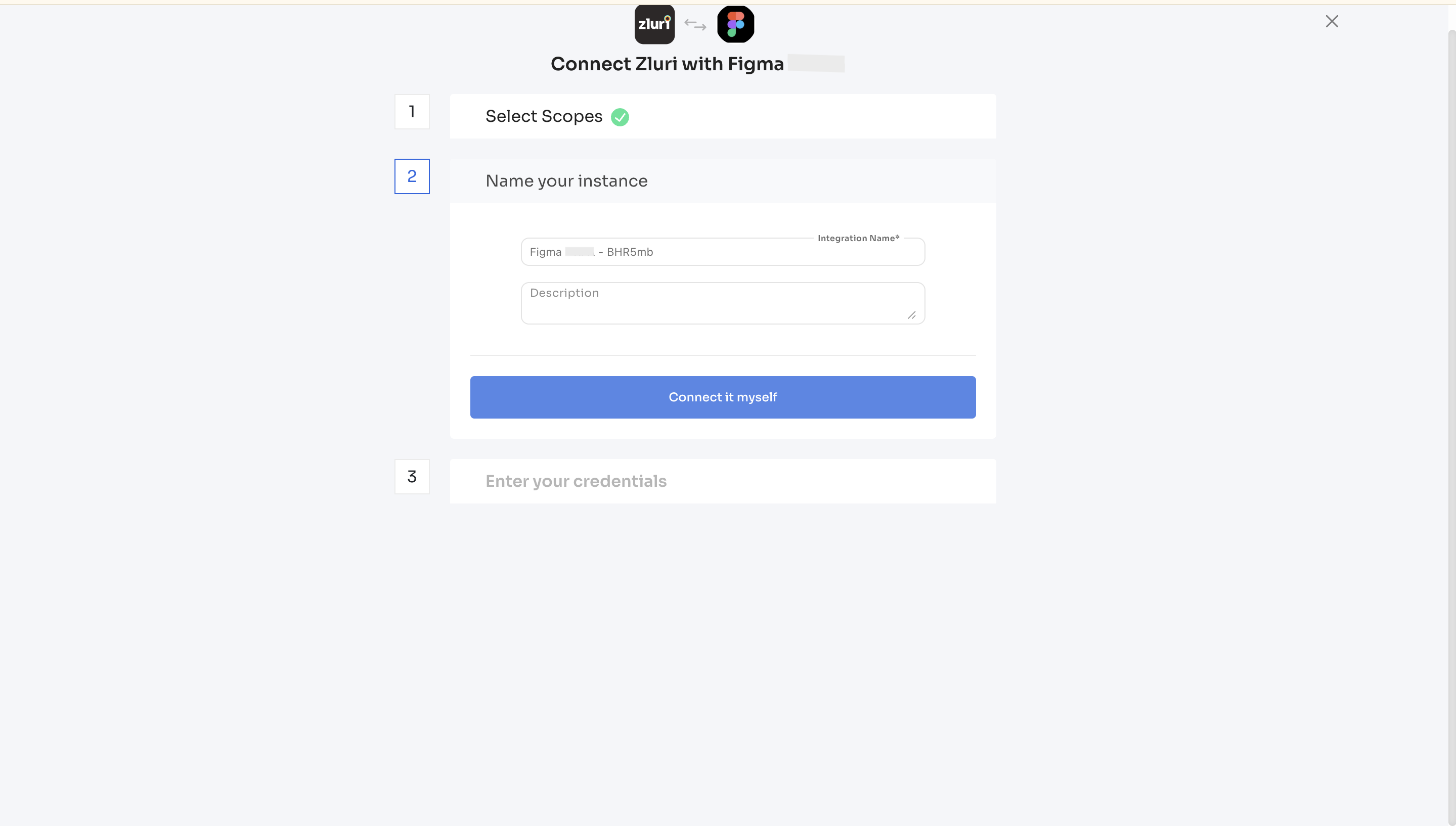
Enter an instance name and select Connect it myself.
Step 3: Authorize the Connection
-
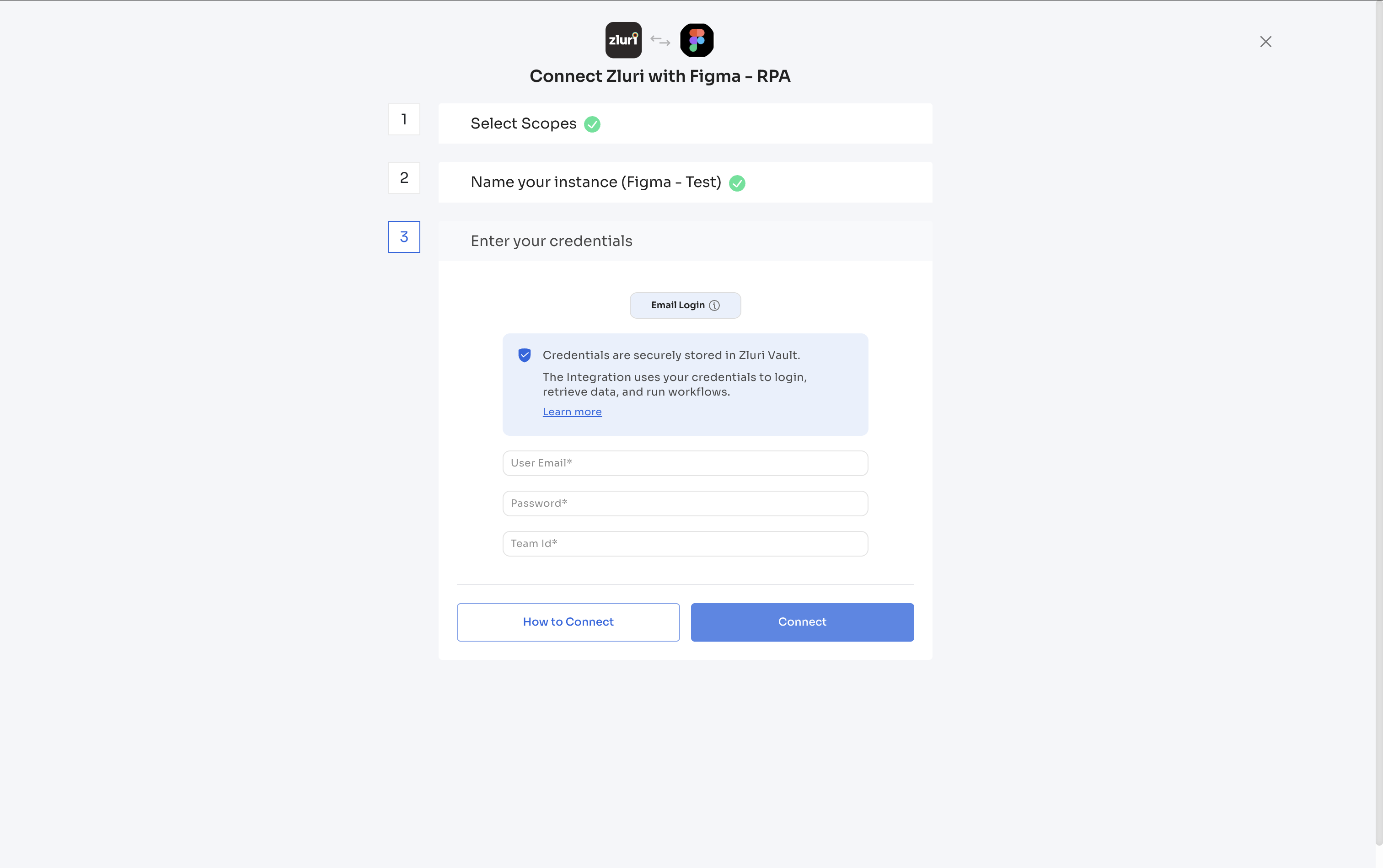
Enter the Figma login credentials into the respective fields in Zluri:
- User email: Enter the Figma account email
- Password: Enter the Figma account password
- Team Id: Enter the Figma Team Id.
-
Select Connect to complete the integration.
-
Zluri establishes the connection with Figma. This process may take up to 5-10 minutes.
Note: The integration process continues in the background. The page can be closed while the connection is being established. An email notification will be sent to the user who created the instance once the connection succeeds or fails.
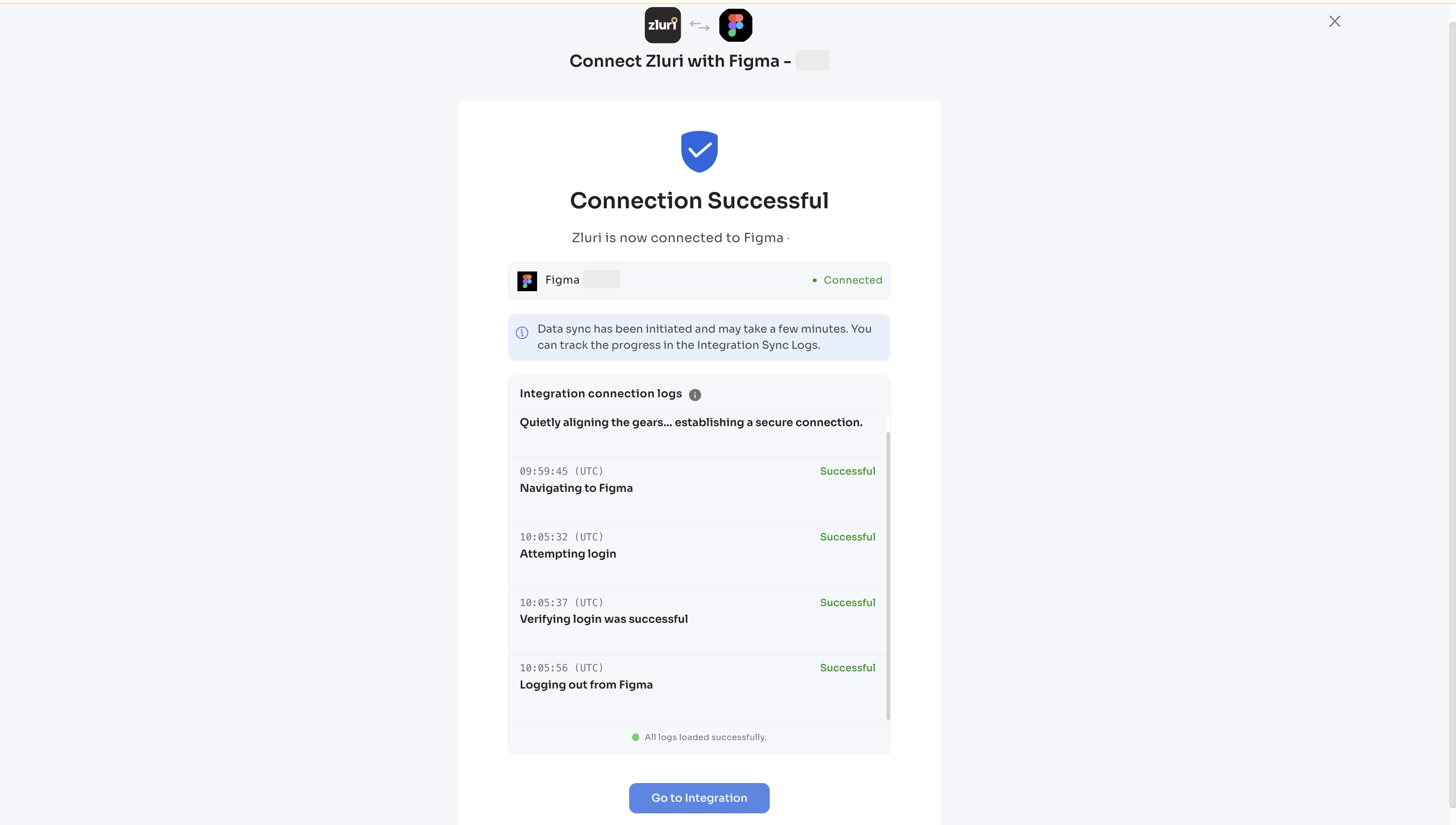
Integration Complete
Zluri is now successfully connected to Figma and will begin syncing data automatically.
Got questions? Feel free to submit a ticket or contact us directly at [email protected].
Updated 6 months ago