
Connect
This guide provides the steps to connect an Anthropic account to Zluri
Prerequisites
- An active Anthropic organization (not an individual account)
- Admin role access to the Anthropic organization you want to connect
Integration steps
Step 1 - Generate Admin API Key in Anthropic
-
Log in to your Anthropic account.
-
Navigate to the Anthropic Console
-
In the left sidebar, under Manage, click API Keys.
-
Select the Admin Keys tab at the top of the page.
-
Click + Create Admin Key.
-
Enter a descriptive name for your key (e.g., "Zluri Integration") and click Add.
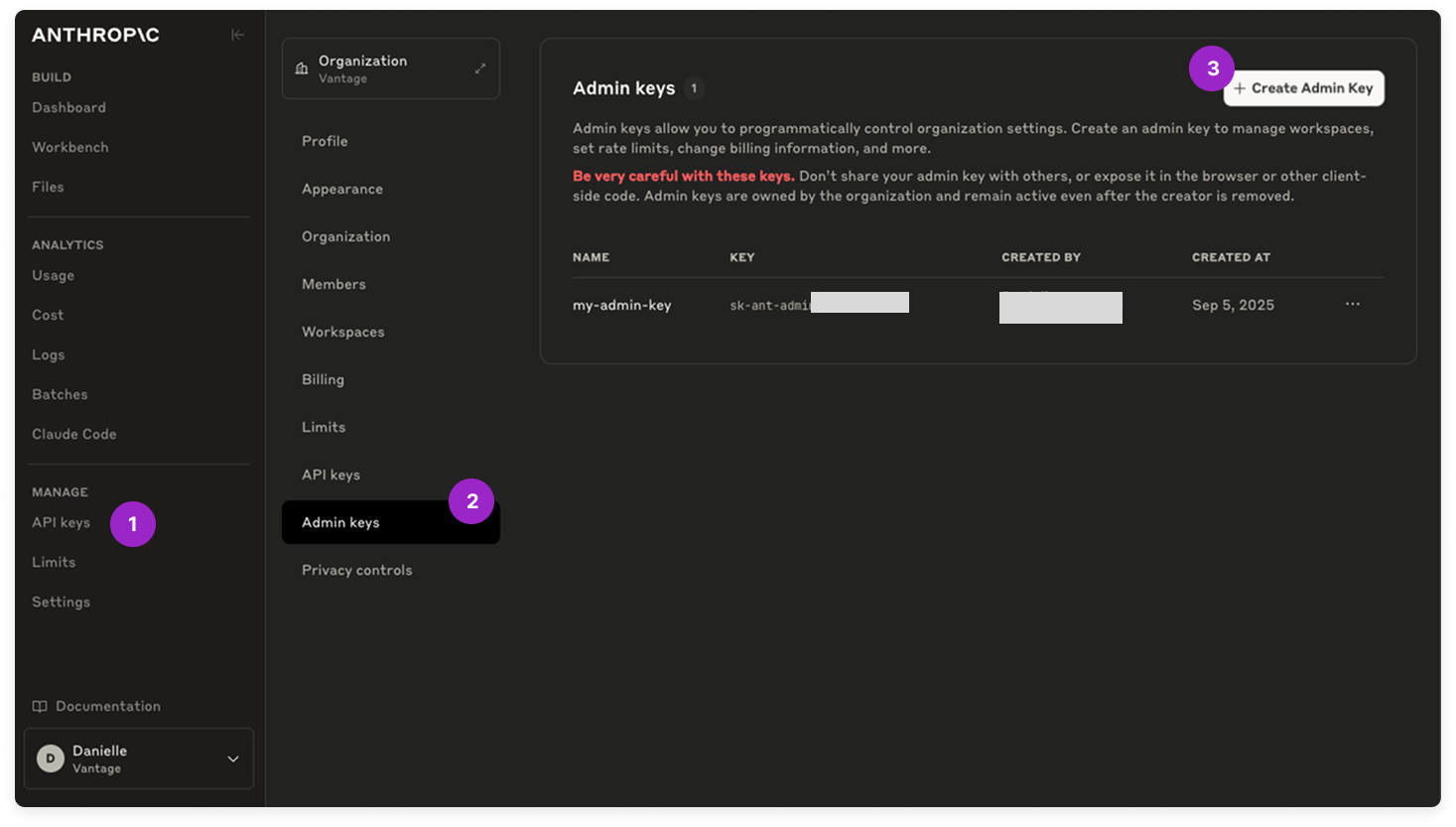
Important: Copy the key immediately and store it securely. You will not be able to view it again.
Step 2 - Begin Integration with Zluri
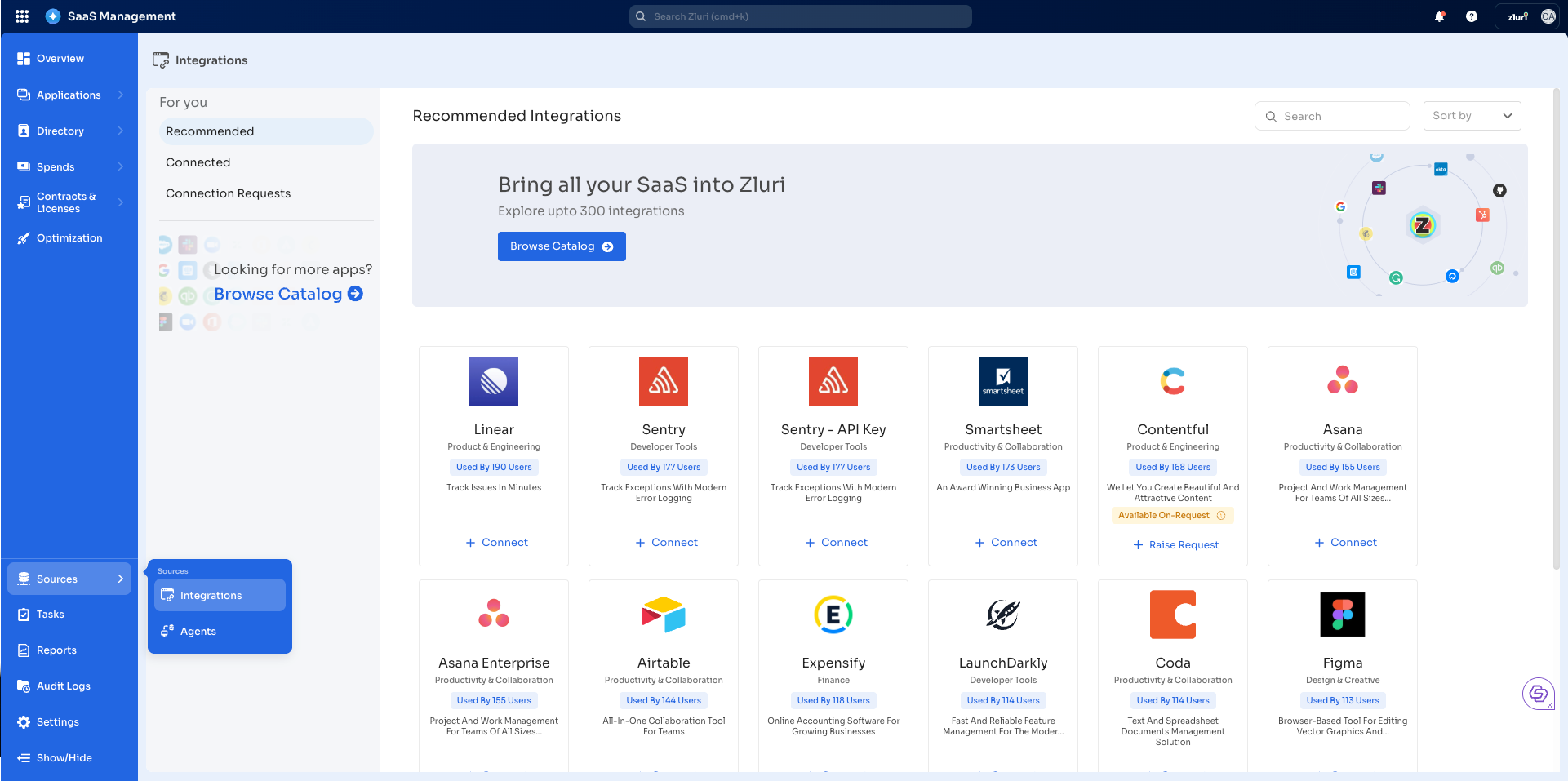
- Log in to the Zluri dashboard, visit the Integrations Catalog.
-
Search for Anthropic and open the Anthropic Integration page.
-
Select Connect Integration or Connect another instance if an existing connection is already configured.
Step 3 - Review and Add Scopes
- Review and select the required scopes displayed for the integration.
Authorization Options
Self-Authorization
- Proceed directly to Step 4 to complete authorization.
Co-worker Authorization
- Enter a co-worker's details to share the access request.
- Zluri sends an invite email or link containing a unique Connect Code.
- The co-worker can use the code to approve and complete the connection setup.
Step 4: Authorize the Connection
- Depending on the authorization method (self or co-worker), enter the necessary credentials.
- Paste the Admin API Key into the Admin API Key field in Zluri.
- Provide a connection name and description to help identify this connection.
- Select Connect to complete the integration.
Integration Complete
Zluri is now successfully connected to Anthropic and will begin syncing data automatically.
Got questions? Feel free to submit a ticket or contact us directly at [email protected].
Updated 5 months ago