
Source Priotization
This feature is currently available through the early access program.
Overview
Source prioritization controls which integration sources Zluri uses to determine whether a user or account is active or inactive. It also lets you choose which source drives the active user count displayed on an app’s overview page.
Previously, Zluri determined activity status using its own default logic with no way to configure it. If you wanted a specific integration (for example, a direct integration) to take precedence over SSO when determining who is active, that was not possible. This release makes the logic configurable at two levels: an org-wide default that applies to all apps, and a per-app override for apps that need a different configuration.
How source prioritization works
Zluri evaluates your integration sources in the order you define. Arrange sources into ranked priority groups. Zluri checks each group in sequence.
Within a priority group: if any source in the group reports an active status for a user or account, Zluri considers that user or account active. Active takes precedence over inactive within the same group.
Between groups: if no source in a group contains the user or account at all, Zluri moves to the next priority group and applies the same logic.
Fallback: if no source across any group contains the user or account, Zluri marks the status as inactive.
App user & account Status Prioritisation page showing a 5-priority example configuration: Priority 1 Manual, Priority 2 Workflow, Priority 3 Direct Integration, Priority 4 Azure AD-JGW and JGW-Google Workspace grouped with the active status note, Priority 5 Zluri, and the Your configuration panel on the right
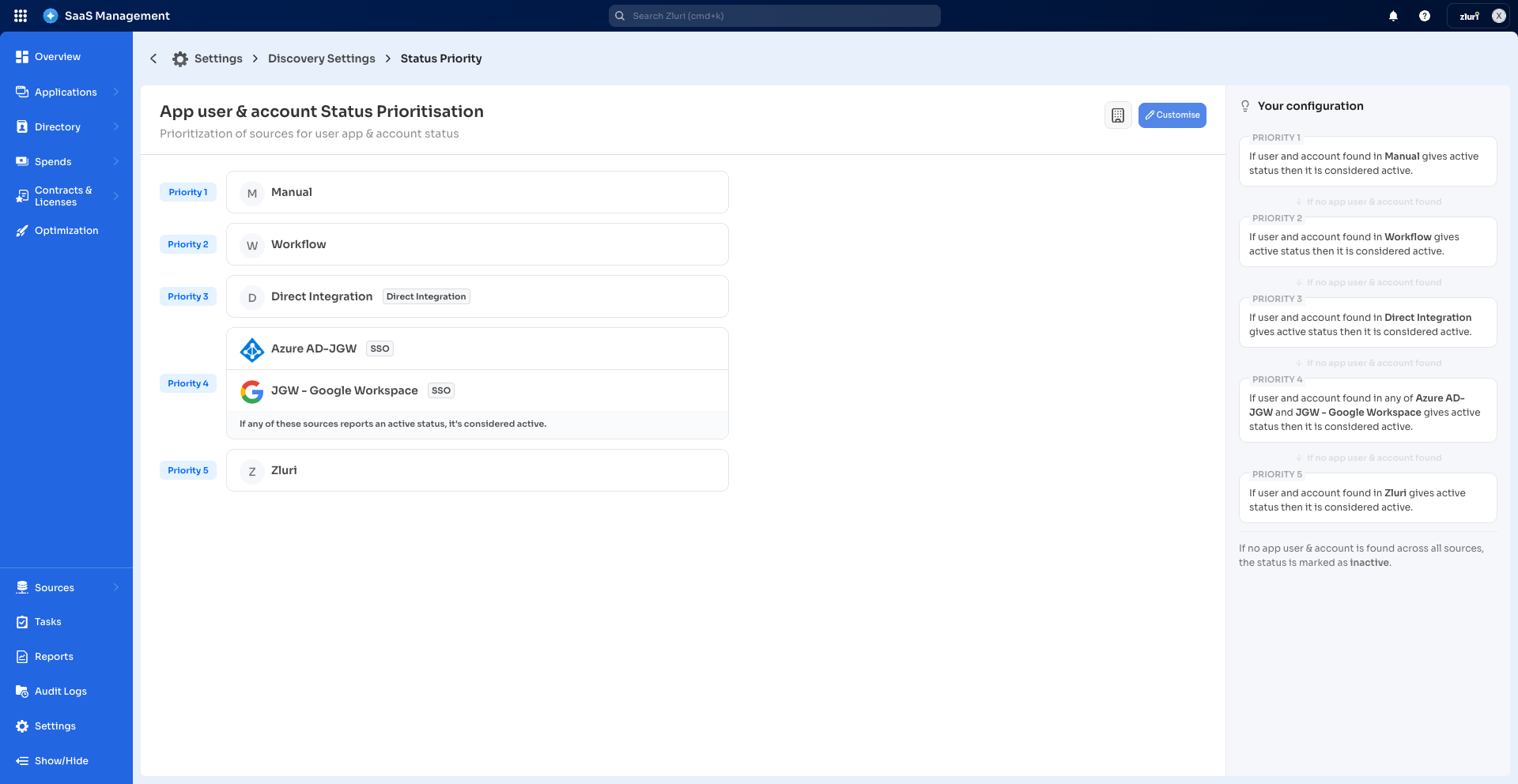
The Your configuration panel on the right translates your priority setup into plain-language rules, for example:
- Priority 1: “If user and account found in Manual gives active status then it is considered active.”
- Priority 4 (grouped): “If user and account found in any of Azure AD-JGW and JGW – Google Workspace gives active status then it is considered active.”
- Fallback: “If no app user and account is found across all sources, the status is marked as Inactive.”
Example: With Priority 1 set to Workflow and SSO, and Priority 2 set to Direct Integration and Manual. Zluri first checks whether the user appears in Workflow or SSO. If found and either source reports active, the user is active. If the user does not appear in any Priority 1 source, Zluri checks Priority 2 using the same logic. If the user does not appear in any source at all, Zluri marks the status as inactive.
Org-level and app-level settings
The following table explains how the two levels relate to each other.
| Setting | Scope | Takes precedence over |
|---|---|---|
| Org-level source prioritization | All apps in your organization | This is the default. No override applies. |
| App-level source prioritization | One specific app | Org-level default |
When you configure source prioritization for a specific app, that app uses its own configuration and ignores the org-level default. All other apps continue to use the org-level default.
Configure source prioritization at the org level
Navigate to Settings > Discovery Settings > Status Priority to set the default source prioritization for all apps. Zluri labels this page App user & account Status Prioritisation.
App user & account Status Prioritisation page (Settings > Discovery Settings > Status Priority) showing four numbered priority groups: Priority 1 Manual, Priority 2 Workflow and Direct Integration grouped, Priority 3 Azure AD-JGW, Priority 4 Zluri, with the Your configuration panel on the right and Reset to zluri default and Customise buttons at the top right
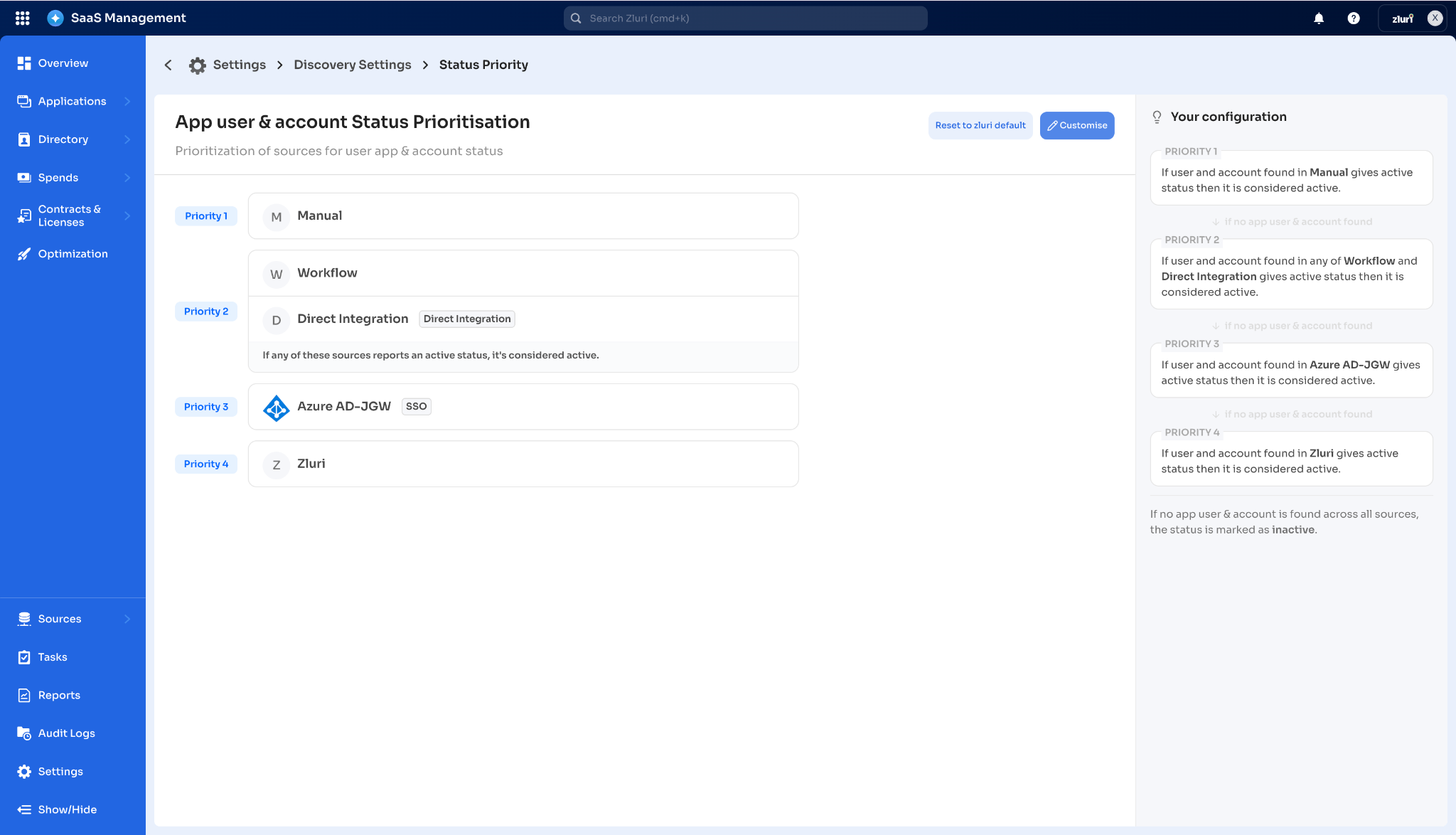
The page displays your current priority configuration with numbered groups on the left. Each group containing multiple sources shows the note: “If any of these sources reports an active status, it’s considered active.” The Your configuration panel on the right shows a plain-language summary of the full evaluation logic for each group.
Zluri default priority order: Manual > Workflow > Direct > SSO > Zluri
What is Zluri as a source? When a user logs in to the Zluri platform directly, Zluri adds them as an app user. In that case, Zluri itself is the source for that app user.
Steps
- Navigate to Settings > Discovery Settings > Status Priority.
- Select Customise to enter edit mode.
- Arrange sources into priority groups. Place your most trusted sources in Priority 1.
- Add or remove sources from each group as needed.
- Select Save.
Select Reset to zluri default to restore the default priority order (Manual > Workflow > Direct > SSO > Zluri).
Configure source prioritization for an app
Override the org-level default with a source priority configuration specific to one app. Navigate to the app page and select Settings > Status Priority from the sidebar.
Steps
- Navigate to the app page.
- Select Settings > Status Priority from the sidebar.
- Select Change to edit the priority groups for this app.
- Arrange sources into priority groups for this app.
- Select Save.
To revert to the org-level default, select Use org default setting.
Source prioritization changes (both org-level and app-level) take 24 to 48 hours to reflect across the platform.
Set the primary active user source for an app
The primary active user source is separate from source prioritization. It controls which integration source drives the Active Users count displayed on an app’s overview page. It does not affect how Zluri determines active or inactive status.
Navigate to the app page and select Settings > Primary source from the sidebar.
Set Primary Active User Source page showing a description banner reading “Choose the data source used to calculate active users. This selection determines the active user counts displayed across the platform.” Azure AD-JGW is shown as the selected source with a radio button, and the Set as Primary source button is at the top right
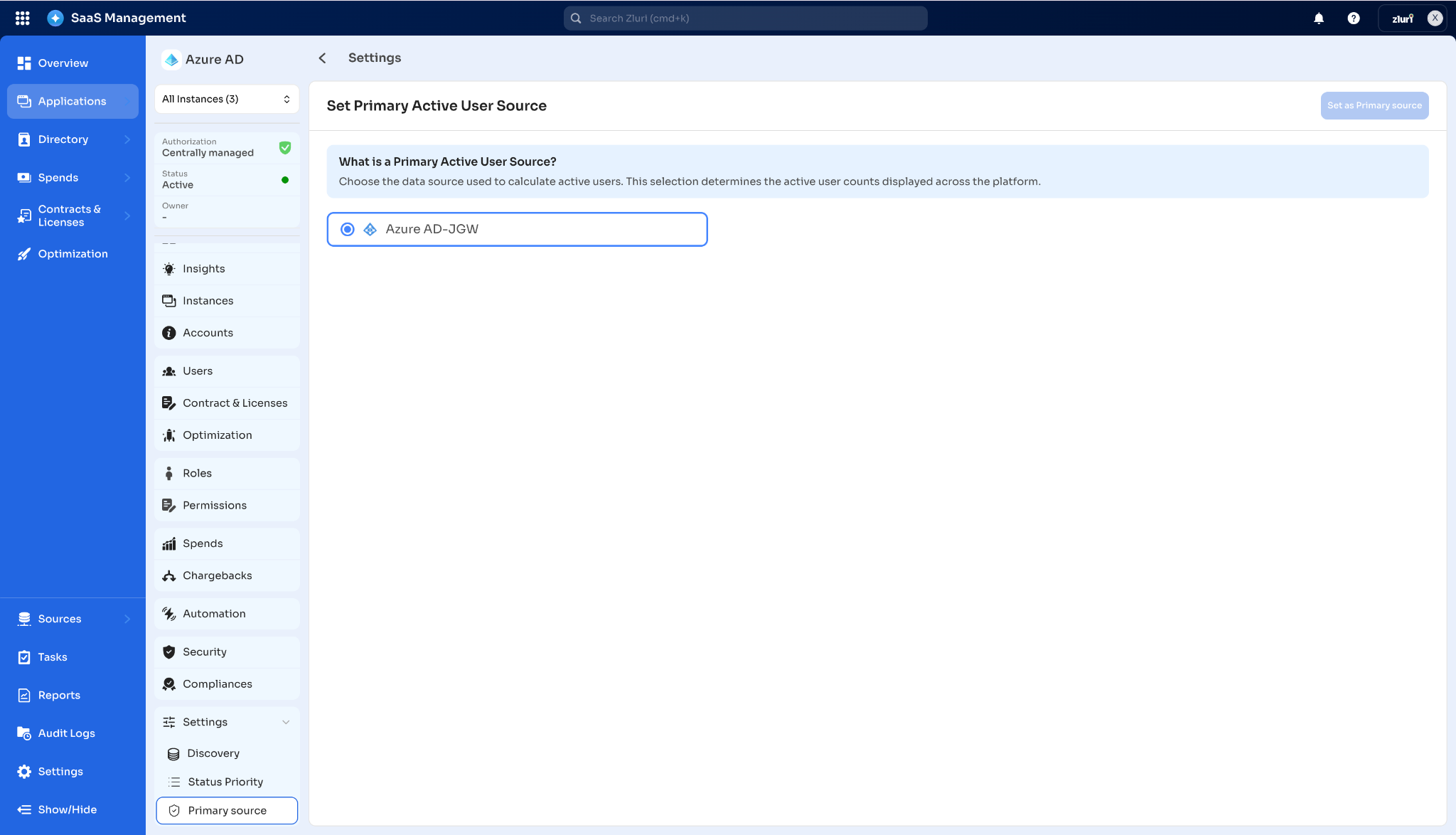
The page shows a list of available integration sources. Select any source to make it the primary. The Set as Primary source button applies the change.
Steps
- Navigate to the app page.
- Select Settings > Primary source from the sidebar.
- Select the source you want to use as the primary active user source.
- Select Set as Primary source.
Select Reset to default to restore the original primary source.
Constraints
The following constraints apply to source prioritization.
- Source prioritization changes take 24 to 48 hours to reflect across the platform.
- Zluri determines account and user status through direct integrations only. Apps connected through SSO, agents, or other methods must also have a direct integration for source prioritization to apply.