
Approver Insights
Approver Insights surfaces contextual data to approvers inside the access request flow, giving them the information they need to make confident, informed decisions before approving or rejecting a request.
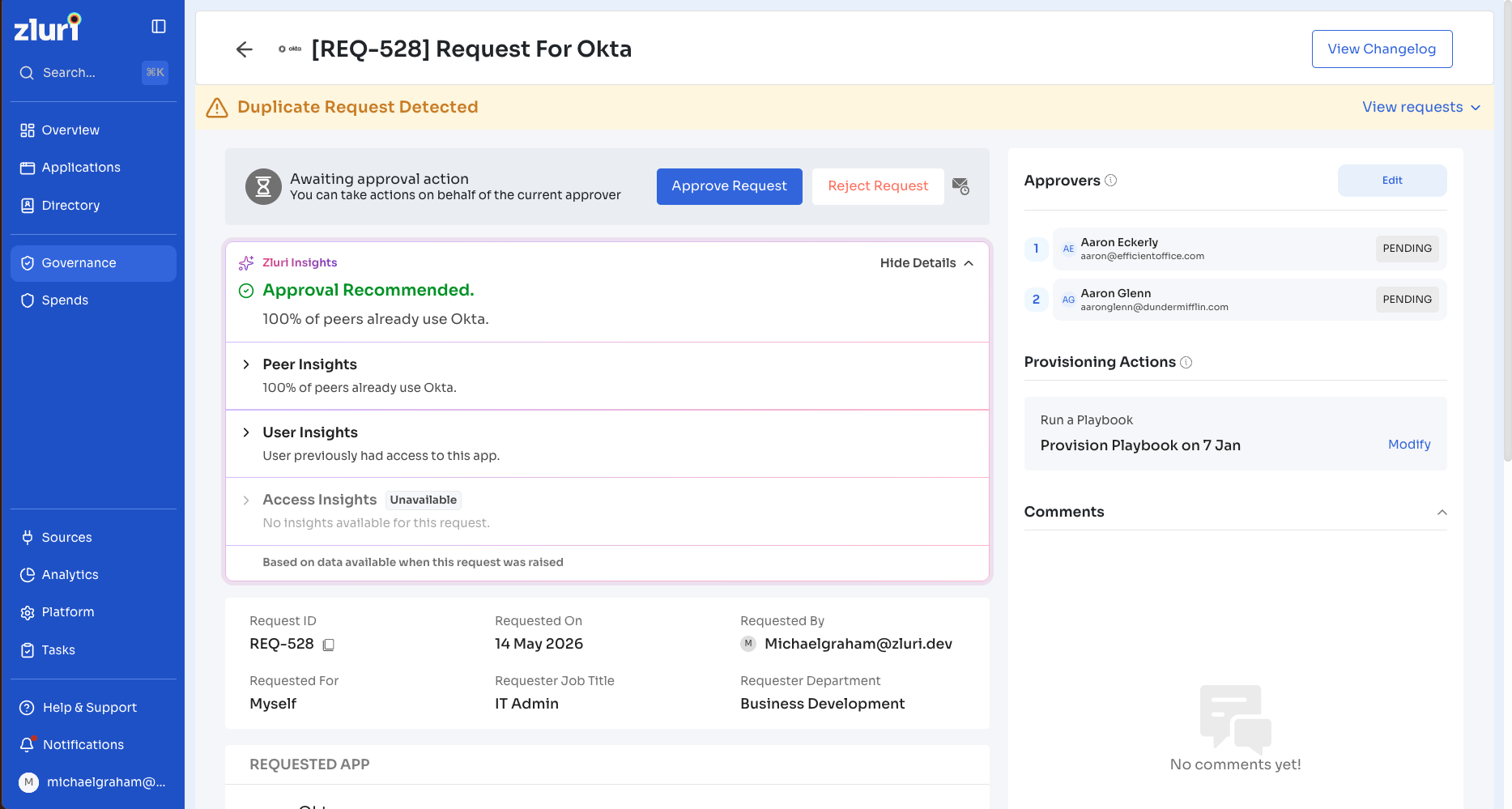
When an approver opens a pending request, the Zluri Insights panel appears at the top of the request page. The panel shows a summary signal that rolls up all available data alongside three categories of structured context: Peer Insights, User Insights, and Access Insights. The panel is read-only — the approval and rejection workflow itself remains unchanged.
Approver Insights is currently available for a limited set of organizations. Contact your Zluri representative to request access.
What this feature enables
Approver Insights gives approvers the following contextual data for each pending request.
| Capability | Description |
|---|---|
| Summary status signal | A single signal — Approval Recommended, Review Carefully, or Potential Risk Detected — that rolls up peer, user, and access data at a glance |
| Peer Insights | How many people in the requester's role and department already have the app and the requested access level |
| User Insights | The requester's history with this specific app — how many times they have requested it, their approval rate, and the most recent decision |
| Access Insights | Whether the requested access level is standard or privileged, and estimated seat cost where available |
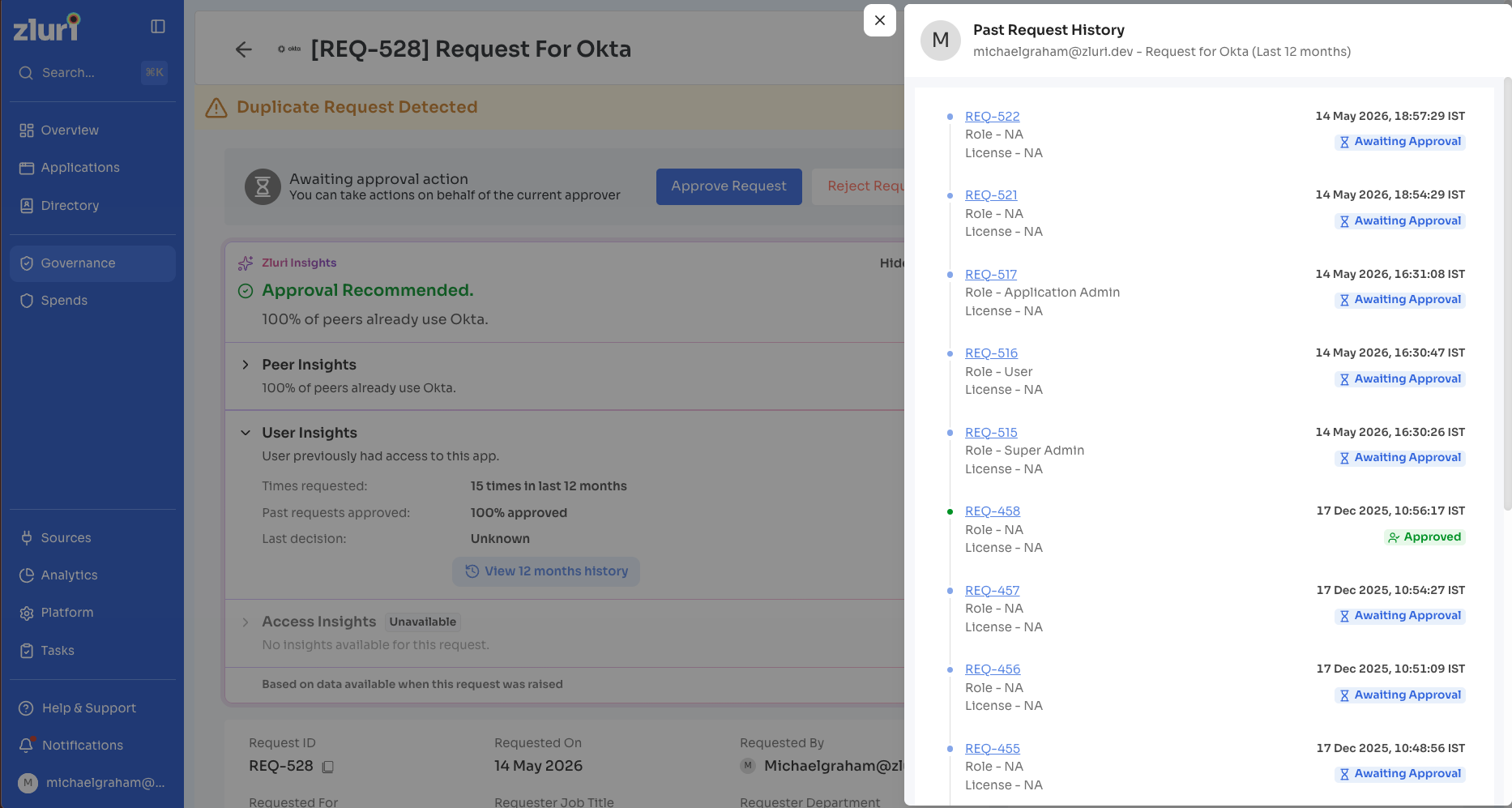
| 12-month request history | An expandable chronological list of every request this user has made for this app over the past year, with outcomes |
| Decision log | When approving or rejecting, approvers select which insights informed their decision and add a free-text reason. Zluri captures both in the decision log alongside the outcome. |
Turn on Approver Insights
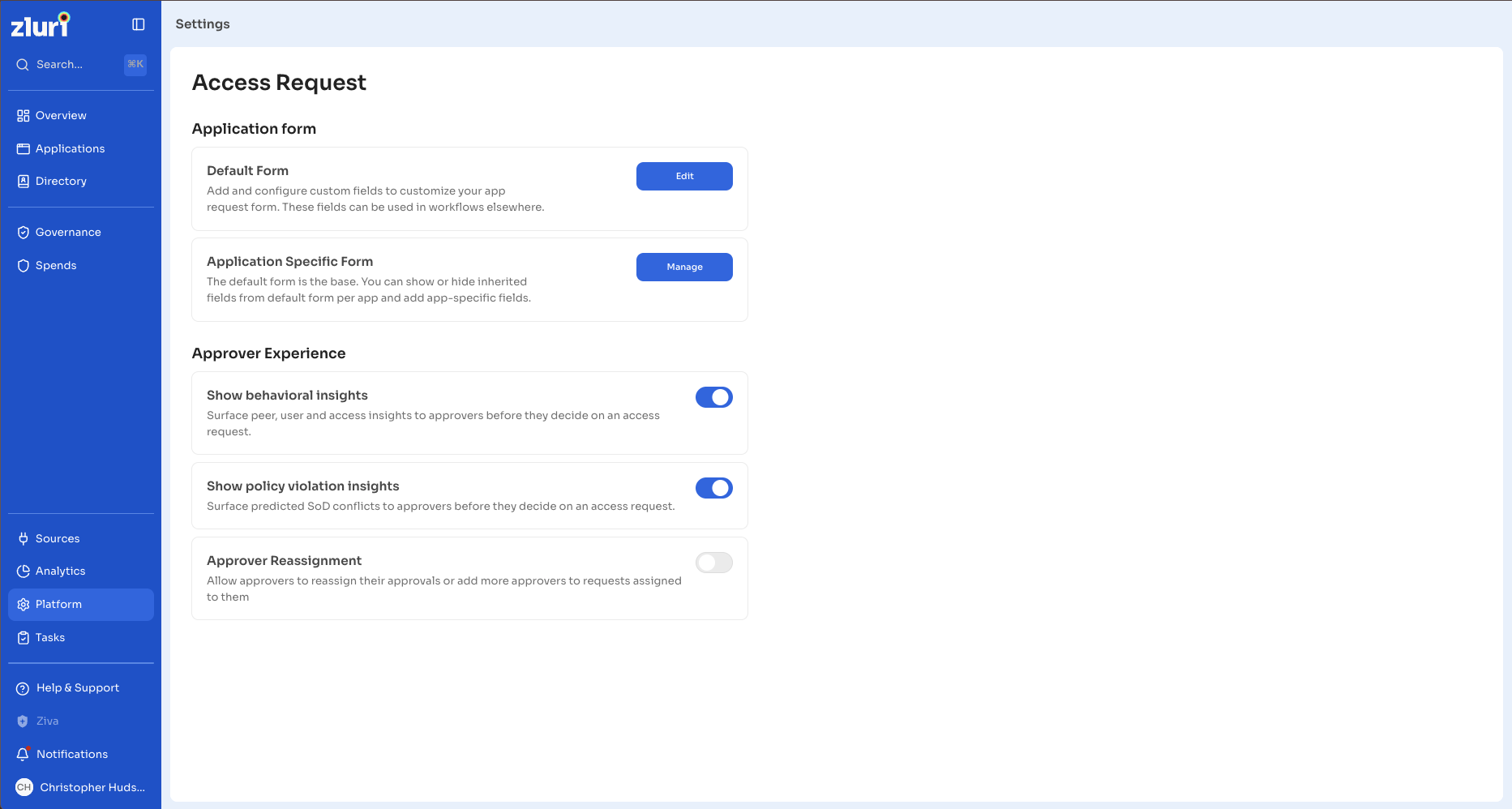
Users with access to Access Request Settings turn on Approver Insights for all approvers in the org. The toggle is off by default.
Steps
- Navigate to Platform > Access Request > Approver Experience.
- Turn on Show behavioral insights.
Once turned on, the Zluri Insights panel appears on every pending request for all approvers in the org. Turn the toggle off at any time to hide the panel for all approvers.
Review insights on a pending request
When the toggle is on, the Zluri Insights panel appears at the top of every pending access request. The panel shows a summary status signal followed by three expandable insight categories: Peer Insights, User Insights, and Access Insights.
Zluri generates insights at the time the access request is created. The data shown reflects the state of peer, user, and access information at the moment of submission, not the current state at the time of review.
Summary status signal
The summary signal rolls up all available insight data into one of three states.
| Signal | Meaning | Example |
|---|---|---|
| Approval Recommended | Insights collectively support approval — strong peer adoption, clean request history, and standard access level | 65% of peers use this app; user has one prior request with no rejections |
| Review Carefully | One or more signals flag something worth pausing on, but no definitive risk | Low peer adoption (36%); no prior request history for this app |
| Potential Risk Detected | Multiple signals fire together, warranting closer scrutiny | 25 requests in 12 months; 44% approval rate; 0% peer approval rate for this access level |
Peer Insights
Peer Insights shows how common this app and access level are among people in the same role and department as the requester.
The following data points appear in the Peer Insights section.
| Data point | What it shows |
|---|---|
| Peers using this app | Percentage of people with the same job title who currently have access to the app |
| Peers with same access level | Percentage of peers who have this specific role or license |
| Access across department | Percentage of the requester's department with access to the app |
| Approval rate for peers | Percentage of peer requests for this app that were approved. Zluri flags this data point when the rate is 0%. |
When the peer group is small, a Low Historical Sample badge appears on the Peer Insights section. This indicates that the percentages shown are based on limited data.
Peer data requires the requester's job title and department to be present and synced from the identity source (for example, Okta or Azure AD). Missing attributes result in missing peer context.
User Insights
User Insights shows the requester's history with this specific app over the past 12 months.
The following data points appear in the User Insights section.
| Data point | What it shows |
|---|---|
| Times requested | How many times this user has requested this app in the last 12 months |
| Past requests approved | Percentage of those requests that were approved |
| Last decision | The outcome of the most recent request, including the name of the person who made the decision |
Select View 12 months history to expand a full chronological list of past requests for this app and user combination. Each entry in the history list shows the request ID, date, role and license requested, and the final outcome.
The following outcomes appear in the history list.
| Outcome | Meaning |
|---|---|
| Approved | The request was approved by an approver |
| Rejected | The request was rejected by an approver |
| Auto Rejected | The request was automatically rejected by a configured rule |
| Awaiting Approval | The request has not yet received a final decision |
Access Insights
Access Insights shows whether the requested access is standard or elevated, along with license cost context where available.
The following data points appear in the Access Insights section.
| Data point | What it shows |
|---|---|
| Access type | Whether the requested access is Standard or Privileged |
| Estimated seat cost | Approximate license cost for the requested access level, where available |
If the app is not yet managed in Zluri or Zluri has not ingested entitlement data for the app, Access Insights shows Unavailable.
Log your reasoning when approving or rejecting
When an approver selects Approve Request or Reject Request, a confirmation modal opens. The modal surfaces the insights from the Zluri Insights panel as selectable checkboxes, letting the approver indicate which data points informed the decision. A free-text reason field is also available.
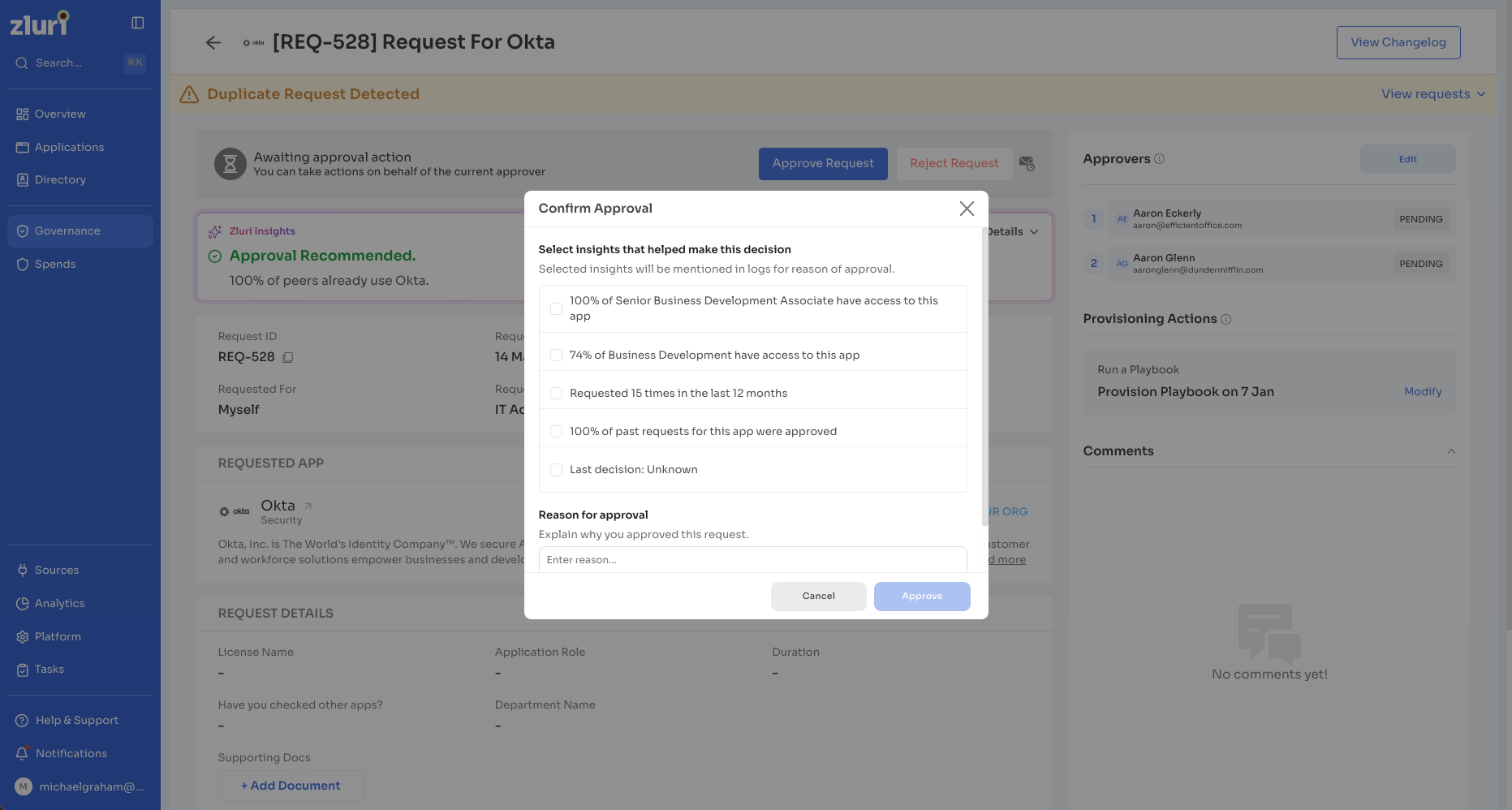
Approvers must provide at least one input before confirming — either select one or more insights, enter a free-text reason, or both. Zluri captures whatever is submitted in the decision log alongside the outcome, creating a traceable record linking the context the approver saw to the decision they made.
Steps
- Select Approve Request or Reject Request on the pending request page.
- In the confirmation modal, select one or more insights that informed the decision, enter a free-text reason in the Reason for approval or Reason for rejection field, or provide both. At least one is required.
- Select Approve or Reject to confirm.
Constraints
The following constraints apply to Approver Insights.
| Constraint | Description |
|---|---|
| Read-only panel | The Zluri Insights panel does not change the approval or rejection workflow. Approvers use the same Approve Request and Reject Request controls. |
| Snapshot data | Insights reflect the state of peer, user, and access data at the time the request was created. Changes to underlying data after request submission do not update the insights shown. |
| Org-wide toggle | The Show insights for Approvers toggle applies to the entire org. It is not configurable per approver or per app. |
| Access Insights availability | Access Insights data requires the app to be managed in Zluri with entitlement data ingested. For apps where this data is absent, Access Insights shows Unavailable. |
| Peer data availability | Peer data requires the requester's job title and department to be synced from the identity source. If these attributes are missing in Zluri, the Peer Insights section does not display data. |
Permissions and access control
The following roles apply to Approver Insights.
| Role | Access |
|---|---|
| Owner | Turns the Show insights for Approvers toggle on or off in Access Request Settings |
| Admin | Turns the Show insights for Approvers toggle on or off in Access Request Settings |
| Approver | Views the Zluri Insights panel on pending requests when the toggle is on. Cannot modify settings. |
| All other roles | No access to settings. The Insights panel is not visible on request pages. |
Updated 17 days ago