
Connect
This guide explains how to connect a Willow Voice account to Zluri using an API key.
Prerequisites
Before starting the integration, ensure the following:
- Administrator access to the Willow Voice account.
- Permission to generate and manage API keys in Willow Voice.
Step 1: Generate an API Key in Willow Voice
- Sign in to the Willow Voice Admin Dashboard.
- Select API Keys from the left navigation panel.
- Select Create Key.
- Enter a name or description for the API key (for example,
Zluri Integration). - Select Create.
- Copy the generated API Key and store it securely.
Step 2: Connect Willow Voice in Zluri
-
Sign in to Zluri.
-
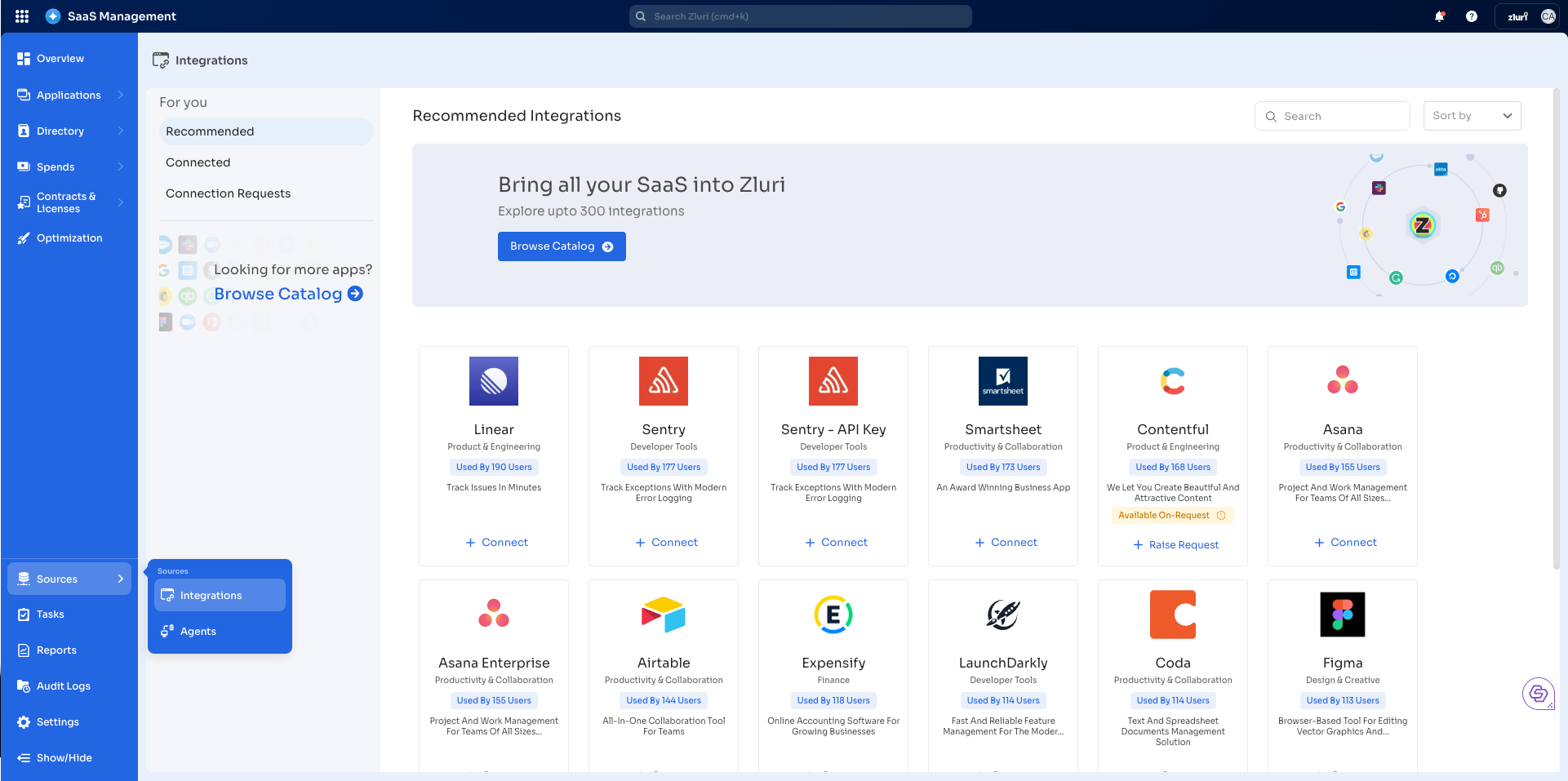
Navigate to Sources → Integrations → Browse Catalog.
-
Search for Willow Voice.
-
Open the Willow Voice Integration page.
-
Select Connect Integration or Connect another instance if an existing connection is already configured.
Step 3: Review and Add Scopes
- Review the required scopes displayed for the integration.
- Add additional scopes if required.
Authorization Options
Self-Authorization
- Proceed directly to Step 4.
Co-worker Authorization
- Enter a co-worker’s details to share the connection request.
- Zluri sends an invite email or link containing a unique Connect Code.
- The co-worker can use the code to approve and complete the connection setup.
Step 4: Authorize the Connection
- Depending on the authorization method, enter the required credentials.
- Paste the generated API Key into the API Key field in Zluri.
- Enter a connection name and description.
- Select Connect to complete the integration.
Integration Complete
Zluri connects to Willow Voice and begins syncing data automatically.
Got questions? Feel free to submit a ticket or contact us directly at [email protected].
Updated 4 months ago
Did this page help you?