
Scheduled onboarding and offboarding automations
Schedule onboarding and offboarding playbooks to run a set number of days before or after a user's start or end date. Set an execution time and timezone for each action to align with your team's working hours.
This feature is additive. Existing automation rules continue to run without changes.
What this feature enables
These capabilities apply to automation rules in Access Management > Automation Rules.
| Capability | Description |
|---|---|
| Before scheduling | Run a playbook a specified number of days before the onboarding or offboarding date |
| After scheduling | Run a playbook a specified number of days after the onboarding or offboarding date |
| Execution time | Set the time of day at which the playbook runs. Default is 9:00 AM IST. |
| Timezone configuration | Set the timezone for execution. Options include IST, UTC, and US Eastern Time. |
| Chained playbooks | Add multiple playbook actions within a single rule, each with its own timing |
| Region-based scheduling | Use custom attributes such as Country or Region as rule conditions to run automations at the right local time for each group |
Before you begin
Confirm the following before setting up a scheduled rule:
- You have access to Automation Rules in Access Management.
- At least one playbook is already configured for onboarding or offboarding.
- The onboarding or offboarding date is available — either set manually in the UI or synced from a connected HR system.
Zluri syncs onboarding and offboarding dates from BambooHR, HiBob, Workday, Google Workspace, Okta, and other connected HRMS integrations.
Configure a scheduled automation rule
Navigate to Access Management > Automation Rules and select the Onboarding or Offboarding tab.
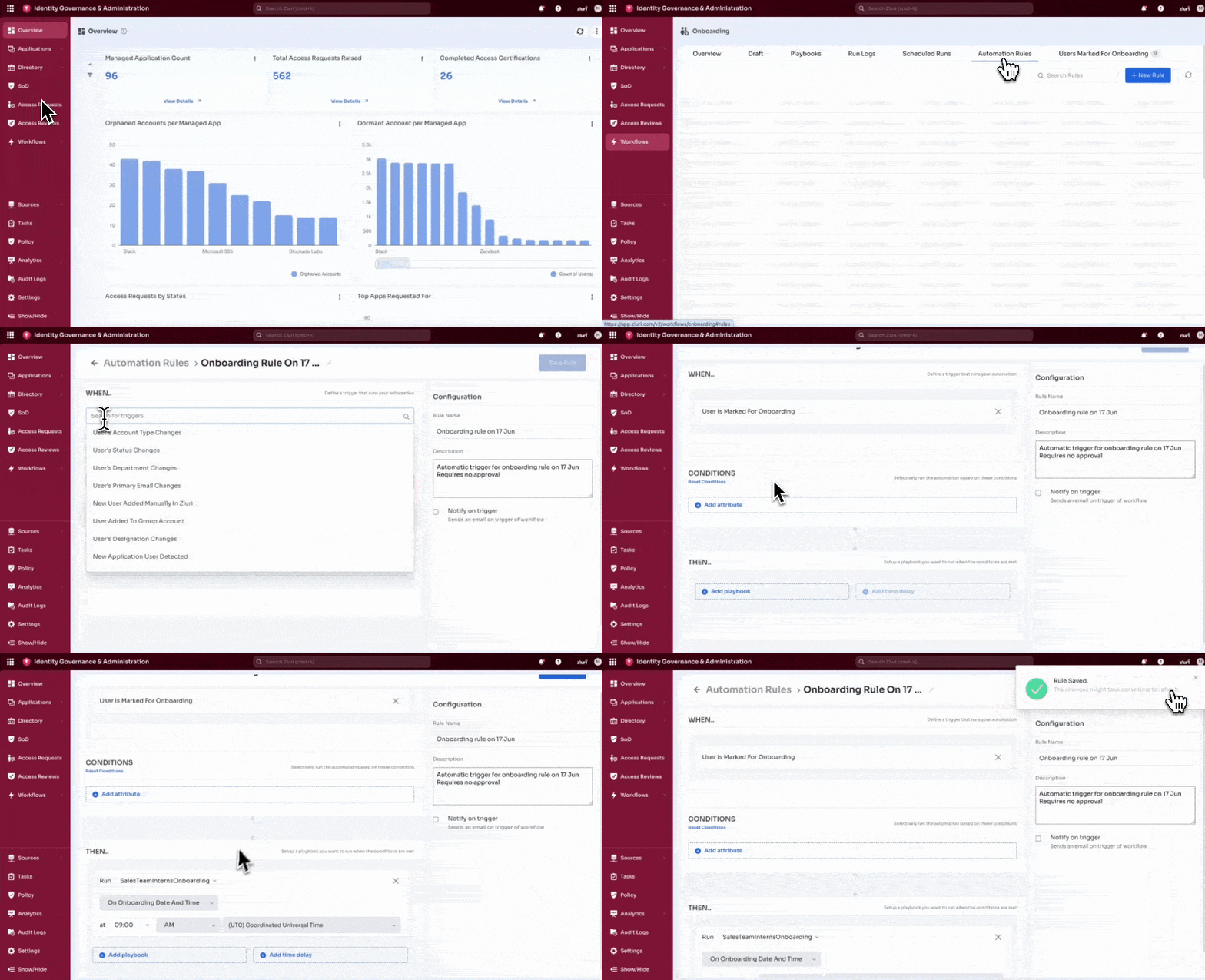
Steps
-
Select Create Rule.
-
Configure your trigger conditions to mark users for onboarding or offboarding.
-
Under the action section, select Run Playbook from the action type dropdown.
Zluri removed Initial Action Delay. Configure all timing at the playbook level within the rule.
-
Select a playbook from the playbook dropdown.
-
Select a timing option from the execution dropdown. See Timing options for details.
-
If you selected Before, After, or On onboarding or offboarding date and time, set the Execution time and Timezone fields.
-
Select Save.
Timing options
Each playbook action within a rule has its own execution timing. Four options appear in the execution dropdown.
| Option | Behavior |
|---|---|
| Immediately | Runs as soon as Zluri marks you for onboarding or offboarding. Not tied to the scheduled date. |
| On onboarding or offboarding date and time | Runs on the date set in the UI or synced from your HR system. Requires an execution time and timezone. |
| Before | Runs a specified number of days before the onboarding or offboarding date. Requires a day count, execution time, and timezone. |
| After | Runs a specified number of days after the onboarding or offboarding date. Requires a day count, execution time, and timezone. |
Immediately and On date and time are distinct. Immediately fires when a user is marked, regardless of their start or end date. On date and time fires on the actual scheduled date.
Chain playbooks across the full lifecycle
A single rule supports multiple playbook actions. Add one action for each stage of the onboarding or offboarding process, each with its own timing.
The following example shows a 3-action onboarding rule.
| Action | Timing | Playbook | Execution time |
|---|---|---|---|
| 1 | 7 days before | Identity Creation | 9:00 AM IST |
| 2 | 2 days before | Add to Communication Channels | 9:00 AM IST |
| 3 | On onboarding date | Birthright Access Provisioning | 9:00 AM IST |
To add a second playbook action to a rule, select Add Playbook after saving the first action, then configure the timing independently.
[SCREENSHOT: Rule configuration panel with 3 stacked playbook actions showing Before 7 days, Before 2 days, and On onboarding date, each with its own execution time and timezone]
Apply the same approach to offboarding rules. Stage access revocations, data transfer actions, and a final full-revocation playbook within one rule.
Schedule automations by region
Zluri does not derive execution timezone from individual user records. To approximate local-time scheduling, create separate rules conditioned on a custom user attribute. Set the timezone on each rule to match the region.
Sync attributes such as Country, Region, or Locality from your HR system before using them as rule conditions.
Steps
- Confirm the attribute (for example, Country) syncs to Zluri from your HR system.
- Navigate to Access Management > Automation Rules.
- Select Create Rule.
- Under trigger conditions, add a condition on the attribute. For example: Country is US.
- Configure the playbook action. Select Before or On date and time as the timing option.
- Set the Timezone field to match the region. For example: US Eastern Time.
- Select Save. Repeat steps 3 to 7 for each additional region.
[SCREENSHOT: Rule configuration showing a Country = US condition and execution timezone set to US Eastern Time]
Note on existing rules
Some rules created before this release have configurations that conflict with the updated rule setup. Those rules continue to run as currently configured.
If you edit an existing rule, Zluri clears the current configuration. This action cannot be undone. Review existing rules before editing them. Contact your Access Management SME or solutions team for help migrating a rule.
Constraints
The following constraints apply to scheduled automation rules.
| Constraint | Description |
|---|---|
| Day-level scheduling only | Before and After scheduling works in whole days. Scheduling by hours is not available. |
| Timezone is rule-level | Execution timezone applies to the rule, not to individual user records. |
| Reschedule behavior | If a user's onboarding or offboarding date changes after a rule triggers, some rescheduling scenarios may not behave as expected. Zluri is actively improving this behavior. |
Updated 4 months ago