
Policy Library
The Policy Library is the landing page for Segregation of Duties inside IGA > SoD. It lists all SoD policies in your organization and is the starting point for creating, managing, and monitoring policies.
Navigate to IGA > SoD > Policy Library to open it.
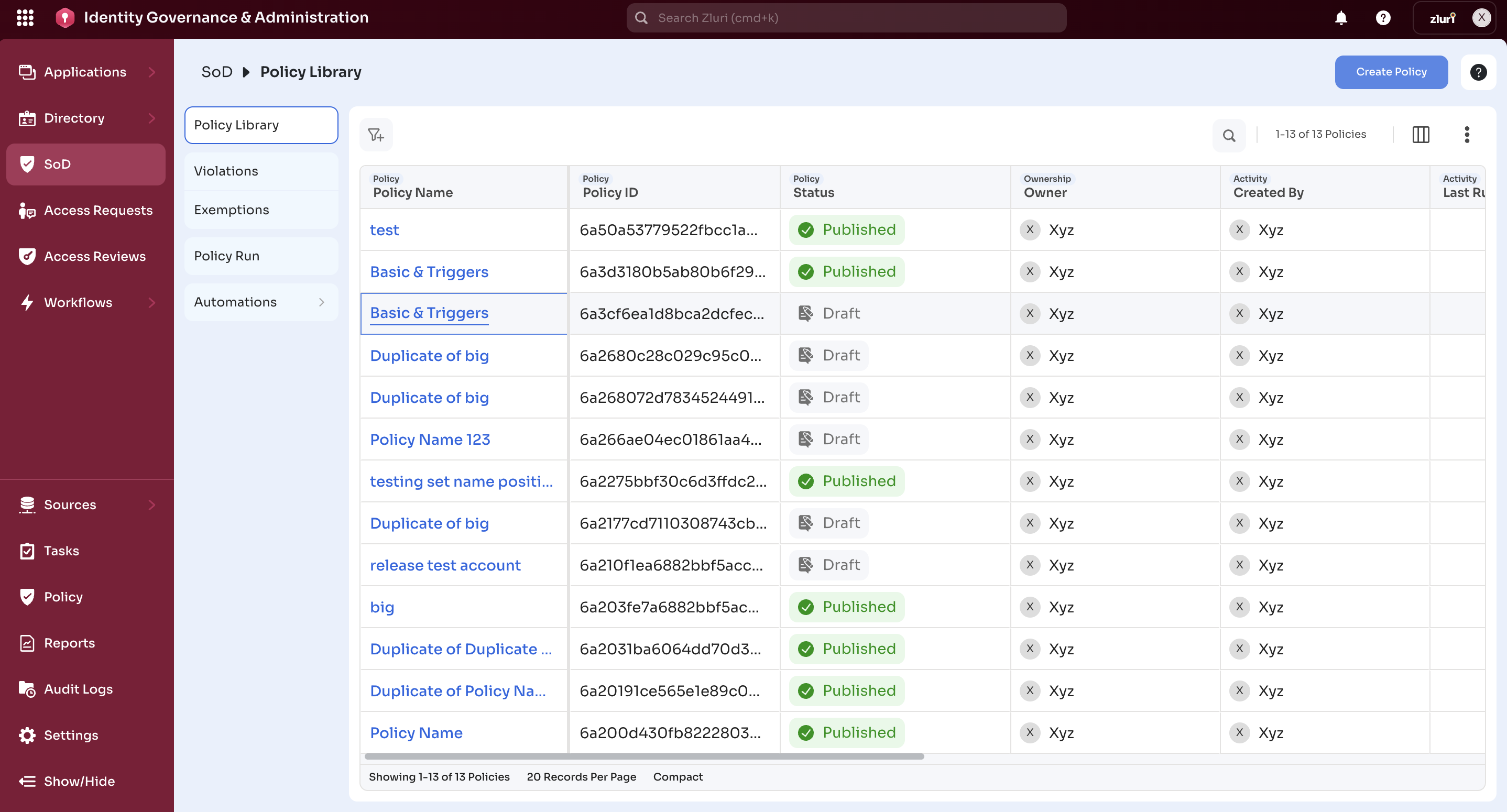
The following columns appear in the Policy Library table.
| Column | Description |
|---|---|
| Policy Name | The name of the policy. Select it to open the policy detail page. |
| Policy ID | The unique system identifier for the policy. |
| Policy Status | The current status of the policy. |
| Owner | The person responsible for the policy. |
| Active Violations | The number of open violations the last detection run raised. |
| Created By | The user who created the policy. |
| Last Run | The date and time of the most recent detection run. |
Policy status
The following statuses appear in the Policy Status column.
| Status | Meaning |
|---|---|
| Published | The policy is active and running detection on its configured schedule. |
| Draft | The policy is in progress and not yet published. Detection does not run. |
| Unpublished | The policy was active but has been deactivated. Detection no longer runs. |
| Archived | The policy is permanently closed and no longer editable. |
Use the filter icon to narrow the list by Policy Name, Status, Owners, Last Run Violations, or Created At. You can select Create Policy to open the 5-step creation wizard.
View a policy
Select a policy name to open its detail page. The detail page has three areas.
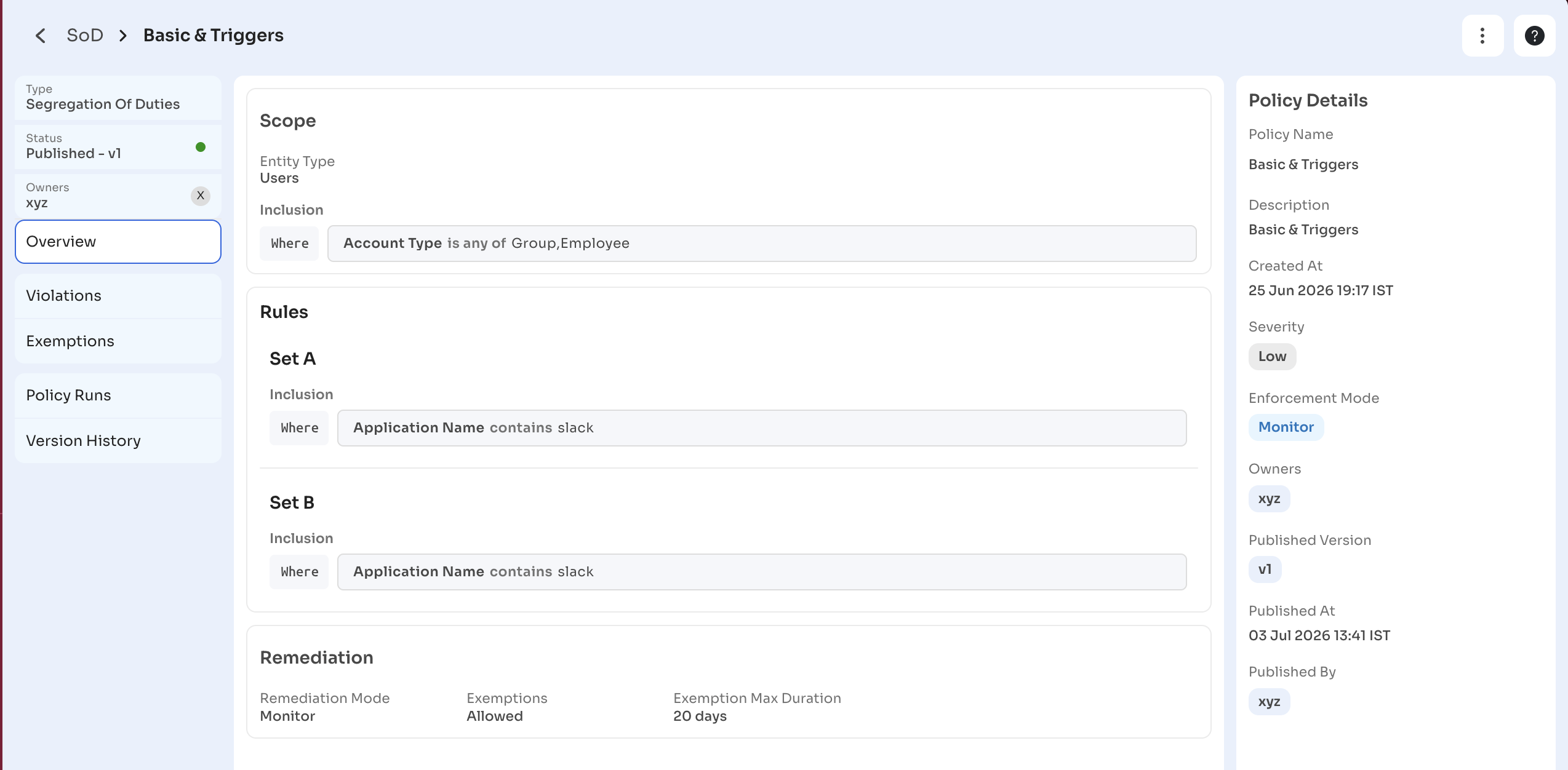
Left sidebar shows the policy type, current status and version, and owners. Use the sidebar tabs to navigate between Overview, Violations, Exemptions, Policy Runs, and Version History.
Main area (Overview tab) shows a read-only summary of the policy configuration: Scope (entity type and inclusion rules), Rules (Set A and Set B entitlements), and Remediation (mode and exemption setting).
Policy Details panel on the right shows the policy name, description, created at, severity, enforcement mode, owners, published version, published at, and published by.
Manage a policy
The three-dot menu on any policy row in the Policy Library, or in the policy detail page header, exposes the following actions.
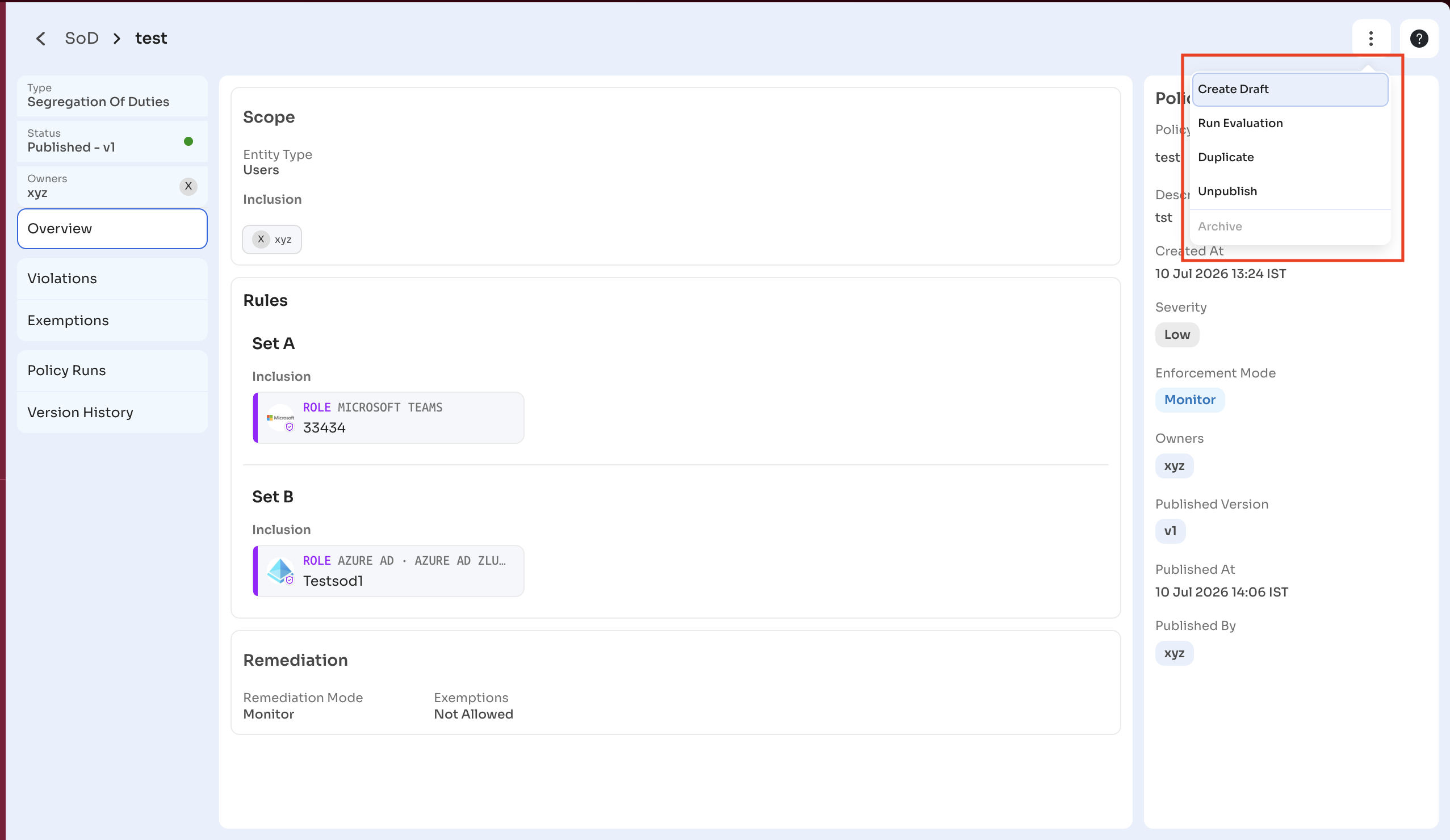
The following table describes each policy action.
| Action | Description |
|---|---|
| Create Draft | Creates an editable draft from the current published version. Use this to edit a published policy without affecting the live version. |
| Run Evaluation | Manually triggers a detection run immediately, outside the configured schedule. |
| Duplicate | Creates a copy of the policy in Draft status. |
| Unpublish | Deactivates the policy. Zluri blocks unpublishing when the policy has active violations, active exemptions, or ongoing runs. |
| Archive | Permanently archives the policy. |
Zluri blocks Unpublish when the policy has active violations, active exemptions, or ongoing runs. A tooltip on the option explains the requirement.
Promote a policy from Monitor to Enforce
Upgrade a published Monitor-mode policy to Enforce mode without re-creating it.
Steps
- Open the published policy.
- Select the three-dot menu and choose Create Draft. Zluri creates a draft copy of the policy.
- In the Remediation step of the draft, change the mode from Monitor to Enforce.
- Configure the Violation Handling shape, Assignee, and Playbooks for each set.
- Set a Risk level.
- Enter a Publish Note and select Publish.
Zluri back-tests existing open violations against the new enforcement configuration after publishing. To revert to Monitor mode, create a new draft, switch the mode back to Monitor, enter a Publish Note, and re-publish.
Updated about 2 months ago