
Discovery Source Settings
Overview
Zluri discovers applications, app users, app instances, and app accounts from many sources. Some sources, such as SSO and MDM integrations, surface applications and activity from plethora of places which IT Team might not be interested in monitoring. This adds noise to your catalog and to app user activity. To avoid this, IT Team needs to control what data comes into Zluri for them to monitor.
Discovery Source Settings turns discovery on or off per source and per entity, so only the data you trust enters Zluri.
Configure these settings at two levels:
- Organization level: A setting applies to a source across all applications. Application-level settings inherit from this.
- Application level: A setting applies to one source within one application. It can't exceed what's set at the organization level.
What this feature enables
| Capability | Description |
|---|---|
| Per-source discovery control | Turn discovery on or off for each source, such as Azure AD, Okta, GWS, or ZScaler. |
| Per-entity control | Control discovery separately for applications, app users, app instances, and app accounts. |
| Discovery via Activity | Control discovery of applications and users that Zluri infers from activity signals in a source. |
| Discovery via Connected Apps | Control discovery of applications connected to a source, along with their users, instances, and accounts. |
| Inactivity marking | Set a default status and mark app users inactive after a set number of days without activity through a source. |
| Organization-level settings | Apply a source setting across all applications. |
| Application-level settings | Control a single source within one application. |
How discovery settings apply
Discovery Source Settings applies only to future discovery.
- Saved changes apply to all future syncs. After you save, this new setting governs the application, app user, app instance, or app account that the source discovers from that point on.
- Existing data doesn't change. For example, if a source has already discovered an app user, that user's record stays as is.
- Settings take effect after the next sync run for that source.
For cleaning up of already discovered data, please reach out to Zluri Team at [email protected]
Toggle dependencies
Some toggles depend on each other because of how Zluri discovers nested data. Review these dependencies before you turn toggles off.
| If this toggle is off | Then these toggles turn off | Reason |
|---|---|---|
| Application Discovery | Application Discovery via Activity, Application Discovery via Connected Apps, App Users Discovery via Activity, App Users Discovery, App Instance Discovery, App Accounts Discovery | All discovery for a source depends on the master Application Discovery toggle. |
| App Users Discovery via Activity or App Users Discovery | App Accounts Discovery | Accounts belong to users. If Zluri doesn't discover users, it can't discover their accounts. |
| App Instance Discovery | App Accounts Discovery | Accounts belong to instances. If Zluri doesn't know which instances exist, it can't determine which accounts belong to them. |
| A toggle at the organization level | The same toggle at the application level | If a toggle is off at the organization level, you can't turn it on at the application level. |
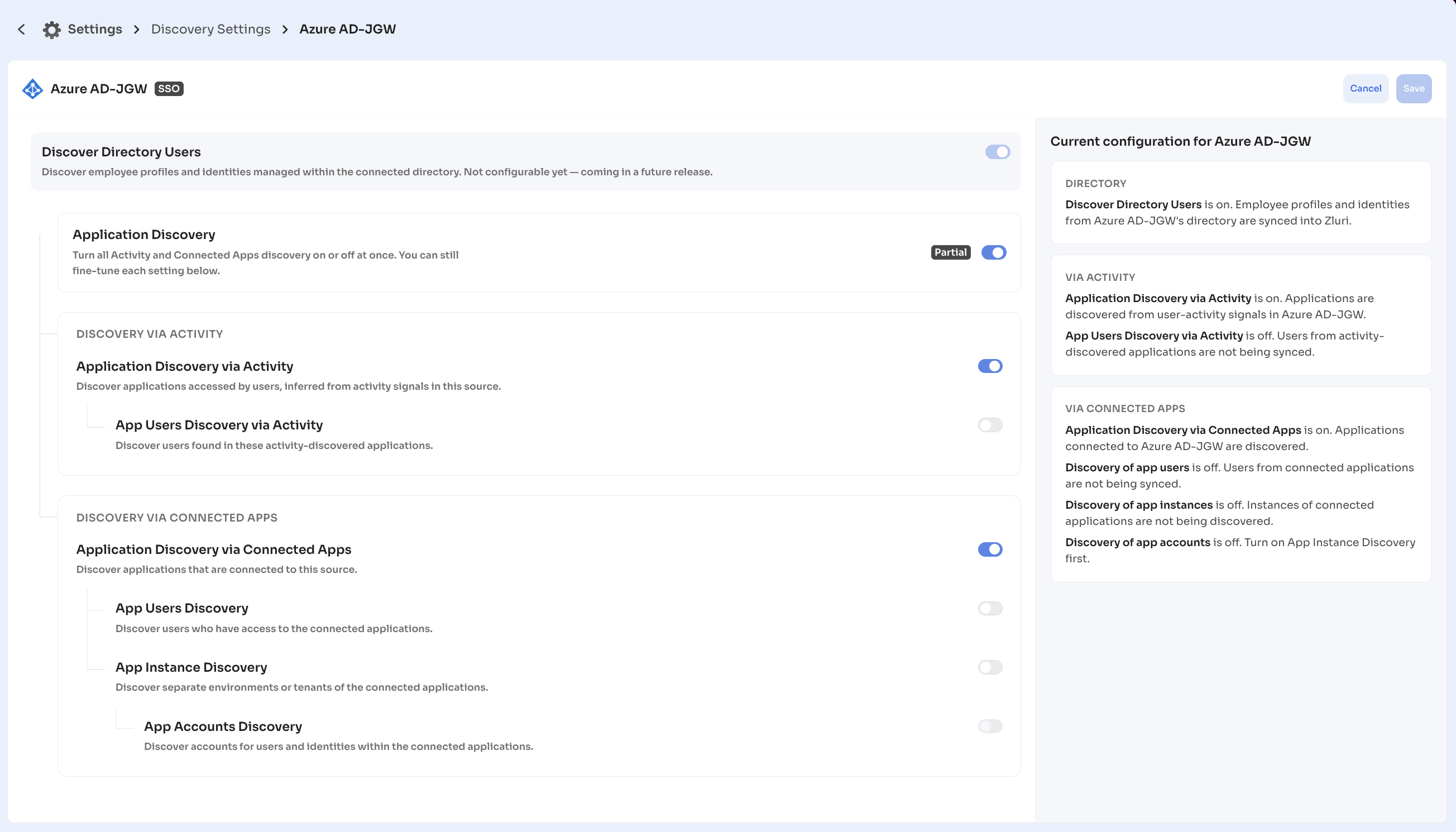
To discover the user side and instances from a source without pulling in accounts, keep both App Users Discovery and App Instance Discovery on, and turn App Accounts Discovery off.
Constraints
- Discover Directory Users isn't configurable yet. Zluri automatically discovers employee profiles and identities managed within the connected directory using this toggle. To configure this setting, please reach out to Zluri Team at [email protected]
- If a source do not support discovery of certain entity, then that toggle will not be available.
Configure discovery at the organization level
Set organization-level settings when a source produces noisy or untrusted data across your organization.
Open a source's settings
- Navigate to Settings > Discovery Settings.
- On the Discovery Sources card, select Configure.
- Find the source in the list, or use the Search source box.
- Select the edit icon in the Action column for that source.
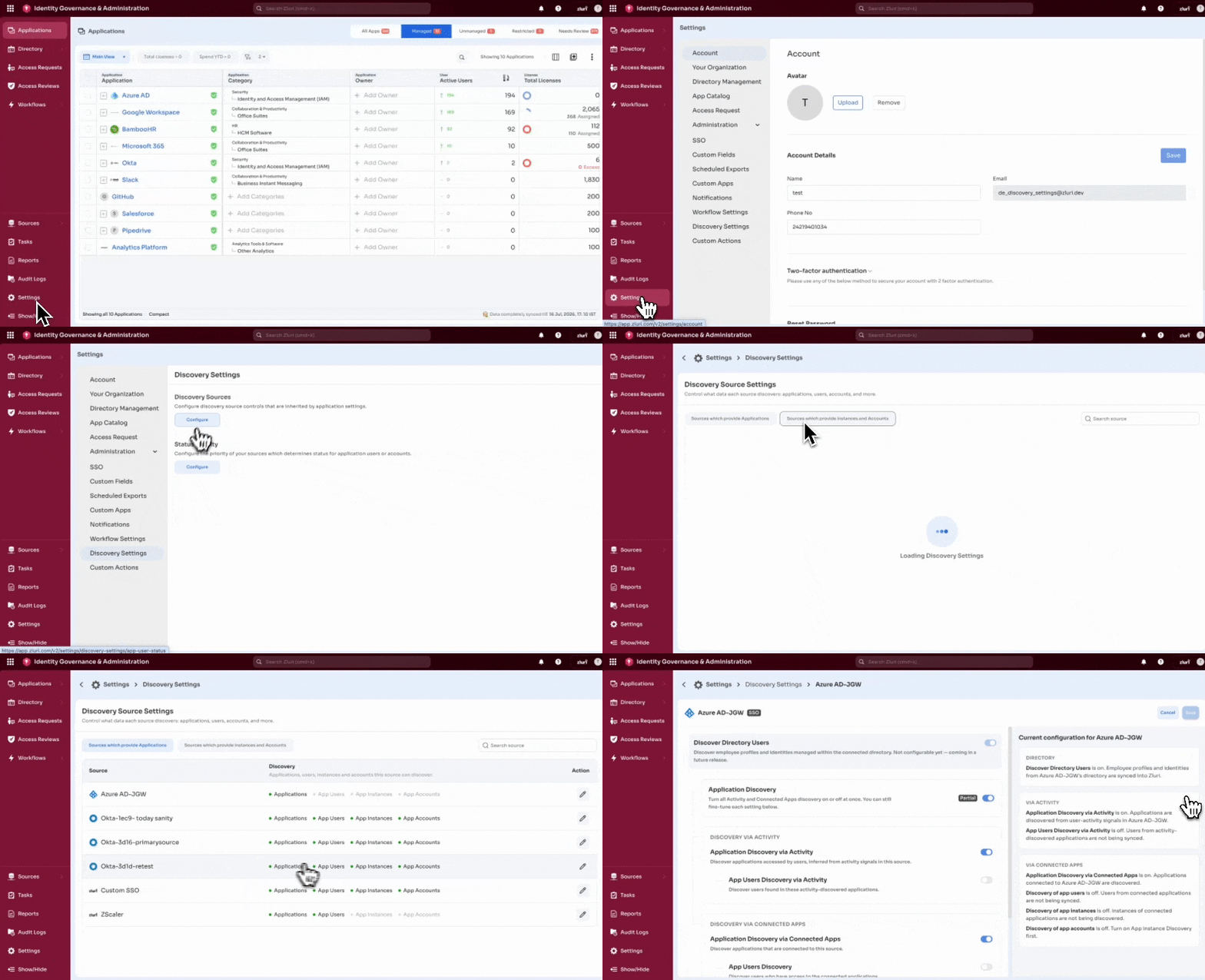
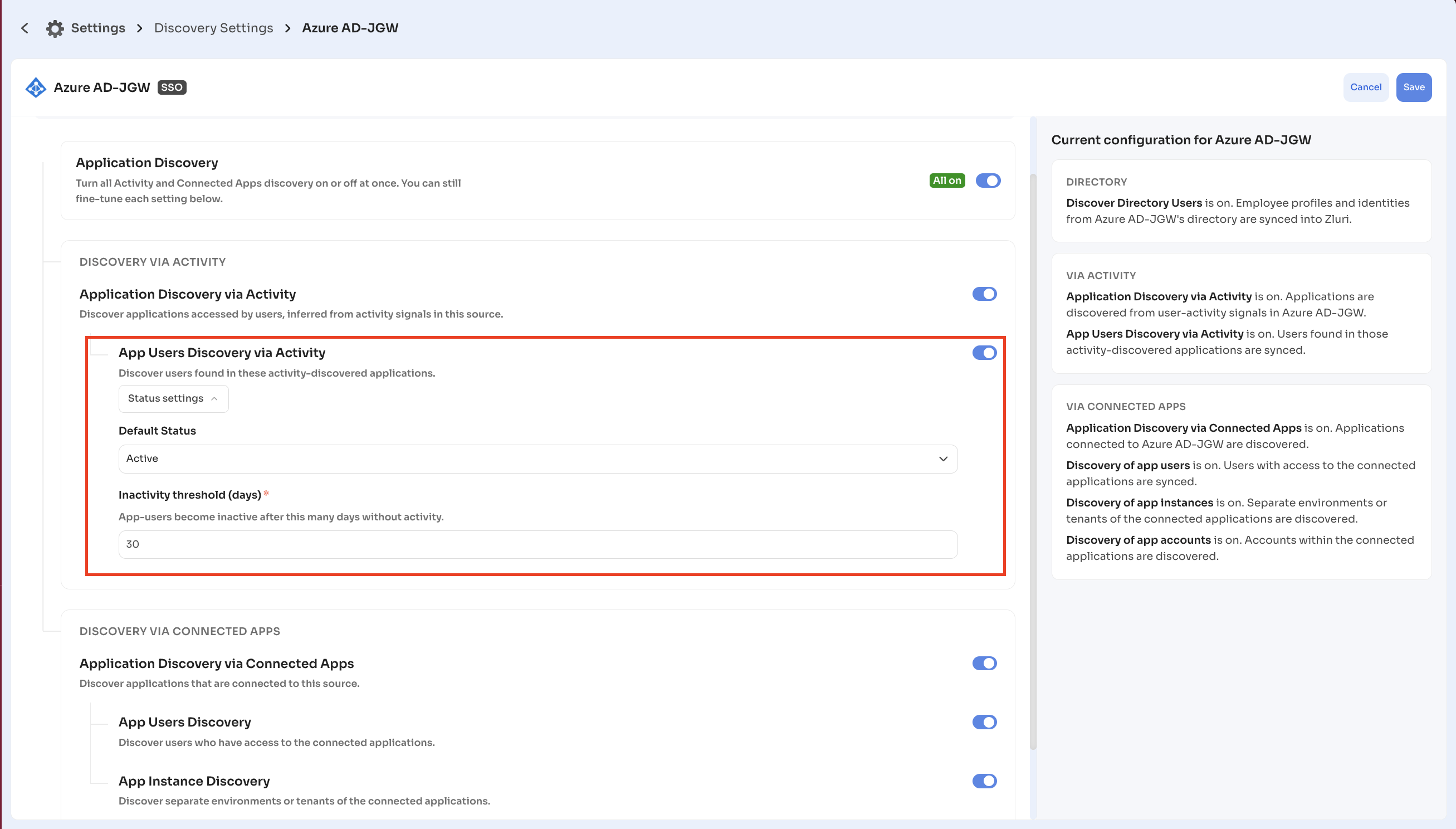
The source configuration page opens. It shows the source name and its type, such as SSO, at the top. The left side holds the discovery toggles, grouped into Directory, Discovery via Activity, and Discovery via Connected Apps. The Current configuration panel on the right summarizes the current state under the same three groups.
Set discovery toggles for a source
- Review Discover Directory Users. This toggle isn't configurable.
- Set Application Discovery. This master toggle turns all Activity and Connected Apps discovery on or off at once, and shows an All on badge when everything below it is on or a Partial badge when only some of the settings below it are on. Turning Application Discovery off also turns off app users, app instances, and app accounts for the source. For example, if you turn this off for Okta, Zluri never registers any application that Okta tracks going forward. Fine-tune each setting below the master toggle independently.
- Under Discovery via Activity, set the following toggles.
- Application Discovery via Activity: Discover applications accessed by users, inferred from activity signals in this source.
- App Users Discovery via Activity: Discover users found in these activity-discovered applications. To set inactivity marking, select Status settings under this toggle.
- Under Discovery via Connected Apps, set the following toggles.
- Application Discovery via Connected Apps: Discover applications that are connected to this source.
- App Users Discovery: Discover users who have access to the connected applications.
- App Instance Discovery: Discover separate environments or tenants of the connected applications.
- App Accounts Discovery: Discover accounts for users and identities within the connected applications.
- Select Save. To discard your changes, select Cancel.
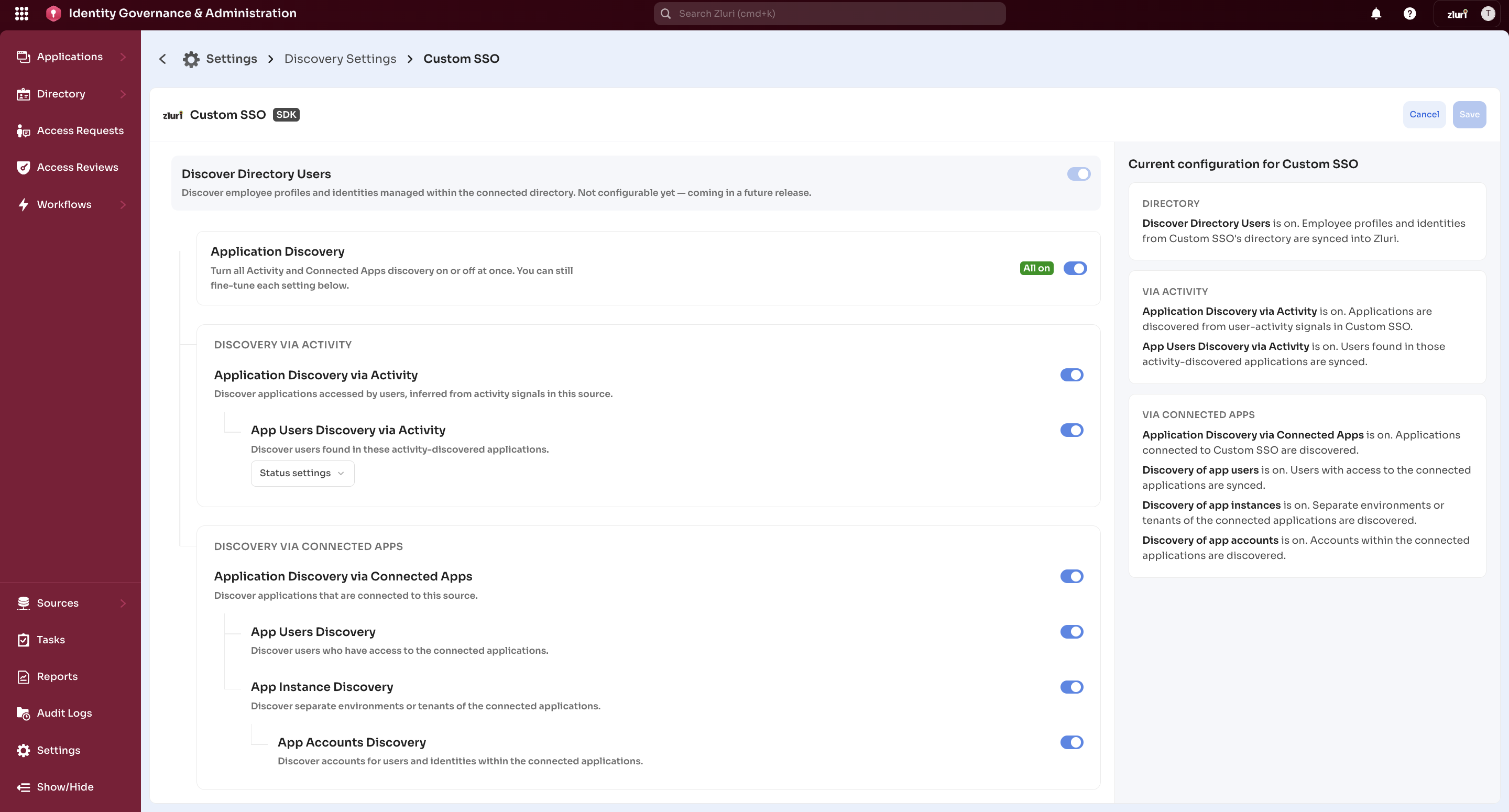
If you trust a source only for connected apps and not for activity-based discovery, turn on Application Discovery via Connected Apps and turn off Application Discovery via Activity for that source.
Mark app users inactive
When a source discovers app users through App Users Discovery via Activity, set a default status for them and mark them inactive after a set number of days without activity. This keeps usage data accurate for sources that report stale activity.
- On the source configuration page, under App Users Discovery via Activity, select Status settings to expand it.
- Set Default Status to Active or Inactive. This is the status Zluri assigns an app user when it first discovers them from this source.
- Enter Inactivity threshold (days). This field is required. Zluri marks an app user inactive after this many days without activity.
- Select Save.
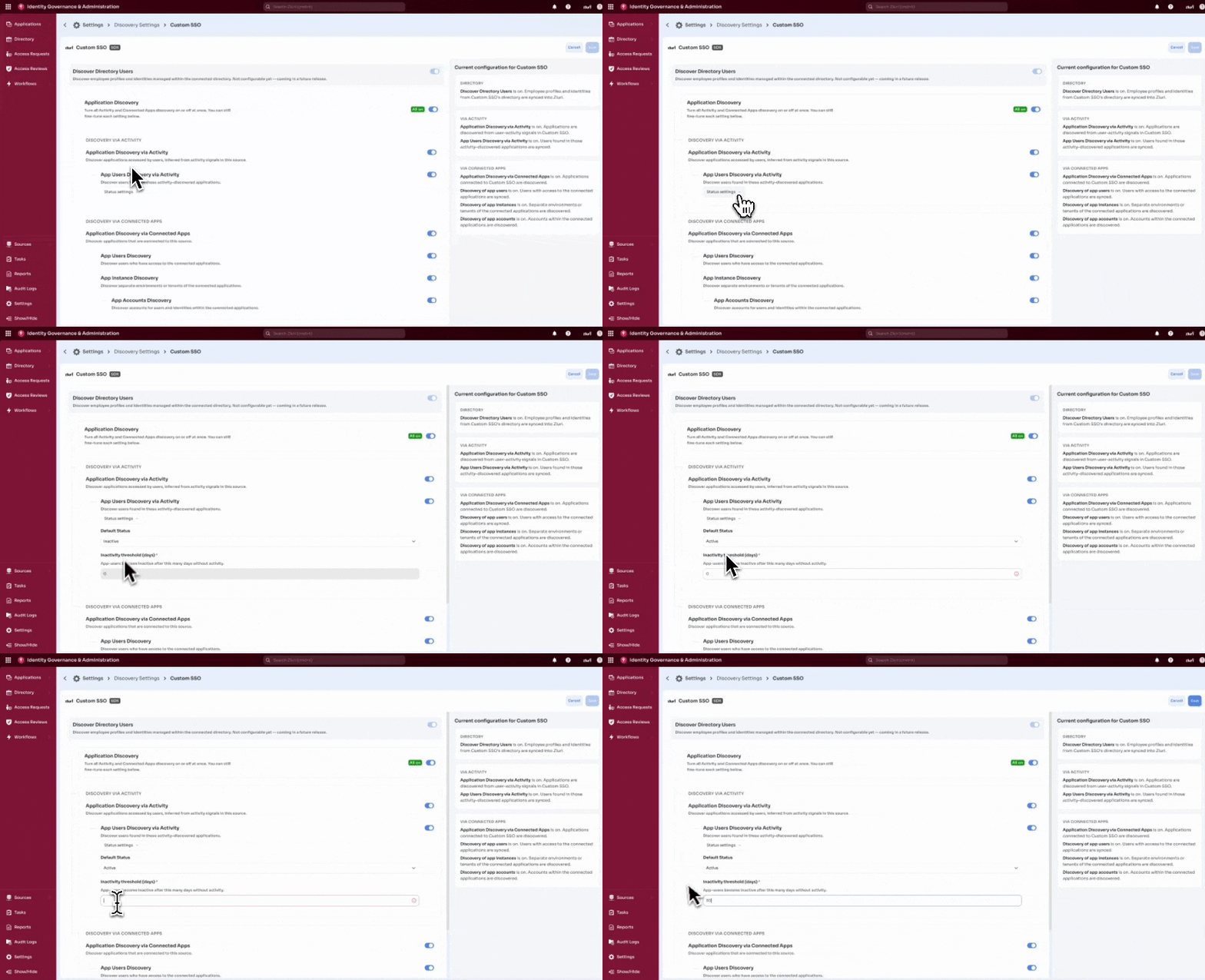
For example, set Default Status to Active and the threshold to 30 days. If an app user discovered from that source has no activity for more than 30 days, Zluri marks the user inactive.
Configure discovery at the application level
Set application-level settings when a source is reliable across your organization but produces noisy data for one specific application.
For example, ZScaler brings noisy app user data whereas my custom Slack connector provides authentic data. At the application level, turn off Zscaler as a source for Slack only.
At the application level, the Discovery Source Settings page lists only the entities a source discovers for that application: app users, app instances, and app accounts. Application discovery itself and Discover Directory Users don't appear here, since they're organization-wide settings.
-
Open the application, for example Slack.
-
In the application's left sidebar, expand Settings, then select Discovery.
-
Select the edit icon in the Action column for the source you want to control.
The source configuration page opens. It shows the source name and its type, with two toggle groups scoped to this application: Discovery via Activity and Discovery via Connected Apps. The Current configuration panel on the right summarizes the current state.
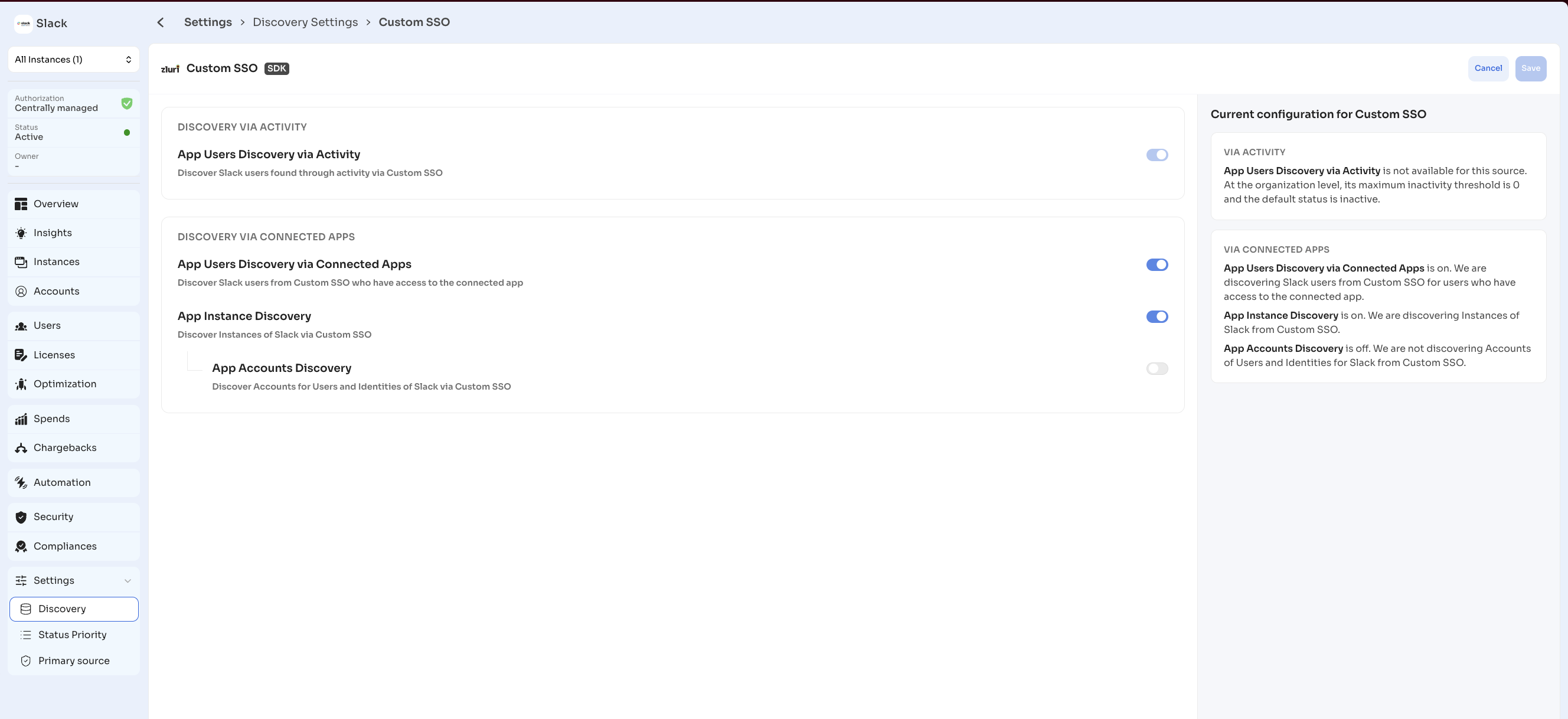
- Under Discovery via Activity, set App Users Discovery via Activity. The description names the application and source, for example: Discover Slack users found through activity via Custom SSO.
- Under Discovery via Connected Apps, set the following toggles. Descriptions likewise name the application and source.
- App Users Discovery via Connected Apps: Discover users from the source who have access to the connected application. Note the fuller name here; the equivalent organization-level toggle is named App Users Discovery.
- App Instance Discovery: Discover instances of the application from the source.
- App Accounts Discovery: Discover accounts for users and identities of the application from the source.
- Select Save. To discard your changes, select Cancel.
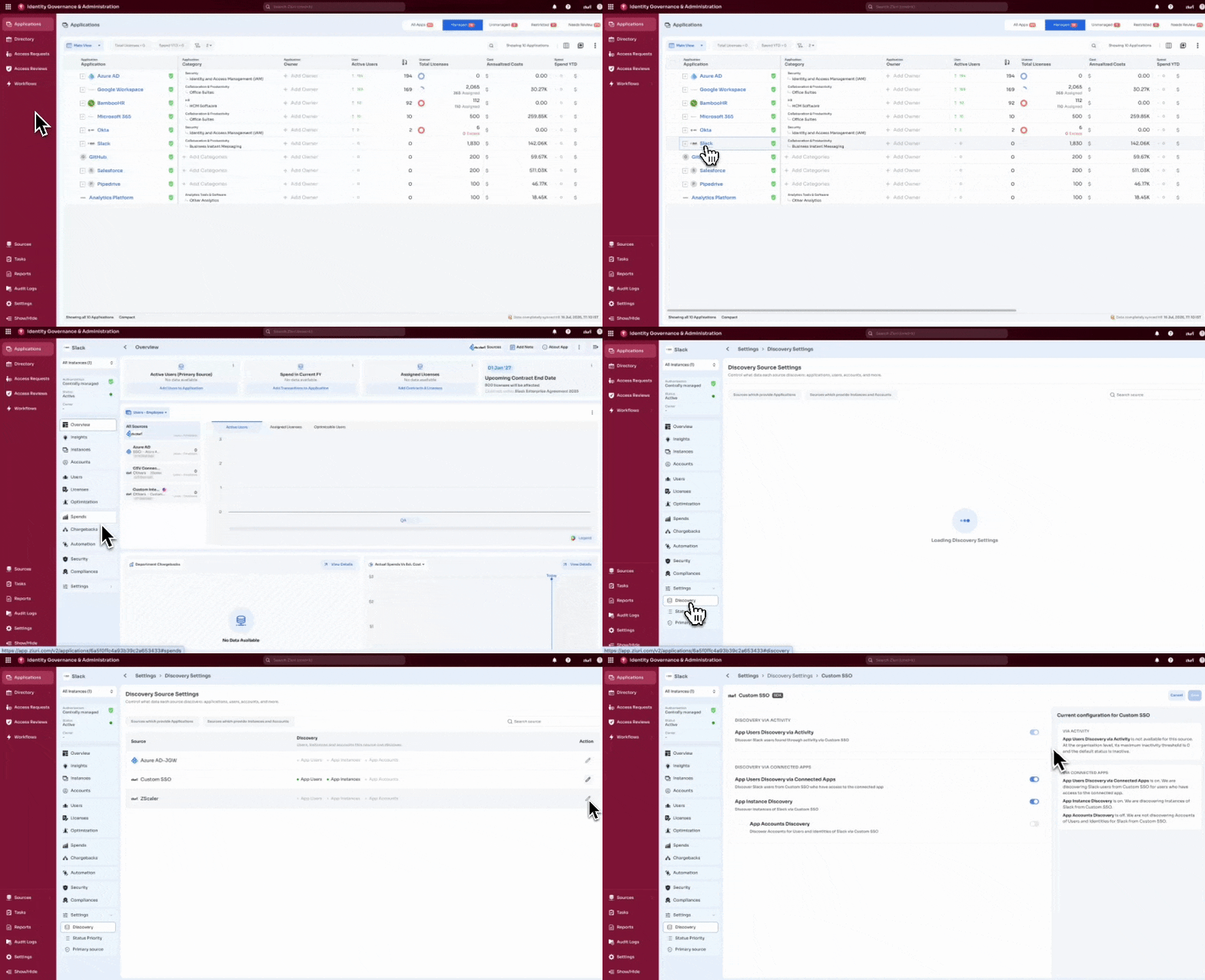
If a setting is off for a source at the organization level, the toggle here can't turn it on, even if the switch itself displays as on. The Current configuration panel calls this out explicitly. For example, if App Users Discovery via Activity has a maximum inactivity threshold of 0 and a default status of inactive at the organization level, the panel notes that the setting isn't available for this source, along with those organization-level values.
Permissions and access control
| Role | Access | Notes |
|---|---|---|
| Owner | Full access | Can view and change discovery source settings. |
| Admin | Full access | Can view and change discovery source settings. |
| All other roles | No access | Can't configure discovery source settings. |
Updated 3 months ago