
Troubleshoot
This page lists common errors and known issues encountered while integrating Retool with Zluri, along with steps to resolve them.
RET-100-A: The API token used to connect this integration is invalid
When this error occurs
This error occurs when the API token used to connect Retool to Zluri is invalid or incorrectly formatted.
How to resolve
-
Verify the API token
- Copy the entire API token without extra spaces or characters.
- Ensure no characters are missing from the beginning or end.
- Paste the API token exactly as generated.
-
Generate a new API token if required
-
Sign in to Retool.
-
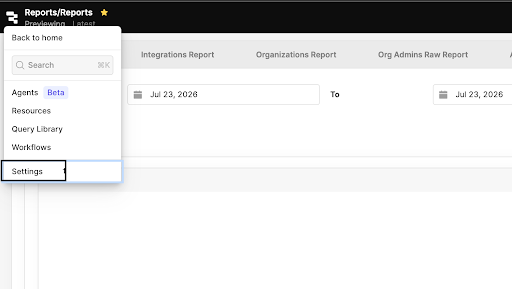
Go to Settings → API Tokens.
-
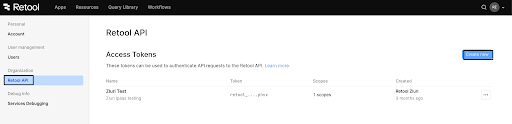
Select Create API token.
-
Enter a meaningful name for the token, such as
Zluri Integration. -
Under Permissions, assign the Read Users scope.
-
Select Create token.
-
Copy the generated API token immediately. Retool does not display the token again after creation.
-
-
Reconnect the integration
- Reconnect the Retool integration in Zluri using the new API token.
RET-100-B: The API token was generated from a non-Enterprise account
When this error occurs
This error occurs when the API token used to connect Retool to Zluri was generated from a Retool account that is not on the Enterprise plan.
How to resolve
-
Verify the Retool plan
- Go to Settings → Billing.
- Confirm that the Retool account is on the Enterprise plan.
-
Upgrade the plan if required
- Upgrade the Retool account to the Enterprise plan to enable the required API access.
-
Generate a new API token
- Go to Settings → API Tokens.
- Select Create API token.
- Assign the Read Users scope.
- Copy the generated API token immediately.
-
Reconnect the integration
- Reconnect the Retool integration in Zluri using the new API token.
RET-101-A: The user account does not have sufficient permissions
When this error occurs
This error occurs when the Retool account used to generate the API token does not have Admin permissions.
How to resolve
-
Verify the user permissions
- Confirm that the Retool account used to generate the API token has Admin permissions.
-
Generate a new API token if required
- Ask a Retool Admin to generate a new API token with the Read Users scope.
-
Reconnect the integration
- Reconnect the Retool integration in Zluri using the new API token.
RET-101-B: The user account permissions were modified after connection
When this error occurs
This error occurs when the Admin permissions of the Retool account used to connect the integration were reduced or revoked after the initial connection.
How to resolve
-
Verify the API token
- Go to Retool → Settings → API Tokens.
- Confirm that the API token used for the Zluri integration is still active.
-
Verify the user permissions
- Confirm that the account that generated the API token still has Admin permissions.
-
Generate a new API token if required
- Ask a Retool Admin to generate a new API token with the Read Users scope.
-
Reconnect the integration
- Reconnect the Retool integration in Zluri using the new API token.
RET-102-A: No user data was found for this Retool account
When this error occurs
This error occurs when Zluri connects to Retool successfully but does not find any user data in the connected account.
How to resolve
-
Verify that users exist
- Sign in to Retool.
- Go to Settings → Users.
- Confirm that the account contains users.
-
Verify the API token permissions
- Confirm that the API token has the Read Users scope.
- Confirm that the API token is active.
-
Generate a new API token if required
- Generate a new API token with the Read Users scope if users exist but the issue persists.
-
Reconnect the integration
- Reconnect the Retool integration in Zluri using the new API token.
If your issue isn’t mentioned here, feel free to submit a ticket or contact us directly at [email protected].
Updated 3 months ago