
Bulk actions on applications
Bulk actions on applications
Perform actions on multiple applications at once from the Applications table. Bulk actions reduce manual effort when managing large numbers of applications.
Selecting applications
Select the checkbox on any row to select an application.
Select the checkbox in the header row to select every application on the current page. A banner shows the count, for example 60 of 95 Applications are selected on this page. Select Select all 95 Applications to extend the selection across every page.
With one or more applications selected, the toolbar switches to bulk action mode and displays Bulk Edit and Bulk Update.
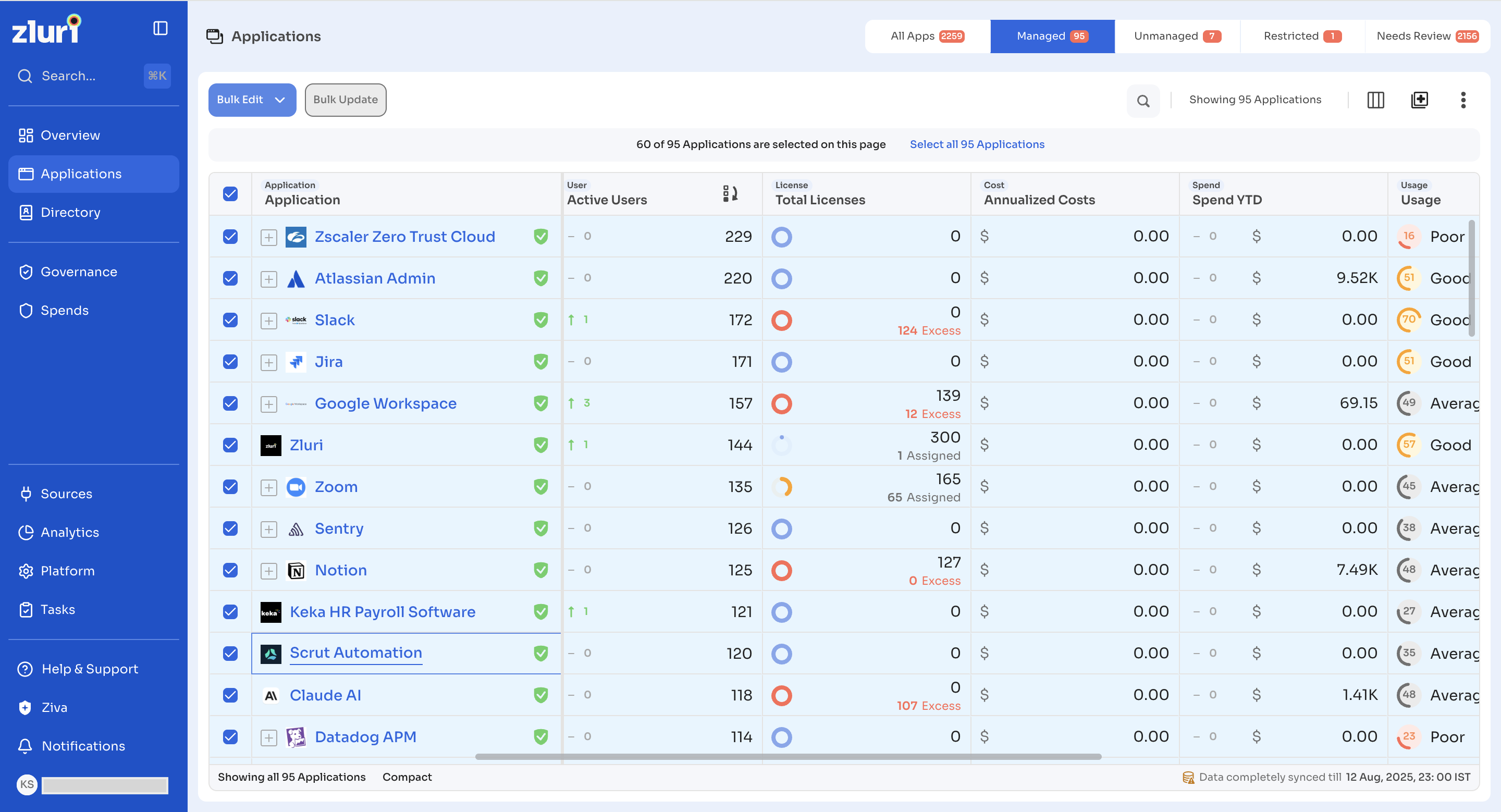
Bulk Edit
Bulk Edit updates a field across all selected applications directly in the table, without downloading a file.
- Select one or more applications.
- Select Bulk Edit.
- Choose a field from the dropdown.
- Set the new value for the selected field.
Changes apply immediately to every selected application.
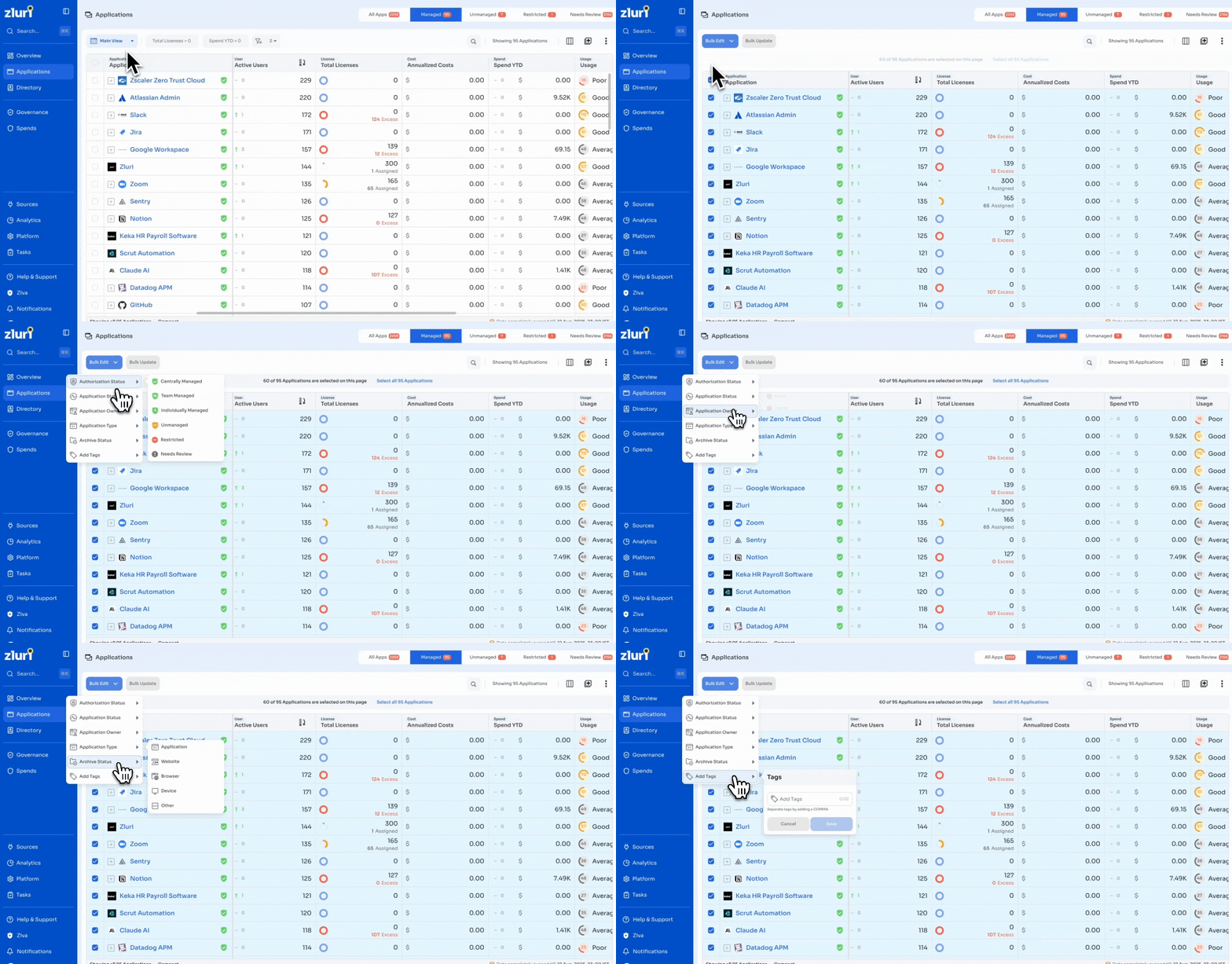
Bulk Edit supports the following fields:
| Field | What you set |
|---|---|
| Authorization Status | Centrally Managed, Team Managed, Individually Managed, Unmanaged, Restricted, or Needs Review |
| Application Status | Active or Inactive |
| Application Owner | Search and select a user |
| Application Type | Application, Website, Browser, Device, or Other |
| Archive Status | Archive or Unarchive |
| Add Tags | Enter one or more tags, separated by commas, then select Save. For example, Finance, Renewal-Q1 |
Bulk Update
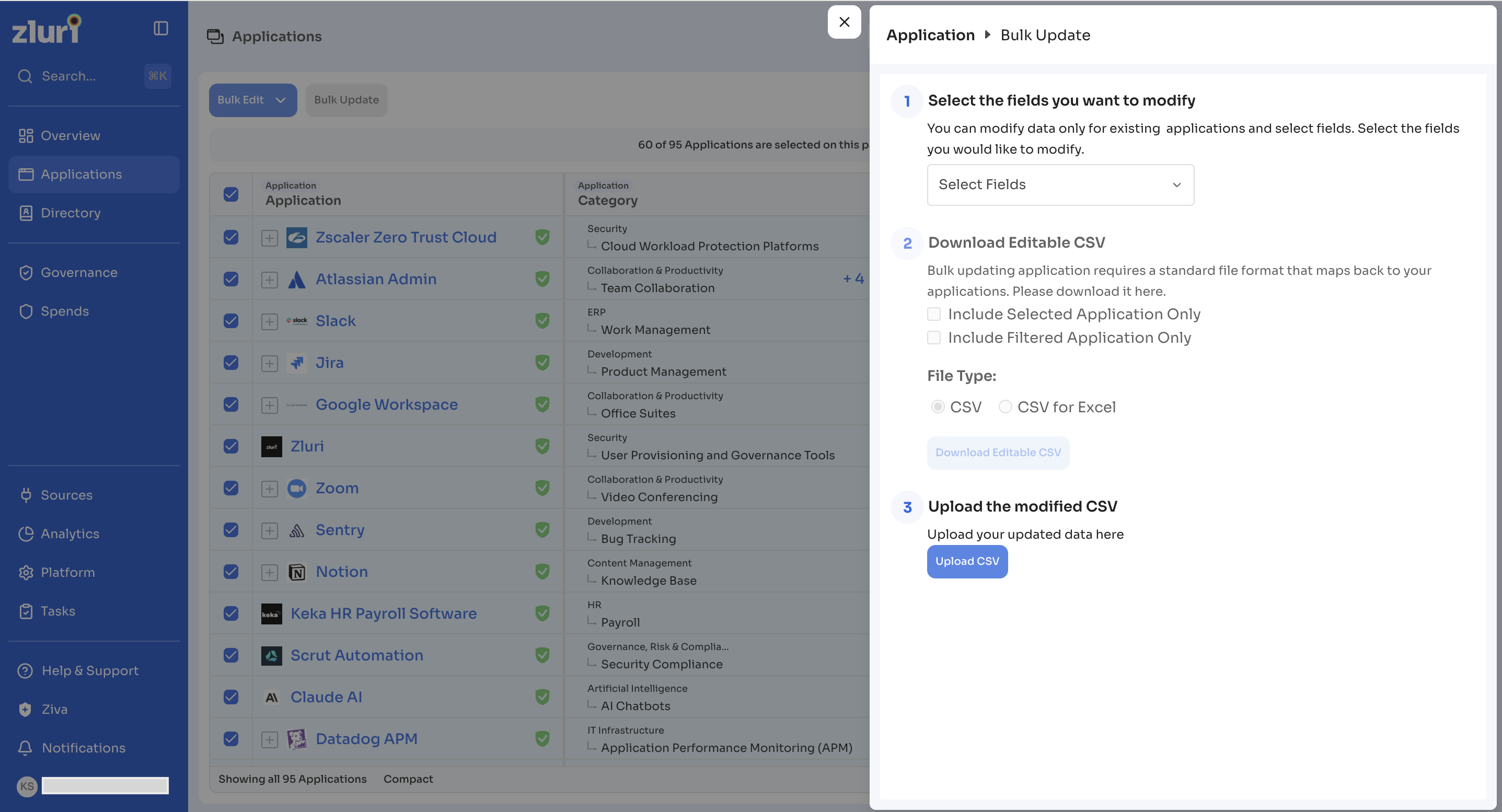
Bulk Update applies changes using a CSV file. Use this option for structured or large-scale updates.
-
Select applications from the Applications table.
-
Select Bulk Update.
-
Under Select the fields you want to modify, select Select Fields and choose the fields to update, for example Application ID, Application Name, Type, Status, Authorization State, App Owner, IT Owner, or Financial Owner.
-
Under Download Editable CSV, choose the scope: Include Selected Application Only or Include Filtered Application Only.
-
Choose the file type: CSV or CSV for Excel.
-
Select Download Editable CSV.
-
Update the required values in the downloaded file.
-
Under Upload the modified CSV, select Upload CSV to apply the changes.
Scope of bulk actions
Bulk actions:
- Apply only to selected applications
- Respect the active tab, view, and filters
- Update application metadata only
Bulk actions do not modify table layout or view settings.
When to use each option
Use Bulk Edit for a quick update to one field across selected applications.
Use Bulk Update for changes across multiple fields, or when working with a large number of applications using a CSV file.
Updated about 1 month ago