
Exporting application data
Export application data from the Applications table to use outside Zluri for reporting, audits, or offline analysis.
Export options
Two export options are available from the three-dot menu at the top right of the Applications table:
-
Export View
-
Custom Export
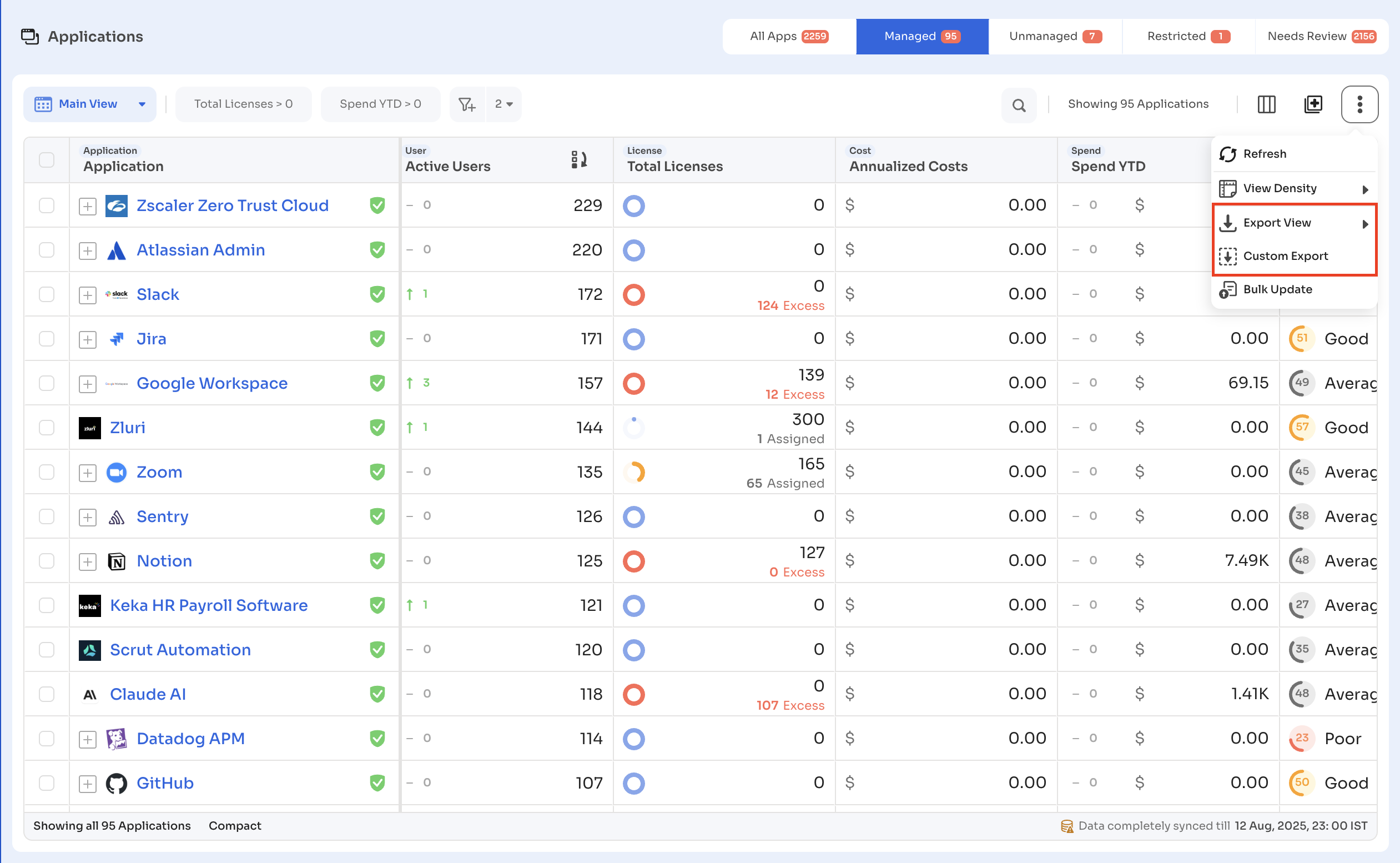
Export View
Export View exports data based on the current table configuration. It respects the active tab, view, applied filters, and visible columns.
-
Select Applications in the left navigation.
-
Apply the required tab, view, filters, and columns.
-
Select the three-dot menu.
-
Select Export View.
-
Choose Export View as CSV or Export CSV for Excel.
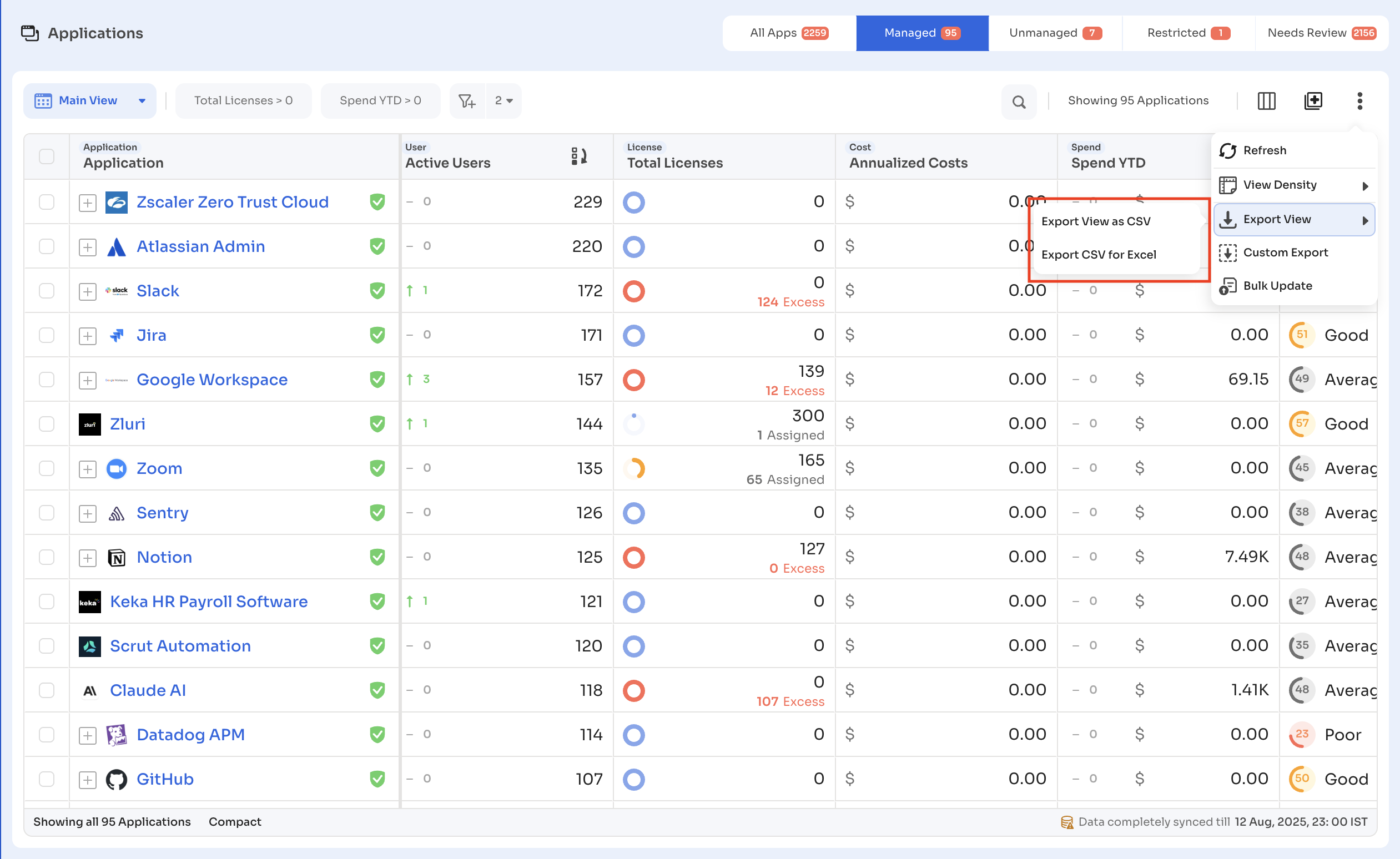
The exported file contains only the data currently visible in the table.
Custom Export
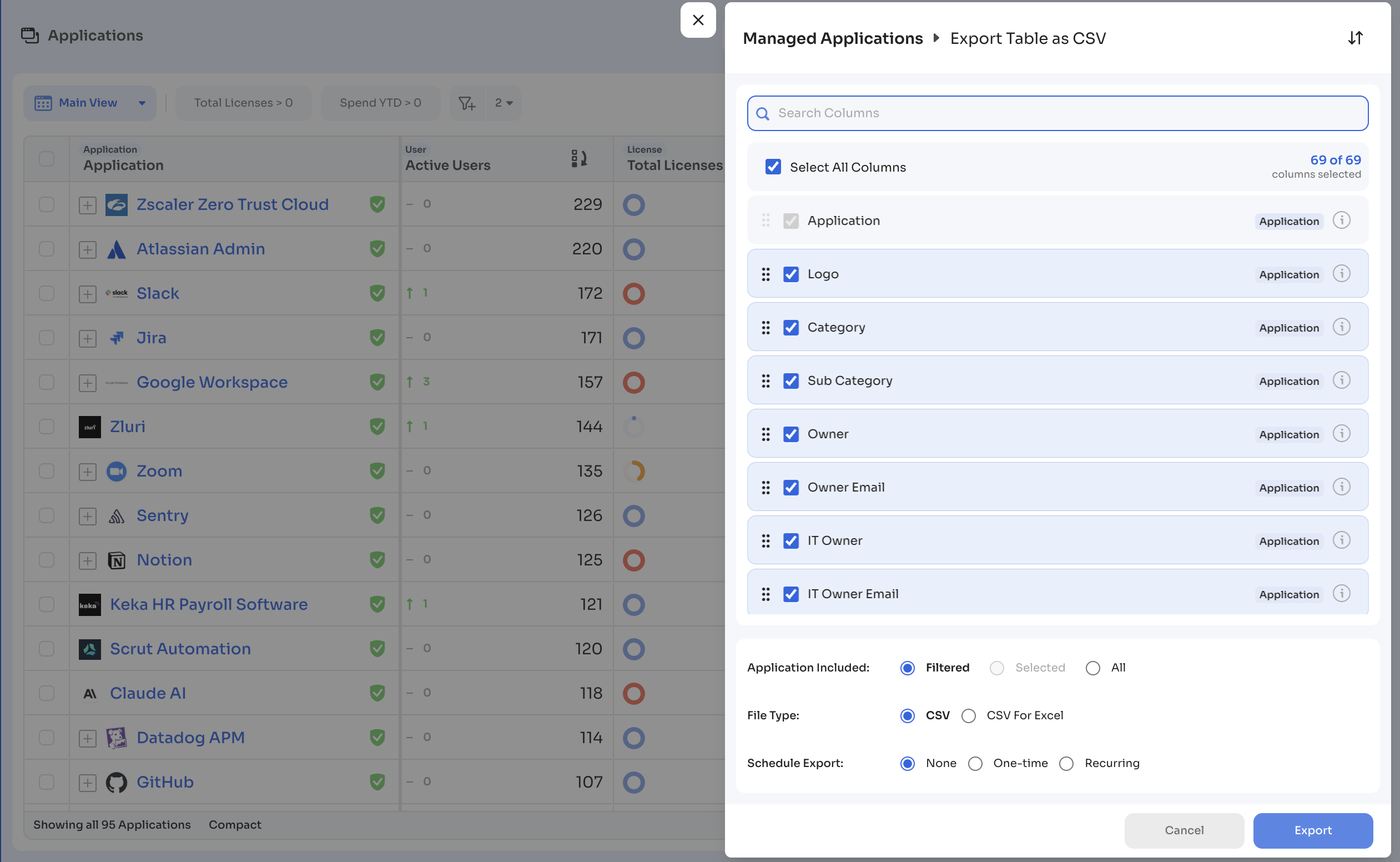
Custom Export lets administrators choose specific fields to include, independent of the visible columns.
-
Select Applications in the left navigation.
-
Select the three-dot menu.
-
Select Custom Export.
-
Under Search Columns, select the fields to include, or select Select All Columns to include every available field. A counter shows how many columns are selected, for example 69 of 69 columns selected.
-
Under Application Included, choose the scope: Filtered, Selected, or All.
-
Choose the file type: CSV or CSV For Excel.
-
Under Schedule Export, choose None, One-time, or Recurring.
-
Select Export.
Export scope
Exports include application records within the selected scope, based on the fields and filters chosen.
Exports do not:
- Modify application data
- Change table configuration
- Trigger bulk updates
Use cases
Administrators use exports to:
- Share application data with external teams
- Support audits and compliance reviews
- Perform offline analysis or reconciliation
Updated 2 months ago