
Integration Catalog and Connecting Applications
The Integration Catalog in Zluri lists all supported integrations across SSO systems, HRMS platforms, and business applications. Browse the catalog, search for a specific app, review integration details, and start setup from one place.
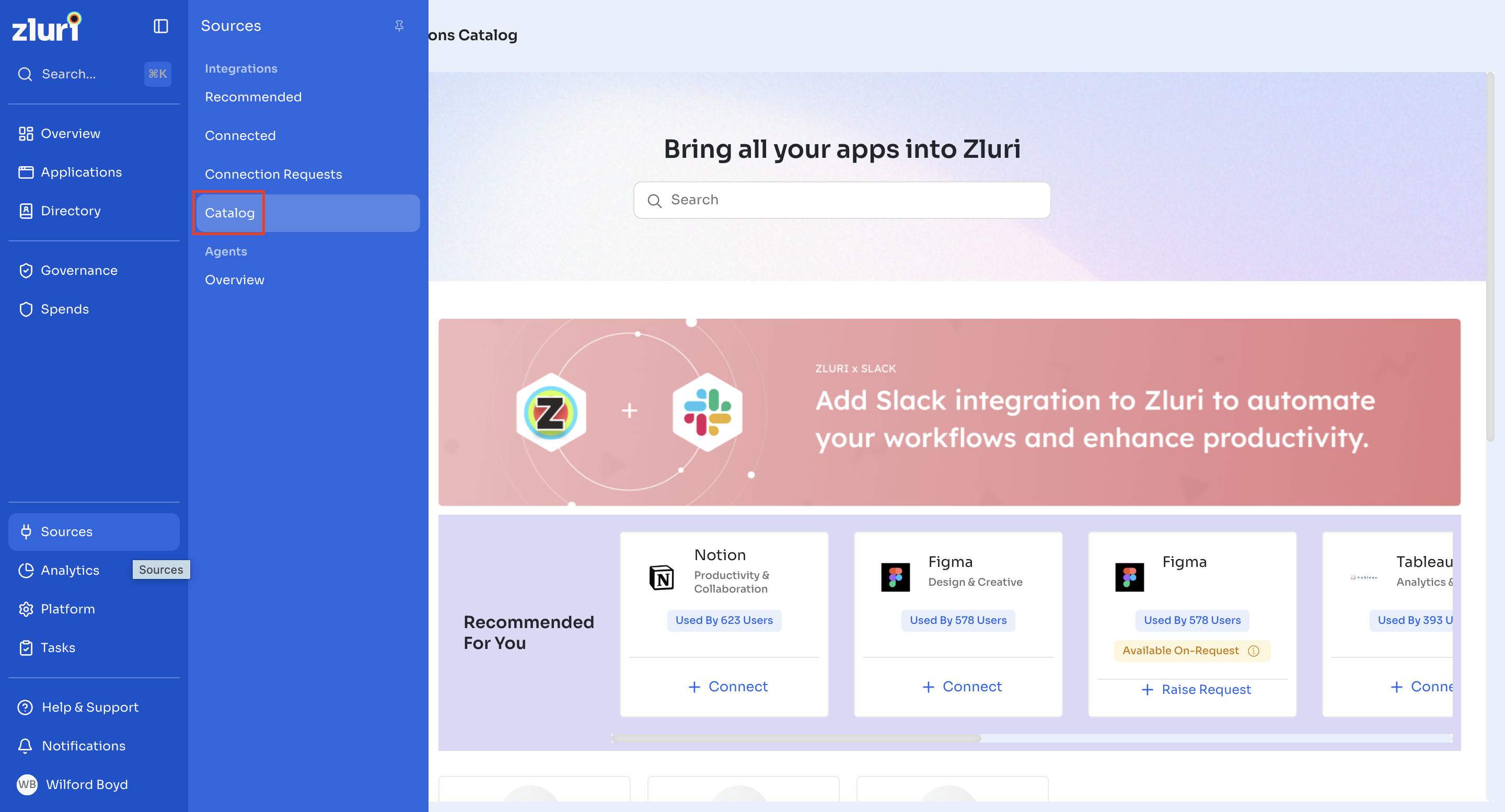
Accessing the Integration Catalog
- Go to Sources → Integrations in the left sidebar.
- Select Catalog to open the full list of integrations.
Selecting Integrations on its own opens the Recommended Integrations tab by default. To browse every supported app, select Catalog from the Sources sub-navigation, or select Browse Catalog from the Recommended Integrations tab.
Browsing and Searching for Integrations
Use the catalog to browse or search for any supported app before reviewing its details or connecting it.
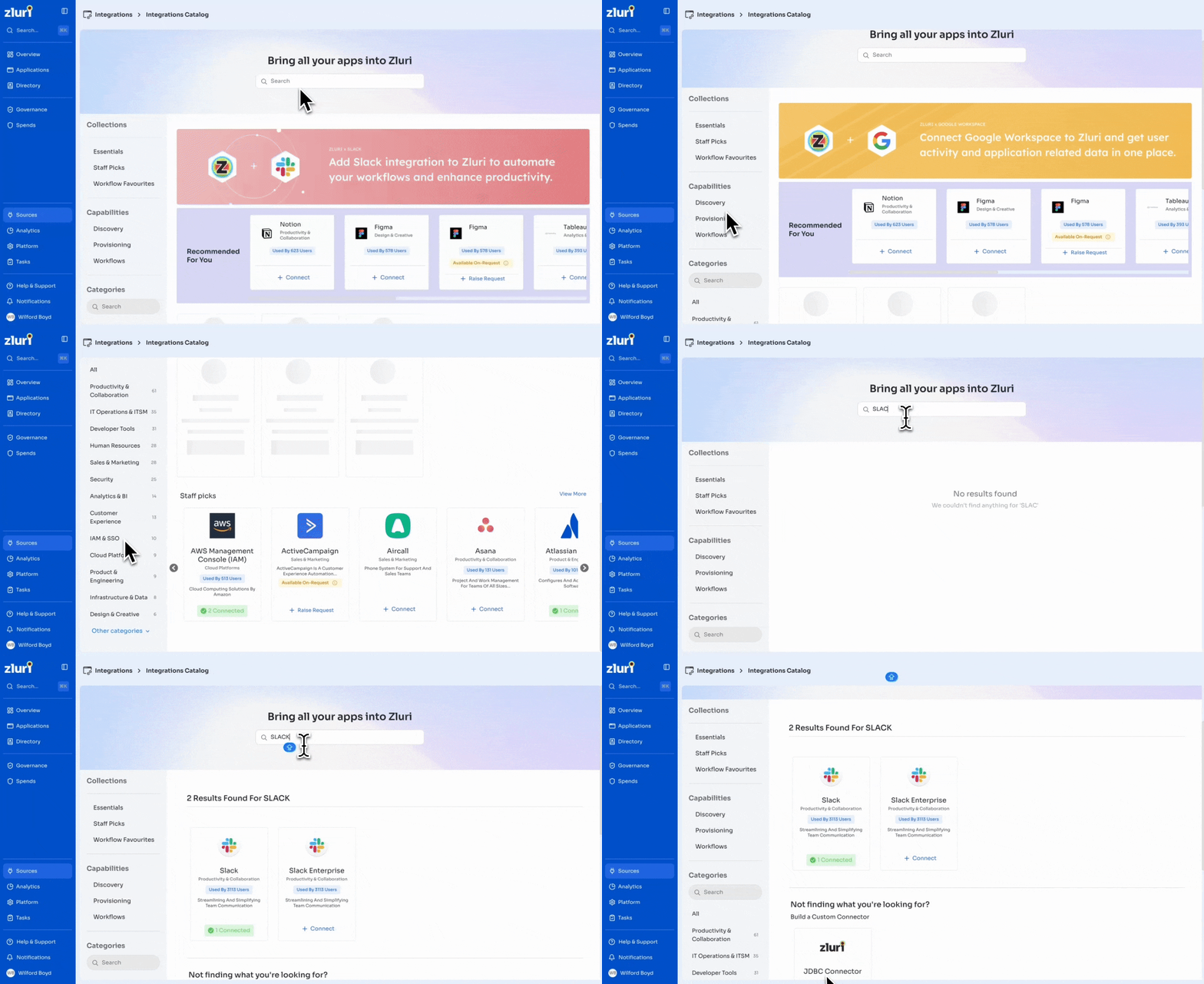
Search
Use the search bar at the top of the catalog to find an app by name.
Categories
Browse integrations by functional category, such as Productivity & Collaboration, IT Operations & ITSM, Developer Tools, Human Resources, Sales & Marketing, Security, Finance, and more — 17 categories in total, plus an All option.
Capabilities
Filter applications based on supported capabilities:
- Discovery
- Entitlements
- NHI
- Provisioning
- Workflows
Collections
Zluri also groups select integrations into curated collections for quick access:
- Essentials
- Staff Picks
- Workflow Favourites
Connecting IAM, SSO and HRMS Tools
SSO and HRMS integrations supply Zluri with identity and workforce data. These integrations support user discovery, lifecycle management, and access governance.
How to Access IAM and SSO Integrations
- Open Browse Catalog.
- Select Categories → IAM & SSO.
Zluri displays all supported SSO and identity providers, such as:

Each tile shows the app name, category, a Used By X Users badge, and availability (Connect, X Connected, or Raise Request).
How to Access HRMS Integrations
- Open Browse Catalog.
- Select Categories → Human Resources.
Zluri lists HRMS systems such as:

Each tile includes an overview, availability status, and supported capabilities.
Connecting Other Critical Applications
Zluri supports integrations across major business application categories. Browse these apps using the Categories section in the catalog. Examples by category:
IT Operations & ITSM
- Jira
- ServiceNow
- Freshservice
Collaboration
- Slack
- Zoom
- Microsoft 365
Security & MDM
- Jamf
- Intune
- Okta Admin APIs
Finance
- Expensify
- QuickBooks
Sales & CRM
- Salesforce
- HubSpot
Cloud Platforms
- AWS
- GCP
- Azure
Integration Detail Page
When an administrator selects an integration from the catalog, Zluri opens the Integration Detail Page. This page shows configuration details, supported capabilities, required scopes, workflow actions, and connection instructions.
The page is structured into four sections:
- Sidebar
- Overview tab
- Capabilities tab
- How-To tab
Each section is described below.
Sidebar
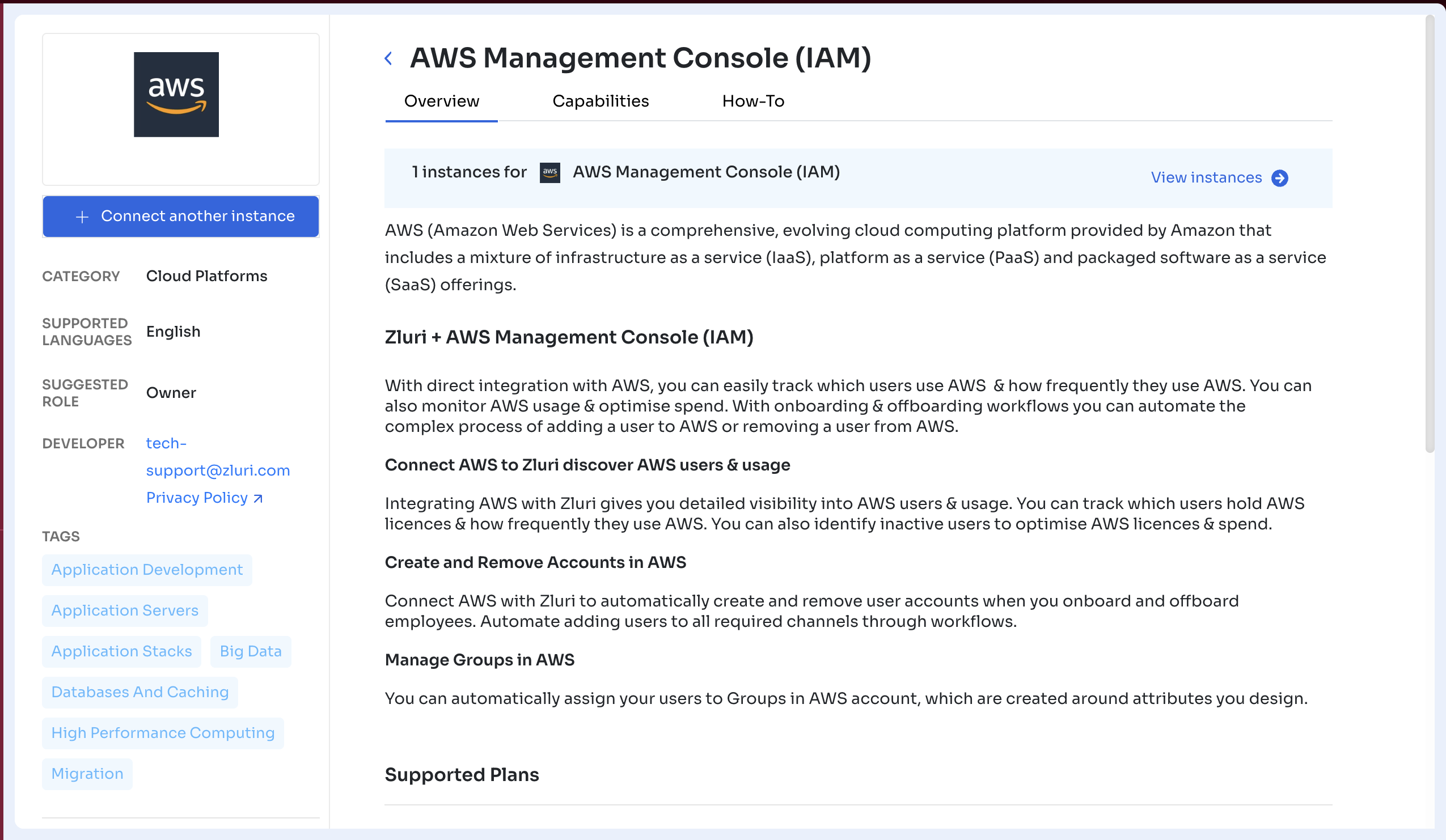
The left sidebar provides application-specific information and actions. It includes:
- Application logo
- Connect integration button. If the app is already connected, the button reads Connect another instance.
- Category (e.g., Cloud Platforms, Collaboration)
- Supported Languages
- Suggested Role (recommended admin role for managing this integration)
- Developer Contact (Zluri support email)
- Tags
- Functional tags such as “Application Servers”, “High Performance Computing”, “Databases”, etc.
The sidebar is fixed and remains visible while switching between tabs.
Overview Tab
The Overview tab gives administrators a high-level view of the integration, including a brief description of the application and how it works with Zluri.
It helps set context on the integration’s purpose and supported outcomes before configuration or connection.
Capabilities Tab
The Capabilities tab provides detailed technical information about what Zluri can read or perform within the selected integration.
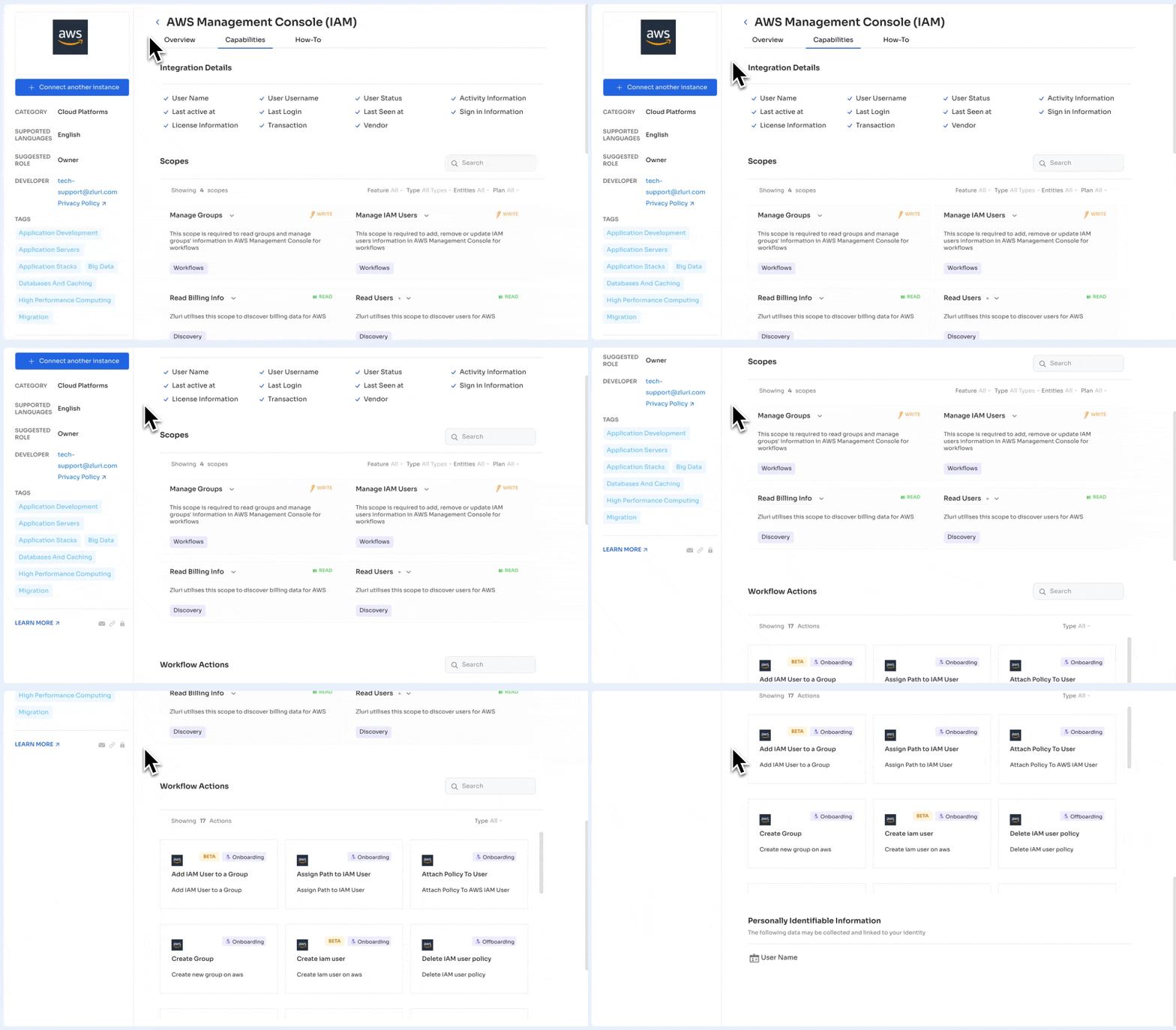
It includes four subsections:
1. Scopes
This section lists all API scopes Zluri requires to support Discovery and automation actions for the integration.
Each scope shows:
- Scope name (for example, Manage Groups, Read Billing Info)
- Access type (READ or WRITE)
- A short description of what the scope allows
- Capability tags that indicate how the scope is used:
- Discovery. Used to fetch users, usage, billing, or other metadata
- Workflows. Used by automation workflows such as onboarding, offboarding, or updates
- Provisioning. Used specifically for creating, updating, or removing accounts and access
Scopes help administrators clearly understand which permissions are required, and why, before connecting the integration.
2. Integration Details
This lists the user and app attributes Zluri can retrieve, such as user name, status, activity information, and license information. The exact fields vary from integration to integration, depending on the provider's API.
3. Workflow Actions
This section lists the automated actions available for workflows, such as:
- Add IAM User to a Group
- Assign Path to IAM User
- Attach Policy to User
- Create Group
- Create IAM User
- Delete IAM User Policy
Each action shows:
- Integration icon
- Action name
- Action type:
- Onboarding
- Offboarding
- Beta label (if applicable)
A Type dropdown lets administrators filter actions by:
- All
- Onboarding
- Offboarding
4. Personally Identifiable Information (PII)
The PII section lists the identity attributes collected from the connected application. These fields may be associated with a user's identity within Zluri.
The fields displayed in the example include:
- User Profile Picture
- User Email
- User Name
The list varies based on the data made available by each integration.
How-To Tab (Connecting the Integration)
The How-To tab provides the steps required to connect this integration to Zluri.
This usually includes:
- API prerequisites
- Required account permissions
- Steps to generate API keys / tokens
- Instructions for entering credentials into Zluri
- Connection testing
- Verification steps
If multiple authentication methods exist, Zluri shows them in sequence (e.g., OAuth, API Key, Service Account).
This tab is the source of truth for completing the integration setup. The same setup instructions and troubleshooting guidance are also available in the Integrations section of the Zluri Help Portal.

Recommended, Connected, and Requested Integrations
Beyond the Catalog, the Sources → Integrations sub-navigation includes three additional tabs for tracking integrations you've already engaged with. These are useful for review and maintenance, but browsing the Catalog is the faster path when setting up something new.
Recommended Integrations
Selecting Integrations opens this tab by default, before you've navigated to the Catalog. It surfaces apps Zluri suggests based on usage across your organization.
The tab includes:
- A search bar to filter the recommended list by app name
- A Sort by control to reorder the results
- A New Integration button (see below)
Each card in the list shows:
- Application icon, name, and category (for example, Developer Tools, Security, Human Resources)
- A Used By X Users badge, indicating how many people in the organization already use the app
- A short description of the app
- One of two states:
- + Connect, for apps ready to connect directly
- Available On-Request, with an info icon explaining why, and a Raise Request or Request Already Raised link. Only a few integrations show this state: those custom-built for specific organizations, and those not yet generally available, such as JDBC.
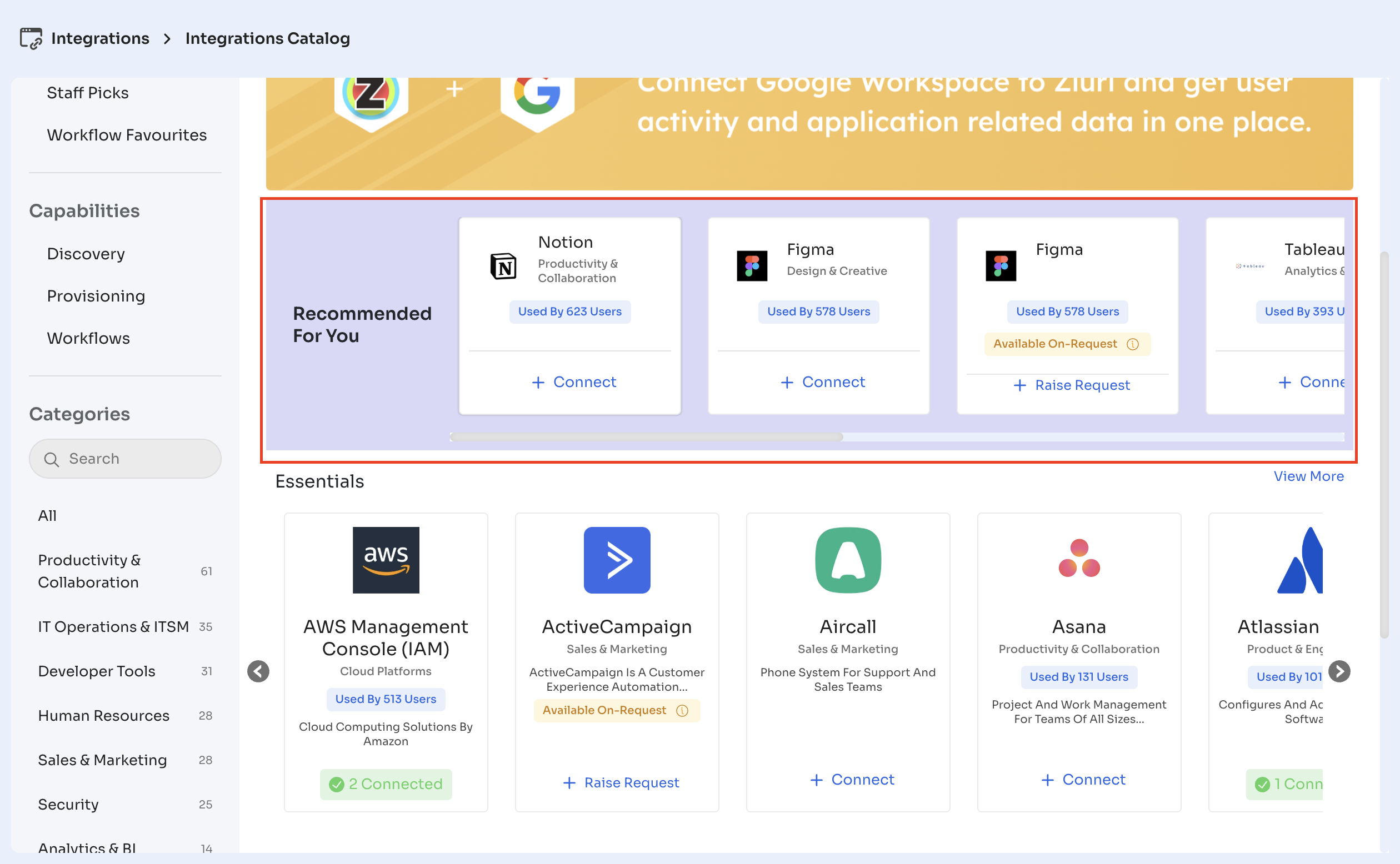
The Catalog page itself also surfaces this same recommendation format: a rotating promotional banner highlighting a specific integration (for example, "Add Slack integration to Zluri to automate your workflows and enhance productivity"), followed by a Recommended For You carousel using the same cards described above.
Starting a New Integration Manually
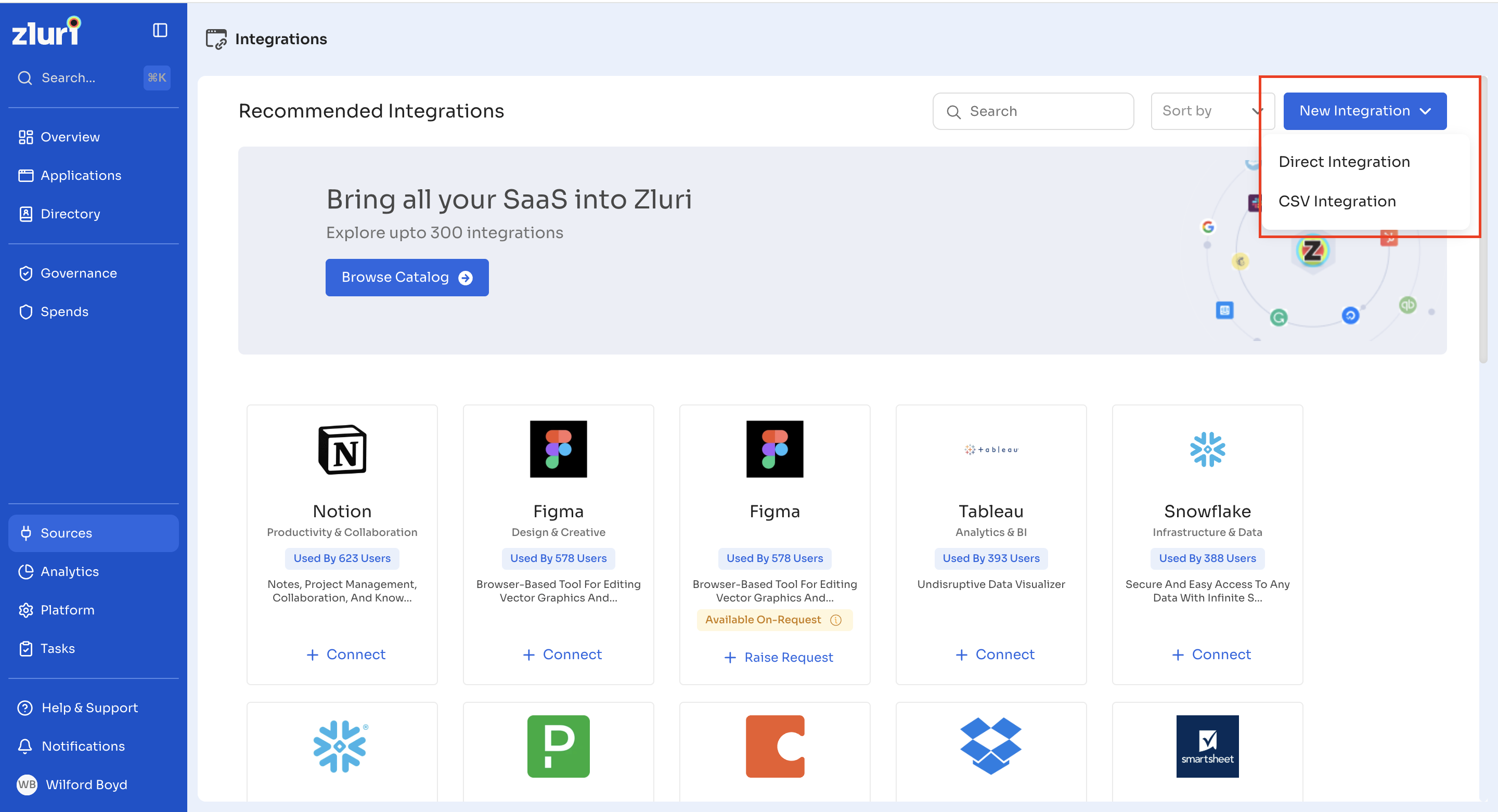
Use New Integration, at the top right of the Recommended, Connected, and Catalog views, if an app isn't listed or you want to bring in data without a native connector.
- Select New Integration.
- Choose one of the two setup types:
-
Direct Integration: connect an app directly using its own authentication method (for example, OAuth or API key)
-
CSV Integration: import user or application data manually through a CSV upload
Connected Integrations
This tab lists every integration currently connected to Zluri.

- A banner at the top links to Browse Catalog to add more integrations.
- If any connected integrations are failing to sync, a red banner appears: "X integrations have errors. Reconnect them immediately." with a note that data shown in Zluri could be outdated as a result, and a Show Errored button to filter directly to the affected apps.
- Use the Show all dropdown to filter cards by connection status, and Sort by to reorder them.
Each card shows:
- Application icon, name, and a short description
- A status pill:
- X Connected (green), showing the number of active connections for that integration
- Resolve Error (red outline), for integrations that need attention before Zluri can sync data from them again
Connection Requests
This tab tracks integrations that were requested from another admin or team, rather than connected directly. The tab header shows the total request count (for example, "57 Requests").
Each row in the table shows:
- Integration: the app icon, name, and the connection instance name (for example, Zscaler-5f4d)
- Status:
- Completed, with a "Connected on <date, time>" note
- Expired, with a note on how long ago it expired (for example, "Expired 145 days ago")
- Requested on: the date and time the request was sent
- Requested by: the email address of the person who raised the request
For Expired requests, use Resend to send the original request again, or Re-generate Link to issue a fresh setup link. Completed requests show only the connection date, with no further action needed.
Updated 2 days ago