
Application Merge
Application merge
Application merge lets administrators remove duplicate applications and consolidate data for the same product. This keeps the application inventory clean and unifies user and activity data under a single application record.
Administrators can merge applications directly from the UI.
How application merge works
When two applications are merged:
- Zluri merges the source application into the target application.
- All users and application activities from the source application are added to the target application.
- The target application's existing data and metadata remain unchanged.
- Zluri deletes the source application after the merge completes.
What happens during a merge
During the merge process:
- Zluri combines unique users and activities from both applications.
- Spend, license, and contract data remain with the target application.
- Zluri does not merge status change logs and audit logs from the source application.
- All merged data is associated with the parent application of the target app.
- Merged activities cannot be reversed, since Zluri does not retain child app sources.
Attributes affected
A merge only updates the following attributes:
- Users
- Application user activities
All other attributes, including spend, contracts, and licenses, remain unchanged and stay with the target application.
Current behavior and constraints
The following rules apply to application merge:
- Administrators cannot merge managed applications into another application.
- Administrators can merge any application, regardless of authorization state, into a managed application.
- Applications with contracts, licenses, or spend cannot be merged.
- Zluri does not merge or display status logs and audit logs after the merge.
- Zluri deletes the source application after the merge.
- Merged data appears in the UI after up to 24 hours (standard SLA).
Steps to merge an application
-
Select Applications in the left navigation, then select the application to merge to open its profile.
-
Select the three-dot menu in the top right of the profile.
-
Select Merge with another app.
-
In the Merge Application panel, the Source Application field shows the application currently open.
-
In Target Application, search for and select the application to merge into.
-
Review the target application's preview, including its description, category, and link, and the warning that this action cannot be undone.
-
Select Merge Application.
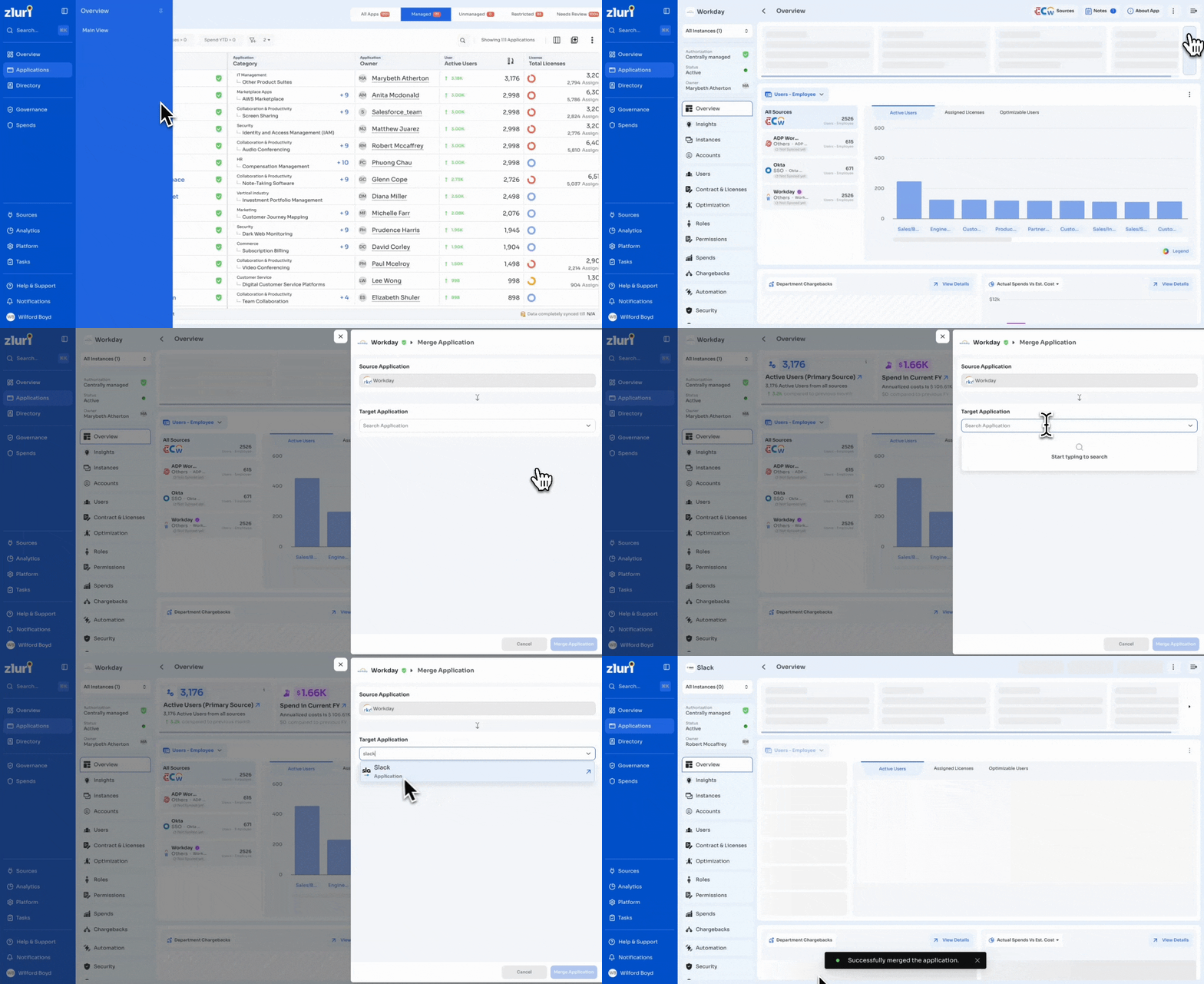
Zluri displays a confirmation message, for example Successfully merged the application, and the merge process starts and completes in the background.
Actions menu
Select Merge with another app from the profile's three-dot menu, alongside these related options:
- Add Contract (see Create a Contract)
- Add Subscription (see Add a subscription)
- Add Perpetual (see Create a perpetual)
- Add Users
- Add Transactions (see Add a transaction manually)
- Edit Application
- Create Instance
- Map to a different app
- Unmap app
- Merge with another app
- Archive
- Primary source settings
- Edit Access Request Form
Important notes
- Combined user and activity data appears only after up to 24 hours.
- If App A1 under Parent P1 is merged into App A2 under Parent P2, activities from A1 and A2 are merged under Parent P2. Activities from Parent P1 are not merged.
- Merged activities cannot be undone.
Best practices
Merge only different versions or variants of the same product. Avoid merging applications that belong to different parent applications.
For example:
- Merge MS Word 2021 and MS Word 2023 into MS Word.
- Do not merge MS Word and MS Excel.
UI restrictions
Application merge is not allowed when:
- The application has a direct integration.
- The application includes contracts, spend, or licenses.
- The application is a managed application.
Updated 13 days ago